


Verified review
Common Ninja has amazing no-code widgets that would beautify a website built on any builder. It is very easy to use and customise. It has as many widgets for almost everyone willing to make their website impressive.
The Common Ninja Image Slider widget is a free, no-code embed that displays multiple images in a smooth sliding sequence on your website.
Upload images directly or paste URLs from a CDN, pick a layout, set the autoplay and slide timing, choose a hover effect (zoom, fade, color overlay), pick a skin or layer Custom CSS, add clickable links per slide, and paste a one-line embed snippet on Canva, Hostinger, Notion, Carrd, Google Sites, Webflow, WordPress, and 200+ other platforms.
Use it to showcase products, hero banners, photography portfolios, event galleries, or marketing visuals in a fixed slot that keeps the page tight and the focus where you want it.
A hero slot, a product gallery, a photography portfolio, an event recap — the slider cycles through images in a single frame, so the page stays tight without scrolling past five hero sections in a row. Keep the focal point clean and let the imagery rotate.
Zoom, fade, color overlay, grayscale-to-color reveal, and other hover effects make the slider feel responsive without adding bulk to the page. Pair the effect with a clickable link per slide and the slider becomes a high-engagement conversion surface, not just decoration.
Every slide can carry its own URL, so a 5-image slider becomes 5 separate calls to action: route product slides to product pages, blog teasers to articles, portfolio shots to case studies. The slider stops being a passive carousel and starts driving clicks.
A before/after slider compares two images with a draggable divider — visitors slide left and right to reveal the difference. An image slider rotates through multiple separate images in sequence. Use this Image Slider for galleries, hero rotations, and product showcases; use the Common Ninja Before & After Slider widget when the comparison itself is the message.
Upload images directly from your computer or paste URLs from a CDN, your media library, or any public host. Add a custom title, alt text, and clickable link per slide so each image carries SEO weight and can route visitors to the matching product, story, or landing page.
Choose a slide layout (full-width hero, contained card, banner strip), set autoplay on load or hover, configure time per slide, enable swipe gestures, pick a hover effect (zoom, fade, color overlay), and arrow + pagination style. Pick a skin from the design library or layer Custom CSS for pixel-level brand match.
Copy the one-line embed snippet and paste it on Canva, Hostinger, Notion, Carrd, Google Sites, or any of the 200+ supported platforms. Edits in the Common Ninja editor push to every embed without re-paste — swap an image, re-order slides, change the skin, and the live page updates.
Full-width hero, contained card, banner strip, ken-burns pan-and-zoom, fade-only transition. Switch between layouts in the editor without re-uploading images. Each layout reflows responsively across mobile, tablet, and desktop breakpoints.
Apply zoom, fade, color overlay, or grayscale-to-color reveal on hover. Effects fire on desktop hover and tap on mobile, so the slider stays interactive across input types without breaking touch behavior.
Set a custom URL per image. Each slide becomes a discrete call to action — product pages, landing pages, blog posts, case studies. Combine with hover effects and the slider doubles as a curated visual nav for high-engagement sections.
Pick from a library of pre-designed skins (minimal, magazine, dark, cinematic) for a fast brand match. Layer Custom CSS for pixel-level control over arrow shapes, pagination dots, slide spacing, hover-state finesse, and caption typography.
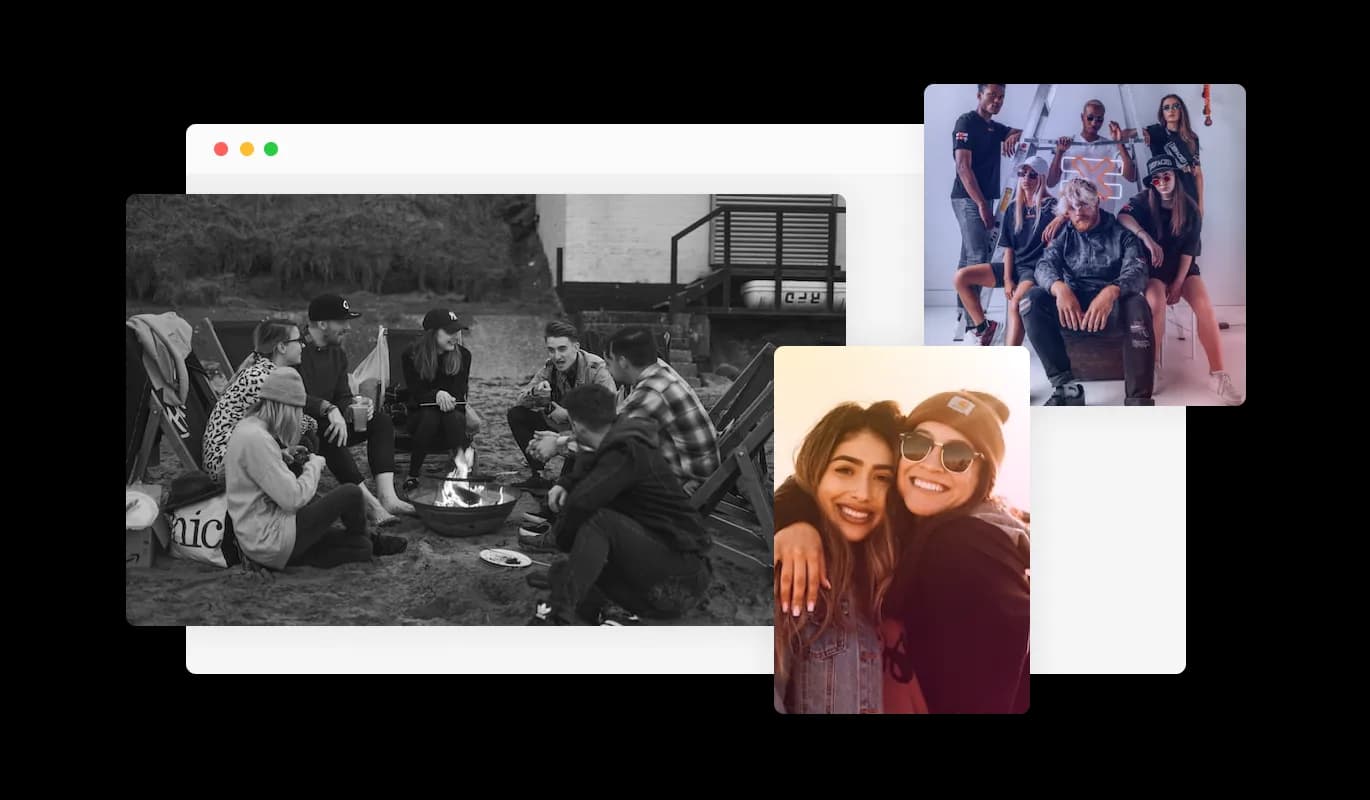
The Image Slider widget comes with the option to choose from color effects to make your images more unified in style, and to add the “wow” effect to them.
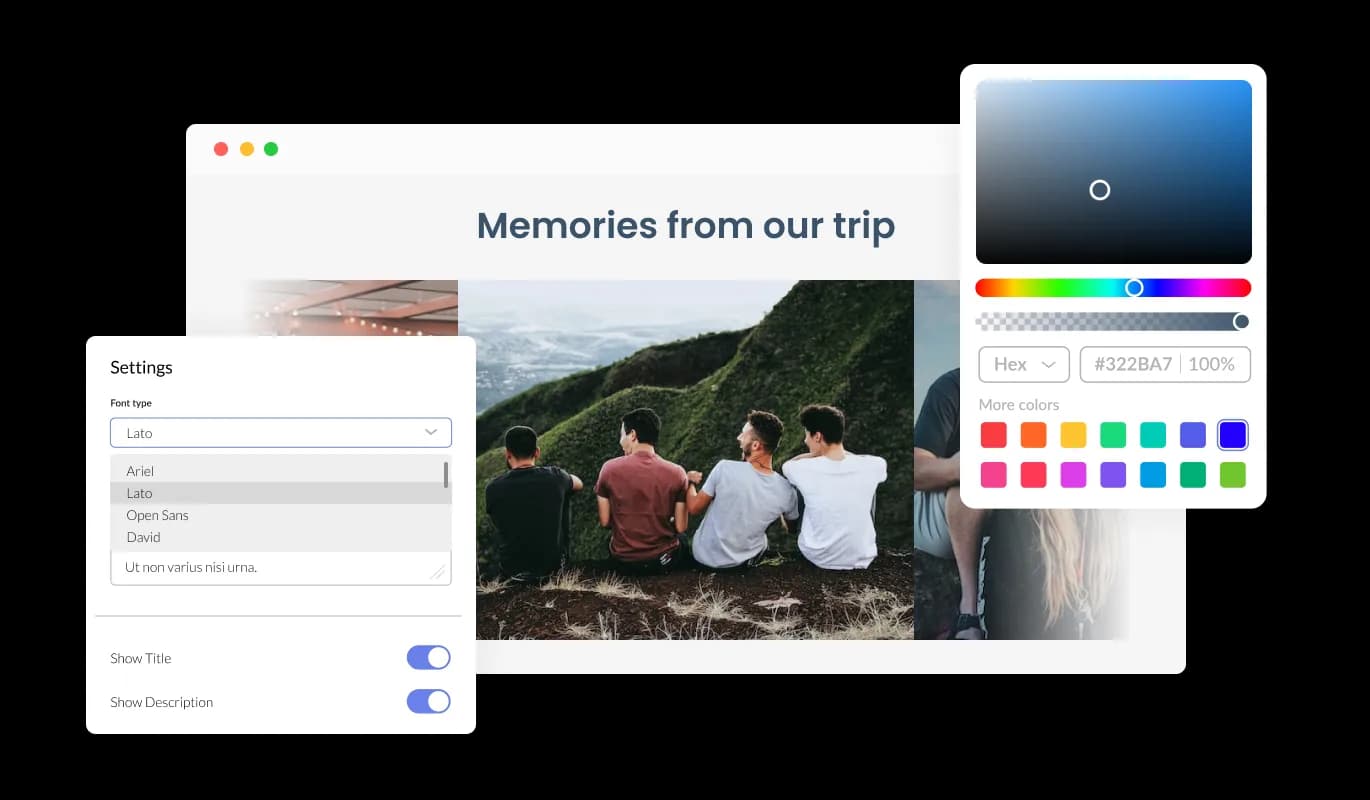
The Image Slider widget is designed to be fully customizable, allowing you to adjust the design to match the look and feel of your website. With various customization options at your fingertips, you can easily change the colors, fonts, spacing, and other elements to create a button that fits seamlessly into your website design. Whether you're looking to match your brand colors, create a unique look, or personalize your website, the Image Slider widget provides you with all the tools you need to get the job done. With the ability to preview your changes in real-time, you can easily experiment with different styles and design elements until you find the perfect combination that fits your needs and enhances the user experience on your website.
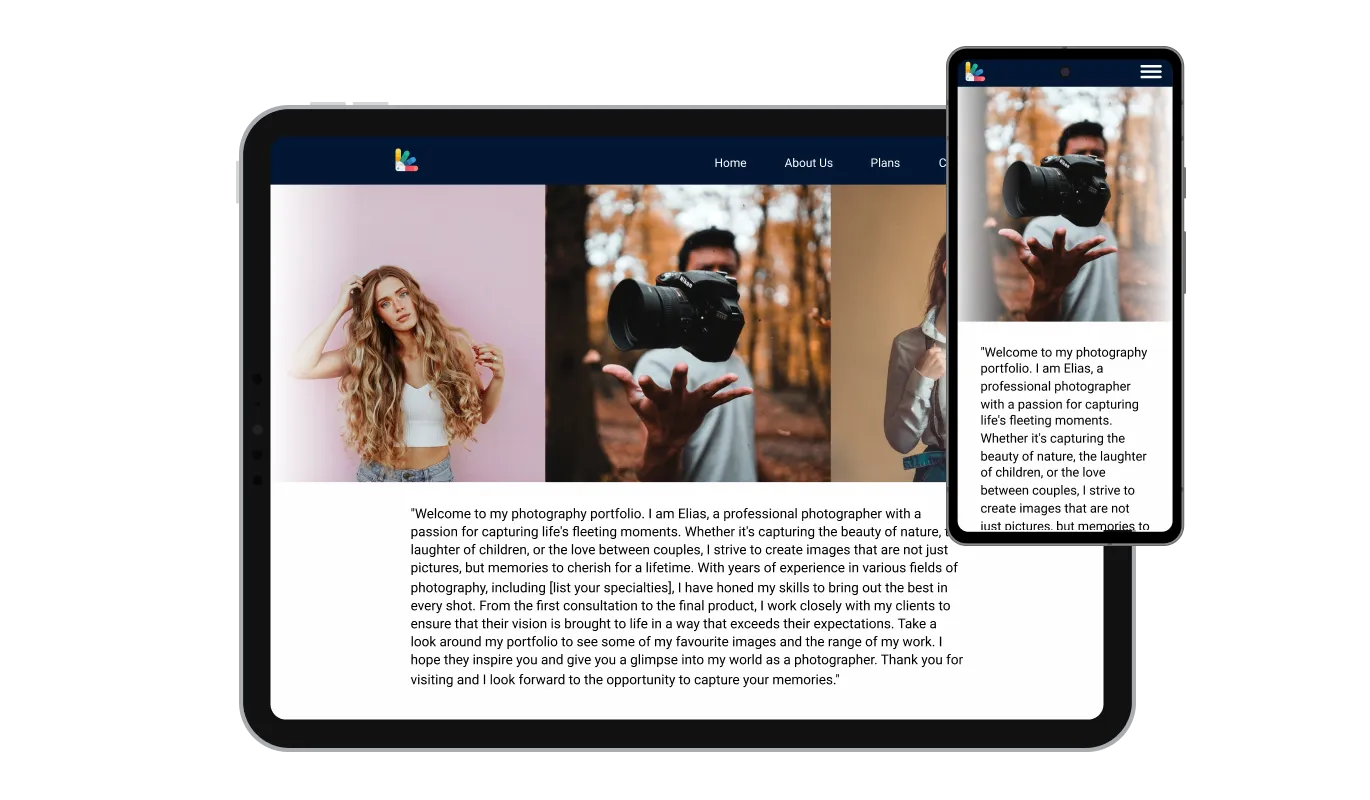
The Image Slider widget is designed to provide a seamless user experience on any device. With its fully responsive design, the button will look great and function smoothly on desktop computers, laptops, tablets, and smartphones. This is especially important in today's mobile-first world where more and more people are using their smartphones and other mobile devices to browse the web. By ensuring that your website is optimized for all devices, you'll improve the user experience for your visitors and stay ahead of your competitors in terms of functionality and design. With the Image Slider widget, you'll be able to provide your visitors with a fast, easy, and intuitive way to navigate your website no matter what device they use.
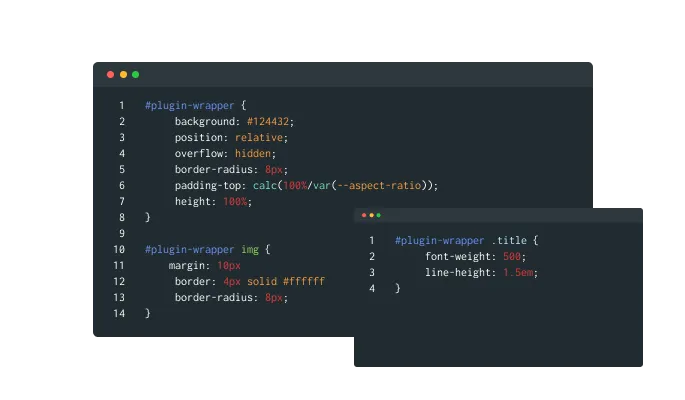
In addition to the built-in customization options, the Image Slider widget allows you to add your custom CSS to enhance the button further and make it truly unique. Whether you're a seasoned developer or simply looking to get creative, the ability to add custom CSS gives you the power to take your website design to the next level. With custom CSS, you can change the button's size, shape, and positioning, or even create entirely new styles from scratch. The possibilities are endless, and with some creativity, you can make the Image Slider widget your own. This level of customization allows you to create a button that fits perfectly with the look and feel of your website and enhances the overall user experience for your visitors. Whether you're looking to create a sleek, modern design or a more traditional, classic look, the Image Slider widget and its custom CSS capabilities give you the tools you need to make it happen.
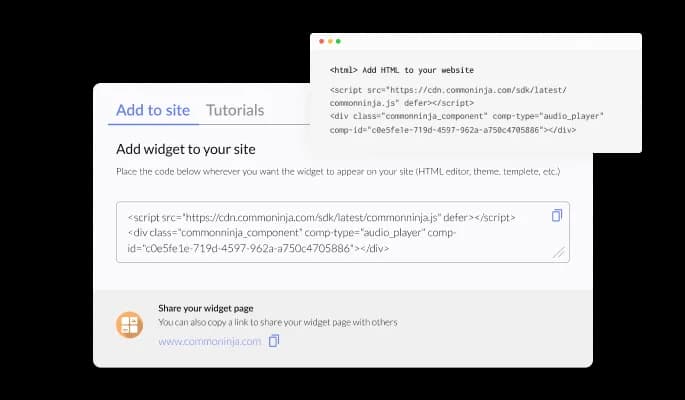
You can easily embed the Image Slider widget on your website by copying a single line of code. The Image Slider will also be updated automatically with every change you make. Copy the code for the button and paste it into your website's HTML code. The code should be placed in the appropriate section of your website, such as the footer or header.
The Image Slider widget features hover effects which will add even an additional layer of visual effects that will make the users’ experience on your pages even more enjoyable.
The Image Slider widget comes with two layout styles — carousel and grid. You can choose from these to make the widget fit your website’s design.
You can transform the Image Slider into a powerful conversion tool with the option to make the images clickable.
The Image Slider widget is easy to use and requires no coding knowledge. Our intuitive dashboard with the drag-and-drop feature will enable you to customize the widget any way you’d like to with just a few simple clicks.
Common Ninja has amazing no-code widgets that would beautify a website built on any builder. It is very easy to use and customise. It has as many widgets for almost everyone willing to make their website impressive.
Outstanding service. I use their widgets to help me with my web design business and whenever I need help they are very quick to help.
Excellent company with excellent service!!! We used it to build a survey, it was very user friendly. The service was perfect. Amit helped us with every problem and question we had, thank you very much!!!
Common Ninja saved the day when building our website and the customer service Daniel, the co-founder and CEO, provided was amazing.
Yes. The free plan covers one Image Slider widget with no time limit and no credit card. Upgrade only when you need additional widgets, more image slides per slider, premium skins, advanced hover effects, or features like conditional slide visibility and per-slide analytics tracking.
Add as many image slides as your plan supports — the free plan covers a reasonable number; paid plans lift the cap. Each slide can have its own image, title, alt text, caption, and clickable URL. Reorder slides via drag-and-drop in the editor and the live widget updates without re-paste.
A Before & After Slider compares two images on a single frame with a draggable divider — visitors slide to reveal the difference. An Image Slider rotates through multiple separate images in sequence. Use this Image Slider for galleries, hero rotations, and product showcases; use the Common Ninja Before & After Slider widget when the comparison itself is the message (renovation, redesign, retouching, fitness, etc.).
Yes. Set a custom URL per image in the editor — product page, landing page, blog post, anywhere on or off your site. The whole slide becomes clickable, so a 5-image slider turns into 5 separate calls to action without needing buttons on each frame.
Zoom (image scales on hover), fade (image dims to reveal caption), color overlay (configurable tint), and grayscale-to-color reveal. Effects respect mobile touch behavior — tap once to trigger the effect, tap again to activate the link.
Build the widget in the Common Ninja editor (upload images, pick layout, customize skin), copy the embed snippet or URL, and paste it into your site: Canva via the Embed app in the editor's Apps panel; Notion via /embed with the embed URL; Carrd via an Embed element in the section where the slider should appear. Edits in the editor push to every embed without re-paste.
No. Images load lazily — the slider preloads only the visible slide and the next slide, not the entire sequence. Source images are served from a CDN with WebP and AVIF format negotiation, so Core Web Vitals stay healthy even with large hero images. You can also tune image quality and size in the editor for tight mobile-data budgets.
Yes. Layouts adapt across mobile, tablet, and desktop breakpoints — slide sizing scales to viewport width, swipe gestures replace arrow buttons on touchscreens, and pagination dots resize to stay tappable. Hover effects switch to tap behavior on mobile so the slider stays interactive without breaking touch input.
Pick your platform. Each takes under 4 minutes.

Showcases images in a rotating or sliding manner
Showcases videos in a rotating or sliding manner

A simple slider that lets visitors compare before and after images to see visual changes clearly.

Displays images and captions in diverse layouts and grids, presenting visually appealing arrangements for showcasing multiple images

Easily craft engaging, personalized popups to boost conversions.

Display the latest posts from your Instagram page
Yes, you can. Go to the “Display Rules” tab, and choose your desired triggers. You can learn more about the different triggers & rules here: https://help.commoninja.com/hc/en-us/sections/6900365183517-Display-Rules-Triggers
Yes, you can easily do so from the “Templates” tab.
Yes, there are lots of beautiful skins that you can choose from to save time and start using the widget as quickly as possible.
Yes, you can either upload an image, or select an icon from a large selection of available icons to add to your Notification Bar, or, alternatively, leave it all blank.
It’s simple. All you need to do is to sign up and start using the free version.
Common Ninja’s Image Slider widget is free to use. It is limited to a certain amount of views, however.
Common Ninja’s Image Slider widget is compatible with ALL current and future website builders.
Yes, the Image Slider widget is GDPR-compliant.
No. Using our Image Slider widget is very simple. The widget comes with an intuitive drag-and-drop interface and fully customizable options. Once you’ve finished editing the widget to your liking, all you need to do is copy the provided code and add it to your website.
Yes. We are eager to hear your request. Please visit our Feature Request page.
An image slider is a graphical user interface element that allows users to slide through a series of images or graphics. It is often used in websites, multimedia presentations, and mobile applications to showcase a collection of images. The slider usually includes navigation buttons that allow users to switch between images manually, or it can automatically switch between images with a set interval. Image sliders are an effective way to present a series of images in an attractive and engaging manner, and they are a popular feature in modern website design
Cycle through images in a fixed frame with autoplay, hover effects, clickable links per slide, multiple layouts, stylish skins, and Custom CSS. Embed on 200+ platforms including Canva, Hostinger, Notion, Carrd, Google Sites, and Webflow.
Create your Image SliderNo credit card · Setup in under 5 minutes