How to add YouTube Feed to a Leadpages landing page

Learn how to embed Common Ninja’s YouTube Feed on your Leadpages landing page without coding.

Create YouTube Feed

loved by 500K+ businesses

widget-editor

In This Guide

In this quick guide, you'll learn how to embed the YouTube Feed into your Leadpages landing page by generating your embed code and adding it seamlessly to your landing page.

Embed YouTube Feed on Leadpages

01
Create a YouTube Feed widget for Leadpages on Common Ninja
First, create a Leadpages YouTube Feed widget on Common Ninja. On the widgets catalog, find the YouTube Feed and enter the Editor.
Create a YouTube Feed widget for Leadpages on Common Ninja
02
Save the YouTube Feed widget
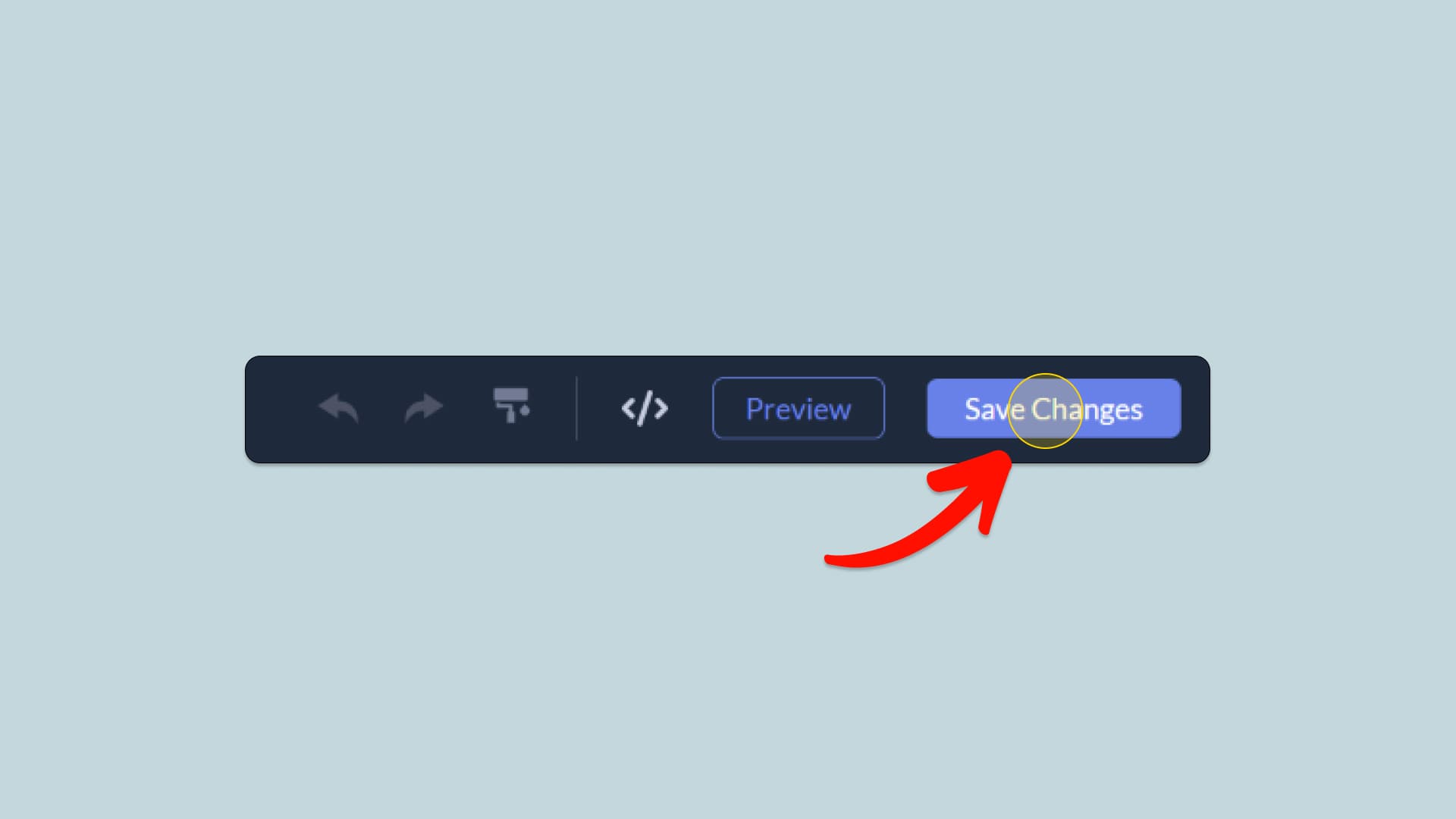
When you're done creating the YouTube Feed widget, click on the Save Changes button at the right top corner of the editor. If you don't have an account on Common Ninja, you'll have to register first.
Save the YouTube Feed widget
03
Copy the YouTube Feed Embed Code
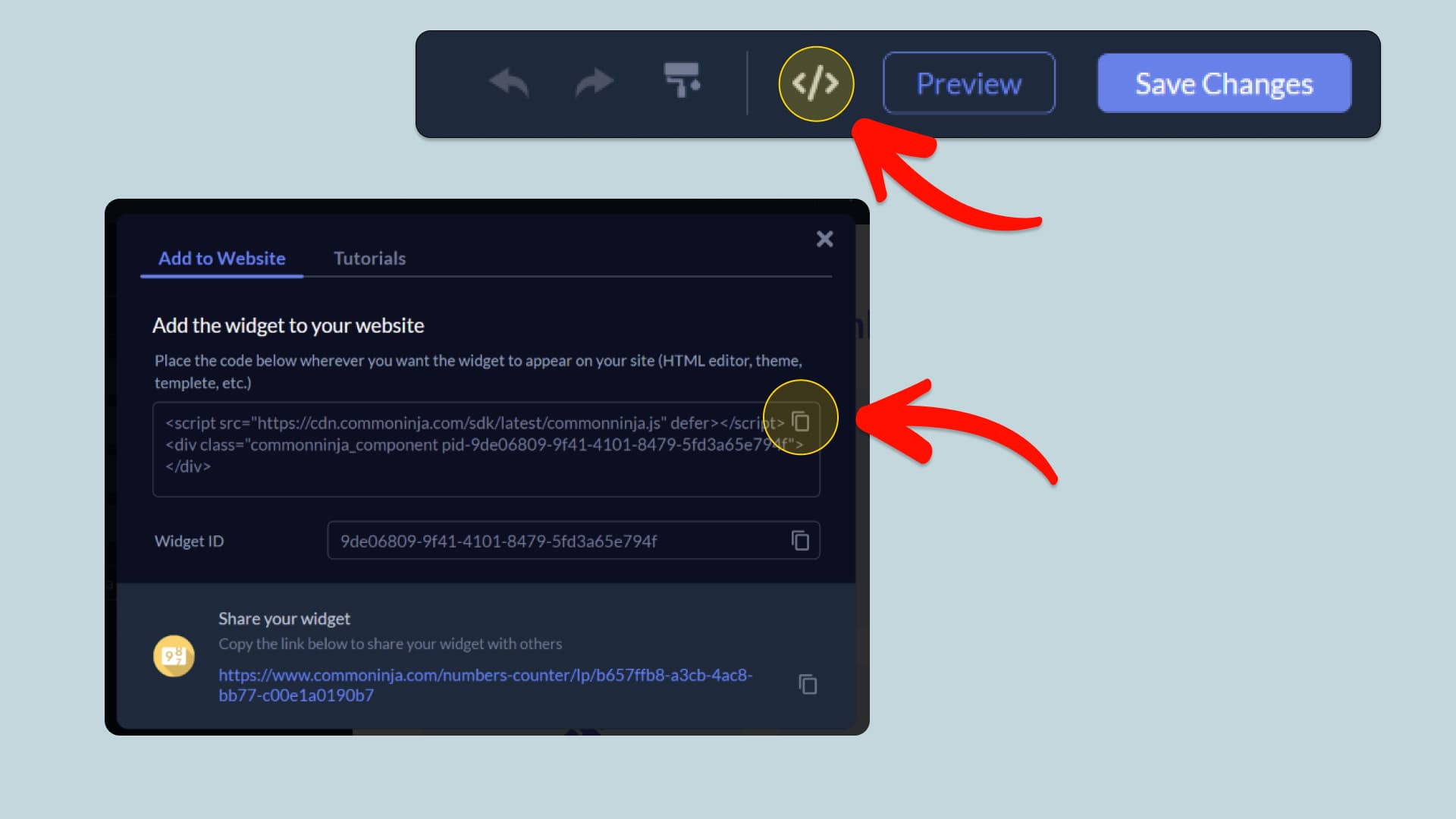
When you're ready to add the YouTube Feed widget to your Leadpages landing page, click the Add To Website button at the top bar of the Editor. On the window that opens, click the Copy Icon to copy the widget embed code. In the next steps, you will paste this code into your Leadpages landing page.
Copy the YouTube Feed Embed Code
04
Paste the code to your Leadpages website’s HTML field.
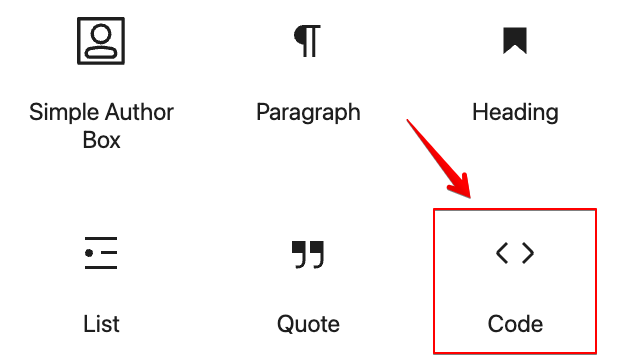
Next, go to your Leadpages landing page editor and find the HTML field. It is most likely in the form of an HTML/Code widget or module which you can find on the Leadpages’s editor. Add it to your page, and paste the YouTube Feed Embed Code you’ve copied before to the HTML field. Save and update, and that’s it, you should have Common Ninja’s YouTube Feed widget on your Leadpages landing page.
Paste the code to your Leadpages website’s HTML field.
05
Alternative Method 1: Through the HTML option in the text’s editing area.
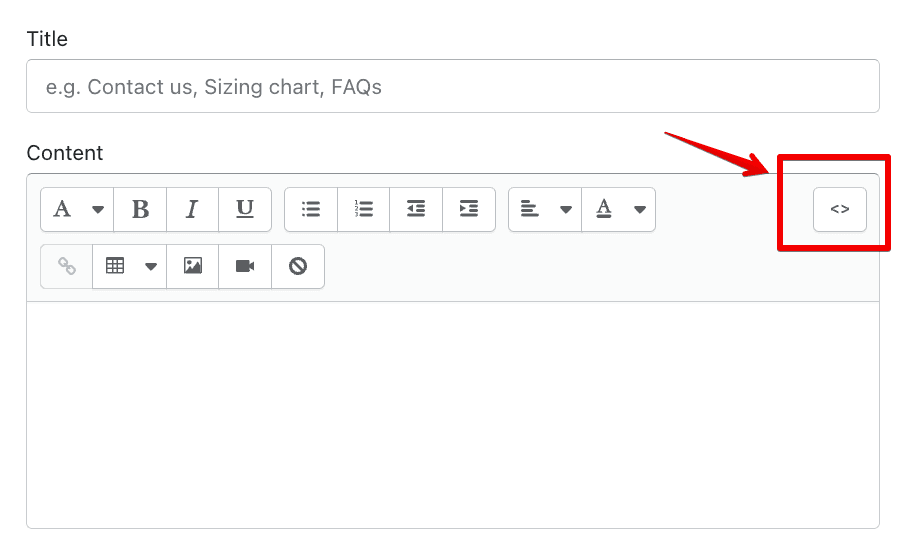
If you can't find the HTML/Code widget or module, there's another way to put Common Ninja’s YouTube Feed widget on your Leadpages widget. You can just add the code to a special HTML section in the text editor.
Alternative Method 1: Through the HTML option in the text’s editing area.
06
Alternative Method 2: Add it directly to your Leadpages landing page’s HTML code.
If you're having trouble finding a widget or a special part in your text editor where you can add the Embed Code, you can try a different way to add the YouTube Feed widget to your Leadpages landing page. You can do this by putting it straight into your Leadpages landing page's HTML code.
Alternative Method 2: Add it directly to your Leadpages landing page’s HTML code.

Why Use This Widget

Use the YouTube Feed widget when your YouTube channel is a key asset and you want that content to drive engagement on your own site. The feed displays your latest videos automatically, so visitors always see fresh uploads without you rebuilding sections. This is perfect for tutorials, interviews, product demos, and ongoing series. Structured previews help users scan quickly and choose what to watch, which increases play rates. Keeping the viewing experience embedded reduces distractions and lets you pair videos with clear next steps like signups or product links. A strong YouTube feed also signals consistency and authority because visitors see a steady stream of real content rather than a static showcase.

This tutorial was written by the Common Ninja product team, creators of interactive, no-code widgets for Leadpages landing page. Common Ninja helps over 500,000 users build engaging online experiences without coding.