


Multiple Layouts
The 3D Cards widget comes available with multiple layouts that you can choose from to make sure it fits your overall website design and style.
Try the editor, no signup
Pick a template, customize it, and watch it update live, no signup.
No credit card · Free forever plan
No credit card · Free forever plan
With the 3D Cards widget, you can instantly draw attention to relevant information on the cards thanks to the full customization, the 3D animation, and the option to add the “flip” option.
The widget will enable you to increase conversions by allowing you to add a button to the card linking it to relevant pages (the checkout page, for example).
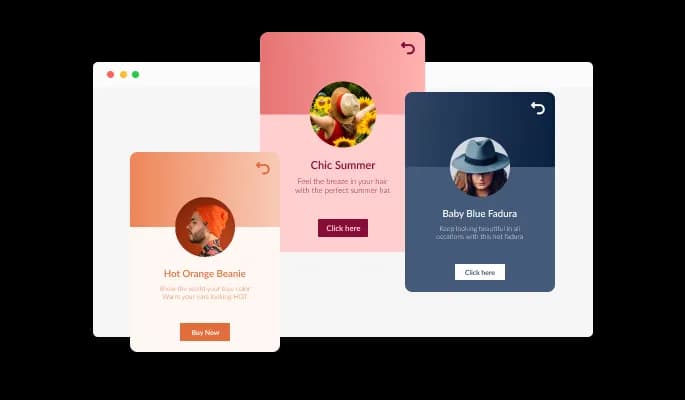
With a 3D animation that reacts to the user’s hover movement, as well as the option to click on an arrow and flip the card, you will be able to create an interactive experience for your users, making their time on your website more fun and entertaining.
The 3D Cards widget comes available with multiple layouts that you can choose from to make sure it fits your overall website design and style.
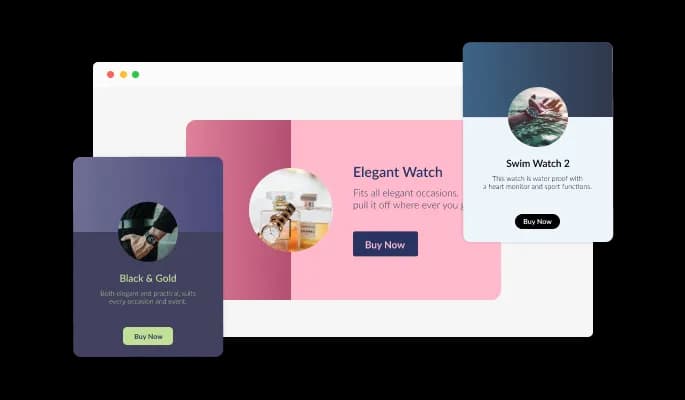
The 3D Cards widget comes with a variety of beautiful skins that you can choose from so you don’t have to spend much time on extensive customization.
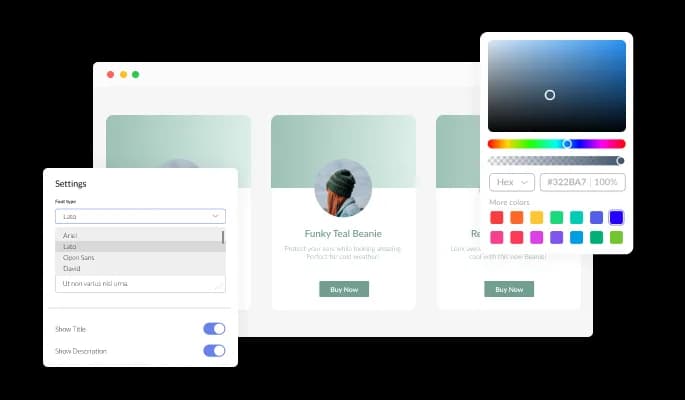
The 3D Cards widget features full customization options so you can edit the design to fit your needs. Change the colors, the fonts, the spacing, and anything else!

The widget features a lovely 3D animation that will react to your user’s hovering motion, creating a fun, interactive experience for your users.

The widget has the option to toggle flipping on, which will enable users to click on an arrow and flip the card to show its backside, thereby enabling you to add more content to the card.

The 3D Cards widget comes with a selection of beautiful icons that you can use to add to it and enrich its visual appearance.

The 3D Cards widget is easy to use and requires no coding knowledge. Our intuitive dashboard with the drag-and-drop feature will enable you to customize the widget any way you’d like to with just a few simple clicks.
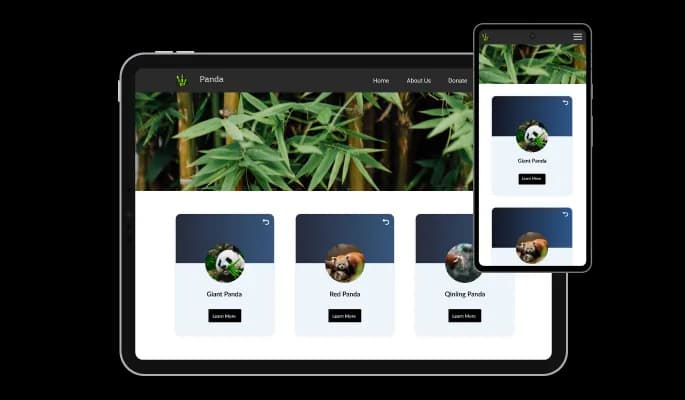
The 3D Cards widget is fully responsive and will look great on any device. In a mobile-first world, this feature will put you ahead of your competitors.
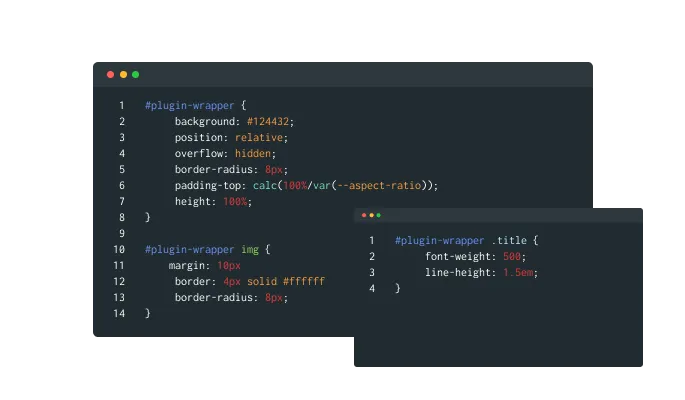
As with all of Common Ninja’s widgets, you can add custom CSS to customize the 3D Cards widget and be even more creative.
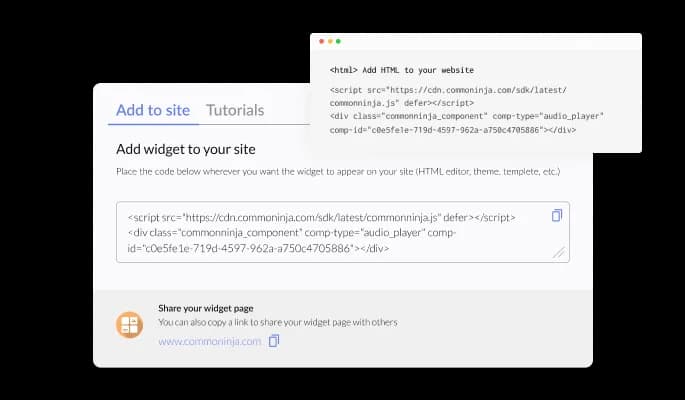
You can embed the widget on your website easily by copying a single line of code. The 3D Cards widget will also be updated automatically with every change you make.
Yes, you can easily do so from the “Templates” tab.
Yes, there are lots of beautiful skins that you can choose from to save time and start using the widget as quickly as possible.
Yes, you can either upload an image, or select an icon from a large selection of available icons to add to your Notification Bar, or, alternatively, you can leave it all blank.
Using the 3D Cards widget is very easy. Simply sign up and start using the free version. There's no need to worry about complicated setup or installation processes, as the 3D Cards widget is designed to be user-friendly and straightforward. Once you've signed up, you'll have access to all of the basic features and functions of the widget, which you can use to enhance your website and improve your online presence. From there, you can choose to upgrade to the paid version if you want to access more advanced features and capabilities. Regardless of which version you choose, you'll find that the widget is a powerful and easy-to-use tool that can help you take your online presence to the next level.
The Common Ninja 3D Cards widget is a free tool rich with features and options. While this widget is free to use, it does have a limit on the number of views it can handle. This means that after a certain number of views, the widget may no longer be visible or functional on your website. It is important to note that this view limit may vary depending on your plan. Despite this limitation, Common Ninja's 3D Cards is still a valuable tool for businesses looking to increase customer engagement and improve the overall user experience of their website.
The Common Ninja's 3D Cards widget is a versatile tool for any website builder. This means that you can easily add this widget to your website or store no matter what platform you use to build your website. The 3D Cards widget will work seamlessly with your platform whether you are using a popular website builder or something more specialized. This means you can enjoy all the benefits of this powerful tool without having to worry about compatibility issues.
Yes. The 3D Cards widget can be used in a GDPR-compliant way. Collecting visitor information is always opt-in: it stays off until you turn it on in the widget’s settings, and you decide what is collected. As the website owner, you remain responsible for how you use your visitors’ data.
No need for coding skills. Our 3D Cards widget is designed to be easy to use, even for those with limited technical experience. The widget features a user-friendly interface that allows you to easily customize the widget without coding knowledge. You can fully customize the 3D Cards to match your branding. When you're done, simply copy the provided code and paste it into your website. It's that simple!
Yes. We are eager to hear your request. Please visit our Feature Request page.
Embedding the 3D Cards widget on your website is a straightforward process. Simply copy the provided code and paste it into the desired location on your website. The widget will seamlessly integrate into your site, allowing you to take advantage of its features and functions. No technical expertise or programming knowledge is required - just copy and paste the code to get started. This simple process allows you to easily add the widget to your website and enhance its functionality without any hassle.