


Verified review
Common Ninja has amazing no-code widgets that would beautify a website built on any builder. It is very easy to use and customise. It has as many widgets for almost everyone willing to make their website impressive.
Try the editor, no signup
Pick a template, customize it, and watch it update live, no signup.
No credit card · Free forever plan
No credit card · Free forever plan
The Common Ninja Accordion widget is a free, no-code embed that turns long content into collapsible sections on your website. Visitors expand only the part they want to read.
Add as many sections as you need (each with a clickable header and rich-text body that supports formatting, links, and inline images), pick from multiple layouts and design skins, configure expand-collapse behavior (single-section-open or multiple-open), pick icons, customize the design with Custom CSS, and paste a one-line embed snippet on Canva, Carrd, Hostinger, Notion, WordPress, Wix, Webflow, and 200+ other platforms.
Use it for product specs, course modules, schedules, terms of service, how-it-works steps, comparison breakdowns, support documentation, or any long-form content where letting visitors scan headers and expand selectively beats forcing them to scroll through everything at once.
A 2,000-word policy page or a 12-module course outline rendered as a wall of text loses visitors at the first scroll. The same content as an accordion lets visitors see all the section headers at a glance, expand only what's relevant to them, and keep the rest collapsed. Better information architecture, lower bounce, more value per visit.
On mobile, a long content page becomes a vertical scroll marathon. An accordion compresses the same content into a tappable header list. Visitors see the structure at a glance and tap to expand only the parts they care about. Tighter mobile UX without rewriting any content.
Group related items under parent sections: a Specs accordion under Product, a Curriculum accordion under Course, a Terms accordion under Legal. The two-level hierarchy keeps related content together without forcing visitors to scroll through unrelated material to find what they need.
A FAQ widget is pre-tuned for question/answer pairs: "What's your refund policy?" → "7 days". An Accordion is general-purpose: section headers and rich body content for anything (product specs, course modules, policy text, schedules, comparison breakdowns). Use the Common Ninja FAQ widget when content fits the Q&A pattern (and you want the FAQPage JSON-LD schema); use this Accordion for everything else.
Type a header for each section ("Specifications", "Module 1: Getting Started", "Refund Policy") and a rich-text body that can include paragraphs, lists, links, bold/italic, and inline images. Add as many sections as you need; reorder them via drag-and-drop in the editor.
Choose a layout: vertical stack (the classic accordion), grouped categories (sub-accordions inside parent sections), or icon-led (an icon per section header). Configure behavior: only one section open at a time (cleaner), or allow multiple sections open together (better for reference content). Pick a skin and icons, or layer Custom CSS for pixel-level brand match.
Copy the one-line embed snippet and paste it on Canva, Carrd, Notion, Hostinger, WordPress, Webflow, or any of the 200+ supported platforms. The accordion renders inline; visitors expand and collapse sections at will. Edits in the Common Ninja editor push to every embed without re-paste.
Vertical stack (classic), grouped categories (parent + child sub-accordions), icon-led (per-section icons next to headers). Switch layouts in the editor without re-entering content; each layout reflows responsively across mobile, tablet, and desktop.
Pick from a library of pre-designed skins (minimal-clean, brand-vibrant, dark-mode, soft-card, magazine) for a fast visual fit. Each skin styles section headers, expand-collapse indicators, body typography, and section dividers as a complete starting point.
Each section body supports paragraphs, bullet and numbered lists, links, bold/italic, inline images, and even embedded video. Bring complete content into the accordion instead of just plain text. Useful for product specs with images, course modules with embedded videos, and policy sections with linked references.
Layer Custom CSS over any skin to control header typography, expand-collapse icon style, transition easing, border-radius, shadow depth, and per-breakpoint sizing. The widget integrates with your design system without rebuilding from scratch.
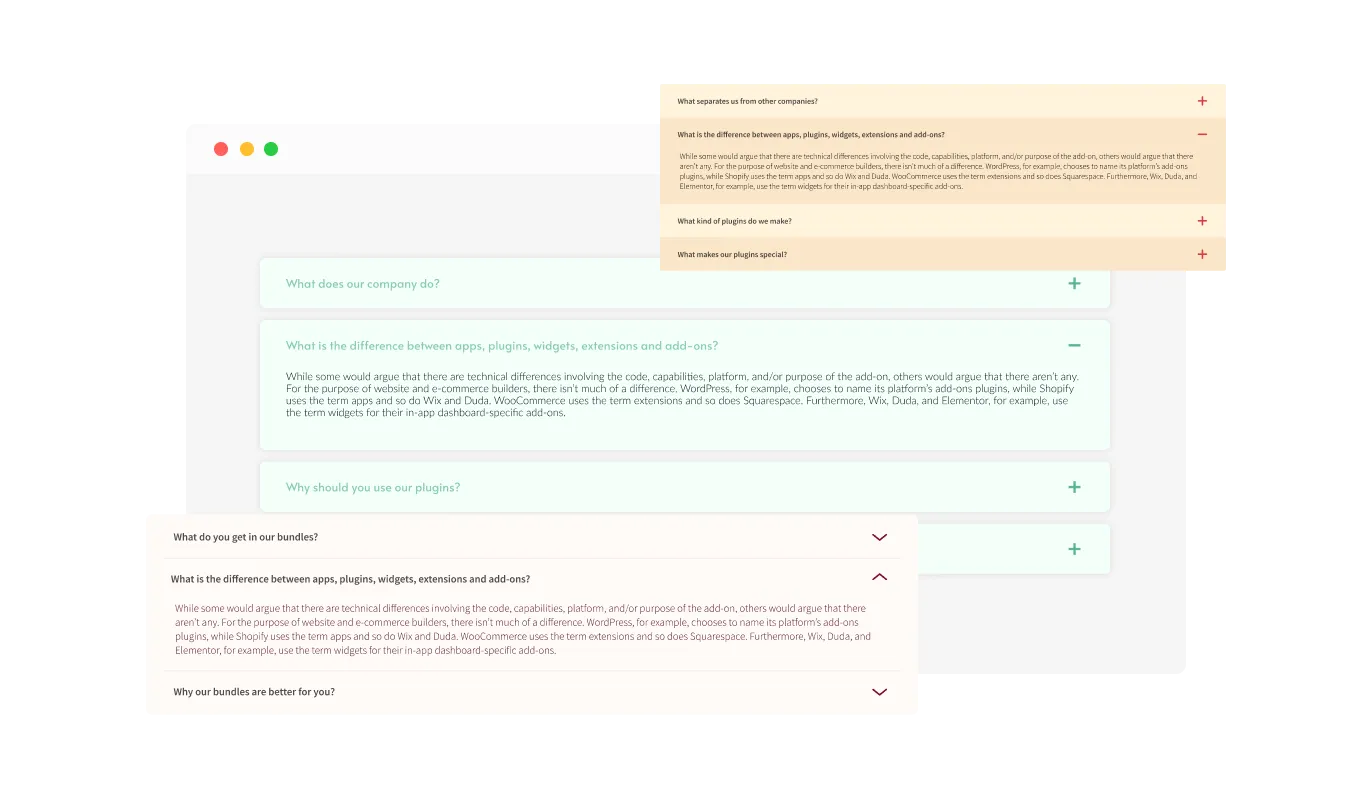
The Accordion widget comes with a variety of layouts, ensuring it seamlessly fits your website's design and style. Choose the layout that best suits your aesthetic and functional needs, providing a cohesive look to your site.
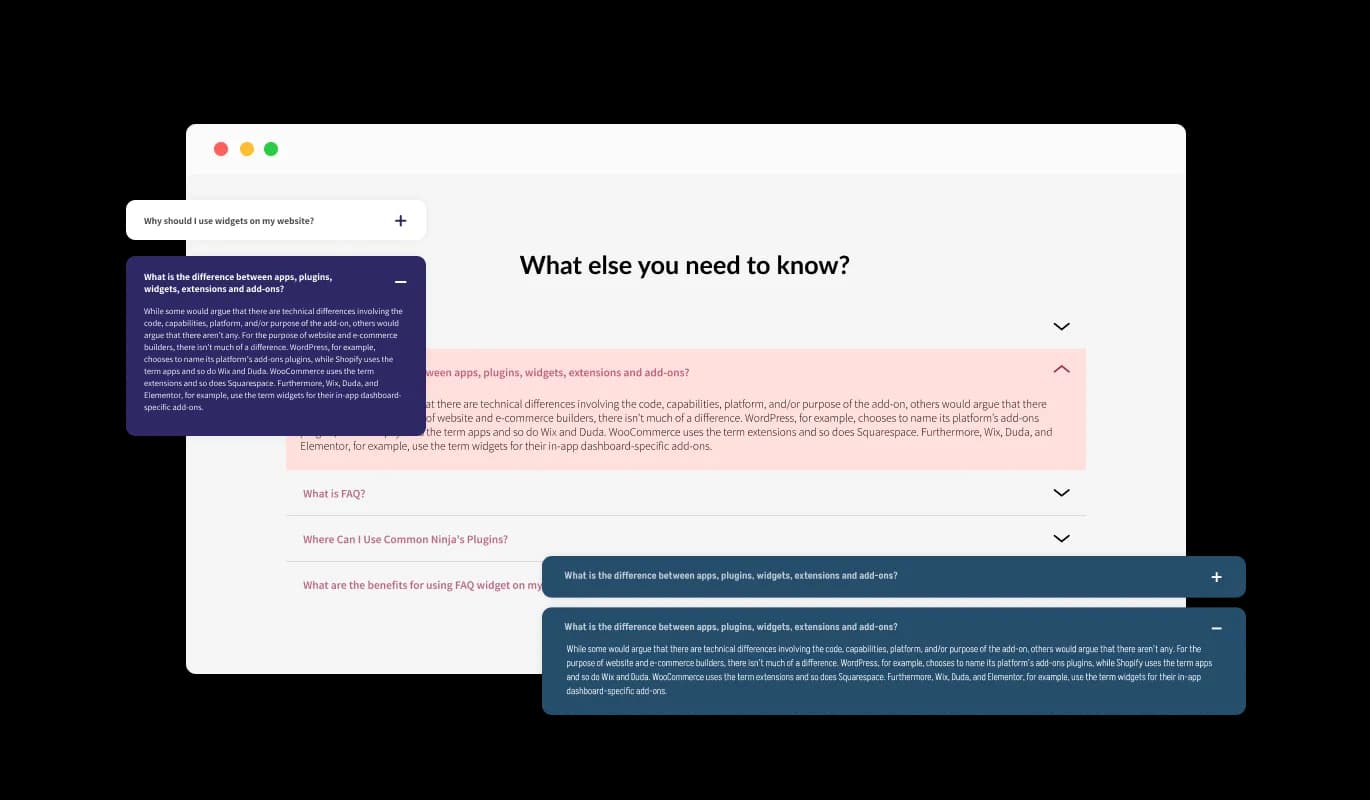
The Accordion widget offers numerous design skins, allowing you to pick one that matches your brand's aesthetics. Whether your site has a modern, minimalist, or traditional design, there's a skin that will enhance its visual appeal and reduce customization time.
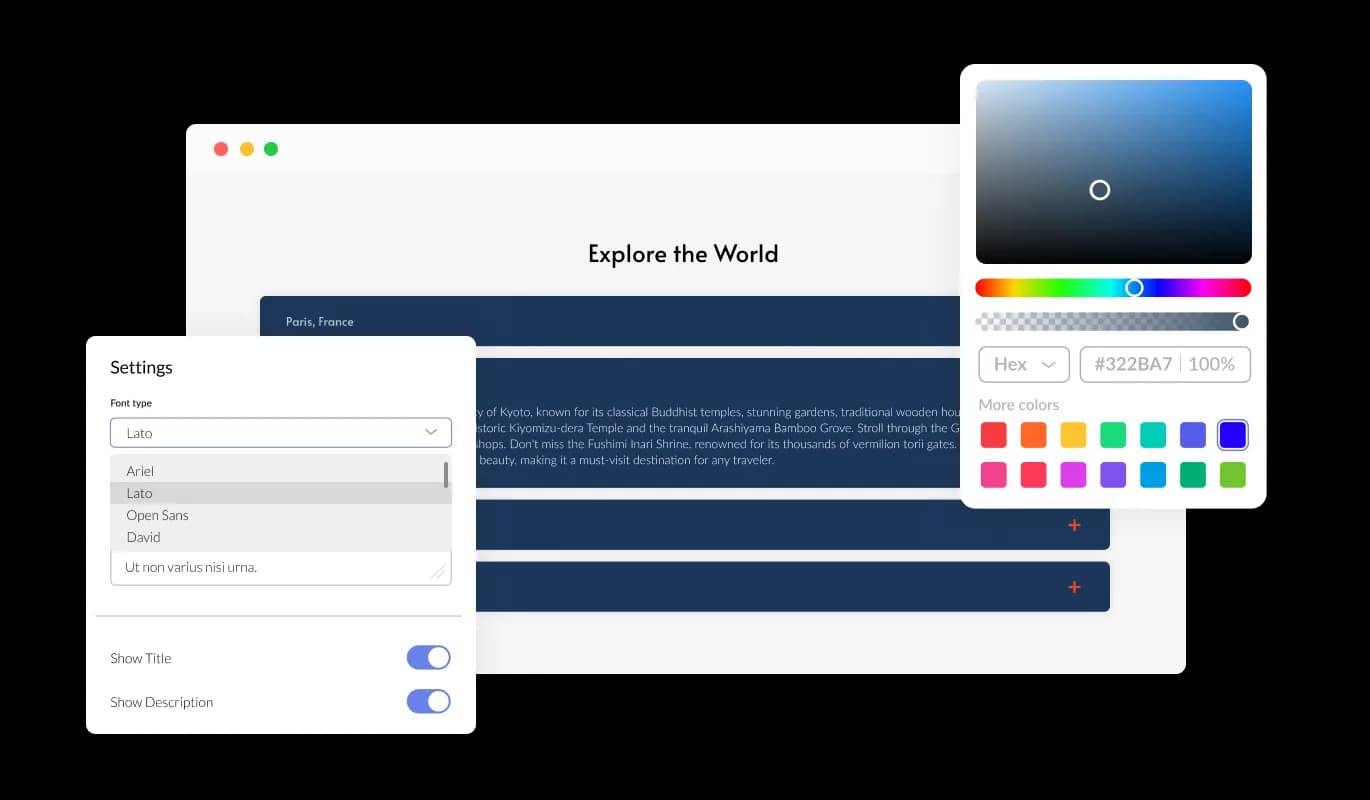
With extensive customization options, the Accordion widget can be tailored to your exact specifications. Adjust colors, fonts, spacing, and more to create a widget that perfectly matches your website's look and feel.

The Accordion widget is fully responsive, ensuring it looks great on any device. This mobile optimization is essential for providing a consistent user experience across desktops, tablets, and smartphones.

For developers and designers, the Accordion widget supports custom CSS. This feature allows for deeper customization, letting you fine-tune the widget's appearance and functionality to match your unique vision.
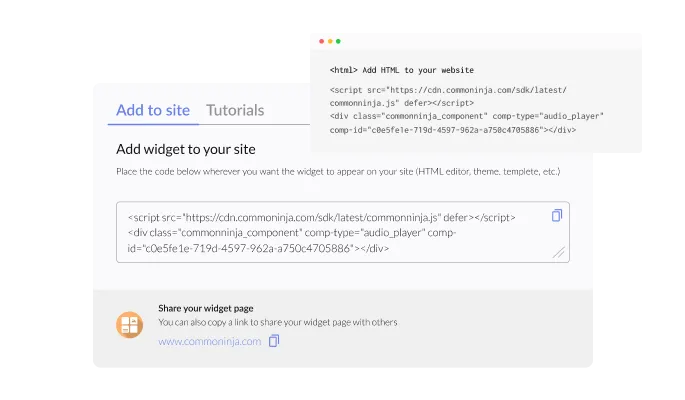
Embedding the Accordion widget on your website is straightforward, requiring just a single line of code. This simplicity makes it accessible for users of all technical levels, and the widget updates automatically with every change you make.
The Accordion widget offers various behavior settings, allowing you to customize how content is displayed. Choose to open multiple sections simultaneously, keep specific sections open, or expand all sections at once to match your site's needs.
With the Accordion widget, you can organize your content into separate categories for improved navigation. Additionally, you can enhance these categories with Emojis, making your content more engaging and easier to browse.
The Accordion widget provides a selection of icons for you to choose from. Whether you prefer a downward-facing arrow, a plus sign, or other commonly used icons, you have the flexibility to select the one that best fits your design.
The Accordion widget is designed for ease of use, requiring no coding skills for customization. Its intuitive dashboard makes it simple to modify, enabling anyone to integrate and personalize the widget effortlessly.
Turn long content into a clean expand-on-tap experience
Open the editorNo credit card · Setup in under 5 minutes
Common Ninja has amazing no-code widgets that would beautify a website built on any builder. It is very easy to use and customise. It has as many widgets for almost everyone willing to make their website impressive.
Outstanding service. I use their widgets to help me with my web design business and whenever I need help they are very quick to help.
Excellent company with excellent service!!! We used it to build a survey, it was very user friendly. The service was perfect. Amit helped us with every problem and question we had, thank you very much!!!
Common Ninja saved the day when building our website and the customer service Daniel, the co-founder and CEO, provided was amazing.
Yes. The free plan covers one Accordion widget with no time limit and no credit card. Upgrade only when you need additional accordions, more sections per accordion, advanced behavior settings, premium skins, or features like deep-link to a specific section via URL hash and per-section analytics.
A FAQ widget is pre-tuned for question/answer content and ships FAQPage JSON-LD schema so Q&A pairs are eligible for Google's rich results. An Accordion is general-purpose: section headers and rich body content for anything (product specs, course modules, policy text, schedules, comparison tables). Use the Common Ninja FAQ widget when content fits the Q&A pattern AND you want the schema; use this Accordion for everything else.
Yes, configurable. Default behavior is single-section-open (clicking a new section closes the previously open one, cleanest for tight-focus reading). Switch to multi-open mode if visitors should be able to expand several sections simultaneously (better for reference content where they want to compare across sections).
Yes. Each section body is a rich-text editor. Paragraphs, bullet and numbered lists, links, bold/italic, inline images, even embedded video. Drop in complete content rather than plain text. Useful for product specs with diagrams, course modules with embedded video previews, and policy text with linked references.
No, when used correctly. The content inside collapsed sections is still in the rendered HTML. Search engines crawl and index it. Google has confirmed that content hidden behind tabs and accordions is treated as full content for indexing purposes. The accordion is a UI pattern, not a content-hiding mechanism. Heavy reliance on accordion for important above-the-fold content is still a UX call. If a key value-prop ends up collapsed, visitors may miss it.
On paid plans, yes. Each section can have a unique URL hash so you can link directly to it (e.g. yoursite.com/page#refund-policy auto-opens the Refund Policy section on load). Useful for support docs and FAQ-style content where you want to deep-link from email replies or knowledge-base searches.
Build the widget in the Common Ninja editor (add sections, pick layout, customize design), copy the embed snippet, and paste it into your site: Canva via the Embed app in the Apps panel; Carrd via an Embed element; Notion via /embed with the embed URL; Hostinger via Add Element → Embed Code. Edits in the editor push to every embed without re-paste.
Yes. Section headers stay tappable across mobile, tablet, and desktop breakpoints. Expanded body content reflows to fit narrow viewports, rich-text formatting (lists, images, links) scales correctly, and section dividers maintain readable spacing. The expand-collapse animation respects mobile browser performance.
Pick your platform. Each takes under 4 minutes.
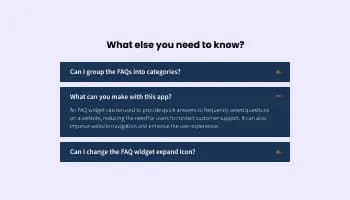
Displays common questions and answers for quick reference
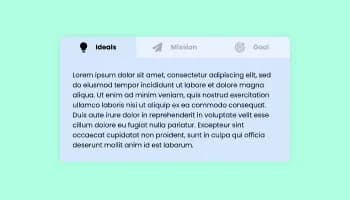
Use tabs to organize content into different parts
Easily craft engaging, personalized popups to boost conversions.
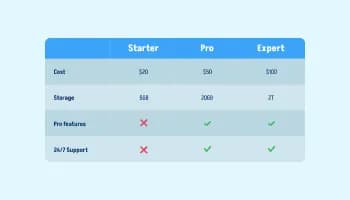
Displays data or features side-by-side, allowing users to compare and contrast the information easily
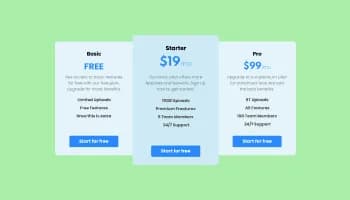
Displays pricing options for products or services in a clear and organized format
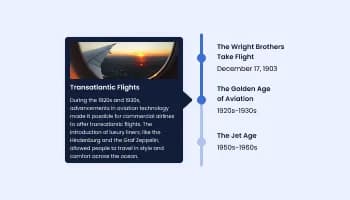
Show events or important moments in the order they occurred, using pictures and text
The Accordion widget is a tool that allows you to organize content into collapsible sections, making your website more user-friendly and easier to navigate.
Adding the Accordion widget to your website is simple. Copy the provided code snippet and paste it into the HTML of your web page where you want the accordion to appear.
Yes, the Accordion widget is fully customizable. You can adjust colors, fonts, spacing, and more to match your website's design.
Absolutely! The Accordion widget is designed to be fully responsive, ensuring it looks great on any device, including smartphones and tablets.
Yes, the Accordion widget allows you to choose from multiple icons or upload your own custom icons to suit your website's style.
Yes, the Accordion widget supports multiple languages, making it suitable for websites with a diverse audience.
You can customize the behavior of the Accordion widget, such as opening multiple sections at once, keeping sections open, or expanding all sections simultaneously.
Yes, you can organize your content into separate categories within the Accordion widget, enhancing navigation and user experience.
Yes, the Accordion widget includes a search functionality, allowing users to quickly find specific content within the sections.
No coding skills are required. The Accordion widget is designed to be user-friendly, with an intuitive dashboard that simplifies the customization process.
You can update the content directly through the widget's dashboard. Any changes you make will be automatically reflected on your website.
Yes, the Accordion widget includes analytics and insights, allowing you to track how visitors interact with your content.
The Accordion widget is designed to integrate seamlessly with various website platforms and content management systems.
You can add custom CSS through the widget's editor, giving you advanced customization options to match your website's specific needs.
Turn long content into collapsible sections. Vertical / grouped / icon-led layouts, single or multi-open behavior, rich-text body content (lists, links, images, embedded video), category icons, stylish skins, and Custom CSS. Embed on 200+ platforms including Canva, Carrd, Notion, Hostinger, WordPress, Wix, and Webflow.
Create your AccordionNo credit card · Setup in under 5 minutes