


Verified review
Common Ninja has amazing no-code widgets that would beautify a website built on any builder. It is very easy to use and customise. It has as many widgets for almost everyone willing to make their website impressive.
Try the editor, no signup
Pick a template, customize it, and watch it update live, no signup.
No credit card · Free forever plan
No credit card · Free forever plan
The Common Ninja Contact Form widget is a free, no-code embed that adds a customizable contact form to any website page.
Pick form fields (name, email, phone, multi-line message, file upload), arrange them in a layout, set email notifications, and paste one line of embed code on 200+ platforms including Google Sites, Blogger, Framer, Canva, Showit, WordPress, and Shopify.
Built-in spam protection, payment-collection support, HIPAA-compliant form mode, multiple skins, and CSV submission export.
Give every visitor a clear path to contact you without exposing your email address to scrapers. A well-placed contact form lifts inquiry volume on consulting sites, agency portfolios, course pages, e-commerce stores, and any business page that depends on inbound conversations.
Turn on the file-upload field and your contact form doubles as a resume drop, a project-brief intake, an insurance-claim photo intake, or a damage-report submission portal. Files arrive attached to the submission in the dashboard.
Connect a payment field to charge a consultation fee, accept a deposit, sell a small product, or process a donation right inside the form. The submission and the payment are linked in the dashboard so you can match them in a single view.
Turn on HIPAA mode and the widget routes submissions through a compliant data path, encrypts the payload, and applies retention rules. Healthcare practices, telehealth providers, law offices, and other regulated businesses can collect patient or client inquiries on a public website without sending PHI through plain email.
Start from a contact-form template or build from scratch. Drag in name, email, phone, multi-line message, dropdown, checkbox, radio, file upload, and payment fields. Mark required vs optional, set placeholder hints, and group fields into sections.
Choose a skin from the library, adjust typography and field styling, set the submit button label and color, and write a thank-you message. Turn on spam protection, set the notification email, and enable HIPAA mode or payment collection if your form needs them.
Copy the one-line embed snippet and paste it on your Contact page, sales page, or landing page on 200+ supported platforms. Submissions land in the Common Ninja dashboard and as email notifications; edits in the editor push to every embed without re-pasting.
Name, email, phone, multi-line message, dropdown, checkbox, radio, file upload, and payment fields. Mark required vs optional, set placeholder text, and group fields into sections for longer forms.
Every submission lands in the Common Ninja dashboard with timestamp, field values, attached files, and source page. Email notifications go to one or more addresses. Export submissions to CSV for follow-up in a spreadsheet or CRM.
Built-in spam filter screens common spam patterns (URLs in name, gibberish, known bad domains). Optional honeypot and rate-limit toggles for higher-traffic sites without forcing visitors through a CAPTCHA.
Start from a skin in the library, then adjust typography, spacing, colors, and the submit-button styling. Add custom CSS for pixel-level brand match. The widget is mobile-responsive by default and inherits its container width.
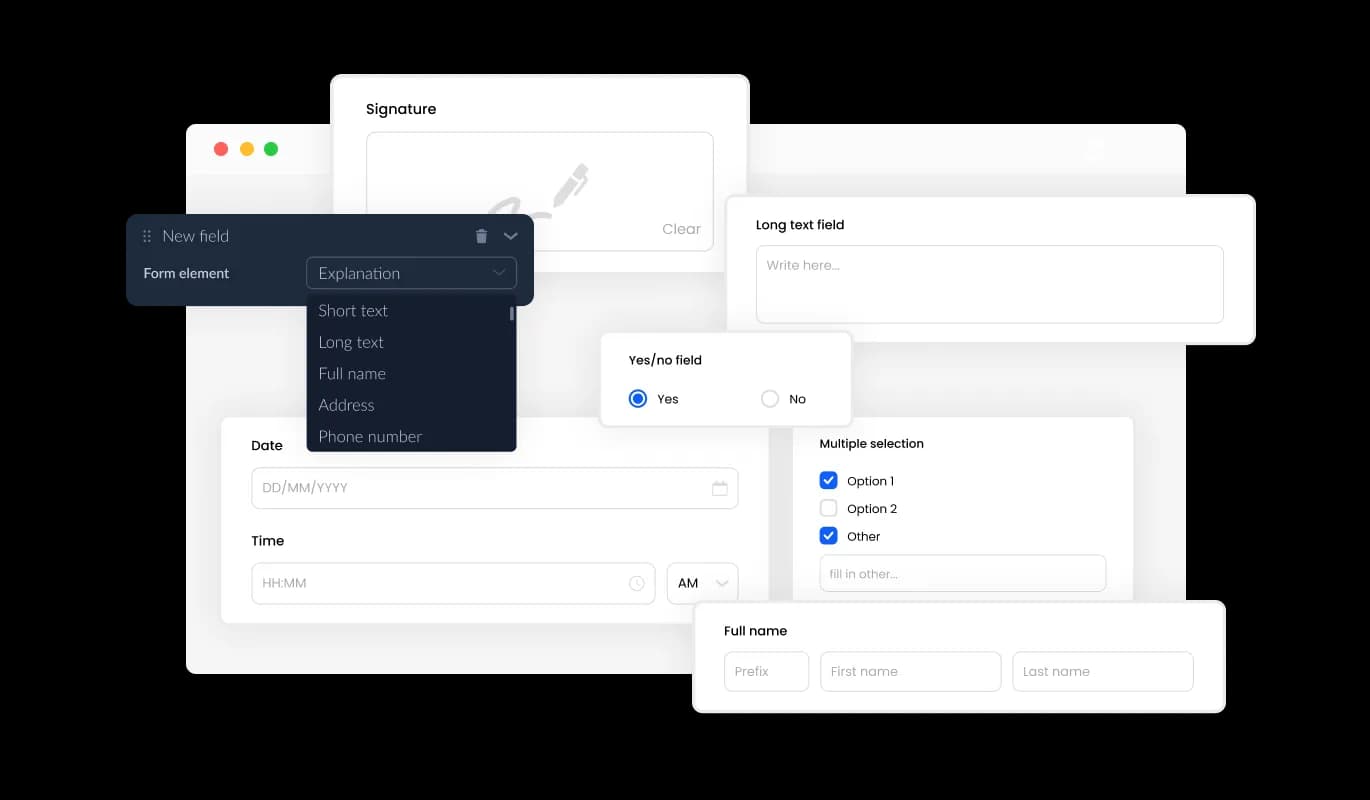
The Contact Form features numerous fields, to select from and add to it — from basic fields to more unique and special formats, enabling you to create forms for your specific needs and any purpose. Simply click on the “Add Field” option, and choose from a vast collection of field formats. Furthermore, you can easily arrange the order of the fields by dragging and dropping them.
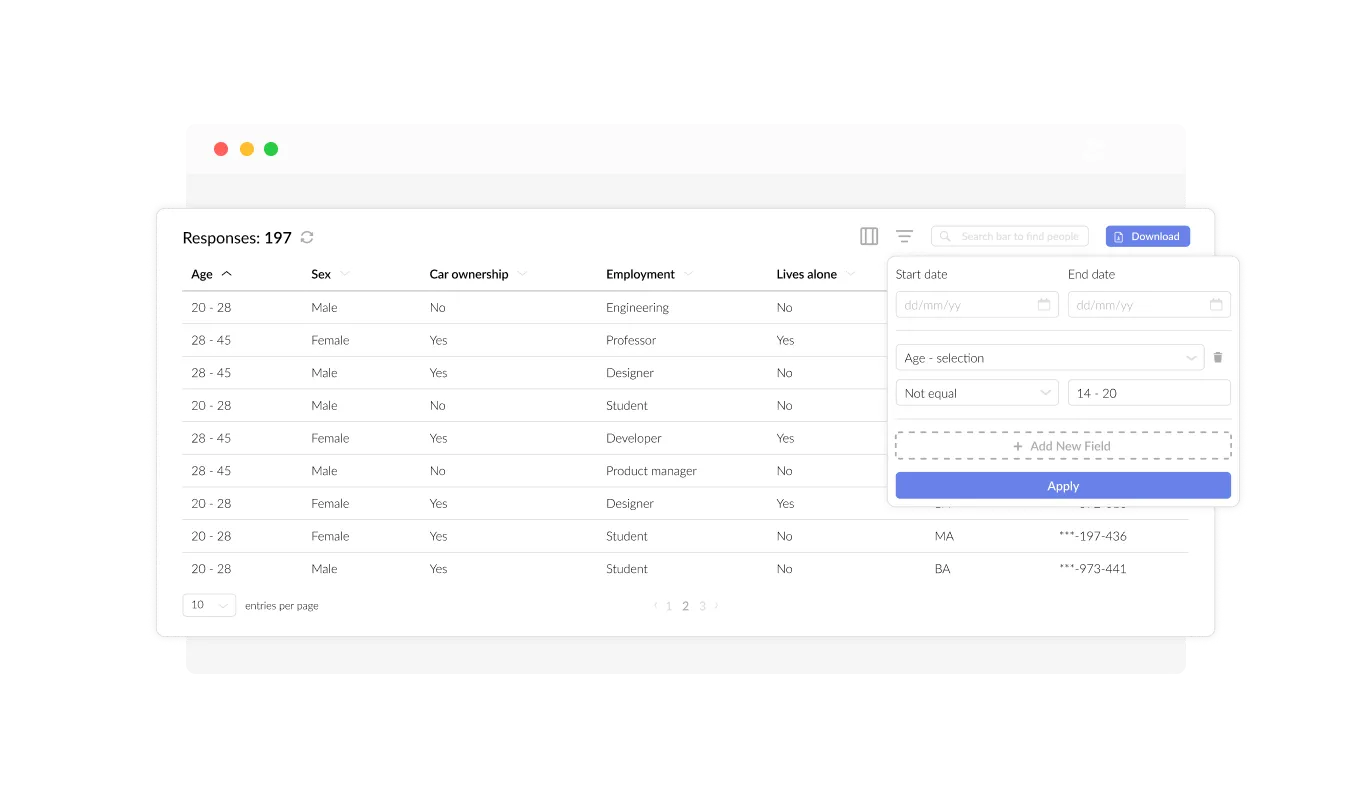
The Contact Form allows you to manage and view all the entries (the information within the submitted forms) in an easy-to-read, simple display. This enables you to keep track of all communications and inquiries that are received from users — making it easier to respond quicker and more efficiently to their inquiries.

You can use your Contact Form to receive files and images from your users. This feature is especially useful for businesses and professionals who need to gather information or documentation from their clients or customers.
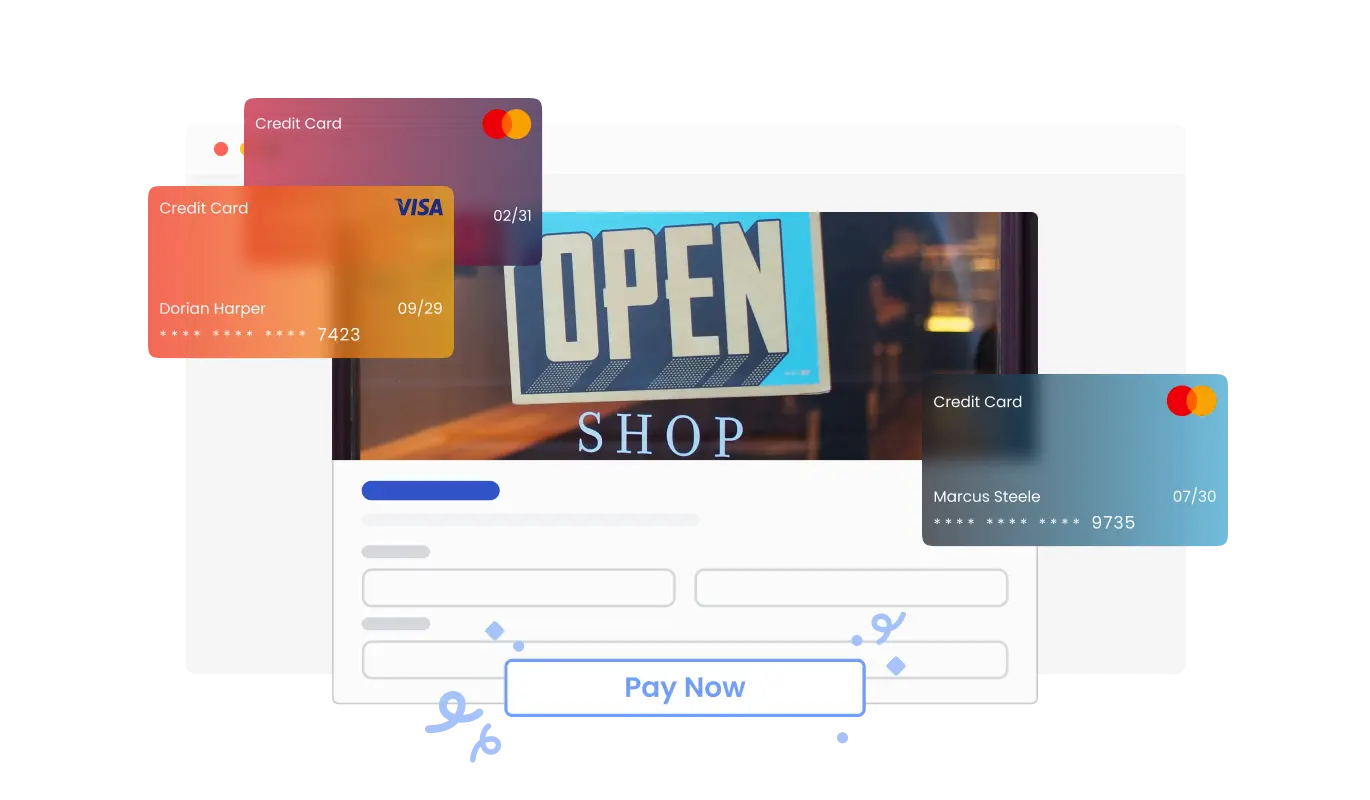
The Contact Form widget now allows you to collect payments from your users with ease. Whether you’re organizing event registrations, selling services, or receiving donations, this feature integrates secure payment options directly into your form. With a user-friendly setup and reliable payment processing, you can elevate your form’s functionality while ensuring a smooth experience for your users.
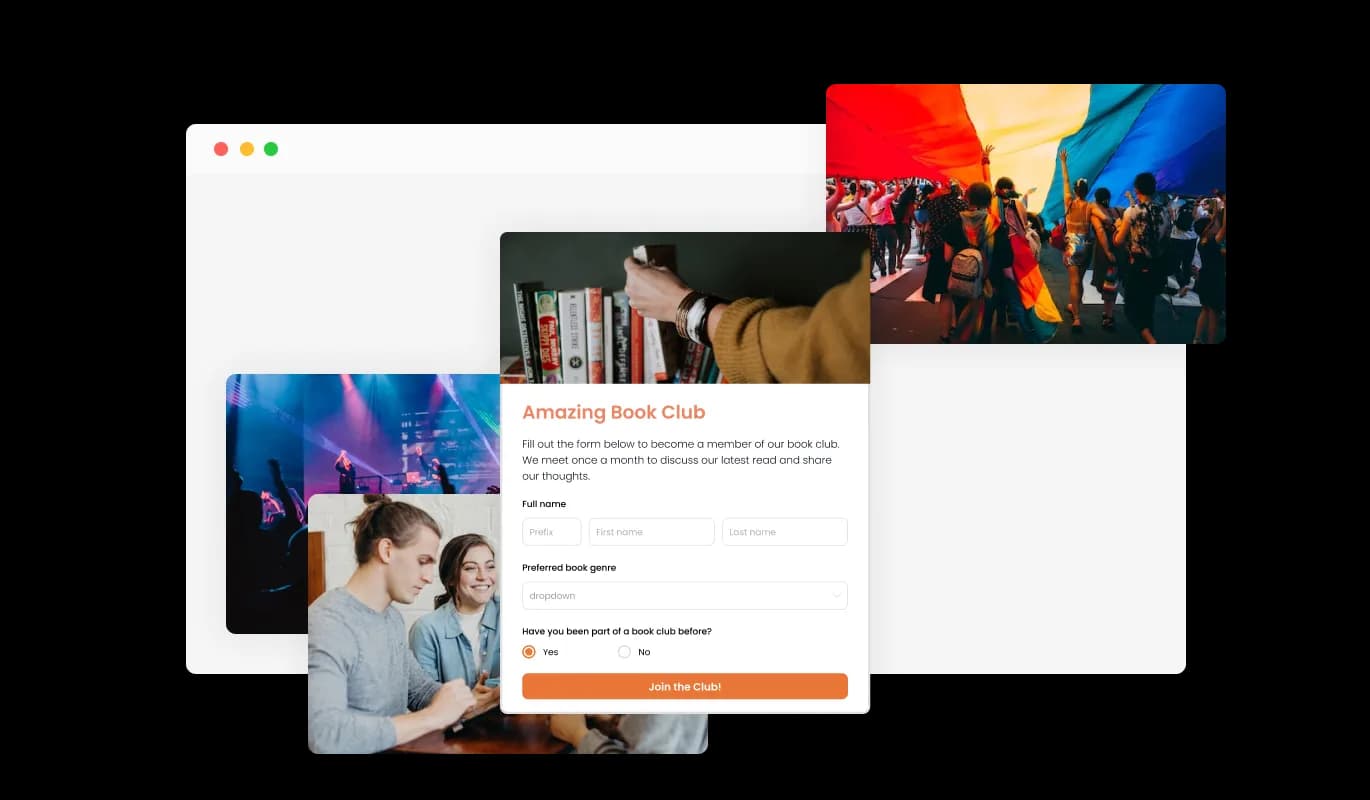
By incorporating titles, descriptive text, and images into your form, you can create a comprehensive and user-friendly submission experience. Adding explanatory form elements can also help guide users through the submission process, resulting in a smoother and more efficient experience and ultimately increasing the likelihood of conversion.
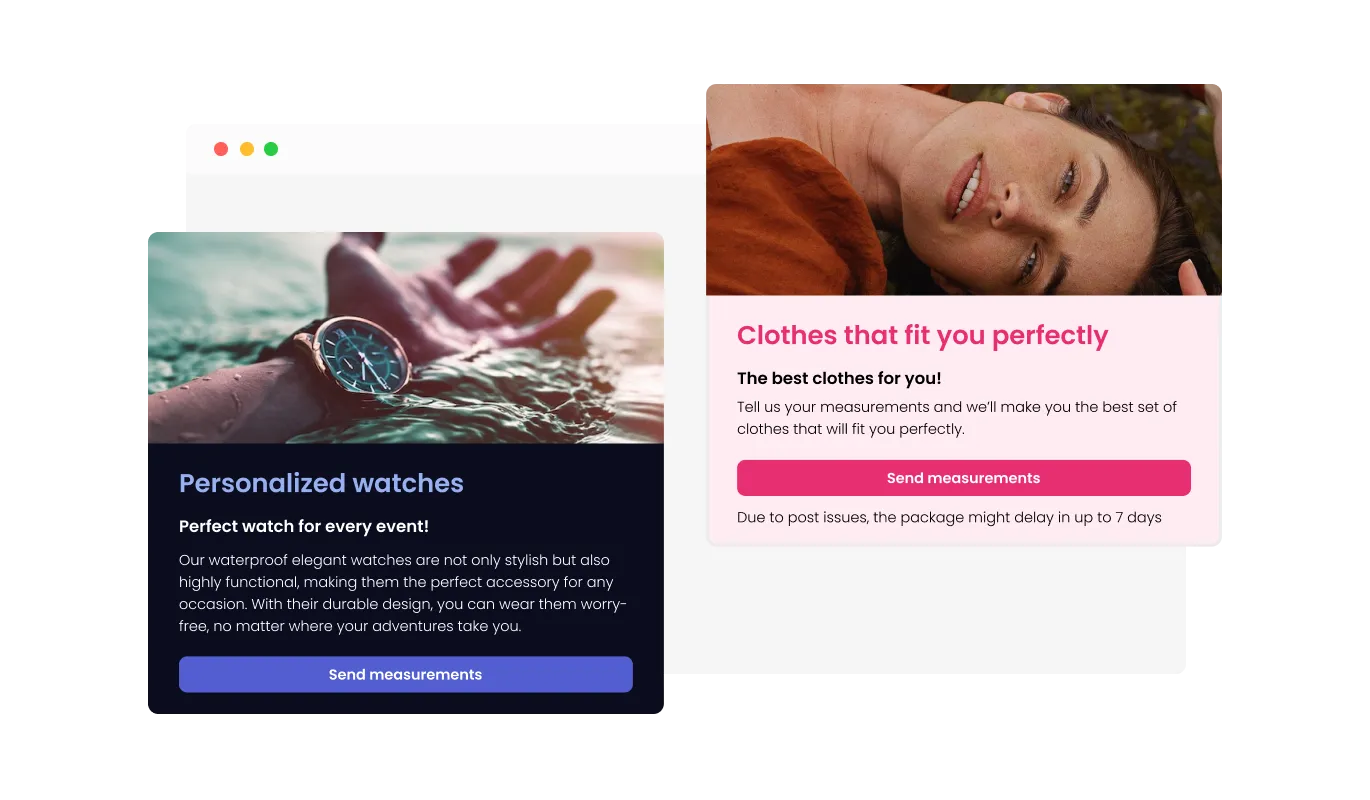
The Contact Form allows for the customization of the form’s header and footer, enabling you to also add images. This feature provides a great opportunity to enhance your brand’s image and create a more professional and visually appealing form that aligns with your website’s overall design and aesthetic.
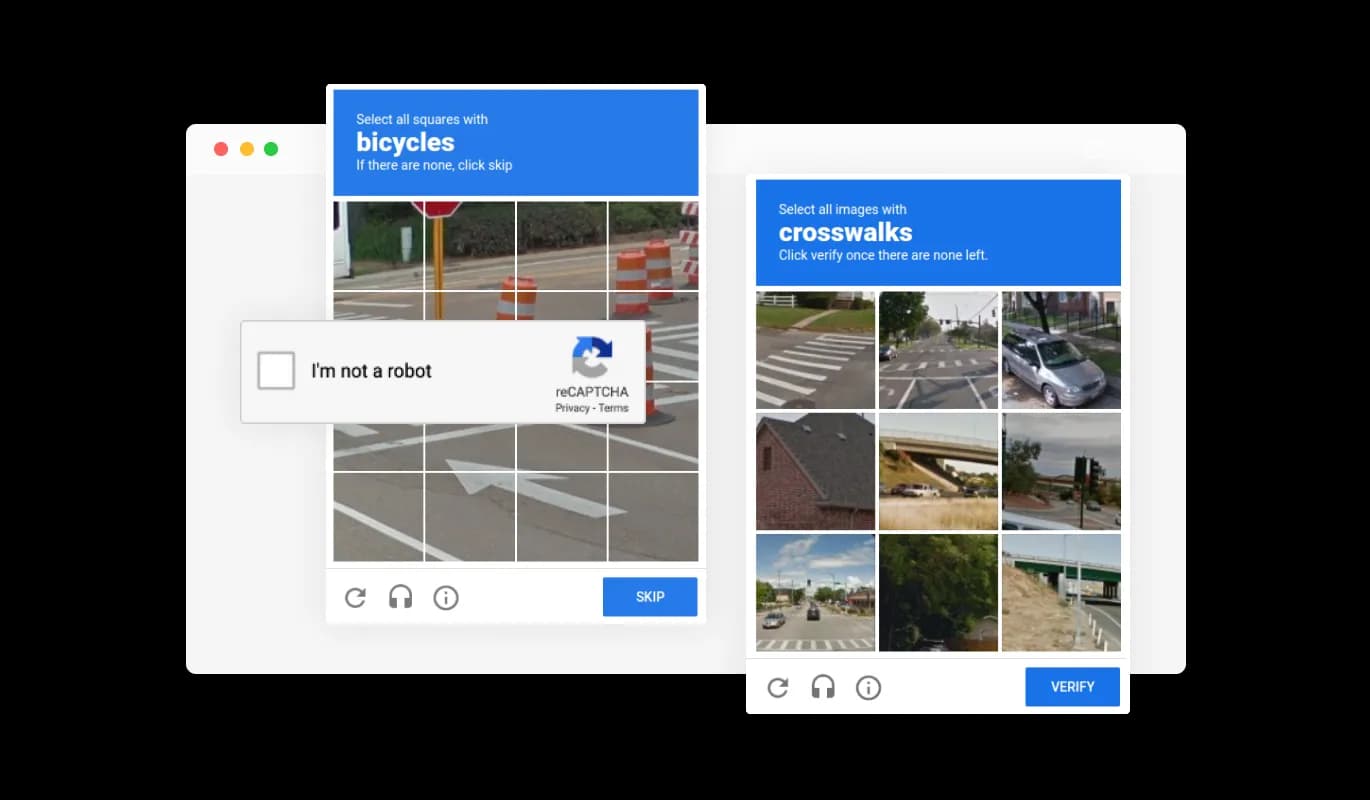
The Contact Form features the ability to toggle on the CAPTCHA anti-spam feature, which your users will be required to complete before clicking on the submission button. This feature helps in preventing bots and automated scripts from submitting spam messages through your contact form — ensuring that you only receive genuine messages from actual users.
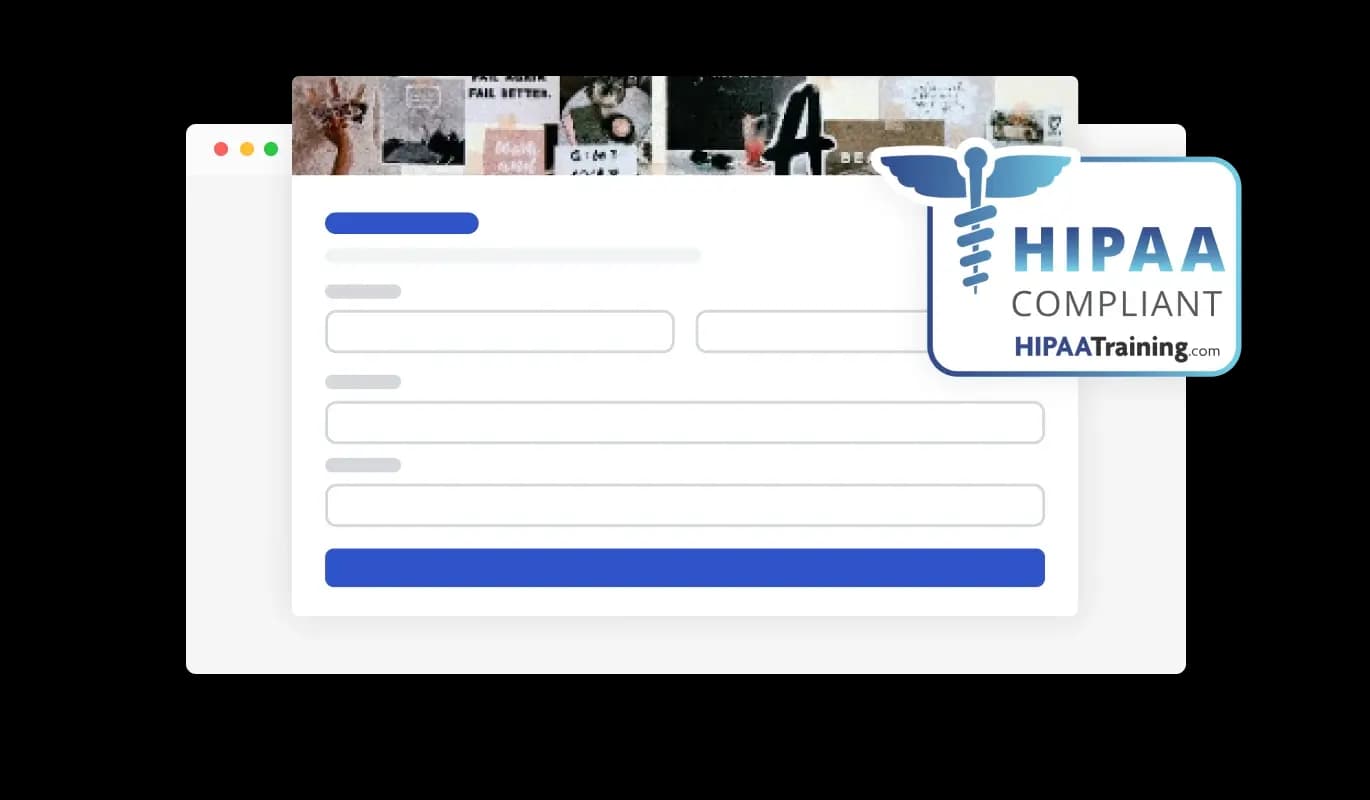
The Contact Forms ensures HIPAA compliance, offering end-to-end data encryption and role-based access management to protect sensitive information. Seamless integrations, including a HIPAA-compliant API and support for tools like Google Sheets and EMR systems, enhance functionality. Additionally, activity tracking and audit logs provide full transparency over data access.
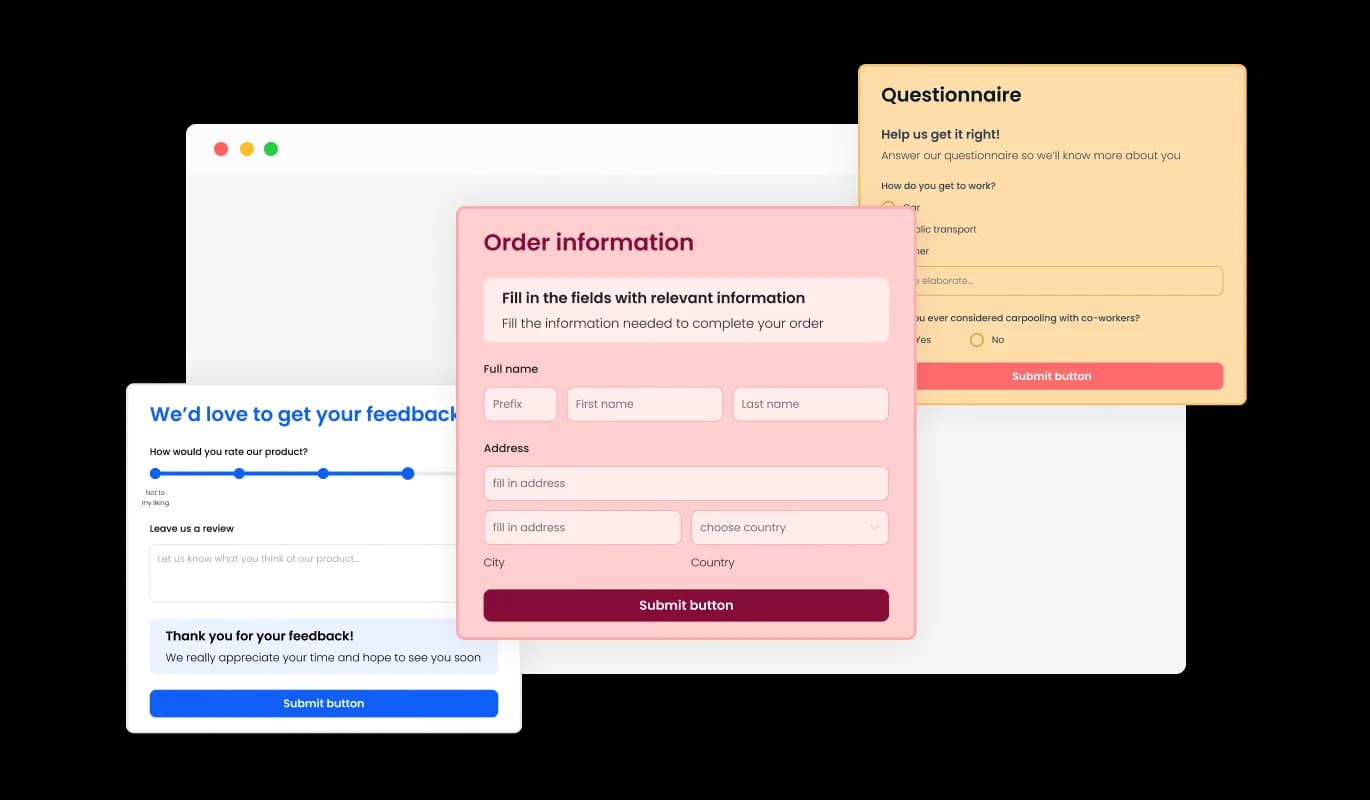
The Contact Form widget comes with a variety of beautiful skins that you can choose from, to quickstart the design process and not spend much time on extensive customization.
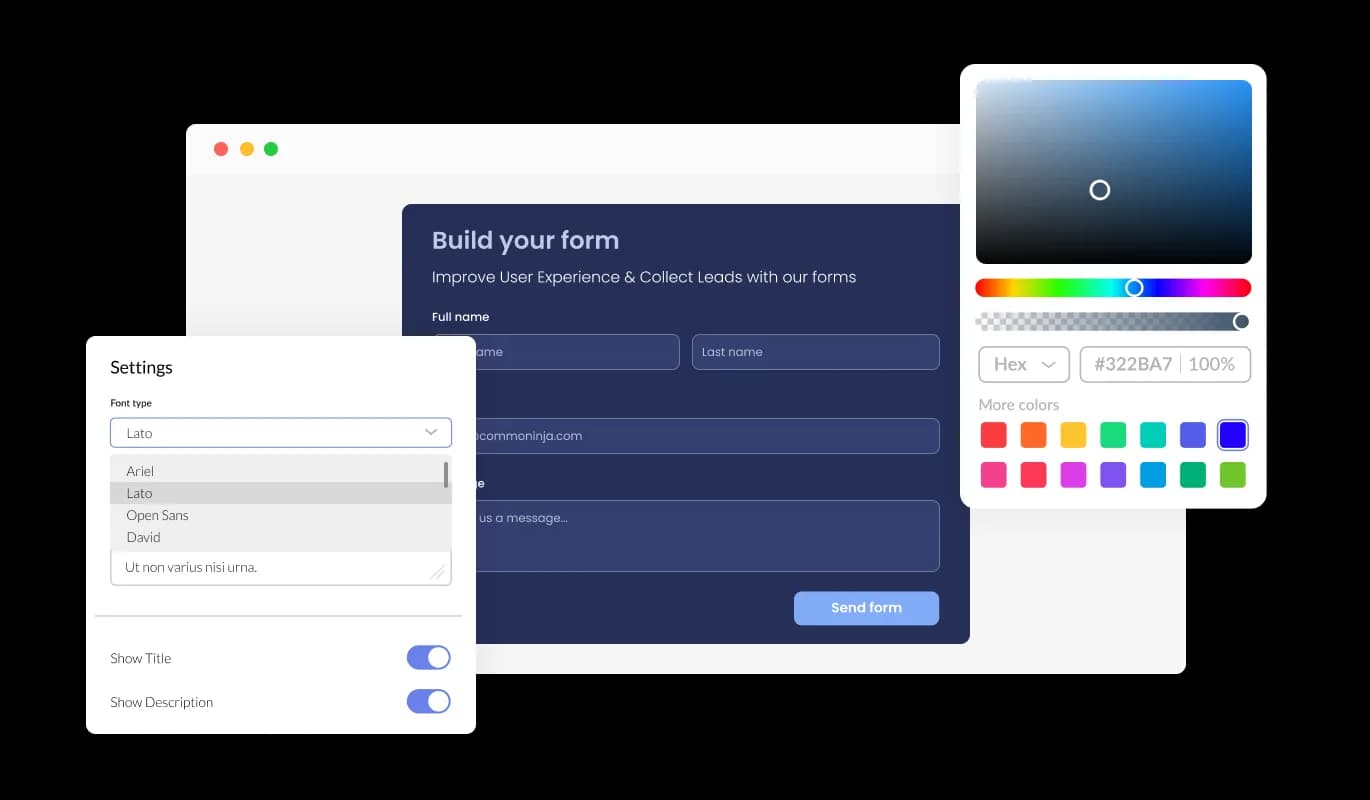
The Contact Form widget features full customization options so you can edit the design to fit your needs.
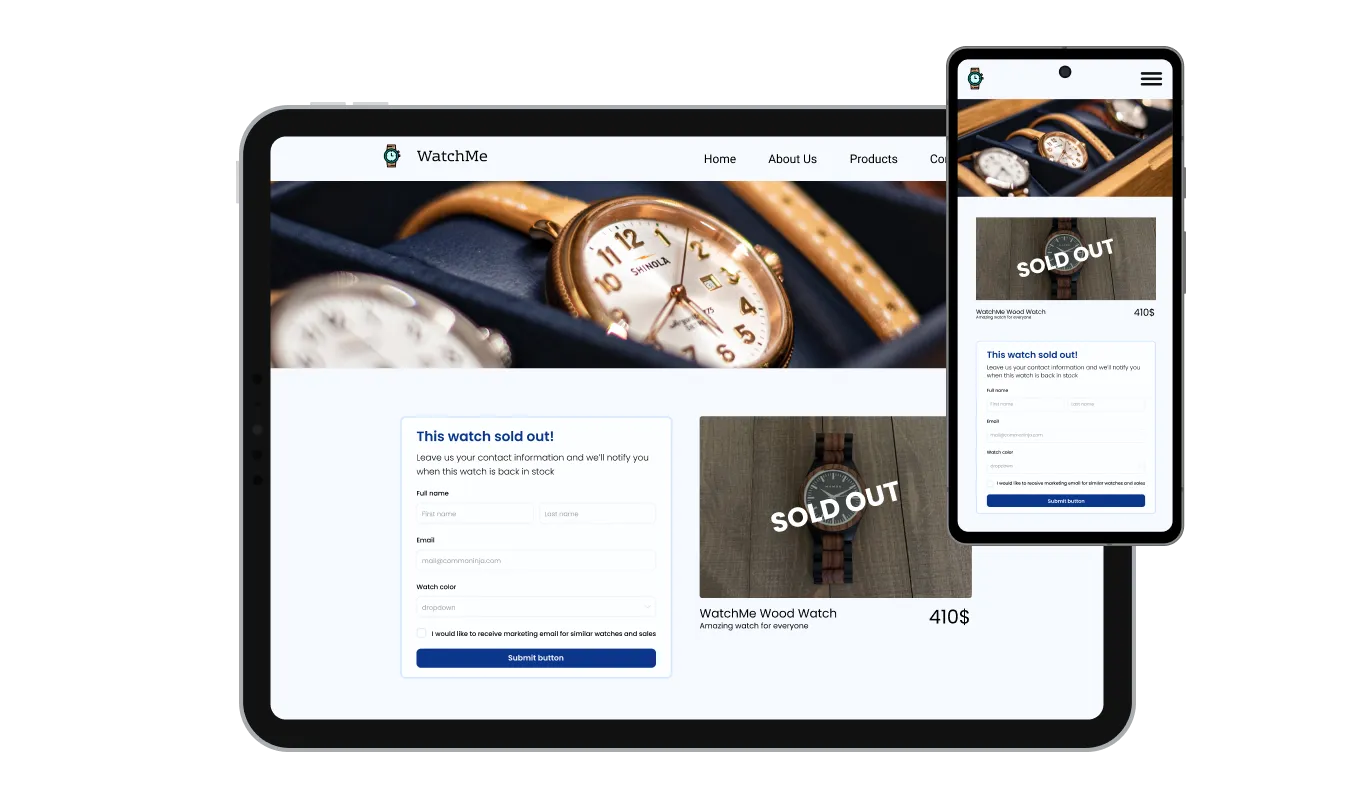
The Contact Form widget is fully responsive and will look great on any device. Having a form that is optimized for mobile viewing is essential in a world where more and more people are accessing the internet through their phones and tablets.

Our advanced editor is a powerful tool that gives you complete control over the appearance of the Contact Form. With this feature, you can easily customize every aspect of the widget's look and feel, from the colors and fonts to the layout and positioning. But if you're feeling particularly creative, you can take your customization to the next level by editing the CSS directly.

To embed the Contact Form widget on your website, simply copy and paste the provided code snippet into your page’s HTML code. Additionally, the widget is designed to be auto-updating, meaning that any changes you make to the Contact Form editor will be reflected automatically on your website.
The Contact Form’s entry collection can be exported to a CSV file, allowing you to import it to other software or tools for further analysis or integration. This feature is particularly useful for businesses that need to keep a record of all interactions with their clients, and for data analysis and reporting purposes.
The Contact Form features the ability to toggle notifications on, both for the form owner and for the submitting user. You can set automated email notifications on every form submission, to multiple email addresses and also send a confirmation email to the user upon successful submission.
The Contact Form comes with the option to enable multiple submissions by a single user. Enabling this feature allows users to submit the form multiple times, which can be useful in situations where users need to update their information or provide additional details.
The Contact Form widget is easy to use and requires no coding knowledge. With only a few clicks, you can modify the form however you wish using our user-friendly interface.
Common Ninja has amazing no-code widgets that would beautify a website built on any builder. It is very easy to use and customise. It has as many widgets for almost everyone willing to make their website impressive.
Outstanding service. I use their widgets to help me with my web design business and whenever I need help they are very quick to help.
Excellent company with excellent service!!! We used it to build a survey, it was very user friendly. The service was perfect. Amit helped us with every problem and question we had, thank you very much!!!
Common Ninja saved the day when building our website and the customer service Daniel, the co-founder and CEO, provided was amazing.
Yes. The free plan covers one contact form with no time limit and no credit card. Upgrade only when you need additional forms, premium skins, more submissions per month, or advanced features like HIPAA compliance and payments.
Name, email, phone, multi-line message, single-line text, dropdown, multi-select, checkbox, radio, date, file upload, image upload, and payment fields. Required vs optional, placeholder text, validation rules, default values, and field grouping into sections are all configurable.
Build the form in the Common Ninja editor (fields, styling, notifications), copy the one-line embed snippet, and paste it into your site: Google Sites accepts the embed via Insert → Embed → Embed code; Blogger via the HTML/JavaScript gadget or inside an HTML editor view; Framer via a Code element or a Code Embed override. The same snippet also works on Canva (Embed element), Showit (Custom HTML container), WordPress (Custom HTML block), Shopify (page or product description HTML view), and any other host that accepts an embed snippet.
Yes. Add a File Upload field and set the allowed file types (PDF, image, video, document) and a maximum file size. Uploaded files attach to the submission in the dashboard and on the notification email. Common use cases include resume drops on careers pages, project-brief intake on agency contact pages, and damage-report submissions on insurance forms.
Yes. Add a Payment field, connect a payment processor in the dashboard, and set the amount (fixed or visitor-chosen). The submission and the payment are linked together in the dashboard so a single view shows both the form values and the charge. Common use cases include consultation deposits, donation pages, and small product checkouts on landing pages.
Yes, in HIPAA mode. Turn on HIPAA mode in the dashboard and the widget routes submissions through a compliant data path, encrypts the payload at rest and in transit, and applies retention rules suitable for protected health information. Healthcare practices, telehealth providers, law firms, and other regulated businesses can collect patient or client inquiries through their public website without sending PHI through plain email.
The built-in spam filter screens common spam patterns (URLs in name, gibberish strings, known bad domains, suspicious header values). Optional honeypot and rate-limit toggles add another layer for higher-traffic sites. A visible CAPTCHA can be enabled if needed, but most sites can stay CAPTCHA-free with the default filter.
Every submission lands in the Common Ninja dashboard with timestamp, field values, attached files, source URL, and visitor metadata. Email notifications go to one or more configured addresses with the submission body. Export the full submission set to CSV at any time for follow-up in a spreadsheet, CRM, or email tool.
Pick your platform. Each takes under 4 minutes.
Create your form for any purpose with a friendly form builder
Easily craft engaging, personalized popups to boost conversions.

Showcase customer testimonials using a rotating slider

Present Google reviews for your business on your website
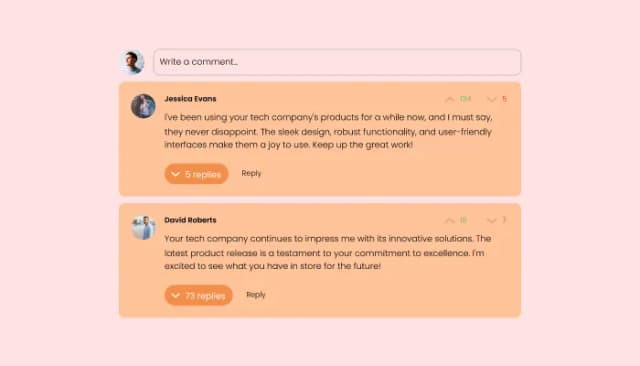
Comments system with upvote/downvote, email notifications, reply threads, and moderation tools.
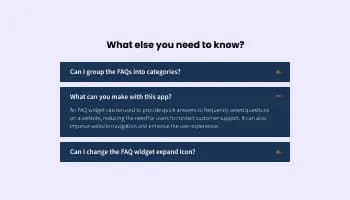
Displays common questions and answers for quick reference
A contact form widget is a web-based form that is typically embedded on a website or application to allow users to easily send a message or inquiry to the website owner, support team, or other designated recipient. The widget typically includes a series of input fields where the user can enter their name, email address, and message, and a submit button that sends the information to the recipient via email or other communication channels. The contact form widget is a convenient and user-friendly alternative to traditional methods of communication such as email or phone calls.
There are several benefits to adding a contact form to your website:
By following these best practices, you can ensure that your contact form provides a positive user experience and helps you effectively engage with your audience.
Yes, there are lots of beautiful skins that you can choose from to save time and start using the widget as quickly as possible.
Yes, you can either upload an image, or select an icon from a large selection of available icons to add to your Notification Bar, or you can leave it all blank.
It’s simple. All you need to do is to sign up and start using the free version.
Common Ninja’s Contact Form widget is free to use. It is limited to a certain amount of views, however.
Common Ninja’s Contact Form widget is compatible with ALL current and future website builders.
Yes, the Contact Form widget is GDPR-compliant.
No. Using our Contact Form widget is very simple. The widget comes with an intuitive drag-and-drop interface and fully customizable options. Once you’ve finished editing the widget to your liking, all you need to do is copy the provided code and add it to your website.
Yes. We are eager to hear your request. Please visit our Feature Request page.
Capture leads, inquiries, file uploads, and payments from any visitor with built-in spam protection, multiple skins, and HIPAA-compliant mode. Embed on 200+ platforms including Google Sites, Blogger, Framer, Canva, and Showit.
Create your Contact FormNo credit card · Setup in under 5 minutes