


Verified review
Common Ninja has amazing no-code widgets that would beautify a website built on any builder. It is very easy to use and customise. It has as many widgets for almost everyone willing to make their website impressive.
Try the editor, no signup
Pick a template, customize it, and watch it update live, no signup.
No credit card · Free forever plan
No credit card · Free forever plan
The Common Ninja Form Builder widget is a free, no-code embed that adds advanced multi-field forms to any website.
Combine name, email, phone, dropdown, multi-select, file upload, image upload, payment, and conditional-logic fields into surveys, applications, intake forms, registration forms, donation forms, and feedback forms.
Built-in spam protection, payment collection, HIPAA-compliant mode for healthcare and legal forms, CSV submission export, multiple skins, and one-line embed for Divi, Google Sites, Squarespace, Wix, Webflow, Framer, WordPress, Shopify, and 200+ other platforms.
Surveys with branching logic, applications with file uploads, intake forms with conditional questions, registration forms with payment collection, RSVP forms with party-size limits, donation forms with custom amounts, feedback forms with rating scales. Anything more involved than name + email + message belongs in a form builder, not a simple contact form.
Add a payment field, connect a processor, and charge a deposit, application fee, donation, or product price right inside the form flow. The submission and the charge link together in the dashboard so a single view shows both the form values and the payment. Common use cases: registration fees, donation forms, paid intake, deposit on a service.
Turn on HIPAA mode and the widget routes submissions through a compliant data path, encrypts the payload at rest and in transit, and applies retention rules suitable for protected health information. Healthcare practices, telehealth providers, law firms, insurance brokers, and other regulated businesses can collect patient or client data on a public website without sending PHI through plain email.
Stop routing visitors to a Typeform subdomain or a Google Forms link. Embed the form directly on your Divi, Google Sites, Squarespace, or Webflow page so the submission flow stays inside your funnel. Same field types, same logic, same payment support, no monthly per-form fees and no third-party domain breaking your branding.
Drag fields onto the form canvas: short text, long text, dropdown, multi-select, checkbox, radio, date, time, number, currency, file upload, image upload, payment, and signature. Mark required vs optional, set validation rules, write placeholder text, and group fields into sections for longer forms.
Pick a skin from the design library, set your brand colors and typography, add a header image and footer disclaimer, write the thank-you message, and choose where to email notifications. Turn on conditional logic so fields appear or hide based on earlier answers. Enable spam filtering, HIPAA mode, or payment collection if your form needs them.
Copy the one-line embed snippet and paste it on your page on Divi, Google Sites, Squarespace, Wix, Webflow, Framer, or 200+ other platforms. Submissions land in the Common Ninja dashboard, in your notification email, and as a CSV export. Edits in the editor push to every embed without re-pasting.
Short text, long text, dropdown, multi-select, checkbox, radio, date, time, number, currency, file upload, image upload, payment, signature, and rating scale. Conditional logic hides or reveals fields based on earlier answers, so a long form only shows the fields each visitor actually needs.
Add a file or image upload field, set the allowed types (PDF, image, video, document) and a maximum size, and uploaded files attach to the submission in the dashboard. Common use cases: resume drops on careers pages, project briefs, insurance-claim photos, damage reports, application portfolios.
Add a header image and section intros so a long form reads as part of your brand, not a generic third-party form. Write a custom thank-you page or redirect URL to send submitters to a confirmation page, a calendar booking, or a download. Headers and footers support custom HTML for legal disclaimers or links to your privacy policy.
Start from a skin in the library, then adjust typography, spacing, field styling, and submit-button colors. Layer Custom CSS for pixel-level brand match. The form is mobile-responsive by default and inherits its container width on every breakpoint.
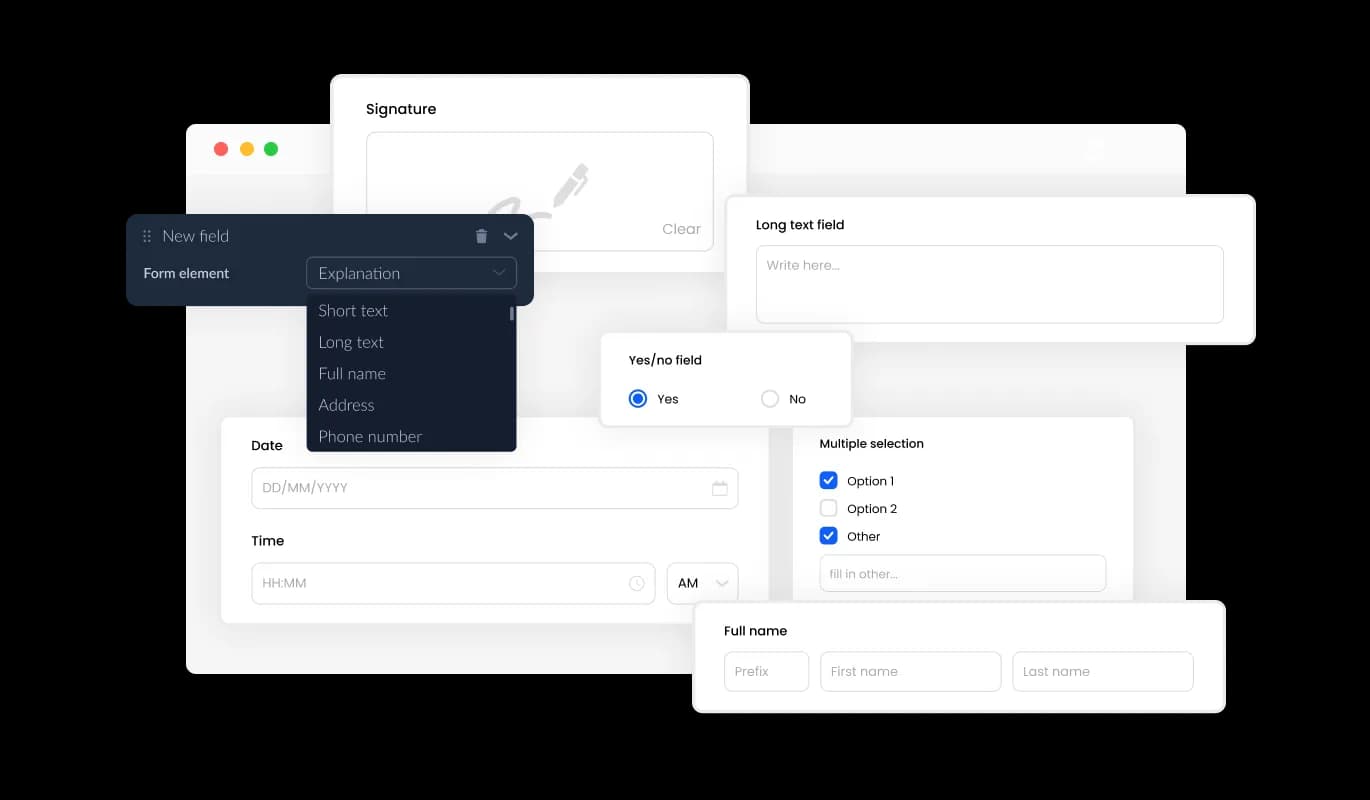
Effortlessly craft tailor-made forms with our form builder, designed to cater to your unique requirements and user intentions. Add and choose from an extensive variety of field types, ranging from basic to specialized formats, with a simple click. Rearrange fields effortlessly using the drag-and-drop feature for the perfect form layout.
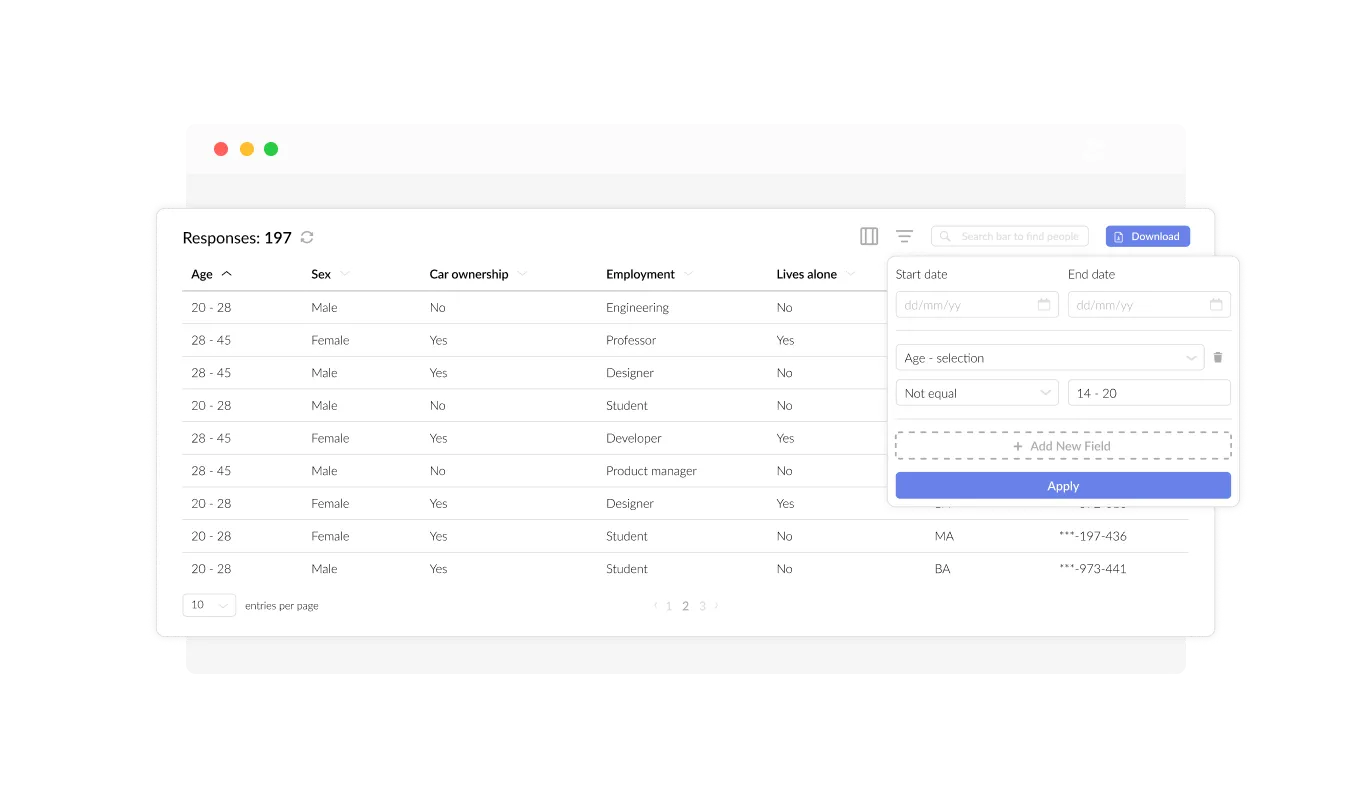
The Form Builder enables you to effortlessly manage and view all submissions in a user-friendly, organized display. This feature allows you to keep track of all the collected data and user responses, facilitating faster and more efficient follow-ups and decision-making.

With our Form Builder, effortlessly receive files and images submitted by your users. This powerful feature is designed to cater to businesses and professionals who need to gather crucial information, documentation, or visual assets from their clients or customers. No matter the industry, our Form Builder streamlines the process, making it easier than ever to collect the necessary data to drive your business forward and ensure client satisfaction.

The Form Builder allows you to accept payments directly through your forms for any need. Whether you’re handling event registrations, selling products, collecting donations, or offering services, this feature seamlessly integrates secure payment options. With a straightforward setup and reliable payment processing, you can enhance your form’s functionality while delivering a convenient experience for your users.
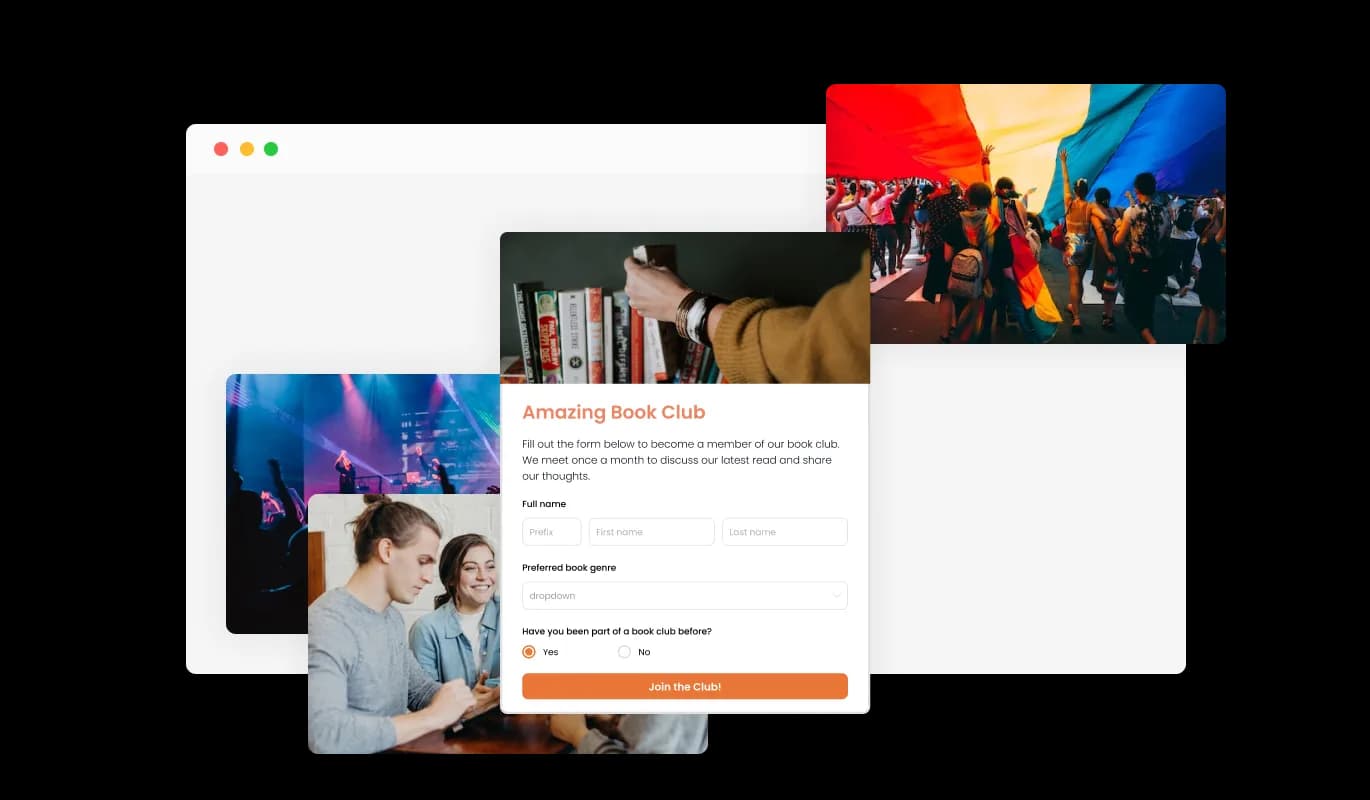
Incorporating headings, descriptive text, and visuals into your form enables a more comprehensive and intuitive submission experience for users. By integrating instructive form components, you guide users through the submission process, ensuring a seamless and efficient experience that ultimately boosts the chances of conversion.

The Form Builder offers the ability to personalize the form's header and footer, including the option to add images. This feature empowers you to reinforce your brand identity and create a polished, visually engaging form that seamlessly integrates with your website's overall design and aesthetic.
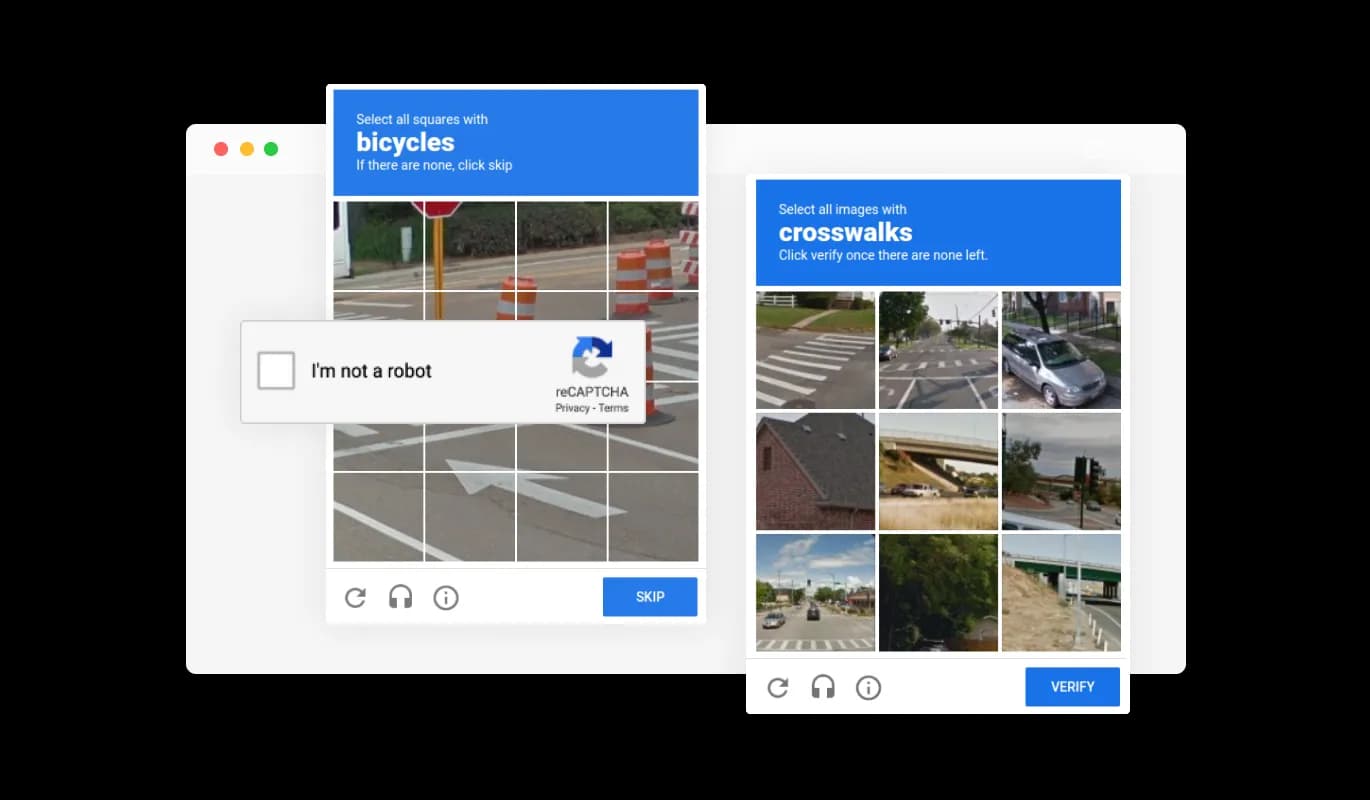
The Form Builder offers the option to enable the CAPTCHA anti-spam feature, requiring users to complete a verification step before submitting the form. This functionality effectively prevents bots and automated scripts from sending spam messages, ensuring that you receive authentic submissions from real users.

The Form Builder is designed to create perfectly responsive forms, ensuring that your users can access and submit them effortlessly, regardless of the device or screen size. Our Form Builder's responsive design ensures that your forms look great and function perfectly on any device, including desktops, laptops, tablets, and mobile devices, maximizing your audience reach and engagement.
The forms ensures HIPAA compliance, offering end-to-end data encryption and role-based access management to protect sensitive information. Seamless integrations, including a HIPAA-compliant API and support for tools like Google Sheets and EMR systems, enhance functionality. Additionally, activity tracking and audit logs provide full transparency over data access.
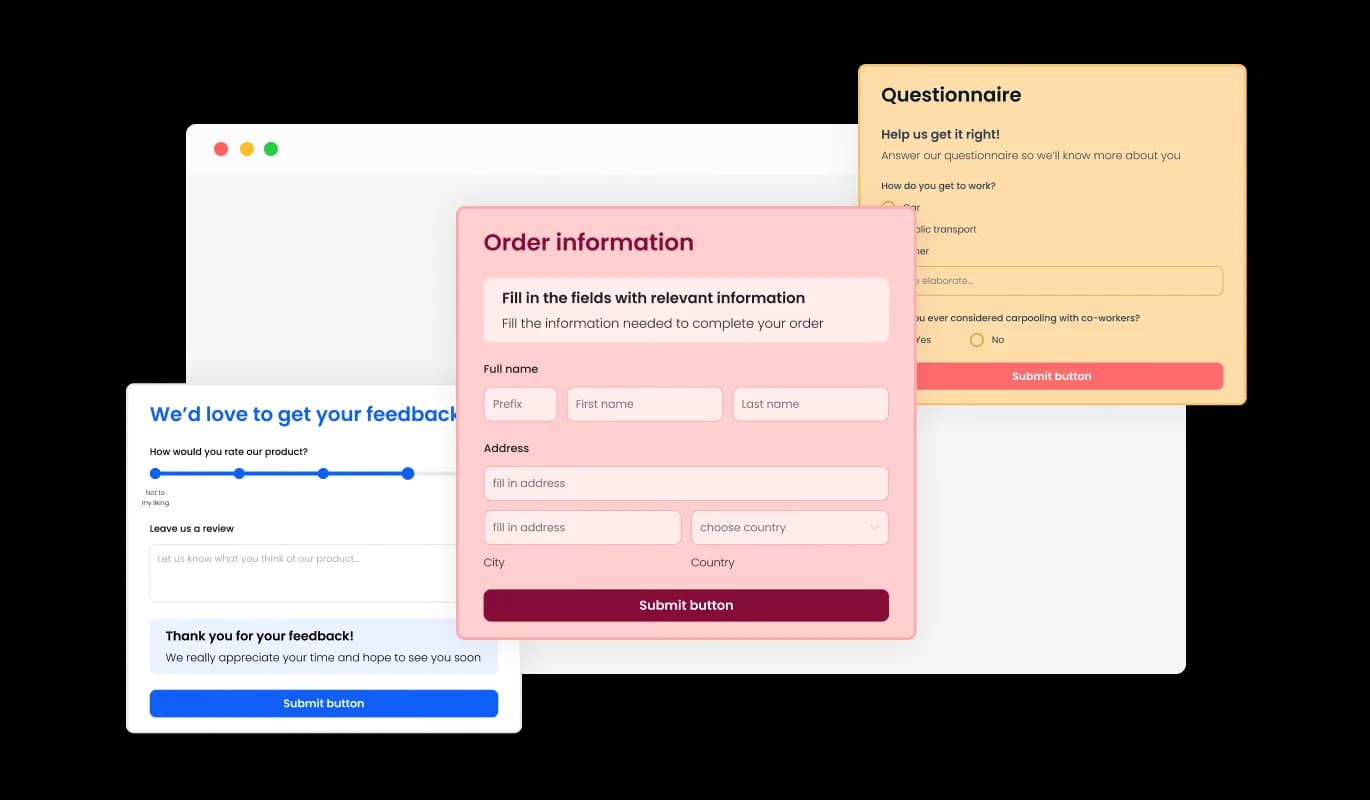
The Form Builder widget comes equipped with a diverse selection of attractive skins, allowing you to jumpstart the design process and create visually appealing forms in no time. These pre-designed templates save you the effort of extensive customization while ensuring your form aligns with your desired style and aesthetic, resulting in a seamless user experience.
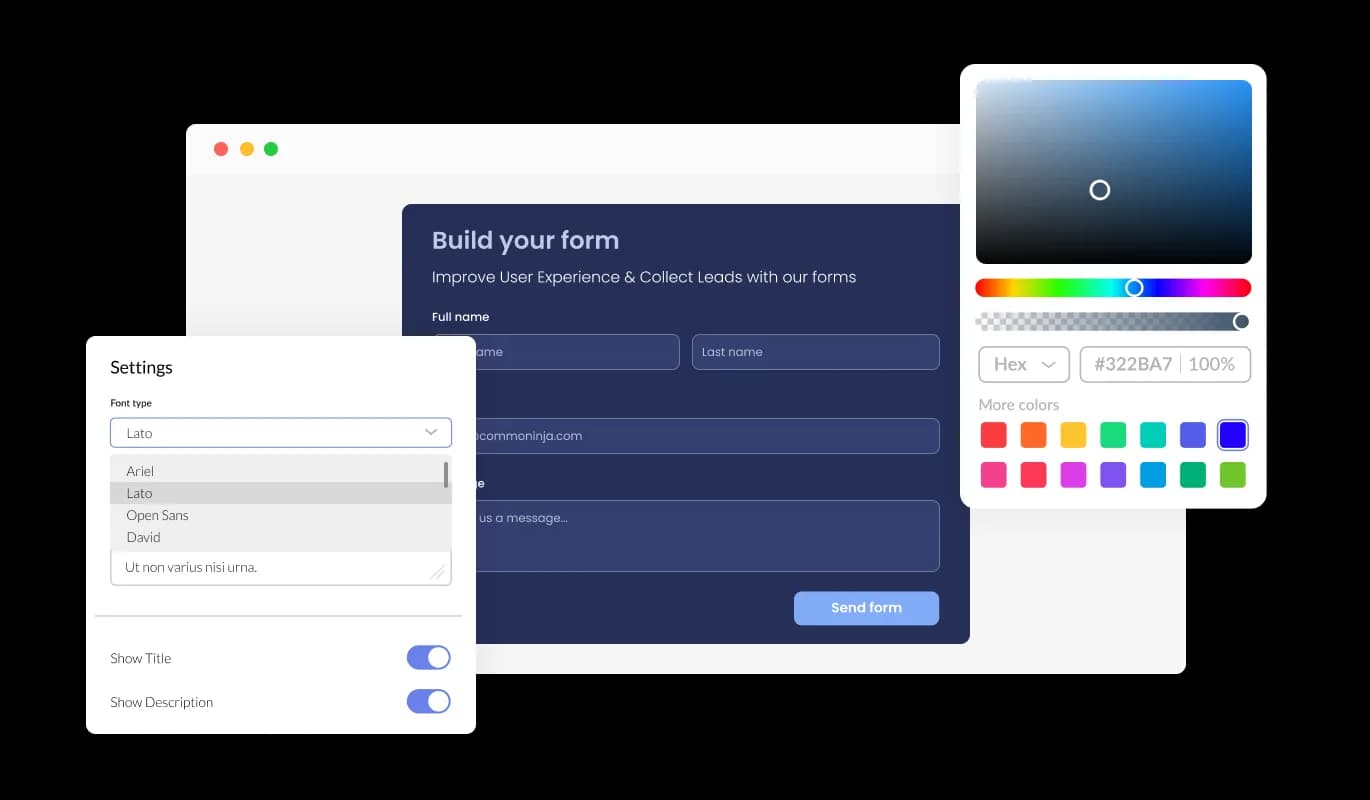
The Form Builder offers complete customization options, enabling you to edit and tailor the form's design to suit your specific needs. Whether it's changing colors, fonts, field sizes, or layouts, our Form Builder gives you the flexibility to fully customize your forms with ease, ensuring a seamless user experience that aligns with your brand and objectives.

The Form Builder's advanced editor is an incredibly powerful tool that gives you complete control over every aspect of your form's appearance. In addition to the user-friendly interface that allows you to customize colors, fonts, and layout, the CSS editing feature enables you to take customization to a whole new level. With CSS editing, you can fully customize your form's design, ensuring that it aligns perfectly with your brand's image and objectives. Whether you're a beginner or an experienced designer, the Form Builder's CSS editing feature empowers you to create stunning, unique forms with ease.

Integrating the Form widget onto your website is effortless, requiring only a copy-and-paste of the provided code snippet into your HTML page. Additionally, the widget is designed to be auto-updating, ensuring that any changes you make using the Form Builder editor will automatically reflect on your website, eliminating the need for manual updates.
The Form Builder's submission data can be exported to a CSV file, enabling seamless import into other software or tools for in-depth analysis or integration. This functionality is highly beneficial for businesses seeking to maintain comprehensive records of client interactions and for data analysis and reporting objectives.
The Form Builder provides the option to enable notifications for both the form owner and the submitting user. Configure automated email notifications for each form submission, allowing you to send alerts to multiple email addresses, as well as deliver a confirmation email to the user upon successful submission.
The Form Builder provides the option to enable multiple submissions by a single user, facilitating situations where users need to update or supplement their submitted information. With this feature enabled, users can submit the form multiple times without encountering any restrictions, ensuring that they can provide accurate and complete data.
The Form Builder is incredibly user-friendly and requires no coding knowledge to use. With just a few clicks, you can customize your forms to your liking using our intuitive interface, streamlining the process and eliminating the need for technical expertise.
Common Ninja has amazing no-code widgets that would beautify a website built on any builder. It is very easy to use and customise. It has as many widgets for almost everyone willing to make their website impressive.
Outstanding service. I use their widgets to help me with my web design business and whenever I need help they are very quick to help.
Excellent company with excellent service!!! We used it to build a survey, it was very user friendly. The service was perfect. Amit helped us with every problem and question we had, thank you very much!!!
Common Ninja saved the day when building our website and the customer service Daniel, the co-founder and CEO, provided was amazing.
Yes. The free plan covers one form with no time limit and no credit card. Upgrade only when you need additional forms, premium skins, more submissions per month, conditional logic on more fields, or advanced features like HIPAA compliance and payment collection.
The Contact Form widget is a fast drop-in for a simple inquiry form (name, email, message, file). The Form Builder widget is the advanced sibling: longer forms with conditional logic, payment collection, advanced field types (signature, rating scale, multi-select), surveys with branching, applications, registrations, intake forms, and form-section grouping. If your form is more than a few fields or needs logic, payment, or HIPAA mode, use the Form Builder.
Build the form in the Common Ninja editor (fields, logic, styling, notifications), copy the one-line embed snippet, and paste it into your site: Divi via a Code module on the page; Google Sites via Insert → Embed → Embed code; Squarespace via a Code block or Custom Code Injection; Wix via Embed Code → Embed HTML; Webflow via an Embed element; Framer via a Code Embed element. Edits in the editor push to every embed without re-pasting.
Short text, long text, dropdown, multi-select, checkbox, radio, date, time, number, currency, file upload, image upload, payment, signature, and rating scale. Required vs optional, placeholder text, validation rules, default values, conditional show/hide, and field grouping into sections are all configurable.
Yes. Add a Payment field, connect a payment processor in the dashboard, and set the amount (fixed, visitor-chosen, or calculated from form values). The submission and the payment link together in the dashboard so one view shows both the form values and the charge. Common use cases include registration fees, donation forms, application fees, and paid intake.
Yes, in HIPAA mode. Turn on HIPAA mode in the dashboard and the widget routes submissions through a compliant data path, encrypts the payload at rest and in transit, and applies retention rules suitable for protected health information. Healthcare practices, telehealth providers, law firms, insurance brokers, and other regulated businesses can collect patient or client data on a public website without sending PHI through plain email.
Yes. Every submission lands in the Common Ninja dashboard with timestamp, field values, attached files, source URL, and visitor metadata. Export the full submission set to CSV at any time for follow-up in a spreadsheet, CRM, or email tool. Email notifications go to one or more addresses with the submission body included.
A hand-coded HTML form needs a back-end to receive the POST, a place to store submissions, an email notification setup, spam filtering, validation rules, conditional logic, file-upload handling, and an admin UI to review submissions. The Form Builder widget gives you all of that in a one-line embed: submissions store in the dashboard, notifications fire automatically, spam filters run on every submit, and the admin UI for review and CSV export is included. You skip the back-end entirely.
Pick your platform. Each takes under 4 minutes.

Allow users to send messages or inquiries, save submissions, enable notifications, and more

Easily craft engaging, personalized popups to boost conversions.

Manage appointments, sync calendars, and send reminders efficiently.

Showcase customer testimonials using a rotating slider

Comments system with upvote/downvote, email notifications, reply threads, and moderation tools.

Displays common questions and answers for quick reference
A Form Builder is a powerful tool that allows users to create and customize forms for various purposes, such as surveys, registration, feedback, or contact forms, without any coding or technical expertise required.
A Form Builder offers numerous benefits, such as streamlining the form creation process, unparalleled customization and flexibility, effortless data collection and management, and enhanced user experience.
The Form Builder provides a wide array of field types, enabling users to create various types of forms for their specific needs. Some common types of forms you can create with the Form Builder include surveys, registration forms, feedback forms, and contact forms. However, the possibilities are endless, and you can tailor the forms to your unique requirements with the Form Builder's customization options.
Absolutely! The Form Builder provides complete customization options, enabling you to edit and tailor your form's design to suit your specific needs and aesthetics.
Yes, the Form Builder offers the CAPTCHA anti-spam feature, requiring users to complete a verification step before submitting the form, effectively preventing spam messages from bots and automated scripts.
Yes, integrating the Form Builder onto your website is effortless, requiring only a copy-and-paste of the provided code snippet into your HTML page. Additionally, the Form Buidler is designed to be auto-updating, ensuring that any changes you make using the Form Builder editor will automatically reflect on your website.
Yes, you can use the Form Builder to collect files and images submitted by users, making it easy to gather essential information, documentation, or visual assets from your clients or customers.
No, you do not need any coding knowledge to use a Form Builder. With its user-friendly interface, you can effortlessly customize and design your forms without any technical expertise.
Yes, the Form Builder allows you to export your form submission data to a CSV file, making it easy to import the data into other software or tools for further analysis or integration.
Yes, you can configure the Form Builder to send automated email notifications to multiple email addresses for every form submission, as well as deliver a confirmation email to the user upon successful submission.
Yes, the Form Builder's responsive design ensures that your forms look great and function perfectly on any device, including desktops, laptops, tablets, and mobile devices, maximizing your audience reach and engagement.
Multi-field surveys, applications, intake forms, registration forms, donation forms, and feedback forms with conditional logic, payment collection, HIPAA mode, and CSV export. Embed on 200+ platforms including Divi, Google Sites, Squarespace, Wix, Webflow, and Framer.
Create your FormNo credit card · Setup in under 5 minutes