


Verified review
Common Ninja has amazing no-code widgets that would beautify a website built on any builder. It is very easy to use and customise. It has as many widgets for almost everyone willing to make their website impressive.
Try the editor, no signup
Pick a template, customize it, and watch it update live, no signup.
No credit card · Free forever plan
No credit card · Free forever plan
The Common Ninja G2 Reviews widget is a free, no-code embed that displays the authentic reviews and ratings your software has earned on G2, on any website.
Pick which reviews to show, set a minimum star rating, filter by keyword, choose a layout and skin, and paste one line of embed code on 200+ platforms including WordPress, Squarespace, Wix, Webflow, and Canva. The widget pulls your real G2 reviews and keeps them in sync.
It does not generate, write, or purchase reviews of any kind.
B2B buyers trust other buyers more than they trust your own marketing copy. Surfacing real G2 reviews on a product, pricing, or landing page closes the credibility gap between a stranger evaluating your software and a confident sign-up decision.
The widget displays the reviews your software actually received on G2. It does not write, generate, or purchase reviews. If your goal is to inflate star ratings with fake reviews, this is not the tool; if your goal is to put your authentic customer voice on your own site, it is.
Manual review approval means an off-topic or misspelled review never has to go live. Keyword filters surface reviews that mention specific features or use cases. Star-rating filters let you set a floor below which a review is hidden.
Pick from multiple layouts (slider, grid, list, carousel) and a library of pre-built skins. Override typography, spacing, and colors with custom CSS. The widget inherits its container width and stays mobile-responsive from a 320px phone screen up to a full-width desktop hero.
Point the widget at the G2 reviews you want to display. The widget only reads reviews and ratings; it never posts on your behalf and never modifies anything on G2.
Pick which reviews appear (manual approval per review), filter by keyword or star rating, set the sort order, choose a layout (slider, grid, list, carousel) and a pre-built skin. Fine-tune typography and spacing with custom CSS for a pixel-level brand match.
Copy the embed snippet and paste it on any page. The widget renders inline; any new review you approve in the dashboard pushes to every embed without re-pasting the code.
Every G2 review is queued for approval in the dashboard. You decide which ones publish to the embed. Off-topic mentions or reviews about an unrelated product can be left out without affecting the original G2 review.
Set a minimum star rating (typically 4 or 5 stars) and require or exclude specific keywords. Useful for landing pages where reviews should mention the actual feature or use case visitors are evaluating.
Pick a slider, grid, list, or carousel layout depending on the page. Adjust the review style (compact vs full quote, photo on or off, star icon set). Different pages on the same site can run different layouts from the same review pool.
Start from a skin in the library, then override typography, spacing, and colors with custom CSS for a pixel-level brand match. Mobile-responsive by default; the embed inherits its container width without horizontal scroll.
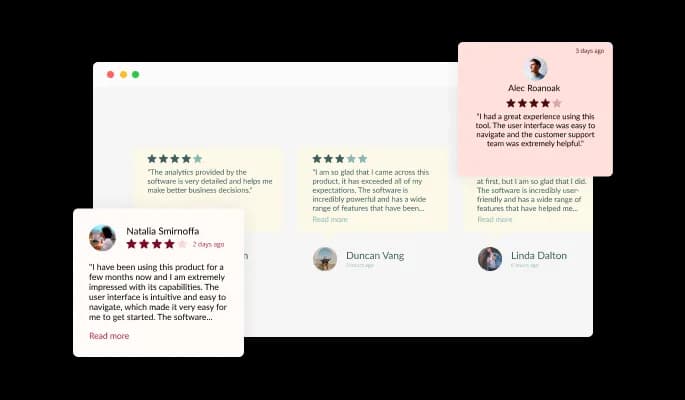
The G2 Reviews widget is a powerful tool that allows you to showcase customer reviews on your website. With three review types to choose from - Carousel, Grid, and List - you have the flexibility to tailor the appearance of your reviews to fit your website's design and aesthetic. Whether you want to display a series of rotating testimonials in a carousel format, present a grid of reviews in a visually appealing way, or simply list out customer feedback in a straightforward manner, the G2 Reviews widget has you covered. Plus, with the ability to customize the appearance of your reviews to match your branding, you can ensure that your customer feedback is seamlessly integrated into your website.
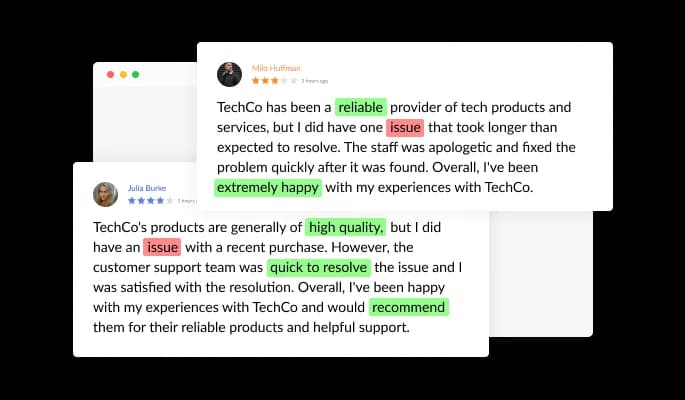
The G2 Reviews widget features additional filtering options in the form of keyword inclusion or exclusion — ideal for specific products or services.

The G2 Reviews widget comes available with multiple layouts that you can choose from to make sure it fits your overall website design and style.
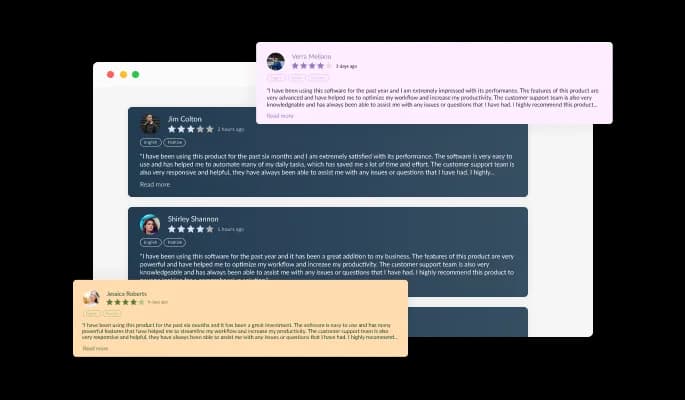
With full customization options, you can easily edit the design of the widget to match the look and feel of your website. You can change the colors, fonts, spacing, and any other visual elements to create a cohesive and professional appearance. Not only does this help to improve the user experience on your site, but it also helps to build trust and credibility with your audience.
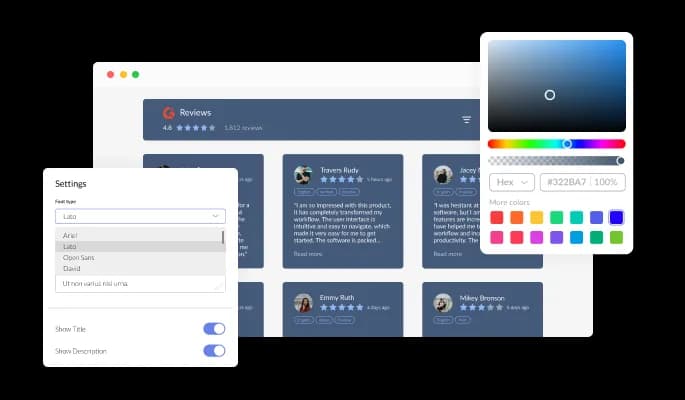
With full customization options, you can easily edit the design of the widget to match the look and feel of your website. You can change the colors, fonts, spacing, and any other visual elements to create a cohesive and professional appearance. Not only does this help to improve the user experience on your site, but it also helps to build trust and credibility with your audience.
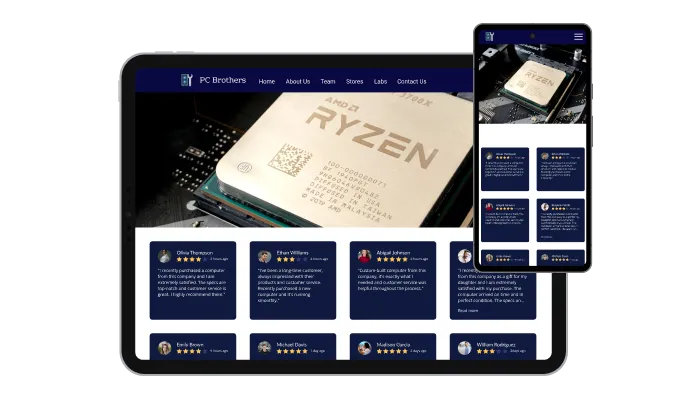
The G2 Reviews widget is a valuable tool for any website. Not only is it fully responsive, meaning it will adjust seamlessly to fit the screen size of any device, but it also has a sleek and modern design that will enhance the overall look of your site. In a world where more and more people are accessing the internet through their phones and tablets, it is crucial to have a website that is optimized for mobile viewing. The G2 Reviews widget will allow you to do just that, giving you an edge over competitors.

Our advanced editor is a powerful tool that gives you complete control over the appearance of the G2 Reviews widget. With this feature, you can easily customize every aspect of the widget's look and feel, from the colors and fonts to the layout and positioning. But if you're feeling particularly creative, you can take your customization to the next level by editing the CSS directly. This gives you the ability to make even more advanced changes to the widget, allowing you to make it your own. Whether you want to make a few simple tweaks or go all out with advanced customizations, our advanced editor has you covered.

To embed the G2 Reviews widget on your website, simply copy and paste the provided code snippet into the HTML of your webpage. Additionally, the widget is designed to be self-updating, meaning that any changes you make to the G2 Reviews Editor will be reflected automatically on your website without the need for any additional manual updates.
The G2 Reviews widget comes with advanced filtering options, like choosing to display reviews with a minimum of a certain number of stars.
With a simple toggle of a button, you can make sure that you manually approve all the reviews that will be displayed on the G2 Reviews widget.
The G2 Reviews widget comes with sorting options that will help you customize your display to show reviews by the oldest or the newest reviews.
The G2 Reviews widget is easy to use and requires no coding knowledge. Our intuitive dashboard with the drag-and-drop feature will enable you to customize the widget any way you’d like to with just a few simple clicks.
Common Ninja has amazing no-code widgets that would beautify a website built on any builder. It is very easy to use and customise. It has as many widgets for almost everyone willing to make their website impressive.
Outstanding service. I use their widgets to help me with my web design business and whenever I need help they are very quick to help.
Excellent company with excellent service!!! We used it to build a survey, it was very user friendly. The service was perfect. Amit helped us with every problem and question we had, thank you very much!!!
Common Ninja saved the day when building our website and the customer service Daniel, the co-founder and CEO, provided was amazing.
Yes. The free plan covers one G2 Reviews widget with no time limit and no credit card. Upgrade only when you need additional widgets, premium skins, or higher monthly view limits.
Design the widget in the Common Ninja editor, then copy the one-line embed snippet and paste it where you want the reviews. Most site builders accept embed snippets via a Custom HTML, Embed, or Code block (WordPress, Squarespace, Wix, Webflow, Canva, and others). The widget renders inline on any page that accepts an embed.
Yes. In the WordPress editor, add a Custom HTML block (or a Custom HTML widget in Elementor or Divi) and paste the Common Ninja embed snippet. Update the page and your G2 reviews render live and stay in sync with the editor.
No. The widget displays the real reviews your software has received on G2. It does not write reviews, purchase reviews, or generate AI-written reviews. Buying or generating fake reviews violates G2's terms of service and consumer-protection laws in most countries.
Yes. Every review is queued for manual approval. Approve the ones you want public, leave out the rest. On top of approval, set a minimum star rating (typically 4 or 5 stars) and require or exclude specific keywords so only reviews that match the page context surface.
Yes. Sort the published wall by newest first, oldest first, highest rating, or lowest rating. The sort applies to the rendered widget; the source data on G2 is untouched.
Yes. Pick a layout (slider, grid, list, carousel), choose a pre-built skin, and fine-tune typography, spacing, and colors with custom CSS. The widget is mobile-responsive by default and inherits its container width.
200+ platforms including WordPress, Squarespace, Wix, Webflow, Canva, Shopify, Framer, Joomla, HubSpot, and any custom HTML page that accepts an embed snippet.
Pick your platform. Each takes under 4 minutes.

Present Google reviews for your business on your website

Present Yelp reviews for your business on your website

Showcase customer testimonials using a rotating slider

Comments system with upvote/downvote, email notifications, reply threads, and moderation tools.

Allow users to send messages or inquiries, save submissions, enable notifications, and more

Displays multiple logos in a scrolling or rotating manner
Display the authentic reviews your software has earned on G2. Manual approval per review, keyword and star-rating filters, multiple layouts and skins, and a one-line embed snippet for any site builder.
Add your G2 reviewsNo credit card · Setup in under 5 minutes