


Verified review
Common Ninja has amazing no-code widgets that would beautify a website built on any builder. It is very easy to use and customise. It has as many widgets for almost everyone willing to make their website impressive.
The Common Ninja Image Gallery widget is a free, no-code embed that displays photos in a grid, masonry, or carousel layout on any website.
Pick from 5 gallery layouts, add captions and descriptions, enable click-to-enlarge popups, and paste one line of embed code on 200+ platforms including Notion, Webflow, Framer, Canva, Google Sites, Blogger, WordPress, and Squarespace.
Showcase a portfolio, product collection, event recap, or team photo wall with mobile-responsive design and full visual customization.
Designers, photographers, agencies, real-estate listings, restaurant menus, conference recap pages, wedding photographers, and product catalogs all live or die on how their photos look on the page. A proper gallery with captions, popups, and a mobile-tuned grid beats a stack of inline images every time.
Notion's native image blocks stack vertically and don't behave like a true gallery. Embed the Common Ninja Image Gallery via /embed and Notion renders a real grid, masonry, or carousel layout with click-to-enlarge popups, captions, and mobile-responsive columns. Same applies to Webflow, Framer, Google Sites, and Blogger pages that lack a native gallery component.
Tap any thumbnail and the image opens in a fullscreen popup with arrow navigation between gallery items, swipe gestures on mobile, and the image caption shown below. Visitors can browse the whole gallery without leaving the page or shrinking thumbnails just to fit the layout.
A hand-coded image grid with CSS flexbox or a W3Schools tutorial gets you the visual layout but misses the popup viewer, caption styling, mobile-responsive column rules, lazy loading, and the no-code add-photo dashboard. The widget delivers the grid plus everything the snippet leaves you to wire by hand.
Drag photos in from your computer, paste image URLs, or pull from a Google Drive folder. Add a caption and a longer description to each image so visitors get context: photo credit, product name, location, event date, or a one-line story.
Choose from 5 gallery layouts (grid, masonry, justified, carousel, mosaic), set the column count per breakpoint, adjust spacing and corner radius, and pick whether tapping an image opens a popup or links somewhere. Pick a skin from the library or start with Custom CSS for a pixel-perfect brand match.
Copy the one-line embed snippet and paste it on your page on Notion, Webflow, Framer, Canva, Google Sites, Blogger, WordPress, or any of the 200+ supported platforms. Edits in the editor push to every embed without re-pasting, so adding new photos or reordering the gallery takes one change in the dashboard.
Grid (uniform tiles), masonry (Pinterest-style staggered), justified (newspaper-row layout), carousel (horizontal scroll), and mosaic (asymmetric blocks). Switch layouts anytime in the editor without re-uploading photos or losing captions.
Add a short caption that shows under each thumbnail and a longer description that appears in the popup. Useful for photo credits, product names, event details, or short stories. Plain text or rich-text formatting depending on the layout.
Adjust column count per breakpoint, image spacing, corner radius, caption typography, popup overlay opacity, hover behavior, and arrow-navigation styling. Add Custom CSS for pixel-perfect brand alignment. Mobile-responsive defaults handle the small-screen layout automatically.
The gallery automatically adjusts column count, image size, and popup behavior across mobile, tablet, and desktop breakpoints. Touch gestures (swipe between images, pinch-to-zoom in the popup) work natively without extra setup.
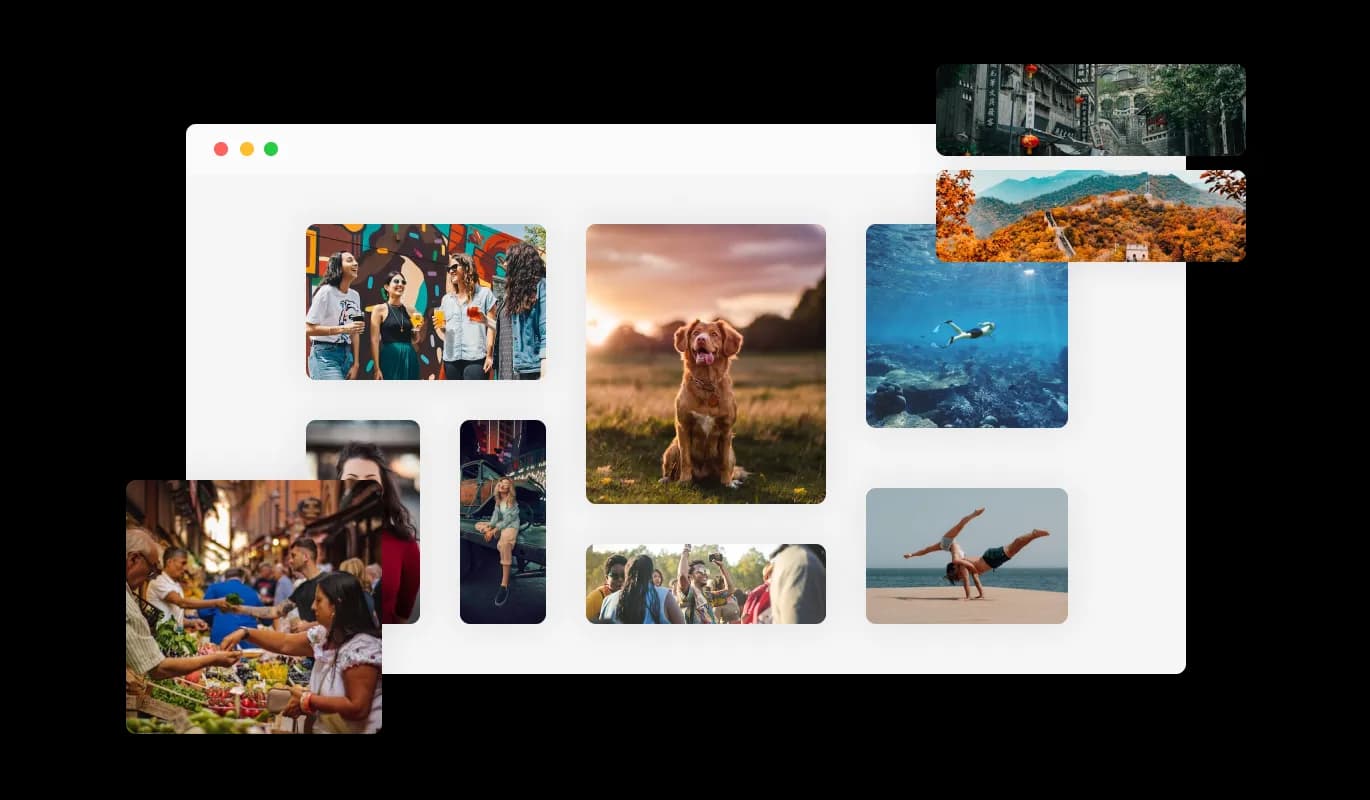
The Image Gallery comes available with five different grid layouts that will enable you to choose from organized, uniform boxes, to more disorganized and different-sized boxes to better fit your brand, personality, and website design. With the ability to choose from multiple grid layouts, the Image Gallery provides you with the flexibility to create a visual experience that is unique and personalized for your website visitors.
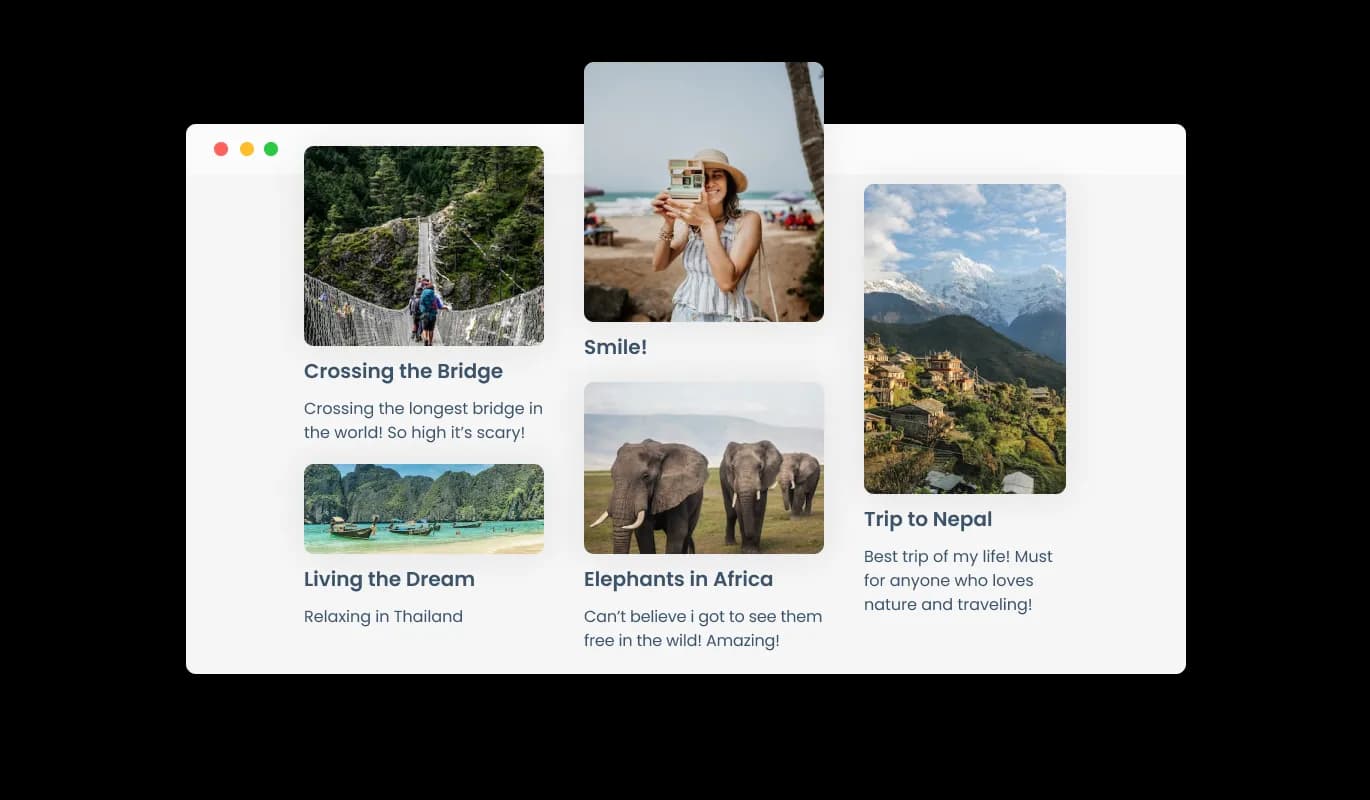
The Image Gallery provides the option to add captions and descriptions to images to help users understand what the image is of. The captions and descriptions also provide valuable information for search engines, making it easier for your website to be discovered by those searching for related content. This can improve your website's visibility and attract more traffic to your site.
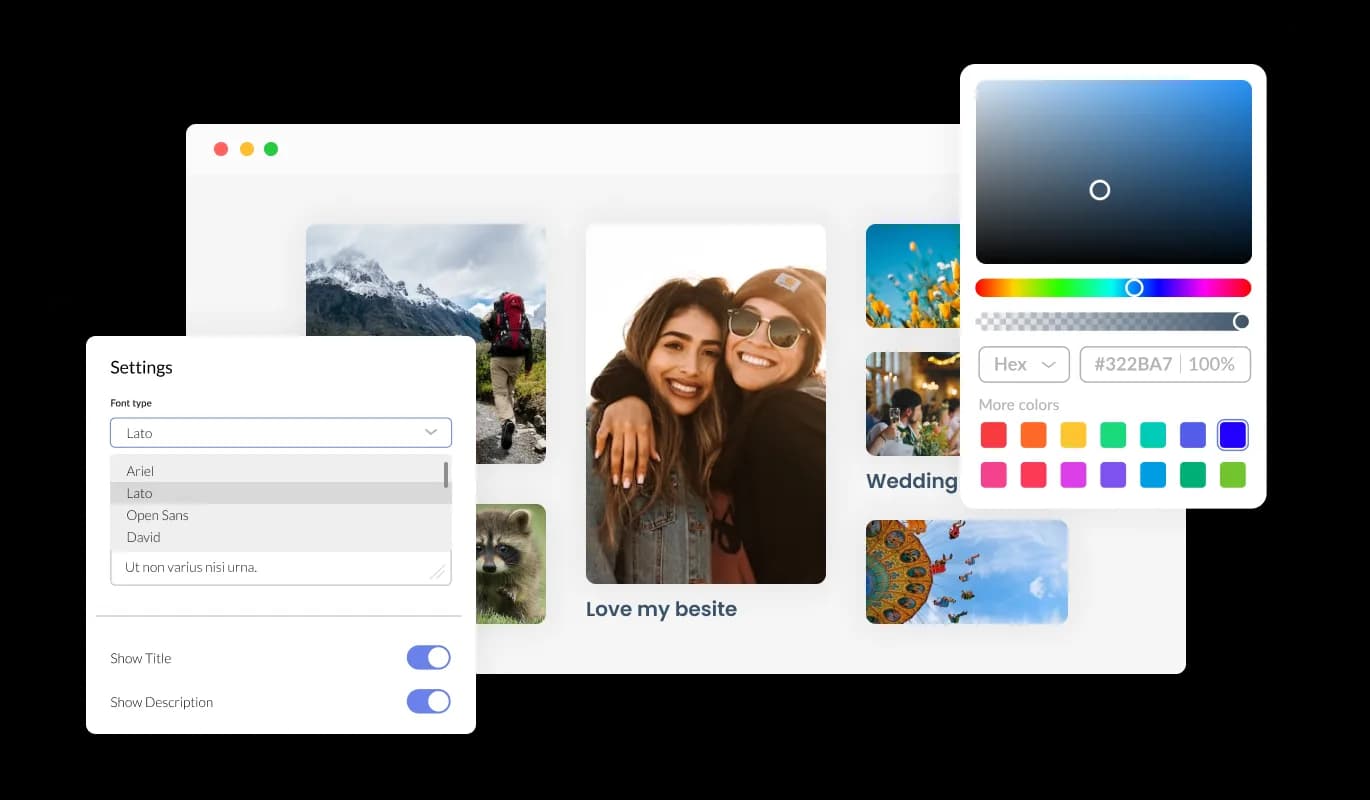
The Image Gallery widget features full customization options so you can edit the design to fit your needs. Change the colors, the fonts, the spacing, and anything else! This allows you to create a unique visual experience for your website visitors that reflects your brand and personality, making your website stand out from the competition.
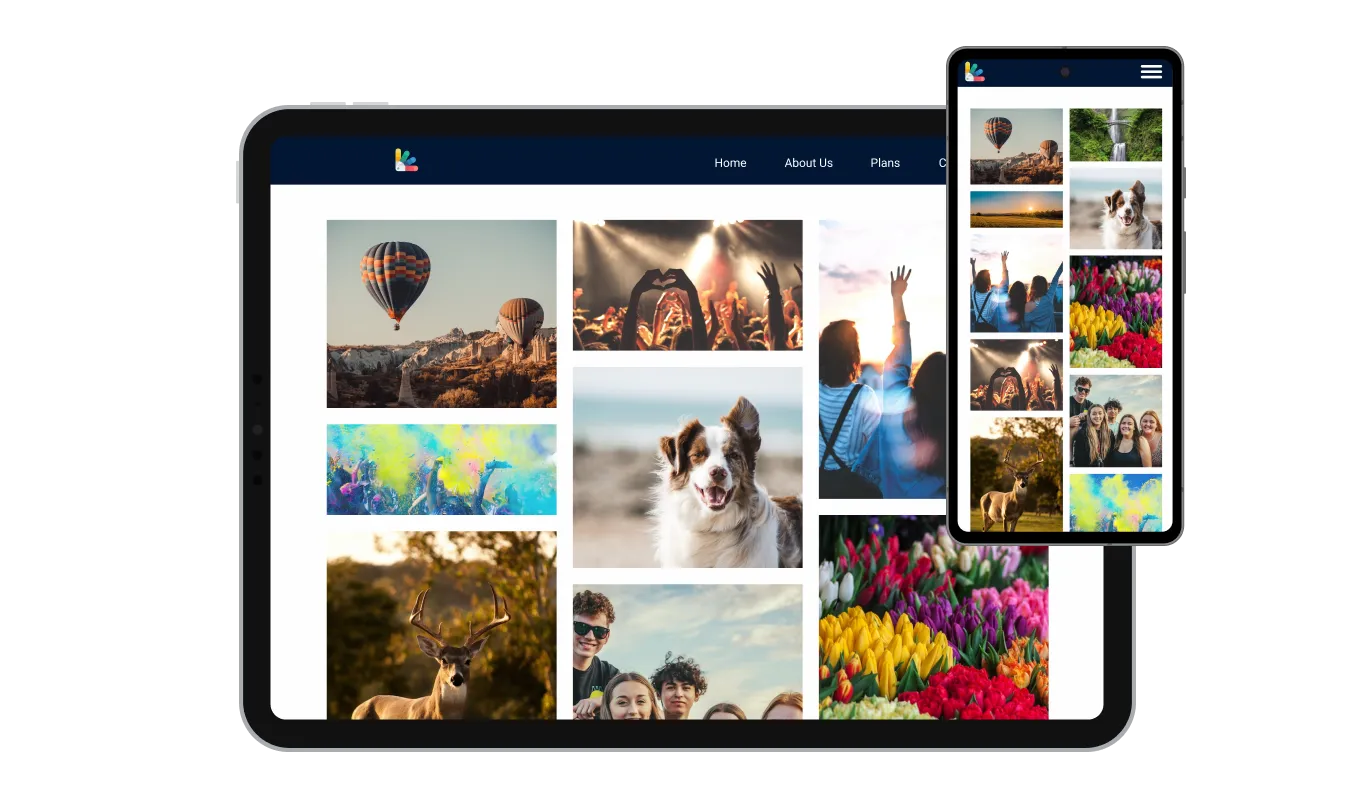
The Image Gallery widget is fully responsive and will look great on any device. In a mobile-first world, this feature will put you ahead of your competitors. By ensuring that your website is mobile-friendly, you can attract and retain more visitors, improve your search engine rankings, and increase your online visibility, resulting in more leads and sales for your business.
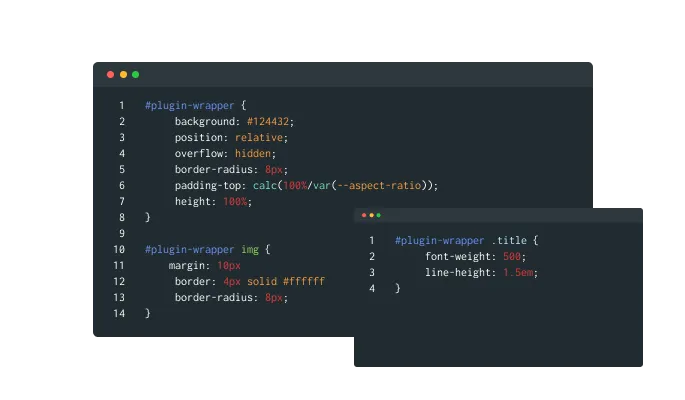
As with all of Common Ninja’s apps, you can add custom CSS to customize the Image Gallery widget and be even more creative. Adding custom CSS to your Image Gallery widget allows for even more creative freedom, giving you the ability to fine-tune the design and make your website truly unique.
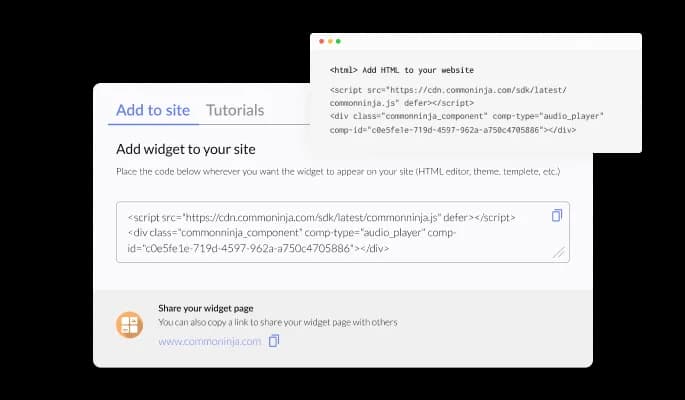
You can embed the Image Gallery on your website easily by copying a single line of code. No coding skill is required and it's compatible with most website-building platforms. This makes it easy for anyone to add an Image Gallery to their website, regardless of their technical expertise or website-building platform, making the widget accessible and user-friendly for everyone.
The Image Gallery enables enlarging images by opening them in a popup, which not only makes it easy to interact with images but also keeps the overall user experience more immersive.
The Image Gallery enables micro animation to make the whole process of interacting with the image gallery more enjoyable and less static. These micro animations provide a subtle but effective way to increase engagement, making your website more interactive and user-friendly for visitors.
The Image Gallery widget is easy to use and requires no coding knowledge. Our intuitive dashboard with the drag-and-drop feature will enable you to customize the widget any way you’d like to with just a few simple clicks.
Build a gallery that does justice to your photos
Open the editorNo credit card · Setup in under 5 minutes
Common Ninja has amazing no-code widgets that would beautify a website built on any builder. It is very easy to use and customise. It has as many widgets for almost everyone willing to make their website impressive.
Outstanding service. I use their widgets to help me with my web design business and whenever I need help they are very quick to help.
Excellent company with excellent service!!! We used it to build a survey, it was very user friendly. The service was perfect. Amit helped us with every problem and question we had, thank you very much!!!
Common Ninja saved the day when building our website and the customer service Daniel, the co-founder and CEO, provided was amazing.
Yes. The free plan covers one gallery with no time limit and no credit card. Upgrade only when you need additional galleries, premium skins, more images per gallery, or advanced layout options.
The Image Carousel widget shows one slide at a time and rotates automatically. Best for hero banners, testimonial slides, and featured-product strips where you want one image to dominate at a time. The Image Gallery widget displays multiple images at once in a grid, masonry, justified, or mosaic layout. Best for portfolios, product catalogs, event recaps, and any case where visitors should browse the full set of photos.
The Instagram Feed widget pulls photos automatically from your Instagram account on a refresh schedule and displays them with your handle, hashtags, and a link back to Instagram. The Image Gallery widget displays photos you upload manually with full control over the order, captions, and popup behavior. No Instagram account needed and no auto-refresh. Use Instagram Feed when you want a live mirror of your social posts; use Image Gallery when you want a curated, edited photo collection that doesn't change unless you change it.
Build the gallery in the Common Ninja editor (upload images, pick layout, add captions), copy the embed URL, and in Notion type /embed on the page where the gallery should appear. Paste the embed URL into the embed block. Notion renders the gallery inline as a true grid or masonry layout, not as Notion's default stacked image blocks. Resize the embed block to fit your page width.
Build the gallery in the Common Ninja editor, copy the one-line embed snippet, and paste it into your site: Webflow via an Embed element on the page; Framer via a Code Embed element; Google Sites via Insert → Embed → Embed code; Blogger via the HTML/JavaScript gadget; WordPress via a Custom HTML block; Squarespace via a Code block. Edits in the editor push to every embed without re-pasting.
Yes. Every image takes a short caption (shown under the thumbnail in supported layouts) and a longer description (shown in the click-to-enlarge popup alongside the image). Captions and descriptions support plain text in every layout; some layouts also support rich-text formatting and image links.
Yes. Click-to-enlarge popups are enabled by default. Tap any thumbnail and the image opens fullscreen with arrow navigation between gallery items, swipe gestures on mobile, and the image's caption shown below. You can disable the popup if you'd rather have each image link out to a URL (product page, blog post, external site).
Yes. Column count, image size, and popup behavior automatically adjust across mobile, tablet, and desktop breakpoints. You can set custom column counts per breakpoint if the defaults don't match your design. Touch gestures (swipe between images, pinch-to-zoom in the popup) work natively without extra setup.
Pick your platform. Each takes under 4 minutes.

Showcases images in a rotating or sliding manner
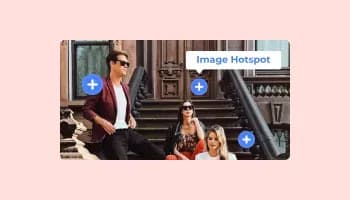
Add interactive areas on images that reveal extra information when clicked or hovered over.

A simple slider that lets visitors compare before and after images to see visual changes clearly.

Showcases videos from various sources in a variety of visually appealing layouts and grids

Displays multiple logos in a scrolling or rotating manner

Display the latest posts from your Instagram page
An image gallery widget is a user interface element used to display a collection of images in a visually appealing way. It is commonly used in web and mobile applications to showcase images in a more organized and attractive manner.
An image gallery widget typically displays a grid of thumbnail images, which can be clicked on to view a larger version of the image. The widget may include features such as scrolling, zooming, and navigation buttons to make it easier for users to browse through the collection of images.
Image gallery widgets can be customized in various ways, such as adjusting the size and layout of the thumbnails, adding captions or descriptions to each image, and applying visual effects such as filters or transitions. They can be designed to fit seamlessly into the overall look and feel of a website or application and may be responsive to different screen sizes and orientations.
An image gallery widget provides an effective way to display and interact with a collection of images, making it a useful tool for photographers, artists, and businesses that want to showcase their products or services visually.
Adding an image gallery to your website can benefit various groups of people, including:
Yes, you can easily do so from the “Templates” tab.
Yes, there are lots of beautiful skins that you can choose from to save time and start using the widget as quickly as possible.
Yes, you can either upload an image, or select an icon from a large selection of available icons to add to your Notification Bar, or, alternatively, you can leave it all blank.
It’s simple. All you need to do is to sign up and start using the free version.
Common Ninja’s Image Gallery widget is free to use. It is limited to a certain amount of views, however.
Common Ninja’s Image Gallery widget is compatible with ALL current and future website builders.
Yes, the Image Gallery widget is GDPR-compliant.
No. Using our Image Gallery widget is very simple. The widget comes with an intuitive drag-and-drop interface and fully customizable options. Once you’ve finished editing the widget to your liking, all you need to do is copy the provided code and add it to your website.
Yes. We are eager to hear your request. Please visit our Feature Request page.
Grid, masonry, justified, carousel, and mosaic layouts with click-to-enlarge popups, captions, and mobile-responsive defaults. Embed on 200+ platforms including Notion, Webflow, Framer, Canva, Google Sites, and Blogger.
Create your Image GalleryNo credit card · Setup in under 5 minutes