


Verified review
Common Ninja has amazing no-code widgets that would beautify a website built on any builder. It is very easy to use and customise. It has as many widgets for almost everyone willing to make their website impressive.
The Common Ninja Image Hotspot is a free, no-code widget that turns any image into an interactive, clickable surface.
Drop pins anywhere on a photo, screenshot, infographic, or floor plan; layer rich tooltips with text, images, and video; link each hotspot to a URL; and paste one line of embed code on 200+ platforms including Squarespace, Canva, Shopify, WordPress, and Wix.
E-commerce stores on Shopify, WordPress, or Wix label features on apparel, furniture, electronics, or kits with clickable pins. Visitors tap a pin to see a detail shot, spec, color option, or add-to-cart link without leaving the product page.
Real estate listings, hotel websites, conference venues, and architectural portfolios turn 360 photos and floor plans into navigable layouts. Click a room to expand details, photos, amenities, or a booking link.
Product teams use hotspots on UI screenshots to walk new users through workflows without recording a video. Each hotspot is a step, an explanation, or a deep link into the docs and the help center.
Designers, journalists, and educators use hotspots to make a single image carry the depth of a full article. Each pin holds a story, a citation, a quote, or a short video clip without cluttering the visual.
Add the photo, product shot, screenshot, infographic, or floor plan you want to make interactive. Common formats supported with no special preprocessing required, so a freshly exported PNG or JPG drops straight in.
Click anywhere on the image to place a hotspot. Pick one of 10 icon styles, write a title, fill the tooltip with text, images, or embedded video, and add an outbound link if you want clicks to navigate somewhere.
Copy the embed snippet and paste it where you want the image to render. Hotspot positions stay accurate as the image scales across mobile, tablet, and desktop, so what you place in the editor is what visitors see on every screen size.
Every hotspot opens a tooltip that can hold a title, body copy, images, and embedded video alongside an outbound link. Use them as detail callouts, mini case studies, or fully embedded video explainers inside the image itself.
Place as many pins as your image needs. A floor plan can have one per room. A product shot can have one per feature. A screenshot can have one per UI control. No count limits, no premium gate on the number of hotspots in a widget.
Every hotspot can link to a URL, open in a new tab, deep-link into a specific page section, or trigger a lightbox. Use them as silent product CTAs, doc deep links, or navigational pins on a tour map.
Pin positions are stored as relative coordinates, so they stay in the right spot as the image scales down on phone or tablet. No clipped pins, no hotspots that drift off the product, no "open on desktop" disclaimer.
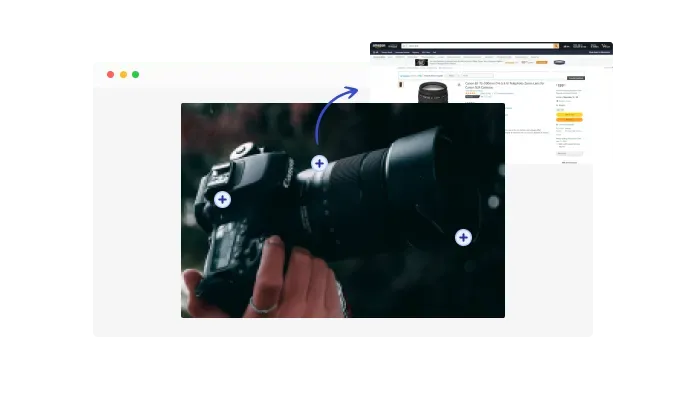
With Common Ninja’s Image Hotspot Widget, every hotspot can become a conversion opportunity. Add custom links to any product page, section, or external UR, so when users click an interactive marker, they go exactly where you want them to.
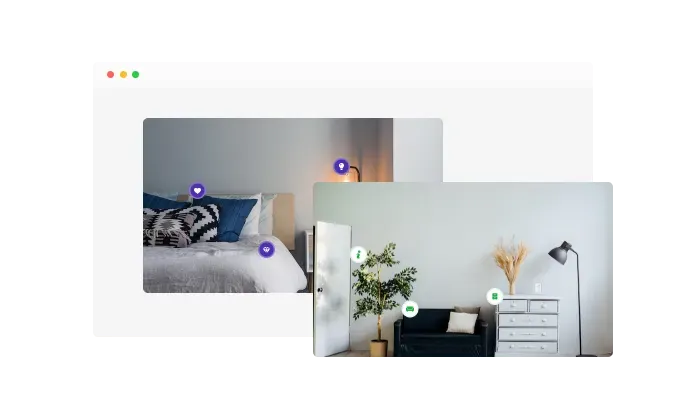
Make your visuals fit your brand style. The Image Hotspot Widget includes 10 professionally designed icon styles, allowing you to: Match your design’s tone (modern, playful, minimal, or elegant). Use consistent visual language across your site. Differentiate categories or product types visually. Each icon is scalable, responsive, and customizable, ensuring it looks perfect across desktop and mobile. For advanced users, you can even apply custom CSS styling for total creative freedom.
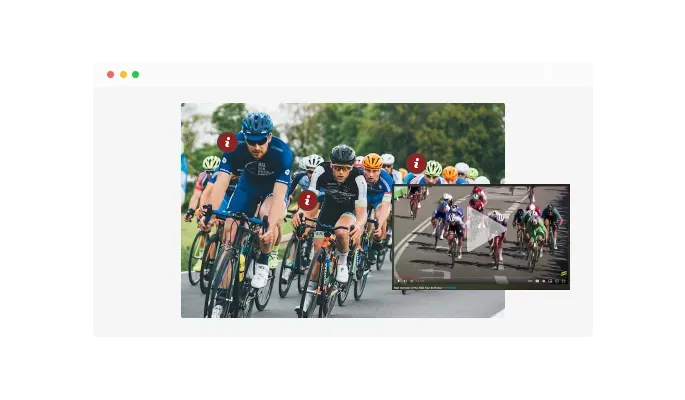
Want to make your content more dynamic? You can embed videos directly inside hotspot tooltips. This adds a powerful visual storytelling layer and helps explain complex ideas effortlessly.
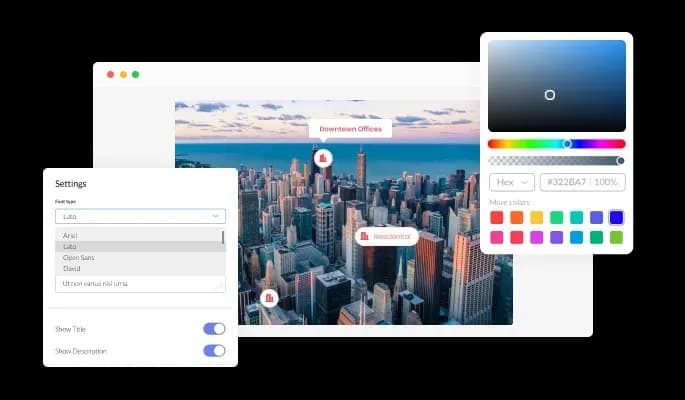
Every element of the Common Ninja Image Hotspot Widget is fully customizable to reflect your brand identity.
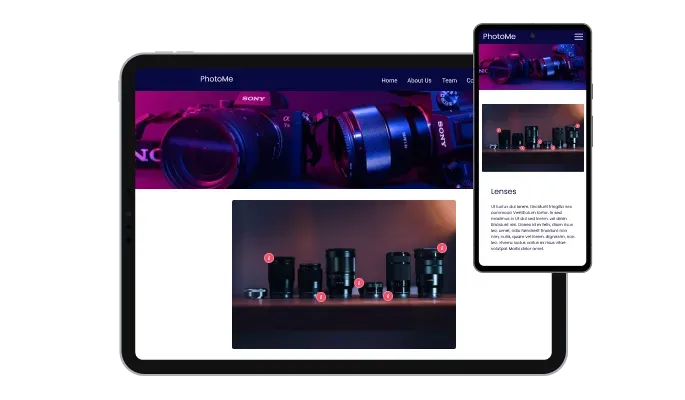
Today’s visitors browse from everywhere, desktops, tablets, and mobile phones. That’s why Common Ninja’s Image Hotspot Widget is built to be 100% responsive, adapting automatically to any screen size or resolution.
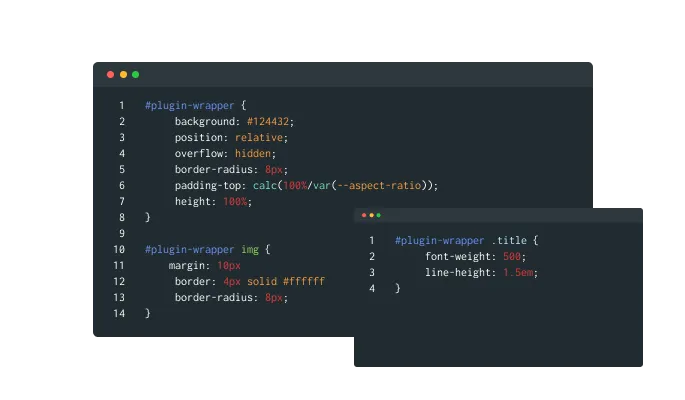
Want pixel-perfect control over your design? With Common Ninja’s advanced editor, you can customize everything, from colors, icons, and typography to spacing and animations.
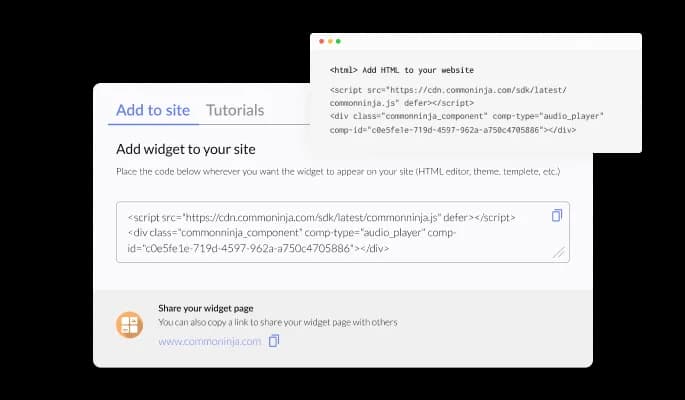
Adding the Image Hotspot Widget to your website takes seconds. Simply copy the auto-generated code snippet from the Common Ninja dashboard and paste it into your site’s HTML, that’s it.
Motion attracts the human eye, and Common Ninja’s Image Hotspot Widget lets you use that principle strategically. Add gentle animations to your hotspots to make them stand out and guide user attention naturally toward key details or clickable areas.
Tooltips are where your story lives, and with Common Ninja, they’re completely customizable. You can change tooltip colors, fonts, borders, icons, and animations to perfectly align with your site’s branding.
Building interactive images has never been easier. With Common Ninja’s drag-and-drop dashboard, you can create, edit, and style hotspots in just a few clicks, no coding or technical knowledge required.
Build, customize, and embed without writing code or hiring a designer. The drag-and-drop editor handles hotspot placement, tooltip styling, and the embed snippet so a non-technical user finishes setup in a few minutes.
Common Ninja has amazing no-code widgets that would beautify a website built on any builder. It is very easy to use and customise. It has as many widgets for almost everyone willing to make their website impressive.
Outstanding service. I use their widgets to help me with my web design business and whenever I need help they are very quick to help.
Excellent company with excellent service!!! We used it to build a survey, it was very user friendly. The service was perfect. Amit helped us with every problem and question we had, thank you very much!!!
Common Ninja saved the day when building our website and the customer service Daniel, the co-founder and CEO, provided was amazing.
Yes. The free plan covers one Image Hotspot widget with no time limit, no credit card, and no trial countdown. Upgrade only when you need additional widgets, premium skins, or higher monthly view limits.
Classic HTML image maps (`<map>` and `<area>` tags) only support flat link regions. No tooltips, no images-in-popups, no video, no animations, no responsive scaling, and no editor. The Common Ninja Image Hotspot embeds with one snippet, gives you rich tooltips with text, images, and video, scales positions correctly on mobile, and never asks you to hand-code coordinate pairs.
Any WordPress page builder that accepts an HTML or embed block works. In Gutenberg, add a Custom HTML block and paste the Common Ninja snippet. In Elementor, drag an HTML widget onto the page and paste the snippet. In Avada or Divi, use the Code or Code Module element. In WPBakery, use the Raw HTML element. The widget renders inline in all four and updates live as you edit in the dashboard.
Open the product page or section in the theme editor where you want the interactive image. Add a Custom Liquid or Custom HTML section, paste the Common Ninja embed snippet, and save. The hotspots render on the storefront with full responsive scaling, including on mobile checkout.
Yes. Each tooltip can hold text, images, and embedded video (YouTube or Vimeo URL, or direct video file). Use video tooltips for product feature explainers, virtual tour room previews, or onboarding microclips inside a single annotated screenshot.
There is no fixed cap. Add as many as the image needs: one per room on a floor plan, one per feature on a product shot, one per UI control on a screenshot. The editor handles dense images without performance issues.
Yes. Pin positions are stored as relative coordinates rather than absolute pixels, so they scale with the image. A hotspot placed over a product button stays over that button whether the image displays at 1200 pixels wide on desktop or 360 pixels wide on a phone.
Yes. Drop hotspots on a 360 photo, room shot, or floor plan and link each one to a detail image, booking page, or another tour view. The result reads as a navigable virtual tour without needing a dedicated virtual-tour platform or 3D engine.
200+ platforms including Squarespace, Canva, Shopify, WordPress (Avada, Divi, Elementor, Gutenberg, WPBakery), Wix, Webflow, Magento, BigCommerce, Framer, Readymag, and any custom HTML page that accepts an embed snippet.
Pick your platform. Each takes under 4 minutes.

A simple slider that lets visitors compare before and after images to see visual changes clearly.

Showcases images in a rotating or sliding manner

Displays images and captions in diverse layouts and grids, presenting visually appealing arrangements for showcasing multiple images
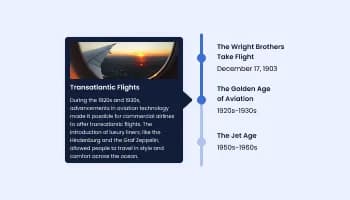
Show events or important moments in the order they occurred, using pictures and text

Showcases videos from various sources in a variety of visually appealing layouts and grids
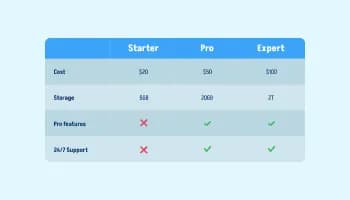
Displays data or features side-by-side, allowing users to compare and contrast the information easily
Yes, you can easily change the hotspot icon type by selecting the “Content” tab on your dashboard, choosing the image hotspot where you’d like to change the icon and clicking on the down-arrow next to the “Icon” section.
Yes, you can add a link to the image hotspot by selecting the “Content” tab on your dashboard, choosing the image hotspot to which you’d like to add a link to and adding a link in the field next to the “Link” section.
The Image Hotspot Widget allows you to upload any images easily you would like to display on your website. This can be a product image, a photo of your store, or any other image that you want to showcase. Once the image is uploaded, you can add hotspots to highlight specific areas or add additional information.
Yes, you can easily do so by selecting the “Look & Feel” tab on your dashboard and changing the color next to the “Tooltip Background”.
Yes, you can easily do so by selecting the “Look & Feel” tab on your dashboard and changing the color next to the “Hotspot Background”.
Yes, you can easily do so by selecting the “Look & Feel” tab on your dashboard and changing the color next to the “Hotspot Text”.
Yes, you can easily do so by selecting the “Look & Feel” tab on your dashboard and changing the color next to the “Tooltip Text”.
Yes, you can easily toggle the title on or off from within the “Settings” tab on your dashboard.
Yes, you can easily toggle the alt text on or off from within the “Settings” tab on your dashboard.
Yes, you can do so from within the “Settings” tab, where it says “Link Target”.
Using the Image Hotspot widget is very easy. Simply sign up and start using the free version. There's no need to worry about complicated setup or installation processes, as the Image Hotspot widget is designed to be user-friendly and straightforward. Once you've signed up, you'll have access to all of the basic features and functions of the widget, which you can use to enhance your website and improve your online presence. From there, you can choose to upgrade to the paid version if you want to access more advanced features and capabilities. Regardless of which version you choose, you'll find that the widget is a powerful and easy-to-use tool that can help you take your online presence to the next level.
The Common Ninja Image Hotspot widget is a free tool reach with features and options. While this widget is free to use, it does have a limit on the number of views it can handle. This means that after a certain number of views, the chat button may no longer be visible or functional on your website. It is important to note that this view limit may vary depending on the plan of the widget you are using. Despite this limitation, the Common Ninja Hotspot is still a valuable tool for businesses looking to increase customer engagement and improve the overall user experience of their website.
Common Ninja's Image Hotspot widget is a versatile tool that can be used on any website builder. This means that you can easily add this widget to your site no matter what platform you use to build your website. Whether you are using a popular website builder or something more specialized, the Image Hotspot widget will work seamlessly with your platform. This means you can enjoy all the benefits of this powerful tool without having to worry about compatibility issues. So if you want to add interactive hotspots to your images and take your website to the next level, the Image Hotspot widget from Common Ninja is a great choice.
It’s very easy to embed Common Ninja’s Image Hotspot widget on your website and the process consists of two steps:
The Image Hotspot widget is designed to comply with the General Data Protection Regulation (GDPR), a set of EU regulations protecting personal data and privacy. When using the Image Hotspot widget, you can be confident that it will not collect or store personal data that could violate GDPR regulations. This ensures that your business is in compliance with these regulations and can protect your customers' data privacy. Overall, the Image Hotspot widget is a secure and reliable tool that can be used to enhance your website without any concerns about GDPR compliance.
Our Image Hotspot widget is designed to be easy to use, even for those with limited technical experience. The widget features a drag-and-drop interface that allows you to add hotspots to your images without coding knowledge easily. You can fully customize the hotspots to match your branding, including the size, color, and shape. When you're done, simply copy the provided code and paste it into your website. It's that simple! Whether you want to add interactive elements to your images or highlight specific features or products, the Image Hotspot widget has you covered.
Embedding the Image Hotspot widget on your website is a straightforward process. Simply copy the provided code and paste it into the desired location on your website. The widget will seamlessly integrate into your site, allowing you to take advantage of its features and functions. No technical expertise or programming knowledge is required - just copy and paste the code to get started. This simple process allows you to easily add the widget to your website and enhance its functionality without any hassle.
Yes. We are eager to hear your request. Please refer to this page.
Using an image hotspot widget on your website can have several benefits.
First, it can help to provide additional information and context to your website visitors by allowing them to interact with images on your website. Image hotspot widgets allow you to add interactive elements, such as text, links, or pop-up windows, to specific areas of an image. This can be a helpful way to provide more information about a product, highlight features or benefits, or offer additional resources.
Second, using image hotspot widgets can help improve your website's user experience by making it more interactive and engaging. By allowing your visitors to interact with images on your website, you can provide a more interactive and immersive experience that can keep visitors on your site longer and encourage them to explore more.
Third, using image hotspot widgets can help improve your website's search engine optimization (SEO). By including relevant keywords and phrases in the text and links you add to your image hotspots, you can improve the chances that your website will appear in search results for those terms. This can help to drive more traffic to your website and increase your visibility online.
Overall, using an image hotspot widget on your website can be a valuable way to provide more information, improve the user experience, and boost your website's SEO.
An image hotspot is a specific area within an image that has been designated as a link to another page or piece of content. Users who click on the hotspot will be taken to the linked page or content. Hotspots are often used in image maps, which are images with multiple clickable areas that each link to a different destination. Hotspots can be used to create interactive and engaging content for websites and other online platforms.
There are several different types of image hotspots, including rectangular hotspots, circular hotspots, and polygonal hotspots. Rectangular hotspots are defined by their x and y coordinates, as well as their width and height. Circular hotspots are defined by their x and y coordinates, as well as their radius. Polygonal hotspots are defined by a series of x and y coordinates that form the shape of the hotspot. Hotspots can also be grouped together to create more complex shapes or to link multiple areas of an image to the same destination.
The purpose of a hotspot is to create a link within an image that allows users to quickly and easily access additional information or other pages on a website. Hotspots make it possible to create interactive images that can provide a more engaging and immersive experience for users. Hotspots can also be used to organize and structure information within an image, making it easier for users to find what they are looking for. For example, a map of a city could have hotspots for different neighborhoods or points of interest, allowing users to click on a specific area to learn more about it.
An image map is an image with multiple clickable areas, each of which links to a different destination. These clickable areas are called hotspots. In other words, hotspots are a component of image maps, and an image map is a type of graphic that uses hotspots. Image maps allow users to interact with images in a more dynamic way, and they can be used to create engaging and immersive content for websites and other online platforms.
An image hotspot widget may indirectly improve a website's search engine optimization (SEO). An image hotspot widget allows users to click on specific areas of an image to access additional information or other pages on a website. This can improve the user experience on a website, as it allows users to interact with the image more dynamically and engagingly. A good user experience can signal to search engines that the website is valuable and relevant, which can improve its search engine rankings. Additionally, if an image hotspot widget allows users to search for specific keywords or phrases within the linked content, this can make it easier for users to find the information they are looking for, which can also improve the user experience and contribute to better search engine rankings. Overall, while an image hotspot widget itself may not directly improve SEO, it can indirectly contribute to better search engine rankings by improving the user experience on a website.
Yes, an image hotspot widget can improve a website's user experience (UX). An image hotspot widget allows users to click on specific areas of an image to access additional information or other pages on a website. This can provide a more interactive and engaging experience for users, allowing them to interact dynamically with the image. An image hotspot widget may also include features such as hover effects or tooltips that provide users with more information about the hotspot when they move their mouse over it. These features can make the image hotspot widget more user-friendly and intuitive, which can improve the overall user experience on a website.
Drop pins, layer rich tooltips with text, images, and video, and embed on 200+ platforms including Squarespace, Canva, Shopify, WordPress, and Wix.
Create your image hotspotNo credit card · Setup in under 3 minutes