


Verified review
Common Ninja has amazing no-code widgets that would beautify a website built on any builder. It is very easy to use and customise. It has as many widgets for almost everyone willing to make their website impressive.
The Common Ninja Poll widget is a free, no-code embed that lets your visitors vote on a question and see live results.
Write the question, add answer options (single-select or multi-select), pick a layout, choose a skin or layer Custom CSS, configure one-vote-per-user restrictions, schedule the poll's start and end times, and paste a one-line embed snippet on TeamSnap, Google Sites, Notion, Elementor, Canva, Joomla, WordPress, and 200+ other platforms.
Use it to gauge audience preference, collect feedback on product decisions, run engagement-building contests, drive interaction on community pages, and turn passive page views into active participation.
A reader who clicks an answer is a reader who's invested in the page. Polls convert lurkers into engaged visitors, lift session duration, and signal to ranking systems that your content drives meaningful interaction. Useful on blog posts, community pages, product launches, and any page where engagement is the primary KPI.
Skip the survey-tool integrations, the email follow-ups, and the response-rate worries. A poll lives on the page where the audience already is. Visitors vote in one click, results render in real time, and you collect signal on product decisions, content preferences, and audience priorities without leaving your CMS.
Visitors who see other people's votes are more likely to vote themselves, social proof in action. Live result bars or percentages render immediately after voting (or before, if you want to nudge first-mover behavior). The poll becomes a conversation between visitors instead of a one-way question.
A poll is one question with instant results. A quiz is a multi-question flow with scoring, branching, and a lead-capture step at the end. Use this Poll widget when one question is enough; use the dedicated Common Ninja Quiz widget when you need multi-question logic, scoring, or lead generation.
Type the question (a single short prompt. "Which feature should we build next?"), add answer options (text, optional image per option), pick single-select or multi-select, and set whether visitors see the live results before voting, after voting, or never.
Choose a layout. Buttons, radio-style options, image-card vote, vertical list, horizontal pill row. Configure the winner celebration screen that fires when a visitor votes, set post-submission messaging, enable one-vote-per-user restrictions (IP-based or cookie-based), and pick a skin from the design library or layer Custom CSS for pixel-level brand match.
Copy the one-line embed snippet and paste it on TeamSnap, Google Sites, Canva, Joomla, Notion, WordPress, or any of the 200+ supported platforms. Live results update for every visitor as new votes come in. Edits in the Common Ninja editor push to every embed without re-paste.
Single-select for clear A/B/C/D questions where one answer wins; multi-select when visitors should pick multiple options (e.g. "Which of these features matter to you?"). Switch between modes in the editor without rebuilding the question.
Buttons, radio-style options, image-card vote (each option has its own image), vertical list, horizontal pill row. Switch layouts in the editor without re-entering answers; each layout reflows responsively across mobile, tablet, and desktop.
Lock each visitor to a single vote (cookie-based, with optional IP-based reinforcement) to keep results clean. Schedule a poll to open and close on specific dates. Useful for time-bound contests, product-decision votes, and announcement-tied polls.
Pick from a library of pre-designed skins (minimal, vibrant, dark-mode, soft-pastel, brand-true) for a fast visual fit. Layer Custom CSS for pixel-level control over button shapes, result bars, vote counters, and post-submission messaging.
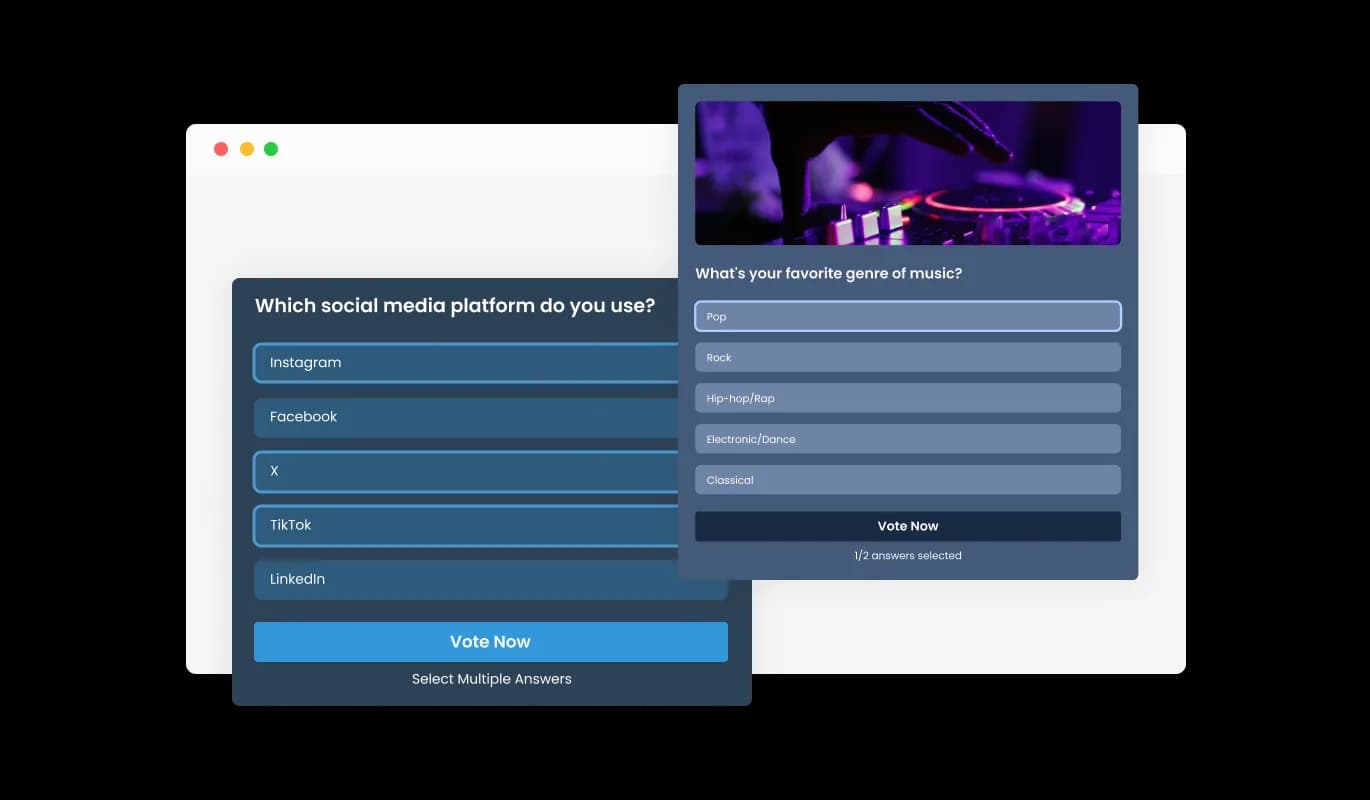
The Poll Widget caters to diverse polling strategies by allowing single or multiple selections, ensuring every type of question can be accurately and efficiently posed to your audience, enhancing the polling experience.
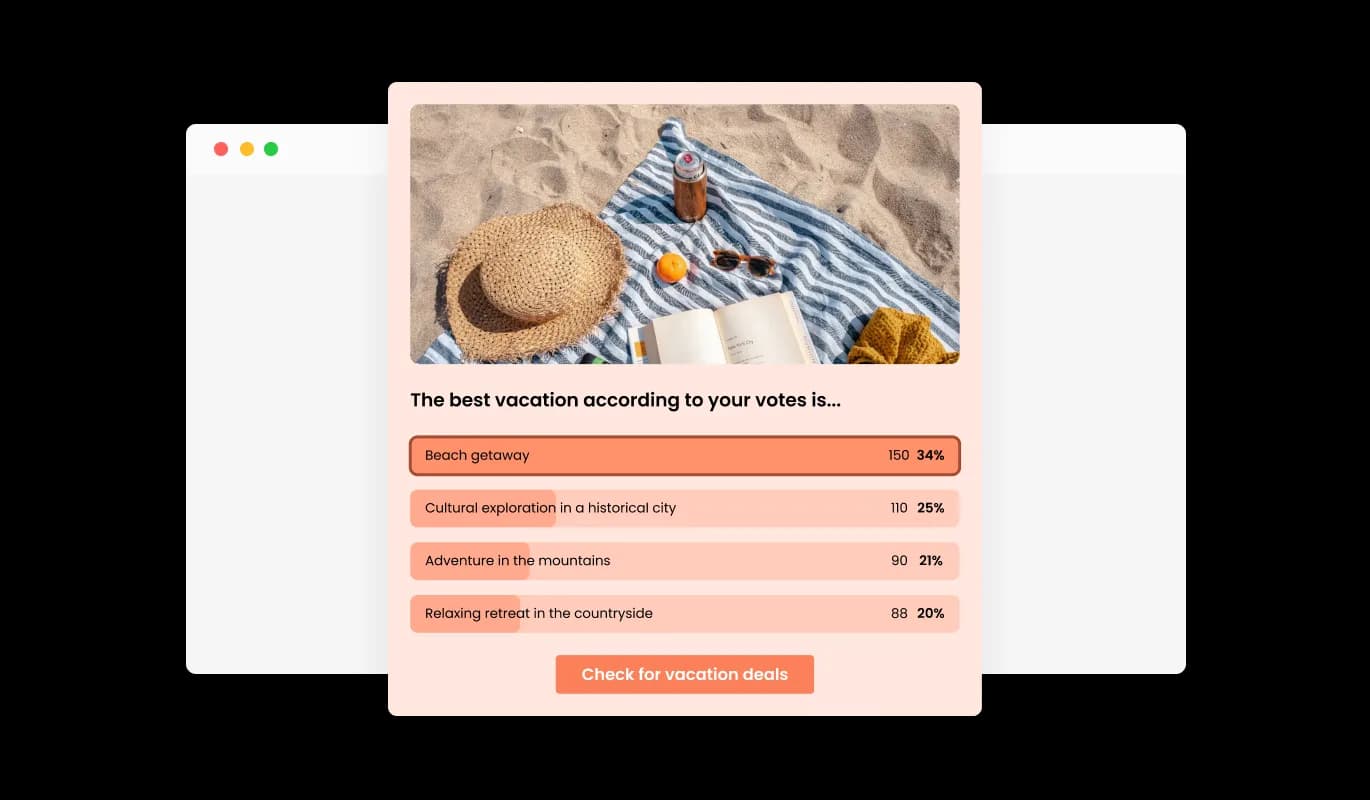
Celebrate the outcome of your polls with an engaging winner celebration screen, designed to not only highlight the results but also to make the victory moment memorable for participants, fostering a sense of achievement and community.
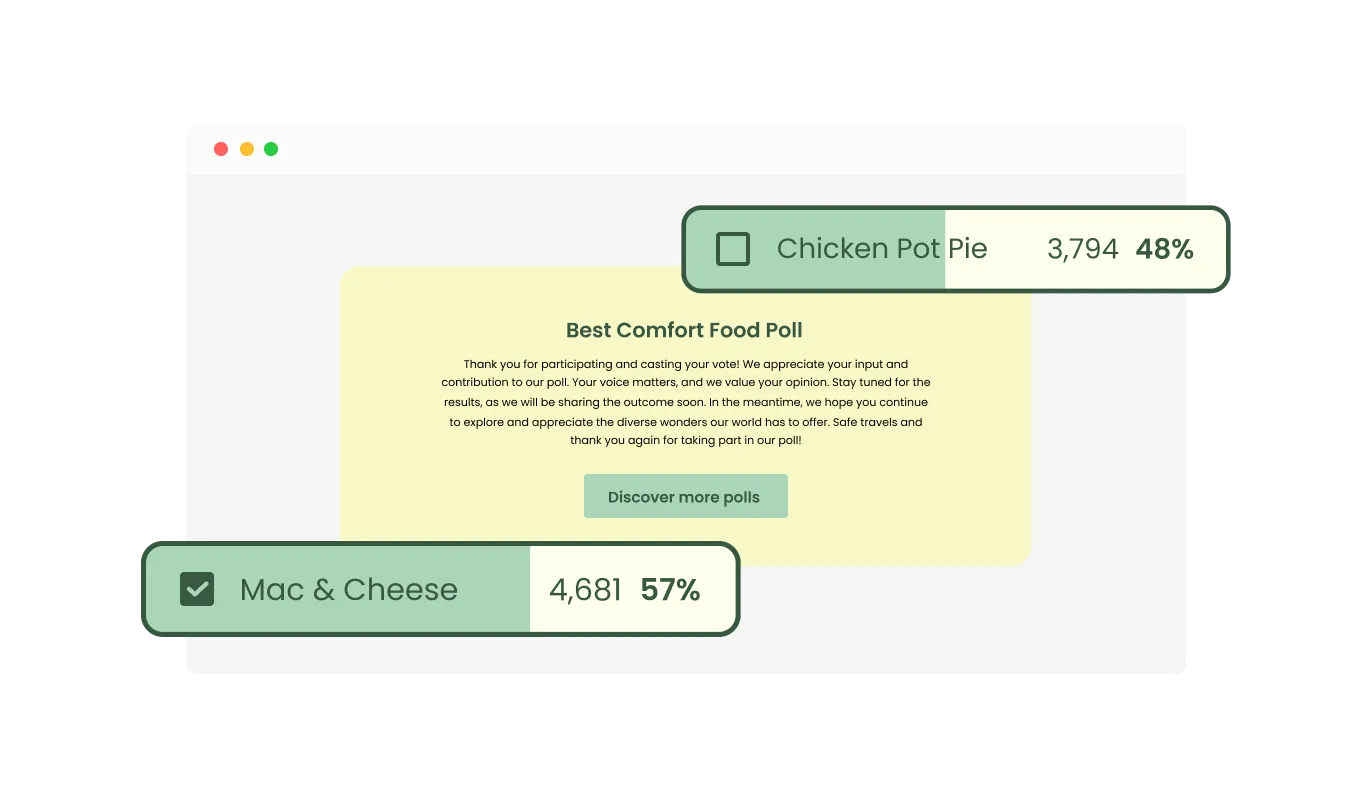
Offering post-vote customization options, this feature allows for an enhanced interactive experience, enabling further engagement with participants even after they've cast their votes, thereby keeping the dialogue ongoing and interactive.
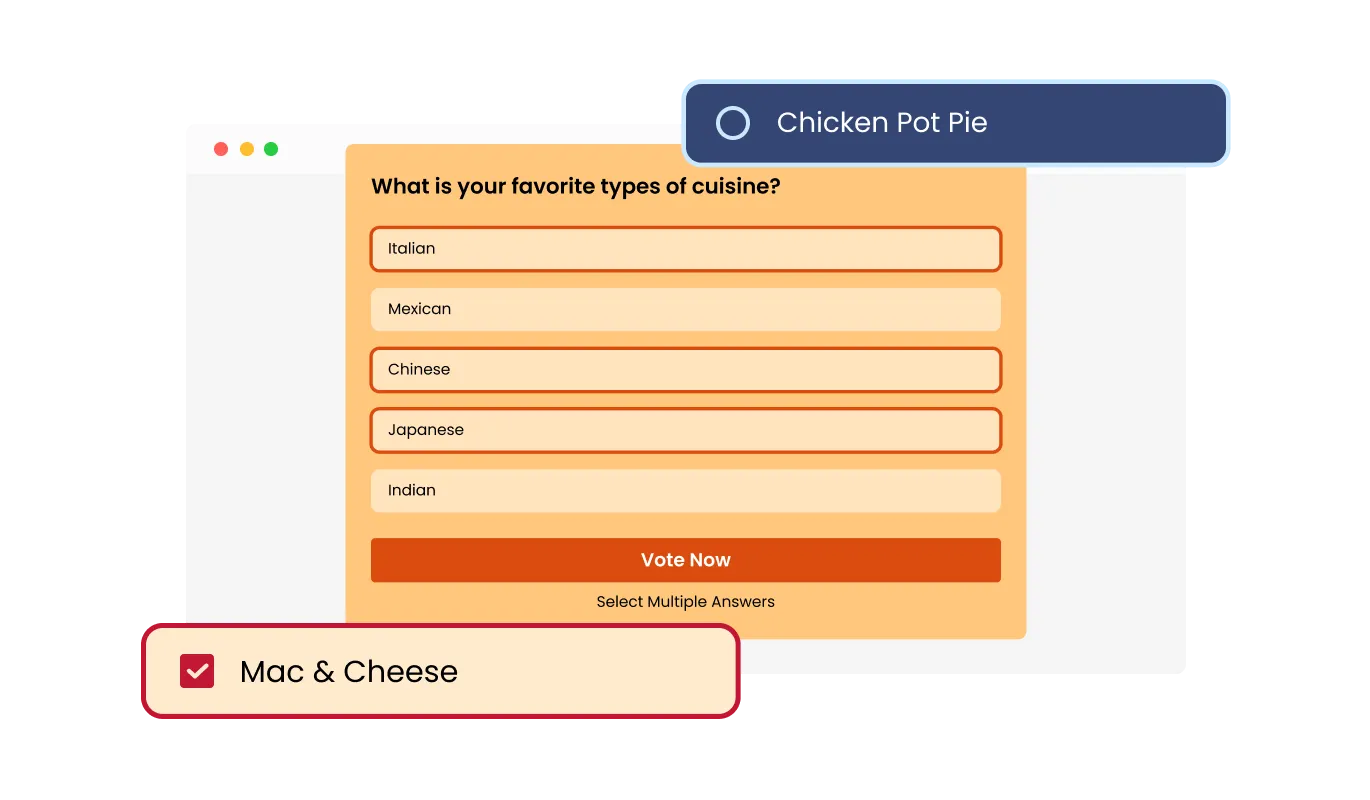
Tailor the presentation of your poll options with the Multiple Layouts feature of the Poll Widget, allowing you to select the most appealing format for your audience. This adaptability ensures your poll is not only visually engaging but also enhances the voting experience, making it enjoyable and straightforward for all participants.
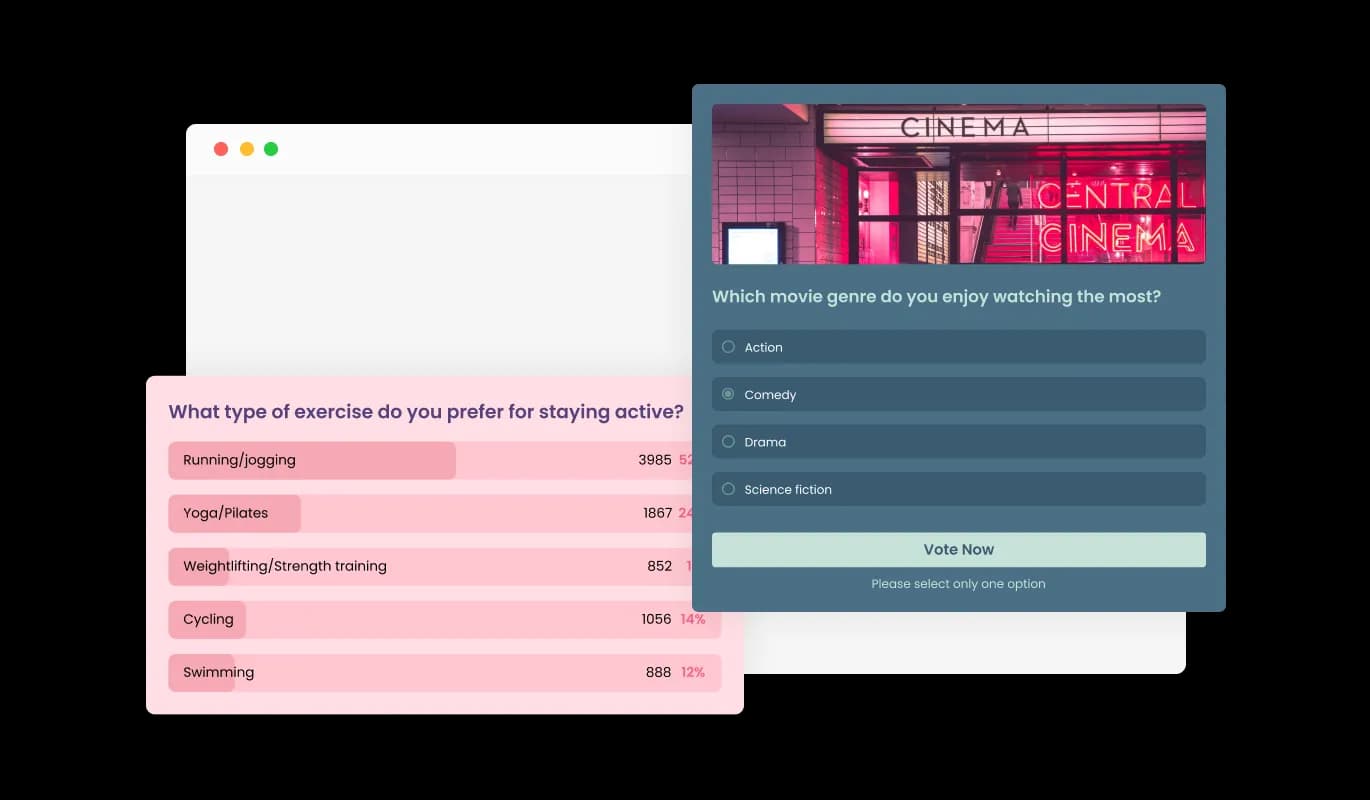
The Poll Widget comes with a variety of skins, enabling you to choose one that best fits your website's look or poll theme. With options ranging from sleek, minimal designs to more colorful, expressive ones, you can easily personalize your polls to mirror your style or brand identity, adding a creative flair to your site.
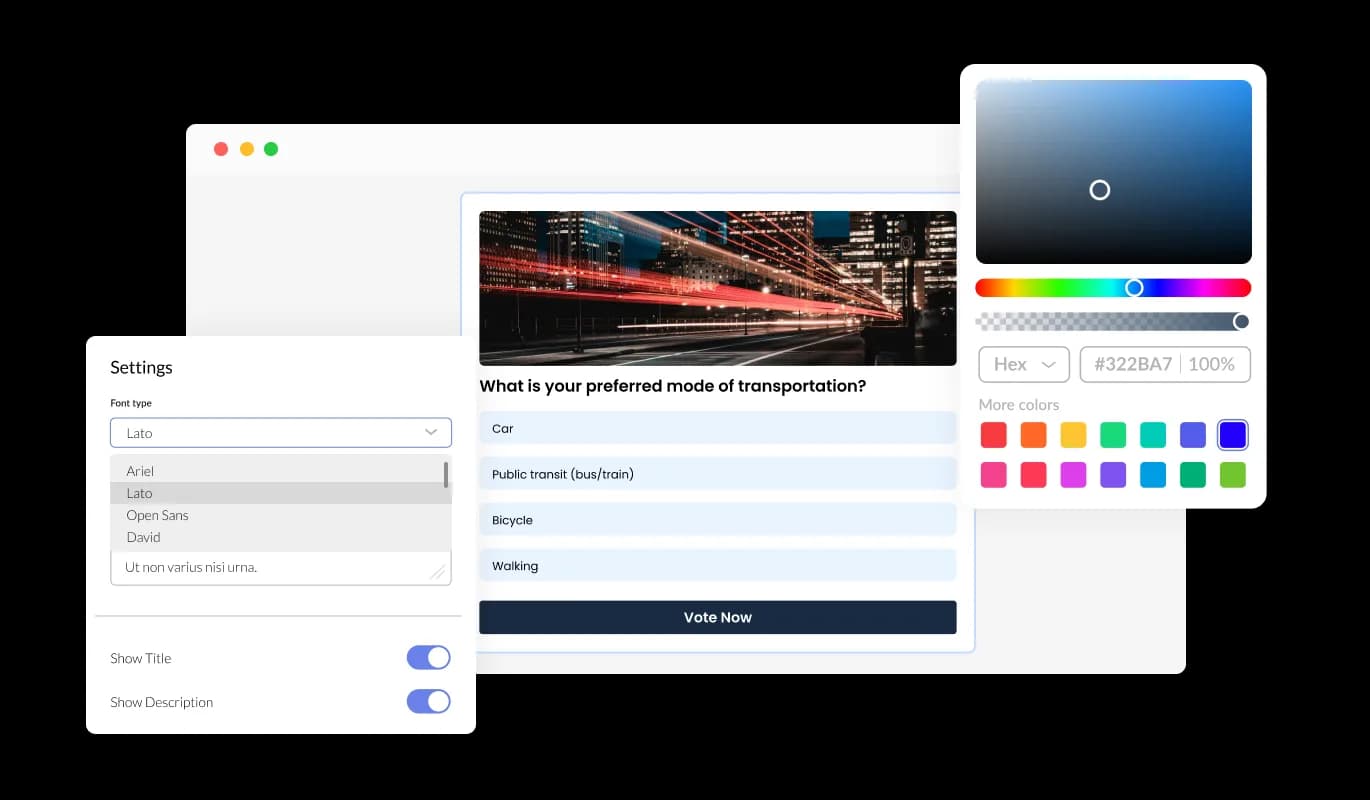
The Poll Widget places comprehensive customization at your disposal, enabling you to fine-tune every element to fit your specific needs and aesthetic preferences. From selecting layouts and skins to arranging options and adding descriptions, this widget empowers you to craft your polls precisely as you envision.
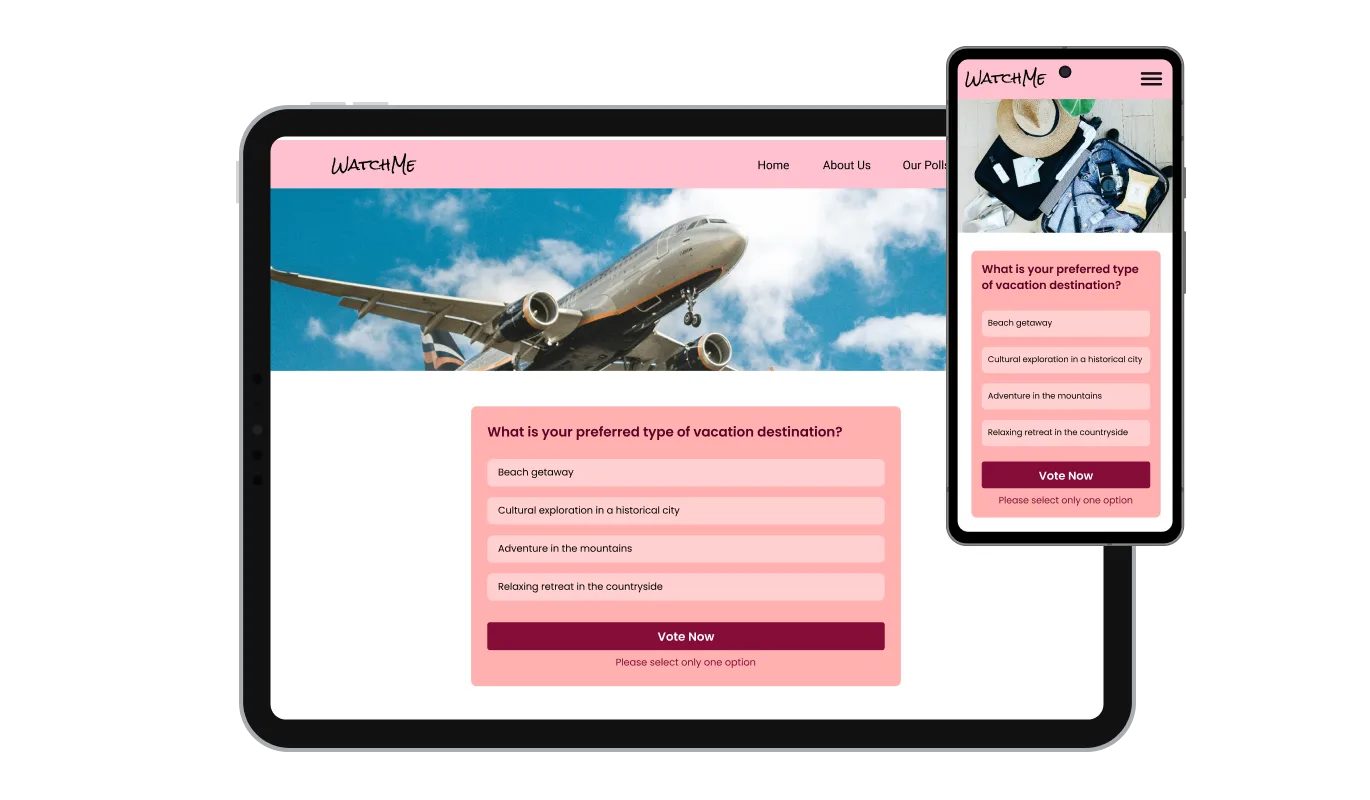
The Poll Widget is engineered to ensure optimal display and functionality across all devices, from desktops to smartphones. Its responsive design guarantees a consistent and smooth user experience, adapting effortlessly to any screen size.

The Poll Widget supports custom CSS, allowing those with coding skills to craft a unique look and feel. This feature enables a deeper level of personalization, giving you the freedom to achieve the exact design aesthetic you desire for your polls.

Designed for straightforward integration, the Poll Widget requires minimal technical know-how for setup. This ease of embedding allows site owners to quickly incorporate the widget, enhancing their site without extensive development effort or specialized coding skills.
With the Poll Widget, timing your engagement becomes strategic and effortless. The feature allows for setting precise start and end dates, ensuring your poll perfectly complements your event or campaign's timing for maximum impact.
Enhance the integrity of your polls with the one-vote-per-user feature, allowing identification by browser or IP address to prevent vote duplication and ensure each vote is unique, maintaining the credibility of your poll results.
This feature gives you the flexibility to either control or randomize the order of options in your poll, facilitating a presentation that can be meticulously organized or left to chance for fairness. It ensures your poll reflects true popular opinion without bias.
Designed with user convenience in mind, the Poll Widget ensures that participants can easily engage with polls and swiftly navigate through them. This focus on accessibility enhances user interaction and satisfaction, making for a seamless experience on your website.
Common Ninja has amazing no-code widgets that would beautify a website built on any builder. It is very easy to use and customise. It has as many widgets for almost everyone willing to make their website impressive.
Outstanding service. I use their widgets to help me with my web design business and whenever I need help they are very quick to help.
Excellent company with excellent service!!! We used it to build a survey, it was very user friendly. The service was perfect. Amit helped us with every problem and question we had, thank you very much!!!
Common Ninja saved the day when building our website and the customer service Daniel, the co-founder and CEO, provided was amazing.
Yes. The free plan covers one poll with no time limit and no credit card. Upgrade only when you need additional polls, more answer options per poll, advanced restrictions (IP-level limits, geolocation filters), premium skins, scheduled-poll automations, or features like per-poll analytics dashboards and webhook integrations.
A poll is one question with instant results. Visitors vote, the tally updates, the page moves on. A quiz is a multi-question flow with scoring, branching logic, and an optional lead-capture step at the end. Use this Poll widget for single-question audience checks ("Which feature should we build next?", "Which design do you prefer?"); use the Common Ninja Quiz widget when you need multi-question logic, scoring, personality-test branching, or lead generation at quiz completion.
By default, no. Cookie-based one-vote-per-user restriction is on. Visitors who clear cookies or use a different browser can vote again, which is a limitation of cookie-based tracking on the open web. For higher-rigor polls, paid plans add IP-based restrictions that block repeat votes from the same network. Neither approach is bulletproof against determined bad actors, but for normal audience-feedback polls the default is more than enough.
Yes. Set a start time and end time in the editor. The poll opens for voting at the start time and closes (showing final results) at the end time. Useful for time-bound contests, product-decision votes that need to wrap before a launch, or announcement-tied polls that fire when the announcement goes live.
Yes, configurable. Show results to every visitor (full transparency), only to visitors who have voted (light gating to nudge participation), or never (hide results from voters and admins until the poll closes). Each setting suits a different use case. Open results drive social proof, gated results lift participation, hidden results suit blind-survey research.
Build the widget in the Common Ninja editor (write question, add answers, pick layout), copy the embed snippet, and paste it into your site: Canva via the Embed app in the Apps panel; Notion via /embed with the embed URL; Joomla via a Custom HTML module (Extensions → Modules → New → Custom HTML); WordPress via a Custom HTML block. Edits in the editor push to every embed without re-paste.
Yes. Each answer option can carry its own image, which is useful for visual-preference polls ("Which design do you prefer?", "Which logo concept wins?"). Pair the image-card layout with image answers and the poll becomes a visual comparison rather than a text-only question.
Yes. All layouts (buttons, radio, image-card, vertical list, horizontal pill row) adapt across mobile, tablet, and desktop breakpoints. Tap targets stay finger-sized on mobile, result bars render correctly at every viewport width, and the winner-celebration screen scales to the visitor's screen.
Pick your platform. Each takes under 4 minutes.
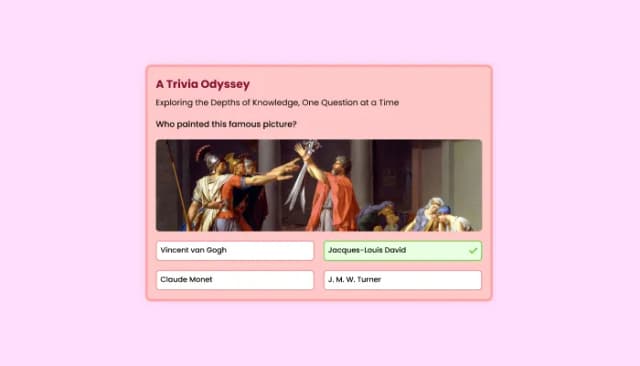
Quiz Maker for easy custom quiz creation and integration.
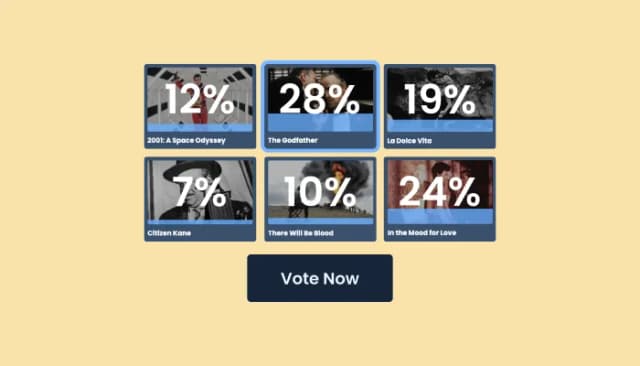
Craft interactive, image-based polls with customizable features
Interactive Scratch Card for users to unveil prizes, aiding lead generation.
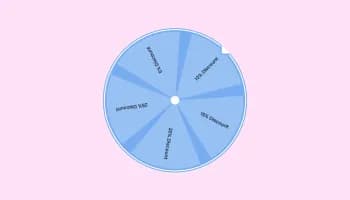
Interactive wheel offering rewards to boost user engagement, gather leads and increase conversions.
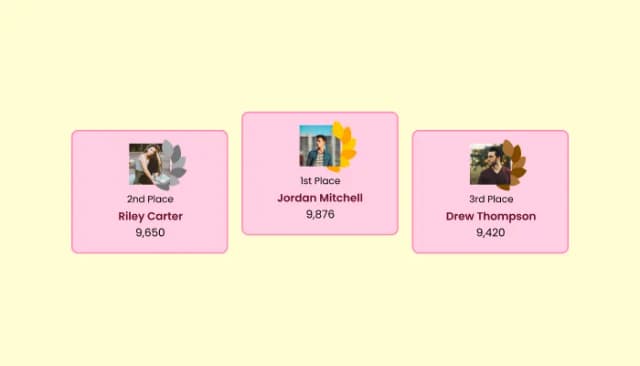
Create customizable leaderboards to display rankings and track participant scores.
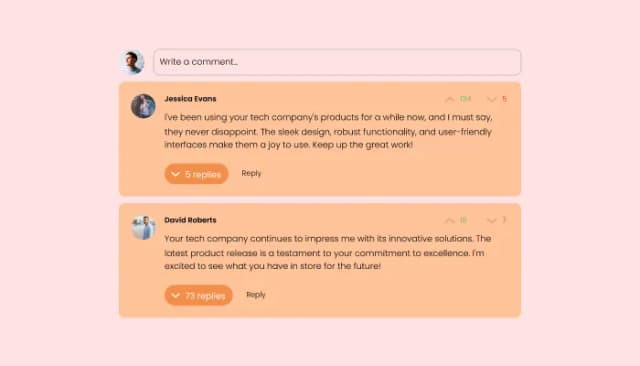
Comments system with upvote/downvote, email notifications, reply threads, and moderation tools.
Yes, the Poll Widget supports both single and multiple selection voting, allowing you to customize how participants respond.
The Poll Widget includes an enhanced winner celebration screen feature to highlight the outcomes engagingly.
Absolutely, the Scheduled Polling feature enables you to align your poll with specific events or timelines.
The One-Vote-Per-User restriction feature maintains polling integrity by preventing duplicate votes via browser or IP checks
Yes, with the Customizable Items Order feature, you can either set a specific order or randomize options for fairness.
The Poll Widget offers multiple layouts, allowing you to choose the best visual arrangement for your poll options.
Yes, the Poll Widget is fully customizable, from its layout to detailed descriptions for each choice.
Yes, it has a responsive design that adjusts to fit any screen size, ensuring a smooth experience on all devices.
Yes, for those with coding knowledge, custom CSS can be applied for unique styling.
The widget is designed for easy integration, requiring only basic technical skills to embed in your website.
Yes, you can choose from a variety of skins to match your website’s aesthetic or poll theme.
Its design emphasizes ease of access and comprehension, making it straightforward for visitors to participate.
Yes, the One-Vote-Per-User feature is specifically designed to ensure each vote is unique and fair.
Utilizing the diverse skins and custom CSS features, you can personalize your poll to reflect your style or brand.
Let visitors vote on a question and see live results. Single or multi-select, multiple layouts, image-answer options, one-vote-per-user restrictions, scheduled open and close times, stylish skins, and Custom CSS. Embed on 200+ platforms including TeamSnap, Google Sites, Canva, Joomla, Notion, Elementor, and WordPress.
Create your PollNo credit card · Setup in under 5 minutes