How to add Reviews Badge to a Flexbe website

Learn how to embed Common Ninja’s Reviews Badge on your Flexbe website without coding.

Create a Reviews Badge

loved by 500K+ businesses

widget-editor

In This Guide

In this quick guide, you'll learn how to embed the Reviews Badge into your Flexbe website by generating your embed code and adding it seamlessly to your website.

Embed Reviews Badge on Flexbe

01
Create a Reviews Badge integration for Flexbe on Common Ninja
First, create a Flexbe Reviews Badge integration on Common Ninja. On the integrations catalog, find the Reviews Badge and enter the Editor.
Create a Reviews Badge integration for Flexbe on Common Ninja
02
Save the Reviews Badge integration
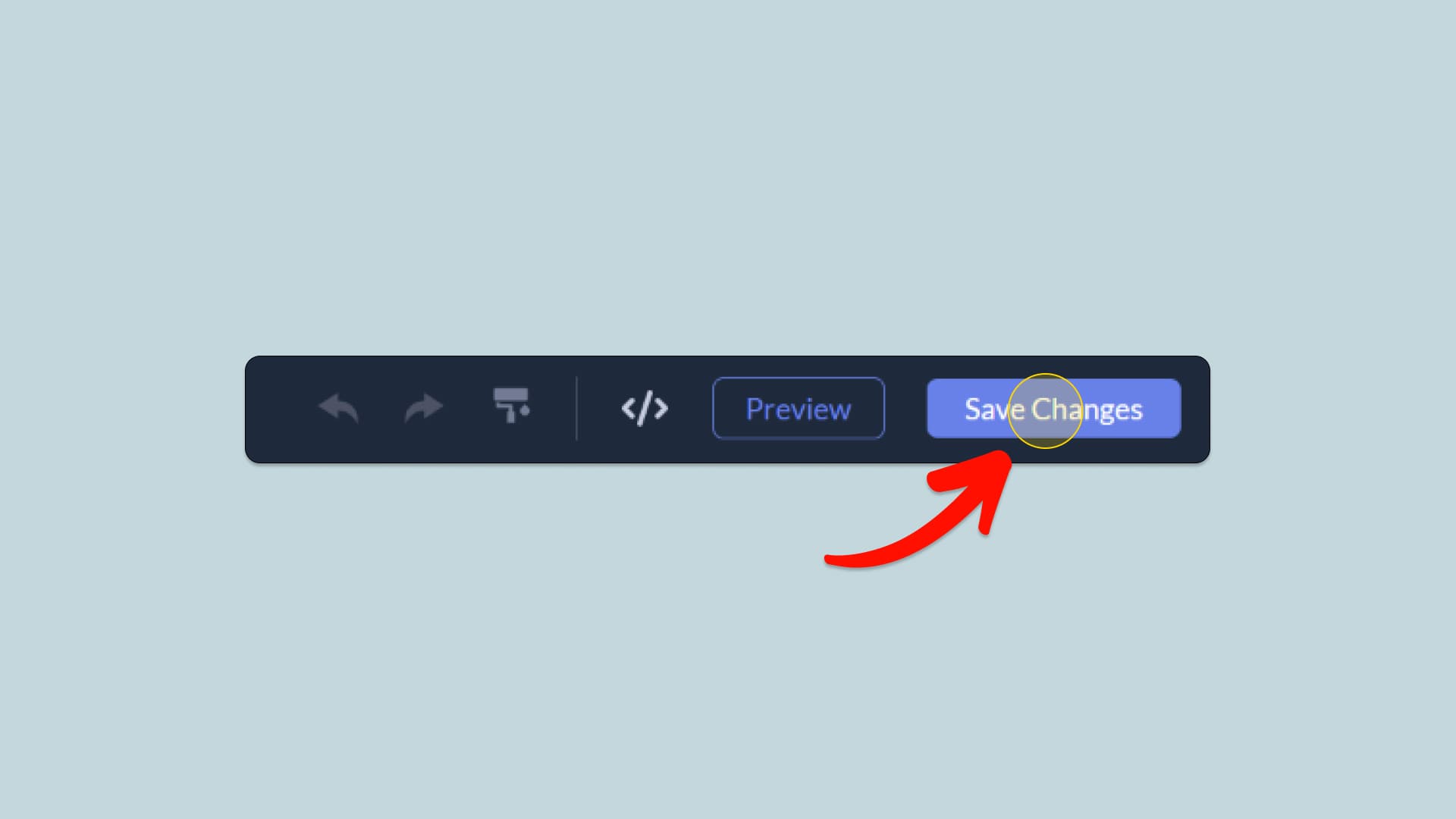
When you're done creating the Reviews Badge integration, click on the Save Changes button at the right top corner of the editor. If you don't have an account on Common Ninja, you'll have to register first.
Save the Reviews Badge integration
03
Copy the Reviews Badge Embed Code
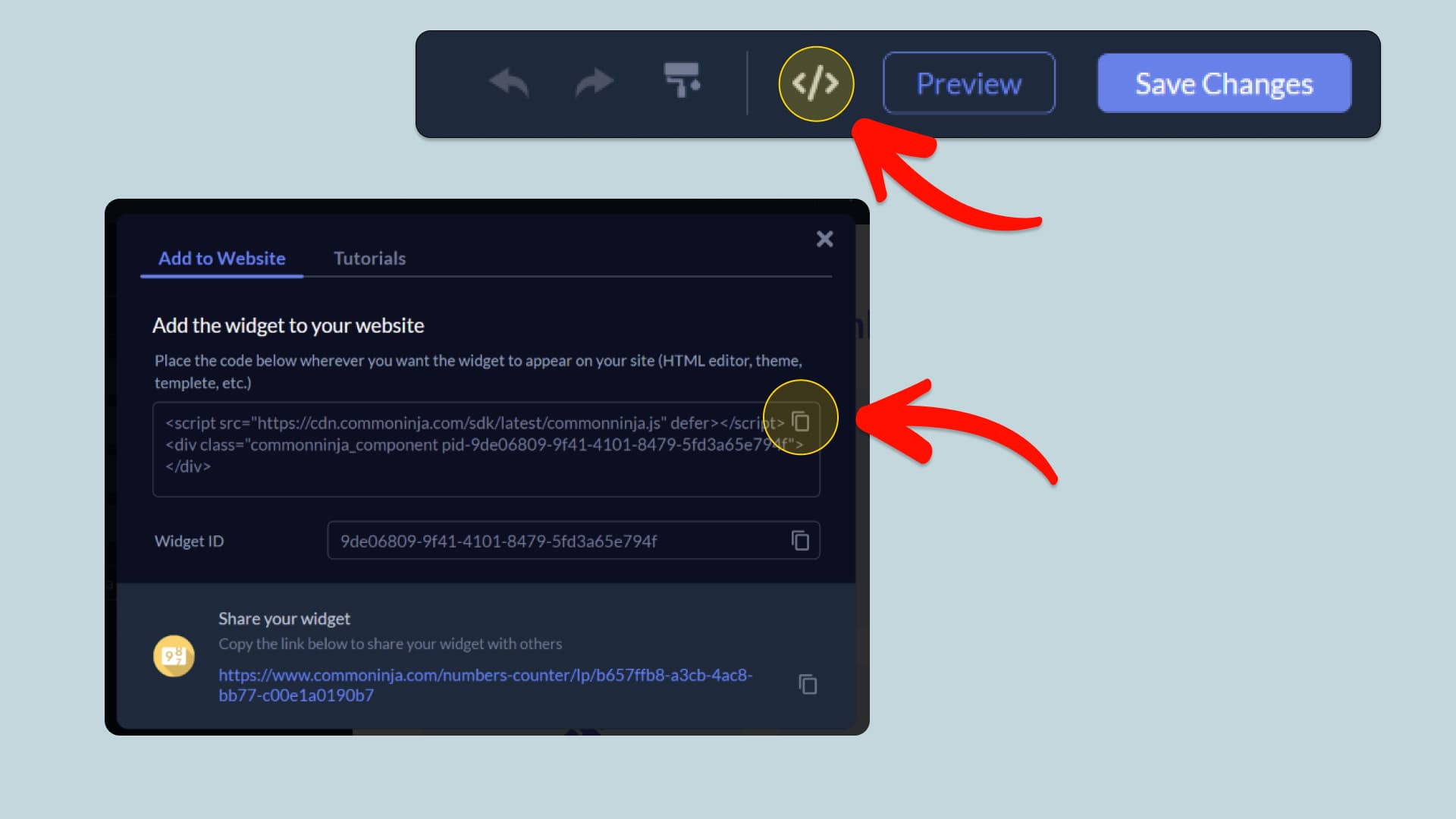
When you're ready to add the Reviews Badge integration to your Flexbe website, click the Add To Website button at the top bar of the Editor. On the window that opens, click the Copy Icon to copy the integration embed code. In the next steps, you will paste this code into your Flexbe website.
Copy the Reviews Badge Embed Code
04
Paste the code to your Flexbe website’s HTML field.
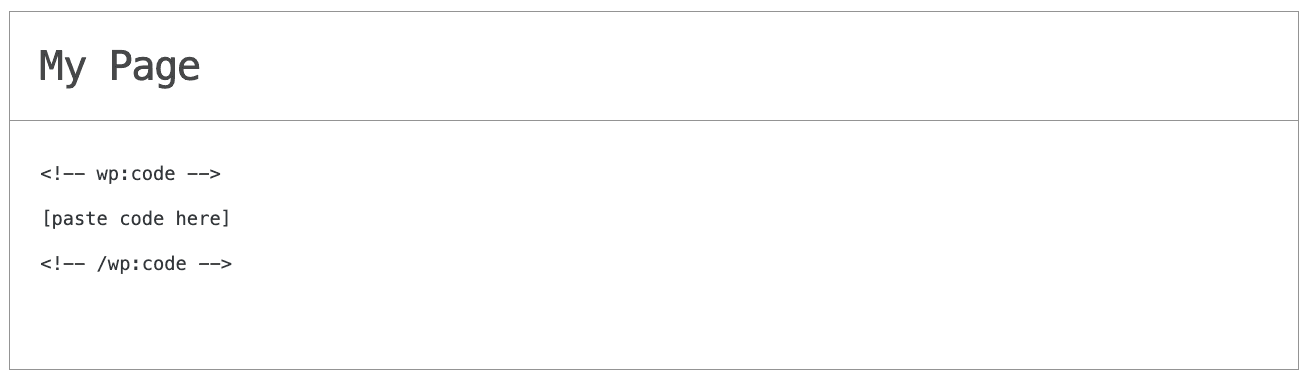
Next, go to your Flexbe website editor and find the HTML field. It is most likely in the form of an HTML/Code widget or module which you can find on the Flexbe’s editor. Add it to your page, and paste the Reviews Badge Embed Code you’ve copied before to the HTML field. Save and update, and that’s it, you should have Common Ninja’s Reviews Badge integration on your Flexbe website.
Paste the code to your Flexbe website’s HTML field.
05
Alternative Method 1: Through the HTML option in the text’s editing area.
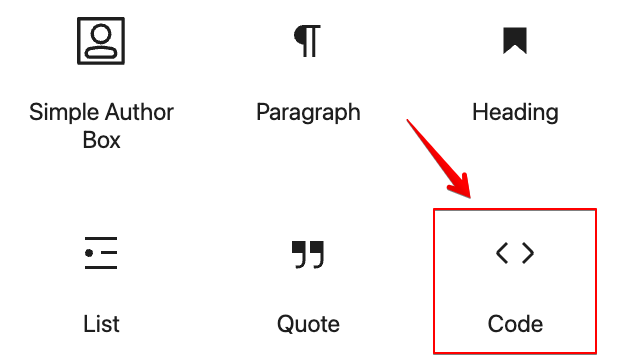
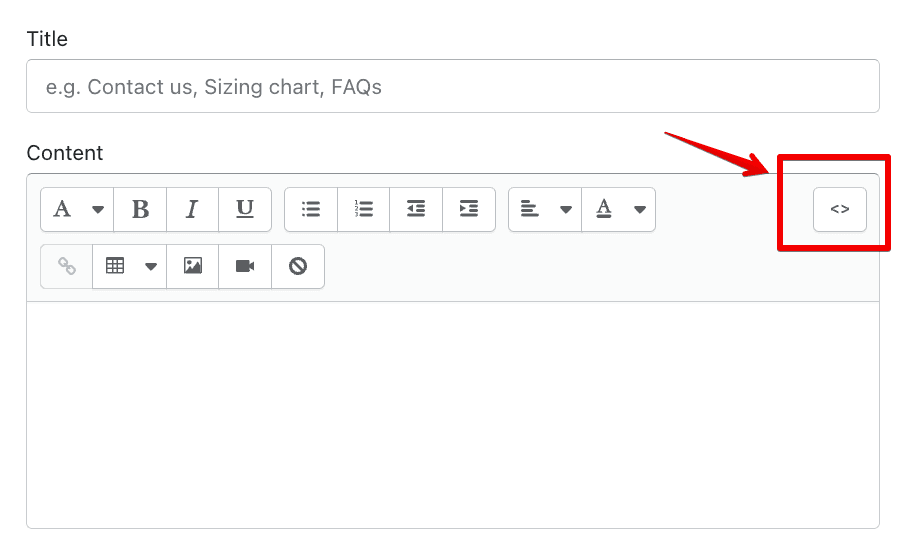
If you can't find the HTML/Code widget or module, there's another way to put Common Ninja’s Reviews Badge integration on your Flexbe integration. You can just add the code to a special HTML section in the text editor.
Alternative Method 1: Through the HTML option in the text’s editing area.
06
Alternative Method 2: Add it directly to your Flexbe website’s HTML code.
If you're having trouble finding a widget or a special part in your text editor where you can add the Embed Code, you can try a different way to add the Reviews Badge integration to your Flexbe website. You can do this by putting it straight into your Flexbe website's HTML code.
Alternative Method 2: Add it directly to your Flexbe website’s HTML code.

Why Use This Widget

Use the Reviews Badge widget when you want an always visible trust signal that summarizes your reputation in a compact way. Instead of expecting visitors to dig into full review pages, you show an average rating and sometimes review count directly near key calls to action. This works on product pages, pricing sections, sign up forms, and footers where a quick reassurance can influence behavior. The badge can draw from different platforms or your own system, depending on your setup. A clear rating presented at the right moment reduces anxiety, supports premium positioning, and communicates that many others have already had positive experiences with your brand or product.

This tutorial was written by the Common Ninja product team, creators of interactive, no-code widgets for Flexbe website. Common Ninja helps over 500,000 users build engaging online experiences without coding.