


Verified review
Common Ninja has amazing no-code widgets that would beautify a website built on any builder. It is very easy to use and customise. It has as many widgets for almost everyone willing to make their website impressive.
Pick a template, change the colours and the captions, and watch your image carousel update as you go. No sign-up until you save.
Try the editor, no signup
Pick a template, customize it, and watch it update live, no signup.
No credit card · Free forever plan
No credit card · Free forever plan
The Common Ninja Slideshow is a free, no-code image carousel for any website. Add your slides, choose a layout, and paste one line of embed code.
Slides transition one to the next, with navigation arrows, pagination indicators, and autoplay timing you control, so the sequence moves at a pace that suits the content.
Slide size, orientation, and captions are all adjustable, and colours, fonts, spacing, borders, backgrounds, and custom CSS keep it consistent with the page.
A portfolio, a room, a venue, or a product from six angles needs to be seen from more than one photograph. A slideshow shows all of them without giving up six screens of page height.
Buyers want to see the thing from more than one side before they commit. Keeping those views in a carousel on the product page means nobody has to click away and find their way back.
Photographers, designers, architects, and studios are judged on the work rather than the description. A sequence of images with captions is closer to how that work is meant to be looked at.
An image alone rarely says what it is. A caption naming the project, the location, or the product is what turns a set of pictures into something a visitor understands rather than scrolls past.
Upload the images and put them in the order you want them seen. The first slide is the only one a large share of visitors will look at, so it should be the strongest rather than the oldest.
Choose the slide size and orientation, decide whether captions show, and pick the arrow and pagination style. If autoplay is on, set a pace slow enough to actually read a caption.
Copy the snippet from the Add to Website tab and paste it where the slideshow belongs. Adding a slide later updates every page carrying the embed.
Arrows to move forward and back, and dots showing how many slides there are and where the visitor is. The indicator matters, because a carousel with no visible end is one people abandon.
Control how fast slides transition and how long each stays visible. Too fast and a caption cannot be read, too slow and the second slide is never seen.
Set how each slide is displayed so it fits the layout, switch orientation, and choose whether captions appear, which is what lets the same widget suit a hero band and a narrow sidebar.
Several carousel layouts from a classic single slide upward, with colours, fonts, spacing, borders, and backgrounds all adjustable and custom CSS for the rest.

The Slideshow widget lets you control how each slide is displayed so it fits your layout and content. You can switch between different image sizes and orientations, such as small, large, vertical, or horizontal, depending on what looks best on your page. Each slide can also include a caption, which helps you add context, explain what visitors are seeing, or guide them toward another section or page. Navigation between slides is simple, so users can move through the Slideshow without friction.

You can customize the Slideshow widget to match your site’s visual style in detail. Adjust colors, fonts, spacing, borders, backgrounds, and other design elements until the Slideshow feels native to your page. This makes it easy to use the widget across different sections of your site while keeping a consistent look, whether you want something minimal or more branded.

The Slideshow widget is fully responsive, so slides scale smoothly across desktop, tablet, and mobile. Images remain sharp, controls stay usable, and captions remain readable at every screen size. Since many visitors browse on phones, having a responsive Slideshow helps keep the visual experience clear and interactive without forcing extra zooming or scrolling.
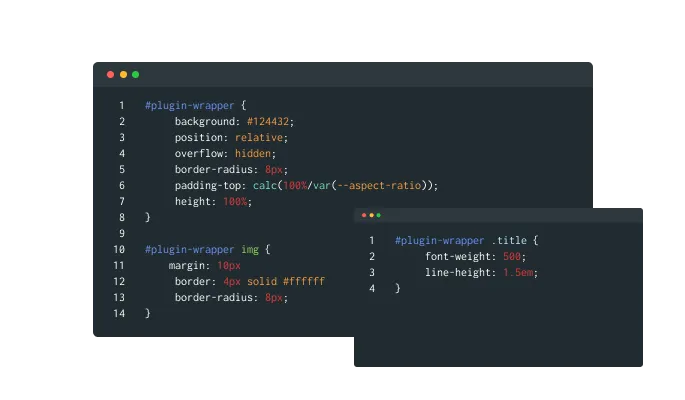
The Slideshow widget supports custom CSS, giving developers and designers deeper control beyond the built in settings. You can create your own styles for slide layout, transitions, captions, spacing, and responsive behavior. This is useful when you want the slideshow to follow a specific design system or include visual details that are not available in the standard editor.
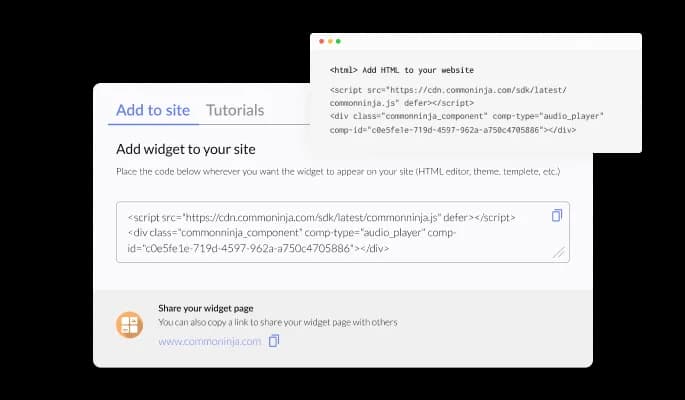
Adding the Slideshow widget to your site takes one line of embed code. Copy the snippet from the editor and paste it into your page HTML or platform embed area. After embedding, the Slideshow updates automatically whenever you change slides, captions, design, or behavior settings, so you do not need to reinstall or replace the code.
The Slideshow includes clear navigation controls such as arrows and pagination indicators. Arrows let visitors move forward or backward one slide at a time, while pagination dots or numbers show how many slides exist and where the visitor is in the sequence. These controls make the Slideshow easy to explore and help users understand that more content is available within the same visual frame.
The Slideshow widget lets you customize how visitors move between slides. You can choose different arrow designs and select the pagination style shown below the slides, such as dots or other indicators. This helps you match the controls to your website’s UI so the Slideshow feels consistent with your overall design, while still making navigation clear.
You can control how quickly the Slideshow transitions and how long each slide stays visible when autoplay is enabled. Adjusting speed and delay lets you shape the viewing rhythm, whether you want a calm, gallery like flow or a faster sequence for short highlights. These settings help align the Slideshow behavior with the type of content you are showing.
The Slideshow widget includes several layouts you can pick from depending on where you place it. You might choose a classic single slide view, a layout that shows part of the next slide, or a more structured frame that fits a specific section. Having multiple layouts makes it easier to integrate a Slideshow into different page types without redesigning the area around it.
The Slideshow widget is designed to be simple to build and update. You can add slides, reorder them, edit captions, and adjust design or behavior settings through a straightforward editor, without needing code. This lets anyone on your team manage the Slideshow quickly and keep it current as your visuals change.
Common Ninja has amazing no-code widgets that would beautify a website built on any builder. It is very easy to use and customise. It has as many widgets for almost everyone willing to make their website impressive.
Outstanding service. I use their widgets to help me with my web design business and whenever I need help they are very quick to help.
Excellent company with excellent service!!! We used it to build a survey, it was very user friendly. The service was perfect. Amit helped us with every problem and question we had, thank you very much!!!
Common Ninja saved the day when building our website and the customer service Daniel, the co-founder and CEO, provided was amazing.
Usually not for anything a visitor needs to read. Autoplay moves the content away while someone is still looking at it, which is genuinely irritating and is why so many hero carousels underperform. It works better for atmosphere, such as a venue or a portfolio, than for slides carrying a message.
Three to five for most uses. Engagement drops off sharply after the first slide, so a ten-slide carousel is mostly slides nobody sees. If everything genuinely needs to be seen, a grid gallery shows it all at once and does that job better.
Slow enough to read the caption, then a little slower. Most defaults are set for a designer clicking through rather than a visitor reading, and five to seven seconds a slide is a more realistic starting point than three.
The widget is one embed snippet, but the images are yours and they are the weight. Sizing them for the space they occupy rather than uploading full-resolution photographs makes more difference here than any setting in the editor.
If the image does not explain itself, yes. A project name, a location, or a product variant turns a picture into information. Captions can be turned off where the images genuinely speak for themselves.
Yes, and the layout adapts across desktop, tablet, and phone. Check that your arrows are large enough to hit with a thumb, since controls sized for a cursor are often too small on a phone.
Yes. Arrow designs and the pagination indicator style are both selectable, so the controls can be prominent on a hero band or understated inside an article.
Yes. Logos, testimonials, screenshots, awards, and press mentions all work in the same format, and the layout options are there to suit content that is not a full-bleed photograph.
Pick your platform. Each takes under 4 minutes.

Displays a series of images in a slideshow format

Displays images and captions in diverse layouts and grids, presenting visually appealing arrangements for showcasing multiple images
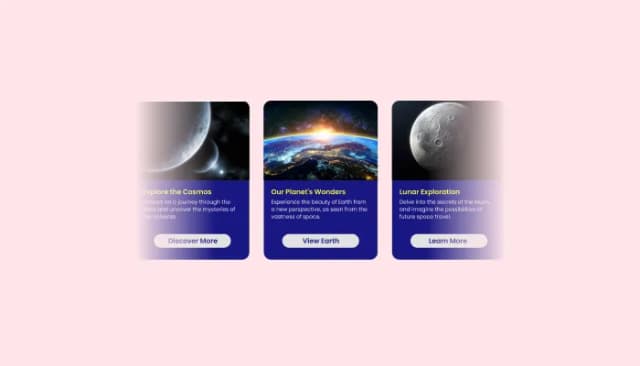
Create interactive content sliders to showcase images, text, and buttons with customizable options.
Showcases videos in a rotating or sliding manner

Displays multiple logos in a scrolling or rotating manner
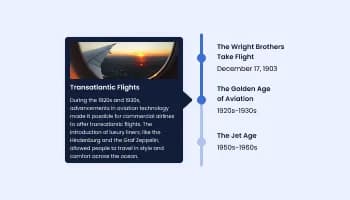
Show events or important moments in the order they occurred, using pictures and text
A Slideshow widget displays a sequence of images or content slides in the same area of a page. Slides transition one after another, and visitors can usually move through them using arrows, pagination dots, or swipe on mobile. A slideshow helps present multiple visuals without taking extra page space.
A Slideshow is useful whenever you want to show several related visuals in one focused section. Common uses include product image galleries, portfolio highlights, before and after examples, customer stories with photos, step by step visuals, and hero section banners. It keeps the page tidy while still showing variety.
Yes. You can choose from different Slideshow layouts in the Templates area and apply the one that fits your section. Layouts let you control the structure of the slideshow, such as how slides are framed or how many are visible at a time.
The Slideshow widget is available on the free plan with usage limits. Paid plans increase limits and unlock additional options. Exact limits depend on the plan you use.
The Slideshow works on any website builder or CMS that allows embedding code. This includes platforms like WordPress, Wix, Shopify, Squarespace, Webflow, and custom HTML sites.
Yes. The Slideshow widget is built to follow GDPR requirements and does not require personal data to function.
No. You can create and customize a Slideshow using a no code editor. Add images, change layouts, and adjust design settings through the dashboard, then embed it on your site.
Create your Slideshow in the editor, copy the embed code, and paste one line into your page HTML or embed area. Once installed, changes you make in the editor update automatically on your live site.
Yes. You can control slide size, captions, arrow and pagination styles, autoplay timing, and overall design like colors, fonts, and spacing. This lets you match the slideshow to your site and the type of content you are showing.
A Slideshow helps you display multiple visuals in limited space, which keeps pages cleaner and easier to scan. It also encourages interaction because visitors can move through slides at their own rhythm. On content heavy or design sensitive pages, this can improve readability and keep attention on a specific section rather than pushing users down a long stack of images.
A Slideshow can support many types of pages where visuals matter. Common uses include:
An image carousel with navigation arrows and pagination indicators, autoplay speed and slide timing you control, adjustable slide size, orientation, and captions, multiple layouts, full control over colours, fonts, spacing, borders, and backgrounds, responsiveness across every device, and custom CSS. Embed on 200+ platforms including WordPress, Shopify, Wix, Webflow, and Squarespace.
Create your slideshowNo credit card · No coding