


Verified review
Common Ninja has amazing no-code widgets that would beautify a website built on any builder. It is very easy to use and customise. It has as many widgets for almost everyone willing to make their website impressive.
Try the editor, no signup
Pick a template, customize it, and watch it update live, no signup.
No credit card · Free forever plan
No credit card · Free forever plan
The Common Ninja Age Verification widget is a free, no-code age gate that intercepts visitors before they reach age-restricted content.
Pick a date-of-birth field, a yes/no prompt, or a country-specific drinking-age check, customize the wording and rejection behavior, then drop one line of embed code on 200+ platforms including GoDaddy, Squarespace, Carrd, IONOS, and Webador.
Setup runs under 3 minutes.
Alcohol, tobacco, vape, cannabis, firearms, gambling, and adult-content sites face strict age-gating requirements across most jurisdictions. A visible age verification step is the baseline evidence regulators and payment processors look for during audits.
Selling age-restricted products to minors can mean fines, lost merchant accounts, and lawsuits. A documented age check on every session reduces the legal exposure and gives you a clear record of good-faith verification.
Stop minors from seeing graphic imagery, NSFW content, or product pages they should not access. The gate acts as a first-line filter so the rest of your site can stay free of content warnings on every individual page.
Drinking age in the US is 21, in most of Europe 18, in some markets 16. Set the threshold per region or per product line so US shoppers see one prompt and EU shoppers see another, without rewriting the page for each market.
Choose between a date-of-birth field, a yes/no confirmation, or a country-specific drinking-age check. Set the minimum age (13, 18, 21, or any custom threshold) and decide whether the gate appears on every page or only on age-restricted routes.
Pick a layout and skin, set the headline, body copy, button labels, and background overlay, then upload your logo. Decide what happens on rejection: redirect to a safe URL, show a custom message, or block access entirely. Live preview as you edit.
Copy the embed snippet from the editor and drop it into your site. The gate appears on the first visit, remembers verified visitors via cookies, and stays in sync with every edit you make in the dashboard.
Switch between a date-of-birth field, a yes/no confirmation, a minimum-age dropdown, or a country-specific drinking-age check. Different jurisdictions and product categories can run different gate types from the same widget.
Send underage visitors to a safe landing page, your homepage, a brand-safe news site, or a custom message. Pick the destination in the editor and change it any time without touching the embed snippet.
Upload your logo, set colors and fonts, write the prompt copy, and pick the background overlay. The gate inherits your brand instead of looking like a generic third-party popup that visitors instinctively close.
Once a visitor passes the age check, a session cookie keeps them past the gate for the rest of the visit (or longer, configurable). No prompt on every page reload, no friction on the third click, no abandoned carts from re-verification fatigue.
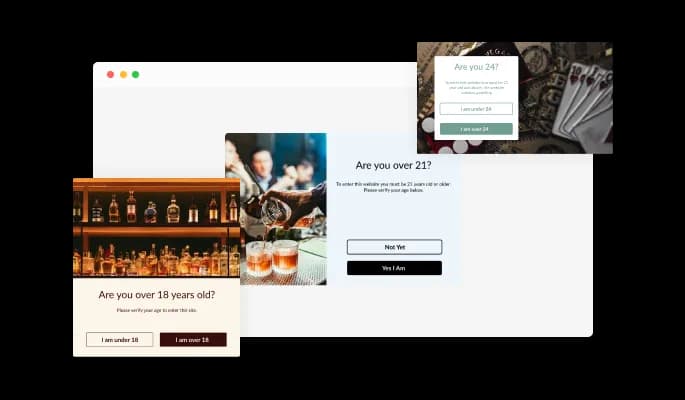
This Age Verification widget comes available with multiple layouts that you can choose from to fit your website’s design & style.
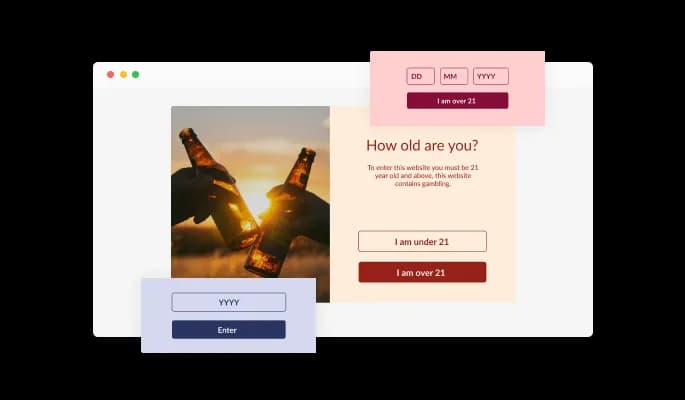
The Age Verification popup widget features three validation types — buttons, year input, and birthday- enabling you to customize the widget to your specific needs and design requirements.
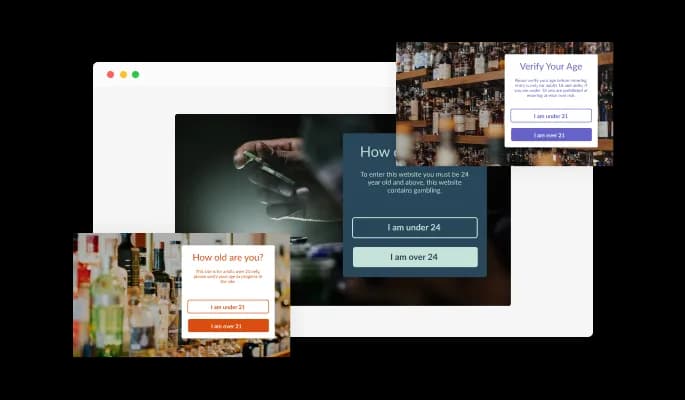
The Age Verification popup comes with a variety of beautiful skins that you can choose from so you don’t have to spend much time on extensive customization.
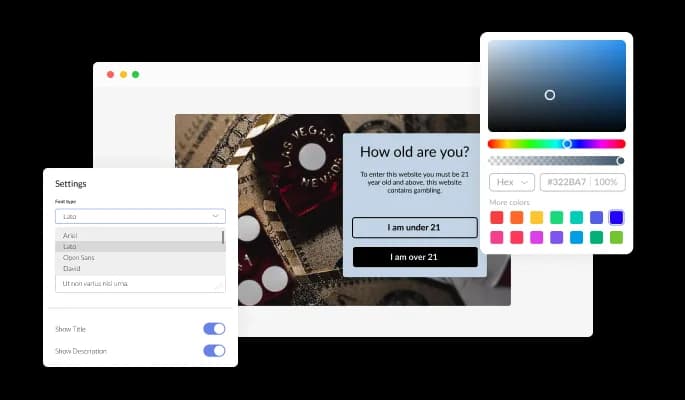
The Age Verification features full customization options so you can edit the design to fit your needs. Change the colors, the fonts, the spacing, and anything else!
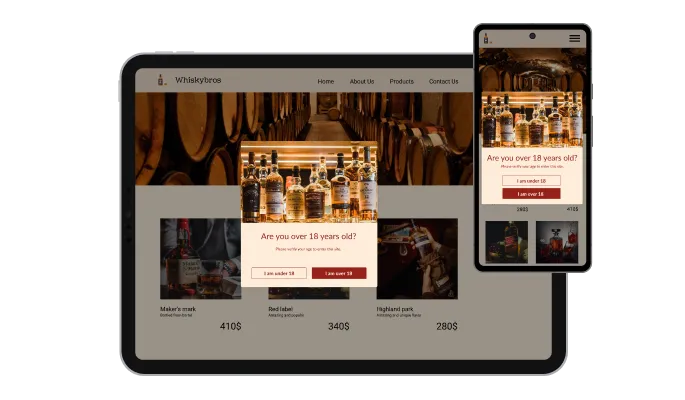
The Age Verification widget is fully responsive and will look great on any device. This feature will put you ahead of your competitors in a mobile-first world.

As with all of Common Ninja’s widgets, you can add custom CSS to customize the Age Verification widget and be even more creative.

You can embed the Age Verification widget on your website quickly by copying a single line of code. The Age Verification widget will also be updated automatically with every change you make.
The age checker widget comes with a selection of beautiful icons that you can use to add to the age verification popup and enrich its visual appearance.
The Age Verification popup widget features advanced display rules — like when or where to display the widget — that you can set and customize. The rules include action triggers like “on exit”, “on page scroll”, “after a certain time delay” and more.
The Age Verification widget comes with the option to add a redirect URL when the age doesn’t meet the requirement. With this option, instead of simply baring the user's entrance, you can redirect the user to any other page you’d like, thereby making their journey more complete and satisfying.
The Age Verification widget is easy to use and requires no coding knowledge. Our intuitive dashboard with the drag-and-drop feature will enable you to customize the widget any way you’d like to with just a few simple clicks.
Common Ninja has amazing no-code widgets that would beautify a website built on any builder. It is very easy to use and customise. It has as many widgets for almost everyone willing to make their website impressive.
Outstanding service. I use their widgets to help me with my web design business and whenever I need help they are very quick to help.
Excellent company with excellent service!!! We used it to build a survey, it was very user friendly. The service was perfect. Amit helped us with every problem and question we had, thank you very much!!!
Common Ninja saved the day when building our website and the customer service Daniel, the co-founder and CEO, provided was amazing.
Yes. The free plan covers one Age Verification widget with no time limit, no credit card, and no trial countdown. Upgrade only when you need additional widgets, premium skins, or higher monthly view limits.
No. Build and customize the entire gate inside a drag-and-drop editor, then paste one line of embed code into your site. Most users finish setup in under 3 minutes.
The widget intercepts the visitor on their first page view and shows the verification prompt you configured: a date-of-birth field, a yes/no question, or a minimum-age dropdown. If they pass, a session cookie keeps them on the site. If they fail, they are redirected to a destination you choose.
Yes. Switch the verification mode to date-of-birth in the editor and set the minimum age (13, 18, 21, or any custom value). Visitors fill in three fields and the widget computes whether they meet the threshold before letting them through.
Pick the behavior in the editor: redirect them to a safe URL (your homepage, a brand-safe partner site, or a custom landing page), show a custom rejection message, or block access entirely. Different gate configurations can route to different destinations.
Yes. Edit your Squarespace page, add a Code block where you want the gate to appear, and paste the Common Ninja embed snippet. The age check fires the moment a visitor lands, then remembers verified sessions via cookies so it does not re-prompt on every page.
Yes. Use the Custom HTML block in the WordPress editor (Gutenberg) or any HTML-friendly page builder, paste the Common Ninja embed snippet, and publish. The widget works on WordPress.com, self-hosted WordPress, Elementor, Divi, and most theme builders without a plugin.
200+ platforms including GoDaddy, Squarespace, Carrd, IONOS, Webador, WordPress, Shopify, Wix, Webflow, Framer, Tilda, BigCommerce, OpenCart, and any custom HTML page that accepts an embed snippet.
Pick your platform. Each takes under 4 minutes.

Easily craft engaging, personalized popups to boost conversions.

Promot coupon and discount with a popup

Display important messages and notifications in a designed bar, at the top or bottom of the screen

Allow users to send messages or inquiries, save submissions, enable notifications, and more
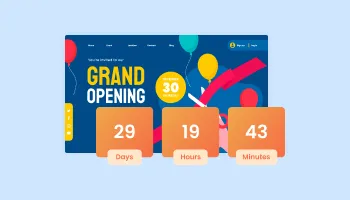
Displays a timer counting down to a specific date or event

Interactive Scratch Card for users to unveil prizes, aiding lead generation.
Yes, the Age Verification comes available with seven different layouts for you to choose from.
Yes, there are three validation types available on the Age Verification Widget — buttons, a year input, and a birthday, that you can choose from.
Yes, you can add a redirect URL.
There are advanced display rules available, enabling you to select specific triggers for when to show the widget.
Using the Age Verification widget is very easy. Simply sign up and start using the free version. There's no need to worry about complicated setup or installation processes, as the Age Verification widget is designed to be user-friendly and straightforward. Once you've signed up, you'll have access to all of the basic features and functions of the widget, which you can use to enhance your website and improve your online presence. From there, you can choose to upgrade to the paid version if you want to access more advanced features and capabilities. Regardless of which version you choose, you'll find that the widget is a powerful and easy-to-use tool that can help you take your online presence to the next level.
The Common Ninja Age Verification widget is a free tool reach with features and options. While this widget is free to use, it does have a limit on the number of views it can handle. This means that after a certain number of views, the chat button may no longer be visible or functional on your website. It is important to note that this view limit may vary depending on your plan. Despite this limitation, Common Ninja's Age Verification is still a valuable tool for businesses looking to increase customer engagement and improve the overall user experience of their website.
The Common Ninja's Age Verification widget is a versatile tool for any website builder. This means that you can easily add this widget to your website or store no matter what platform you use to build your website. The Age Verification widget will work seamlessly with your platform whether you are using a popular website builder or something more specialized. This means you can enjoy all the benefits of this powerful tool without having to worry about compatibility issues.
The Age Verification widget is designed to comply with the General Data Protection Regulation (GDPR), a set of EU regulations protecting personal data and privacy. When using the Age Verification widget, you can be confident that it will not collect or store personal data that could violate GDPR regulations. This ensures that your business is in compliance with these regulations and can protect your customers' data privacy. Overall, the Age Verification widget is a secure and reliable tool that can be used to enhance your website without any concerns about GDPR compliance.
No need for coding skills. Our Age Verification widget is designed to be easy to use, even for those with limited technical experience. The widget features a user-friendly interface that allows you to easily customize the widget without coding knowledge. You can fully customize the Age Verification to match your branding. When you're done, simply copy the provided code and paste it into your website. It's that simple!
Yes. We are eager to hear your request. Please visit our Feature Request page.
Online age verification is the process of verifying a user's age when they access age-restricted content on a website or application. This is typically done by requiring the user to enter their date of birth or provide some other form of identification, such as a driver's license or passport number. The user's age is then verified against the information provided, and if they are of the required age, they are allowed to access the content. Online age verification is commonly used for websites or apps that provide access to age-restricted content such as alcohol, tobacco, gambling, or adult material. It is intended to prevent minors from accessing content that may be inappropriate or harmful to them.
An age verification, which is a type of online age verification system, can potentially improve the user experience on a website. By requiring users to verify their age before accessing age-restricted content, an age verification can help ensure that the content is only viewed by users of the appropriate age. This can prevent minors from accessing content that may be inappropriate or harmful to them. It can also help prevent adults from inadvertently stumbling upon content that they may not want to see. Additionally, an age verification can help to ensure that users are not shown content that is not relevant to them, which can improve the overall user experience on the website. However, it is important to design and implement the age verification in a way that is user-friendly and does not hinder the user experience. For example, the age verification should not be overly intrusive or require users to provide more information than is necessary.
It is important to use age verification on a website when it contains age-restricted content and is only intended for users of a certain age. This may include content such as alcohol, tobacco, gambling, or adult material. By requiring users to verify their age before accessing the content, age verification can help to prevent minors from viewing content that may be inappropriate or harmful to them. Additionally, age verification can help prevent adults from inadvertently stumbling upon content they may not want to see. It is also important to use age verification on a website if the website is required by law to restrict access to age-restricted content. In some countries, it is illegal to provide access to certain types of content to users who are below a certain age, and website owners may be liable for any violations of these laws. Age verification can help to ensure that a website complies with these laws and regulations.
Embedding the Age Verification widget on your website is a straightforward process. Simply copy the provided code and paste it into the desired location on your website. The widget will seamlessly integrate into your site, allowing you to take advantage of its features and functions. No technical expertise or programming knowledge is required - just copy and paste the code to get started. This simple process allows you to easily add the widget to your website and enhance its functionality without any hassle.
Works on 200+ platforms. Trusted by 500K+ businesses.
Create your age verification widgetNo credit card · Setup in under 3 minutes