How to add AI Share Buttons to your website
Learn how to embed Common Ninja’s AI Share Buttons on your website without coding.

In This Guide
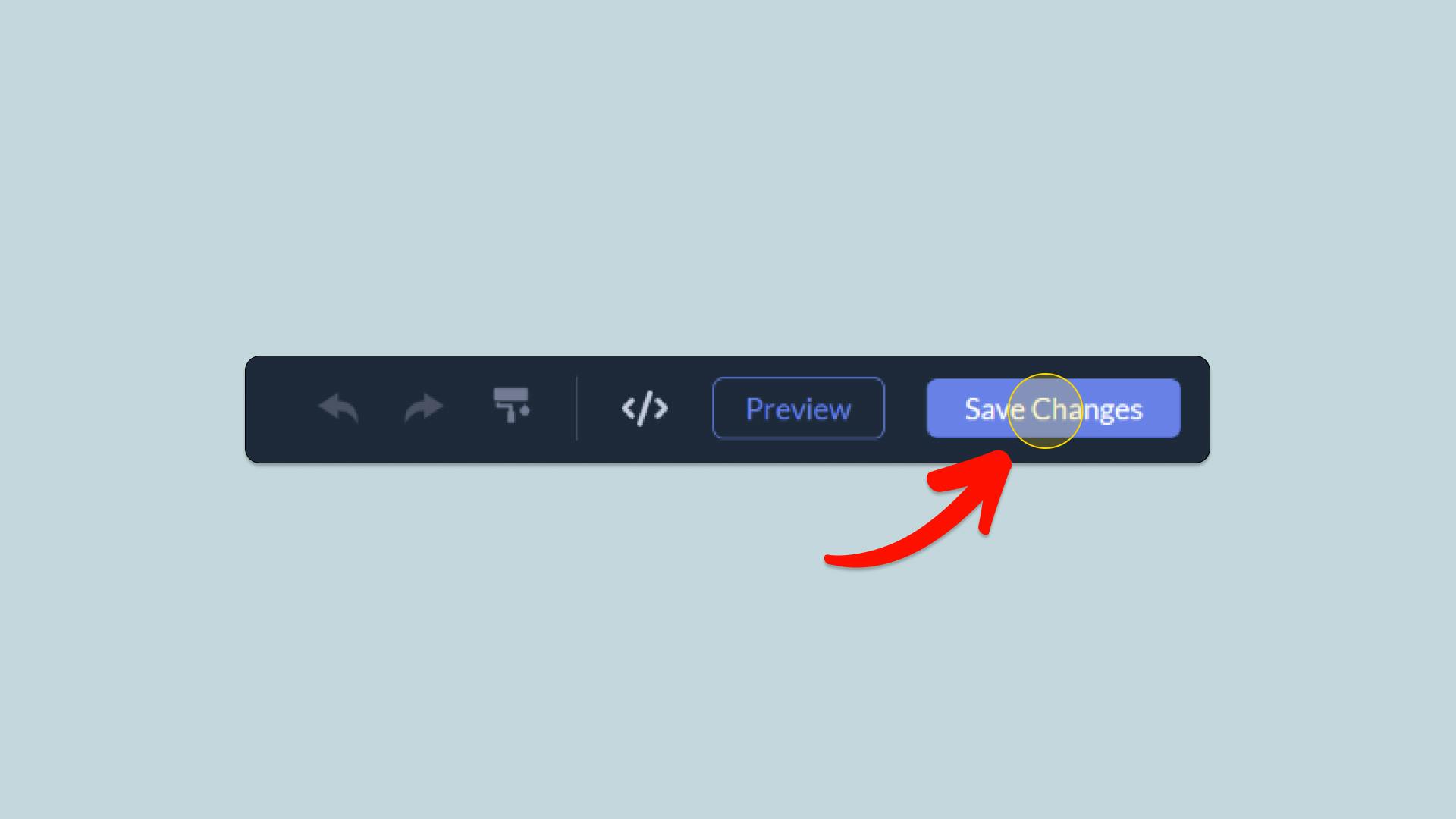
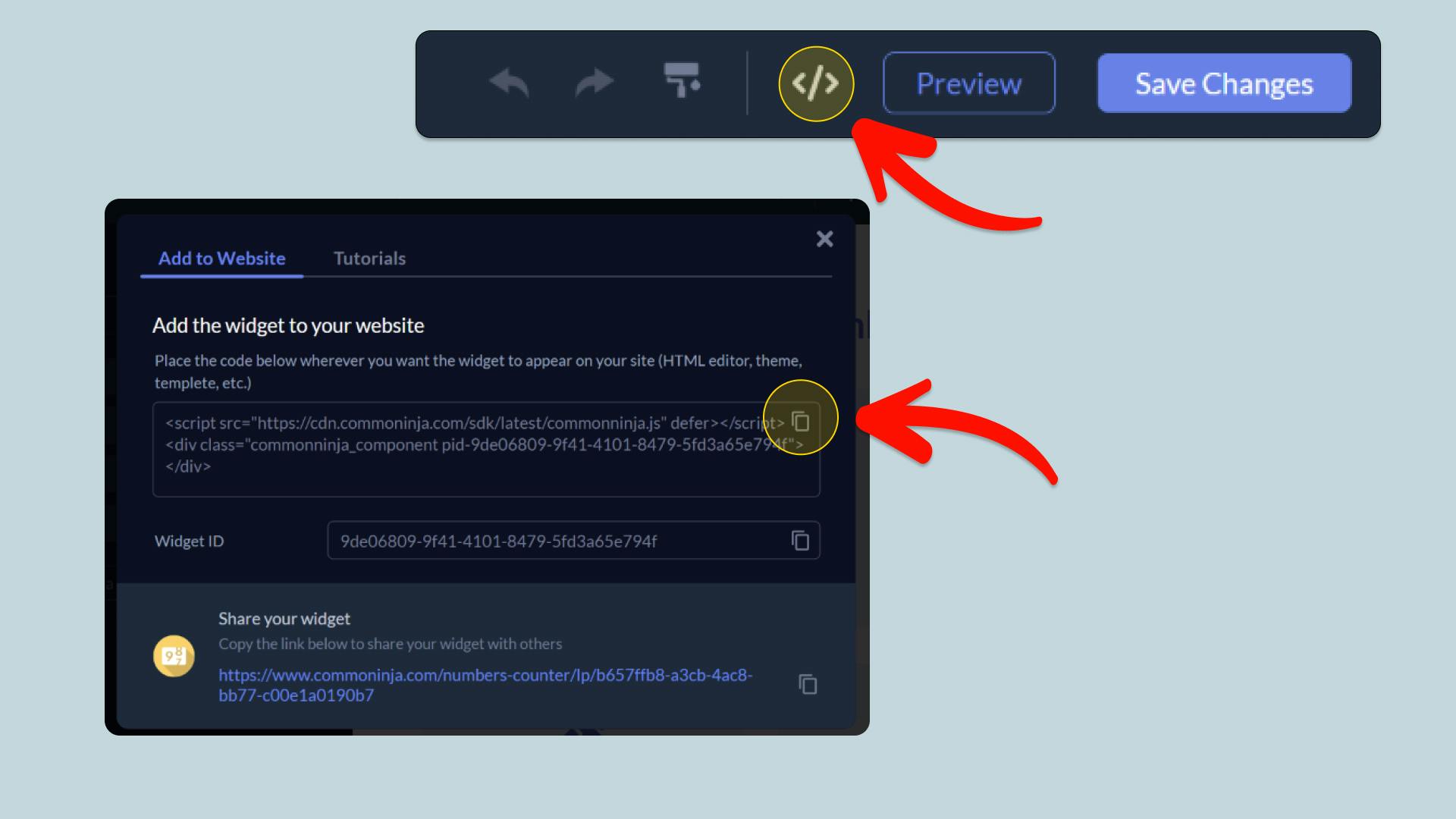
In this quick guide, you'll learn how to embed the AI Share Buttons into your website by generating your embed code and adding it seamlessly to your website.
How to Embed AI Share Buttons on Your Platform
Choose your platform to see detailed, step-by-step instructions for embedding AI Share Buttons seamlessly.


Embed AI Share Buttons on Your Website
Why Use This Widget
AI Share Buttons give your visitors a one-click way to bring your content into the AI assistant they already use. Add buttons for ChatGPT, Claude, Perplexity, Grok, and Google AI Mode, and each click opens that assistant in a new tab with a prompt about your page already filled in. You write the prompt once, for example "Summarize the key points of this page", and the widget adds the page link and title automatically through the {url} and {title} placeholders. Share the page the widget sits on, or point every button at one fixed link such as a featured guide or product page. Arrange the buttons in a horizontal row, a vertical stack, or a grid, choose outline, filled, soft, or minimal buttons in pill, rounded, square, or circle shapes, and keep each assistant's brand colors or switch to your own palette. Add a label such as "Summarize with:", show or hide the button text for a compact icon row, and add entrance, hover, and attention effects. Everything is set up in a visual editor and embedded on any website without code.
This tutorial was written by the Common Ninja product team, creators of interactive, no-code widgets for websites. Common Ninja helps over 500,000 users build engaging online experiences without coding.