

Support for Popular AI Assistants
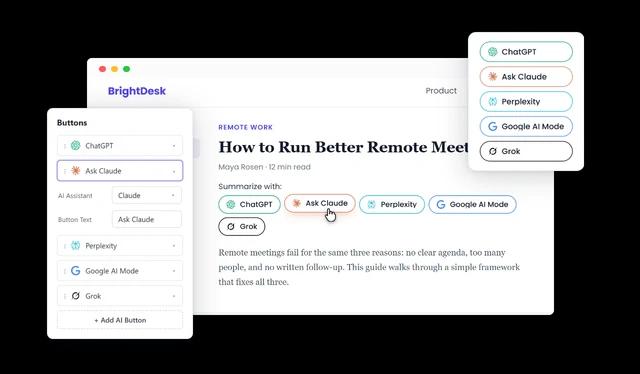
Add buttons for ChatGPT, Claude, Perplexity, Grok, and Google AI Mode. Show all five or only the assistants your audience uses, rename any button, and drag them into the order you prefer.
Give visitors a new way to use your content beyond social sharing. One click brings your page into ChatGPT, Claude, Perplexity, Grok, or Google AI Mode, where readers can ask for summaries, explanations, and follow-up insights.
Long articles, technical guides, and detailed product pages become easier to digest when readers can ask an assistant to simplify a concept, pull out the key takeaways, or answer their own questions about the page.
Visitors no longer need to copy a link, open an AI tool, and write their own instructions. Each button opens the assistant with your prompt and the page link already in place, so the conversation starts right away.
Add buttons for ChatGPT, Claude, Perplexity, Grok, and Google AI Mode. Show all five or only the assistants your audience uses, rename any button, and drag them into the order you prefer.
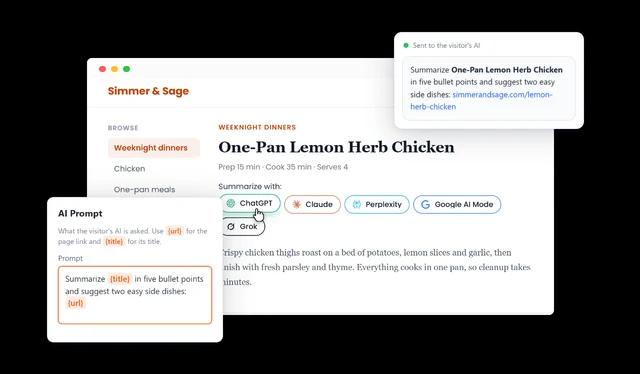
Decide what the assistant is asked to do: summarize the page, explain it in simple terms, list the key takeaways, or compare it with other sources. Use the {url} and {title} placeholders to drop in the current page link and title automatically.
By default every button sends the address of the page the widget is on, so one widget works across every article, product, and help page on your site without any extra setup.
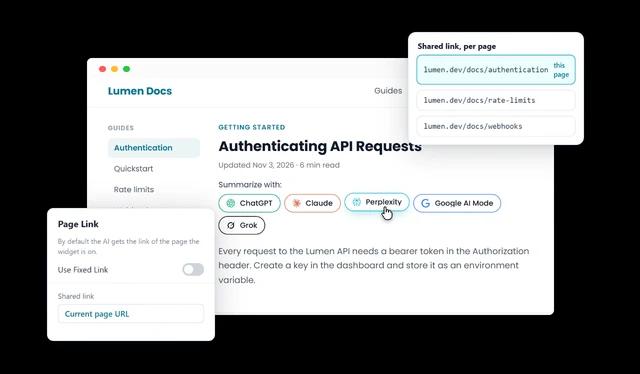
Turn on a fixed link to point every button at one destination, such as a featured guide, a pricing page, or a product launch, no matter where the widget is placed.
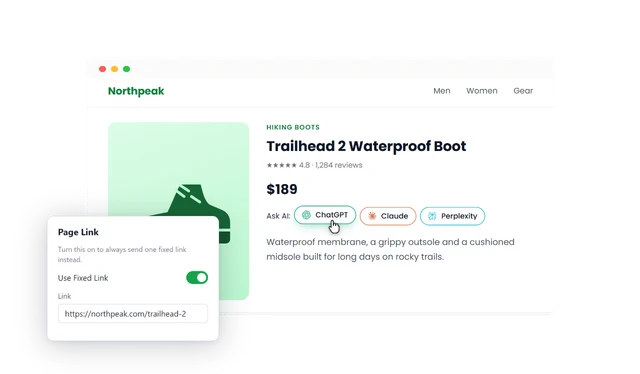
Show the buttons in a single row under a headline, a vertical stack in a sidebar, or a tidy grid in a dedicated sharing section. Align them left, center, or right to fit the surrounding content.
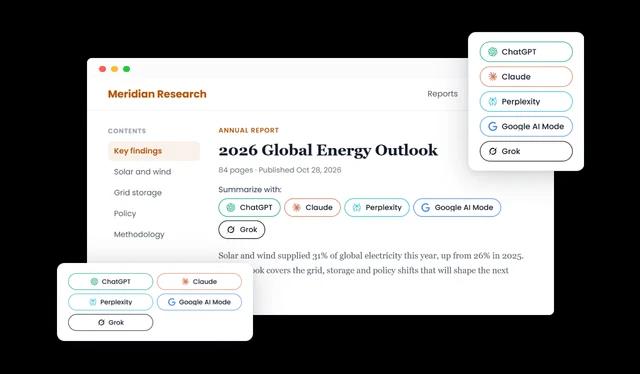
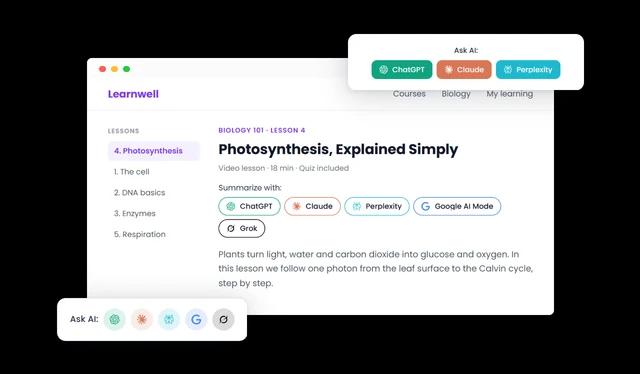
Choose outline, filled, soft, or minimal buttons in pill, rounded, square, or circle shapes. Adjust the button height, text size, icon size, and spacing until the buttons sit naturally on your page.
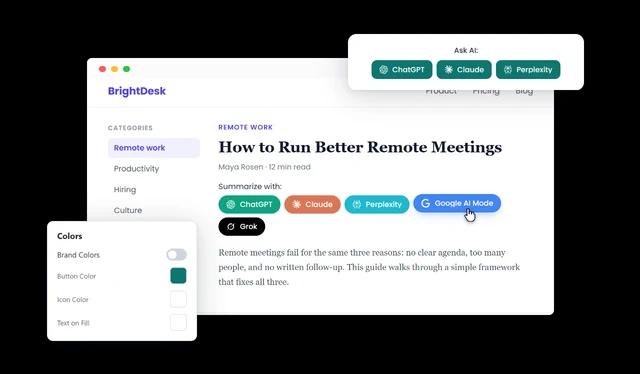
Keep each assistant recognizable with its own brand color, or turn brand colors off and set a single button, icon, and text color that matches your website. Ready-made skins give you a quick starting point.
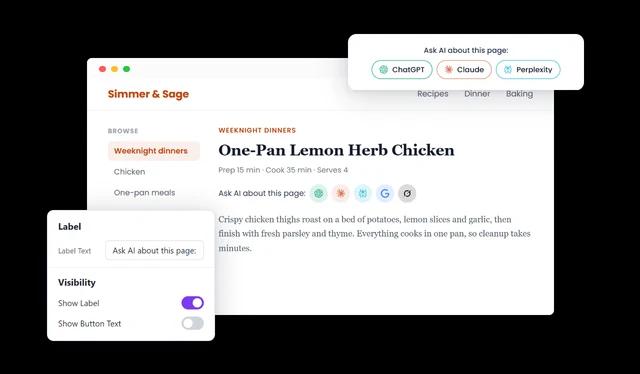
Add a label such as "Summarize with:" or "Ask AI about this page" in front of the buttons. Hide the label or the button text whenever you want a compact row of assistant icons.
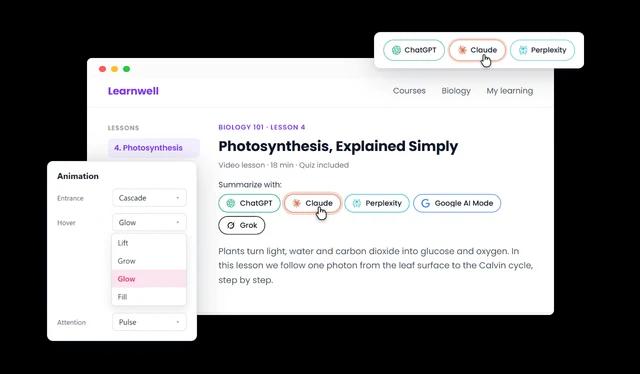
Bring the buttons in with a fade, slide, pop, or cascade, react to the pointer with lift, grow, glow, or fill effects, and add a gentle pulse or shine so visitors notice the buttons.
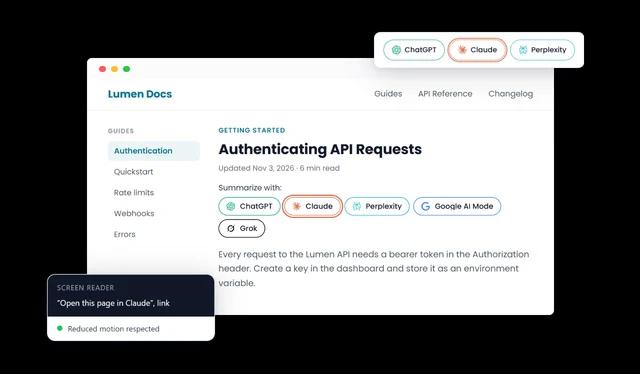
Every button carries a descriptive label for screen readers, shows a clear focus outline for keyboard users, and respects the reduced motion setting, so effects pause for visitors who turn animations off.
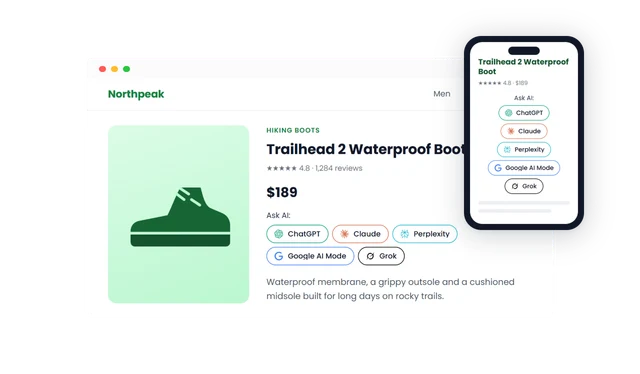
Buttons wrap onto new lines on narrow screens and keep their size and spacing, so the widget looks tidy on desktops, tablets, and phones.
Copy one embed code and paste it into any website, including WordPress, Wix, Shopify, Webflow, and Squarespace. Changes you make in the editor update on your site automatically.
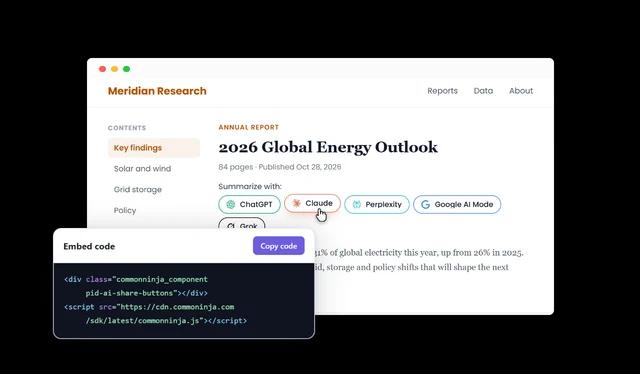
AI Share Buttons are buttons you add to your website that open the current page in an AI assistant such as ChatGPT, Claude, Perplexity, Grok, or Google AI Mode, together with a prompt that tells the assistant what to do with it.
When a visitor clicks a button, the assistant opens in a new tab with your prompt and the page link already filled in. The visitor can then read the answer and keep the conversation going with their own questions.
ChatGPT, Claude, Perplexity, Grok, and Google AI Mode. You can show any combination of them.
Yes. Write any instruction you like, for example a summary, a simple explanation, or a list of key takeaways. Use {url} for the page link and {title} for the page title. If the prompt has no {url}, the page link is added at the end automatically.
Yes. By default each button sends the address of the page where the widget is embedded, so visitors never need to copy the link themselves.
Yes. Turn on the fixed link option and enter the address you want every button to share, such as a featured article or product page.
Yes. Choose the layout, alignment, button style, shape, height, text size, icon size, spacing, colors, font, and effects, or add custom CSS for anything else.
Yes. Brand colors are on by default, so each button uses its assistant's own color. Turn them off to use one color scheme that matches your website.
Yes. Hide the button text for a compact row of assistant icons, or pick the circle shape for round icon buttons. Each button keeps a descriptive label for screen readers.
Horizontal, vertical, and grid. You can also align the buttons to the left, center, or right.
No. The answers are written by the AI assistant the visitor chooses, in that assistant's own website or app. The widget only opens the conversation.
They make it easy for visitors to bring your content into AI conversations, but they do not guarantee that any assistant will cite, recommend, or rank your website.
Not always. The widget shares the link and the prompt, and the assistant decides whether it can open the page. Pages behind a login, paywall, or bot protection may not be readable.
No. You set everything up in a visual editor and add the widget to your site with one embed code.
Yes. The widget works on WordPress, Wix, Shopify, Webflow, Squarespace, and any other website or CMS that accepts an embed code.