


Verified review
Common Ninja has amazing no-code widgets that would beautify a website built on any builder. It is very easy to use and customise. It has as many widgets for almost everyone willing to make their website impressive.
The Common Ninja Back to Top Button widget is a free, no-code embed that adds a floating button to your website that scrolls visitors back to the top of the page in one tap.
Pick from multiple button skins, choose a position (corner-anchored, configurable side), set the icon type (arrow, chevron, custom), configure when the button appears (always, after scroll depth, on time-on-page), customize the design with Custom CSS, and paste a one-line embed snippet on Google Sites, Canva, Hostinger, Webflow, Squarespace, WordPress, and 200+ other platforms.
Use it on long-form blog posts, documentation pages, case studies, product narratives, course outlines, and any page where visitors scroll past several viewports and might want a fast way back to the navigation without dragging the scrollbar manually.
On a 3,000-word blog post or a documentation page that runs five viewports, scrolling back to the navigation by hand is friction. A floating back-to-top button takes the visitor to the top in one tap. Small UX nudge with outsized impact on session quality. Visitors are more likely to keep exploring instead of leaving when they're done with the current page.
Back-to-top buttons are one of the most established UX patterns on the web. Visitors recognize the icon instantly and know exactly what it does. No instruction needed, no confusion about behavior, no learning curve. Adding the pattern matches expectations rather than breaking them.
Default behavior shows the button after a scroll-depth threshold (e.g. after the visitor passes 25% of the page), so on short pages it never appears, on long pages it shows up exactly when visitors might want it. The button hides on long scroll-up moments and reappears when the visitor stops scrolling. Always there when needed, never in the way.
A Back to Top Button scrolls to the very top of the page. A Scroll to Element Button scrolls to a SPECIFIC section anchor (jump-to-pricing, jump-to-contact, jump-to-faq). Use this Back to Top Button for the return-to-nav pattern; use the Common Ninja Scroll to Element Button when visitors should jump to a named section, not always to the top.
Choose from multiple skins (minimal arrow, pill-shaped, branded-vibrant, dark-mode, glassmorphic). Pick an icon type: arrow, chevron, custom upload. Set the corner position (bottom-right standard, all four corners configurable). Configure the button size for desktop and mobile.
Show always (button visible from the moment the page loads), show after scroll depth (button fades in once the visitor has scrolled past a percentage of the page. Recommended for long-form content), show on time-on-page (button appears after N seconds). The default "after scroll" pattern keeps the button hidden until visitors actually need it.
Copy the one-line embed snippet and paste it on Google Sites, Canva, Hostinger, Webflow, Squarespace, WordPress, or any of the 200+ supported platforms. The button floats over your page content; visitors tap it to smooth-scroll back to the top of the page. Edits in the Common Ninja editor push to every embed without re-paste.
Pick from a library of pre-designed skins (minimal-arrow, pill-shaped, branded-vibrant, dark-mode, glassmorphic) for a fast visual fit. Each skin frames the icon with its own shape, shadow, and hover state.
Anchor the button to bottom-right (standard), bottom-left, top-right, or top-left. Configure offset from the viewport edge so the button doesn't collide with existing nav, chat buttons, or floating CTAs. Set the position once; the button respects iOS Safe Area insets on mobile automatically.
Arrow (the classic up-pointing chevron), filled triangle, double-chevron, rocket icon, custom icon upload. The icon you pick signals "return to top" while matching your design system's visual tone.
Pick floating circle (most common), pill-shaped with label ("Back to top"), or compact corner badge. Layer Custom CSS for pixel-level control over button size, corner offset, animation easing, scroll-trigger threshold, and per-breakpoint sizing.
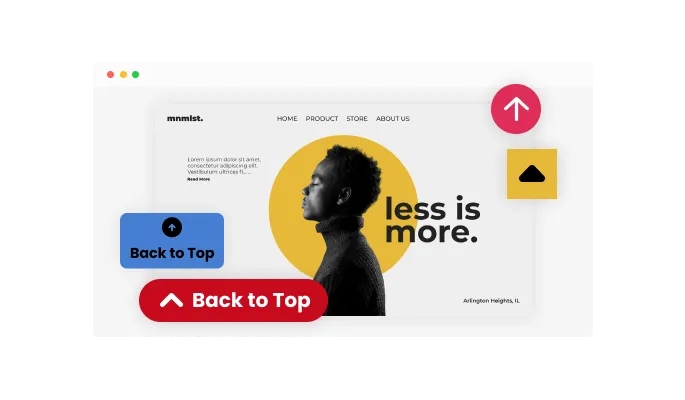
The Back to Top Button widget comes with a variety of beautiful skins that you can choose from so you don’t have to spend much time on extensive customization. And even if you decide to customize the widget further, its user-friendly interface makes it easy for you to personalize it to match your website's unique style and aesthetic.
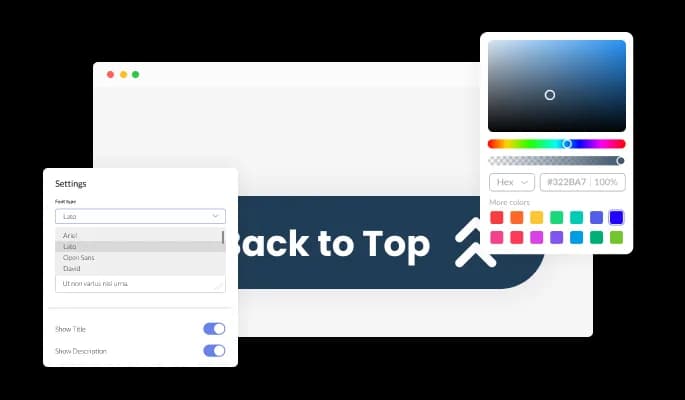
The Back to Top Button widget is designed to be fully customizable, allowing you to adjust the design to match the look and feel of your website. With various customization options at your fingertips, you can easily change the colors, fonts, spacing, and other elements to create a button that fits seamlessly into your website design. Whether you're looking to match your brand colors, create a unique look, or personalize your website, the Back to Top Button widget provides you with all the tools you need to get the job done. Additionally, with the ability to preview your changes in real time, you can easily experiment with different styles and design elements until you find the perfect combination that fits your needs and enhances the user experience on your website.
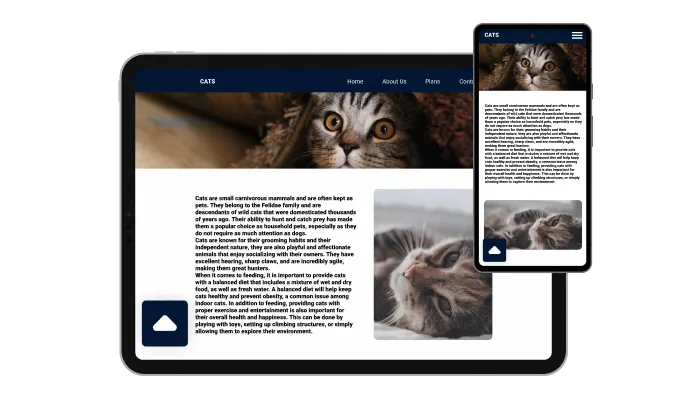
The Back to Top Button widget is designed to provide a seamless user experience on any device. With its fully responsive design, the button will look great and function smoothly on desktop computers, laptops, tablets, and smartphones. This is especially important in today's mobile-first world where more and more people are using their smartphones and other mobile devices to browse the web. By ensuring that your website is optimized for all devices, you'll improve the user experience for your visitors and stay ahead of your competitors in terms of functionality and design. With the Back to Top Button widget, you'll be able to provide your visitors with a fast, easy, and intuitive way to navigate your website no matter what device they use.

In addition to the built-in customization options, the Back to Top Button widget allows you to add your custom CSS to enhance the button further and make it truly unique. Whether you're a seasoned developer or simply looking to get creative, the ability to add custom CSS gives you the power to take your website design to the next level. With custom CSS, you can change the button's size, shape, and positioning, or even create entirely new styles from scratch. The possibilities are endless, and with some creativity, you can make the Back to Top Button widget your own. This level of customization allows you to create a button that fits perfectly with the look and feel of your website and enhances the overall user experience for your visitors. Whether you're looking to create a sleek, modern design or a more traditional, classic look, the Back to Top Button widget and its custom CSS capabilities give you the tools you need to make it happen.

You can embed the Back To Top button on your website easily by copying a single line of code. The Back to Top Button widget will also be updated automatically with every change you make. Copy the code for the button and paste it into your website's HTML code. The code should be placed in the appropriate section of your website, such as the footer or header.
The Back to Top Button widget comes with an option to change the position of the button (right, left, center), which will allow you to customize it to fit your specific needs. This flexibility ensures that the button blends seamlessly with the overall design of your website, making it an essential tool for improving user experience and navigation.
The Back to Top Button widget features different arrow icons you can choose from. Simply select the one that will complement your website’s design. This customization option provides the flexibility to match the button to your website’s aesthetic, creating a seamless and visually appealing user interface.
The Back to Top Button widget comes available with multiple layouts that you can choose from to make sure it fits your overall website design and style. With this versatility in design options, you can seamlessly integrate your brand's aesthetic into your website while maintaining a polished look.
The Back to Top Button widget is easy to use and requires no coding knowledge. Our intuitive dashboard with the drag-and-drop feature will enable you to customize the widget any way you’d like to with just a few simple clicks.
Common Ninja has amazing no-code widgets that would beautify a website built on any builder. It is very easy to use and customise. It has as many widgets for almost everyone willing to make their website impressive.
Outstanding service. I use their widgets to help me with my web design business and whenever I need help they are very quick to help.
Excellent company with excellent service!!! We used it to build a survey, it was very user friendly. The service was perfect. Amit helped us with every problem and question we had, thank you very much!!!
Common Ninja saved the day when building our website and the customer service Daniel, the co-founder and CEO, provided was amazing.
Yes. The free plan covers one Back to Top Button with no time limit and no credit card. Upgrade only when you need additional buttons, custom icon uploads, premium skins, advanced display rules, or features like per-button click analytics.
A Back to Top Button scrolls to the very top of the page when tapped. A Scroll to Element Button scrolls to a SPECIFIC named section anchor (jump-to-pricing, jump-to-contact, jump-to-faq). Use this Back to Top Button for the return-to-nav pattern that fits any long-form page; use the Common Ninja Scroll to Element Button when visitors should jump to a section rather than always to the top.
Configurable. Default behavior shows the button after the visitor scrolls past a percentage of the page (e.g. 25%. The button fades in once visitors are deep enough to want a fast way back). Alternative modes: always visible from page load, or show after time-on-page (button appears after N seconds regardless of scroll). The default "after scroll" pattern keeps the button out of the way until it's useful.
Yes. Pick from a library of icon types (arrow, chevron, double-chevron, rocket, filled triangle) or upload a custom icon. The icon signals "return to top" while matching your design system's visual tone.
No. The widget script loads asynchronously, so it doesn't block first paint or interactivity. The button is a single floating element: minimal DOM impact, no extra HTTP requests for content. Your Largest Contentful Paint and Cumulative Layout Shift stay healthy on Core Web Vitals.
Yes. The widget uses native CSS smooth-scroll where supported and a JavaScript fallback for browsers that don't support it (mostly older versions). Visitors see a consistent smooth-scroll animation regardless of browser. Mobile browsers all support smooth-scroll natively.
Build the widget in the Common Ninja editor (pick skin, icon, position, configure display rules), copy the embed snippet, and paste it into your site: Google Sites via Insert → Embed → Embed code; Canva via the Embed app in the Apps panel; WordPress via a Custom HTML block (Gutenberg) or Shortcode/Text widget (Classic), or paste into your theme's footer template for sitewide installation. Edits in the editor push to every embed without re-paste.
Yes. The floating button scales to fit thumb-zone on mobile, respects iOS Safe Area insets so it doesn't collide with the home-bar gesture area, and smooth-scrolls reliably on mobile browsers. Position and size configurable independently per breakpoint.
Pick your platform. Each takes under 4 minutes.
A button that, when clicked, scrolls to a selected element on the webpage
Easily craft engaging, personalized popups to boost conversions.
Add a WhatsApp chat button to your website, allowing users to start a chat using WhatsApp.
Add a Telegram chat button to your website, allowing users to start a chat using Telegram.

Display a button that will initiate a phone call
Adds a clear notice about cookie usage on your website, improving compliance with data privacy laws.
A Back To Top button is a user interface element commonly found on websites, especially with a lot of content. It is typically represented by an upward-facing arrow or a "Top" label and placed at the page's bottom. When clicked, the button takes the user back to the top of the page, allowing for quick navigation without having to scroll all the way up manually. The Back To Top button is often used to improve the user experience, especially for long pages, and is a common feature of modern websites.
A Back To Top button can significantly improve the user experience on your website, especially for pages with a lot of content. Here are some ways a Back To Top button can help your website visitors:
Yes, you can easily do so from the “Templates” tab.
Yes, there are lots of beautiful skins that you can choose from to save time and start using the widget as quickly as possible.
It’s simple. All you need to do is to sign up and start using the free version.
Common Ninja’s Back to Top Button widget is free to use. It is limited to a certain amount of views, however.
Common Ninja’s Back to Top Button widget is compatible with ALL current and future website builders.
Yes, the Back to Top Button widget is GDPR-compliant.
No. Using our Back to Top Button widget is very simple. The widget comes with an intuitive drag-and-drop interface and fully customizable options. Once you’ve finished editing the widget to your liking, all you need to do is copy the provided code and add it to your website.
Yes. We are eager to hear your request. Please visit our Feature Request page.
Floating button with smooth-scroll to top, multiple icon types, configurable position (any corner), scroll-trigger threshold, stylish skins, and Custom CSS. Embed on 200+ platforms including Google Sites, Canva, Hostinger, Webflow, Squarespace, and WordPress.
Create your Back to Top ButtonNo credit card · Setup in under 5 minutes