


Verified review
Common Ninja has amazing no-code widgets that would beautify a website built on any builder. It is very easy to use and customise. It has as many widgets for almost everyone willing to make their website impressive.
The Common Ninja Call Button widget is a free, no-code embed that adds a floating click-to-call button to your website so visitors can tap to dial your phone number instantly.
Enter your phone number (international format), pick from multiple call-button icons, choose a layout (floating corner button, inline button in your header, full-width banner), customize the design with skins or Custom CSS, configure on/off display hours, set the icon and text label, and paste a one-line embed snippet on Blogger, Google Sites, WordPress, Weebly, Avada, Shopify, and 200+ other platforms.
Use it for restaurants taking phone orders, service businesses booking appointments by phone, local businesses serving walk-in customers, support hotlines, and any moment where letting visitors dial you in one tap beats forcing them to copy your number, switch apps, and dial manually.
Many service-business audiences (restaurants, salons, contractors, medical offices, small B2B) still convert primarily over the phone. A click-to-call button meets those visitors where they are. Tap once, talk in 30 seconds, book the appointment. Far higher conversion than a contact form for visitors whose decision happens in conversation.
Without a click-to-call button, visitors who want to phone you must copy the number from your page, switch to their phone dialer, paste, and dial. Every step is friction; every step loses conversions. A tap-to-call button collapses all of that into one tap: number dials automatically the moment the visitor decides.
If you can't answer the phone 24/7, set on/off display schedules so the button only appears when someone's there to answer. Visitors only see the call option when a real human will pick up. Better experience than calling at 11pm and getting voicemail, then bouncing.
Chat-channel buttons (WhatsApp, Telegram, Messenger) route visitors to a messaging conversation, async, text-based. A Call Button routes visitors to a phone call: live voice. Pick the channel that matches how your audience prefers to communicate, or embed multiple side by side so visitors choose: chat by message, talk by phone.
Type your phone number in international format (+1 555 123 4567). The widget builds the tel: deep-link automatically so when a visitor taps the button, the phone dialer opens on their device with your number ready to call. No call-tracking integration required, no separate phone provider. Works with any number visitors can dial directly.
Choose from multiple call-button icons (phone handset, headset for support, custom icon upload). Configure the button text ("Call Us", "Get a Quote", "Order by Phone"), set the layout (floating corner button, inline button in your header, full-width banner), customize background color and width on mobile, set on/off display hours so the button hides outside business hours, and pick a skin or layer Custom CSS for pixel-level brand match.
Copy the one-line embed snippet and paste it on Blogger, Google Sites, WordPress, Weebly, Avada, Shopify, or any of the 200+ supported platforms. The button floats over your page content or sits inline depending on your layout choice. Edits in the Common Ninja editor push to every embed without re-paste.
On desktop the button can sit as a compact corner element; on mobile it can stretch to full viewport-width for a tap-first experience. Configure width independently per breakpoint so the button is always thumb-zone-sized without taking unnecessary space on desktop.
Show the icon only (for compact corner placements), text only (for clean header bars), or both icon + text ("📞 Call Us", the highest-clarity option). Configurable per layout; pick the combination that matches your section's tone and space constraints.
Floating corner button (bottom-right standard, all four corners configurable), inline header button, full-width banner. Configure when the button shows (always, on-scroll, after-time-on-page), frequency caps, and per-page targeting so the button surfaces in the right context.
Pick from a library of pre-designed skins (minimal, brand-vibrant, urgent-pulsing, dark-mode, glassmorphic) for a fast visual fit. Layer Custom CSS for pixel-level control over button size, corner offset, shadow depth, hover animation, pulse-attention effects, and per-breakpoint sizing.
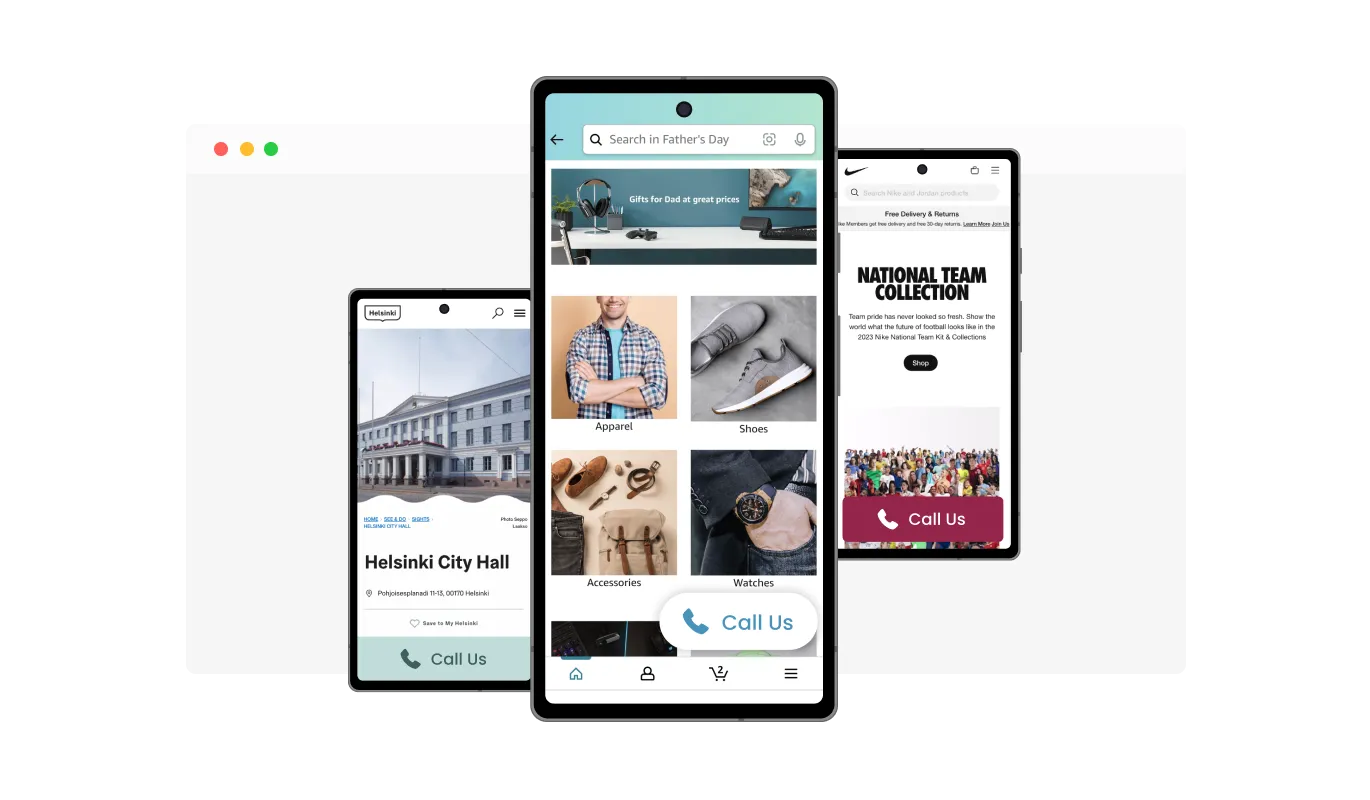
We know how diverse screen sizes can be, especially for mobile users. That's why our widget allows you to choose between a narrow, wide, or full-width button on mobile devices, ensuring optimal visibility and usability no matter the screen size.
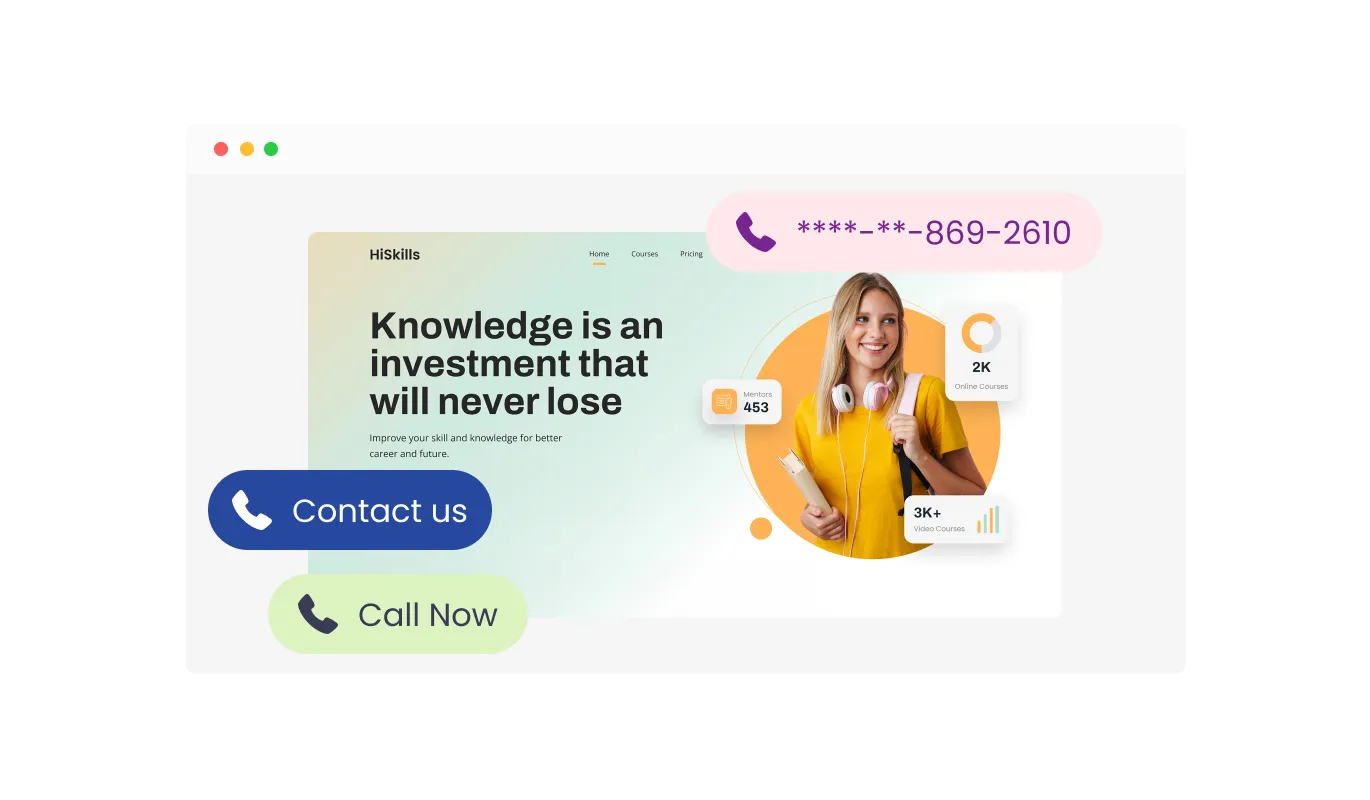
The Call Button Widget comes with an array of skins for you to choose from. This allows you to select a look and feel that best fits your website's design and aesthetic. With this feature, you can ensure your call button not only functions well, but also blends seamlessly into your site's overall visual theme.
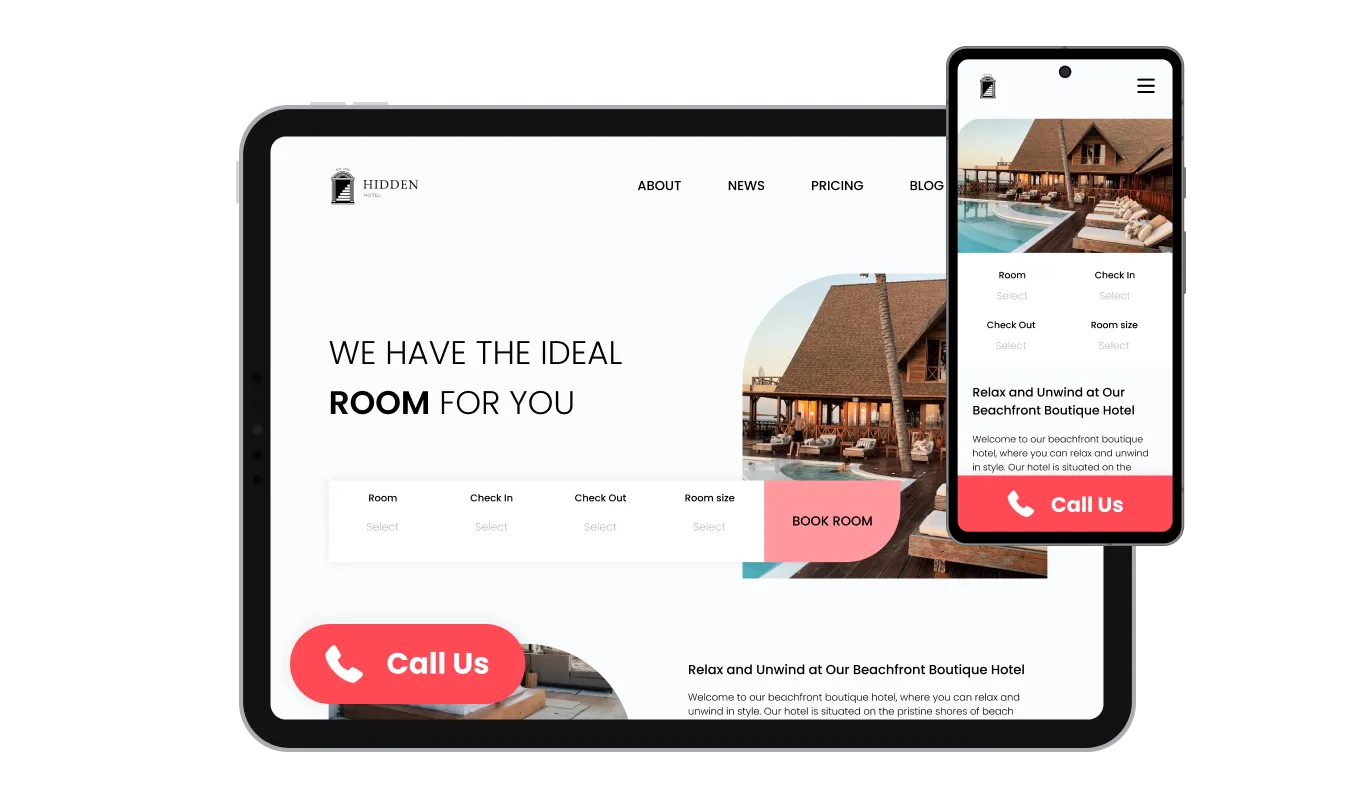
Our Call Button Widget is perfectly responsive, ensuring an excellent user experience on any device. In our increasingly mobile-focused world, this feature gives your website a competitive advantage. Moreover, this adaptability ensures a consistent and captivating interaction for all users, regardless of the device or screen size they're using.
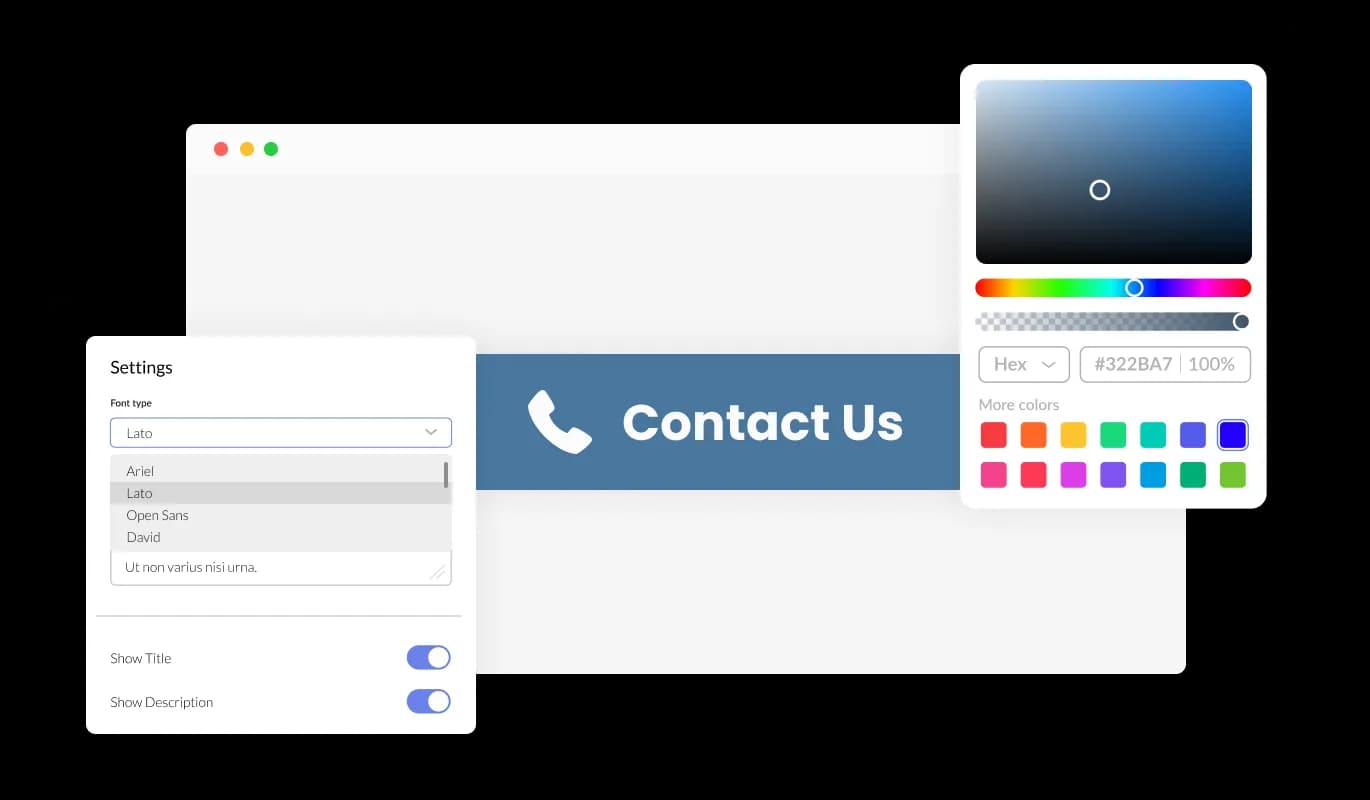
Our Call Button Widget is proud to offer extensive personalization options. This empowers you to alter its appearance and behavior to match your needs. Adjust the colors, fonts, button size, and more to your taste! Tweak these parameters to create a user experience that not only elevates your website's charm but also mirrors your distinctive brand image and style.

In line with all of Common Ninja's apps, our Call Button Widget allows for custom CSS injection, enabling you to further customize its appearance and functionality. This added flexibility lets you fine-tune the widget's aesthetics and behavior, ensuring a truly unique and tailored experience for your users.

The Call Button Widget can be seamlessly integrated into your website with just a single line of code. Plus, any modifications you make to the widget will automatically update on your site, guaranteeing a smooth and always up-to-date experience for your users.
With our call button widget, you can decide on the best way to communicate your message. You have the option to use an icon, text, or even a combination of both, ensuring your call to action is clear and effective.
Our widget allows you to choose from three specific positions for your call button – left, center, or right at the bottom of the screen. This ensures that your button is placed strategically to gain maximum visibility while keeping your website design clean and user-friendly.
Our Call Button Widget features advanced display rules that you can personalize according to your needs. These rules include when and where to show the widget on your site. You can set action triggers like displaying the widget "on exit", after a "time delay", upon "page scroll", and more.
Our Call Button Widget is designed with ease of use in mind, requiring no coding knowledge. With just a few clicks, you can modify the button settings using our intuitive controls. It's as simple as it gets, making immediate, direct communication with your customers accessible to everyone!
Common Ninja has amazing no-code widgets that would beautify a website built on any builder. It is very easy to use and customise. It has as many widgets for almost everyone willing to make their website impressive.
Outstanding service. I use their widgets to help me with my web design business and whenever I need help they are very quick to help.
Excellent company with excellent service!!! We used it to build a survey, it was very user friendly. The service was perfect. Amit helped us with every problem and question we had, thank you very much!!!
Common Ninja saved the day when building our website and the customer service Daniel, the co-founder and CEO, provided was amazing.
Yes. The free plan covers one Call Button with no time limit and no credit card. Upgrade only when you need additional buttons (e.g. different numbers per page), advanced display rules, premium skins, or features like per-button call analytics.
Chat-channel buttons route visitors to a messaging app for async text conversation. A Call Button routes visitors to a phone call for live voice conversation. Different visitors prefer different channels: call buttons suit restaurants, service businesses, contractors, and any audience that still converts primarily over the phone. You can embed multiple buttons side by side so visitors pick their preferred channel.
Yes. The button uses a tel: deep link that opens the visitor's phone dialer with your number pre-filled. On mobile (iOS, Android), tapping the button opens the dialer ready to call. On desktop, the behavior depends on the visitor's setup. Most macOS users have FaceTime / Continuity for calling, Windows users may have Phone Link or fall back to copying the number. No call-tracking platform or VoIP provider is required.
Yes. Set on/off display schedules per day in the editor. The button shows when your team is available to answer and hides otherwise. Visitors only see the call option when a real human will pick up, avoiding the bad experience of calling at midnight and getting voicemail then bouncing. Configure the timezone independently so visitors in different regions see the button during your team's actual work hours.
Yes. Set the button text in the editor. "Call Now", "Get a Quote", "Order by Phone", "Book Your Appointment", or anything else that matches your call-to-action. The text combines with the icon (or stands alone) depending on your icon-display preference.
No. The widget script loads asynchronously, so it doesn't block first paint or interactivity. The button is a single floating element: minimal DOM impact, no extra HTTP requests for content. Your Largest Contentful Paint and Cumulative Layout Shift stay healthy on Core Web Vitals.
Build the widget in the Common Ninja editor (enter phone number, pick icon and layout, customize design), copy the embed snippet, and paste it into your site: Blogger via the HTML/JavaScript gadget in the Layout editor (for sitewide); Google Sites via Insert → Embed → Embed code; WordPress via a Custom HTML block (Gutenberg) or Shortcode/Text widget (Classic), with sitewide installation via your theme's footer template. Edits in the editor push to every embed without re-paste.
Yes, and mobile is the primary use case. On mobile the button scales to fit thumb-zone (configurable to full-width if you want maximum tap target), respects iOS Safe Area insets so it doesn't collide with the home-bar gesture area, and opens the phone dialer instantly on tap. On desktop the button uses the visitor's configured calling app (FaceTime, Phone Link) when available.
Pick your platform. Each takes under 4 minutes.
Add a WhatsApp chat button to your website, allowing users to start a chat using WhatsApp.
Add a Telegram chat button to your website, allowing users to start a chat using Telegram.

Add a Messenger chat button to your website, allowing users to start a chat using Messenger.
Allow users to send messages or inquiries, save submissions, enable notifications, and more
Easily craft engaging, personalized popups to boost conversions.
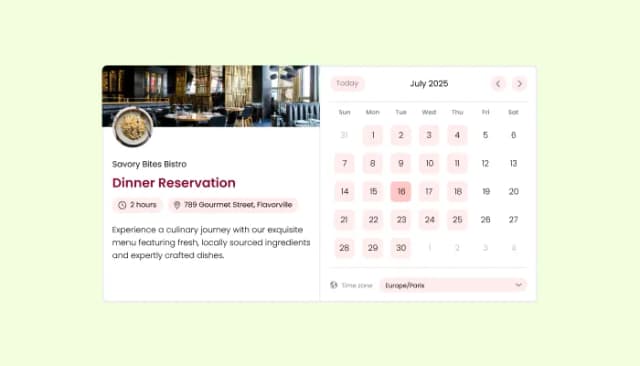
Manage appointments, sync calendars, and send reminders efficiently.
A call button is a clickable element on a website that, when clicked, initiates a phone call to a predetermined number. This can be particularly useful for businesses that want to provide a quick and direct line of communication for their customers or website visitors.
Adding a call button to your website offers several benefits. It enhances user engagement, as visitors can quickly reach out with questions or comments. This can lead to increased conversion rates, as potential customers are more likely to make a purchase when their queries are resolved promptly. It also allows for immediate customer service, improving your business reputation and building trust with your customers. From a business perspective, it can serve as a cost-effective marketing tool, providing opportunities for upselling or cross-selling. Moreover, the insights gathered from these calls can be used to improve your products or services. Lastly, considering its relatively low implementation cost, the return on investment for a call button can be quite high.
Adding a call button to your website offers several benefits. It enhances user engagement, as visitors can quickly reach out with questions or comments. This can lead to increased conversion rates, as potential customers are more likely to make a purchase when their queries are resolved promptly. It also allows for immediate customer service, improving your business reputation and building trust with your customers. From a business perspective, it can serve as a cost-effective marketing tool, providing opportunities for upselling or cross-selling. Moreover, the insights gathered from these calls can be used to improve your products or services. Lastly, considering its relatively low implementation cost, the return on investment for a call button can be quite high.
It's quite simple! After customizing the widget to your liking, you'll be provided with a line of code. Just copy and paste this code into your website's HTML where you want the button to appear, and you're done.
Absolutely! Our widget is designed to be fully responsive. It will automatically adjust to fit any screen size, ensuring a great user experience on both mobile and desktop devices.
Yes, you can. We offer a range of customization options, including the choice of text and icon, the button's position, and its width on mobile devices. You can also select from multiple skins and even inject custom CSS for more advanced customization.
Yes, the Call Button Widget is completely free to use. We believe in providing powerful tools that help businesses connect with their customers in a more direct and engaging manner.
Not at all! The widget is designed to be user-friendly. Customizing and embedding it requires no coding knowledge. All changes are made through an intuitive interface, and the embedding process is as simple as copying and pasting a line of code.
When a user clicks on the call button, it initiates a phone call to the number you've set up. This provides a direct line of communication between you and your website visitors.
Yes, you can choose to place the button at the left, center, or right at the bottom of your screen. This ensures that the button fits seamlessly into your website design and provides optimal visibility.
Let visitors tap to dial your phone number: floating corner button, inline header button, or full-width banner; flexible mobile width; icon + text display options; on/off availability hours; stylish skins; and Custom CSS. Embed on 200+ platforms including Blogger, Google Sites, WordPress, Weebly, Avada, and Shopify.
Create your Call ButtonNo credit card · Setup in under 5 minutes