


Verified review
Common Ninja has amazing no-code widgets that would beautify a website built on any builder. It is very easy to use and customise. It has as many widgets for almost everyone willing to make their website impressive.
The Common Ninja Cookies Consent Bar is a free, no-code embed that displays a clear cookie notice and consent button on your website so visitors know about cookie usage upfront.
Write the consent message, pick a layout (bottom bar, top bar, modal), customize the acknowledgement button (shape, label, color), add a link to your privacy policy, pick from multiple skins, layer Custom CSS if needed, and paste a one-line embed snippet on Canva, Lovable, Google Sites, Framer, Base44, Webflow, and 200+ other platforms.
Use it as the first step toward GDPR / CCPA awareness on your site. A clear, persistent reminder that visitors can acknowledge in one tap, giving you a baseline consent UI without rebuilding your stack.
EU visitors expect a cookie notice on first visit. Many sites built on lightweight builders (Canva, Carrd, Google Sites) don't ship a native consent UI. This widget gives you a baseline notice with a clear acknowledge button in minutes. Useful as a first step before deciding whether you need a full Consent Management Platform later.
A visible cookie notice signals "we know data matters", even to visitors outside the EU. The bar opens the door for a brief, honest statement about your privacy practices and links to the full policy for visitors who want detail. A small UX nudge that builds first-impression credibility.
The bar stays visible until the visitor taps acknowledge, not dismissed by scroll or by clicking elsewhere on the page. After acknowledgment, the bar hides for the visitor (tracked via cookie) so they don't see it again on subsequent visits or page navigations within the session.
This widget displays a clear notice with an acknowledge button. It does NOT block scripts before consent, manage per-category opt-ins (analytics / marketing / functional), or generate cookie-policy text. For strict GDPR enforcement (large enterprises, EU-heavy traffic), pair this with a dedicated CMP (OneTrust, Cookiebot, Iubenda), or use the widget as the visible UI while a CMP handles the script-blocking under the hood.
Compose a short, plain-language notice that explains your site uses cookies and links to your privacy policy for the full detail. Keep the message human. "We use cookies to improve your experience. See our privacy policy for details.", and avoid legalese unless your jurisdiction requires it. Add a link to your privacy or cookie policy page.
Choose a layout. Bottom bar (the most common, stays out of the visitor's way), top bar (more prominent, signals urgency for high-priority compliance), or modal (blocks the page until acknowledged, the strictest option). Customize the acknowledge button shape (pill, square, rounded), button label (Accept, Got it, OK), and color. Pick a skin or layer Custom CSS for pixel-level brand match.
Copy the one-line embed snippet and paste it on Canva, Lovable, Google Sites, Framer, Webflow, or any of the 200+ supported platforms. The bar persists on the page until the visitor acknowledges, then hides for that visitor (tracked via cookie). Edits in the Common Ninja editor push to every embed without re-paste.
A short message, an acknowledge button, an optional policy-link: no per-category opt-in toggles, no legal-jargon walls. Designed for sites that want a clear notice without the complexity of a full CMP.
Pill, square, rounded. Pick the button shape that matches your design system. Set the button label (Accept, Got it, OK, Continue) and color. The acknowledge button is the visitor's one-tap path out of the bar.
Pick from a library of pre-designed skins (minimal, brand-vibrant, soft-pastel, dark-mode, neutral) for a fast visual fit. Each skin is a fully styled starting point; tune typography, accent colors, and button styling from there.
Layer Custom CSS over any skin to control bar height, font weight, button hover states, border radius, shadow depth, and per-breakpoint sizing. Tight integration with your design system without rebuilding the widget.
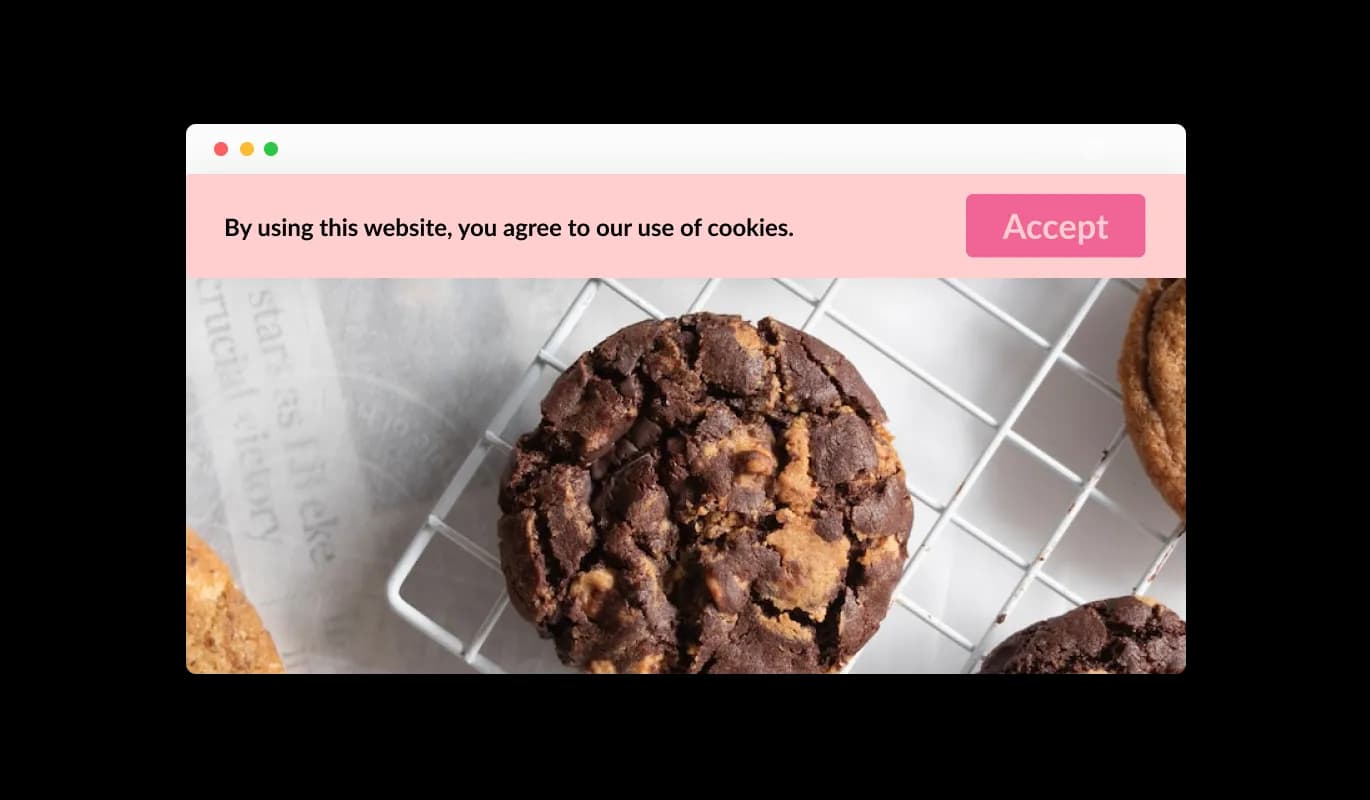
The Cookies Consent Bar widget provides a straightforward and clear cookie consent notice. The concise and understandable language used in the message ensures that all site users are instantly aware that cookies are in use.
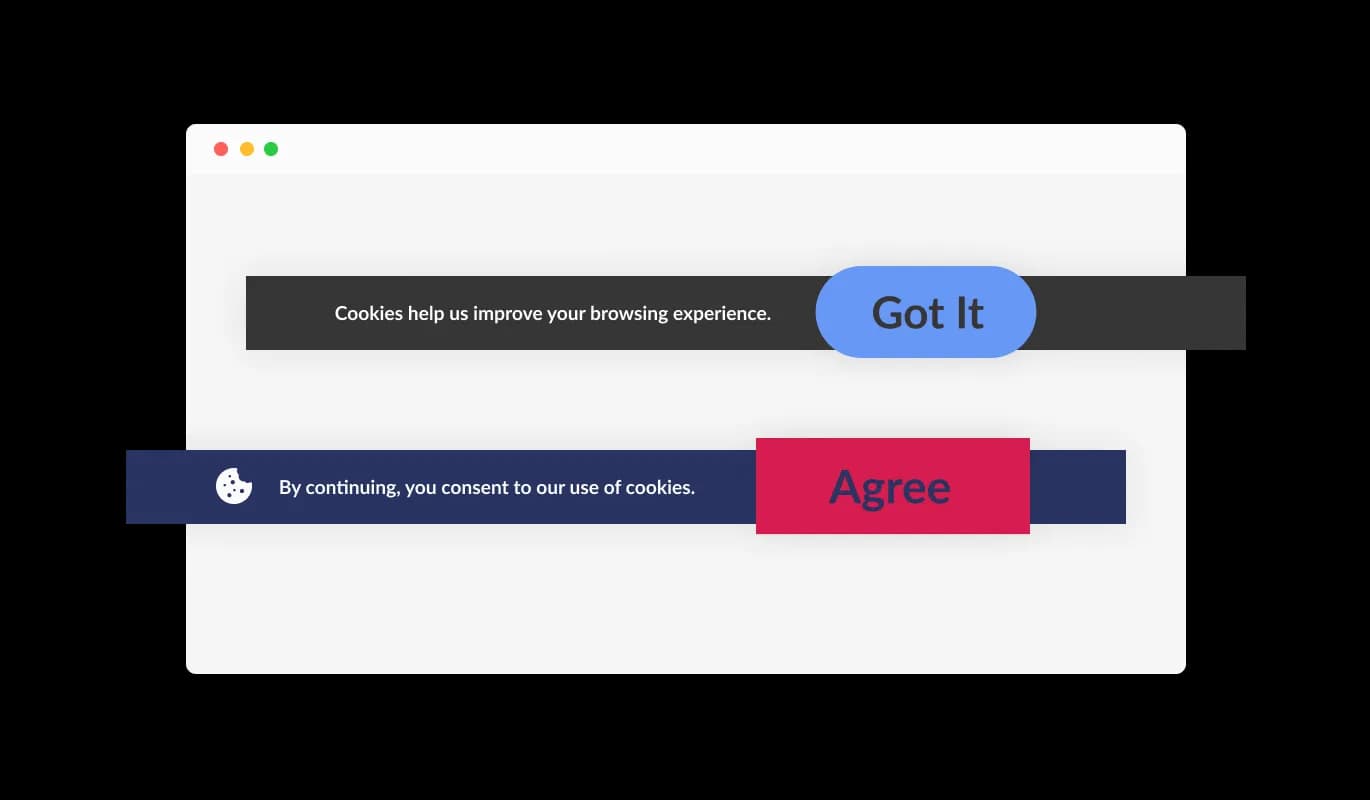
The Cookies Consent Bar widget features an intuitive "Got it" button for users to acknowledge the cookie usage. This user-friendly design makes it easy for visitors to accept the terms without having to navigate through complex options.
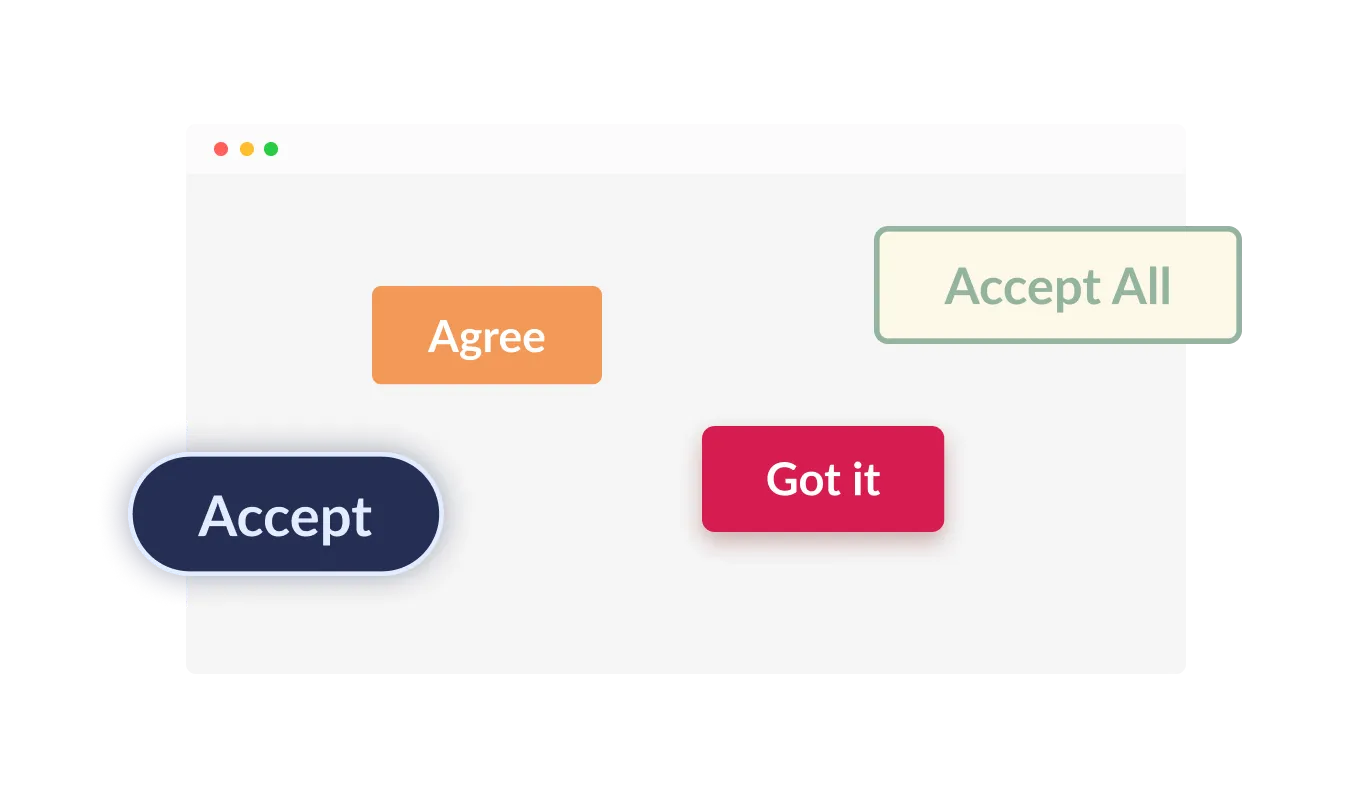
The Cookies Consent Bar widget allows users to select from a range of button shapes for the acknowledgment button. Whether it's a rounded, square, or other design, you can choose a button shape that best aligns with your website's aesthetic.
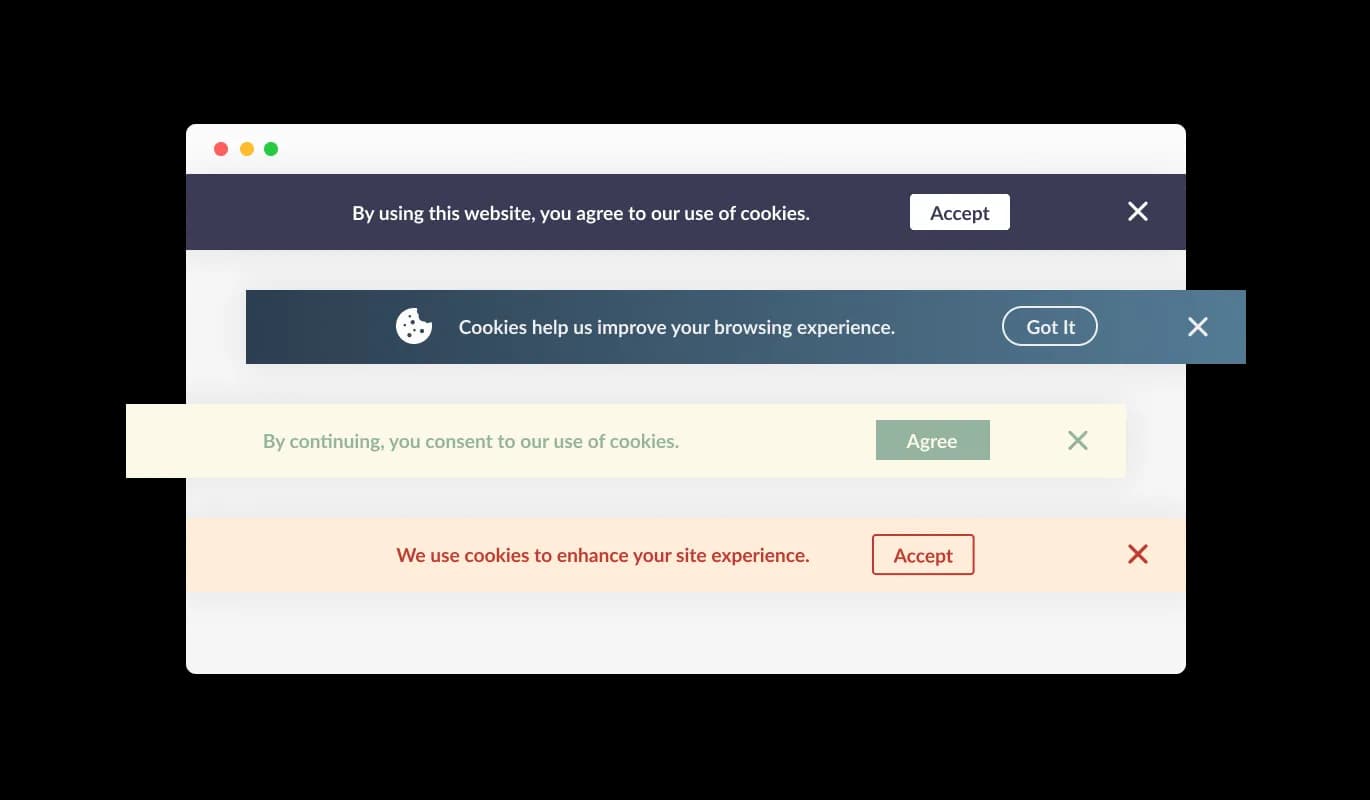
The Cookies Consent Bar widget comes with many ready-to-use designs that you can pick to fit the look and colors of your website. This way, everything on your site looks like it belongs together, which visitors will appreciate.
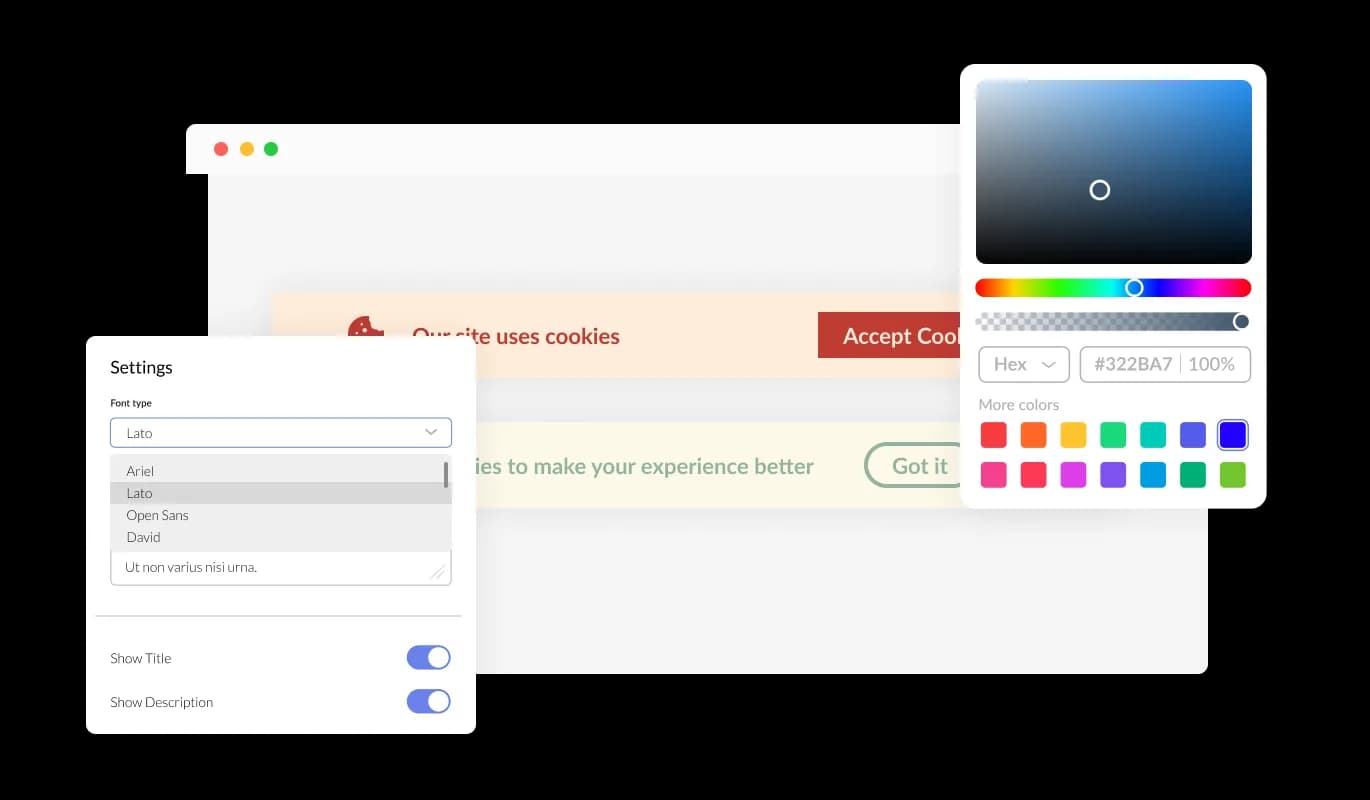
The Cookies Consent Bar widget gives you lots of ways to change its design so it works just the way you want it to. You can tweak colors, change fonts, and even move things around. Its easy-to-use controls mean you can make it look just right on your website, so your visitors don't feel any difference while browsing.
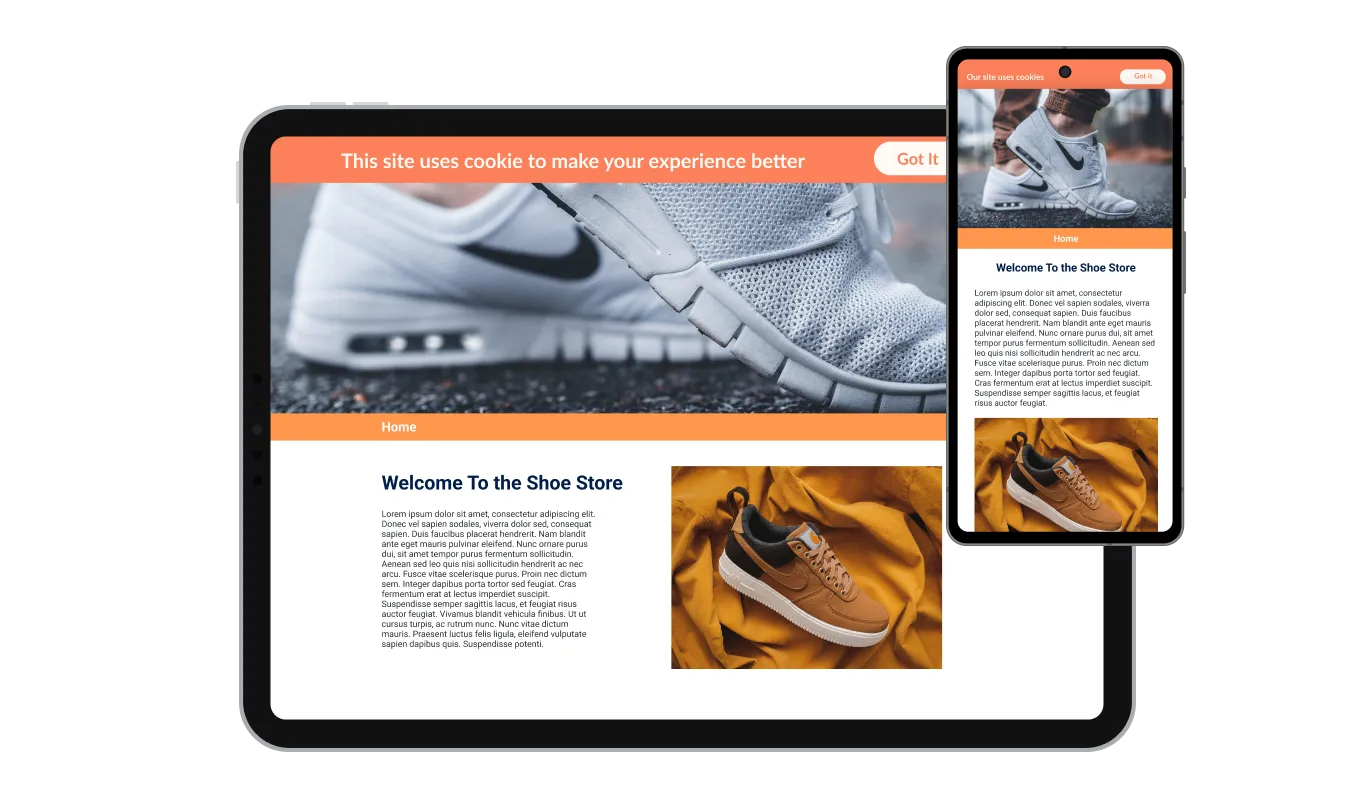
The Cookies Consent Bar widget works well and looks good on all devices, like phones, tablets, and computers. As lots of people now use the internet on their phones and tablets, it's important that everything on your website is easy to use on these devices too. With the Cookies Consent Bar widget, everything will run smoothly and look great, no matter what device someone is using.

Our advanced editor is a powerful tool that lets you completely control how the Cookies Consent Bar looks. You can easily change its design, colors, fonts, layout, and where it's placed. And if you're feeling extra creative, you can also directly edit the CSS for even more ways to customize it.

To add the Cookies Consent Bar widget to your website, all you have to do is copy the code we give you and put it in your website's HTML. The great thing about the Cookies Consent Bar widget is that it updates by itself. So, whenever you make changes in the Consent Bar Form editor, they will automatically show up on your website.
The Cookies Consent Bar widget is designed to persistently appear on the website until the user acknowledges the message. This ensures that all users are aware of your site's cookie usage before they continue browsing.
The Cookies Consent Bar widget provides an option to include an icon or an image as part of the consent bar. This gives you the flexibility to choose a visual element that aligns with your website's design and brand identity, thus enhancing the consistency and coherence of your site's appearance.
The Cookies Consent Bar widget allows you to include a link within the consent message. This can be directed to your website's terms of use, privacy policy, or any other relevant external page, offering a straightforward way for users to access more detailed information if they wish.
The Cookies Consent Bar widget is easy to use and you don't need to know how to code. With just a few clicks, you can change the bar however you want using our user-friendly controls. It's really that simple!
Common Ninja has amazing no-code widgets that would beautify a website built on any builder. It is very easy to use and customise. It has as many widgets for almost everyone willing to make their website impressive.
Outstanding service. I use their widgets to help me with my web design business and whenever I need help they are very quick to help.
Excellent company with excellent service!!! We used it to build a survey, it was very user friendly. The service was perfect. Amit helped us with every problem and question we had, thank you very much!!!
Common Ninja saved the day when building our website and the customer service Daniel, the co-founder and CEO, provided was amazing.
Yes. The free plan covers one consent bar with no time limit and no credit card. Upgrade only when you need additional bars, premium skins, advanced layouts, multi-language consent variants, or features like per-region targeting and bypass-detection.
It's a starting point, not a complete compliance solution. A consent bar gives visitors a visible notice and an acknowledge button. Useful for transparency and a baseline UX. However, full GDPR / ePrivacy Directive compliance typically requires more: blocking non-essential scripts before consent, per-category opt-in toggles (analytics, marketing, functional), record-keeping of consent decisions, and ongoing cookie-policy management. For strict compliance (especially for EU-heavy traffic or large enterprises), pair this widget with a Consent Management Platform (OneTrust, Cookiebot, Iubenda) or your platform's native cookie controls.
No. This widget displays a notice and acknowledge button, but it does not actively block scripts or cookies on your site. Script-blocking before consent is typically handled by a Consent Management Platform that hooks into your tag-management system. Use this widget for the visible UI and a CMP under the hood if you need active blocking. They can complement each other.
The bar hides for that visitor: tracked via a cookie set on the visitor's device, so they don't see the bar again on subsequent visits or page navigations within the session. If the visitor clears cookies or visits in a different browser, the bar will appear again. The acknowledge state is per-device, not per-visitor identity.
Yes. Add a link in the consent message that points to your privacy or cookie policy page. Visitors who want the full detail before acknowledging can click through, read, and come back. The link can be styled distinctively (underlined, color-accented) or rendered inline within the consent copy.
Build the widget in the Common Ninja editor (write message, pick layout, customize button), copy the embed snippet, and paste it into your site: Canva via the Embed app in the Apps panel; Lovable via the HTML/Embed component in your project's layout; Google Sites via Insert → Embed → Embed code; Framer via a Code Embed element on your site's layout. Edits in the editor push to every embed without re-paste.
No. The widget script loads asynchronously, so it doesn't block first paint or interactivity. The bar itself renders after page load: minimal DOM impact, no extra HTTP requests for content. Your Largest Contentful Paint and Cumulative Layout Shift stay healthy on Core Web Vitals.
Yes. Layouts (bottom bar, top bar, modal) adapt across mobile, tablet, and desktop breakpoints. Bottom bars respect iOS Safe Area insets so they don't collide with the home-bar gesture area. Acknowledge buttons stay finger-sized on mobile, and bar height scales to keep the consent message readable on narrow viewports.
Pick your platform. Each takes under 4 minutes.

Easily craft engaging, personalized popups to boost conversions.

Display important notifications with a popup

Asks users to confirm their age before accessing restricted content
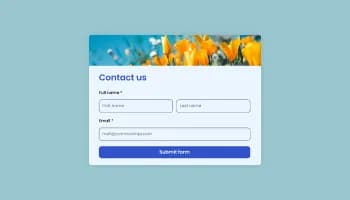
Allow users to send messages or inquiries, save submissions, enable notifications, and more
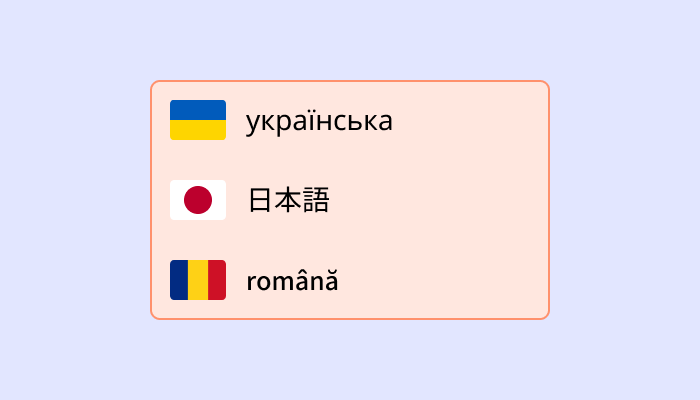
Translate your website into multiple languages with a customizable, user-friendly translation widget.
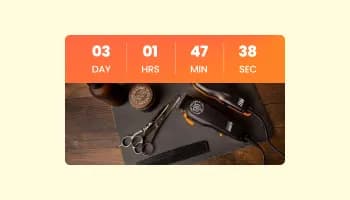
Displays a countdown clock, with multiple effects and styles
Web cookies, also known simply as cookies, are small text files that are stored on your computer or other devices when you visit a website. They're used by websites to remember information about you, such as your login details, items in your shopping cart, or your browsing preferences.
Websites use cookies to improve the user experience. They allow websites to remember user preferences, track user interaction with the site, and provide personalized content. Cookies can also be used for targeted advertising, where ads are tailored to a user based on their online activity.
A Cookies Consent Bar is a small notification that appears on a website, informing users that the site uses cookies. It includes a message about cookies being used and a button for the user to acknowledge this message. It's a tool to comply with data privacy regulations, which require websites to inform users about their use of cookies.
To add the Cookies Consent Bar to your website, you need to copy the code provided and paste it into your website's HTML. This is generally a simple process and doesn't require any advanced coding knowledge.
Yes, the Cookies Consent Bar is highly customizable. You can change its design, colors, fonts, and the shape of the acknowledgment button. You can even add a link to your terms of use or another page, and choose to display an icon or image.
Yes, the Cookies Consent Bar is fully responsive and will adapt to the screen size of the device it's being viewed on. This means it works well on all devices, including mobile phones and tablets.
If a user doesn't click the acknowledgment button, the Cookies Consent Bar will continue to display each time they visit the site. It's designed to persistently appear until the user acknowledges the use of cookies.
Yes, the Cookies Consent Bar helps your website comply with global data privacy laws, such as GDPR and CCPA, by clearly informing users about the use of cookies. However, it's important to make sure you're also following any other requirements of these regulations.
If your website collects data from users in the European Union, you are required to inform them about cookie usage and obtain consent. A GDPR Cookie Notice helps you meet these requirements and avoid potential compliance issues.
Not all cookies require consent. Essential cookies needed for basic website functionality are usually allowed without consent, but non-essential cookies like analytics, marketing, and tracking cookies typically require user approval under GDPR.
Yes, under GDPR, users should have the option to accept or reject non-essential cookies. Providing clear choices helps ensure compliance and gives users control over their data.
A GDPR Cookie Notice helps by clearly informing users about cookie usage, requesting consent, and providing access to detailed privacy information. This transparency is a key requirement of GDPR and other privacy regulations.
Yes, it’s recommended to include a link to your cookie or privacy policy within the notice. This allows users to access detailed information about how their data is collected and used.
No, a well-implemented GDPR Cookie Notice is lightweight and designed to run without affecting your website’s speed or performance.
Yes, you can choose how and where the GDPR Cookie Notice is displayed, including its position on the screen and when it appears to users.
A cookie notice is an important part of GDPR compliance, but it is not the only requirement. You must also properly manage cookies, store consent records, and follow broader data protection practices.
Display a clear cookie notice with a one-tap acknowledge button, bottom bar / top bar / modal layouts, multiple button shapes, privacy-policy link integration, stylish skins, and Custom CSS. Embed on 200+ platforms including Canva, Lovable, Google Sites, Framer, Webflow, and WordPress.
Create your Consent BarNo credit card · Setup in under 5 minutes