How to add Corner Pop-up Builder to a Lovable app

Learn how to embed Common Ninja’s Corner Pop-up Builder on your Lovable app without coding.

Create a Corner Pop-up Builder

loved by 500K+ businesses

widget-editor

In This Guide

In this quick guide, you'll learn how to embed the Corner Pop-up Builder into your Lovable app by generating your embed code and adding it seamlessly to your app.

Embed Corner Pop-up Builder on Lovable
01
Create a Corner Pop-up Builder widget for Lovable on Common Ninja
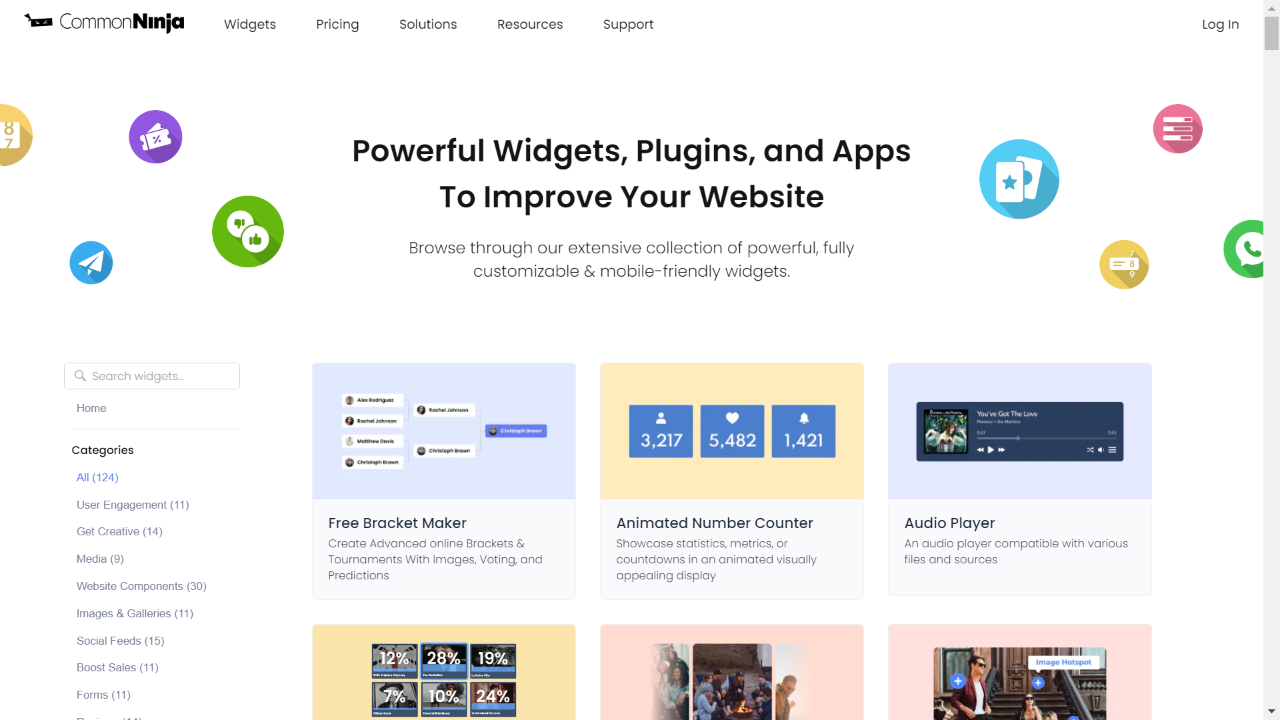
First, create a Lovable Corner Pop-up Builder widget on Common Ninja. On the widgets catalog, find the Corner Pop-up Builder and enter the Editor.
Create a Corner Pop-up Builder widget for Lovable on Common Ninja
02
Save the Corner Pop-up Builder widget
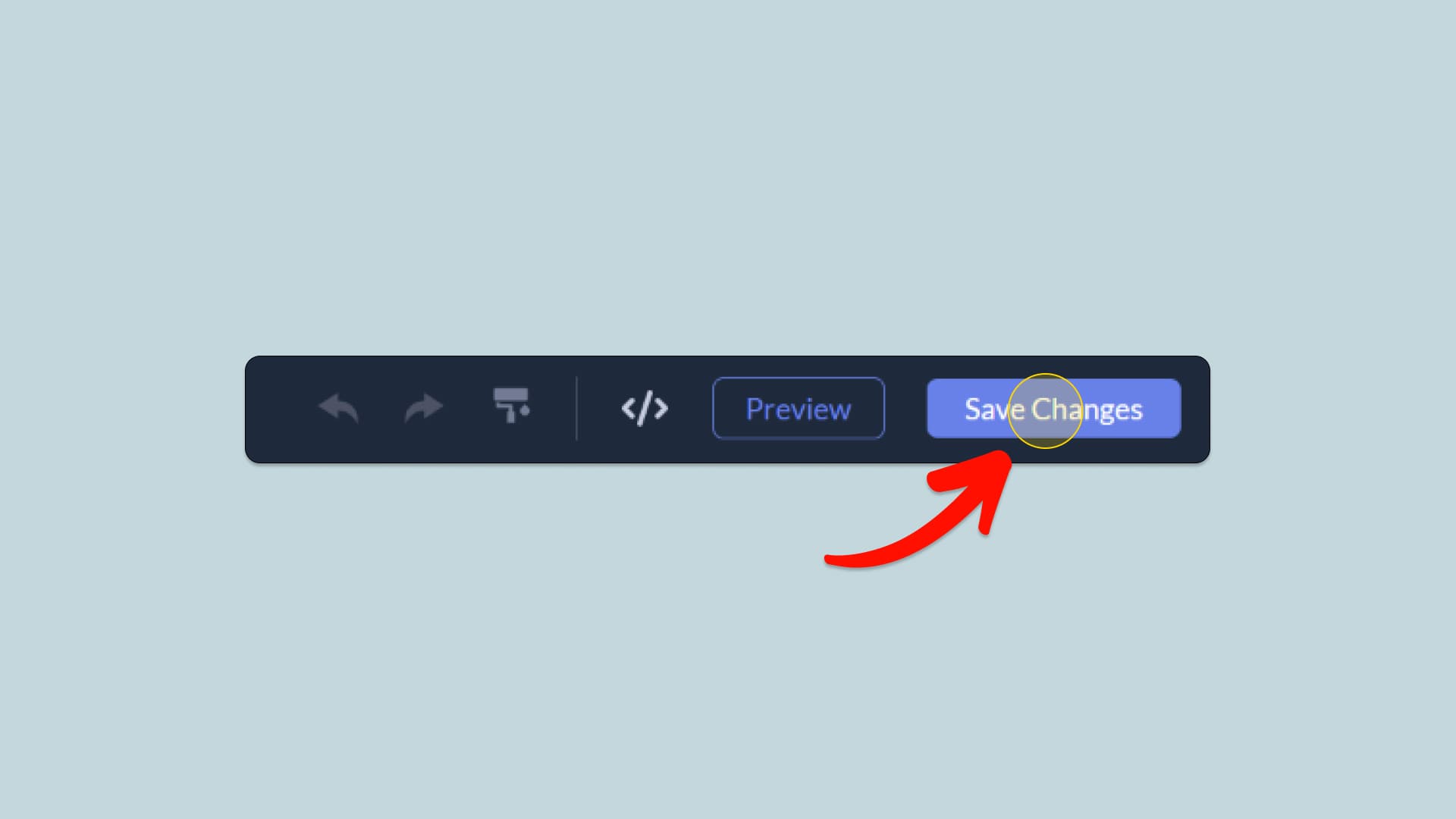
When you're done creating the Corner Pop-up Builder widget, click on the Save Changes button at the right top corner of the editor. If you don't have an account on Common Ninja, you'll have to register first.
Save the Corner Pop-up Builder widget
03
Copy the Corner Pop-up Builder Embed Code
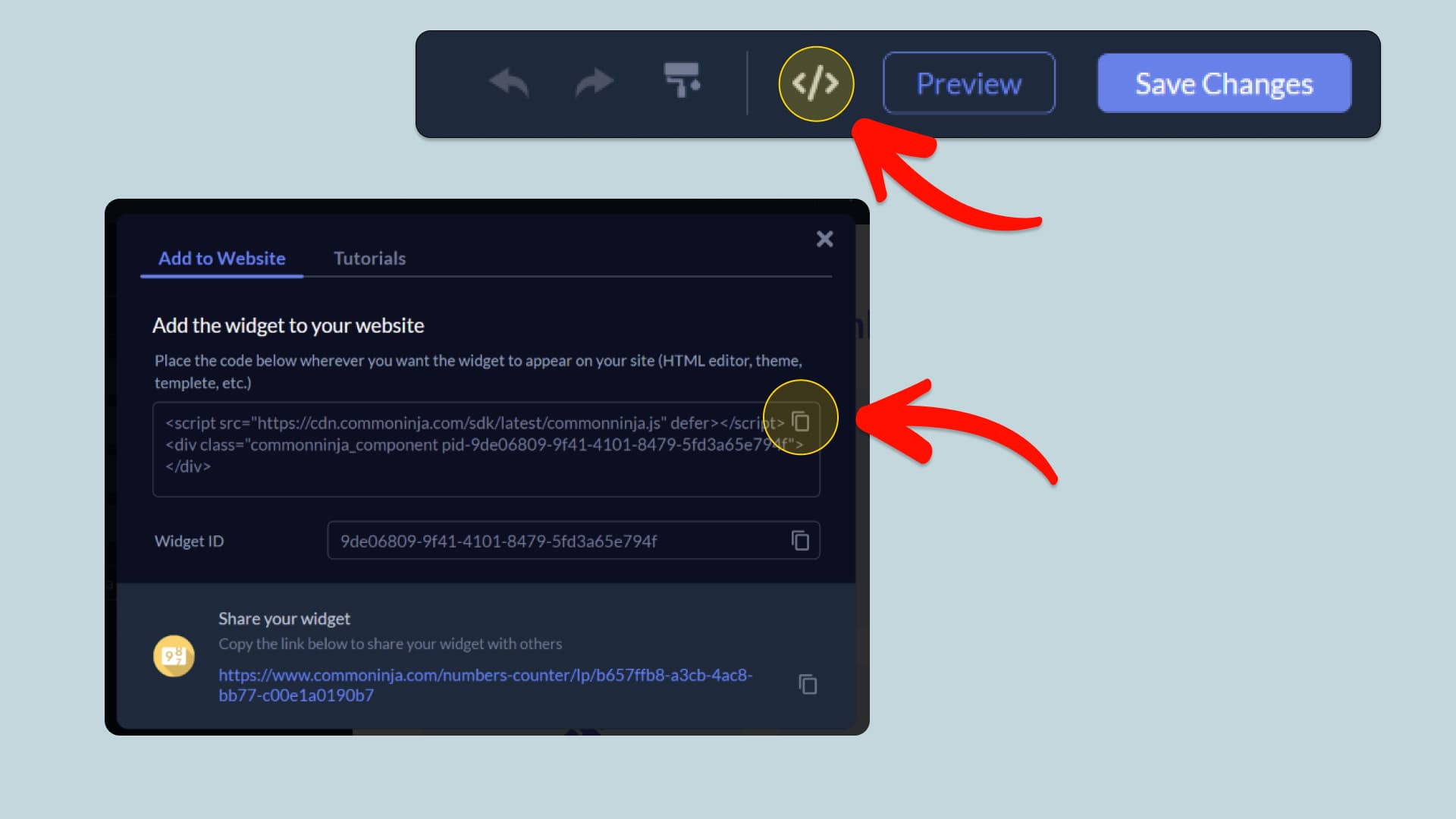
When you're ready to add the Corner Pop-up Builder widget to your Lovable app, click the Add To Website button at the top bar of the Editor. On the window that opens, click the Copy Icon to copy the widget embed code. In the next steps, you will paste this code into your Lovable app.
Copy the Corner Pop-up Builder Embed Code
04
Paste the code to your Lovable website’s HTML field.
Next, go to your Lovable app editor and find the HTML field. It is most likely in the form of an HTML/Code widget or module which you can find on the Lovable’s editor. Add it to your page, and paste the Corner Pop-up Builder Embed Code you’ve copied before to the HTML field. Save and update, and that’s it, you should have Common Ninja’s Corner Pop-up Builder widget on your Lovable app.
Paste the code to your Lovable website’s HTML field.
05
Alternative Method 1: Through the HTML option in the text’s editing area.
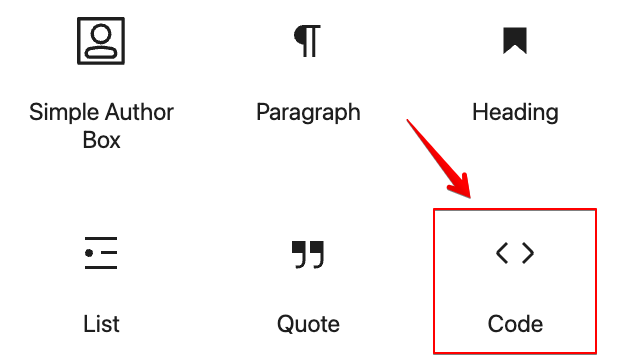
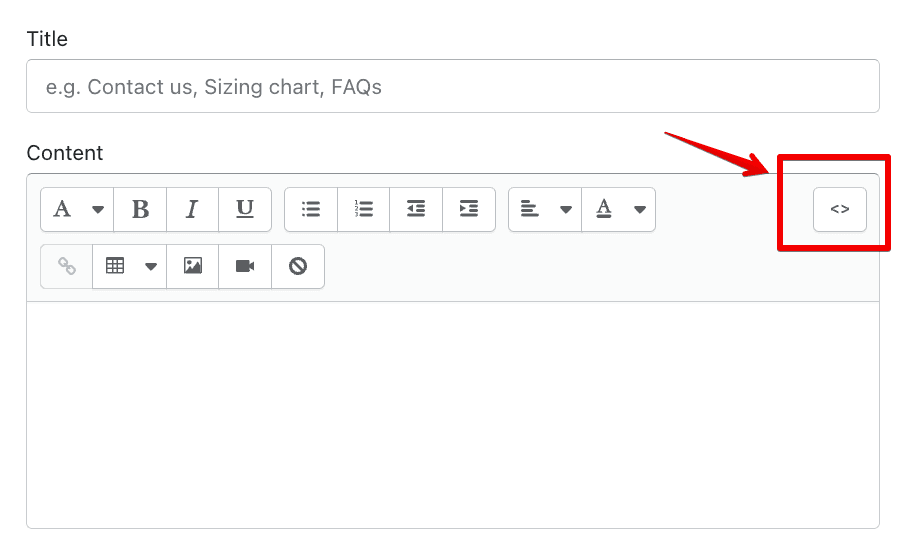
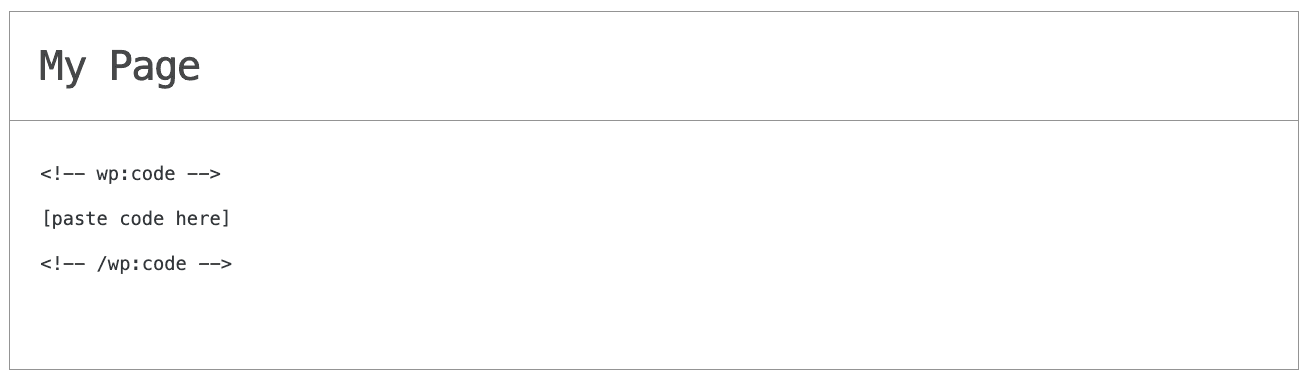
If you can't find the HTML/Code widget or module, there's another way to put Common Ninja’s Corner Pop-up Builder widget on your Lovable widget. You can just add the code to a special HTML section in the text editor.
Alternative Method 1: Through the HTML option in the text’s editing area.
06
Alternative Method 2: Add it directly to your Lovable app’s HTML code.
If you're having trouble finding a widget or a special part in your text editor where you can add the Embed Code, you can try a different way to add the Corner Pop-up Builder widget to your Lovable app. You can do this by putting it straight into your Lovable app's HTML code.
Alternative Method 2: Add it directly to your Lovable app’s HTML code.

Why Use This Widget

Use the Corner Pop up Builder widget when you need a flexible way to create small, persistent messages in the edges of your site. You can design different corner popups for announcements, lead capture, product highlights, or support prompts and target them to specific pages or audiences. This is perfect for sites that run multiple campaigns or serve varied user segments. Corner popups are less disruptive than center screen modals yet more noticeable than static banners. The builder lets you test headlines, layouts, and triggers to find combinations that earn clicks and conversions while still respecting the overall user journey.

This tutorial was written by the Common Ninja product team, creators of interactive, no-code widgets for Lovable app. Common Ninja helps over 500,000 users build engaging online experiences without coding.