


Verified review
Common Ninja has amazing no-code widgets that would beautify a website built on any builder. It is very easy to use and customise. It has as many widgets for almost everyone willing to make their website impressive.
Try the editor, no signup
Pick a template, customize it, and watch it update live, no signup.
No credit card · Free forever plan
No credit card · Free forever plan
The Common Ninja Device Mockup is a free, no-code widget that shows a screenshot inside a phone, tablet, or laptop frame on any website. Upload the image, pick a device, and paste one line of embed code.
Unlike a flat mockup image, a long screenshot can scroll inside the frame, so a whole page or a multi-step flow fits into a single phone-sized block.
Multiple devices, portrait and landscape, layouts, skins, and screen brightness are all adjustable, plus custom CSS. Works on 200+ platforms including Framer, WordPress, Elementor, Squarespace, and Webflow.
A bare screenshot looks like a picture of a website. The same image inside a phone reads as software someone is using, which is the difference between describing a product and showing it exists.
In-mockup scrolling means a long screenshot moves inside the frame, so an entire onboarding sequence or a full page fits where a static image would have to be cropped or shrunk into illegibility.
The usual route is compositing a screenshot into a mockup file in a design tool, then exporting again every time the interface changes. Here the screenshot is a setting, so an update is a swap rather than a small project.
Buyers of apps and SaaS want to know it is usable on a phone before they commit. A phone mockup answers that immediately, and a laptop mockup beside it says the desktop version is real too.
Add the image you want framed. If it is a tall screenshot of a whole page, that is fine and in fact preferable, because the mockup can scroll it inside the frame rather than cropping it.
Pick the device, set portrait or landscape, choose a skin, and adjust the screen brightness so the mockup sits properly against your page background rather than glowing out of it.
Copy the snippet from the Add to Website tab and paste it where the mockup belongs. Swapping the screenshot later updates every page carrying the embed.
A long screenshot scrolls inside the device frame instead of being cropped, which is the one thing a flat mockup image cannot do and the main reason to use a widget here.
Phone, tablet, and laptop frames in portrait or landscape, so the mockup matches the product rather than forcing every screenshot into the same shape.
Several frame styles and layouts, plus a screen brightness control so the mockup sits into a dark or light page instead of glowing against it. Small setting, large difference.
Scales to the screen width so a laptop mockup does not overflow a phone, and a custom CSS field handles exact sizing and positioning. One embed snippet, 200+ platforms.
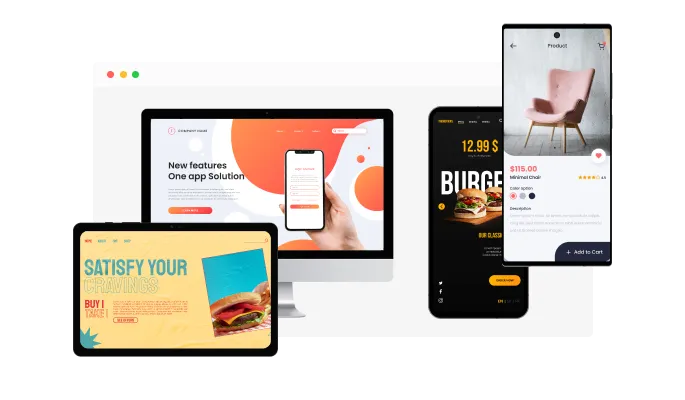
The widget features a selection of various devices and device types that you can choose from. The devices include mobile, tablet, laptop, and desktop, while the device types will enable you to choose a more specific device like an iPhone, a Galaxy phone, an iPad, and many more.
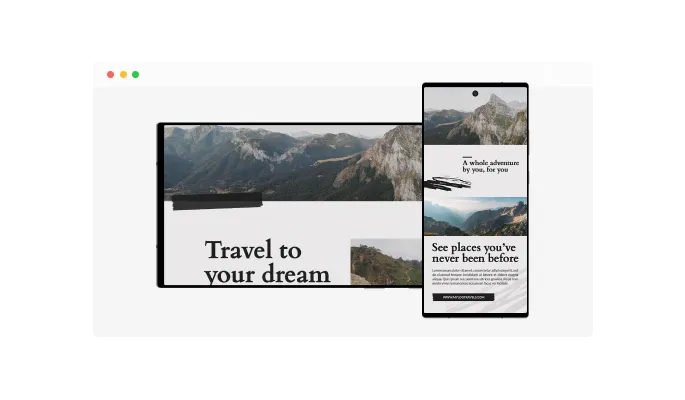
The widget comes with the ability to change the device's orientation from portrait to landscape and vice versa.
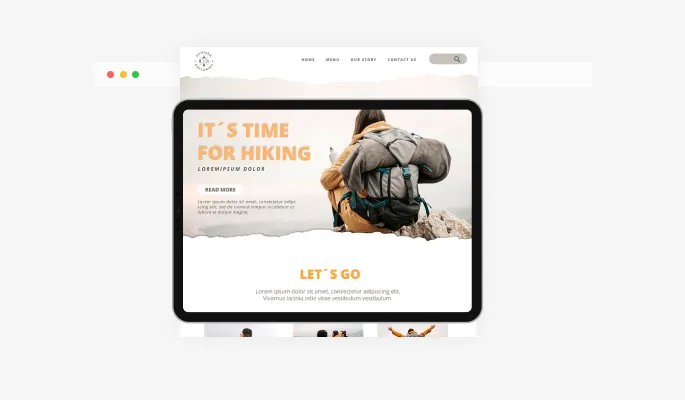
The widget features the option for in-mockup scrolling, which will allow you to add more content and make the user’s journey even more immersive.
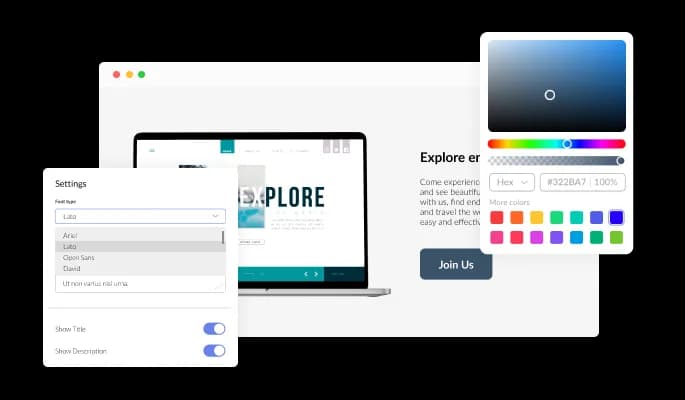
The Device Mockup widget features full customization options so you can edit the design to fit your needs. Change the colors, the fonts, the spacing, and anything else!
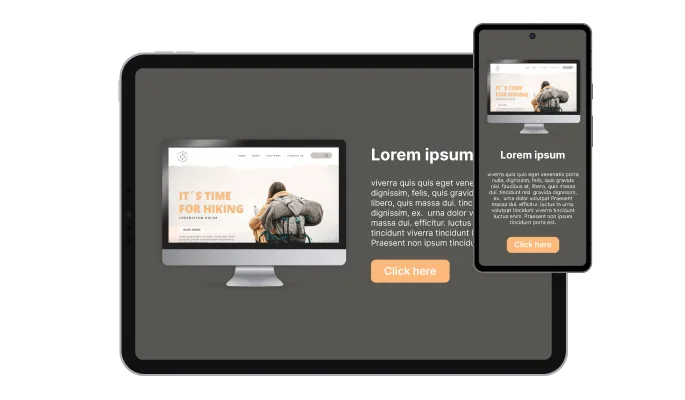
The Device Mockup widget is fully responsive and will look great on any device. This feature will put you ahead of your competitors in a mobile-first world.

As with all of Common Ninja’s widgets, you can add custom CSS to customize the Device Mockup widget and be even more creative.

You can easily embed the widget on your website by copying a single line of code. The Device Mockup widget will also be updated automatically with every change you make.
You can play with the device’s brightness to complement your design needs and highlight the various choices you are more in favor of.
The Device Mockup widget comes available with multiple layouts that you can choose from to make sure it fits your overall website design and style.
The Device Mockup widget comes with a variety of beautiful skins that you can choose from so you don’t have to spend much time on extensive customization.
The Device Mockup widget is easy to use and requires no coding knowledge. Our intuitive dashboard with the drag-and-drop feature will enable you to customize the widget any way you’d like to with just a few simple clicks.
Build your device mockup in the editor
Open the editorFree to use · No credit card · No signup to try it
Common Ninja has amazing no-code widgets that would beautify a website built on any builder. It is very easy to use and customise. It has as many widgets for almost everyone willing to make their website impressive.
Outstanding service. I use their widgets to help me with my web design business and whenever I need help they are very quick to help.
Excellent company with excellent service!!! We used it to build a survey, it was very user friendly. The service was perfect. Amit helped us with every problem and question we had, thank you very much!!!
Common Ninja saved the day when building our website and the customer service Daniel, the co-founder and CEO, provided was amazing.
Two things. First, the screenshot is a setting rather than a flattened layer, so updating it is a swap instead of re-compositing and re-exporting a file. Second, a long screenshot can scroll inside the frame, which a static image cannot do at all: it would have to be cropped or shrunk.
The screenshot moves inside the device screen while the frame stays put. So a tall screenshot of an entire page or a multi-step flow can be shown in a phone-sized block, and a visitor sees the whole thing rather than the top of it.
Phone, tablet, and laptop frames, in portrait or landscape. Pick the one that matches how people actually use the product: a phone frame for something mobile-first, a laptop for a dashboard that nobody would run on a handset.
The highest-resolution capture you have, and a tall one if you want scrolling. A blurry screenshot inside a crisp device frame looks worse than no mockup at all, because the frame draws attention to exactly the thing that is soft.
Because a screenshot at full brightness on a dark page glows, and on a light page it can wash out. Adjusting it is how the mockup sits into the design rather than sitting on top of it, and it takes about ten seconds.
The layout options cover how the mockup is arranged, and if you want a phone and a laptop side by side, using two widgets gives you full control over each. That is often better anyway, since the two usually want different screenshots.
Yes, it scales to the screen width. A laptop mockup is the case to check, because a wide frame shrunk to phone width can leave the screenshot inside it too small to read, and a phone frame is often the better mobile choice.
It is one embed snippet rather than a plugin, so nothing enters your site's own code. The screenshot is the weight, so size it for the frame rather than uploading a full retina capture if a smaller one reads just as well.
Pick your platform. Each takes under 4 minutes.

Displays images and captions in diverse layouts and grids, presenting visually appealing arrangements for showcasing multiple images
Showcases images in a rotating or sliding manner
Add interactive areas on images that reveal extra information when clicked or hovered over.

A simple slider that lets visitors compare before and after images to see visual changes clearly.

Present images and text with a variety of animated effects and transitions for an engaging visual display

Displays a series of images in a slideshow format
Yes, you can easily do so from the “Templates” tab.
Yes, there are lots of beautiful skins that you can choose from to save time and start using the widget as quickly as possible.
Yes, you can either upload an image, or select an icon from a large selection of available icons to add to your Notification Bar, or, alternatively, you can leave it all blank.
Using the Device Mockup widget is very easy. Simply sign up and start using the free version. There's no need to worry about complicated setup or installation processes, as the Device Mockup widget is designed to be user-friendly and straightforward. Once you've signed up, you'll have access to all of the basic features and functions of the widget, which you can use to enhance your website and improve your online presence. From there, you can choose to upgrade to the paid version if you want to access more advanced features and capabilities. Regardless of which version you choose, you'll find that the widget is a powerful and easy-to-use tool that can help you take your online presence to the next level.
The Common Ninja Device Mockup widget is a free tool reach with features and options. While this widget is free to use, it does have a limit on the number of views it can handle. This means that after a certain number of views, the chat button may no longer be visible or functional on your website. It is important to note that this view limit may vary depending on your plan. Despite this limitation, Common Ninja's Device Mockup is still a valuable tool for businesses looking to increase customer engagement and improve the overall user experience of their website.
The Common Ninja's Device Mockup widget is a versatile tool for any website builder. This means that you can easily add this widget to your website or store no matter what platform you use to build your website. The Device Mockup widget will work seamlessly with your platform whether you are using a popular website builder or something more specialized. This means you can enjoy all the benefits of this powerful tool without having to worry about compatibility issues.
The Device Mockup widget is designed to comply with the General Data Protection Regulation (GDPR), a set of EU regulations protecting personal data and privacy. When using the Device Mockup widget, you can be confident that it will not collect or store personal data that could violate GDPR regulations. This ensures that your business is in compliance with these regulations and can protect your customers' data privacy. Overall, the Device Mockup widget is a secure and reliable tool that can be used to enhance your website without any concerns about GDPR compliance.
No need for coding skills. Our Device Mockup widget is designed to be easy to use, even for those with limited technical experience. The widget features a user-friendly interface that allows you to easily customize the widget without coding knowledge. You can fully customize the Device Mockup to match your branding. When you're done, simply copy the provided code and paste it into your website. It's that simple!
Yes. We are eager to hear your request. Please visit our Feature Request page.
A Device Mockup Widget is a digital image of a device, such as a smartphone, tablet, or laptop, that is used to display and showcase content on a website. Device Mockup Widgets are often used to display screenshots, graphics, or other visual content in a more realistic and engaging way for visitors.
Device Mockup Widgets can be customized to display different types of devices and orientations and angles. They are often used to demonstrate how a website or app looks and functions on different devices, or to showcase the features and capabilities of a product.
Some examples of Device Mockup Widgets include a smartphone displaying a website or app, a laptop displaying a video, or a tablet displaying a product catalog. Device Mockup Widgets can be used in various contexts, including marketing, e-commerce, and product demonstrations.
Displaying a Device Mockup widget on your website can potentially improve the user experience (UX) in a number of ways:
A Device Mockup widget can be a useful tool for improving the UX of your website or app, as long as it is used in a way that is relevant, realistic, and accessible to your target audience.
There are several benefits to using a Device Mockup widget on your website:
A Device Mockup widget can be a useful tool for improving your website or app's engagement, clarity, credibility, and search engine optimization. So, using a Device Mockup widget on your website is always better.
Embedding the Device Mockup widget on your website is a straightforward process. Simply copy the provided code and paste it into the desired location on your website. The widget will seamlessly integrate into your site, allowing you to take advantage of its features and functions. No technical expertise or programming knowledge is required - just copy and paste the code to get started. This simple process allows you to easily add the widget to your website and enhance its functionality without any hassle.
Screenshots inside phone, tablet, and laptop frames, with scrolling inside the device so a whole page fits, portrait and landscape, layouts and skins, screen brightness control, full responsiveness, and custom CSS. Swap the screenshot without re-exporting anything. Embed on 200+ platforms including Framer, WordPress, Elementor, Squarespace, and Webflow.
Create your device mockupFree to use · No credit card · No coding