


Verified review
Common Ninja has amazing no-code widgets that would beautify a website built on any builder. It is very easy to use and customise. It has as many widgets for almost everyone willing to make their website impressive.
Try the editor, no signup
Pick a template, customize it, and watch it update live, no signup.
No credit card · Free forever plan
No credit card · Free forever plan
The Common Ninja Facebook Feed widget is a free, no-code embed that displays Facebook-style posts on your website in a live feed.
Add posts manually in the editor or pull from a feed URL, pick a layout (cards, list, grid, group view), tune the auto-refresh interval, configure date and character-length display, enable full RTL support, pick a skin or layer Custom CSS, and paste a one-line embed snippet on Webflow, WordPress, Wix, Joomla, Elementor, Squarespace, and 200+ other platforms.
Use it to surface community updates, event announcements, customer posts, and recent activity so visitors arriving from search or ads see a living brand rather than a static landing page.
Every click that routes a visitor to your Facebook Page is a click that leaves your site, where conversion paths are wired up. A Facebook Feed widget keeps the social-proof signal on your domain so visitors see recent posts, customer reactions, and community activity without bouncing into Facebook's recommendation algorithm.
Merge content from multiple Facebook sources into a single embed, a brand Page, a community Group, a partner Page, an ambassador account. The widget renders them in one unified feed sorted by timestamp, so visitors get the full picture in one panel instead of toggling between embed iframes.
When you point the widget at a feed URL, the widget polls the source on a schedule and updates the rendered posts when new content publishes. New activity in the source feed appears in your embedded widget without any republish or re-paste.
A Facebook Reviews widget shows star ratings and customer reviews from your Facebook Page. Best for product or service trust-building. A Facebook Feed shows posts (announcements, photos, videos, community activity). Use this Facebook Feed for brand activity; use the dedicated Common Ninja Facebook Reviews widget when star ratings are the story.
Enter posts manually in the editor (paste the post text, author name, timestamp, attach images or links) or point the widget at a content feed URL. Combine multiple feeds into one widget using the group-feed feature so a single embed surfaces content from multiple sources.
Choose a layout: cards (Facebook-style post cards with avatar, body, timestamp), list (vertical reading column), grid (multi-column tile grid), or group view (merged content from multiple sources). Configure date display format, character-length cutoff for long posts, full RTL support, and auto-refresh interval. Pick a skin from the design library or layer Custom CSS.
Copy the one-line embed snippet and paste it into your site on Webflow, WordPress, Wix, Elementor, Joomla, or any of the 200+ supported platforms. Edits in the Common Ninja editor push to every embed without re-paste. Add a post, change layout, swap skins, and the live page updates.
Add posts manually in the editor (full control over what appears) or point the widget at a content feed URL (auto-refresh on source updates). Mix manual and feed-sourced posts in the same widget for hybrid control. Pin one or two manual posts and let the feed handle the rest.
Cards (Facebook-style post cards), list (vertical reading column), grid (multi-column tile grid), group view (merged content from multiple sources). Switch layouts in the editor without re-entering posts; each layout reflows responsively across mobile, tablet, and desktop.
Point the widget at a content feed URL and the widget polls for updates on a schedule. New posts appear in your embed automatically. Refresh rate depends on the plan. Free plans poll less frequently than paid plans.
Pick from a library of pre-designed skins (Facebook-true, minimal, dark-mode, magazine) for a fast visual fit. Layer Custom CSS for pixel-level control over avatar sizing, post-card spacing, reaction-style elements, and hover-state finesse.

The Facebook Feed widget has the “auto-refresh” option which, when toggled, keeps refreshing and updating the feed with new posts.
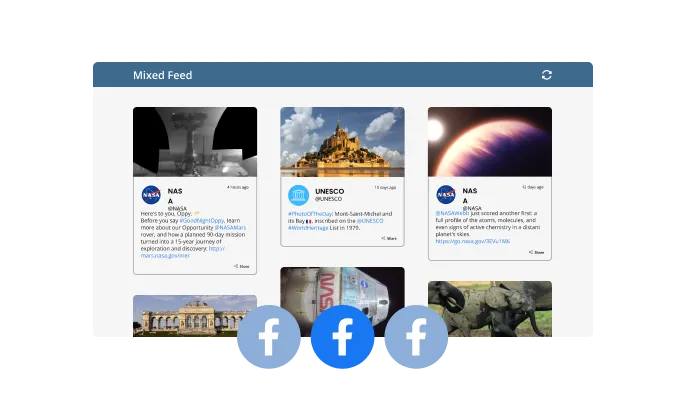
Two different feed types are available in the Facebook Feed widget — Tabs and Mixed. The Tabs type keeps all your tabs organized by order of feed, while the Mixed type, mixes the various Facebook feeds to create a diverse feed.
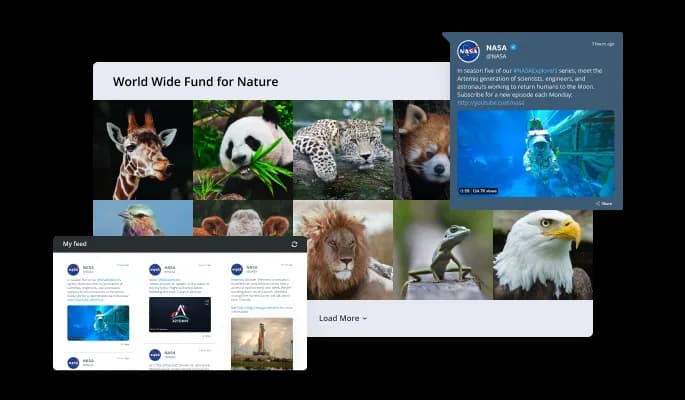
The Facebook Feed widget comes available with multiple layouts that you can choose from to make sure it fits your overall website design and style.
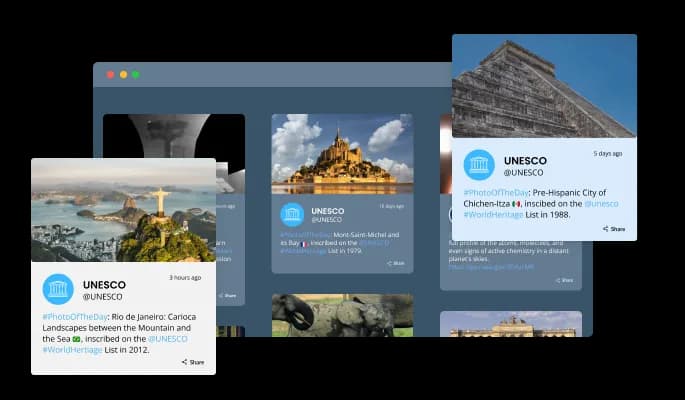
The Facebook Feed widget comes with a variety of beautiful skins that you can choose from so you don’t have to spend much time on extensive customization.
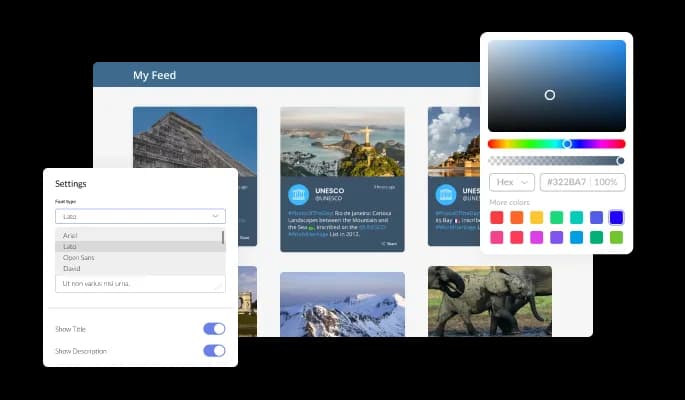
The Facebook Feed widget features full customization options so you can edit the design to fit your needs. Change the colors, the fonts, the spacing and anything else!
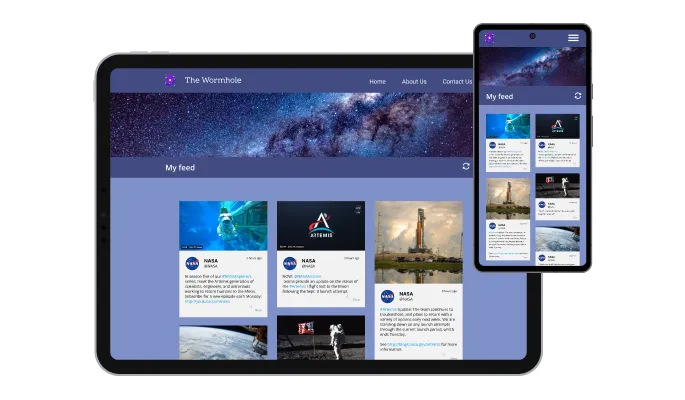
The Facebook Feed widget is fully responsive and will look great on any device. In a mobile-first world, this feature will put you ahead of your competitors.

As with all of Common Ninja’s widgets, you can add custom CSS to customize the Facebook Feed widget and be even more creative.

You can embed the widget on your website quickly by copying a single line of code. The Facebook Feed widget will also be updated automatically with every change you make.
There are various options for displaying the date and time of the feeds — an option that will enable you to further customize the Facebook Feed widget according to your needs, and the preferences of your visitors.
You can easily customize the characters' length to save space and make the Facebook Feed widget more compact.
The Facebook Feed widget provides full RTL support for those who write from right to left. Make your news accessible to more users from all over the world.
The Facebook Feed widget is easy to use and requires no coding knowledge. Our intuitive dashboard with the drag-and-drop feature will enable you to customize the widget any way you’d like to with just a few simple clicks.
Bring your Facebook activity to your homepage
Open the editorNo credit card · Setup in under 5 minutes
Common Ninja has amazing no-code widgets that would beautify a website built on any builder. It is very easy to use and customise. It has as many widgets for almost everyone willing to make their website impressive.
Outstanding service. I use their widgets to help me with my web design business and whenever I need help they are very quick to help.
Excellent company with excellent service!!! We used it to build a survey, it was very user friendly. The service was perfect. Amit helped us with every problem and question we had, thank you very much!!!
Common Ninja saved the day when building our website and the customer service Daniel, the co-founder and CEO, provided was amazing.
Yes. The free plan covers one Facebook Feed widget with no time limit and no credit card. Upgrade only when you need additional widgets, more posts per feed, faster auto-refresh rates, premium skins, or features like advanced post filtering and per-feed analytics tracking.
No. Meta restricts third-party Graph API access for Page-feed integrations (requires app review, business verification, and an active Page Access Token). This widget doesn't connect to your Facebook account. Instead, you add posts manually in the editor (paste text, author, timestamp, image) or point the widget at a content feed URL. Both setups display posts in Facebook's visual style on your page.
A Facebook Feed shows posts. Announcements, photos, videos, community updates. A Facebook Reviews widget shows star ratings and customer reviews from your Facebook Page. Use this Facebook Feed for brand activity and engagement; use the Common Ninja Facebook Reviews widget when star ratings and review excerpts are the trust signal you need to surface.
Yes. Use the group-feed feature to merge content from multiple Facebook sources into a single embed, a brand Page, a community Group, a partner Page, an ambassador account. The widget renders them in one unified feed sorted by timestamp, so visitors get the full picture in one panel instead of toggling between embed iframes.
Yes, when you use a feed-URL source. The widget polls the source on a schedule (refresh rate depends on the plan. Free plans poll less frequently than paid plans) and updates the rendered posts when new content publishes. For manually-entered posts, you control the content directly in the editor and changes push to every embed in real time.
Build the widget in the Common Ninja editor (add posts, pick layout, customize skin), copy the embed snippet, and paste it into your site: Webflow via an Embed element; WordPress via a Custom HTML block (Gutenberg) or a Shortcode/Text widget (Classic); Wix via the HTML embed widget (Add → Embed → HTML iFrame/Embed a Widget). Edits in the editor push to every embed without re-paste.
Yes. Full RTL support. The widget renders correctly in Arabic, Hebrew, Persian, and Urdu with mirrored layout, reversed avatar positioning, and right-aligned text. Useful for multilingual sites and businesses serving RTL audiences without setting up a separate widget for each language.
Yes. Each layout (cards, list, grid, group view) adapts column count, post sizing, and avatar behavior across mobile, tablet, and desktop breakpoints. Long posts truncate with a Read More toggle to keep the mobile view tight, and image-heavy posts scale to viewport width without blowing out the column.
Pick your platform. Each takes under 4 minutes.

Display the latest posts from your Instagram page

Display the latest posts from your Linkedin page
Present Facebook reviews for your business on your website

Display the latest posts from any RSS feed

Showcase customer testimonials using a rotating slider
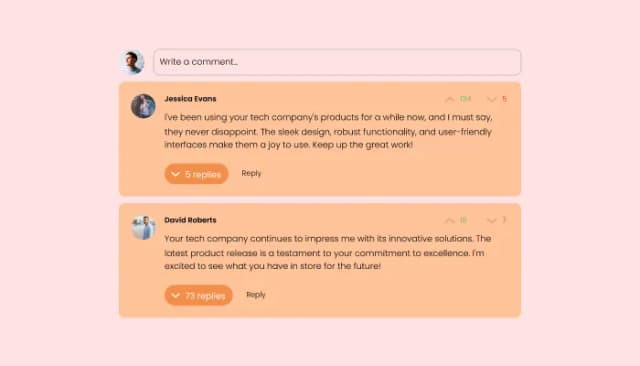
Comments system with upvote/downvote, email notifications, reply threads, and moderation tools.
Yes, you can limit the number of posts that will be shown per page.
Yes, you can choose where to position the tabs from the settings menu.
Yes, you can add a background image, and to further customize its behavior.
Yes, there’s an auto-refresh option that can be easily toggled on or off.
Yes, you can customize the feed’s height.
Yes, currently there’s a “ticker” animation that you can trigger.
Yes, you can easily do so from the “Templates” tab.
Yes, there are lots of beautiful skins that you can choose from to save time and start using the widget as quickly as possible.
Yes, you can either upload an image, or select an icon from a large selection of available icons to add to your Notification Bar, or, alternatively, you can leave it all blank.
Using the Facebook Feed widget is very easy. Simply sign up and start using the free version. There's no need to worry about complicated setup or installation processes, as the Facebook Feed widget is designed to be user-friendly and straightforward. Once you've signed up, you'll have access to all of the basic features and functions of the widget, which you can use to enhance your website and improve your online presence. From there, you can choose to upgrade to the paid version if you want to access more advanced features and capabilities. Regardless of which version you choose, you'll find that the widget is a powerful and easy-to-use tool that can help you take your online presence to the next level.
The Common Ninja Facebook Feed widget is a free tool reach with features and options. While this widget is free to use, it does have a limit on the number of views it can handle. This means that after a certain number of views, the chat button may no longer be visible or functional on your website. It is important to note that this view limit may vary depending on your plan. Despite this limitation, Common Ninja's Facebook Feed is still a valuable tool for businesses looking to increase customer engagement and improve the overall user experience of their website.
The Common Ninja's Facebook Feed widget is a versatile tool for any website builder. This means that you can easily add this widget to your website or store no matter what platform you use to build your website. The Facebook Feed widget will work seamlessly with your platform whether you are using a popular website builder or something more specialized. This means you can enjoy all the benefits of this powerful tool without having to worry about compatibility issues.
The Facebook Feed widget is designed to comply with the General Data Protection Regulation (GDPR), a set of EU regulations protecting personal data and privacy. When using the Facebook Feed widget, you can be confident that it will not collect or store personal data that could violate GDPR regulations. This ensures that your business is in compliance with these regulations and can protect your customers' data privacy. Overall, the Facebook Feed widget is a secure and reliable tool that can be used to enhance your website without any concerns about GDPR compliance.
No need for coding skills. Our Facebook Feed widget is designed to be easy to use, even for those with limited technical experience. The widget features a user-friendly interface that allows you to easily customize the widget without coding knowledge. You can fully customize the Facebook Feed to match your branding. When you're done, simply copy the provided code and paste it into your website. It's that simple!
Yes. We are eager to hear your request. Please visit our Feature Request page.
Embedding the Facebook Feed widget on your website is a straightforward process. Simply copy the provided code and paste it into the desired location on your website. The widget will seamlessly integrate into your site, allowing you to take advantage of its features and functions. No technical expertise or programming knowledge is required - just copy and paste the code to get started. This simple process allows you to easily add the widget to your website and enhance its functionality without any hassle.
Display Facebook-style posts on your website with manual content entry or feed-URL sources, cards / list / grid / group-view layouts, auto-refresh, group multiple feeds into one widget, full RTL support, customizable date and character-length display, stylish skins, and Custom CSS. Embed on 200+ platforms including Webflow, WordPress, Wix, Elementor, Joomla, and Squarespace.
Create your Facebook FeedNo credit card · Setup in under 5 minutes