How to add Glossary to a Genially presentation

Learn how to embed Common Ninja’s Glossary on your Genially presentation without coding.

Create a Glossary

loved by 500K+ businesses

widget-editor

In This Guide

In this quick guide, you'll learn how to embed the Glossary into your Genially presentation by generating your embed code and adding it seamlessly to your presentation.

Embed Glossary on Genially

01
Create a Glossary widget for Genially on Common Ninja
First, create a Genially Glossary widget on Common Ninja. On the widgets catalog, find the Glossary and enter the Editor.
Create a Glossary widget for Genially on Common Ninja
02
Save the Glossary widget
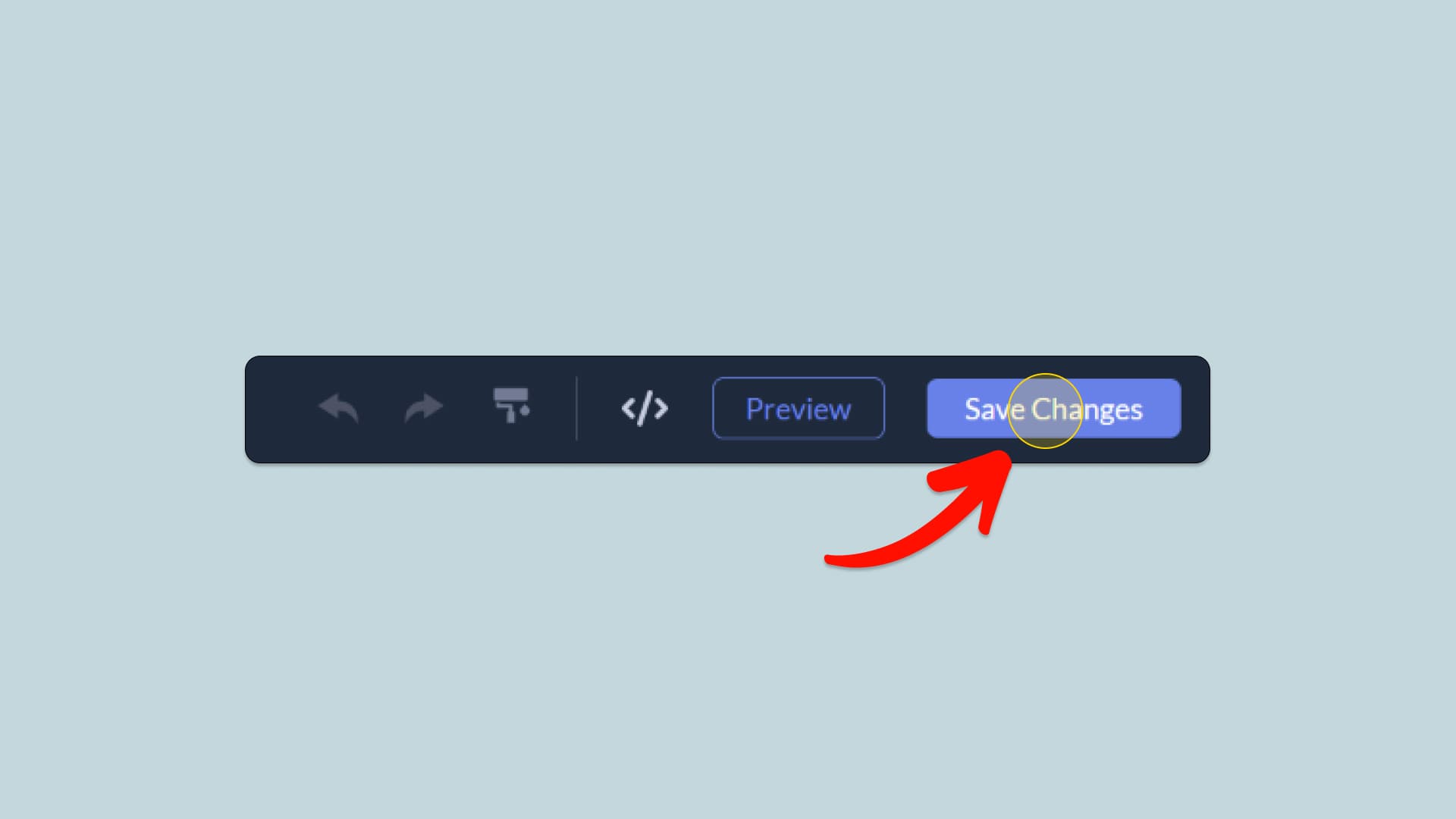
When you're done creating the Glossary widget, click on the Save Changes button at the right top corner of the editor. If you don't have an account on Common Ninja, you'll have to register first.
Save the Glossary widget
03
Copy the Glossary Embed Code
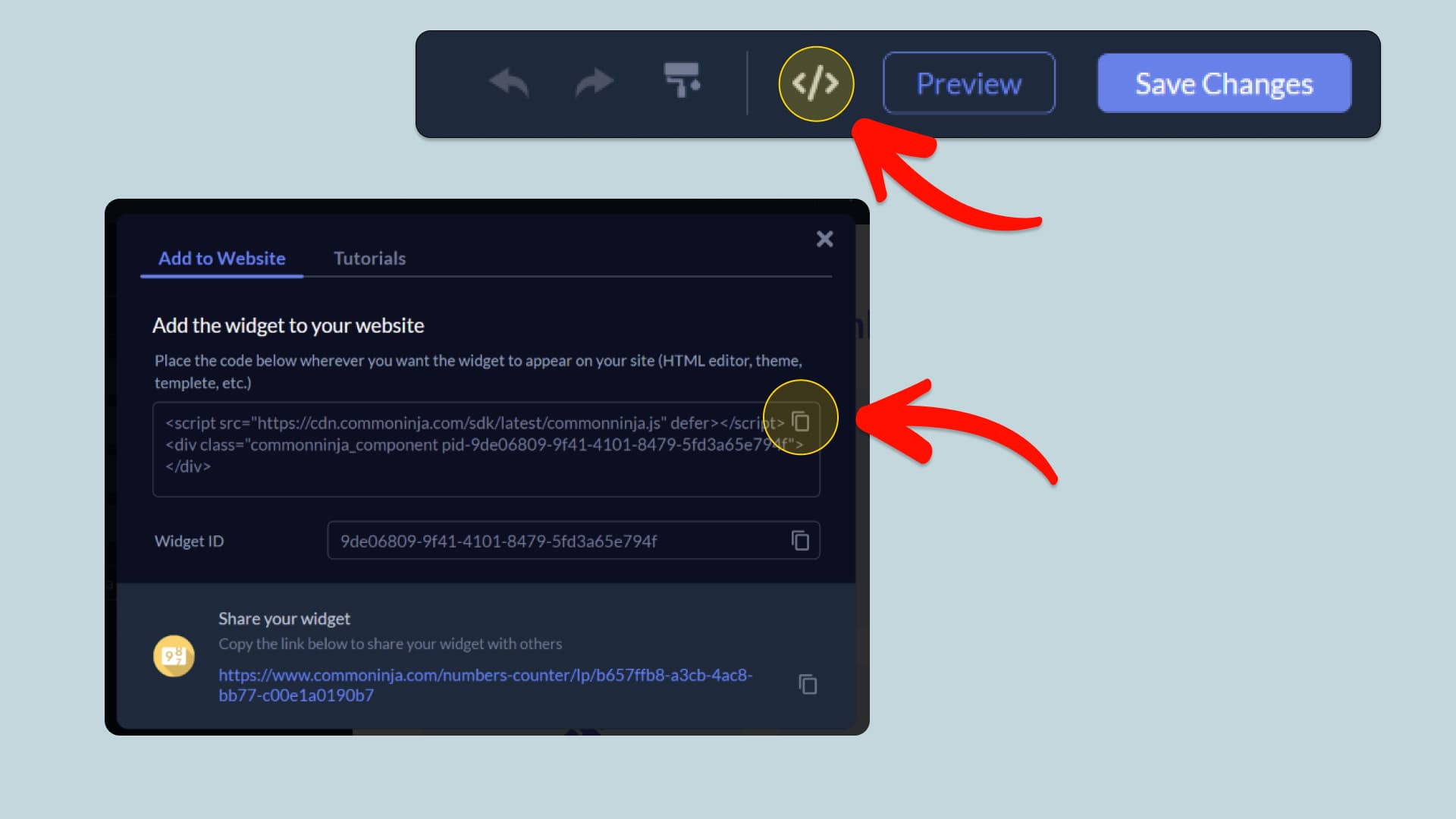
When you're ready to add the Glossary widget to your Genially presentation, click the Add To Website button at the top bar of the Editor. On the window that opens, click the Copy Icon to copy the widget embed code. In the next steps, you will paste this code into your Genially presentation.
Copy the Glossary Embed Code
04
Paste the code to your Genially website’s HTML field.
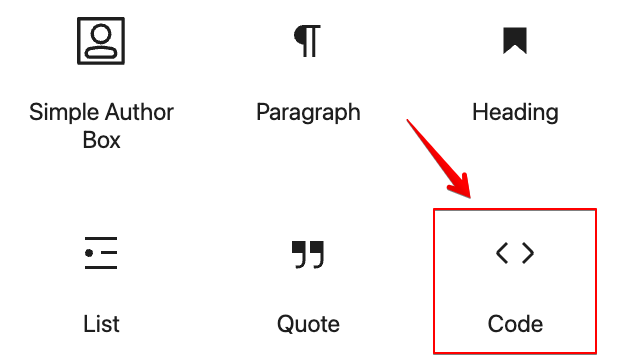
Next, go to your Genially presentation editor and find the HTML field. It is most likely in the form of an HTML/Code widget or module which you can find on the Genially’s editor. Add it to your page, and paste the Glossary Embed Code you’ve copied before to the HTML field. Save and update, and that’s it, you should have Common Ninja’s Glossary widget on your Genially presentation.
Paste the code to your Genially website’s HTML field.
05
Alternative Method 1: Through the HTML option in the text’s editing area.
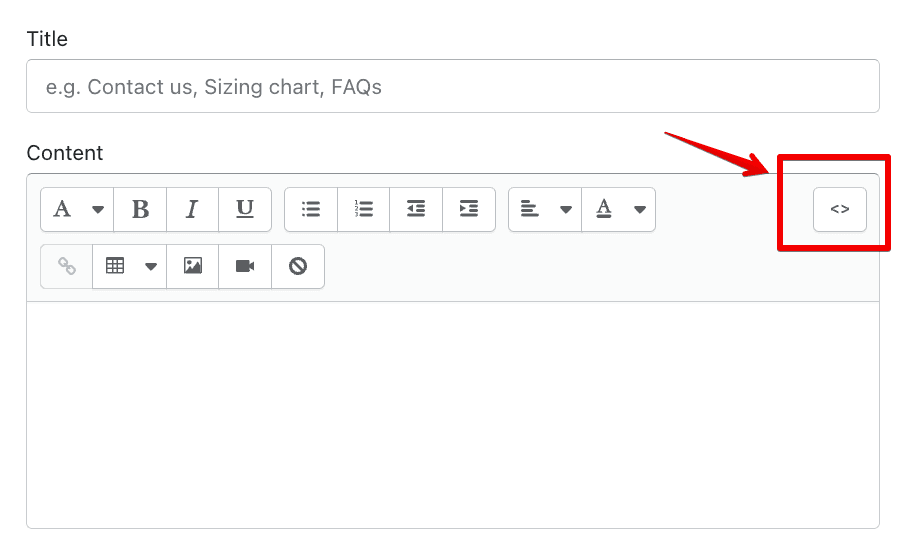
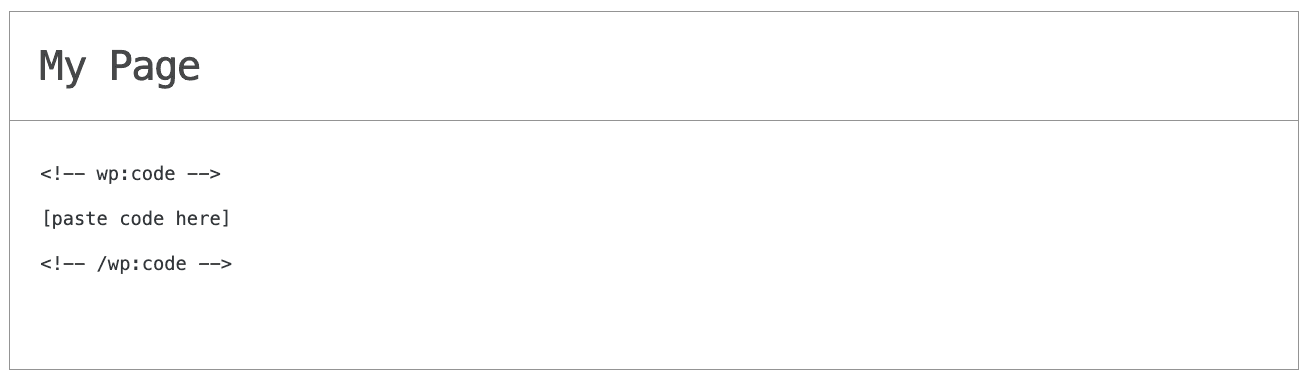
If you can't find the HTML/Code widget or module, there's another way to put Common Ninja’s Glossary widget on your Genially widget. You can just add the code to a special HTML section in the text editor.
Alternative Method 1: Through the HTML option in the text’s editing area.
06
Alternative Method 2: Add it directly to your Genially presentation’s HTML code.
If you're having trouble finding a widget or a special part in your text editor where you can add the Embed Code, you can try a different way to add the Glossary widget to your Genially presentation. You can do this by putting it straight into your Genially presentation's HTML code.
Alternative Method 2: Add it directly to your Genially presentation’s HTML code.

Why Use This Widget

Use the Glossary widget when your site uses specialized terms, acronyms, or jargon that newcomers may not understand. Centralizing definitions in an interactive glossary with search and optional images helps visitors learn the language of your domain without leaving the site. This is essential for technical products, medical content, finance, education, and niche communities. Clear terminology lowers the barrier to entry and reduces confusion in the rest of your content. Over time, a good glossary becomes a reference that gives your brand authority and improves the experience for both new and returning users who need quick reminders.

This tutorial was written by the Common Ninja product team, creators of interactive, no-code widgets for Genially presentation. Common Ninja helps over 500,000 users build engaging online experiences without coding.