


Verified review
Common Ninja has amazing no-code widgets that would beautify a website built on any builder. It is very easy to use and customise. It has as many widgets for almost everyone willing to make their website impressive.
Try the editor, no signup
Pick a template, customize it, and watch it update live, no signup.
No credit card · Free forever plan
No credit card · Free forever plan
The Common Ninja Image Carousel widget is a free, no-code rotating image slider for any website.
Build homepage hero rotators, portfolio showcases, product image carousels, and editorial blog features.
Pick from multiple carousel layouts, control slide speed and time per slide, customize arrows and pagination dots, set image sizes (small, large, vertical, or horizontal), and paste one line of embed code on 200+ platforms including Canva, Notion, Google Sites, Carrd, and Wix.
Drop two to five hero images into a carousel, set a slow autoplay, and the homepage hero earns more attention than a single static image. Each slide can carry its own subject, season, or campaign without rebuilding the whole hero section.
Photographers, designers, illustrators, architects, and agencies use carousels to rotate hero pieces inside a tight, scannable strip. Visitors who land on the page see range and depth in seconds instead of scrolling past a wall of thumbnails.
Show multiple product angles, lifestyle shots, and detail close-ups inside a single carousel block. Visitors who can swipe through angles before clicking Add to Cart convert better than visitors who get a single hero image.
Editorial pages benefit from a multi-image lead-in. Conference recaps, project case studies, before-and-after-the-process pieces, and event roundups all read better with a carousel up top than a single hero image followed by inline figures.
Drop images directly into the editor or paste URLs from your asset library. Set the carousel's image size (small, large, vertical, or horizontal) so the layout matches the proportions of the photos you actually have.
Choose from multiple carousel layouts in the editor library. Set the slide speed, the time spent per slide, the autoplay behavior, and whether arrows and pagination dots appear. The carousel respects every control you set; visitors see the playback you designed.
Tune colors, fonts, spacing, and (if you want) custom CSS. Copy the embed snippet and paste it where the carousel should render. Once it is embedded, any change you make in the dashboard reflects automatically the next time the page loads.
Pick from a library of layouts in the editor, with different ratios, slide framings, and caption positions. Switch between them as you experiment with what fits your page; the same set of images flows into whichever layout you pick.
Set how fast a slide transitions and how long it lingers before the next one starts. Tune for the kind of attention the page demands; a hero rotator wants a slow, deliberate pace, a product carousel wants a faster, swipe-able cadence.
Show or hide left/right arrows and pagination dots. Visitors who want to control the pace get the controls; visitors who want to watch passively get autoplay. Style the arrows and dots to match your brand colors and the rest of the layout.
Set the slide size to small, large, vertical, or horizontal so the carousel respects the proportions of your photos. Portrait portfolio shots, square product hero images, and wide landscape headers each get a size that fits without cropping.

The widget comes with the option to change the carousel’s image sizes — from small, to large, vertical, or horizontal; you make the widget fit your specific needs. Additionally, the widget also includes the ability to add captions to each image, giving you the ability to provide more information and guide visitors to other pages on your website. The carousel feature also allows for easy navigation between images, making it user-friendly and interactive.
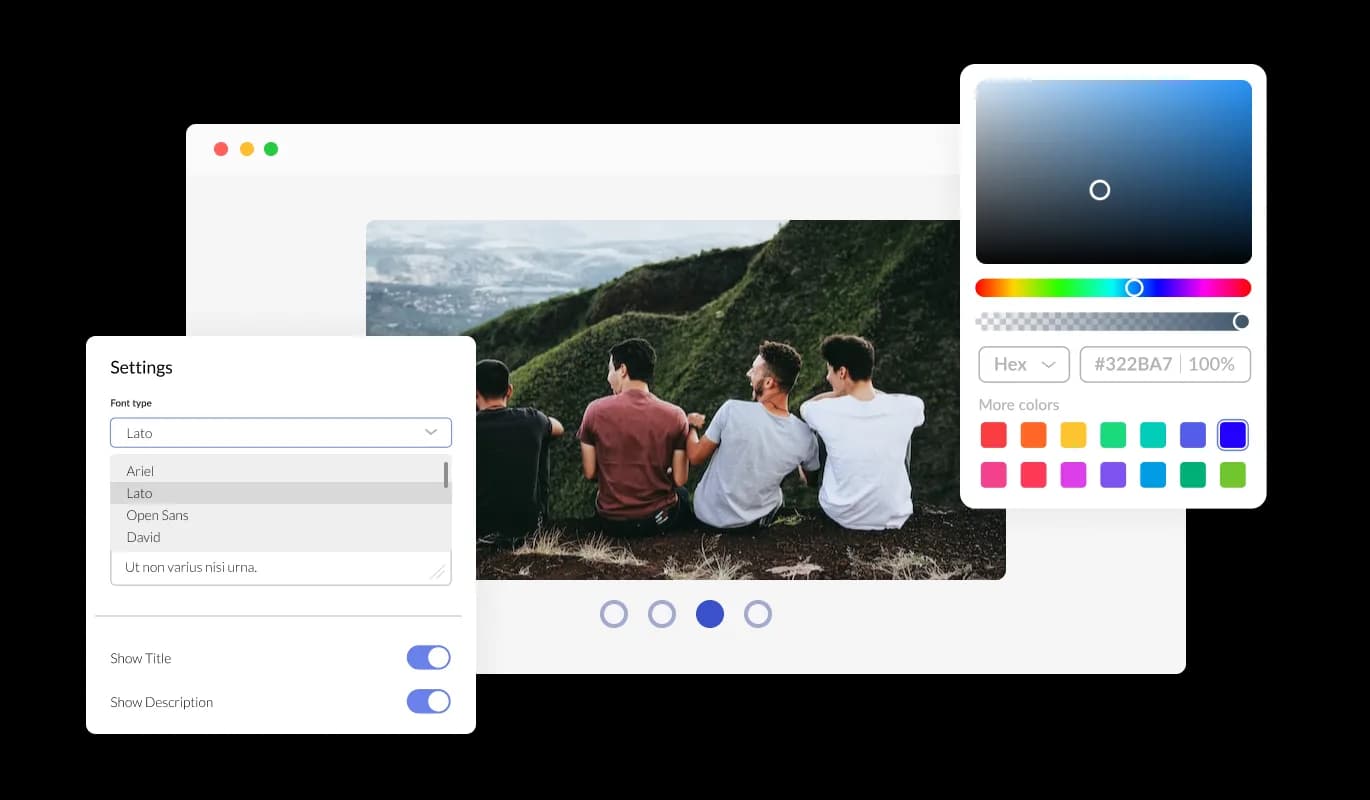
The Image Carousel widget is designed to provide complete customization options, allowing you to edit the design to fit your needs perfectly. With this widget, you can change the colors, fonts, spacing, and a wide range of other design elements to create a custom look and feel tailored to your requirements.
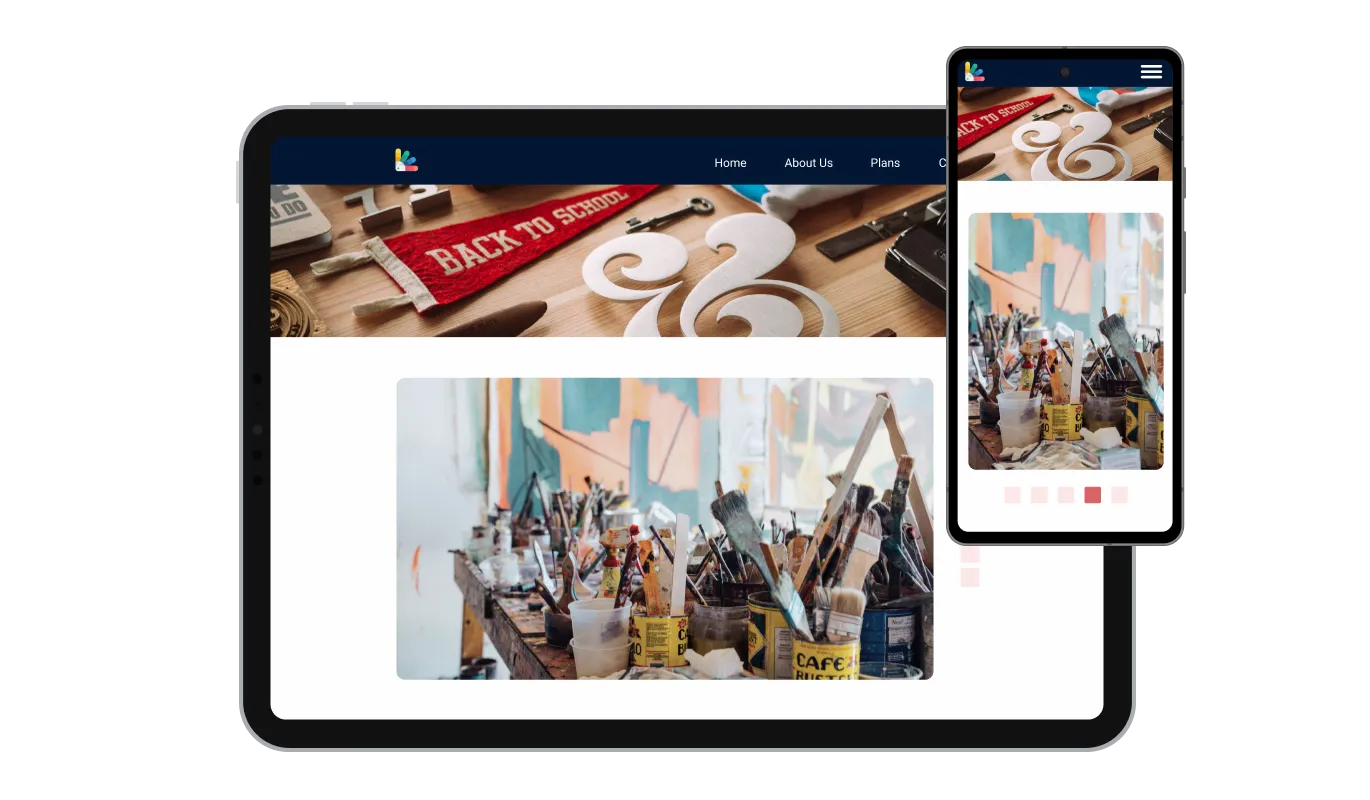
The Image Carousel widget is fully responsive and will look great on any device, this feature can give you a significant advantage over your competitors in today's mobile-first world. With more and more people accessing the internet through their smartphones and tablets, your website must be optimized for mobile devices.

As with all of Common Ninja's widgets, the Image Carousel widget also provides the option to add custom CSS, which allows you to take your customization to the next level and be even more creative. Custom CSS will enable you to create custom styles and design elements that are unavailable through built-in customization options.

Embedding the Image Carousel widget on your website is easy, simply copy a single line of code, and paste it into the HTML of your webpage. This allows you to quickly and easily add the widget to your website without any complicated setup or installation process. Once the widget is embedded, it will automatically update with every change you make, so you don't have to worry about manually updating the widget every time you make a change. This feature can save you a lot of time and effort, and ensure that your Image Carousel is always up-to-date and accurate.
With the option to change the arrow types of the Image Carousel slider, and the pagination icons below, you can further customize the widget and make it fit your design requirements.
The Image Carousel widget comes with the options to control the speed at which the images slide, and how much time should be spent on the images. You can use these options to tailor your user’s experience.
The Image Carousel widget comes available with multiple layouts that you can choose from to make sure it fits your overall website design and style.
The Image Carousel widget is easy to use and requires no coding knowledge. Our intuitive dashboard with the drag-and-drop feature will enable you to customize the widget any way you’d like to with just a few simple clicks.
Common Ninja has amazing no-code widgets that would beautify a website built on any builder. It is very easy to use and customise. It has as many widgets for almost everyone willing to make their website impressive.
Outstanding service. I use their widgets to help me with my web design business and whenever I need help they are very quick to help.
Excellent company with excellent service!!! We used it to build a survey, it was very user friendly. The service was perfect.
Common Ninja saved the day when building our website and the customer service Daniel, the co-founder and CEO, provided was amazing.
Yes. The free plan covers one Image Carousel widget with no time limit, no credit card, and no trial countdown. Upload images, pick a layout, configure slide speed, and embed on as many platforms as you want. Upgrade only when you need additional widgets, premium skins, or higher monthly view limits.
Rotating images. This widget cycles through a set of images (like a homepage hero or product showcase) with arrows, pagination dots, and autoplay. For a before/after comparison slider (drag a handle to reveal one image over another), use the Common Ninja Before/After Slider widget instead, which is purpose-built for that interaction.
Most email clients (Gmail, Outlook, Apple Mail) block external scripts and iframes for security, so the carousel will not render as an interactive widget inside an email body. It works the way you would expect on a landing page built in a marketing tool, including pages built in Mailchimp Website Builder, Constant Contact landing pages, and MailerLite landing pages. For an actual in-email image rotation, you typically need an animated GIF instead.
An image carousel rotates one or two images at a time inside a fixed frame, controlled by arrows, dots, or autoplay. An image gallery shows multiple images at once in a static grid that visitors scroll through. Pick a carousel when you want attention on one image at a time; pick a gallery when you want visitors to scan everything in a glance. The two widgets cover different intents.
Copy the Common Ninja embed link from the dashboard. In Google Sites, open the page where you want the carousel and click Insert in the right-hand panel, then pick Embed. Paste the embed link, click Insert, and resize the embedded block. The carousel runs interactively on the published Google Sites URL and refreshes whenever you edit it in the dashboard.
Copy the Common Ninja embed link from the dashboard. In Notion, paste the link on the page where you want the carousel and choose Create Embed from the menu that appears. Resize the embed block. The carousel runs inline on the page (including on a public-shared Notion page) and respects every layout and speed setting you configured.
Open your Canva website design and click Apps in the left sidebar, then search for Embed. Paste the Common Ninja embed link into the Embed app and click the resulting block. Position the carousel in your design and publish the site. The carousel runs interactively on the published Canva URL with full autoplay and arrow controls.
Yes. The editor exposes slide speed (how fast a slide transitions), time per slide (how long it lingers before the next one), autoplay on/off, and arrows-and-pagination on/off. Tune each one for the page; a slow hero rotator wants a long lingering time, a fast product carousel wants a quick cadence and visible arrows so visitors can swipe through angles.
200+ platforms including Canva, Notion, Google Sites, Carrd, Wix, Squarespace, Webflow, WordPress, Elementor, Shopify, Hostinger, GoDaddy, Mailchimp Website Builder, Constant Contact, Framer, Bubble, and any custom HTML page that accepts an embed snippet.
Pick your platform. Each takes under 4 minutes.

Displays images and captions in diverse layouts and grids, presenting visually appealing arrangements for showcasing multiple images

A simple slider that lets visitors compare before and after images to see visual changes clearly.
Add interactive areas on images that reveal extra information when clicked or hovered over.

Showcases videos from various sources in a variety of visually appealing layouts and grids

Displays multiple logos in a scrolling or rotating manner

Showcase customer testimonials using a rotating slider
Yes, you can easily do so from the “Templates” tab.
It’s simple. All you need to do is to sign up and start using the free version.
The Common Ninja Image Carousel widget is a free tool reach with features and options. While this widget is free to use, it does have a limit on the number of views it can handle. This means that after a certain number of views, the chat button may no longer be visible or functional on your website. It is important to note that this view limit may vary depending on the plan of the widget you are using. Despite this limitation, the Common Ninja Image Carousel is still a valuable tool for businesses looking to increase customer engagement and improve the overall user experience of their website.
Common Ninja's Image Carousel widget is a versatile tool that can be used on any website builder. This means that you can easily add this widget to your site no matter what platform you use to build your website. Whether you are using a popular website builder or something more specialized, the Image Carousel widget will work seamlessly with your platform. This means you can enjoy all the benefits of this powerful tool without having to worry about compatibility issues. So if you want to add interactive hotspots to your images and take your website to the next level, the Image Carousel widget from Common Ninja is a great choice.
The Image Image Carousel is designed to comply with the General Data Protection Regulation (GDPR), a set of EU regulations protecting personal data and privacy. When using the Image Carousel widget, you can be confident that it will not collect or store personal data that could violate GDPR regulations. This ensures that your business complies with these regulations and can protect your customers' data privacy.
The Image Carousel widget is a secure and reliable tool that can enhance your website without any concerns about GDPR compliance.
Our Image Carousel widget is designed to be easy to use, even for those with limited technical experience. The widget features a drag-and-drop interface that allows you to add images to your Image Carousel without coding knowledge easily. You can fully customize the Image Carousel to match your branding, including the size, color, and shape. When you're done, copy the provided code and paste it into your website.
Yes. We are eager to hear your request. Please visit our Feature Request page.
An image carousel widget is a user interface element that displays multiple images in a rotating or sliding fashion. It is commonly used on websites to showcase a collection of images, such as product images, gallery images, or featured images. The images are typically displayed in a loop, with the ability to navigate through them using arrows or dots, and often include the ability to click on an image to view it in a larger size.
The image carousel widget is a useful tool for highlighting multiple images in a limited space and can be used to enhance the visual appeal of a website.
An image carousel can be used for various purposes on a website. Some common uses include:
There are several benefits to adding an image carousel to your website:
Rotating image slider with multiple layouts, adjustable slide speed, arrows, pagination dots, and custom slide sizes. Works on 200+ platforms including Canva, Notion, Google Sites, Carrd, and Wix.
Create your carouselNo credit card · Setup in under 5 minutes