


Verified review
Common Ninja has amazing no-code widgets that would beautify a website built on any builder. It is very easy to use and customise. It has as many widgets for almost everyone willing to make their website impressive.
Try the editor, no signup
Pick a template, customize it, and watch it update live, no signup.
No credit card · Free forever plan
No credit card · Free forever plan
The Common Ninja Image Hover Effects widget is a free, no-code embed that adds animated hover and reveal effects to images on your website.
Upload images directly or paste URLs, pick from a library of hover effects (zoom, fade, color overlay, grayscale-to-color reveal, blur, slide-in caption), set the loading animation, customize the design with skins or Custom CSS, add clickable links per image, and paste a one-line embed snippet on Canva, Google Sites, WordPress, Hostinger, Webflow, and 200+ other platforms.
Use it to draw attention to portfolio images, product shots, team photos, and feature graphics that would otherwise sit static on the page.
A static portfolio image is decoration. An image that reveals a caption on hover, zooms toward the camera, or fades to color from grayscale is a conversation. Hover effects signal interactivity, which keeps visitors moving through the page instead of scrolling past blocks of unchanged imagery.
Every hover tile can carry its own URL: product pages, case studies, blog posts, landing pages. A grid of 6 hover tiles becomes 6 separate calls to action with built-in visual feedback (hover signals to the visitor that the image is clickable, which lifts CTR vs. a plain image grid).
Modern CSS can do everything the widget does, but configuring transitions, easing curves, overlay opacities, caption animations, and responsive behavior takes time and breaks across browsers. The widget delivers the same effects pre-tuned, mobile-tested, and ready to embed in minutes instead of hours.
Hover doesn't exist on touch devices. The widget translates hover effects to tap behavior on mobile. First tap reveals the effect (caption, overlay, zoom), second tap activates the link, so the experience stays consistent without breaking the click path. No separate mobile config needed.
Upload images from your computer or paste URLs from a CDN, your media library, or any public host. Set alt text and a clickable URL per image so each hover-effect tile carries SEO weight and can route visitors to the matching destination.
Choose from zoom (image scales on hover), fade (image dims to reveal caption), color overlay (configurable tint), grayscale-to-color reveal, blur, slide-in caption, and rotate. Set the loading animation (fade-in, slide-in, scale-in), pick a skin from the design library or layer Custom CSS for pixel-level control over hover timing, easing curves, and caption typography.
Copy the one-line embed snippet and paste it on Canva, Google Sites, WordPress, Hostinger, Webflow, or any of the 200+ supported platforms. Edits in the Common Ninja editor push to every embed without re-paste. Swap an image, change the effect, update a link, and the live page updates.
Zoom, fade, color overlay, grayscale-to-color reveal, blur, slide-in caption, rotate. Mix effects within one widget (each image can have its own effect) or pick a single effect for the whole grid for consistency.
Fade-in, slide-in, scale-in. Each image in the grid can animate onto the page on first paint, drawing the eye and signaling that the section is interactive. Tune the easing curve and duration in the editor.
Set a custom URL per image. Each hover tile becomes a clickable call to action: product pages, case studies, blog posts. Hover signals clickability to the visitor, which lifts CTR vs. plain image grids.
Pick from a library of pre-designed skins (minimal, magazine, dark-mode, cinematic) for a fast visual fit. Layer Custom CSS for pixel-level control over hover timing, easing, overlay opacity, and caption typography.
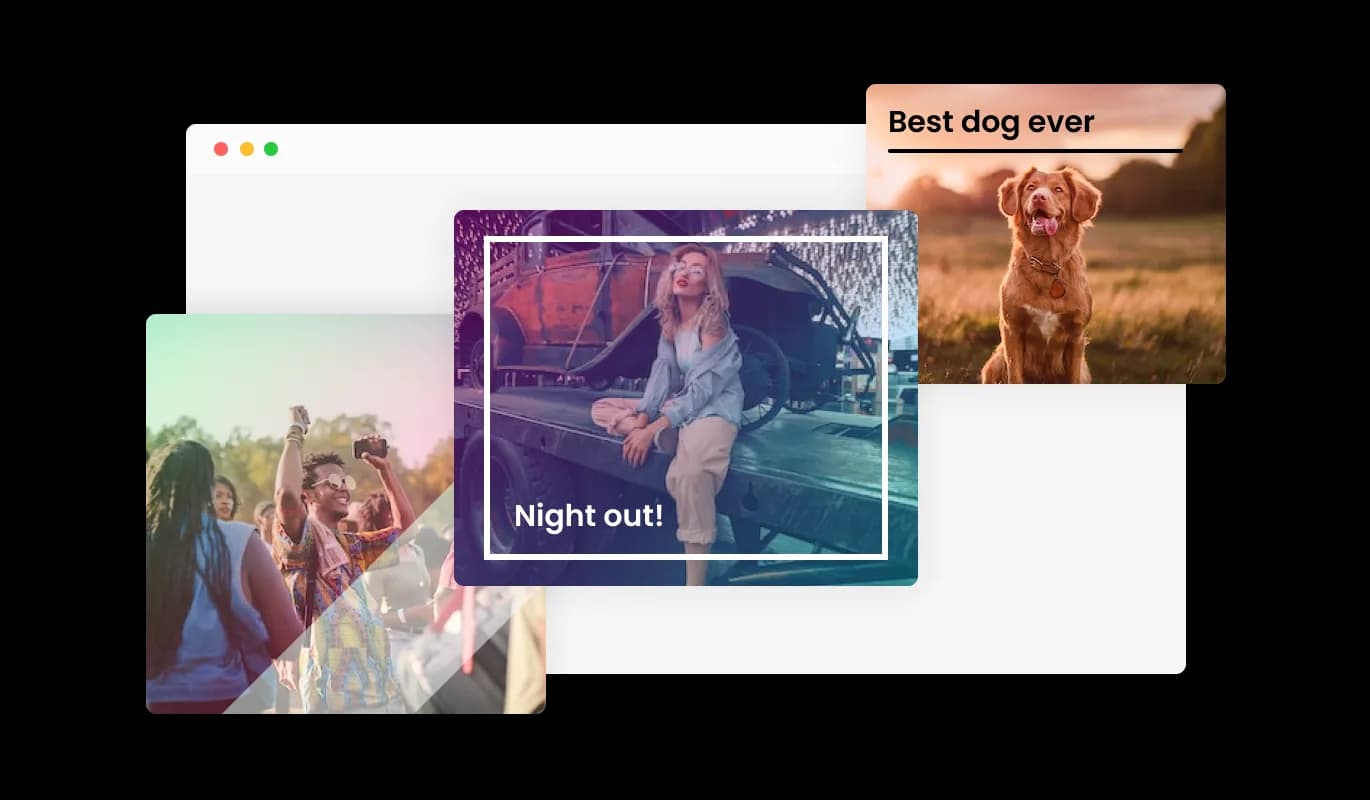
The widget comes with over 24 different hover effects that you can choose from to enhance your users’ visual experience. These hover effects enhance the user's experience by surprising and delighting them, and they also stimulate interaction with the content and further exploration of your website.
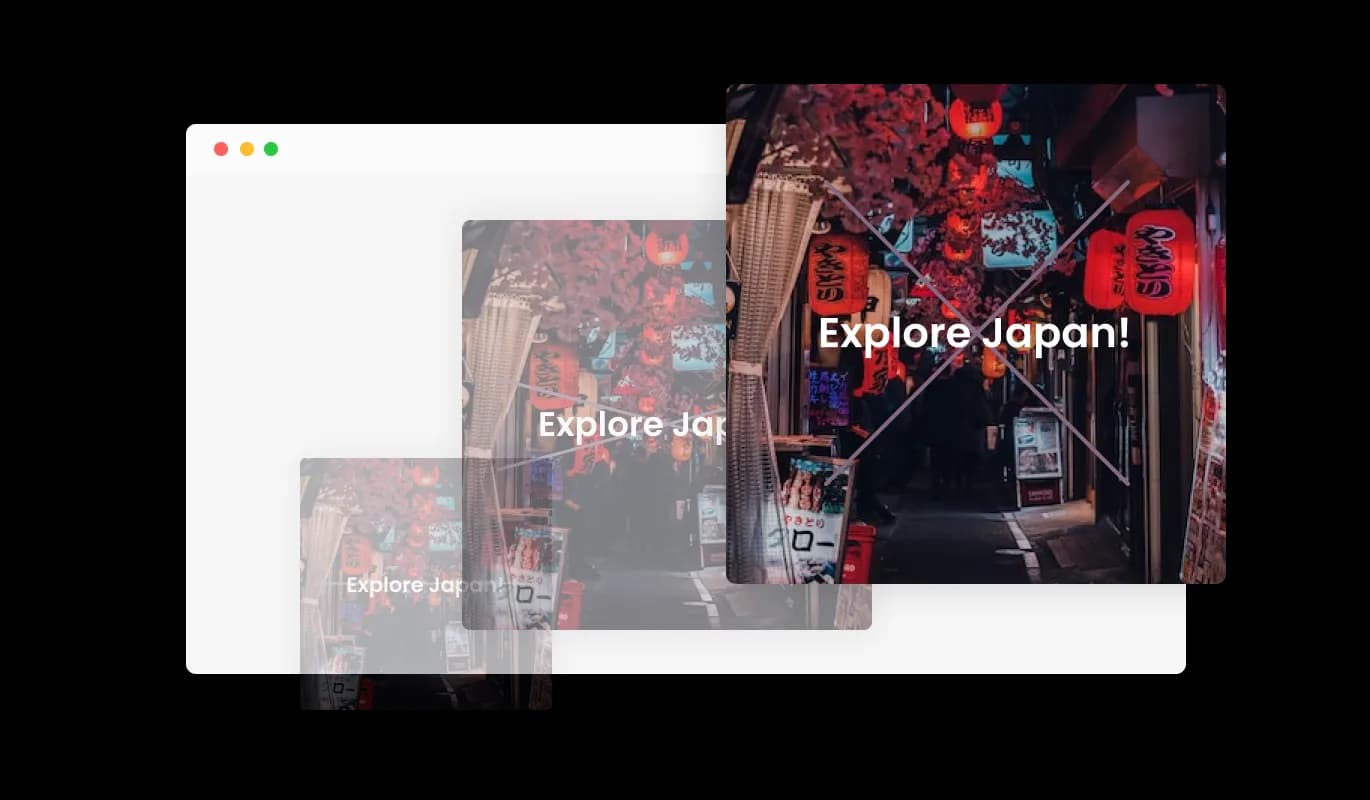
The Image Hover Effects widget comes with a variety of animations that you can add to your hover effects to make them even more stunning. You may provide your audience with an immersive and engaging experience by using the loading animations.
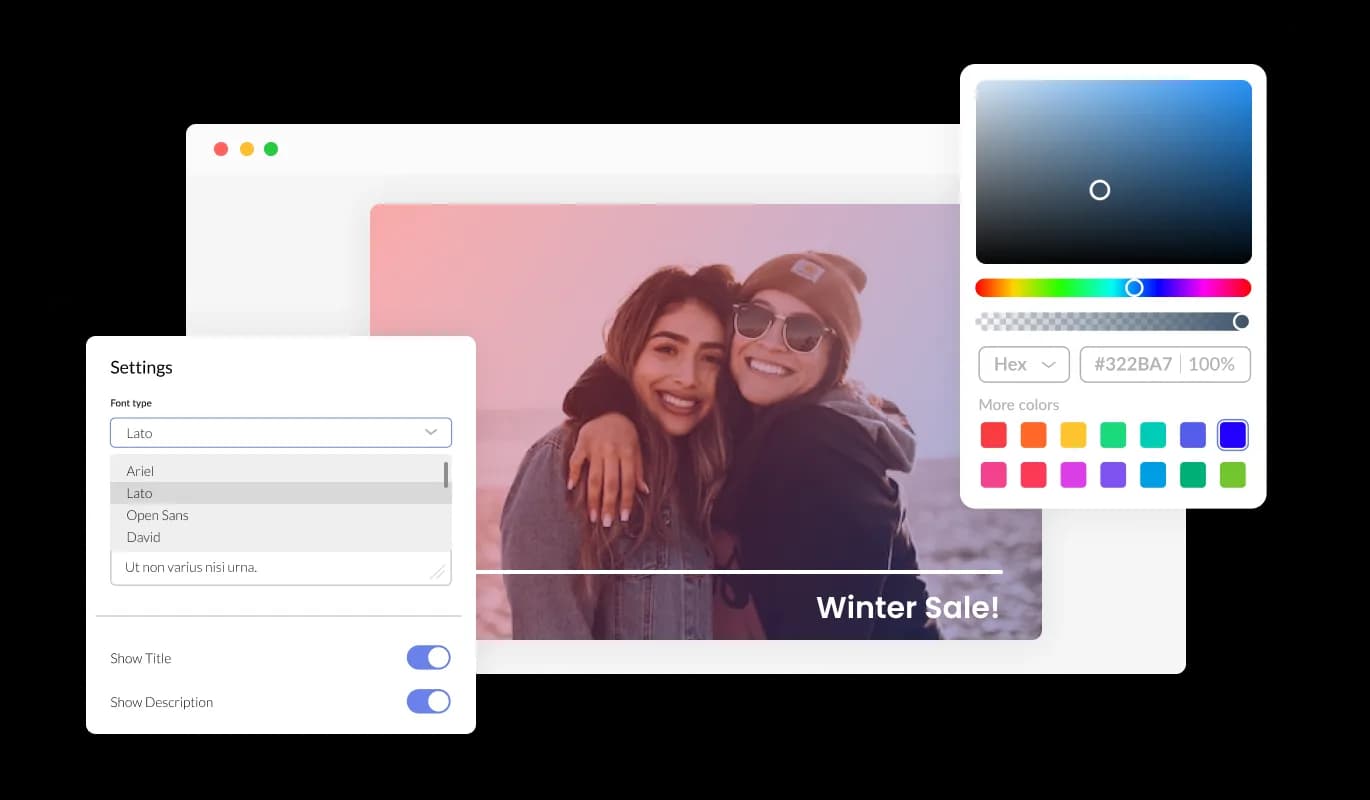
You may fully customize the Image Hover Effects widget to change the style to suit your needs. Customize anything you want, including the fonts, spacing, and colors! In order to create a unified and polished appearance, you may also select from a variety of font choices and modify the font's size, style, and color. You can alter the spacing in addition to these style choices to make sure it blends in with the rest of your website's design.
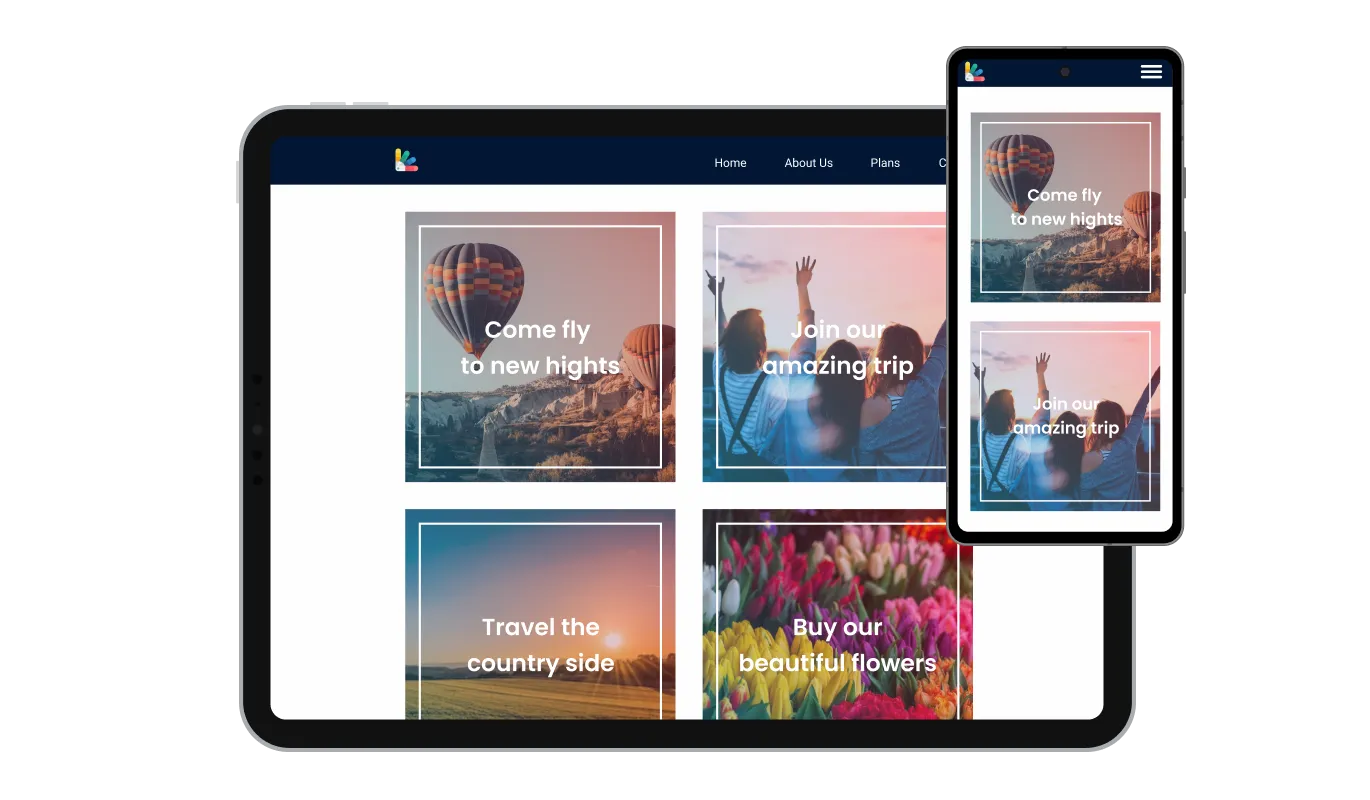
Any website would benefit from the widget Image Hover Effects. It has a clean and contemporary style that will improve the overall appearance of your site in addition to being fully responsive, which means it will shift fluidly to fit the screen size of any device. Having a website that is optimized for mobile viewing is essential in a world where more and more people are accessing the internet through their phones and tablets. You may use the widget to accomplish just that, providing you an advantage over rivals.

Our advanced editor is a powerful tool that gives you complete control over the appearance of the Image Hover Effects widget. With this feature, you can easily customize every aspect of the widget's look and feel, from the colors and fonts to the layout and positioning. But if you're feeling particularly creative, you can take your customization to the next level by editing the CSS directly. This gives you the ability to make even more advanced changes to the widget, allowing you to make it your own. Whether you want to make a few simple tweaks or go all out with advanced customizations, our advanced editor has you covered.

To embed the Image Hover Effects widget on your website, simply copy and paste the provided code snippet into the HTML of your webpage. Additionally, the widget is designed to be self-updating, meaning that any changes you make to the Image Hover Effects editor will be reflected automatically on your website without the need for any additional manual updates.
When links are added to photos, users can click on a button to be redirected to another website or resource. By offering more information or relevant content in a visually beautiful and engaging manner, can enhance user experience.
Apply filters to images to augment their appearance with a trendy aesthetic. In combination with animation effects, it will create a stunning visual display.
The use of the Image Hover Effects widget is simple and doesn't require any coding expertise. With only a few mouse clicks, you can modify the widget however you wish using our user-friendly interface. As a result, even people without coding knowledge can quickly and easily develop designed elements with a professional appearance that interact with their website and increase their online visibility and audience engagement.
Common Ninja has amazing no-code widgets that would beautify a website built on any builder. It is very easy to use and customise. It has as many widgets for almost everyone willing to make their website impressive.
Outstanding service. I use their widgets to help me with my web design business and whenever I need help they are very quick to help.
Excellent company with excellent service!!! We used it to build a survey, it was very user friendly. The service was perfect. Amit helped us with every problem and question we had, thank you very much!!!
Common Ninja saved the day when building our website and the customer service Daniel, the co-founder and CEO, provided was amazing.
Yes. The free plan covers one Image Hover Effects widget with no time limit and no credit card. Upgrade only when you need additional widgets, more images per grid, premium skins, advanced effects, or features like custom easing curves and per-image analytics.
Zoom (image scales on hover), fade (image dims to reveal caption), color overlay (configurable tint over the image), grayscale-to-color reveal (image starts grayscale and returns to full color on hover), blur (image blurs and a caption fades in), slide-in caption (text panel slides in from one side), and rotate. Mix effects across images in the same widget or pick one for consistency.
No. Hover doesn't exist on touch devices, so the widget translates hover behavior to tap on mobile: first tap reveals the effect (caption, overlay, zoom), second tap activates the link. The experience stays consistent across input types without a separate mobile config or a broken click path.
Yes. Set a custom URL per image in the editor. A grid of 6 hover tiles becomes 6 separate calls to action. The whole tile is clickable, with the hover effect providing visual feedback that the image is interactive. Useful for product grids, portfolio sections, and case-study galleries.
You can. Modern CSS handles every effect the widget offers. But tuning transitions, easing curves, overlay opacities, caption animations, and mobile tap behavior takes time and tends to break across browsers and breakpoints. The widget delivers the same effects pre-tuned and mobile-tested. Use the widget when you want the result fast; write your own CSS when the design system demands exact custom behavior.
Build the widget in the Common Ninja editor (upload images, pick effect, customize design), copy the embed snippet, and paste it into your site: Canva via the Embed app in the Apps panel; Google Sites via Insert → Embed → Embed code; WordPress via a Custom HTML block; Hostinger via Add Element → Embed Code in the Website Builder. Edits in the editor push to every embed without re-paste.
No. Images lazy-load. The widget renders thumbnails first and loads full-resolution sources only when needed. Hover effects use CSS transitions (GPU-accelerated), not JavaScript animation loops, so they stay smooth without burning CPU. Your Largest Contentful Paint measures against optimized thumbnails, keeping Core Web Vitals healthy.
Yes. Grid layouts adapt across mobile, tablet, and desktop breakpoints. Image sizing scales to viewport width, the grid wraps from multi-column to single-column on narrow screens, and tap behavior replaces hover on touch devices. Hover effects render correctly across modern browsers without per-browser configuration.
Pick your platform. Each takes under 4 minutes.

Displays a series of images in a slideshow format

Showcases images in a rotating or sliding manner
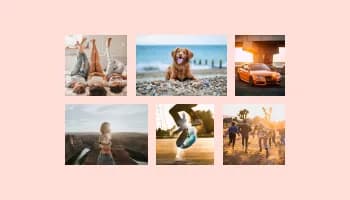
Displays images and captions in diverse layouts and grids, presenting visually appealing arrangements for showcasing multiple images

A simple slider that lets visitors compare before and after images to see visual changes clearly.
Easily craft engaging, personalized popups to boost conversions.

Show image and text cards that, when clicked, flip to reveal additional content on the other side
Yes, there are lots of beautiful skins that you can choose from to save time and start using the widget as quickly as possible.
Yes, you can either upload an image, or select an icon from a large selection of available icons to add to your Notification Bar, or, alternatively, you can leave it all blank.
It’s simple. All you need to do is to sign up and start using the free version.
Common Ninja’s Image Hover Effects widget is free to use. It is limited to a certain amount of views, however.
Common Ninja’s Image Hover Effects widget is compatible with ALL current and future website builders.
Yes, the Image Hover Effects widget is GDPR-compliant.
No. Using our Image Hover Effects widget is very simple. The widget comes with an intuitive drag-and-drop interface and fully customizable options. Once you’ve finished editing the widget to your liking, all you need to do is copy the provided code and add it to your website.
Yes. We are eager to hear your request. Please visit our Feature Request page.
Animate your images on hover with zoom, fade, color overlay, grayscale-to-color reveal, blur, slide-in caption, and rotate effects. Clickable links per image, customizable loading animations, stylish skins, Custom CSS, and tap-friendly behavior on mobile. Embed on 200+ platforms including Canva, Google Sites, WordPress, Hostinger, and Webflow.
Create your Image Hover EffectsNo credit card · Setup in under 5 minutes