


Verified review
Common Ninja has amazing no-code widgets that would beautify a website built on any builder. It is very easy to use and customise. It has as many widgets for almost everyone willing to make their website impressive.
Try the editor, no signup
Pick a template, customize it, and watch it update live, no signup.
No credit card · Free forever plan
No credit card · Free forever plan
The Common Ninja Image Magnifier is a free, no-code widget that lets visitors zoom into an image on your website. Upload the picture, pick a magnifier style, and paste one line of embed code.
It is the product-zoom behaviour shoppers expect: move over the image and a magnified view follows the cursor, so fine detail is visible without opening a new page.
Several magnifier types, full styling control, responsive behaviour, and custom CSS are included. Works on 200+ platforms including Squarespace, Google Sites, Shopify, Wix, and WordPress.
Fabric weave, stitching, grain, finish, engraving: the things that justify a price are the things a normal product photo cannot show. Zoom answers that without sending the shopper away to look for a better picture.
A lot of returns come from a product not matching what someone pictured. Letting a buyer inspect the texture and finish before ordering sets expectations properly, which is cheaper than processing the parcel back.
A floor plan, a technical drawing, or a detailed map is unreadable at page width and annoying in a lightbox. A magnifier lets a visitor inspect one area at a time while keeping the whole thing in view.
For photographers, illustrators, and makers, the close-up is the portfolio. Zoom shows brushwork, print texture, and joinery that a scaled-down web image flattens completely.
The magnifier can only show detail that exists in the file, so start with the largest version you have. A zoom into a small image just shows large pixels, which is worse than no zoom at all.
Pick how the zoom behaves and how it is presented, then adjust the styling to match the page. Different types suit different layouts, so try them against your actual image rather than choosing in the abstract.
Copy the snippet from the Add to Website tab and paste it where the image belongs. Changes you make later push to every page carrying the embed.
Choose how the zoom presents itself rather than accepting one behaviour, so the effect suits both the image and the space it sits in.
Size, borders, and presentation are all adjustable, so the magnifier looks like part of the page design rather than a component dropped on top of it.
Scales to the screen width and stays usable on a touchscreen, where hover does not exist and a zoom has to respond to a tap instead.
A custom CSS field for anything the settings do not reach, and a single embed snippet that works on 200+ platforms with no plugin to install or keep updated.
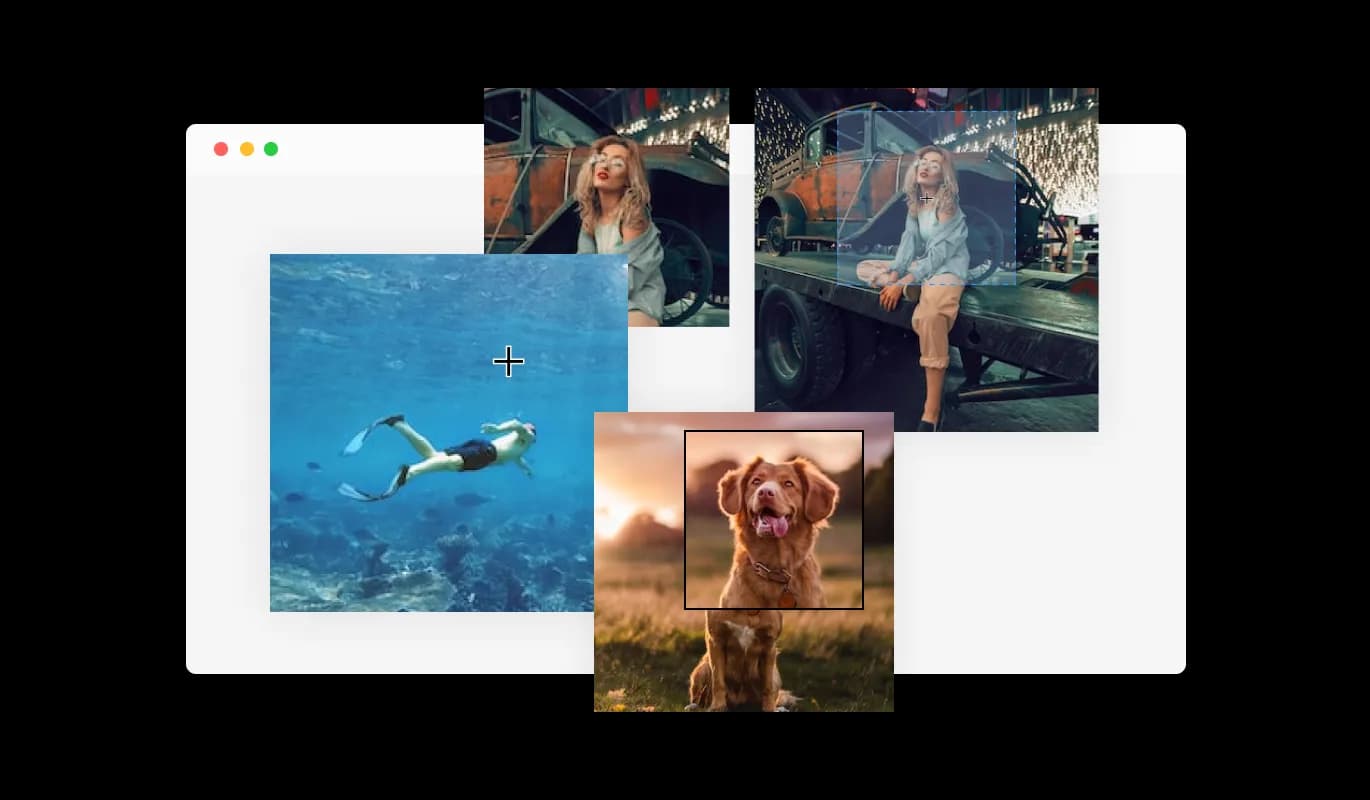
The Image Magnifier features a selection of different magnifier types that you can choose from to fit your needs. This customization ensures seamless integration with your website's design and enhances user experience by catering to individual preferences.
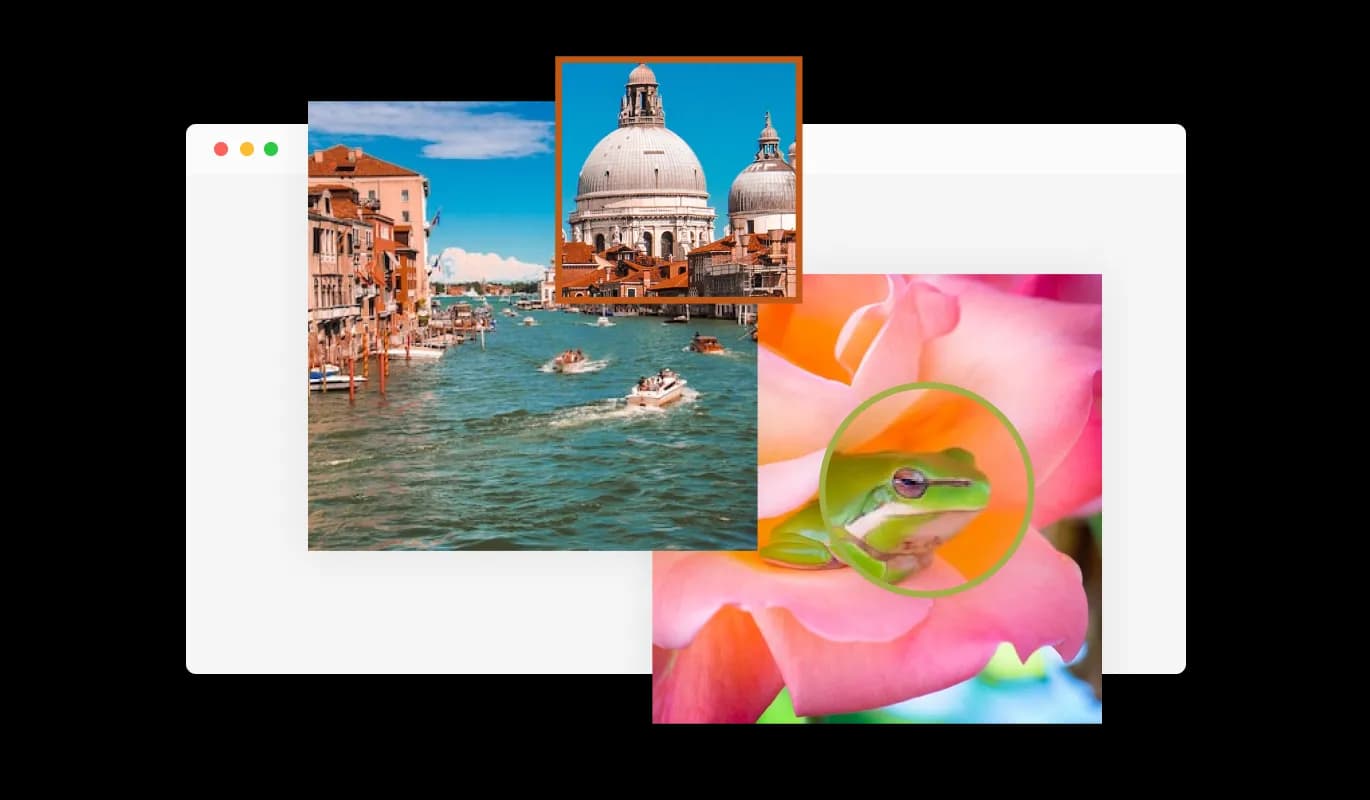
The Image Magnifier widget allows you to customize the magnifier for a more personalized look, enabling you to fit it to your brand’s design and the website’s aesthetics. This level of customization not only reinforces brand identity but also creates a cohesive and visually appealing user experience.
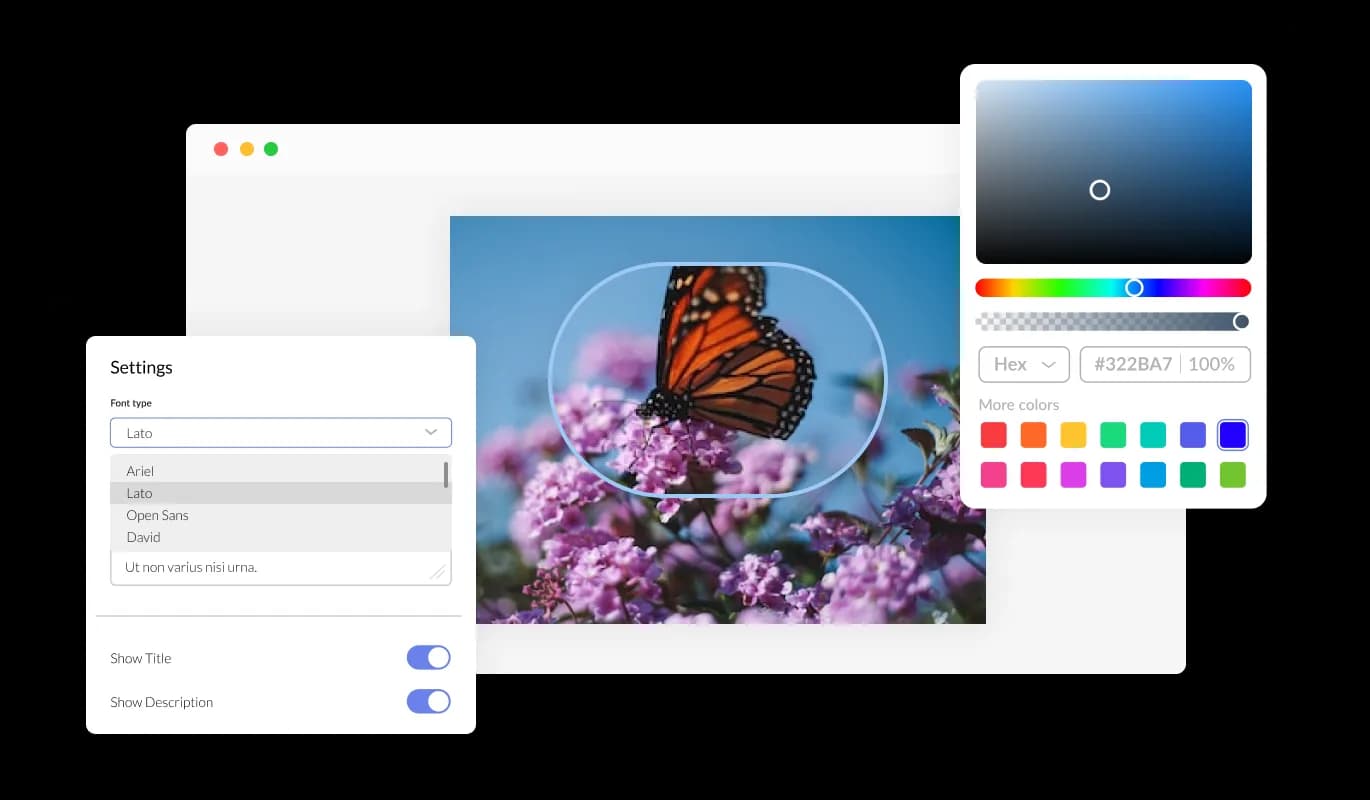
The Image Magnifier widget features full customization options so you can edit the design to fit your needs. Change the colors, the fonts, the spacing, and anything else! Adjust the colors, fonts, spacing, and other elements to create a tailor-made user experience that aligns with your brand and website aesthetics.
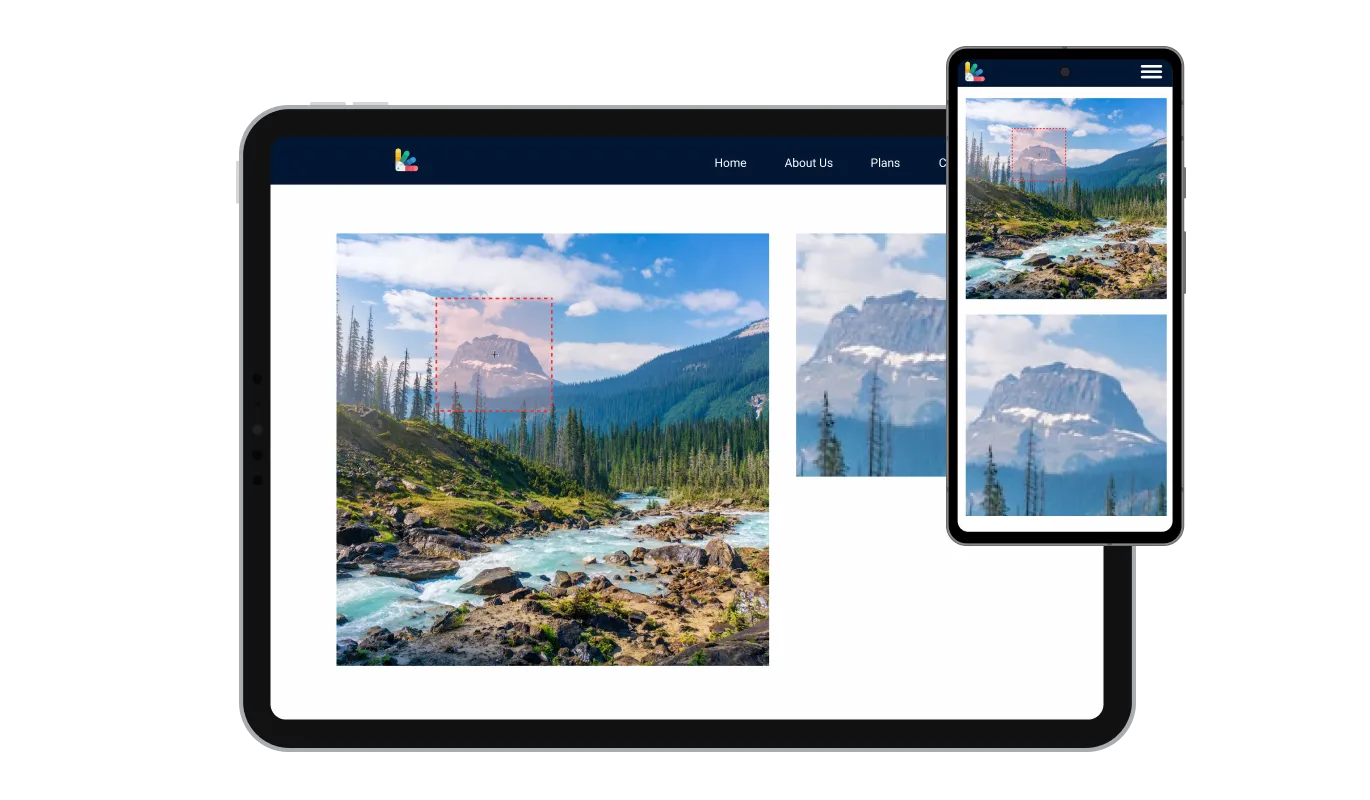
The Image Magnifier widget is fully responsive and will look great on any device. In a mobile-first world, this feature will put you ahead of your competitors. Additionally, this adaptability ensures a consistent and enjoyable browsing experience for all users, regardless of their device or screen size.

As with all of Common Ninja’s apps, you can add custom CSS to customize the Image Magnifier widget and be even more creative. This added flexibility empowers you to fine-tune the widget's appearance and functionality, ensuring a truly unique and tailored experience for your users.

You can effortlessly embed the Image Magnifier widget on your website by copying just one line of code. Moreover, the widget will automatically update with every modification you make, ensuring a seamless and up-to-date experience for your users.
Build your image magnifier in the editor
Open the editorFree to use · No credit card · No signup to try it
Common Ninja has amazing no-code widgets that would beautify a website built on any builder. It is very easy to use and customise. It has as many widgets for almost everyone willing to make their website impressive.
Outstanding service. I use their widgets to help me with my web design business and whenever I need help they are very quick to help.
Excellent company with excellent service!!! We used it to build a survey, it was very user friendly. The service was perfect. Amit helped us with every problem and question we had, thank you very much!!!
Common Ninja saved the day when building our website and the customer service Daniel, the co-founder and CEO, provided was amazing.
No. This is a widget you add to your own website so that your visitors can zoom into images you have published. It is not a utility for opening a file and magnifying it on the spot, and it is not a screen magnifier for accessibility. If you need to inspect an image right now, your operating system's zoom or any image viewer will do it.
As high as you reasonably can, because the magnifier reveals detail from the file rather than inventing it. Zooming into a small image just enlarges the pixels, which looks worse than not offering zoom at all. Start from the original photograph rather than a version already scaled for the web.
It stays usable on a touchscreen, but the interaction is necessarily different, since a finger cannot hover. This is worth testing on a real phone before you rely on it for a product page, because most of your shoppers are probably on mobile and the zoom is only useful if it responds to how they actually interact.
Yes. Add a Custom HTML block to the product page or theme section and paste the embed snippet. It is the usual way to add zoom on a theme that does not include it, without editing theme code or installing an app.
Try them against your actual image and layout rather than deciding from the names. A type that works for a wide landscape photograph often feels wrong on a tall product shot, and the space around the image matters as much as the image itself.
Yes, and it is one of the better uses. A detailed drawing is unreadable at page width, and a magnifier lets someone inspect one region while keeping the whole layout visible, which a lightbox does not.
It is one embed snippet rather than a plugin, so nothing enters your site's own code. The high-resolution image is the weight, so consider how large the file needs to be to be worth zooming into and no larger.
Yes. Each magnifier is its own widget with its own image and settings, so different product pages can carry different ones. On the free plan each widget counts separately against your plan's widget allowance.
Pick your platform. Each takes under 4 minutes.

Displays images and captions in diverse layouts and grids, presenting visually appealing arrangements for showcasing multiple images

Showcases images in a rotating or sliding manner
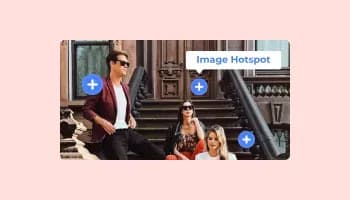
Add interactive areas on images that reveal extra information when clicked or hovered over.

Present images and text with a variety of animated effects and transitions for an engaging visual display

A simple slider that lets visitors compare before and after images to see visual changes clearly.

Displays a series of images in a slideshow format
The Image Magnifier widget offers a variety of magnifier types to choose from, allowing you to select the one that best fits your needs and preferences.
Yes, the Image Magnifier widget allows for easy customization of the magnifier, enabling you to personalize its appearance to align with your brand's design and your website's aesthetics.
The Image Magnifier widget features full customization options, allowing you to modify various elements such as colors, fonts, spacing, and more to achieve the desired look.
Yes, the Image Magnifier widget is fully responsive and designed to look great on any device, ensuring a positive user experience in a mobile-first world.
No, the Image Magnifier widget is easy to use and does not require any coding knowledge. The intuitive dashboard and drag-and-drop feature enable you to customize the widget with just a few simple clicks.
Yes, similar to other Common Ninja apps, you can add custom CSS to the Image Magnifier widget to enhance its appearance and achieve a more creative design.
Embedding the Image Magnifier widget on your website is simple. Just copy a single line of code and paste it into your website's HTML. The widget will automatically update with any changes you make within the customization dashboard.
Yes, you can easily do so from the “Templates” tab.
It’s simple. All you need to do is to sign up and start using the free version.
Common Ninja’s Image Magnifier widget is free to use. It is limited to a certain amount of views, however.
Common Ninja’s Image Magnifier widget is compatible with ALL current and future website builders.
Yes, the Image Magnifier widget is GDPR-compliant.
No. Using our Image Magnifier widget is very simple. The widget comes with an intuitive drag-and-drop interface and fully customizable options. Once you’ve finished editing the widget to your liking, all you need to do is copy the provided code and add it to your website.
Yes. We are eager to hear your request. Please visit our Feature Request page.
To install the Image Magnifier widget, simply copy the provided single line of code and paste it into your website's code. This straightforward process allows for easy integration of the widget into your site.
Yes, the Image Magnifier widget offers comprehensive customization options. You can adjust the colors, fonts, spacing, and other design elements to match your brand and website aesthetics. Additionally, you can use custom CSS for even more creative control.
Absolutely! The Image Magnifier widget is fully responsive, ensuring a flawless appearance and consistent user experience on any device, including smartphones and tablets.
Yes, the Image Magnifier widget features a selection of different magnifier types. This variety allows you to choose the best magnifier style to suit your needs and preferences.
Let visitors magnify your images to see the detail that sells them, with several magnifier types, full styling control, responsive behaviour, and custom CSS. Built for product pages, portfolios, maps, and technical drawings. Embed on 200+ platforms including Squarespace, Google Sites, Shopify, Wix, and WordPress.
Create your image magnifierFree to use · No credit card · No coding