


Verified review
Common Ninja has amazing no-code widgets that would beautify a website built on any builder. It is very easy to use and customise. It has as many widgets for almost everyone willing to make their website impressive.
The Common Ninja Messenger Chat widget is a free, no-code embed that adds a floating Facebook Messenger button to your website so visitors can message your Facebook Page in one tap.
Set your Facebook Page link, pick from multiple chat icons, position the button (corner-fixed or inline), customize background and design with skins or Custom CSS, toggle availability hours, and paste a one-line embed snippet on Canva, Webflow, Wix, WordPress, Neocities, and 200+ other platforms.
Use it to route customer questions to a channel your team already monitors on Facebook, deliver instant support without a separate help desk, and convert pre-purchase friction into conversations on the messaging app your Facebook audience already has on their phone.
If your team already lives in Facebook Inbox (or Meta Business Suite) handling Page messages and Instagram DMs, adding Messenger Chat to your site puts visitor questions in the same queue your team is already watching. No separate help desk to set up, no new inbox to monitor, no extra tooling. Visitor messages land where customer comms already happens.
Visitors who'd otherwise abandon when they hit a question ("Will this ship to my country?" "Does this come in size X?") can ask you on Messenger in one tap. The conversation answers the friction; the visitor stays in the funnel; the question becomes a sale instead of a lost session.
If your team isn't watching Messenger 24/7, set on/off display schedules so the button only appears when someone's available to reply. Visitors only see the chat option when a real reply is likely. Better experience than pinging the Page at 2am and waiting nine hours.
Each messaging channel has its own audience. Messenger maps to your Facebook Page audience and visitors who already chat with brands on Facebook. WhatsApp dominates Latin America and India. Telegram is strong in Eastern Europe and Asia. A Call Button is for visitors who want to talk by phone. Pick the chat-channel widget that matches where your visitors actually message, or embed multiple side by side.
Enter your Facebook Page username or full m.me / messenger.com URL. The widget builds the deep-link automatically so when a visitor taps the button, Messenger opens on their device with your Page chat ready to start. No Facebook App registration, no Page Access Token, no integration to maintain. The widget uses the public m.me link any Page operator has.
Choose from multiple chat icons (Messenger logo, generic chat bubble, headset for support, custom upload), set the corner position (bottom-right standard), customize background color and icon styling, configure on/off display hours so the button hides when no one's monitoring, and pick a skin from the design library or layer Custom CSS for pixel-level brand match.
Copy the one-line embed snippet and paste it on Canva, Webflow, Wix, WordPress, Neocities, or any of the 200+ supported platforms. The button floats over your page content and follows the visitor through every section. Edits in the Common Ninja editor push to every embed without re-paste.
The button anchors to a page corner (bottom-right standard, configurable) and follows the visitor through every scroll. Always within thumb reach, never collides with your main nav, can be paired with other chat widgets for multi-channel setups.
Pick from a library of chat icons (Messenger logo, generic chat bubble, headset, custom upload) and design skins (minimal, brand-vibrant, dark-mode, glassmorphic). Each combination feels intentional rather than off-the-shelf.
Set on/off display schedules per day so the button only shows when your team is watching Messenger. Configure timezone independently so visitors in different regions see the button during your team's actual work hours, not theirs.
Layer Custom CSS over any skin to control button size, corner offset, shadow depth, hover animation, pulse-attention effects, and per-breakpoint sizing. Tight integration with your design system without rebuilding the widget.
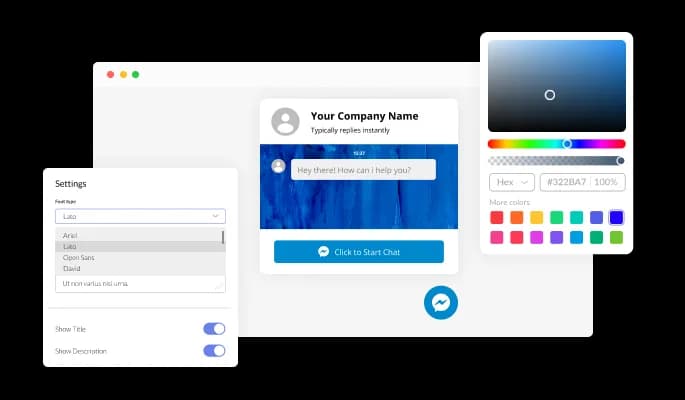
The Messenger Chat widget features full customization options so you can edit the design to fit your needs — change the colors, fonts, spacings and anything else!
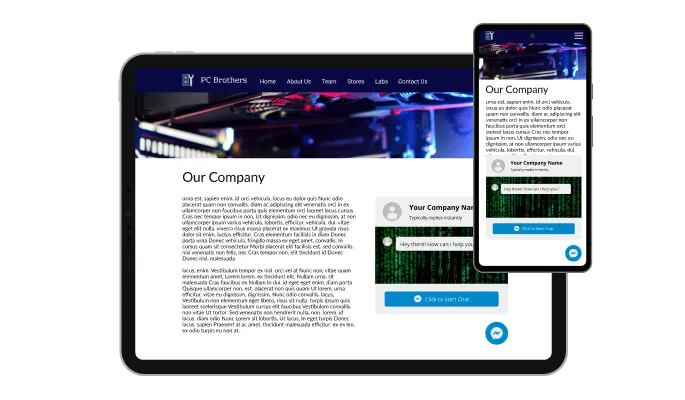
The Messenger Chat widget app is perfectly responsive and will look great on any device. In a mobile-first world, this feature will put you ahead of your competitors.

As with all of Common Ninja’s apps, you can add custom CSS to customize the Messenger Chat widget and be even more creative.

You can embed the Messenger Chat widget on your website easily by copying a single line of code. The app will also be updated automatically with every change you make.
The Messenger Chat widget features multiple button icons for you to choose from that can complement your design and deliver the message you want to deliver.
The Messenger Chat widget features the ability to toggle the messages’ time on or off. Keep it on to show users just how fast your replies are, or remove it completely for a more minimal, visually pleasant chat design.
The Messenger Chat widget is easy to use and requires no coding knowledge. Our intuitive dashboard with the drag-and-drop feature will enable you to customize the app any way you’d like to with just a few simple clicks.
Common Ninja has amazing no-code widgets that would beautify a website built on any builder. It is very easy to use and customise. It has as many widgets for almost everyone willing to make their website impressive.
Outstanding service. I use their widgets to help me with my web design business and whenever I need help they are very quick to help.
Excellent company with excellent service!!! We used it to build a survey, it was very user friendly. The service was perfect. Amit helped us with every problem and question we had, thank you very much!!!
Common Ninja saved the day when building our website and the customer service Daniel, the co-founder and CEO, provided was amazing.
Yes. The free plan covers one Messenger Chat widget with no time limit and no credit card. Upgrade only when you need additional widgets, multiple chat targets per page, premium skins, advanced scheduling, or features like custom welcome messages and per-button analytics.
Each messaging button maps to a different audience. Messenger Chat suits brands whose Facebook Page is an active customer-comms channel. WhatsApp Button suits audiences in Latin America, India, and Western Europe where WhatsApp dominates. Telegram Button suits audiences in Eastern Europe, the Middle East, and parts of Asia. Call Button suits visitors who want to talk by phone. You can embed multiple buttons side by side to cover several audience segments at once.
No. The widget uses the public m.me deep link any Facebook Page operator has, no Meta for Developers app registration, no Page Access Token, no Marketing API setup. When a visitor taps the button, Messenger opens with your Page chat ready to start. You reply from your normal Facebook Inbox or Meta Business Suite.
Yes. Set on/off display schedules per day in the editor. The button shows when your team is watching Messenger and hides otherwise. Visitors see the chat option only when a reply is likely. Set the timezone independently so visitors in different regions see the button at hours that match your team's availability.
No. The widget script loads asynchronously, so it doesn't block first paint or interactivity. The button is a single floating element: minimal DOM impact, no extra HTTP requests for content, no impact on Largest Contentful Paint or Cumulative Layout Shift.
Build the widget in the Common Ninja editor (set Page link, pick icon, customize design), copy the embed snippet, and paste it into your site: Canva via the Embed app in the Apps panel; Webflow via an Embed element in your site-wide footer or header; Wix via the HTML embed widget (Add → Embed → HTML iFrame/Embed a Widget). The button appears on every page where the snippet loads.
Messenger's m.me link opens the chat to a blank thread; the welcome experience depends on your Facebook Page's setup (greeting message, Page automation rules, Meta Business Suite responder). Configure those in your Page settings. The widget routes visitors to the chat, and your Page's existing greeting handles the first interaction.
Yes. The floating button scales to fit thumb-zone on mobile, respects iOS Safe Area insets so it doesn't collide with the home-bar gesture area, and opens the Messenger app on tap (deep-linking to the chat). On desktop the button opens Messenger Web or the desktop app depending on the visitor's setup.
Pick your platform. Each takes under 4 minutes.
Add a WhatsApp chat button to your website, allowing users to start a chat using WhatsApp.
Add a Telegram chat button to your website, allowing users to start a chat using Telegram.

Display a button that will initiate a phone call
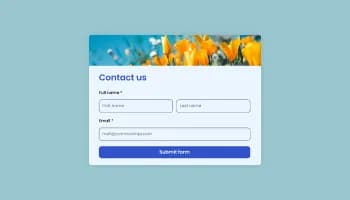
Allow users to send messages or inquiries, save submissions, enable notifications, and more
Easily craft engaging, personalized popups to boost conversions.
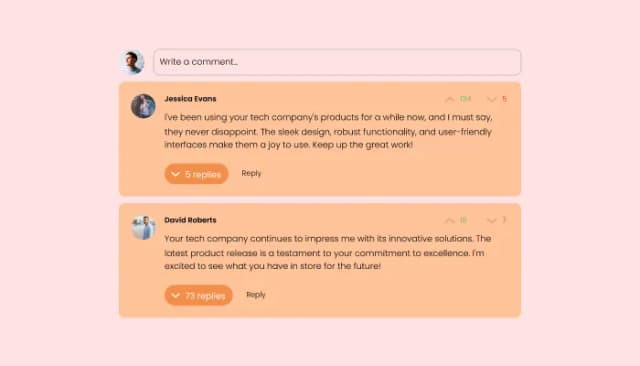
Comments system with upvote/downvote, email notifications, reply threads, and moderation tools.
Yes, you can change the contact name.
Yes, you can easily do so in the Messenger Chat settings.
Yes, you can upload your own image that will show on the Messenger chat.
Yes, you can do so from the dashboard.
Yes, you can.
Yes, you can easily do so from the dashboard.
Yes, you can. Enter the Editor to change the text of the Messenger Chat button.
Yes, you can easily do so.
Yes, you can easily do so from the “Look & Feel” tab.
Yes, you can.
Using the Messenger Chat widget is very easy. Simply sign up and start using the free version. There's no need to worry about complicated setup or installation processes, as the Messenger Chat widget is designed to be user-friendly and straightforward. Once you've signed up, you'll have access to all of the basic features and functions of the widget, which you can use to enhance your website and improve your online presence. From there, you can choose to upgrade to the paid version if you want to access more advanced features and capabilities. Regardless of which version you choose, you'll find that the widget is a powerful and easy-to-use tool that can help you take your online presence to the next level.
The Common Ninja Messenger Chat widget is a free tool reach with features and options. While this widget is free to use, it does have a limit on the number of views it can handle. This means that after a certain number of views, the chat button may no longer be visible or functional on your website. It is important to note that this view limit may vary depending on the plan you are using. Despite this limitation, Common Ninja's Messenger Chat is still a valuable tool for businesses looking to increase customer engagement and improve the overall user experience of their website.
The Common Ninja's Messenger Chat widget is a versatile tool for any website builder. This means that you can easily add this widget to your website or store no matter what platform you use to build your website. Whether you are using a popular website builder or something more specialized, the Messenger Chat widget will work seamlessly with your platform. This means you can enjoy all the benefits of this powerful tool without having to worry about compatibility issues.
It’s very easy to embed Common Ninja’s Messenger Chat Button app on your website and the process consists of two steps:
The Messenger Chat widget is designed to comply with the General Data Protection Regulation (GDPR), a set of EU regulations protecting personal data and privacy. When using the Messenger Chat widget, you can be confident that it will not collect or store personal data that could violate GDPR regulations. This ensures that your business is in compliance with these regulations and can protect your customers' data privacy. Overall, the Messenger Chat widget is a secure and reliable tool that can be used to enhance your website without any concerns about GDPR compliance.
No need for coding skills. Our Messenger Chat widget is designed to be easy to use, even for those with limited technical experience. The widget features a user-friendly interface that allows you to easily customize the widget without coding knowledge. You can fully customize the Messenger Chat to match your branding. When you're done, simply copy the provided code and paste it into your website. It's that simple!
Embedding the Messenger Chat widget on your website is a straightforward process. Simply copy the provided code and paste it into the desired location on your website. The widget will seamlessly integrate into your site, allowing you to take advantage of its features and functions. No technical expertise or programming knowledge is required - just copy and paste the code to get started. This simple process allows you to easily add the widget to your website and enhance its functionality without any hassle.
Yes. We are eager to hear your request. Please refer to this page.
There are several benefits to adding a Messenger chat button to your website:
Adding a Messenger chat button to your website can help improve customer satisfaction, increase engagement, and drive sales for your business.
A Messenger chat button widget is a small componnet you can add to your website to create a button that allows visitors to start a conversation with your business via Facebook Messenger. When visitors click the chat button, they will be taken to a chat window where they can send a message to your business and receive a response in real time.
The chat button widget is typically placed in a prominent location on your website, such as the bottom right corner or the header so that it is easily accessible to visitors. You can customize the chat button's appearance to match your website's look and feel.
Using a Messenger chat button widget can be a convenient way for customers to get in touch with your business and can help improve customer satisfaction by providing a quick and easy way to get answers to questions or concerns. It can also help increase engagement and drive sales by allowing you to communicate with potential customers in real time.
Let visitors message your Facebook Page in one tap: floating button with multiple icons, customizable background and skins, on/off availability hours, and Custom CSS. No Facebook App registration or Page Access Token required. Embed on 200+ platforms including Canva, Webflow, Wix, WordPress, Neocities, and Squarespace.
Create your Messenger ChatNo credit card · Setup in under 5 minutes