How to add Music Player to a Carrd website

Learn how to embed Common Ninja’s Music Player on your Carrd website without coding.

Create a Music Player

loved by 500K+ businesses

widget-editor

In This Guide

In this quick guide, you'll learn how to embed the Music Player into your Carrd website by generating your embed code and adding it seamlessly to your website.

Embed Music Player on Carrd
01
Create a Music Player plugin for Carrd on Common Ninja
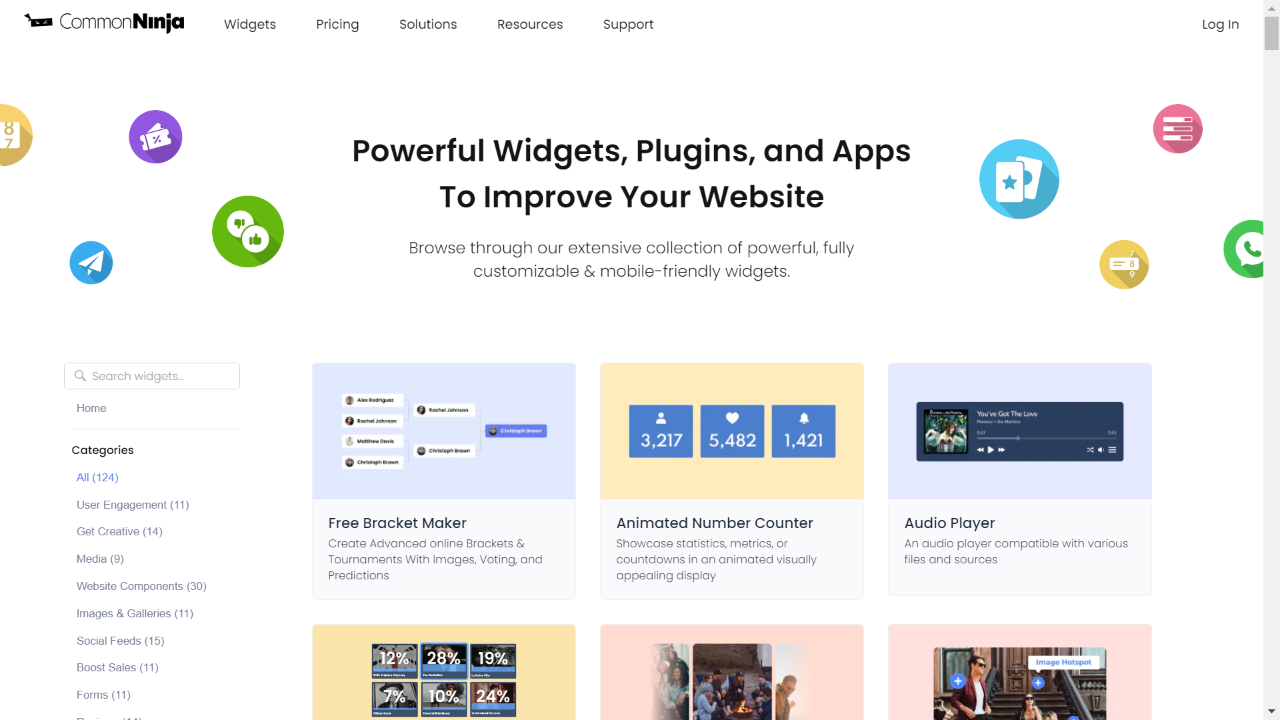
First, create a Carrd Music Player plugin on Common Ninja. On the plugins catalog, find the Music Player and enter the Editor.
Create a Music Player plugin for Carrd on Common Ninja
02
Save the Music Player plugin
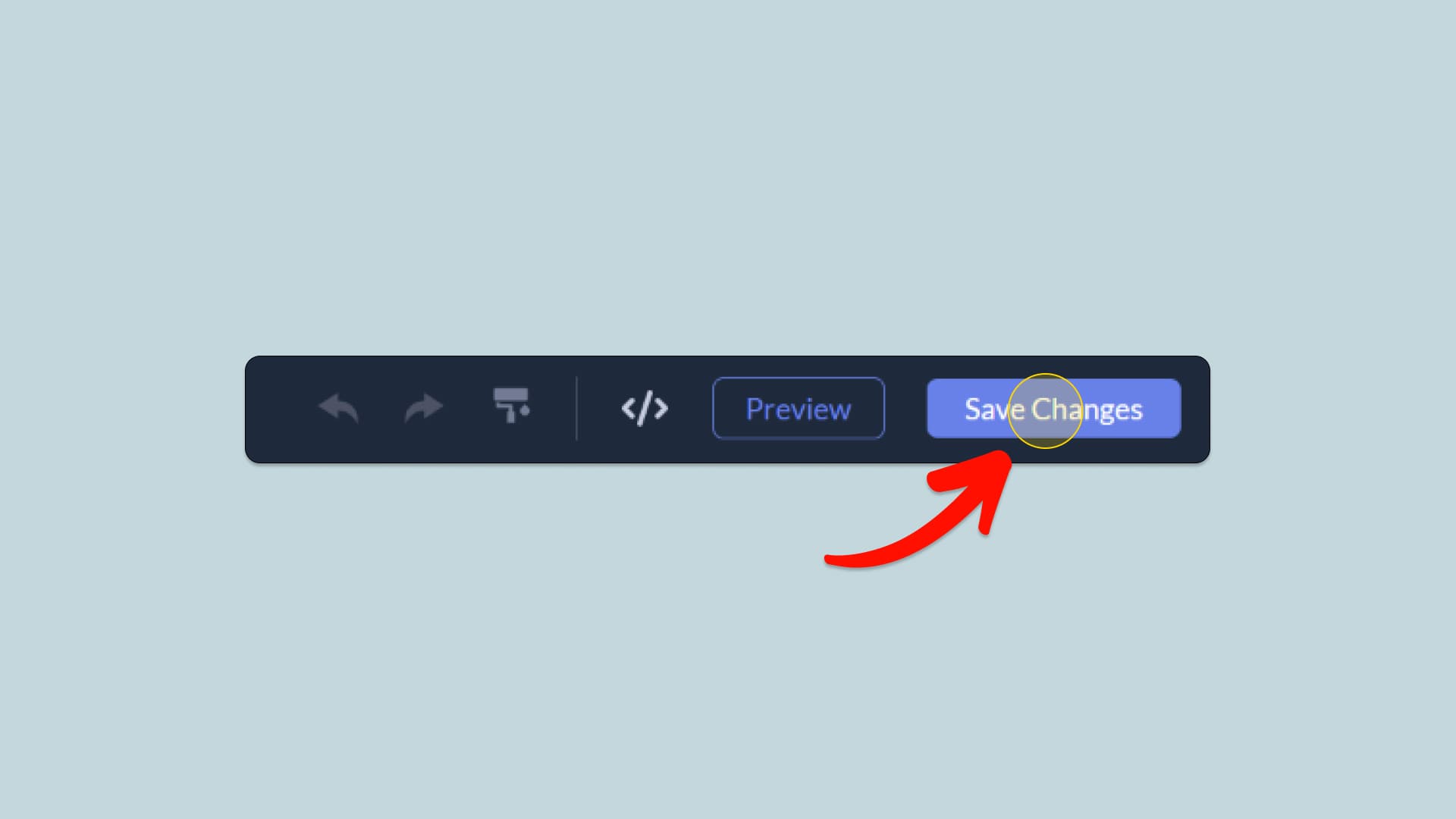
When you're done creating the Music Player plugin, click on the Save Changes button at the right top corner of the editor. If you don't have an account on Common Ninja, you'll have to register first.
Save the Music Player plugin
03
Copy the Music Player Embed Code
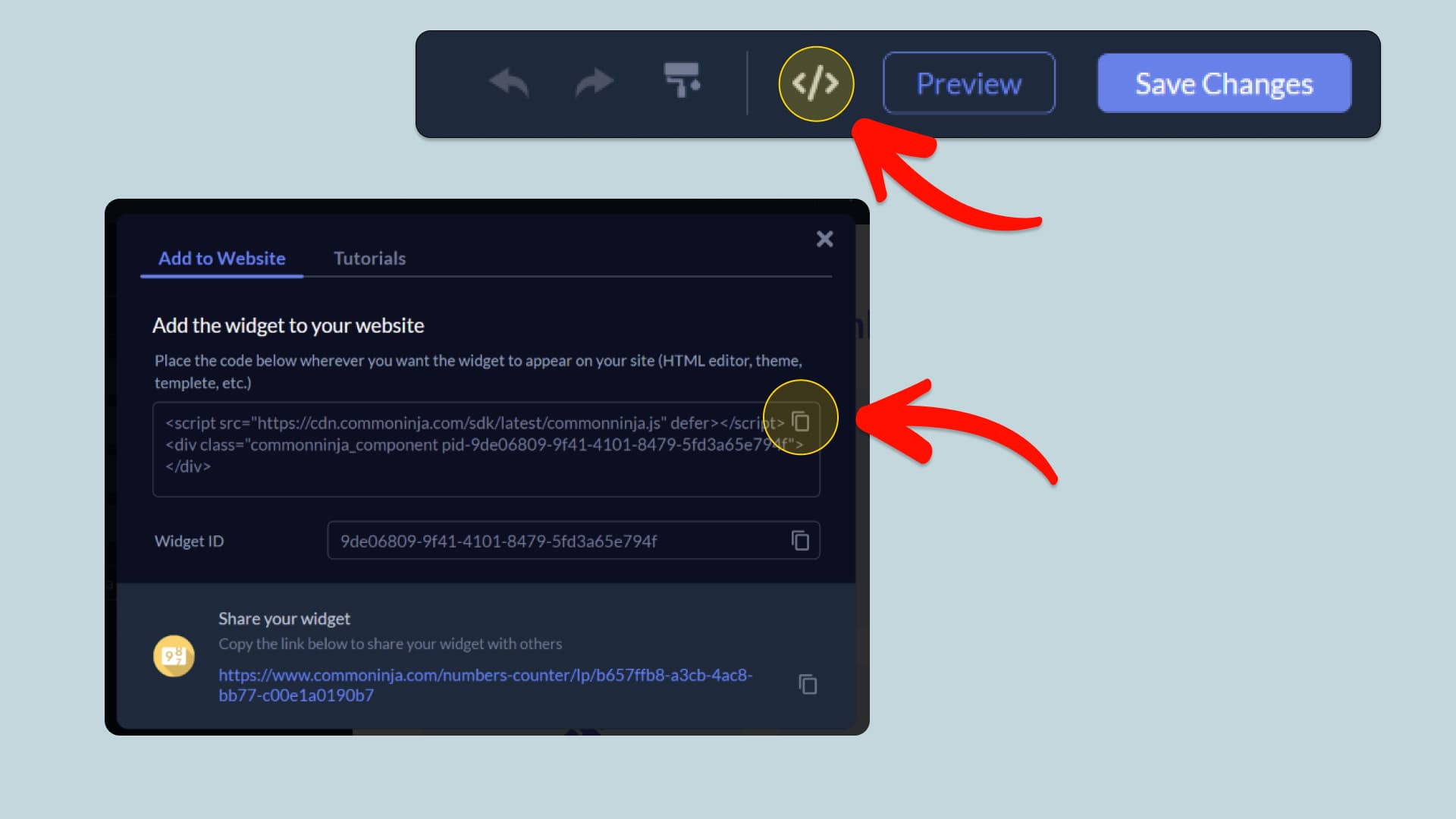
When you're ready to add the Music Player plugin to your Carrd website, click the Add To Website button at the top bar of the Editor. On the window that opens, click the Copy Icon to copy the plugin embed code. In the next steps, you will paste this code into your Carrd website.
Copy the Music Player Embed Code
04
Paste the code to your Carrd website’s HTML field.
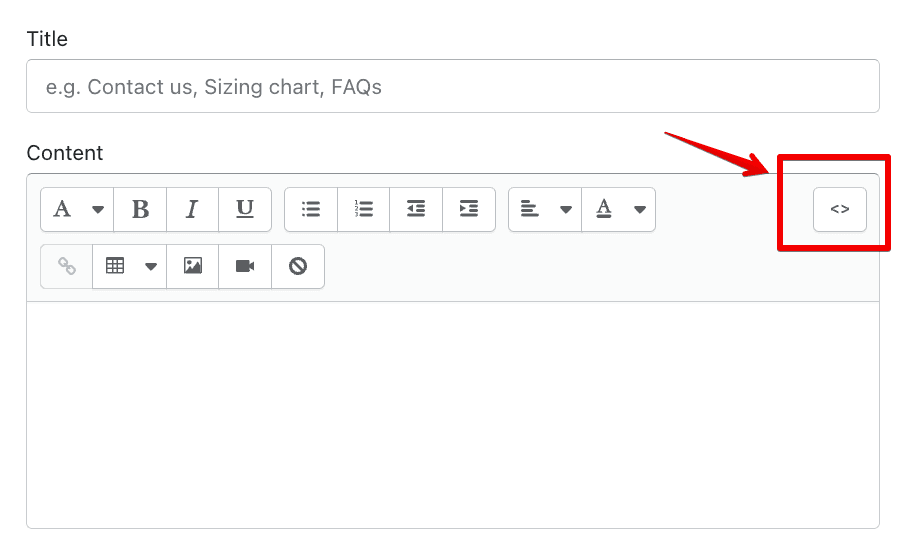
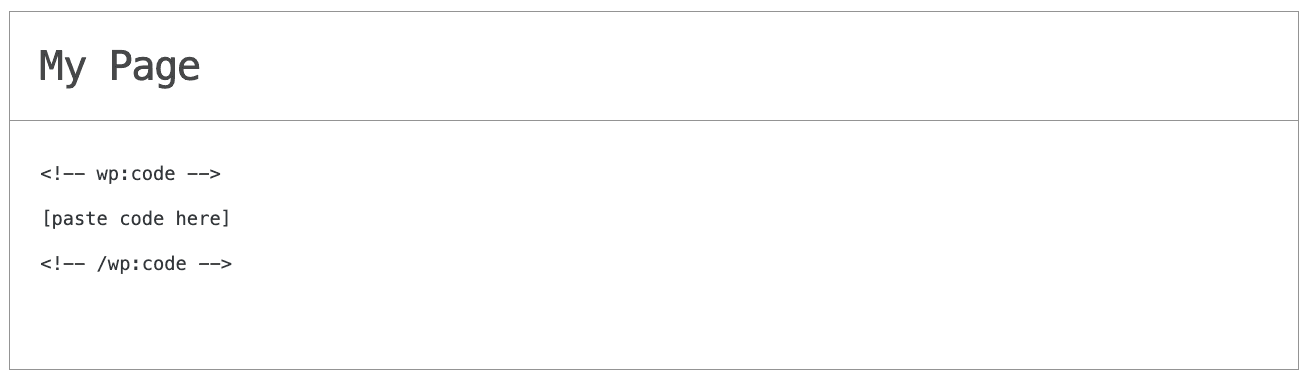
Next, go to your Carrd website editor and find the HTML field. It is most likely in the form of an HTML/Code widget or module which you can find on the Carrd’s editor. Add it to your page, and paste the Music Player Embed Code you’ve copied before to the HTML field. Save and update, and that’s it, you should have Common Ninja’s Music Player plugin on your Carrd website.
Paste the code to your Carrd website’s HTML field.
05
Alternative Method 1: Through the HTML option in the text’s editing area.
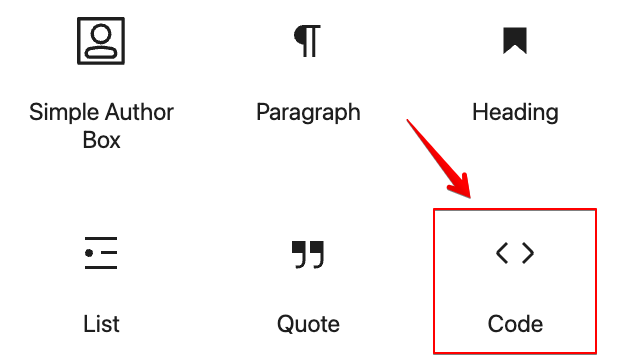
If you can't find the HTML/Code widget or module, there's another way to put Common Ninja’s Music Player plugin on your Carrd plugin. You can just add the code to a special HTML section in the text editor.
Alternative Method 1: Through the HTML option in the text’s editing area.
06
Alternative Method 2: Add it directly to your Carrd website’s HTML code.
If you're having trouble finding a widget or a special part in your text editor where you can add the Embed Code, you can try a different way to add the Music Player plugin to your Carrd website. You can do this by putting it straight into your Carrd website's HTML code.
Alternative Method 2: Add it directly to your Carrd website’s HTML code.

Why Use This Widget

Use the Music Player widget when you want visitors to listen to audio or playlists without leaving your site. A built in player keeps the experience branded and smooth, letting users play tracks while browsing related content. This is ideal for musicians, podcasters, educators, radio style sites, and brands using audio for mood or storytelling. Supporting multiple formats and sources gives you flexibility without technical setup. Keeping playback on site increases time on page and reduces drop off to external platforms. Visitors also gain confidence that they can consume content easily on desktop and mobile. A clean, reliable music player turns your website into a true listening space and helps you build a direct relationship with your audience through sound.

This tutorial was written by the Common Ninja product team, creators of interactive, no-code widgets for Carrd website. Common Ninja helps over 500,000 users build engaging online experiences without coding.