
Shared Password Screen
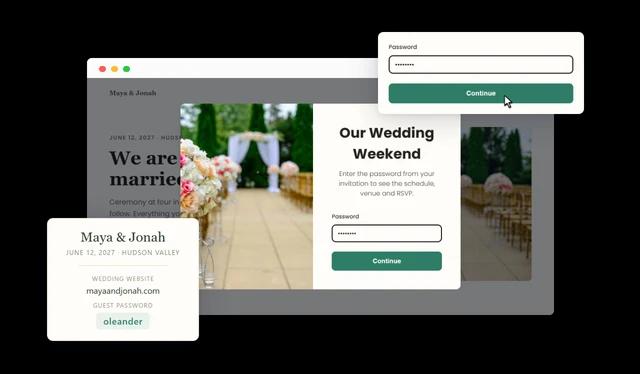
Set one password and share it with the people you invite. Visitors type it into a clean password field and continue, with no sign-up or personal details required.
Ask for a shared password before visitors continue, so a page clearly reads as meant for a particular audience. There are no visitor accounts to manage and no login system to build.
Early looks, surprise announcements, and invite-only pages feel more intentional when guests arrive with a password in hand. It turns a regular link into a small moment of access.
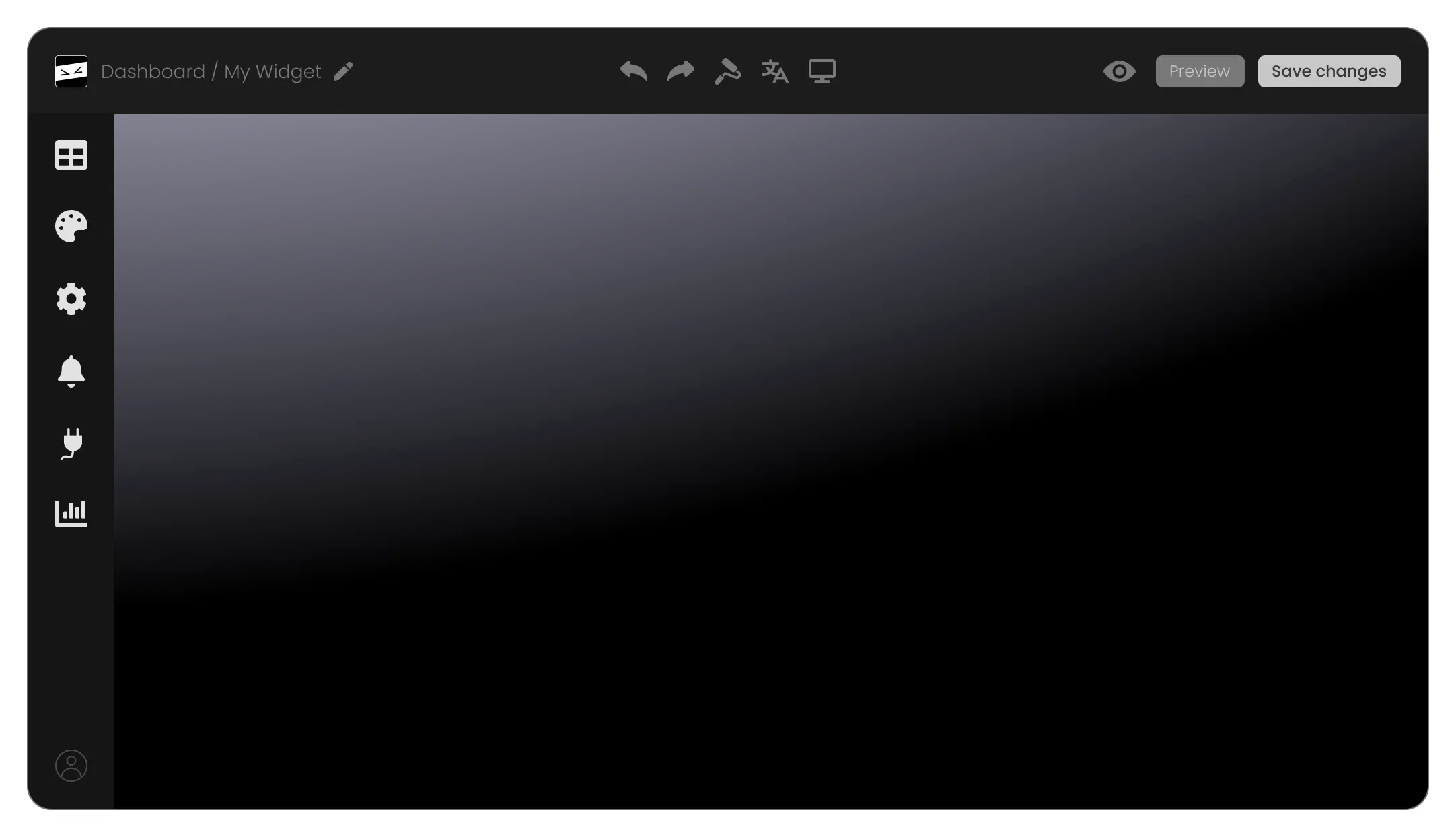
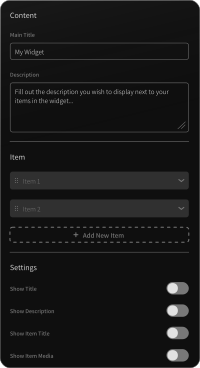
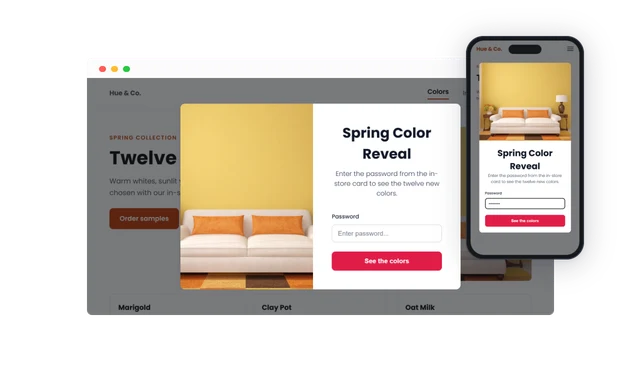
Set the title, message, colors, fonts, layout, and cover image in a visual editor, so the password screen looks like part of your website instead of a generic prompt.
Set one password and share it with the people you invite. Visitors type it into a clean password field and continue, with no sign-up or personal details required.
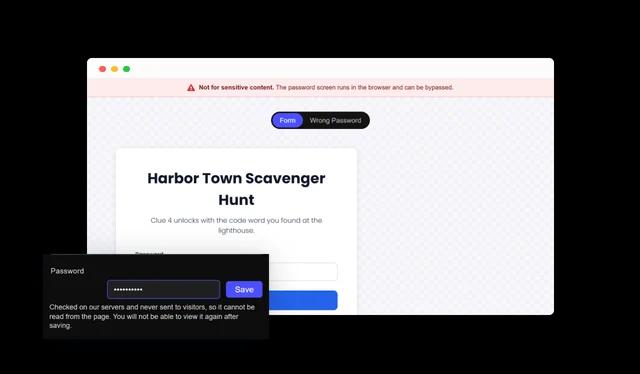
Your password is saved as a secure hash on our servers and never sent to visitors, so it cannot be read from the page code. Once saved, it cannot be viewed again, only replaced. The screen that covers the page still runs in the browser, so keep sensitive content elsewhere.
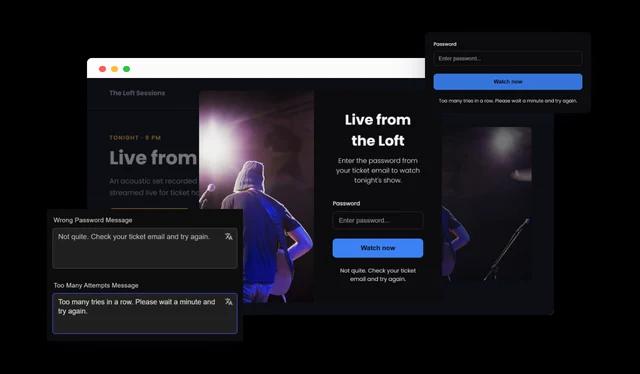
Show your own message when a visitor enters the wrong password, and a separate message when they try too many times in a row. Repeated attempts are slowed down automatically.
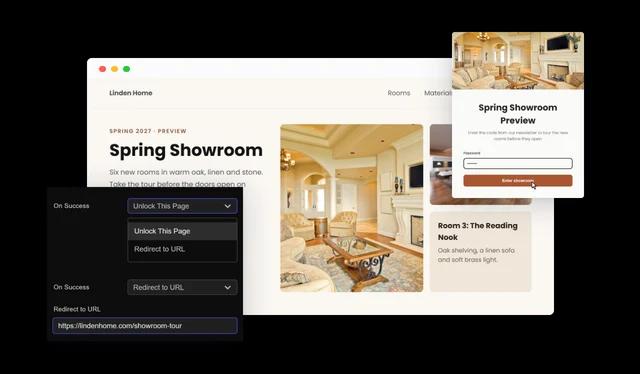
Choose what happens after the right password: close the screen and reveal the page, or send the visitor to another URL. The redirect link is only shared after a correct password, but the destination page itself stays open to anyone who has its address.
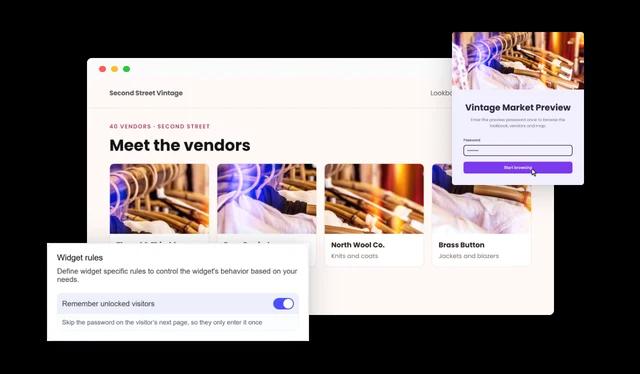
Turn on Remember unlocked visitors so guests enter the password once and skip the screen on the next page they open, instead of typing it again on every visit.
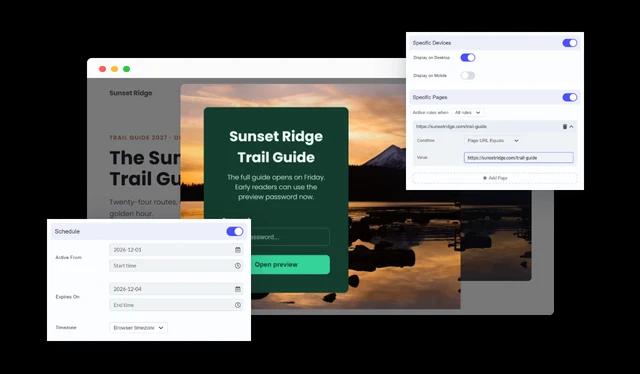
Use display rules to show the password screen only on the pages you choose, only on desktop or mobile, or only during a scheduled period, such as the days before a launch.
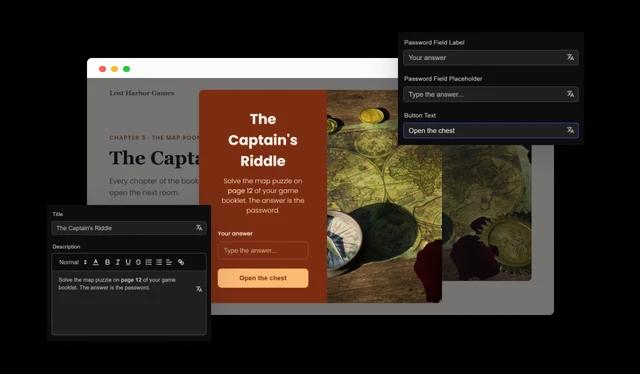
Write your own title and a formatted description that explains why the page is locked and where to find the password. Rename the field label, placeholder, and button to fit your voice.
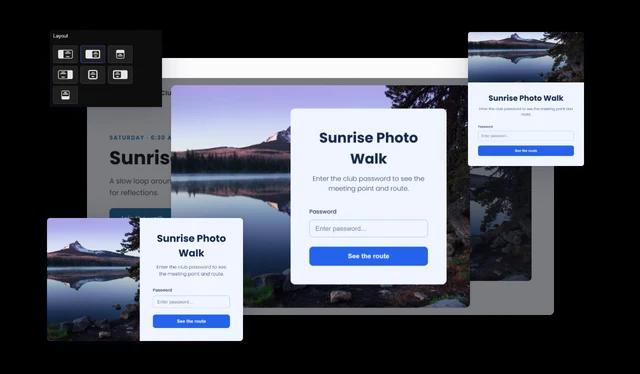
Add a cover image above, below, beside, or behind the form, or keep a simple card without one. Seven layouts let you decide how much space the image and the form each get.
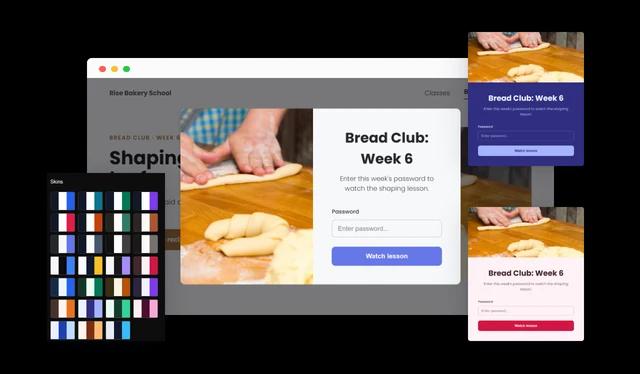
Start from more than 30 ready-made skins, from clean white cards to dark and bold palettes, then fine-tune the card, title, text, field, and button colors and choose your font.
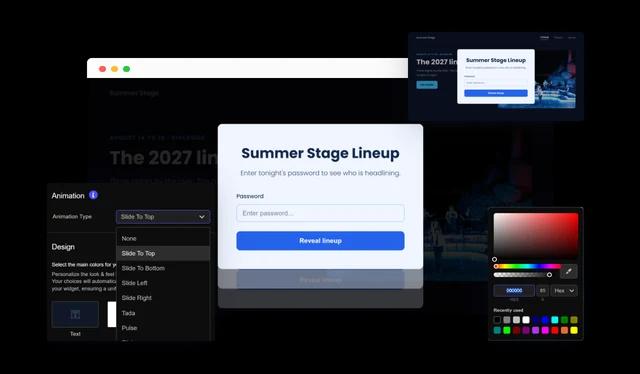
Set how dark the backdrop behind the screen is, adjust the card width, and choose an entrance animation such as fade, slide, scale, or bounce.
The password screen adapts to desktops, tablets, and phones, keeping the field and button easy to tap on small screens.
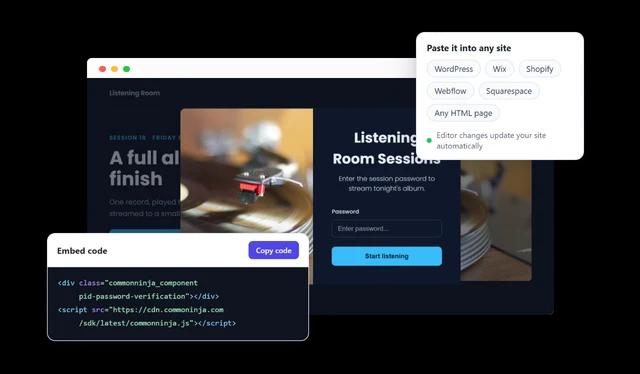
Copy one embed code and paste it into any website, including WordPress, Wix, Shopify, Webflow, and Squarespace. Changes you make in the editor update on your site automatically.
It is a password screen you add to a page on your website. Visitors see your title and message and enter a shared password to continue. It is designed for non-sensitive content such as previews, invitations, campaigns, and activities.
No. It is not for sensitive content. The password screen runs in the browser and can be bypassed. Do not use it to protect confidential documents, personal data, financial information, private business information, or anything that must stay private. For that, use your website platform's built-in password protection or a member login system.
The screen sits on top of a page that has already loaded in the visitor's browser. Someone using the browser's developer tools, turning off JavaScript, or viewing the page source can get past the screen and see what is behind it. Search engines may also index the page content.
No. The password is stored as a secure hash on our servers and checked there, so it is never included in the page. What the screen covers, however, is still part of the page, which is why the widget is only suitable for non-sensitive content.
Early previews of non-confidential drafts, invitation and event pages, surprise announcements, contests and campaigns where visitors discover a code, classroom activities, scavenger hunts, and demos of a password step in a prototype.
No. Everyone uses the same shared password, and visitors do not need to sign up or share any personal details.
They see your wrong password message and can try again. After too many attempts in a row, they see your too many attempts message and need to wait a short time before trying again.
Yes. Set On Success to redirect and enter a URL. The link is only shared with visitors who enter the correct password, but the destination page is not protected, so anyone who has its address can open it directly.
Not if you turn on Remember unlocked visitors in the display rules. Visitors then enter the password once and skip the screen on their next page. With the option off, the screen appears each time the page loads.
Yes. Display rules let you choose specific pages, show the screen only on desktop or only on mobile, and schedule the dates and times it appears.
You can replace it at any time by entering a new password and saving. For security, a saved password cannot be viewed again, so keep a copy of it somewhere safe.
Yes. Choose from seven layouts and more than 30 skins, add a cover image, set the colors of the card, text, field, and button, pick a font, adjust the backdrop and card width, add an entrance animation, or use custom CSS.
Yes. The password screen adapts to phones and tablets, and you can choose to show it only on desktop or only on mobile.
No. You set everything up in a visual editor and add the widget to your website with one embed code.
Yes. It works on WordPress, Wix, Shopify, Webflow, Squarespace, and any other website or CMS that accepts an embed code.