


Verified review
Common Ninja has amazing no-code widgets that would beautify a website built on any builder. It is very easy to use and customise. It has as many widgets for almost everyone willing to make their website impressive.
Try the editor, no signup
Pick a template, customize it, and watch it update live, no signup.
No credit card · Free forever plan
No credit card · Free forever plan
The Common Ninja PDF Flipbook widget is a free, no-code tool that converts any PDF into an interactive flipbook your visitors can page-flip through, zoom into, and navigate with a toolbar.
It doubles as a modern PDF viewer for digital magazines, product catalogs, brochures, annual reports, and ebooks.
Pick a popup or inline layout, customize the cover, and paste one line of embed code on 200+ platforms including Elementor, Joomla, WordPress, Framer, and Squarespace.
A PDF download link gets clicked once, dropped in the Downloads folder, and never opened again. A flipbook embedded on the page gets read inline because the page-flip motion signals interactivity and the toolbar lets visitors zoom, navigate, and share without leaving the site.
Publications use flipbooks for the issue archive. E-commerce sites use them for seasonal lookbooks and product catalogs. Service businesses use them for annual reports and capability decks. Same widget, different content. The page-flip interaction signals the format visitors expect.
Most site builders only offer a basic embed-PDF block that scrolls vertically and looks like a downloaded document. A flipbook viewer renders the same PDF with page-flip animation, zoom, thumbnail navigation, share controls, and a branded cover. Useful on any site that already embeds PDFs but wants a richer reading experience.
Nonprofits and corporates publish annual reports as PDFs that look like documents instead of publications. A flipbook reframes them as something visitors actually want to flip through. Educators embed ebooks and course material with page-by-page navigation that respects the original layout.
Drag a PDF into the editor or paste a remote URL. The widget converts each page into a flippable spread within seconds, preserving fonts, images, vector graphics, and embedded links. There is no file-count or page-count cap on the free plan beyond the standard monthly view limit.
Upload or select a cover image so the flipbook loads instantly with a branded preview before the full PDF streams in. Toggle toolbar controls (page thumbnails, zoom, fullscreen, download, sound, share) on or off per use case. A magazine wants page-thumbnails, a catalog wants share-to-WhatsApp.
Copy the embed snippet and drop it into your site. Pick popup-launch (open from a button or link) or inline-embed (render in a page section). Future PDF replacements push live without a re-publish, so swapping next month's catalog is a single upload in the dashboard.
Pages turn with weight and easing that match the feel of flipping a physical book. Left and right corners are draggable, the page bends and settles, and the toolbar tracks current page out of total. No third-party plugins or Flash leftovers.
Inline embeds the flipbook directly in the page section, ideal for magazines, catalogs, and reports where the content IS the page. Popup launches the flipbook from a button or link with a darkened backdrop, ideal for resource-library pages or downloads sections where you list multiple flipbooks.
A 4MB PDF takes time to stream. The widget shows your custom cover image instantly while the PDF loads in the background, so visitors see a branded preview within a second instead of a blank box and a spinner.
Visitors can zoom into a product photo, jump to a specific page via thumbnails, expand to fullscreen for a desk-screen read, or share the current page via link. Toggle any of these on or off depending on whether you want a casual flip-through or a precise navigation experience.
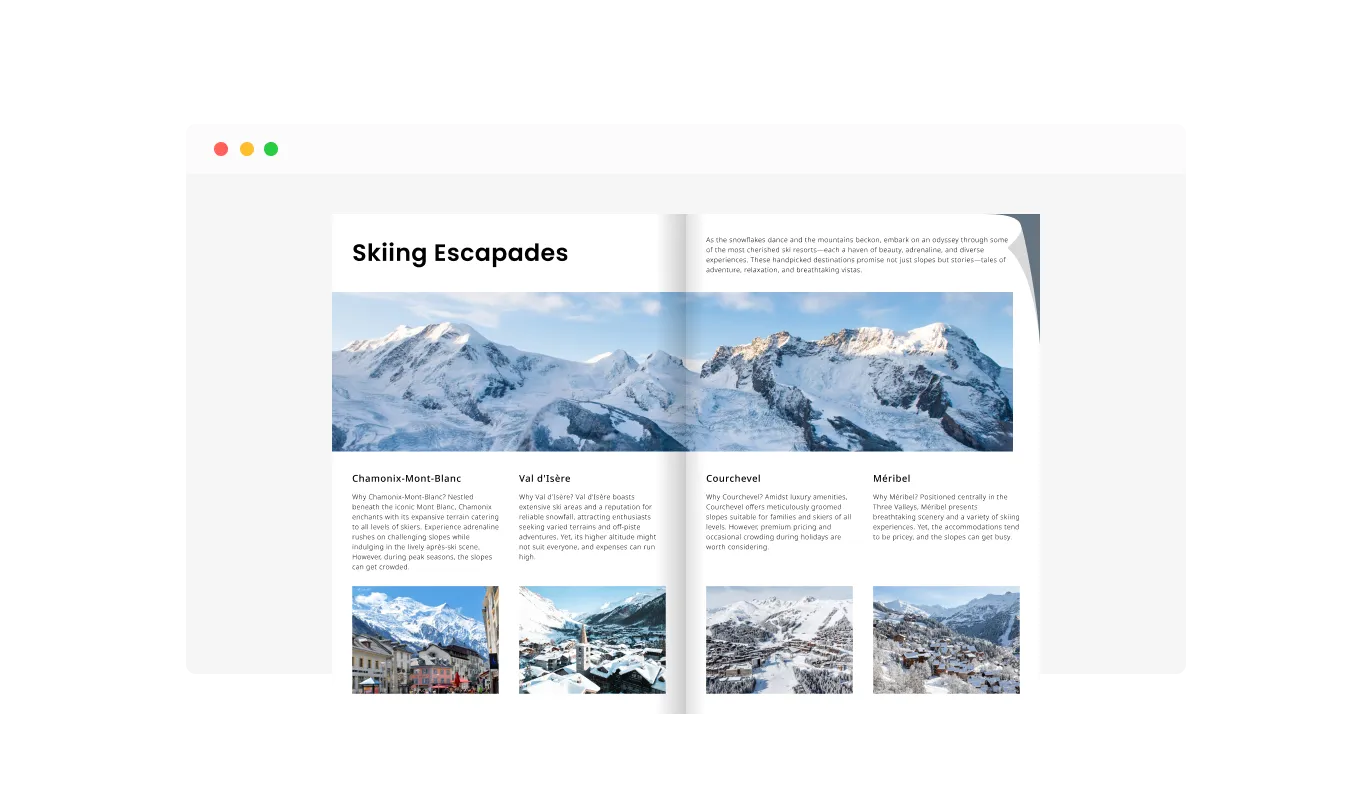
The PDF Flipbook widget offers a true-to-life book-reading experience, complete with realistic page-flipping animations and sound effects. This feature immerses users in a familiar and enjoyable reading journey, replicating the tactile sensation and visual appeal of flipping through a physical book. It enhances the user's interaction with digital content, making it not just informative but also delightfully engaging.
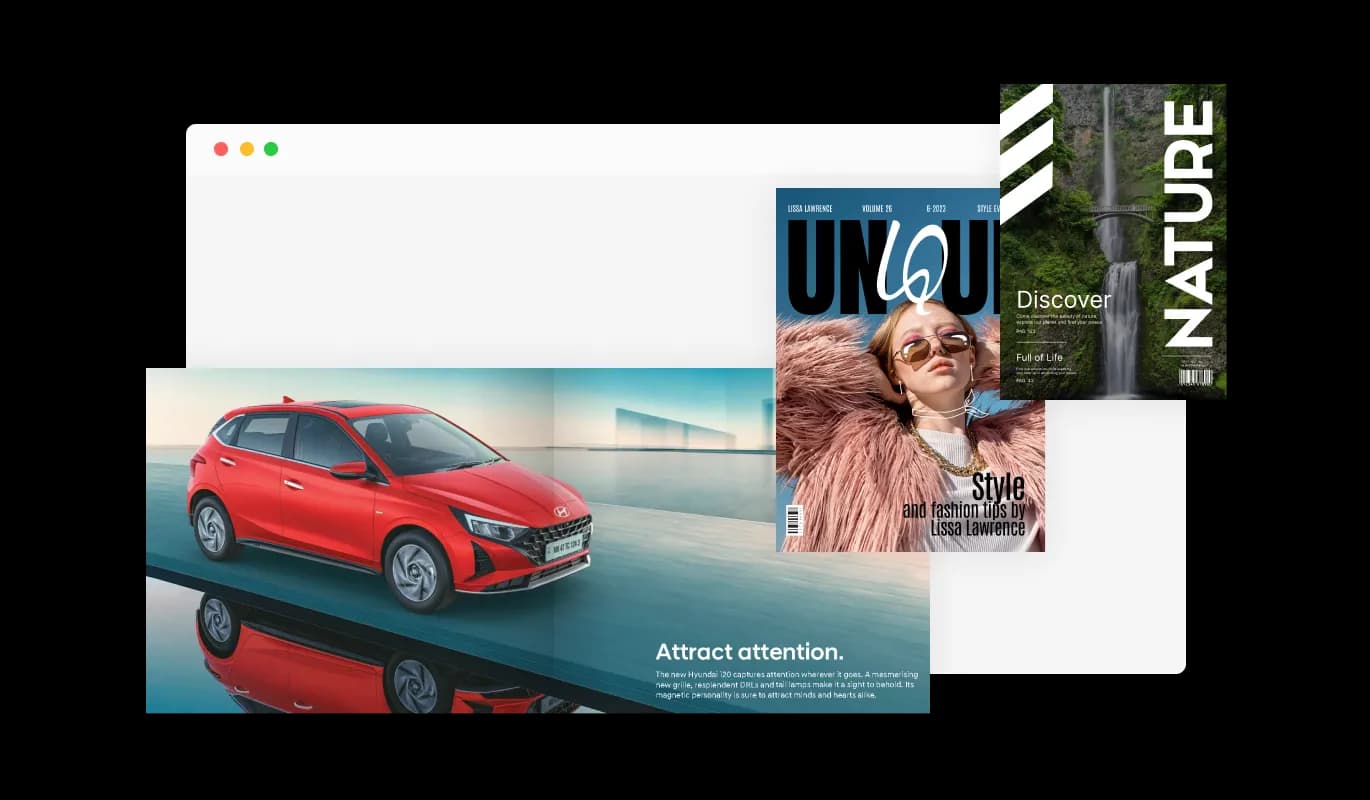
The PDF Flipbook widget provides two distinct layout methods for displaying your content: popup and inline. You have the flexibility to choose whether your PDF opens in a popup window for focused reading, or inline within the webpage for seamless integration. This adaptability ensures that the presentation of your digital flipbook aligns perfectly with your website's design and user experience preferences.
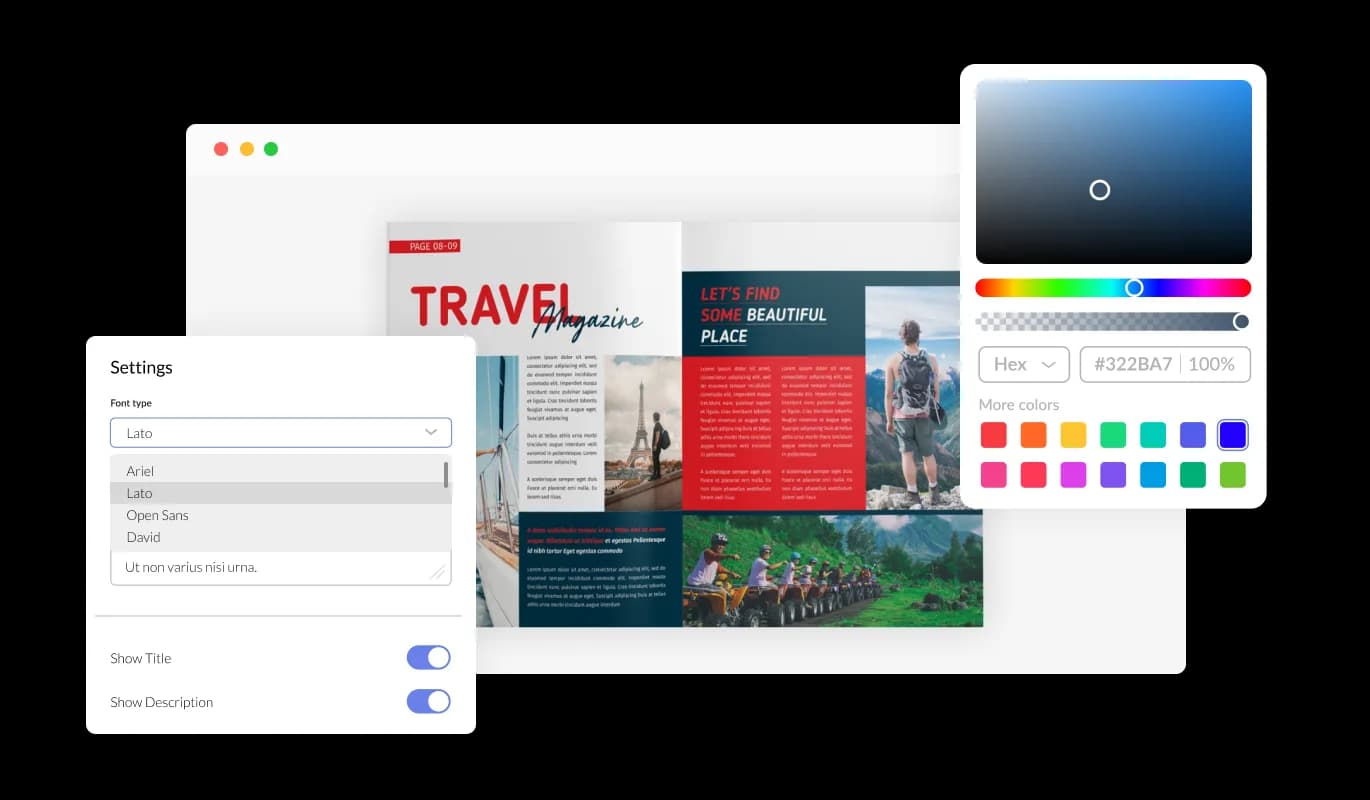
Enjoy extensive customization capabilities with the PDF Flipbook widget. Alter design elements like colors, fonts, and spacing to tailor the flipbook to your site's unique style. This flexibility allows for a personalized and distinct presentation of your digital content.
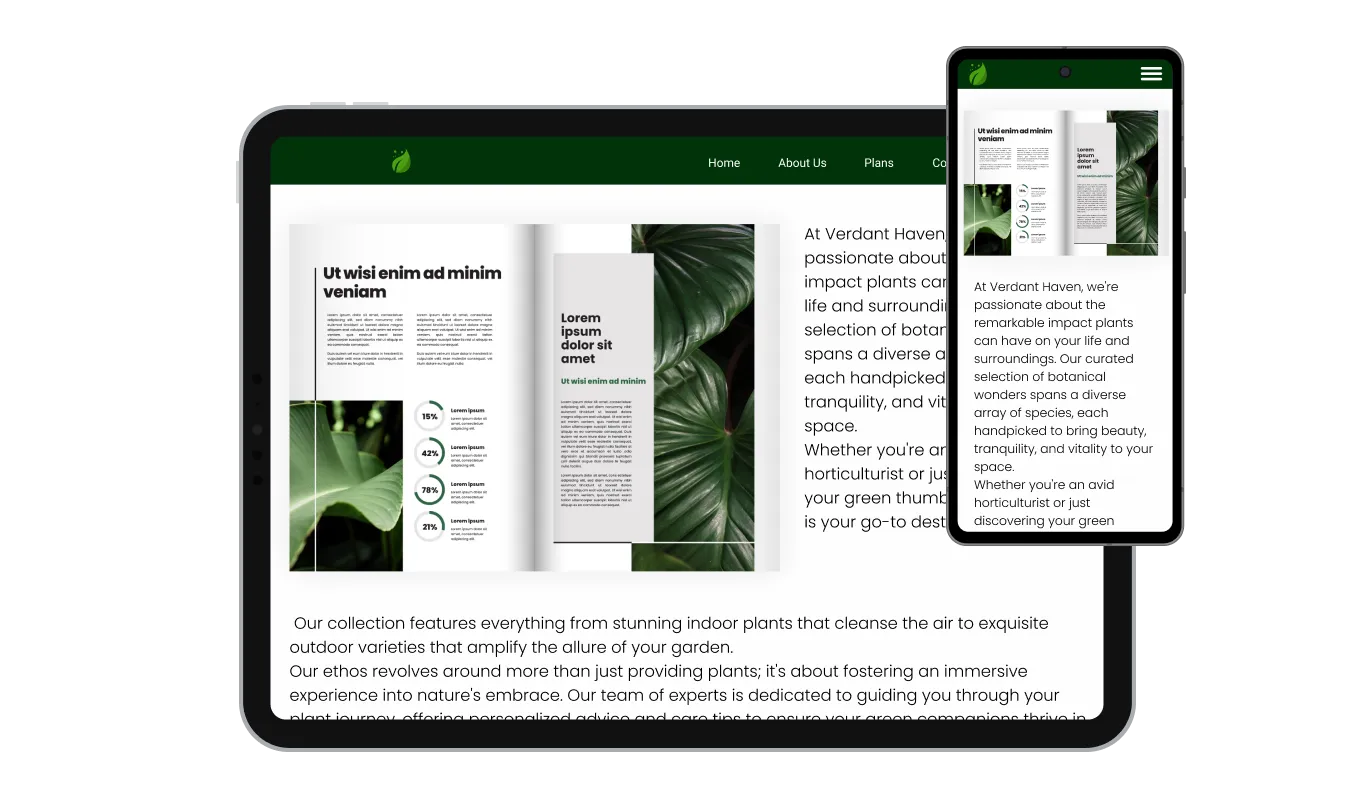
The PDF Flipbook widget is fully responsive, ensuring it looks and functions beautifully on any device. This feature is crucial for a consistent and optimal user experience across desktops, tablets, and smartphones.

The PDF Flipbook widget supports custom CSS, allowing for advanced customization. This feature is ideal for those who want to apply a unique creative touch, ensuring the flipbook perfectly aligns with your website's style and interaction requirements.

Embedding the PDF Flipbook on your website is straightforward, involving just a single line of code. The widget updates automatically with each change you make, simplifying maintenance and ensuring your website always displays the latest version without extra effort.
The PDF Flipbook widget allows you to upload your own cover image, adding a personalized touch to your digital publications. This customization not only enhances the visual appeal but also optimizes loading times, ensuring your flipbook opens quickly and smoothly for every user. This feature strikes the perfect balance between personalization and performance efficiency.
The PDF Flipbook widget includes a highly useful toolbar equipped with various controls to improve the user's reading experience. This toolbar allows users to easily navigate between pages, jump to the start or end of the document, zoom in and out for better readability, and even open the PDF in a new tab for expanded viewing. Additionally, it provides the option to download the PDF, offering greater accessibility and convenience. This array of controls makes interacting with the PDF Flipbook both intuitive and efficient.
Designed for ease of use, the PDF Flipbook widget requires no coding skills for customization. Its intuitive interface lets you effortlessly modify and integrate the flipbook into your website, making it accessible to users of varying technical backgrounds.
The drag-and-drop editor takes about 3 minutes to learn. Upload your PDF, customize the cover and toolbar, and paste one line of embed code. No design tools, no PDF editor, no developer required.
Common Ninja has amazing no-code widgets that would beautify a website built on any builder. It is very easy to use and customise. It has as many widgets for almost everyone willing to make their website impressive.
Outstanding service. I use their widgets to help me with my web design business and whenever I need help they are very quick to help.
Excellent company with excellent service!!! We used it to build a survey, it was very user friendly. The service was perfect. Amit helped us with every problem and question we had, thank you very much!!!
Common Ninja saved the day when building our website and the customer service Daniel, the co-founder and CEO, provided was amazing.
Yes. The free plan covers one PDF Flipbook widget with no time limit, no credit card, and no trial countdown. Upgrade only when you need additional widgets, premium skins, or higher monthly view limits.
Both. The widget renders any PDF with page-flip animation, zoom, thumbnail navigation, fullscreen, and share controls, which covers everything a modern PDF viewer does plus the flipbook feel. Sites that want a richer PDF viewer (digital magazines, annual reports, catalogs, brochures, ebooks) get the upgrade without changing their PDF source files.
Upload the PDF into the editor or paste a remote URL. The widget converts each page into a flippable spread within seconds, preserving fonts, images, vector graphics, and embedded links. No separate conversion tool, no manual page-by-page export, no Flash or 3D plugin required.
Yes. Joomla has the largest community demand for a flipbook viewer (the widget ranks for `joomla pdf viewer`, `flipbook joomla`, and `joomla flipbook extension`). In Joomla, edit the article or module, add a Custom HTML or Embed block, paste the Common Ninja embed snippet, and save. The flipbook is live without a third-party Joomla extension.
Yes. In Elementor, drag an HTML widget onto the page where you want the flipbook, paste the Common Ninja embed snippet, and update. The widget renders in the live preview and works on Elementor Free and Elementor Pro without a separate Elementor flipbook addon.
Both. Popup launches the flipbook from a button or link with a darkened backdrop, ideal for resource-library pages with multiple flipbooks. Inline renders the flipbook directly in the page section, ideal for the magazine or catalog hero where the flipbook is the content. Switch in one click in the editor.
Yes. The conversion preserves the original PDF's fonts, vector graphics, and embedded hyperlinks. Visitors can click a link in the flipbook and it opens like a normal link, rather than the click-being-stolen experience some PDF viewers default to.
Yes. Upload a custom cover image so the flipbook loads with a branded preview before the PDF streams in. Pick from multiple built-in skins for the toolbar and page background, then tune colors, fonts, and spacing. For deeper customization, use the Custom CSS field to override any visual property.
Pick your platform. Each takes under 4 minutes.
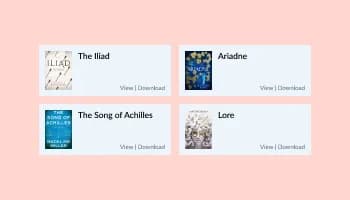
Let users view and navigate PDF files directly on your website

Showcases images in a rotating or sliding manner

Displays images and captions in diverse layouts and grids, presenting visually appealing arrangements for showcasing multiple images

Showcases videos from various sources in a variety of visually appealing layouts and grids

An audio player compatible with various files and sources
Displays multiple logos in a scrolling or rotating manner
The PDF Flipbook widget is a tool that converts PDF files into interactive, digital flipbooks, enhancing the user experience on your website with realistic page-turning effects.
Yes, the widget offers extensive customization options, including various design skins and the ability to alter colors, fonts, and layout, to match your website’s aesthetics.
Absolutely, the widget is designed to be fully responsive, ensuring a seamless experience across all devices, including smartphones and tablets.
Embedding is easy and requires just a single line of code. The widget also automatically updates on your site whenever you make changes.
Yes, the widget allows you to upload a custom cover image, adding a personalized touch and helping the flipbook load faster.
For optimal performance, it’s recommended to use PDF files of reasonable size, but the widget can handle most PDF files efficiently.
Yes, there’s an option to include a download button, allowing users to easily download the PDF.
Yes, users can view the flipbook in full-screen mode for an immersive reading experience.
Yes, you can integrate tools like Google Analytics and Mixpanel with the PDF Flipbook to track user engagement and usage analytics. This integration enables you to gain valuable insights into how users interact with the flipbook on your website, helping you to understand and enhance user experience.
Yes, you can embed multiple instances of the PDF Flipbook widget on a single website.
The zoom feature allows users to magnify pages for easier reading, enhancing the overall usability of the flipbook.
Yes, the widget can include realistic page-flipping sound effects for an authentic book-reading experience.
Currently, the widget offers a standard realistic page-flipping style that simulates a natural reading experience.
Updates are managed by Common Ninja, ensuring the widget remains up-to-date with the latest features and improvements.
Yes, Common Ninja offers technical support to assist with any issues or queries you may have regarding the widget.
Works on 200+ platforms including Elementor, Joomla, WordPress, Framer, and Squarespace.
Create your PDF flipbookNo credit card · Setup in under 3 minutes