How to add PDF Flipbook to a FunnelCockpit website

Learn how to embed Common Ninja’s PDF Flipbook on your FunnelCockpit website without coding.

Create a PDF Flipbook

loved by 500K+ businesses

widget-editor

In This Guide

In this quick guide, you'll learn how to embed the PDF Flipbook into your FunnelCockpit website by generating your embed code and adding it seamlessly to your website.

Embed PDF Flipbook on FunnelCockpit
01
Create a PDF Flipbook widget for FunnelCockpit on Common Ninja
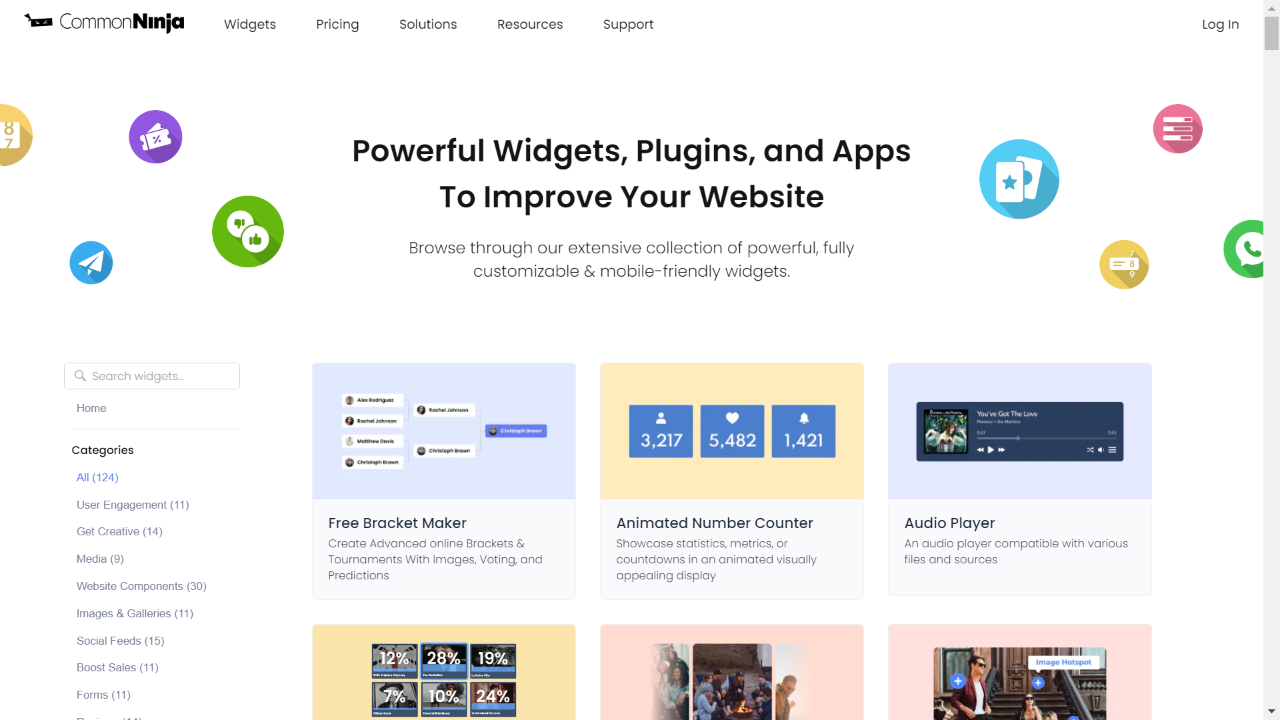
First, create a FunnelCockpit PDF Flipbook widget on Common Ninja. On the widgets catalog, find the PDF Flipbook and enter the Editor.
Create a PDF Flipbook widget for FunnelCockpit on Common Ninja
02
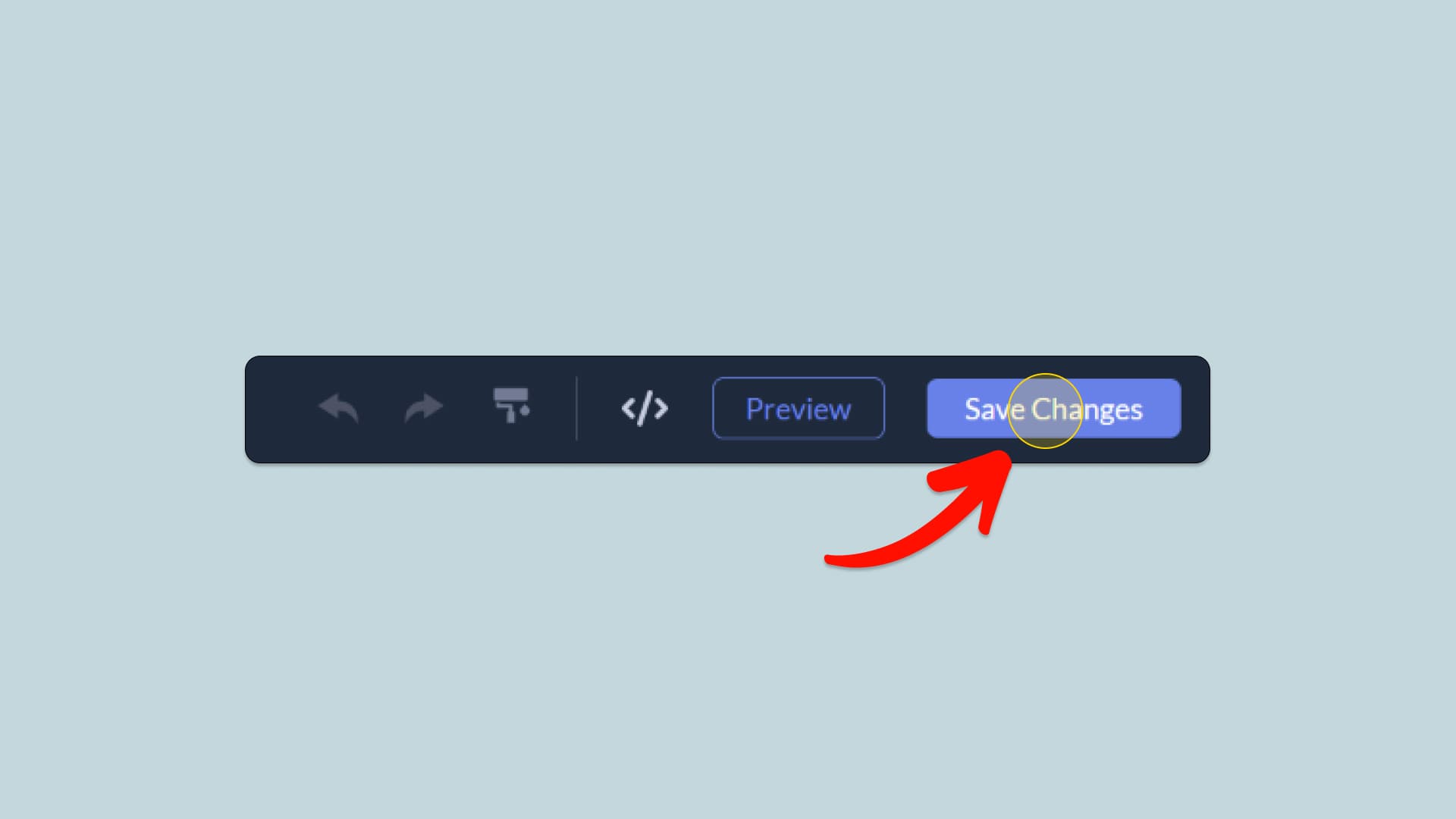
Save the PDF Flipbook widget
When you're done creating the PDF Flipbook widget, click on the Save Changes button at the right top corner of the editor. If you don't have an account on Common Ninja, you'll have to register first.
Save the PDF Flipbook widget
03
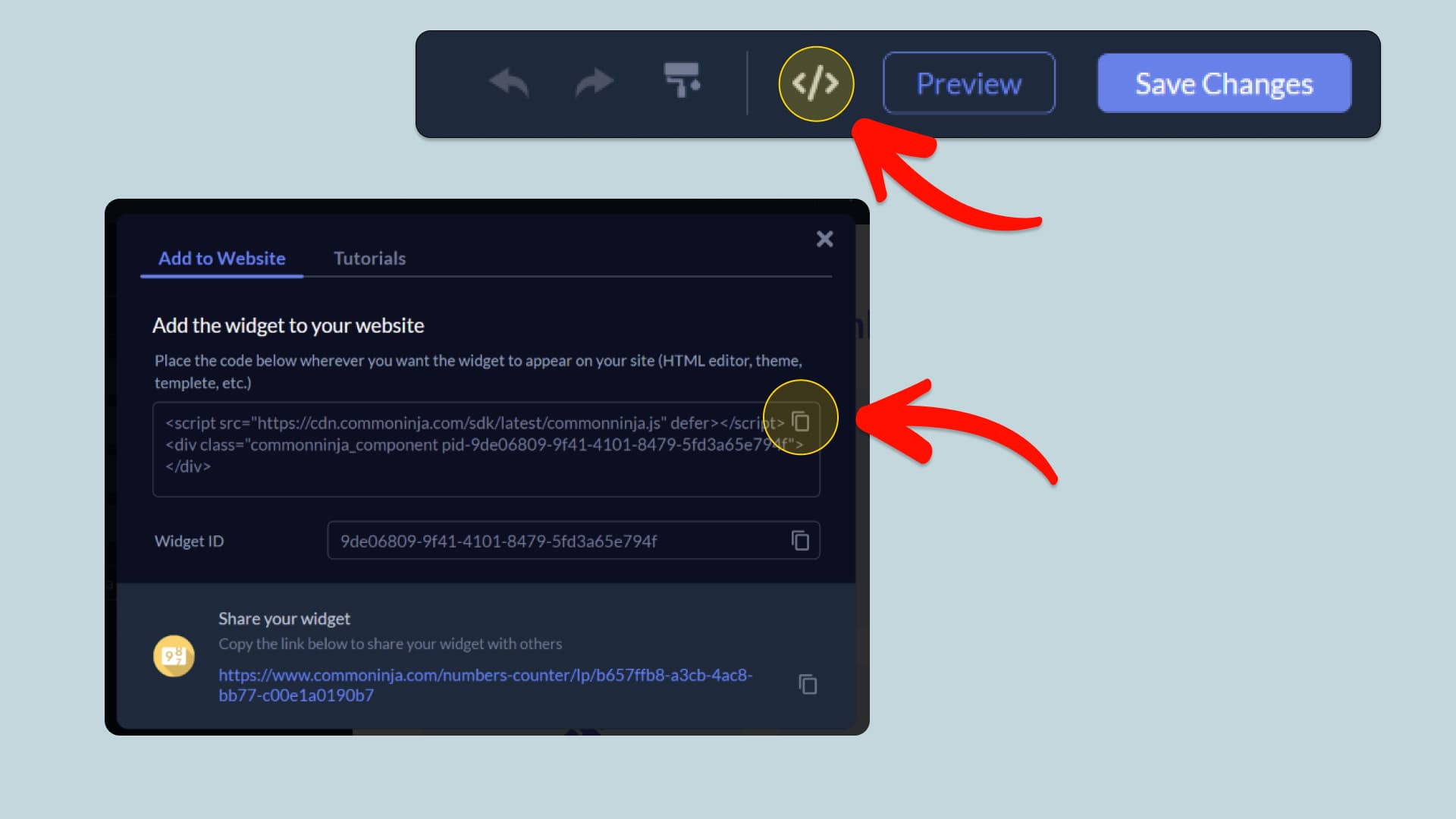
Copy the PDF Flipbook Embed Code
When you're ready to add the PDF Flipbook widget to your FunnelCockpit website, click the Add To Website button at the top bar of the Editor. On the window that opens, click the Copy Icon to copy the widget embed code. In the next steps, you will paste this code into your FunnelCockpit website.
Copy the PDF Flipbook Embed Code
04
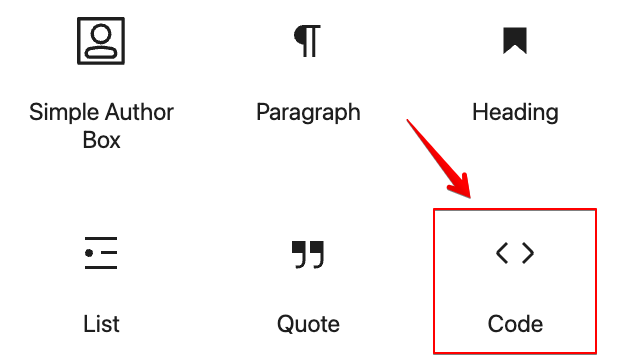
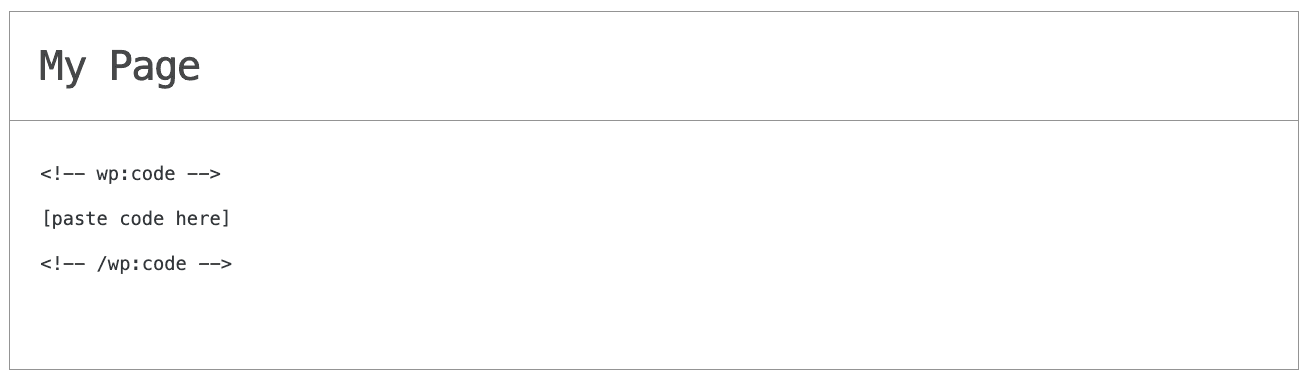
Paste the code to your FunnelCockpit website’s HTML field.
Next, go to your FunnelCockpit website editor and find the HTML field. It is most likely in the form of an HTML/Code widget or module which you can find on the FunnelCockpit’s editor. Add it to your page, and paste the PDF Flipbook Embed Code you’ve copied before to the HTML field. Save and update, and that’s it, you should have Common Ninja’s PDF Flipbook widget on your FunnelCockpit website.
Paste the code to your FunnelCockpit website’s HTML field.
05
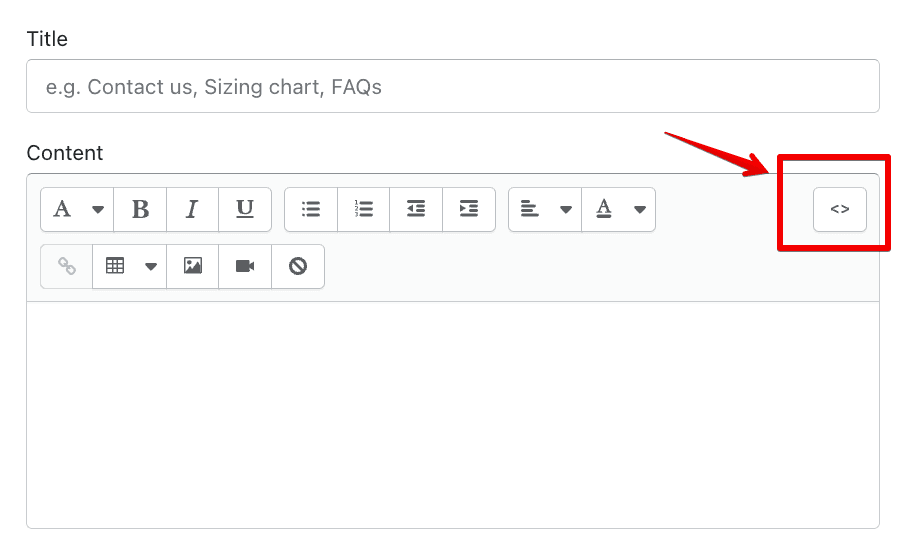
Alternative Method 1: Through the HTML option in the text’s editing area.
If you can't find the HTML/Code widget or module, there's another way to put Common Ninja’s PDF Flipbook widget on your FunnelCockpit widget. You can just add the code to a special HTML section in the text editor.
Alternative Method 1: Through the HTML option in the text’s editing area.
06
Alternative Method 2: Add it directly to your FunnelCockpit website’s HTML code.
If you're having trouble finding a widget or a special part in your text editor where you can add the Embed Code, you can try a different way to add the PDF Flipbook widget to your FunnelCockpit website. You can do this by putting it straight into your FunnelCockpit website's HTML code.
Alternative Method 2: Add it directly to your FunnelCockpit website’s HTML code.

Why Use This Widget

Use the PDF Flipbook widget when you have long form documents that you want visitors to experience like real publications rather than raw files. Instead of downloading static PDFs, users can flip through pages interactively inside your site. This is ideal for catalogs, magazines, brochures, lookbooks, and detailed reports. The flipbook format feels more polished and keeps people engaged while still preserving all the content you prepared in PDF form. It also avoids breaking the journey by opening new tabs or external viewers. You gain a richer reading experience without having to redesign the material from scratch.

This tutorial was written by the Common Ninja product team, creators of interactive, no-code widgets for FunnelCockpit website. Common Ninja helps over 500,000 users build engaging online experiences without coding.