How to add Process to a Odoo website

Learn how to embed Common Ninja’s Process on your Odoo website without coding.

Create Process

loved by 500K+ businesses

widget-editor

In This Guide

In this quick guide, you'll learn how to embed the Process into your Odoo website by generating your embed code and adding it seamlessly to your website.

Embed Process on Odoo

01
Create a Process widget for Odoo on Common Ninja
First, create a Odoo Process widget on Common Ninja. On the widgets catalog, find the Process and enter the Editor.
Create a Process widget for Odoo on Common Ninja
02
Save the Process widget
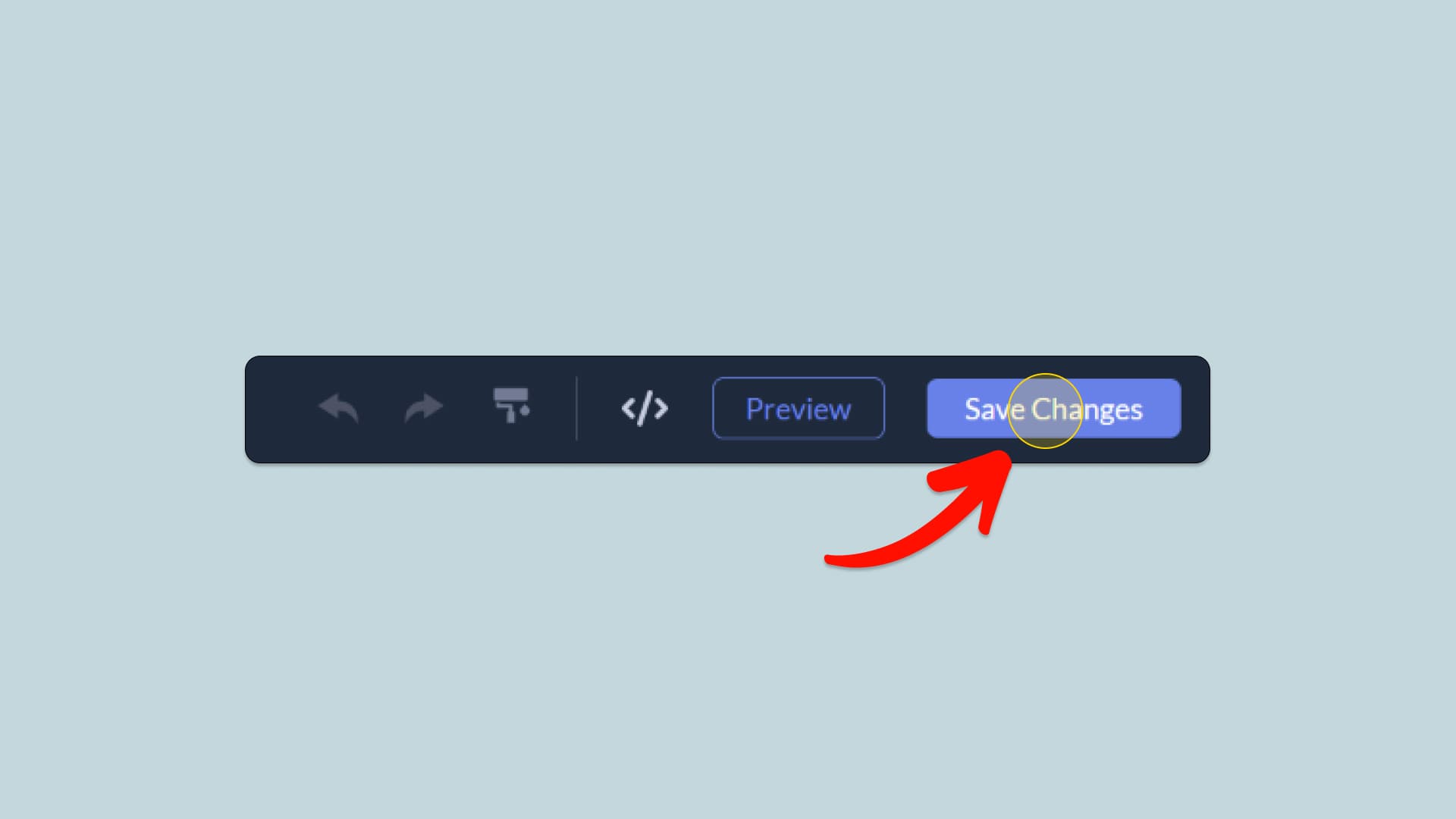
When you're done creating the Process widget, click on the Save Changes button at the right top corner of the editor. If you don't have an account on Common Ninja, you'll have to register first.
Save the Process widget
03
Copy the Process Embed Code
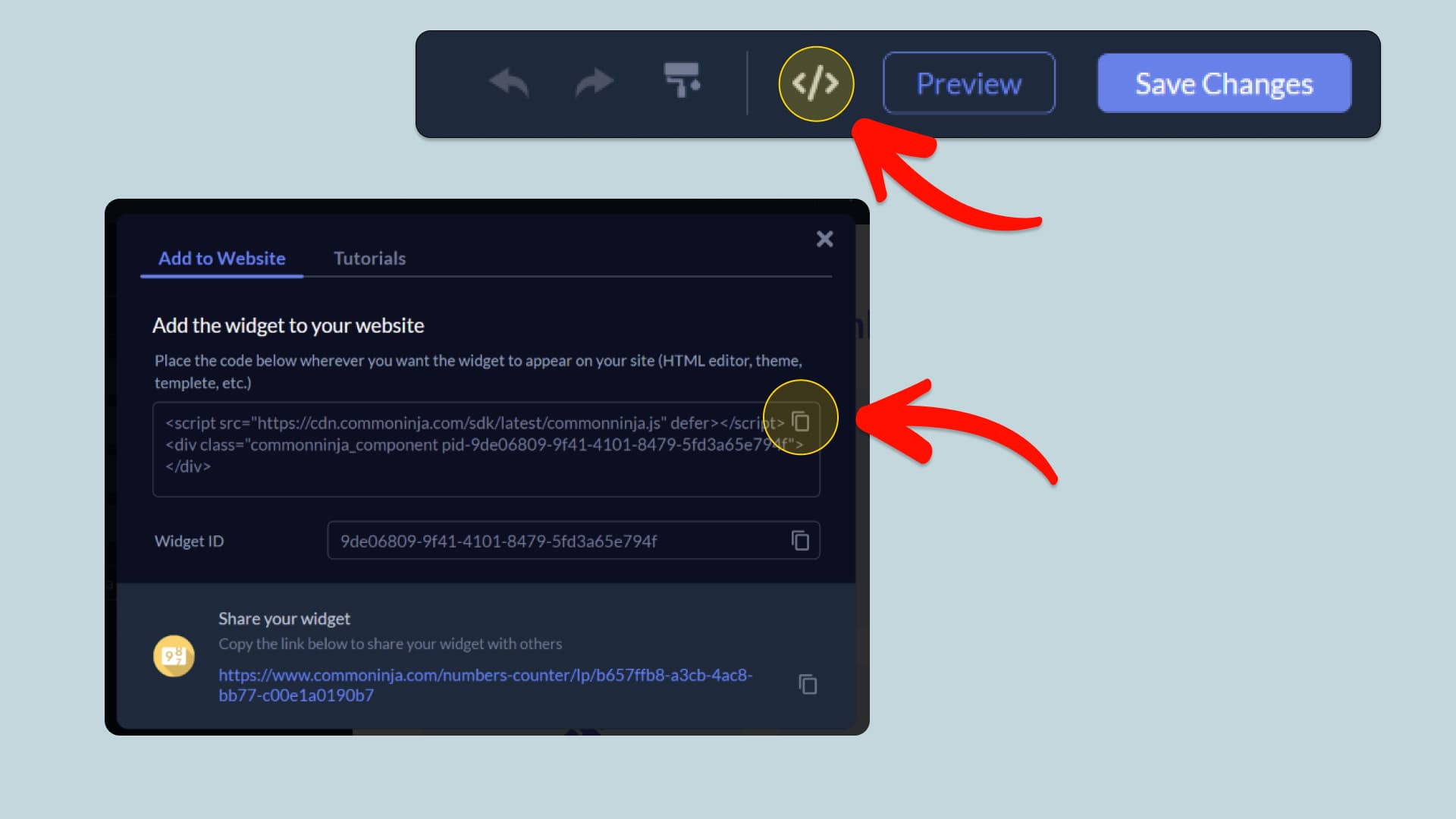
When you're ready to add the Process widget to your Odoo website, click the Add To Website button at the top bar of the Editor. On the window that opens, click the Copy Icon to copy the widget embed code. In the next steps, you will paste this code into your Odoo website.
Copy the Process Embed Code
04
Paste the code to your Odoo website’s HTML field.
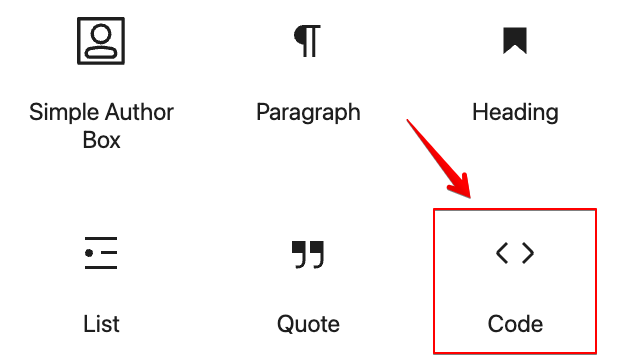
Next, go to your Odoo website editor and find the HTML field. It is most likely in the form of an HTML/Code widget or module which you can find on the Odoo’s editor. Add it to your page, and paste the Process Embed Code you’ve copied before to the HTML field. Save and update, and that’s it, you should have Common Ninja’s Process widget on your Odoo website.
Paste the code to your Odoo website’s HTML field.
05
Alternative Method 1: Through the HTML option in the text’s editing area.
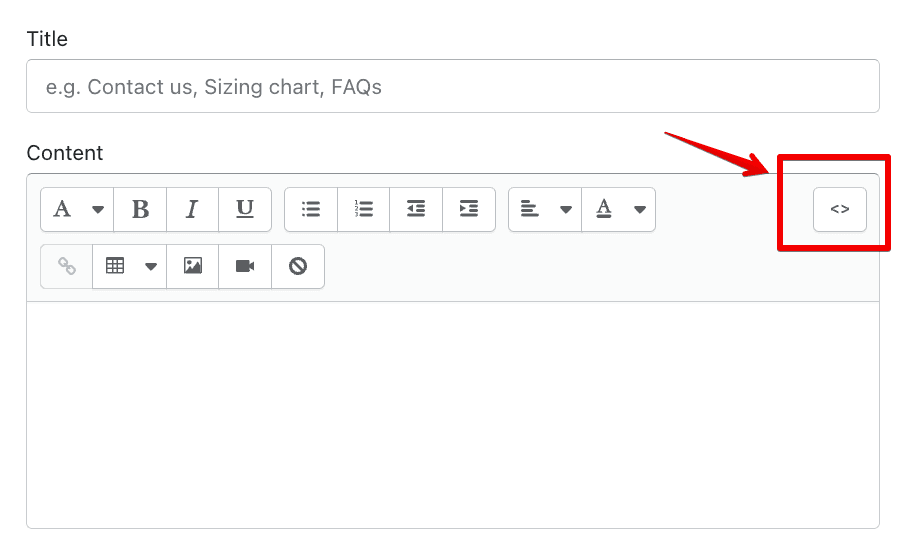
If you can't find the HTML/Code widget or module, there's another way to put Common Ninja’s Process widget on your Odoo widget. You can just add the code to a special HTML section in the text editor.
Alternative Method 1: Through the HTML option in the text’s editing area.
06
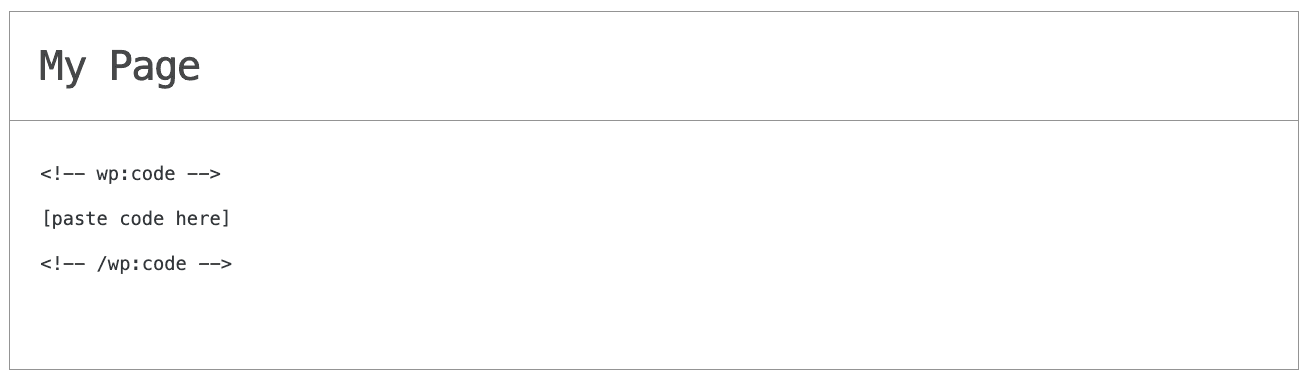
Alternative Method 2: Add it directly to your Odoo website’s HTML code.
If you're having trouble finding a widget or a special part in your text editor where you can add the Embed Code, you can try a different way to add the Process widget to your Odoo website. You can do this by putting it straight into your Odoo website's HTML code.
Alternative Method 2: Add it directly to your Odoo website’s HTML code.

Why Use This Widget

Use the Process widget when you need to explain how something works in a way that feels approachable and structured. By breaking a task or workflow into sequential steps with icons, titles, and descriptions, you help visitors understand what will happen if they start. This is effective for onboarding, services, application flows, delivery procedures, and complex offerings that might otherwise feel intimidating. A clear process section reduces uncertainty, sets expectations, and makes your solution feel more manageable. It also helps teams stay aligned on the story they tell, since the steps are defined visually in one place. Visitors can quickly see that you have a method rather than a vague promise.

This tutorial was written by the Common Ninja product team, creators of interactive, no-code widgets for Odoo website. Common Ninja helps over 500,000 users build engaging online experiences without coding.