


Verified review
Common Ninja has amazing no-code widgets that would beautify a website built on any builder. It is very easy to use and customise. It has as many widgets for almost everyone willing to make their website impressive.
Try the editor, no signup
Pick a template, customize it, and watch it update live, no signup.
No credit card · Free forever plan
No credit card · Free forever plan
The Common Ninja Progress Bars widget is a free, no-code animated progress bar tool for any website.
Build fundraising thermometers, project trackers, goal meters, skill bars, year-progress displays, and Notion-embedded progress widgets.
Add multiple bars in one widget, pick from multiple layouts and skins, customize the fill animation, and paste one line of embed code on 200+ platforms including Notion, Webflow, Canva, Squarespace, and WordPress.
Show how close a campaign is to its goal with a live progress bar visitors can see at a glance. Charity drives, school fundraisers, GoFundMe-style campaigns, and crowdfunding pages all convert better when visitors see the goal, the current total, and the gap between them in a single visual.
Publish a public roadmap with a bar per workstream, share project status on a client portal, or display sprint completion on an internal dashboard. Multiple bars in one widget mean an entire program rolls up into one block instead of a screen full of separate widgets.
Designers, developers, and freelancers use skill bars on portfolio pages to communicate fluency in tools and languages at a glance. A row of labeled bars beats a paragraph of self-description for a visitor skimming a hero section to decide whether to keep scrolling.
Notion users embed progress bars on dashboards to show year-elapsed, quarter-elapsed, or sprint-elapsed at a glance. Drop the widget into a Notion page and visitors see exactly how far through the period the team is, without doing the math in their head.
Start with a single bar (a fundraising goal, a project completion percentage) or add multiple bars in one widget to display several metrics side by side. Each bar gets its own label, current value, and target.
Choose from multiple layouts and a library of skins in the editor. Switch between horizontal bars, stacked bars, or grouped bars depending on whether you want to spotlight one metric or compare several. Pick the skin closest to your brand and customize from there.
Tune colors, fonts, spacing, the fill animation, and (optionally) custom CSS. Copy the embed snippet and paste it where the bars should render. Once embedded, any update you make in the dashboard reflects automatically the next time the page loads.
Add as many progress bars as the page needs inside a single widget block. Track a project with bars per workstream, a roadmap with bars per quarter, or a skills section with bars per tool. One embed snippet, one place to update, the whole set updates together.
Bars fill in with a gentle animation when they enter the viewport. The motion draws attention without being noisy, and visitors who scroll past on autopilot notice the bar moving and stop to read the label.
Pick from horizontal bars, stacked bars, and grouped bars in the layout selector. Switch the skin in one click for a different look without re-entering your data. The same bar values flow into whichever combo you pick.
Set colors per bar, pick from web fonts, tune the spacing, and optionally write custom CSS for the advanced cases. Tone the entire widget to match your brand palette without leaving the editor.
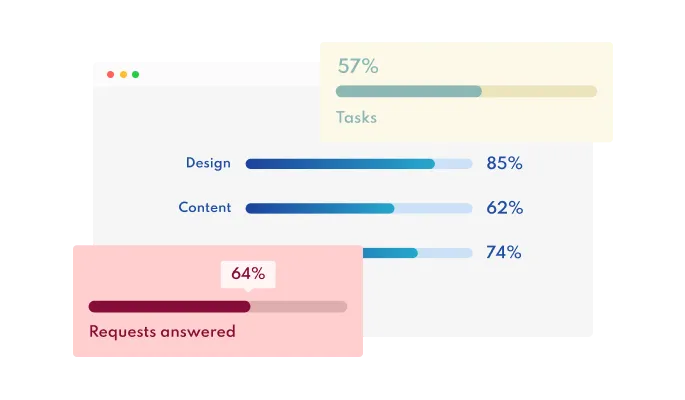
The Animated Progress Bars widget comes available with multiple layouts that you can choose from to fit your website’s design & style.
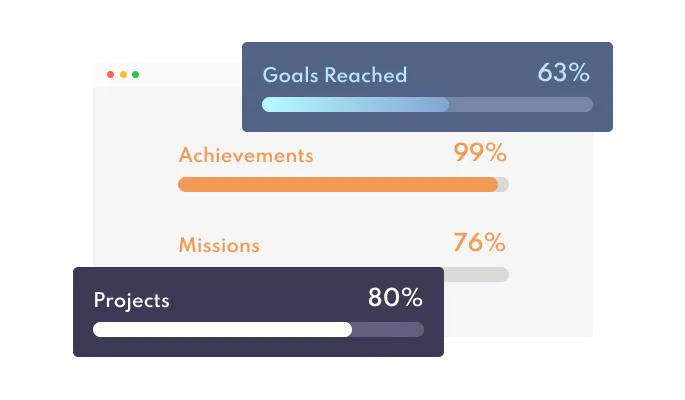
The Progress Bars widget comes with a variety of beautiful skins that you can choose from so you don’t have to spend much time on extensive customization.
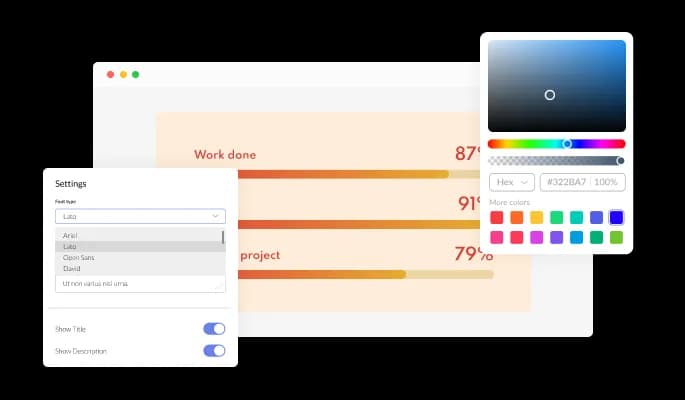
The Horizontal Progress Bars widget features full customization options so you can edit the design to fit your needs. Change the colors, the fonts, the spacing, and anything else!
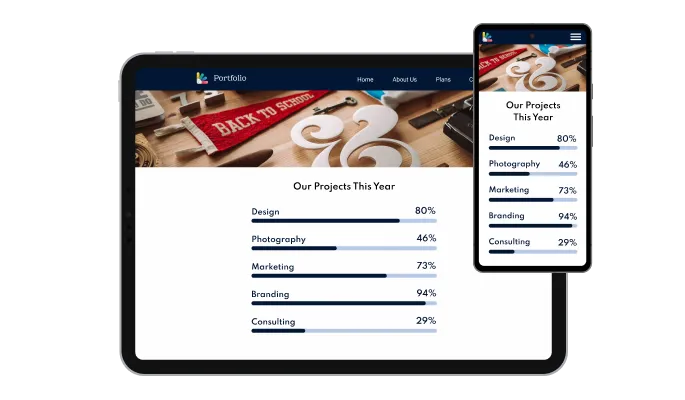
The Progress Bars widget is fully responsive and will look great on any device. In a mobile-first world, this feature will put you ahead of your competitors.

As with all of Common Ninja’s widgets, you can add custom CSS to customize the Animated Progress Bars widget and be even more creative.

You can easily embed the widget on your website by copying a single line of code. The Progress Bar widget will also be updated automatically with every change you make.
The Progress Bar widget enables you to add multiple progress bars to show the progress of various projects and other relevant topics.
The Horizontal Progress Bar widget features a gentle “filling up” animation showing the progress more vividly and visually attractively.
The Horizontal Progress Bars widget is easy to use and requires no coding knowledge. Our intuitive dashboard with the drag-and-drop feature will enable you to customize the widget any way you’d like to with just a few simple clicks.
Common Ninja has amazing no-code widgets that would beautify a website built on any builder. It is very easy to use and customise. It has as many widgets for almost everyone willing to make their website impressive.
Outstanding service. I use their widgets to help me with my web design business and whenever I need help they are very quick to help.
Excellent company with excellent service!!! We used it to build a survey, it was very user friendly. The service was perfect.
Common Ninja saved the day when building our website and the customer service Daniel, the co-founder and CEO, provided was amazing.
Yes. The free plan covers one Progress Bars widget with no time limit, no credit card, and no trial countdown. Add as many bars as the page needs inside one widget on the free plan. Upgrade only when you need additional widgets, premium skins, or higher monthly view limits.
Yes. Set a goal value, set the current raised amount, and the bar fills to the matching percentage with a smooth animation. Update the current value in the dashboard whenever new donations come in; the bar reflects the new total the next time a visitor loads the page. Works for charity drives, school fundraisers, crowdfunding campaigns, and team or community goal trackers.
Yes. Set the bar's goal value to 100 and the current value to the percentage of the period that has elapsed (or set raw days, weeks, or hours, whichever fits). Notion dashboards commonly use this pattern to show year-elapsed at a glance; the same setup works for quarter-elapsed, sprint-elapsed, or campaign-elapsed views.
A progress bar that displays a value (a fundraising total, a project percentage, a skill level). It is not a page-loading spinner or a file-upload progress indicator; those need a custom front-end script tied to your page or upload state, not an embedded widget. If you need to visualize a stored value, this is the right widget.
Yes. Add as many bars as the page needs inside one widget block. Each bar has its own label, current value, and target. One embed snippet, one place to update, the whole set animates together when visitors scroll the section into view.
Yes. The widget ships with a gentle fill animation by default; the editor lets you toggle the animation on or off and tune its behavior. Pair the animation with a viewport trigger so the bars fill in when visitors first see the section, instead of replaying on every scroll.
Copy the Common Ninja embed link from the dashboard. In Notion, paste the link on the page where you want the bar and choose Create Embed from the menu that appears. Resize the embed block to the height the bar needs. The progress bar runs inline on the Notion page (including on a public-shared page) and respects every layout and animation setting you configured.
In the Webflow designer, drag an Embed element onto the page where you want the bar. Paste the Common Ninja embed snippet into the Embed code field and click Save. Publish the site. The bar renders inline and refreshes automatically as you edit it in the Common Ninja dashboard.
200+ platforms including Notion, Webflow, Canva, Squarespace, WordPress, Wix, Shopify, Carrd, Framer, Tilda, Google Sites, Elementor, Divi, Bubble, Blogger, Ghost, Joomla, and any custom HTML page that accepts an embed snippet.
Pick your platform. Each takes under 4 minutes.
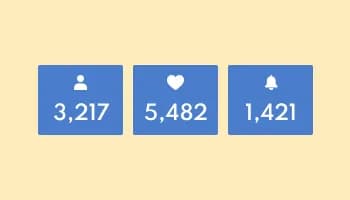
Showcase statistics, metrics, or countdowns in an animated visually appealing display
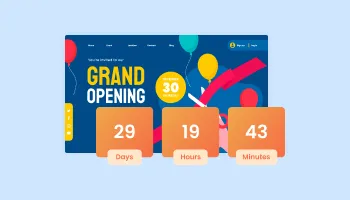
Displays a timer counting down to a specific date or event
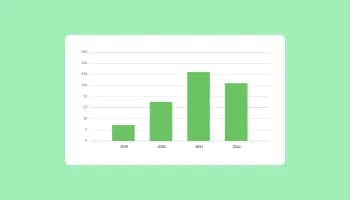
Visualize data and information using various chart types, including bar, pie, and line graphs, and more
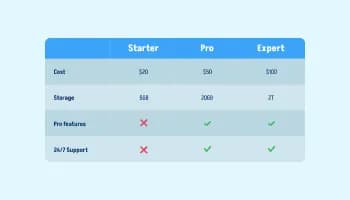
Displays data or features side-by-side, allowing users to compare and contrast the information easily
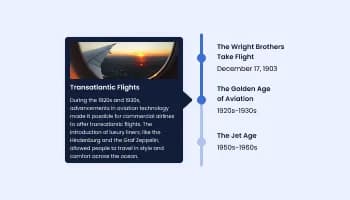
Show events or important moments in the order they occurred, using pictures and text
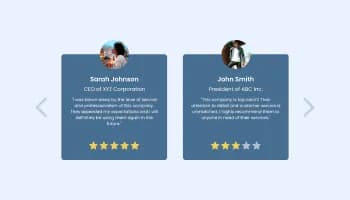
Showcase customer testimonials using a rotating slider
Yes, there are four layouts available for the Progress Bars, of which you can choose the one that best fits your website’s needs.
Yes, you can easily do so from the “Look & Feel” tab.
Using the Progress Bar widget is very easy. Simply sign up and start using the free version. There's no need to worry about complicated setup or installation processes, as the Progress Bar widget is designed to be user-friendly and straightforward. Once you've signed up, you'll have access to all of the basic features and functions of the widget, which you can use to enhance your website and improve your online presence. From there, you can choose to upgrade to the paid version if you want to access more advanced features and capabilities. Regardless of which version you choose, you'll find that the widget is a powerful and easy-to-use tool that can help you take your online presence to the next level.
The Common Ninja Progress Bar widget is a free tool reach with features and options. While this widget is free to use, it does have a limit on the number of views it can handle. This means that after a certain number of views, the chat button may no longer be visible or functional on your website. It is important to note that this view limit may vary depending on your plan. Despite this limitation, Common Ninja's Progress Bar is still a valuable tool for businesses looking to increase customer engagement and improve the overall user experience of their website.
The Common Ninja's Progress Bar widget is a versatile tool for any website builder. This means that you can easily add this widget to your website or store no matter what platform you use to build your website. The Progress Bar widget will work seamlessly with your platform whether you are using a popular website builder or something more specialized. This means you can enjoy all the benefits of this powerful tool without having to worry about compatibility issues.
The Progress Bar widget is designed to comply with the General Data Protection Regulation (GDPR), a set of EU regulations protecting personal data and privacy. When using the Progress Bar widget, you can be confident that it will not collect or store personal data that could violate GDPR regulations. This ensures that your business is in compliance with these regulations and can protect your customers' data privacy. Overall, the Progress Bar widget is a secure and reliable tool that can be used to enhance your website without any concerns about GDPR compliance.
No need for coding skills. Our Progress Bar widget is designed to be easy to use, even for those with limited technical experience. The widget features a user-friendly interface that allows you to easily customize the widget without coding knowledge. You can fully customize the Progress Bar to match your branding. When you're done, simply copy the provided code and paste it into your website. It's that simple!
Yes. We are eager to hear your request. Please visit our Feature Request page.
A progress bars widget is a tool that displays the progress of a task or process in the form of a visual bar. The bar typically starts empty and gradually fills up as the task or process progresses, providing a clear and visual indication of how much has been completed.
Progress bars are often used to display the progress of a task or project or the progress of a goal or target. They can be helpful in keeping users informed and engaged and can also help provide a sense of accomplishment or motivation.
Progress bars can be customized in a variety of ways, including the length, width, and color of the bar, as well as the text and graphics displayed alongside the bar. They can be displayed as static or animated bars that move or change as the task or process progresses.
A progress bars widget can be a useful and effective tool for providing information and feedback to users on the progress of tasks or processes on your website.
Yes, a progress bar widget can improve your website's user experience (UX). Here are a few ways progress bars can improve UX:
Progress bars can help improve your website's UX by providing users feedback, time estimation, engagement, and goal setting.
There are several benefits to displaying progress bars on your website:
Embedding the Progress Bar widget on your website is a straightforward process. Simply copy the provided code and paste it into the desired location on your website. The widget will seamlessly integrate into your site, allowing you to take advantage of its features and functions. No technical expertise or programming knowledge is required - just copy and paste the code to get started. This simple process allows you to easily add the widget to your website and enhance its functionality without any hassle.
Animated progress bars for fundraising thermometers, project trackers, goal meters, skill bars, and year-progress displays. Works on 200+ platforms including Notion, Webflow, Canva, Squarespace, and WordPress.
Create your progress barNo credit card · Setup in under 5 minutes