How to add Quiz Maker to a CMS Max store

Learn how to embed Common Ninja’s Quiz Maker on your CMS Max store without coding.

Create a Quiz

loved by 500K+ businesses

widget-editor

In This Guide

In this quick guide, you'll learn how to embed the Quiz Maker into your CMS Max store by generating your embed code and adding it seamlessly to your store.

Embed Quiz Maker on CMS Max
01
Create a Quiz Maker add-on for CMS Max on Common Ninja
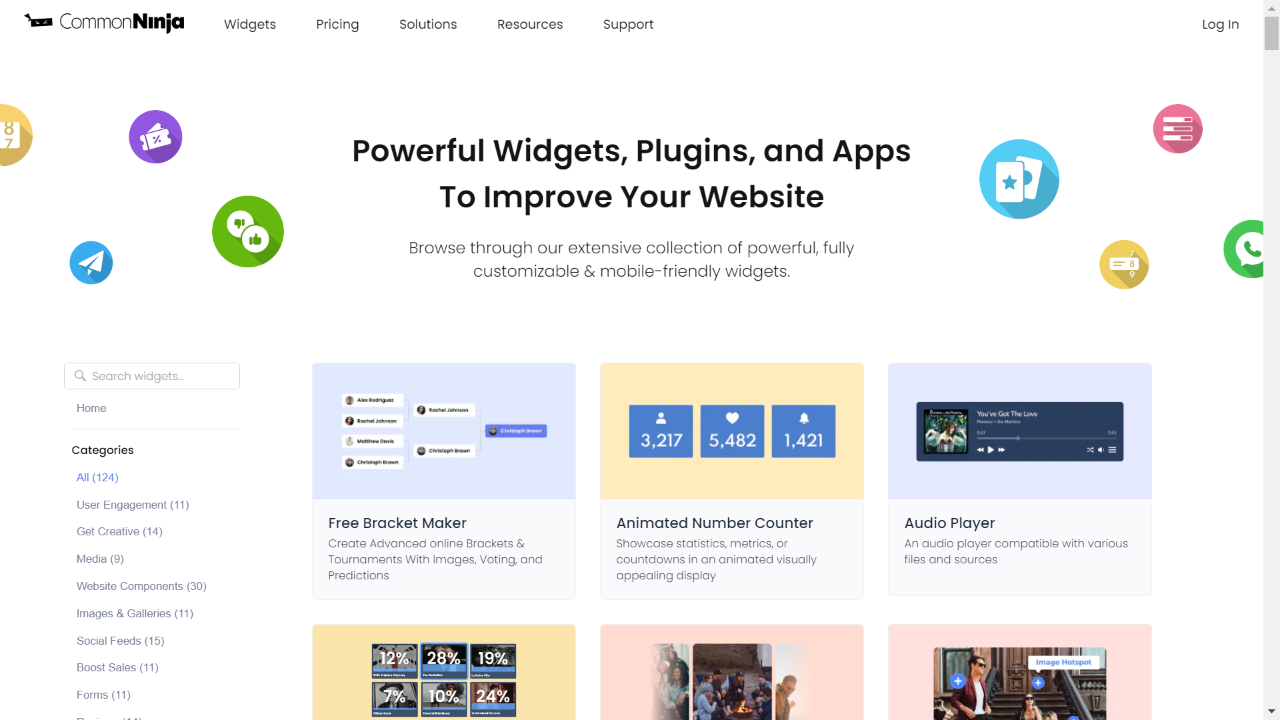
First, create a CMS Max Quiz Maker add-on on Common Ninja. On the add-ons catalog, find the Quiz Maker and enter the Editor.
Create a Quiz Maker add-on for CMS Max on Common Ninja
02
Save the Quiz Maker add-on
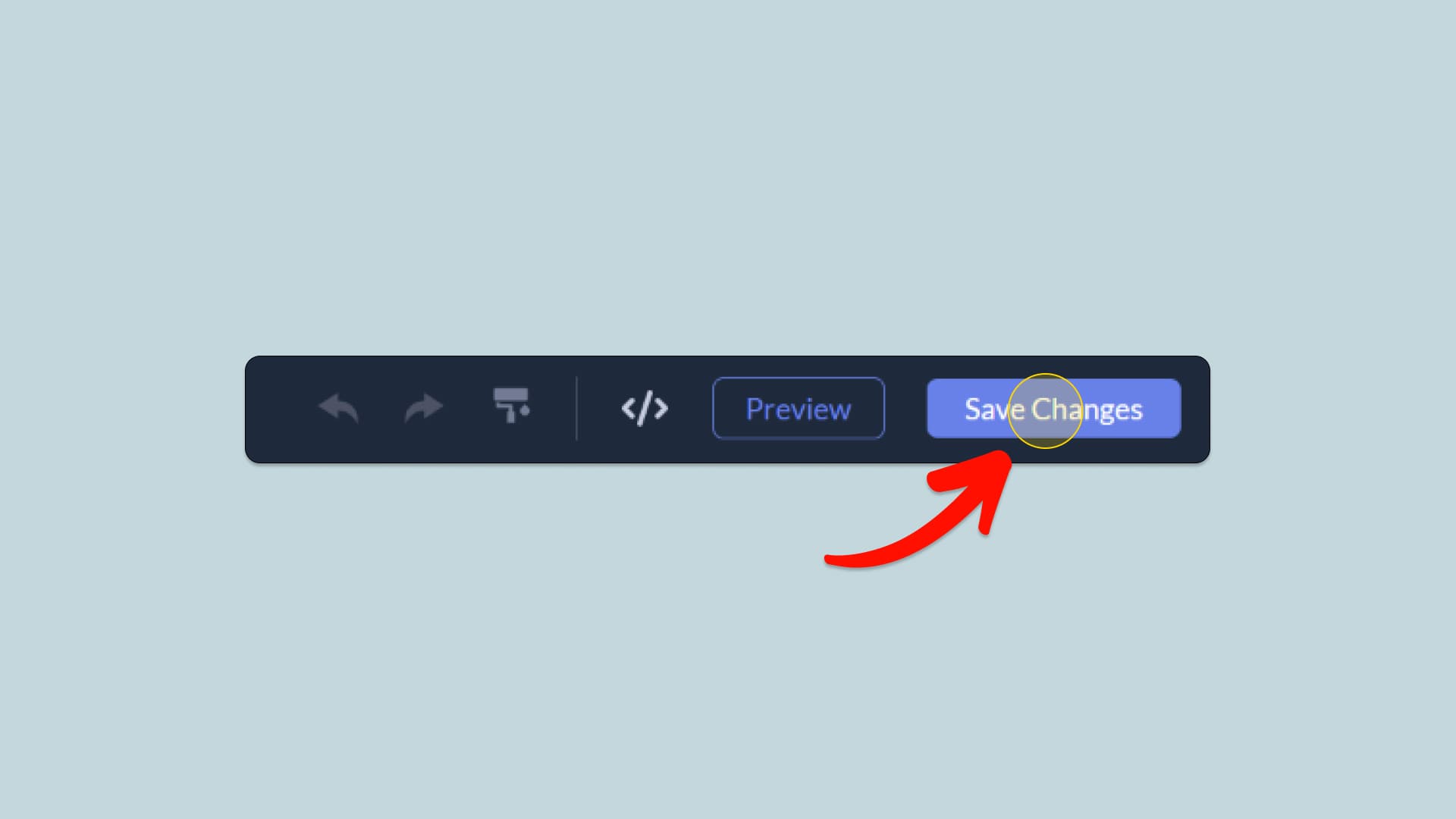
When you're done creating the Quiz Maker add-on, click on the Save Changes button at the right top corner of the editor. If you don't have an account on Common Ninja, you'll have to register first.
Save the Quiz Maker add-on
03
Copy the Quiz Maker Embed Code
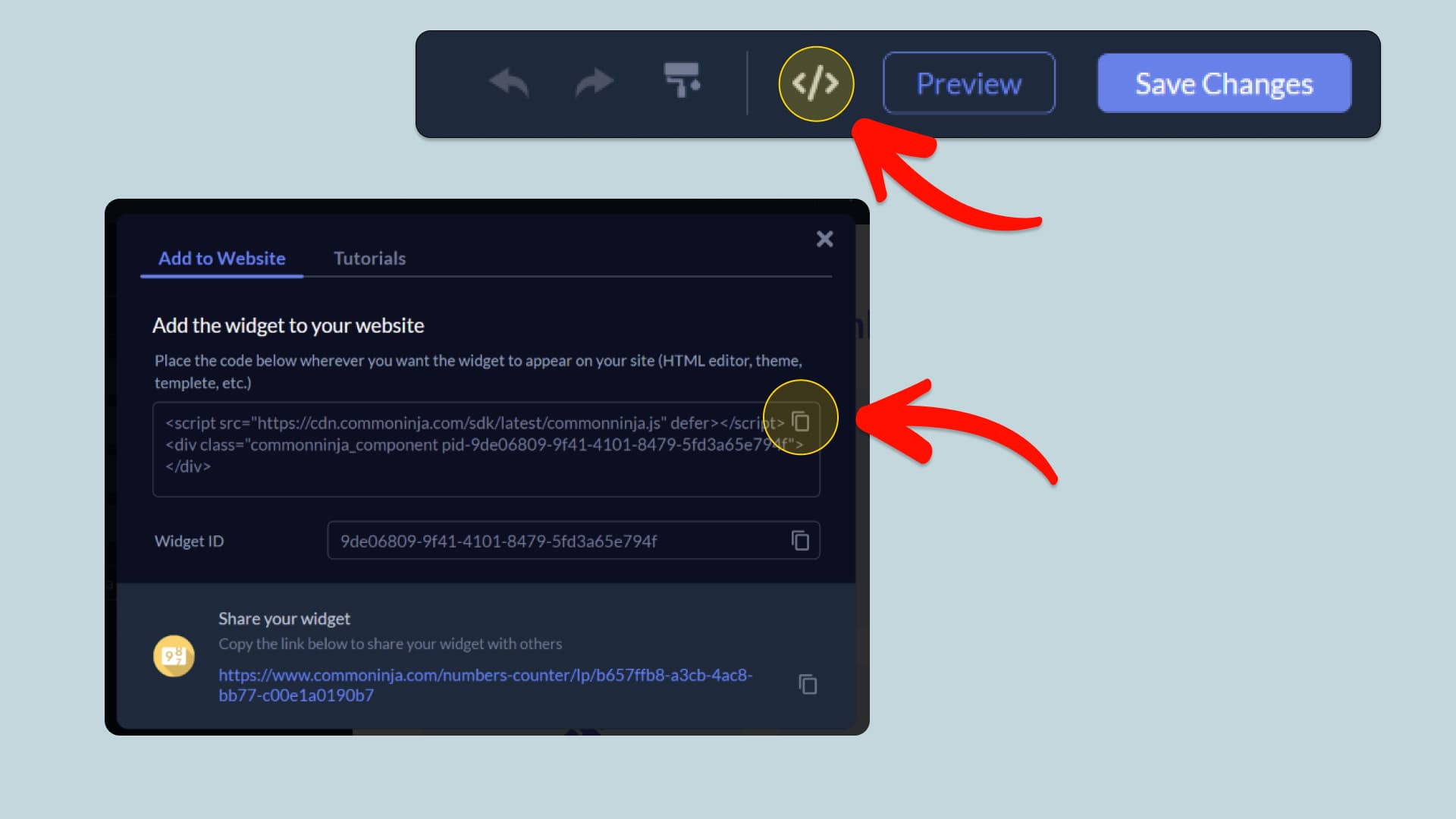
When you're ready to add the Quiz Maker add-on to your CMS Max store, click the Add To Website button at the top bar of the Editor. On the window that opens, click the Copy Icon to copy the add-on embed code. In the next steps, you will paste this code into your CMS Max store.
Copy the Quiz Maker Embed Code
04
Paste the code to your CMS Max website’s HTML field.
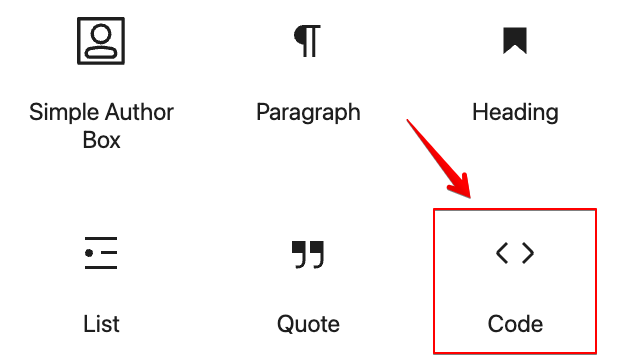
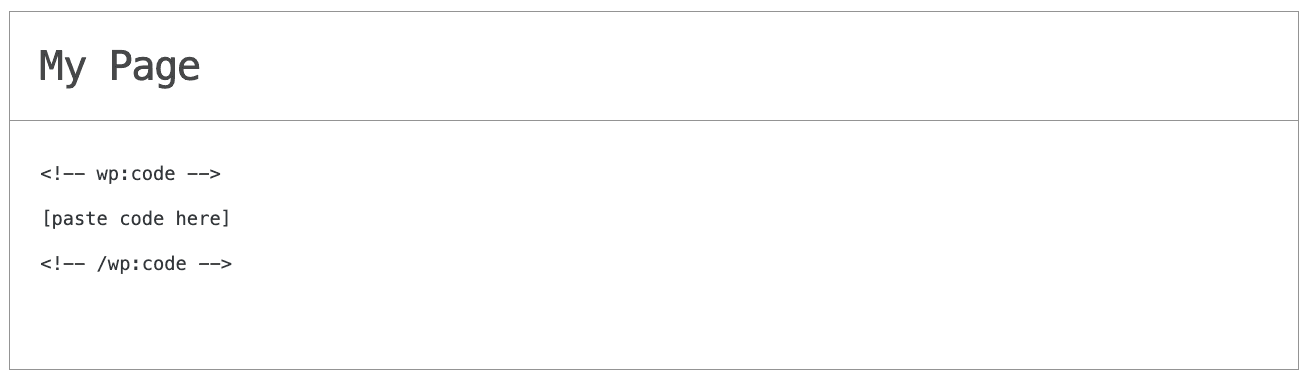
Next, go to your CMS Max store editor and find the HTML field. It is most likely in the form of an HTML/Code widget or module which you can find on the CMS Max’s editor. Add it to your page, and paste the Quiz Maker Embed Code you’ve copied before to the HTML field. Save and update, and that’s it, you should have Common Ninja’s Quiz Maker add-on on your CMS Max store.
Paste the code to your CMS Max website’s HTML field.
05
Alternative Method 1: Through the HTML option in the text’s editing area.
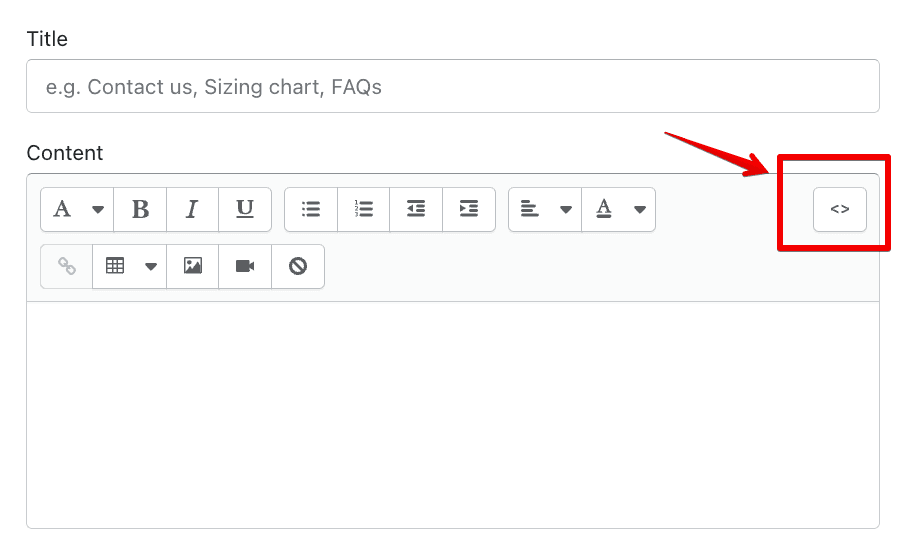
If you can't find the HTML/Code widget or module, there's another way to put Common Ninja’s Quiz Maker add-on on your CMS Max add-on. You can just add the code to a special HTML section in the text editor.
Alternative Method 1: Through the HTML option in the text’s editing area.
06
Alternative Method 2: Add it directly to your CMS Max store’s HTML code.
If you're having trouble finding a widget or a special part in your text editor where you can add the Embed Code, you can try a different way to add the Quiz Maker add-on to your CMS Max store. You can do this by putting it straight into your CMS Max store's HTML code.
Alternative Method 2: Add it directly to your CMS Max store’s HTML code.

Why Use This Widget

Use the Quiz Maker widget when you want to turn passive visitors into active participants while gathering structured data. Quizzes can educate, qualify leads, recommend products, or simply entertain, but in every case they guide users through a clear sequence of questions. This keeps people engaged longer and gives you insight into their needs, preferences, or knowledge. You can feed results into follow up paths, such as tailored landing pages, email sequences, or immediate recommendations. A well designed quiz feels useful, not just playful, and can become one of the highest converting elements on a page when aligned with a strong offer.

This tutorial was written by the Common Ninja product team, creators of interactive, no-code widgets for CMS Max store. Common Ninja helps over 500,000 users build engaging online experiences without coding.