


Verified review
Common Ninja has amazing no-code widgets that would beautify a website built on any builder. It is very easy to use and customise. It has as many widgets for almost everyone willing to make their website impressive.
Try the editor, no signup
Pick a template, customize it, and watch it update live, no signup.
No credit card · Free forever plan
No credit card · Free forever plan
The Common Ninja Timeline widget is a free, no-code timeline that lays out events, milestones, and history in chronological order with images, dates, and rich text.
Pick a vertical or horizontal layout, switch between multiple skins, control which items are visible per breakpoint, and paste one line of embed code on 200+ platforms including Elementor, WordPress, Google Sites, Squarespace, and Avada.
An about-us page wall of text gets skimmed once. A timeline of founding year, first hire, big launch, and last milestone gets read top to bottom because the structure does the work. Use it as the centerpiece of /about, /our-story, or /history.
SaaS and product sites use a timeline to communicate momentum: shipped features by quarter, integrations launched, version history. The horizontal layout fits roadmap sections cleanly under a landing-page hero without dominating the page.
Service businesses, agencies, and consultancies use timelines to show their process: discovery, design, build, ship, support. Education sites use them for syllabus or program phases. The dated, ordered structure communicates a journey instead of a feature list.
Conferences and fundraisers map session order, sponsor reveals, and keynote highlights along a single dated axis. Resume and CV pages chain job history, education, and certifications into a single scannable column. Same widget, different content.
Drop in events one by one with a date, headline, description, and optional image. Reorder by drag and drop, hide events on mobile or for non-logged-in visitors, and group milestones under year or phase headings to keep long timelines scannable.
Choose vertical for a long-scroll about-us or career page, or horizontal for a roadmap that fits inside a landing-page section. Switch between multiple skins to match your brand, and the layout adapts responsively without losing event order on mobile.
Copy the embed snippet and drop it into your site. Future event additions or edits push live automatically, so adding a new milestone after a product launch or filling in a missed year is a single change in the dashboard, not a code commit.
Vertical works for long-scroll about-us and history pages. Horizontal works for roadmaps and process strips that fit under a landing-page hero. The widget remembers your event order when you swap layouts, so iterating is one click, not a re-build.
Pick from card-style, minimal-line, or filled-circle skins, then tune colors, fonts, and spacing. The timeline blends into a modern SaaS hero, a corporate about-us page, or a personal portfolio without looking like a copy-pasted component.
Every event carries an image, a date, a headline, and a rich-text description. Add links, bold key phrases, list out sub-bullets, each milestone has room to breathe instead of being cut to a one-liner.
Hide events on mobile to keep the timeline scannable on small screens. Show or hide draft events without deleting them. Group milestones under year or phase headings so a 30-event company history reads as scannable chapters, not a wall of dots.
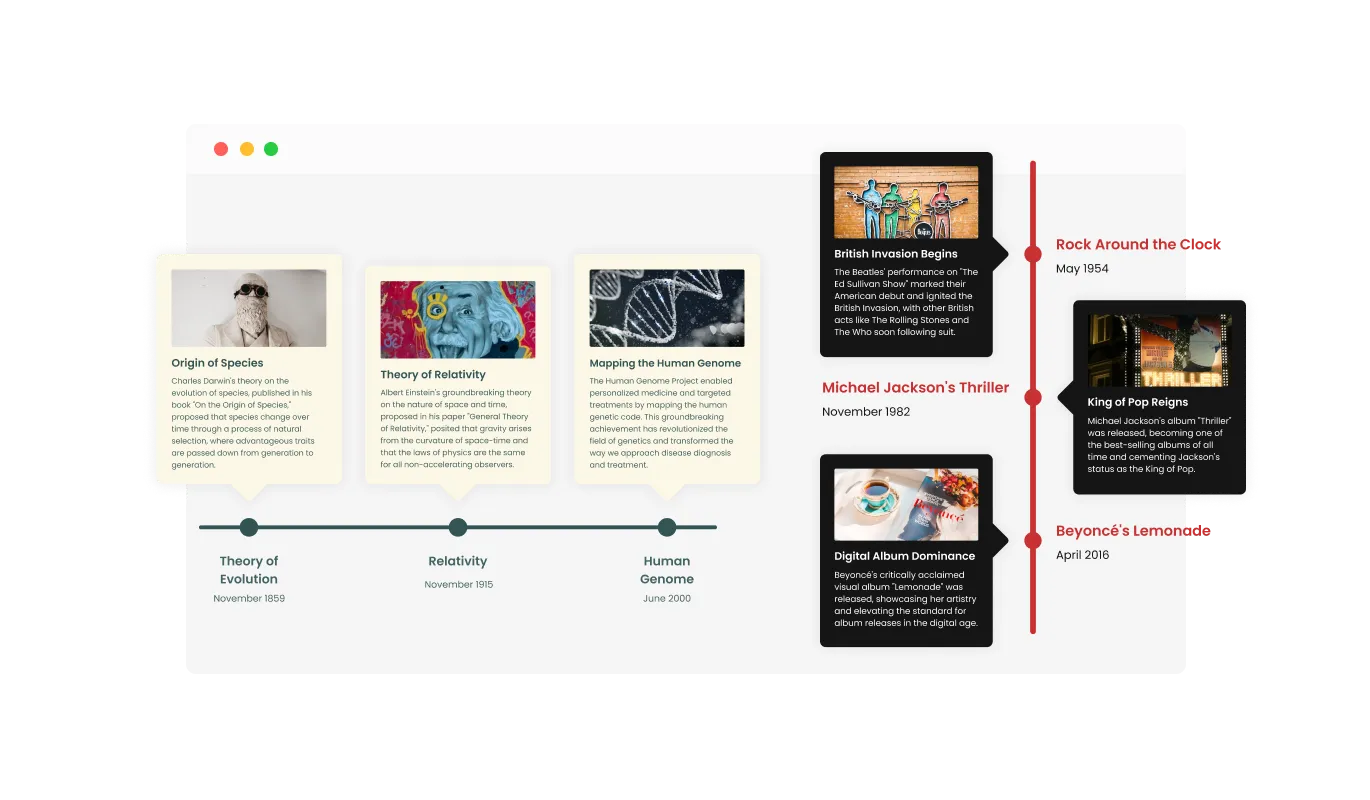
The Timeline widget allows you to choose either vertical or horizontal timelines to help you tailor the design to your specific needs.
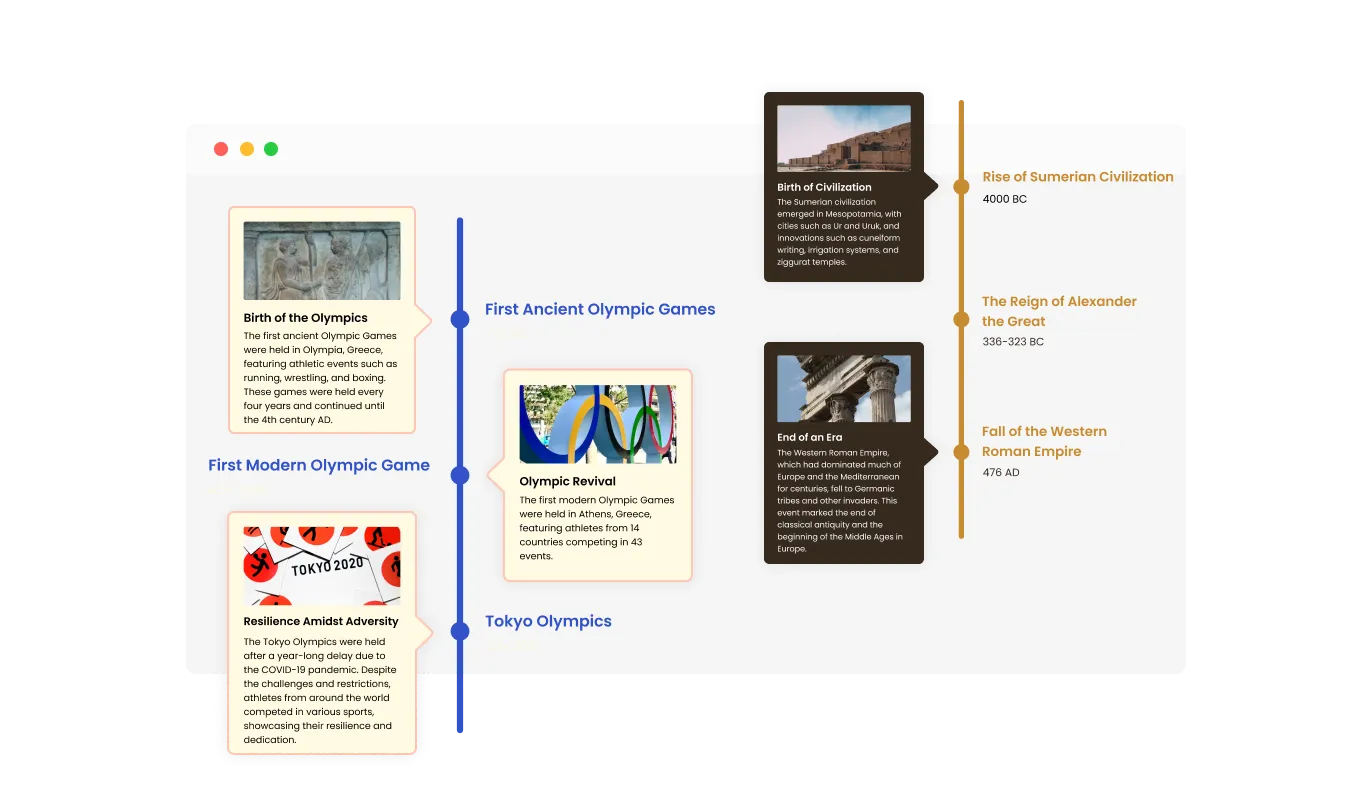
The Timeline widget comes available with multiple layouts that you can choose from to make sure it fits your overall website design and style.
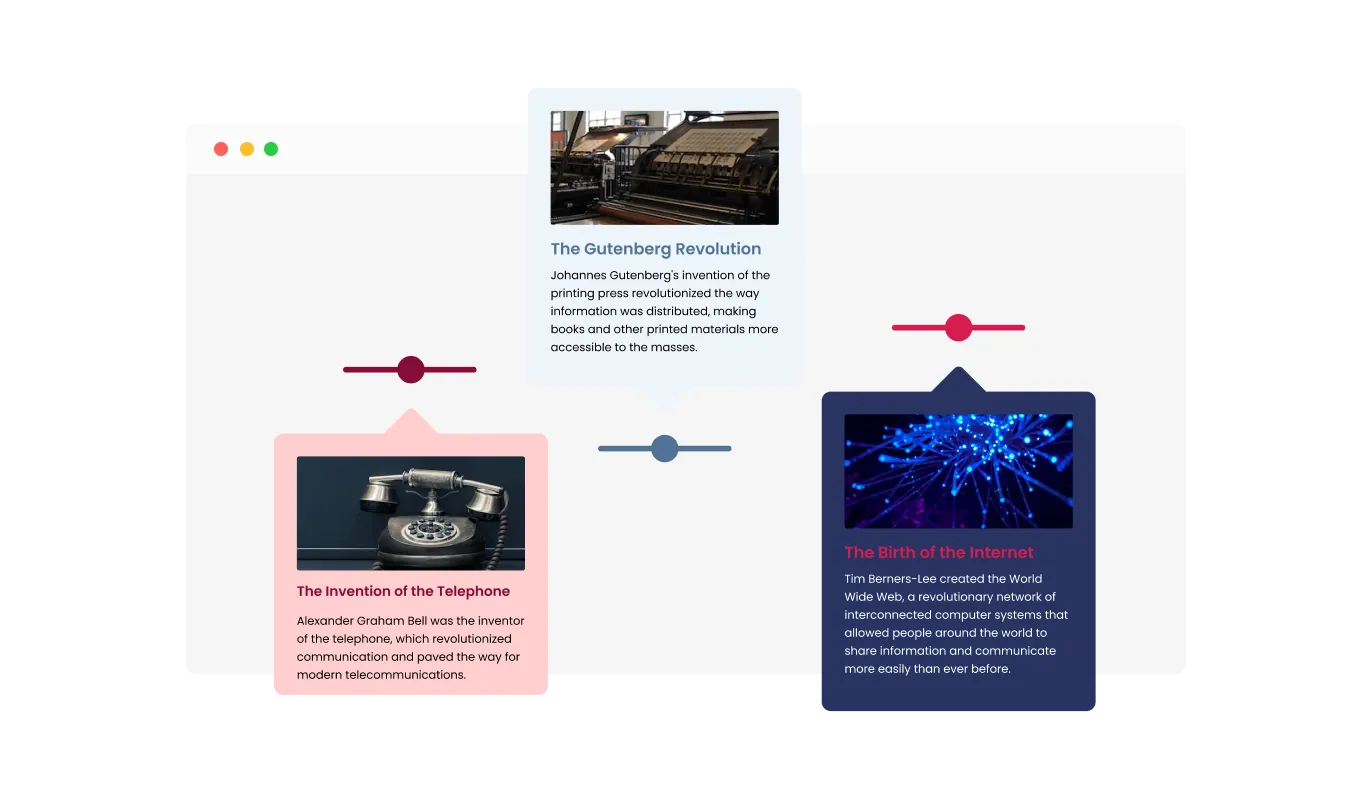
The Timeline widget comes with a variety of beautiful skins that you can choose from so you don’t have to spend much time on extensive customization.
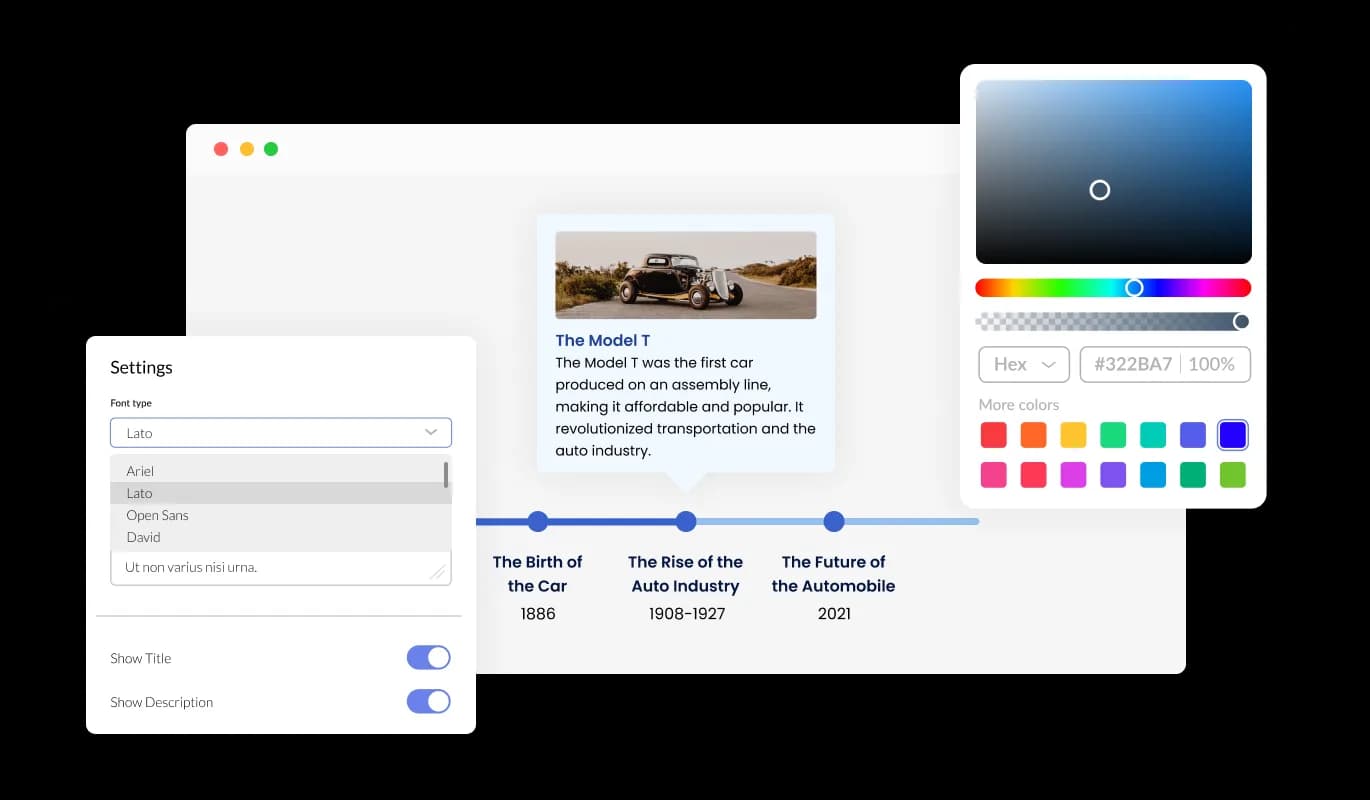
You can fully customize the Timeline widget so that it meets your demands by changing the design. Customize anything you want, including the fonts, spacing, and colors! In order to create a unified and polished appearance, you may also select from a variety of font choices and modify the font's size, style, and color. You can alter the spacing in addition to these style choices to make sure it blends in with the rest of your website's design.
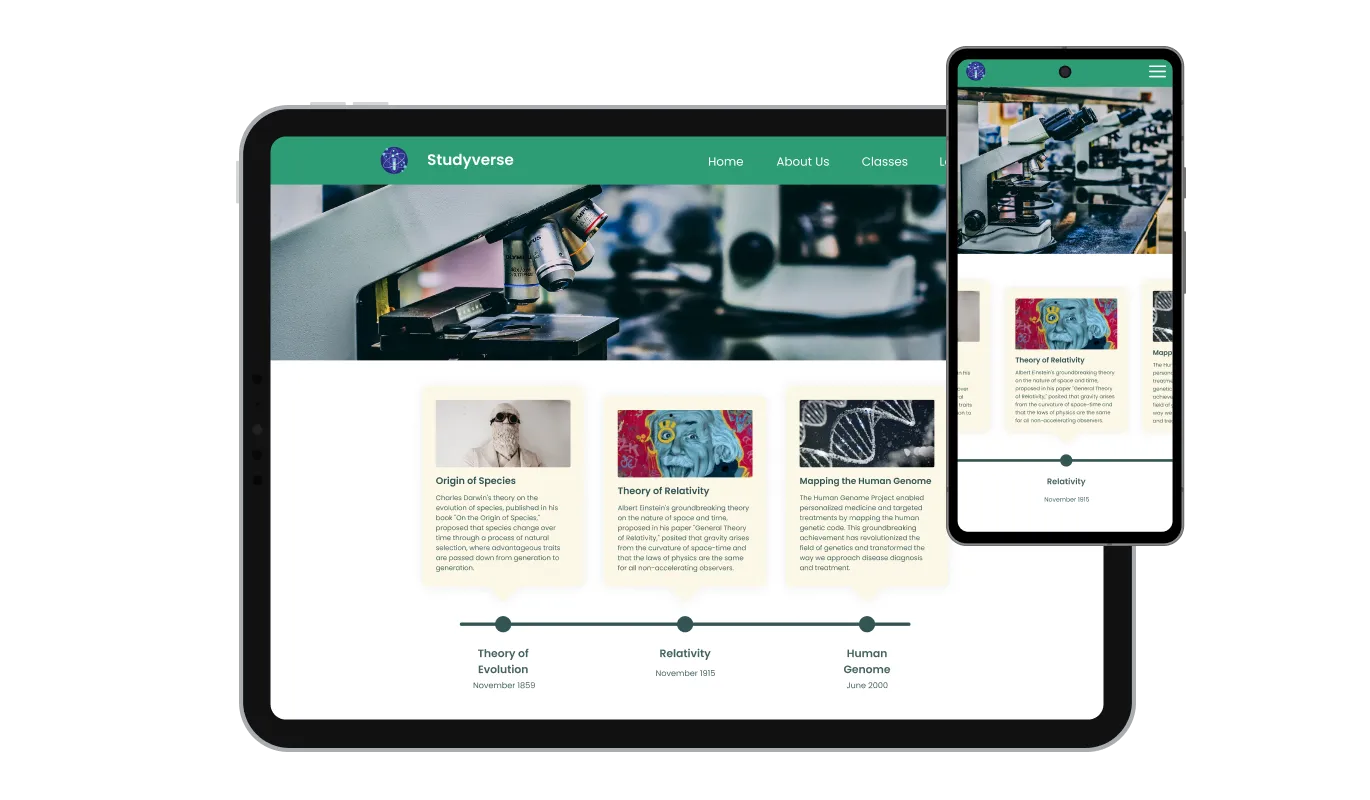
The Timeline widget has a clean and contemporary style that will improve the overall appearance of your site in addition to being fully responsive, which means it will shift fluidly to fit the screen size of any device. Having a website that is optimized for mobile viewing is essential in a world where more and more people are accessing the internet through their phones and tablets. The Timeline widget will allow you to do just that, providing you an edge over the competition.

You have total control over how the Timelin appears thanks to our robust advanced editor. This feature makes it simple to change the Timeline's appearance in every way, from the layout and positioning to the colors and fonts. Yet, if you're feeling extremely inventive, you can enhance your customization by making changes straight to the CSS. This enables you to customize the widget even more by making more sophisticated changes. Our powerful editor will help you whether you want to make a few minor adjustments or go all out with complex changes.

Simply copy and paste a code snippet into the HTML of your webpage to integrate the Timeline widget on your website. It is also self-updating, so any modifications you make to the Timeline Editor will be automatically reflected on your website without the need for any further manual updates.
The Timeline widget's feature of incorporating images into individual timeline items not only enhances its visual appeal and captivates your audience but also helps convey complex ideas or events more effectively, contributing to an overall more engaging and comprehensible user experience.
The Timeline widget provides you with an array of trigger options for displaying items, including "always," "never," "on hover," and "scroll to view," empowering you to create a tailored user experience that enhances content accessibility and engages your audience by controlling when and how the information is revealed.
No coding expertise is necessary to use the Timeline widget. With only a few mouse clicks, you can modify the timeline however you wish using our user-friendly interface. This implies that even individuals without coding knowledge may quickly and simply build a timeline with a professional appearance that connects with their website, enhancing their online presence and audience engagement.
Common Ninja has amazing no-code widgets that would beautify a website built on any builder. It is very easy to use and customise. It has as many widgets for almost everyone willing to make their website impressive.
Outstanding service. I use their widgets to help me with my web design business and whenever I need help they are very quick to help.
Excellent company with excellent service!!! We used it to build a survey, it was very user friendly. The service was perfect. Amit helped us with every problem and question we had, thank you very much!!!
Common Ninja saved the day when building our website and the customer service Daniel, the co-founder and CEO, provided was amazing.
Yes. The free plan covers one Timeline widget with no time limit, no credit card, and no trial countdown. Upgrade only when you need additional widgets, premium skins, or higher monthly view limits.
Both. Switch the orientation in one click in the editor. Vertical works for long-scroll about-us, company-history, and career pages. Horizontal works for product roadmaps and process strips that fit under a landing-page hero. The widget remembers your event order when you swap orientations, so iterating is one toggle, not a re-build.
Yes. In Elementor, drag an HTML widget onto your page, paste the Common Ninja embed snippet, and the timeline renders as a native section in the live preview. The widget works on Elementor Free and Elementor Pro, and you do not need a separate timeline addon plugin.
It is a hosted widget, not a WordPress plugin. You paste one line of embed code into a Custom HTML block (or your theme), and the timeline renders. The advantage over a plugin: no plugin updates to manage, the timeline editor lives outside WordPress so non-admins can edit content, and the widget is compatible with any page builder including Elementor, Divi, WPBakery, and Gutenberg.
In Google Sites, open the page and click Insert, then Embed in the right sidebar. Paste the Common Ninja embed code into the Embed dialog and click Insert. Resize the embed area and publish. The timeline is live across the Google Site, and future event edits push without re-publishing.
Avada's built-in Timeline element is themed for Avada and harder to migrate if you switch themes. The Common Ninja widget renders identically across Avada, Divi, Elementor, Squarespace, Wix, and any other site builder, so the same timeline content moves with you. It also has richer event-visibility controls and more skin options than the Avada native.
No. A hand-coded HTML/CSS timeline (the kind w3schools or Bootstrap tutorials show) needs absolute-positioned dots, alternating left-right blocks, responsive breakpoints, and a date axis you maintain manually. Common Ninja's widget handles all of that, plus a hosted editor for adding events without touching code.
Yes. Choose from multiple built-in skins (card-style, minimal-line, filled-circle), then tune colors, fonts, spacing, and connector style. For deeper customization, use the Custom CSS field to override any visual property. Useful when matching a corporate design system.
Pick your platform. Each takes under 4 minutes.

A simple slider that lets visitors compare before and after images to see visual changes clearly.
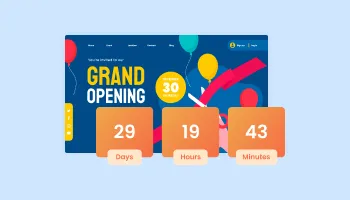
Displays a timer counting down to a specific date or event
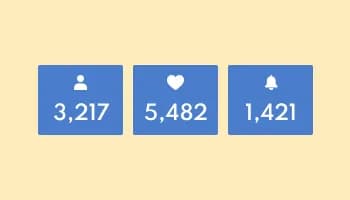
Showcase statistics, metrics, or countdowns in an animated visually appealing display
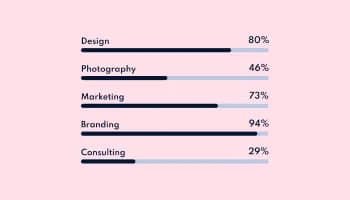
Showcase progress and completion using animated fill-up bars

Showcases images in a rotating or sliding manner
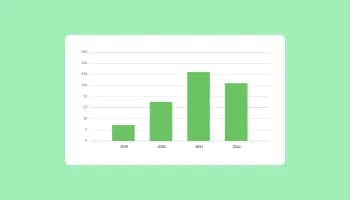
Visualize data and information using various chart types, including bar, pie, and line graphs, and more
A timeline widget is a versatile tool that allows you to display a series of events or milestones in chronological order on your website. It enhances the visual appeal and organization of your content by presenting it in an easy-to-understand format.
Using a timeline on your website offers several benefits, including better organization of your content, improved user engagement, and enhanced visual appeal. Timelines help visitors quickly grasp the sequence of events or milestones, making your website more informative and user-friendly.
Timeline widgets are commonly used in various website contexts, such as showcasing a company's history, presenting project milestones, displaying a personal portfolio or resume, outlining event schedules, or illustrating the progression of a blog or news articles. Timelines help convey information in a visually engaging and easily digestible manner.
Yes, the Timeline widget allows you to easily switch between vertical and horizontal timelines, helping you tailor the design to your specific needs.
Yes, the Timeline widget enables you to add images to individual items on the timeline, making it more visually appealing, eye-catching, and easier to understand
The Timeline widget allows you to choose various triggers for showing items, such as “always”, “never”, “on hover”, and “scroll to view”.
Yes, the Timeline widget offers multiple layouts that you can choose from to ensure it fits your overall website design and style.
Absolutely! The Timeline widget comes with a variety of beautiful skins to choose from and is fully customizable, allowing you to change the colors, fonts, spacing, and more.
Yes, the Timeline widget is fully responsive and will look great on any device, keeping you ahead of your competitors in a mobile-first world.
No, the Timeline widget is easy to use and requires no coding knowledge. The intuitive dashboard with drag-and-drop features enables you to customize the widget with just a few simple clicks.
Yes, as with all of Common Ninja's apps, you can add custom CSS to customize the Timeline widget and be even more creative.
You can easily embed the widget on your website by copying a single line of code. The Timeline widget will also be updated automatically with every change you make.
It’s simple. All you need to do is to sign up and start using the free version.
Common Ninja’s Timeline widget is free to use. It is limited to a certain amount of views, however.
Common Ninja’s Timeline widget is compatible with ALL current and future website builders.
Yes, the Timeline widget is GDPR-compliant.
No. Using our Timeline widget is very simple. The widget comes with an intuitive drag-and-drop interface and fully customizable options. Once you’ve finished editing the widget to your liking, all you need to do is copy the provided code and add it to your website.
Yes. We are eager to hear your request. Please visit our Feature Request page.
Works on 200+ platforms including Elementor, WordPress, Google Sites, Squarespace, and Avada.
Create your timelineNo credit card · Setup in under 3 minutes