


Verified review
Common Ninja has amazing no-code widgets that would beautify a website built on any builder. It is very easy to use and customise. It has as many widgets for almost everyone willing to make their website impressive.
The Common Ninja Website Translator widget is a free, no-code embed that lets visitors switch your site's content between languages with a single click.
Pick the languages you want to offer, choose a layout (dropdown, flag row, floating button), set the position (static block or sticky floating button), enable automatic browser-language detection, customize the design with skins or Custom CSS, and paste a one-line embed snippet on Canva, Google Sites, Ghost, Pixieset, Base44, Webflow, WordPress, and 200+ other platforms.
Use it to reach international audiences, lift session time on multilingual queries, and make your site usable for visitors who don't share your default language, without rebuilding your CMS or maintaining parallel content trees.
A site in English alone closes the door on visitors searching in Spanish, French, German, Arabic, Mandarin, or any of the 60+ languages where commerce happens. A one-click language switcher keeps those visitors on your site, in a language they read fluently, instead of bouncing to a competitor whose translation already works.
Maintaining parallel language trees in your CMS. Separate pages, separate URLs, separate edits. Is expensive in hours and prone to drift. The widget handles translation on the fly so the source content stays in one place, every update propagates to every language version, and your team doesn't burn cycles syncing copy across locales.
When a visitor lands from a browser set to Spanish, the widget can auto-load the Spanish translation on first paint. No clicking the switcher, no second-guessing. The visitor sees content in their language from the first impression, which lifts session time, lowers bounce, and signals to ranking systems that the page serves international demand.
Pin the switcher as a floating corner button (always visible, doesn't compete with nav), embed it inline as a static block in your header, or drop it in the footer for global reach. Different layouts suit different page densities and traffic patterns; the widget works in all of them without recoding.
Select from a long list of supported languages (Spanish, French, German, Chinese, Japanese, Arabic, Hebrew, Portuguese, and dozens more). Add the languages your audience actually uses: there's no benefit to listing 100 if your visitors come from five, and reorder them so the most common ones surface first.
Choose a display style: dropdown menu, horizontal flag row, floating button anchored to a page corner, or static block embedded in your nav. Set whether browser language gets auto-detected on first visit, where the widget positions (static or floating), and how flags or language codes display. Pick a skin from the design library or layer Custom CSS for pixel-level brand match.
Copy the one-line embed snippet and paste it into your site on Canva, Google Sites, Ghost, Pixieset, Webflow, or any of the 200+ supported platforms. The widget loads with the page and the language switcher fires when a visitor selects a new language. Edits in the editor push to every embed without re-paste.
Choose from a long list of supported languages covering the major commercial markets (English, Spanish, French, German, Portuguese, Italian, Dutch, Russian) and high-priority Asian and Middle-Eastern languages (Chinese Simplified, Chinese Traditional, Japanese, Korean, Arabic, Hebrew, Hindi). Add only the ones your audience actually uses.
Dropdown menu (compact, fits in any nav), horizontal flag row (visual, fast scanning), floating corner button (always accessible, doesn't compete with nav), inline static block (embed in your header or footer). Switch layouts in the editor without re-configuring the language list.
Detect the visitor's browser language on first visit and switch to the matching translation automatically (when supported). Visitors see content in their language without having to find and click the switcher, which lifts engagement on international traffic.
Pick from a library of pre-designed skins (minimal, flag-row, dropdown-compact, dark-mode) for a fast visual fit. Layer Custom CSS for pixel-level control over flag sizing, dropdown spacing, hover-state finesse, and corner-button placement.
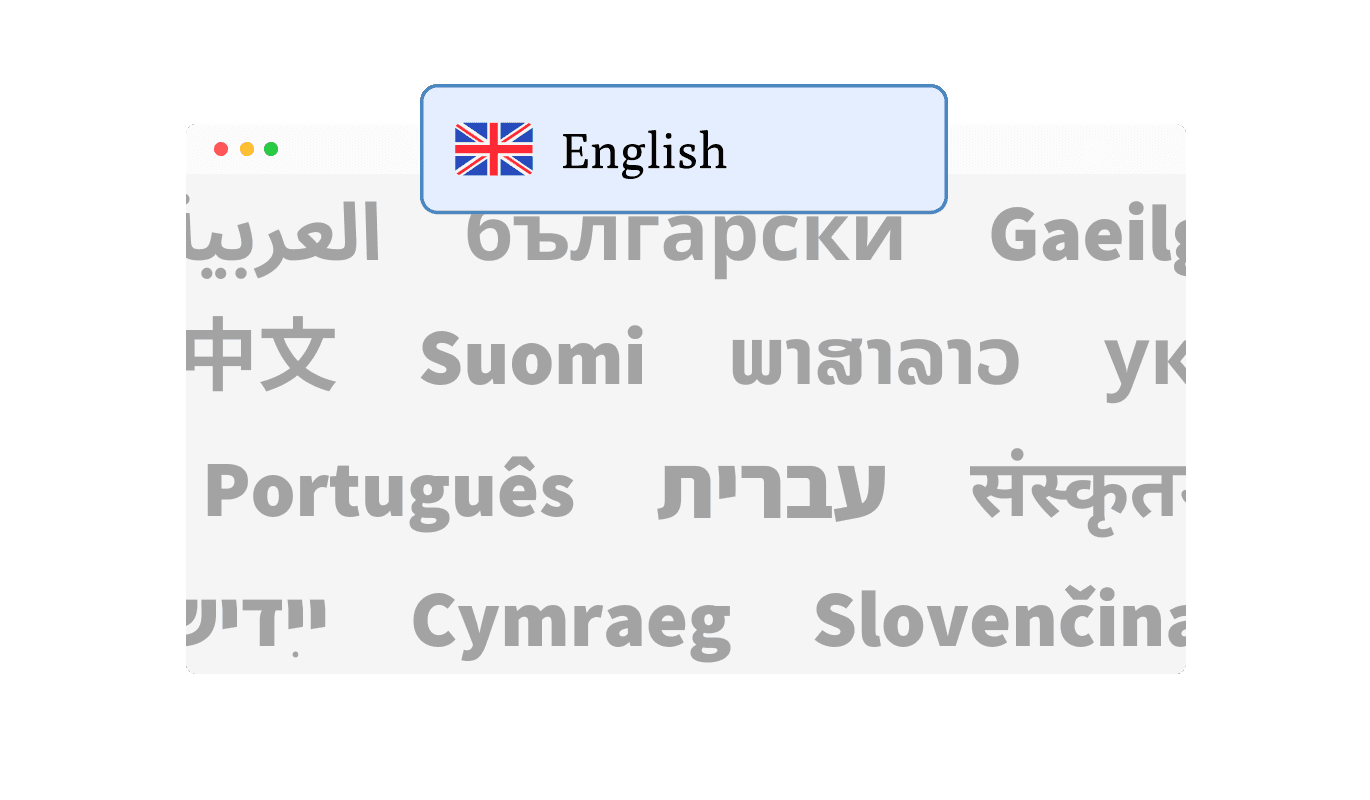
The Website Translator Widget supports a vast array of languages, ensuring your website is accessible to a global audience. With just a few clicks, you can enable translation for dozens of languages, catering to users from different linguistic backgrounds. This feature empowers you to make your site inclusive and welcoming to visitors worldwide.
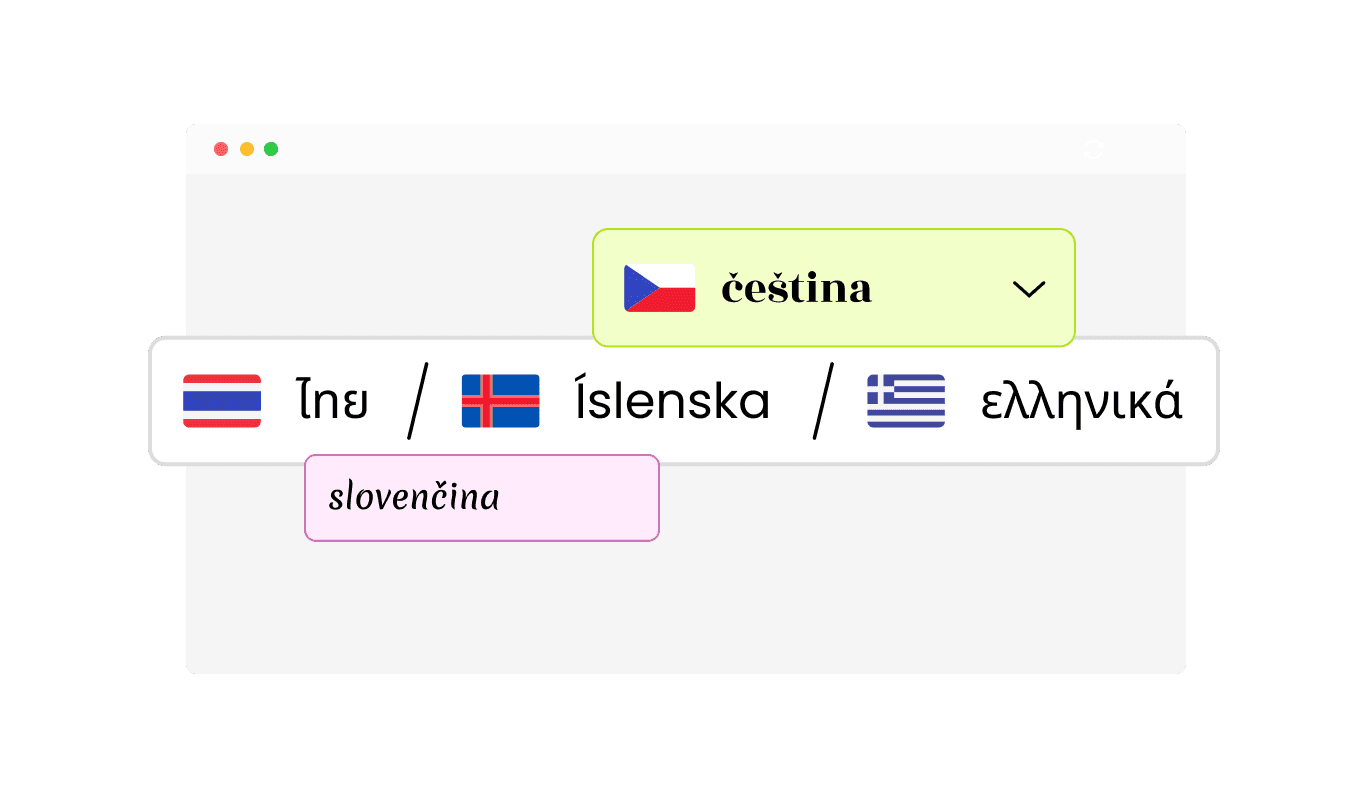
The Website Translator Widget offers versatile display options to match your website's design and user preferences. Choose between a minimal dropdown, a bar with buttons, or other layouts to seamlessly integrate the widget into your site. Additionally, you can customize the display to show language names, flags, or a combination of both, enhancing usability and visual appeal.
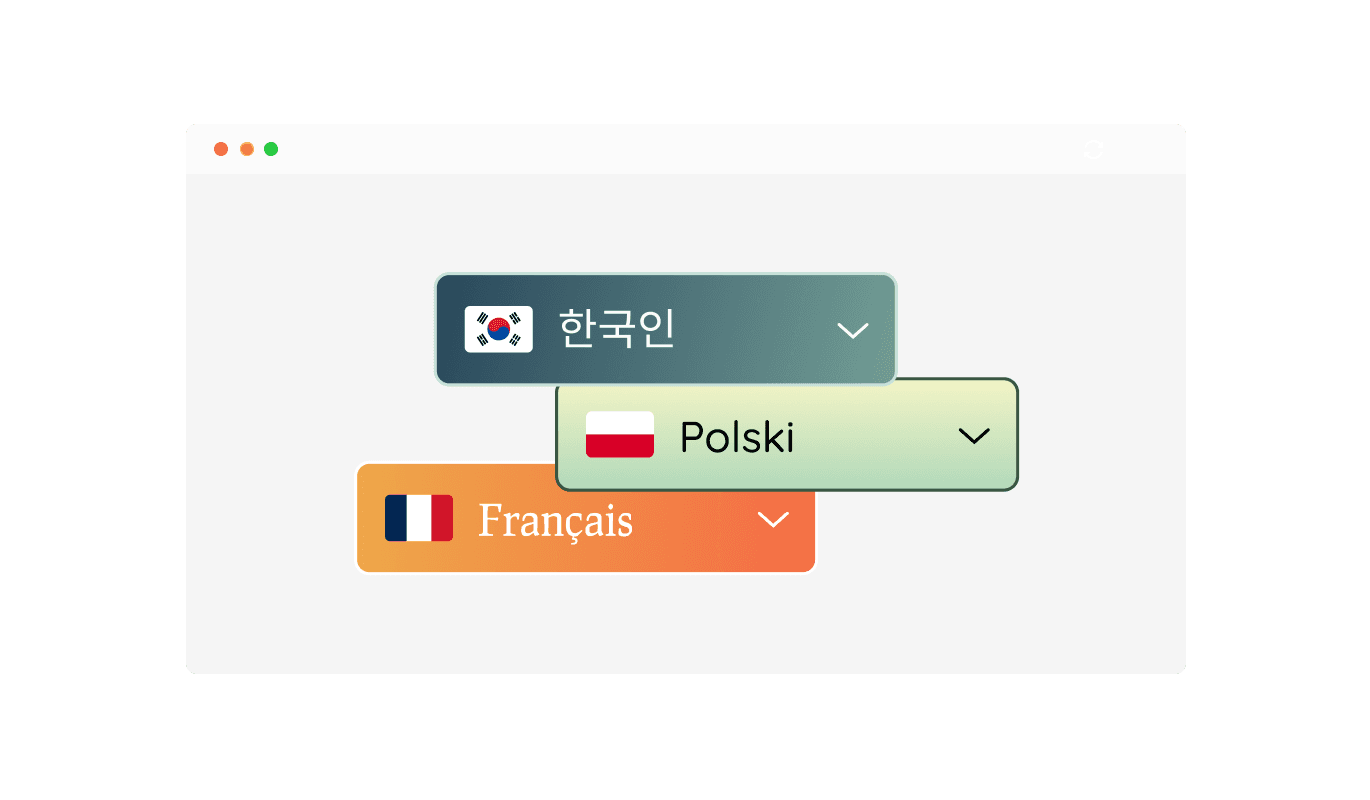
Enhance your site’s appearance with the Website Translator Widget’s range of beautiful design skins. These ready-made options help you align the widget with your website’s branding effortlessly while saving time on customization.
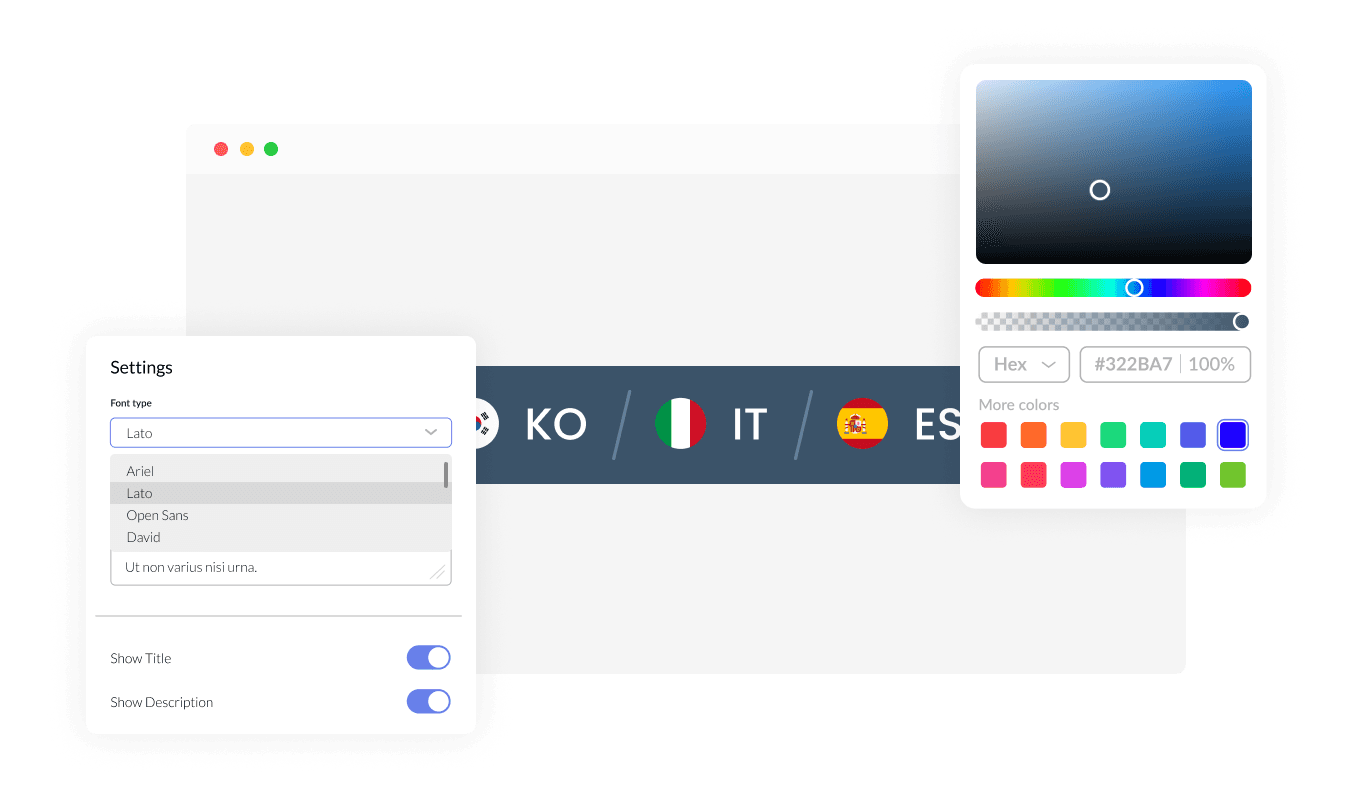
With extensive customization options, the Website Translator Widget allows you to modify colors, fonts, spacing, and more. This flexibility ensures the widget fits perfectly with your website’s unique design and branding.
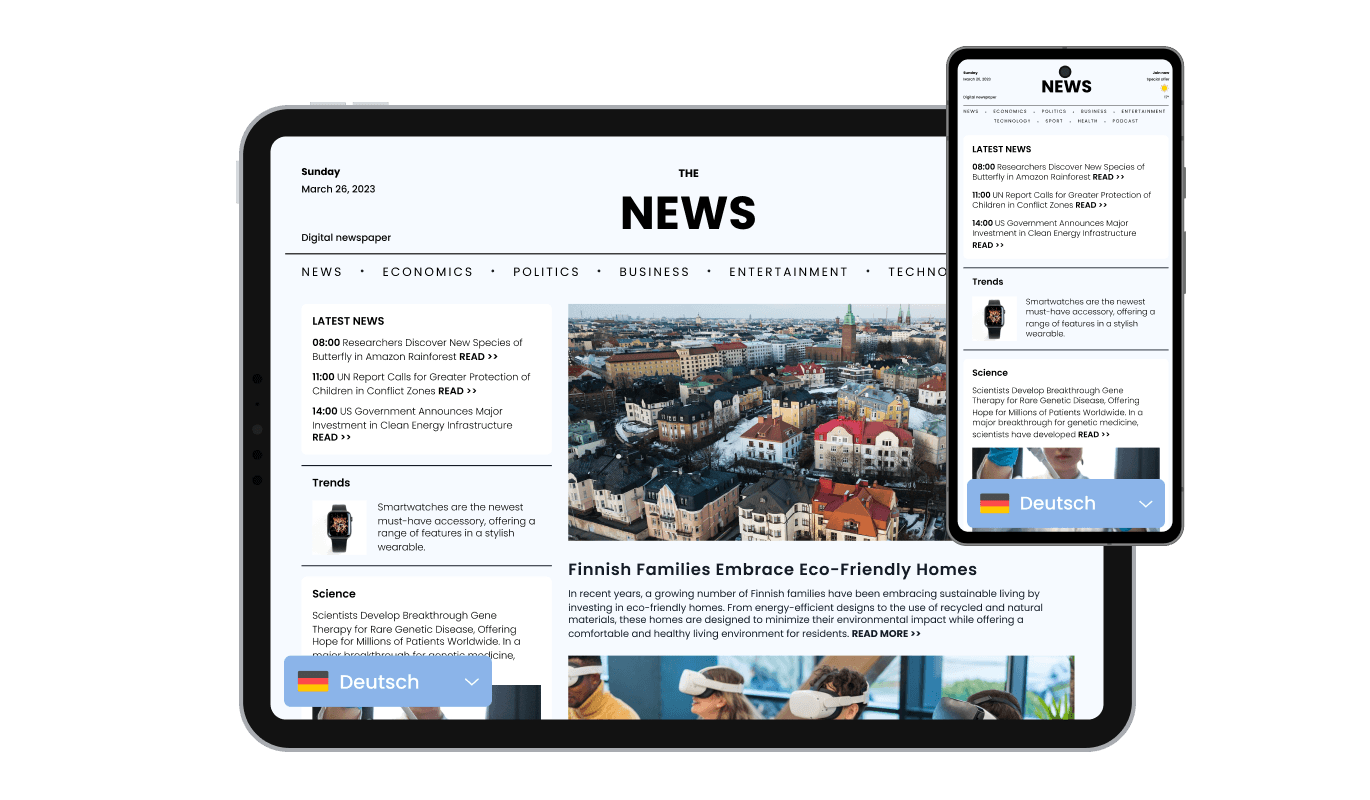
The Website Translator Widget is fully responsive, ensuring that it looks and functions beautifully on desktops, tablets, and mobile devices. This guarantees a seamless experience for all users, no matter how they access your site.
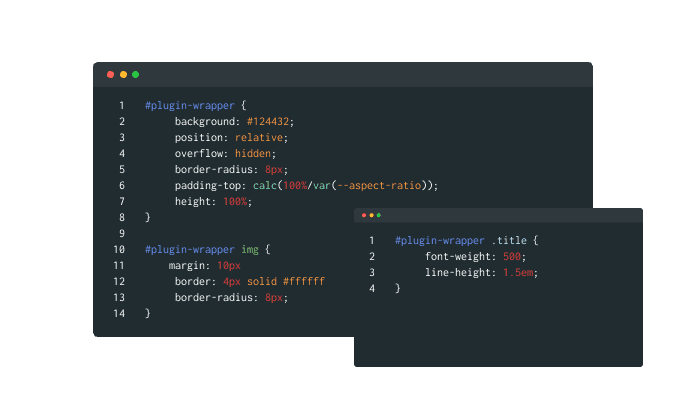
For those seeking greater creative control, the Website Translator Widget supports custom CSS. This feature is perfect for developers and designers who want to fine-tune the widget’s appearance and functionality to achieve a truly unique look.
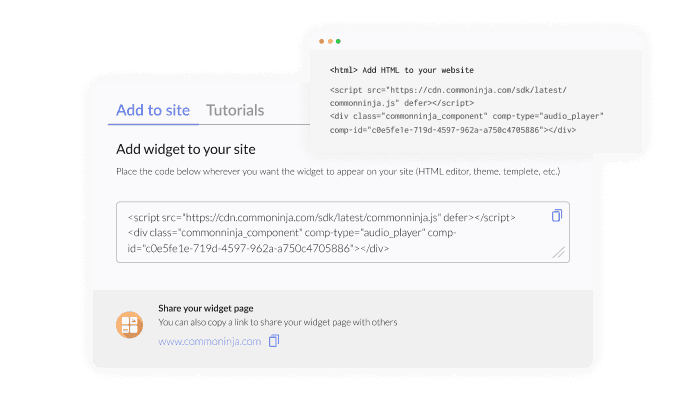
Embedding the Website Translator Widget is quick and straightforward, requiring only a single line of code. Plus, automatic updates ensure your widget remains current without any extra effort, keeping your site’s multilingual functionality running smoothly.
The Website Translator Widget intelligently detects your website's original language and provides users with a convenient default button to return to the original content. This ensures a seamless browsing experience, allowing users to explore translations while easily reverting to the main language when needed. This feature combines convenience with precision for optimal user satisfaction.
The Website Translator Widget gives you the flexibility to position it exactly where you want on your website. You can opt for a static placement integrated into your site’s layout or choose a floating position that remains accessible as users scroll. This adaptability ensures that the widget fits your site’s design while maintaining optimal functionality.
The Website Translator Widget integrates seamlessly with Google Analytics and Mixpanel, giving you valuable insights into user behavior. Track which languages are most used, monitor translation interactions, and analyze engagement patterns to make data-driven decisions. This feature helps you refine your multilingual strategy and optimize your website's performance.
The Website Translator Widget is designed for ease of use, with no coding skills required. Its intuitive interface makes it simple to configure and integrate into your website, enabling you to create a multilingual experience effortlessly.
Common Ninja has amazing no-code widgets that would beautify a website built on any builder. It is very easy to use and customise. It has as many widgets for almost everyone willing to make their website impressive.
Outstanding service. I use their widgets to help me with my web design business and whenever I need help they are very quick to help.
Excellent company with excellent service!!! We used it to build a survey, it was very user friendly. The service was perfect. Amit helped us with every problem and question we had, thank you very much!!!
Common Ninja saved the day when building our website and the customer service Daniel, the co-founder and CEO, provided was amazing.
Yes. The free plan covers one Website Translator widget with no time limit and no credit card. Upgrade only when you need additional widgets, more supported languages, faster translation rendering, premium skins, or features like custom translation overrides and analytics dashboards.
The widget supports a wide range of languages including English, Spanish, French, German, Portuguese, Italian, Dutch, Russian, Chinese Simplified, Chinese Traditional, Japanese, Korean, Arabic, Hebrew, Hindi, Turkish, Polish, Swedish, Vietnamese, and dozens more. Pick only the ones your audience actually uses to keep the switcher tidy.
Yes, when enabled. The widget reads the visitor's browser language preference on first visit and switches to the matching translation automatically. Visitors see content in their preferred language without having to find and click the switcher. You can also let visitors override the auto-detected language manually.
Modern machine translation is strong enough for most marketing copy, product descriptions, and informational content. Visitors can read and act on the translated content in their language. For legal text, complex technical documentation, or content with critical nuance, professional human translation is still the safer choice. Use the widget for the bulk of your site and a human translator for the high-stakes pages.
No, when used correctly. The widget translates content on the visitor's request: the source HTML on your page remains in your default language, so search engines index your original content (the translation isn't a duplicate-content risk because it's not separately crawlable). For deeper international SEO (separate URLs per language, hreflang tags), use parallel CMS content trees in addition to the widget; for the bulk of multilingual access, the widget alone gets you most of the way.
Static page text translates immediately on language switch. Dynamic content (form labels, JavaScript-rendered text, popup copy) translates when the rendered element is visible. For best results, ensure dynamic content renders into the DOM at page load (not on click) so the translator can pick it up. Test the page in each target language to confirm coverage.
Build the widget in the Common Ninja editor (pick languages, layout, position), copy the embed snippet, and paste it into your site: Canva via the Embed app in the Apps panel; Google Sites via Insert → Embed → Embed code; Ghost via a Code Injection block in your site Settings → Code Injection field (for sitewide) or an HTML card on a specific page. Edits in the editor push to every embed without re-paste.
Yes. Layouts adapt across mobile, tablet, and desktop breakpoints. Dropdown menus stay tappable, floating corner buttons resize to fit thumb-zone, and flag rows wrap to multiple lines on narrow viewports. RTL languages (Arabic, Hebrew) render with correct mirrored layout on every breakpoint.
Pick your platform. Each takes under 4 minutes.
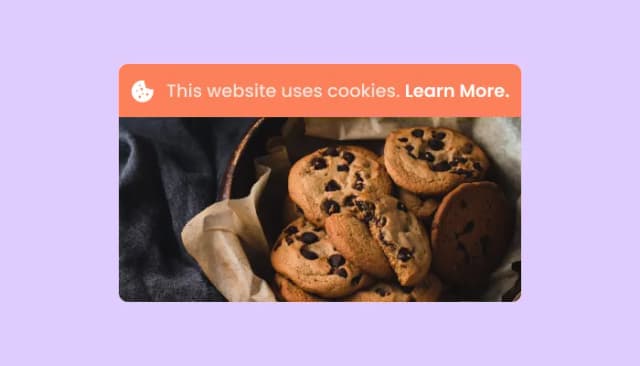
Adds a clear notice about cookie usage on your website, improving compliance with data privacy laws.

Easily craft engaging, personalized popups to boost conversions.
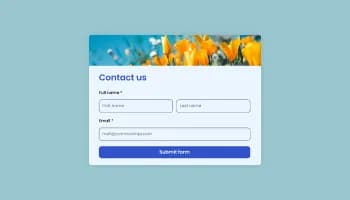
Allow users to send messages or inquiries, save submissions, enable notifications, and more
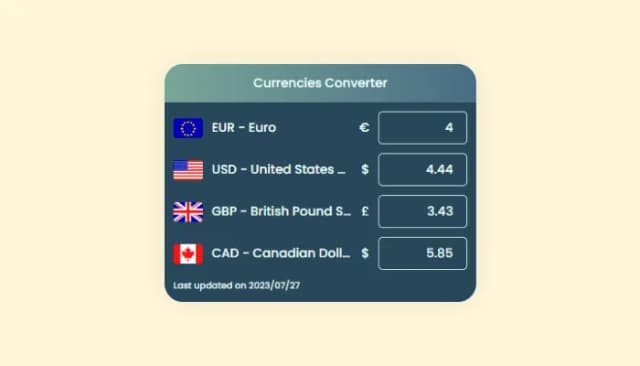
Enhance global shopping, display prices in multiple currencies
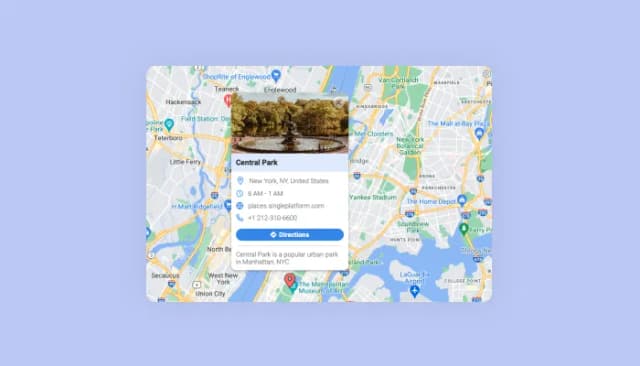
Display multiple locations with enriched details and customizable aesthetics.
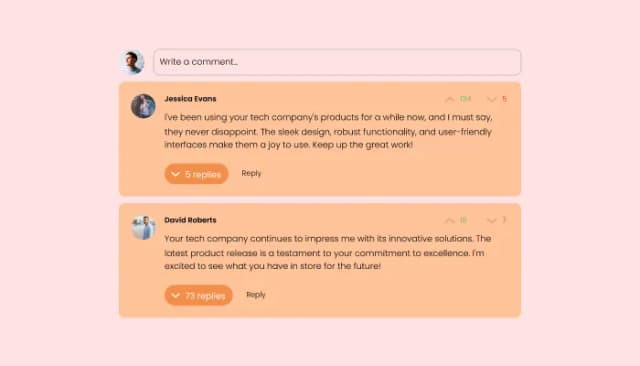
Comments system with upvote/downvote, email notifications, reply threads, and moderation tools.
The Website Translator Widget is a tool that enables your website to display content in multiple languages, helping you cater to a global audience.
The widget uses advanced translation technology to convert your website's content into various languages, through automated translation.
Yes, you can select from a wide range of languages to display on your website, ensuring that it meets the needs of your target audience
Yes, the Website Translator Widget can automatically detect a visitor’s browser language and display content accordingly. Users can also manually select their preferred language.
Absolutely! The widget is fully customizable, allowing you to adjust colors, fonts, spacing, and layout to align with your website's aesthetic.
Yes, the widget integrates with analytics tools like Google Analytics and Mixpanel, enabling you to monitor user interactions and gain valuable insights.
Yes, the widget provides a default button that allows users to return to the original language of your website with a single click.
Yes, you can display languages with or without flags, giving you control over how the options are presented to users.
Yes, the widget is fully responsive, ensuring that it works seamlessly on all devices, including desktops, tablets, and smartphones.
No, the widget is designed to be user-friendly and requires no coding knowledge. Installation is as simple as copying and pasting a single line of code.
Yes, you can choose between static placement or a floating position that remains visible as users scroll through your site.
Yes, the widget provides various layout options, such as dropdowns, buttons, or bars, to suit your website’s functionality and design preferences.
Yes, our dedicated support team is always available to assist you with any issues or questions related to the Website Translator Widget.
Let visitors switch your site's language with one click: wide language coverage, automatic browser-language detection, dropdown / flag-row / floating-button layouts, customizable position and design, stylish skins, and Custom CSS. Embed on 200+ platforms including Canva, Google Sites, Ghost, Pixieset, Base44, Webflow, and WordPress.
Create your Website TranslatorNo credit card · Setup in under 5 minutes