How to add Before & After Carousel to your website
Learn how to embed Common Ninja’s Before & After Carousel on your website without coding.



In This Guide
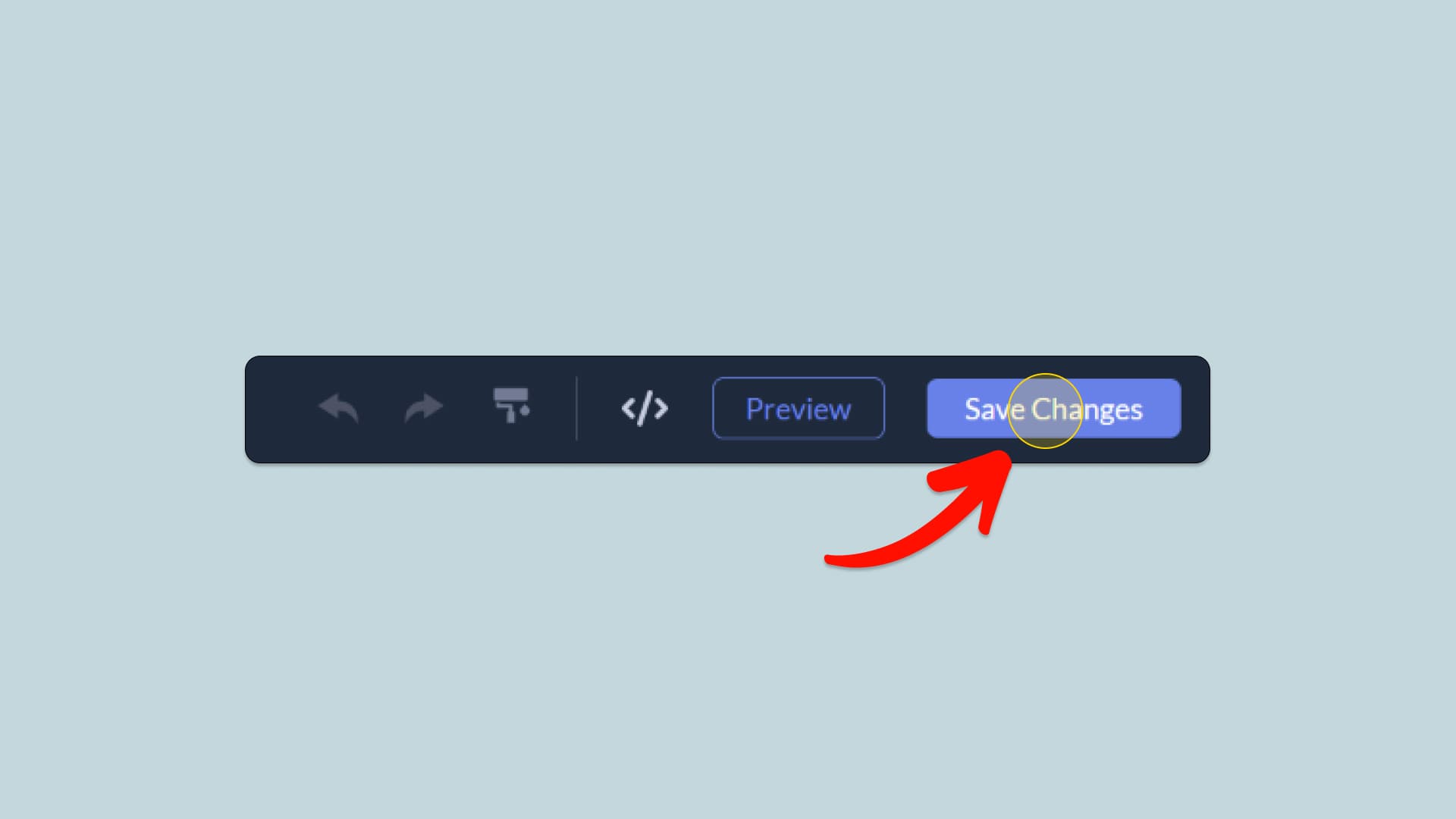
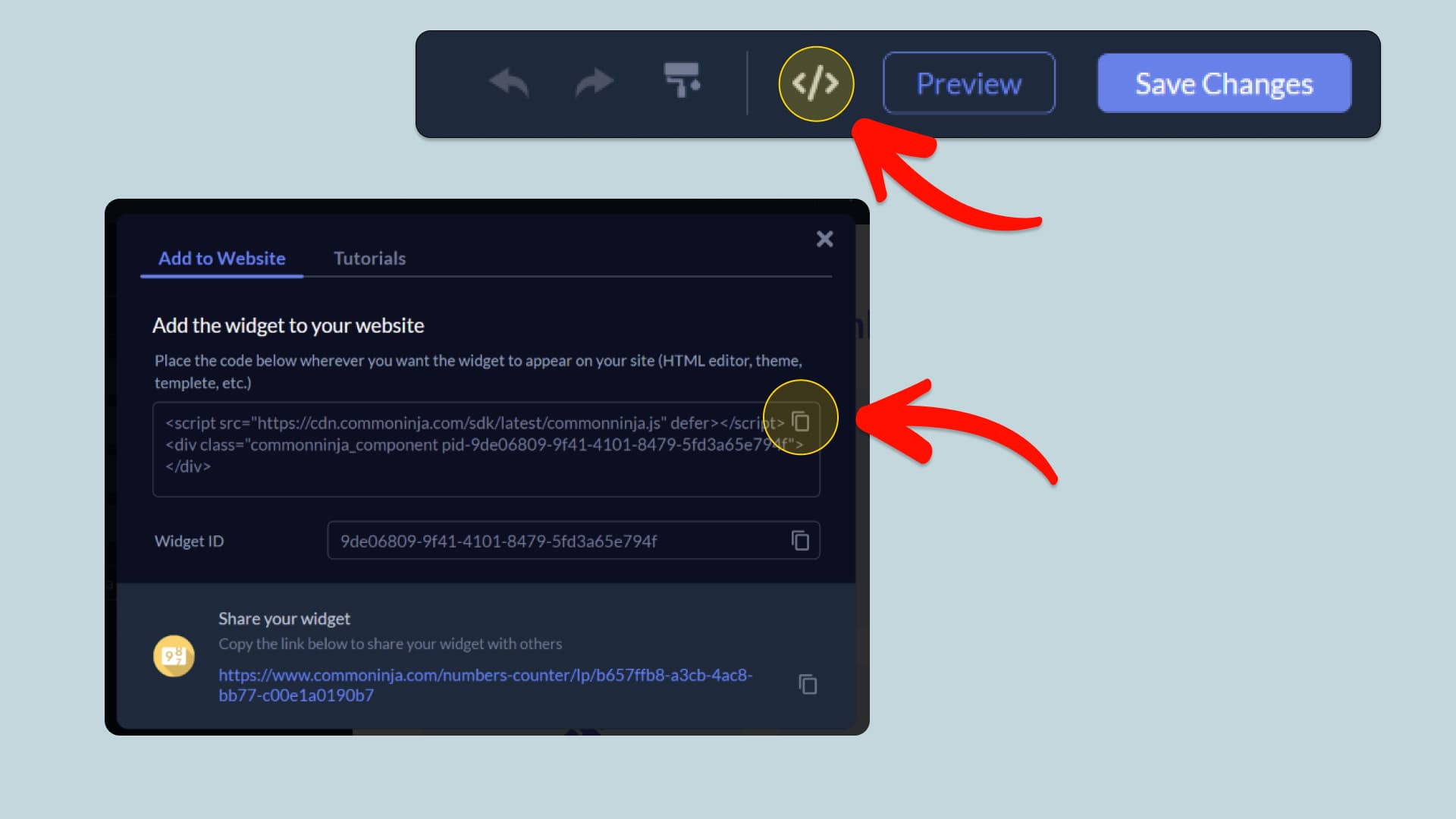
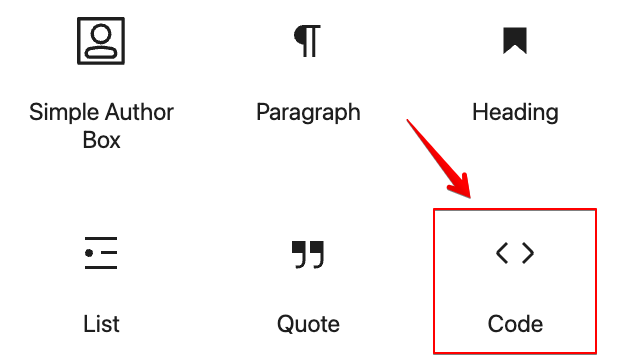
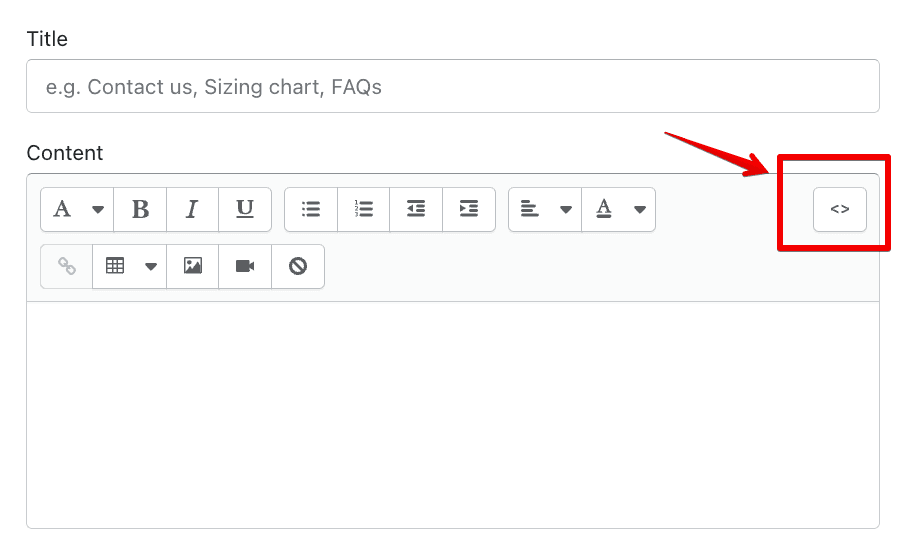
In this quick guide, you'll learn how to embed the Before & After Carousel into your website by generating your embed code and adding it seamlessly to your website.
How to Embed Before & After Carousel on Your Platform
Choose your platform to see detailed, step-by-step instructions for embedding Before & After Carousel seamlessly.


Embed Before & After Carousel on Your Website

Why Use This Widget
The Before & After Carousel is an interactive image comparison widget designed for showcasing multiple visual transformations in one organized display. Add a separate before and after image pair to each carousel item and let visitors drag the comparison handle to reveal the difference between them. Visitors can browse through additional comparisons using arrows, pagination controls, thumbnails, or automatic transitions. Each comparison can have its own images, labels, caption, starting position, reveal direction, aspect ratio, badge, and styling. With flexible carousel layouts, navigation options, responsive behavior, and extensive design controls, it is ideal for portfolios, renovations, photography, beauty services, restorations, product demonstrations, design work, case studies, and other situations where several visual transformations need to be presented clearly.
This tutorial was written by the Common Ninja product team, creators of interactive, no-code widgets for websites. Common Ninja helps over 500,000 users build engaging online experiences without coding.