


Verified review
Common Ninja has amazing no-code widgets that would beautify a website built on any builder. It is very easy to use and customise. It has as many widgets for almost everyone willing to make their website impressive.
Try the editor, no signup
Pick a template, customize it, and watch it update live, no signup.
No credit card · Free forever plan
No credit card · Free forever plan
The Common Ninja Code Snippets widget is a free, no-code embed that displays formatted code on any web page with syntax highlighting and themed styling.
Pick a code theme, paste your code in any popular language (JavaScript, Python, PHP, HTML, CSS, and many more), and embed the result on developer blogs, tutorials, technical documentation, or course material.
Supports multiple snippets in a single block, an AI Code Assistant for content cleanup, Custom CSS for brand match, and a one-line embed snippet for 200+ platforms including Notion, Showit, Canva, WordPress, and Google Sites.
Show working examples in JavaScript, Python, PHP, and many other languages on your blog posts or tutorials with theme-matched syntax highlighting that helps readers scan the code quickly. Cleaner than a screenshot, more readable than a `<pre>` tag, and editable from one place once you have shipped.
Document endpoints, SDK examples, configuration snippets, and CLI commands on your product docs site. Every snippet looks the same on every page, switches theme to match the docs layout, and stays in sync across the site when you update the source in the editor.
Add lesson code samples to your course platform (Notion, Showit, Kajabi, Thinkific) so students can read, copy, and follow along without leaving the page. The widget renders cleanly inside lesson blocks and survives platform-level styling overrides.
Document prompt patterns, model outputs, and integration code for AI tools and SDKs alongside your team's production code using the same syntax highlighter. The themed container reads as native to a tech-content page on Notion, WordPress, Showit, or Canva.
Pick a theme (light, dark, or an IDE-inspired palette), set the language for syntax highlighting, paste your code, and use the AI Code Assistant to refine formatting in a live preview.
Adjust typography, line spacing, accent colors, and the snippet container's background. Add Custom CSS for brand-specific overrides. No CSS knowledge required for a polished result.
Copy the one-line embed snippet and paste it on your blog post, tutorial, or docs page on 200+ supported platforms. Edits in the editor push to every embed automatically; you never re-paste the code.
Light, dark, and IDE-inspired palettes that match your brand or content tone. Switch themes per snippet so a dark-themed blog and a light-themed docs site can both pull from the same widget library.
Group several code examples in a single embed for multi-file walkthroughs, before-and-after refactors, or step-by-step tutorials. Tabs or stacked layout, your choice.
Built-in helper that suggests cleanups, indentation fixes, and minor refactors to snippet content while you author. Useful for taming pasted code from chat logs, terminals, or other formatting-mangling sources.
Pre-built themes cover most use cases; Custom CSS handles the rest. Override typography, accent colors, line numbering, and container spacing for a snippet that reads as part of your brand, not a third-party embed.
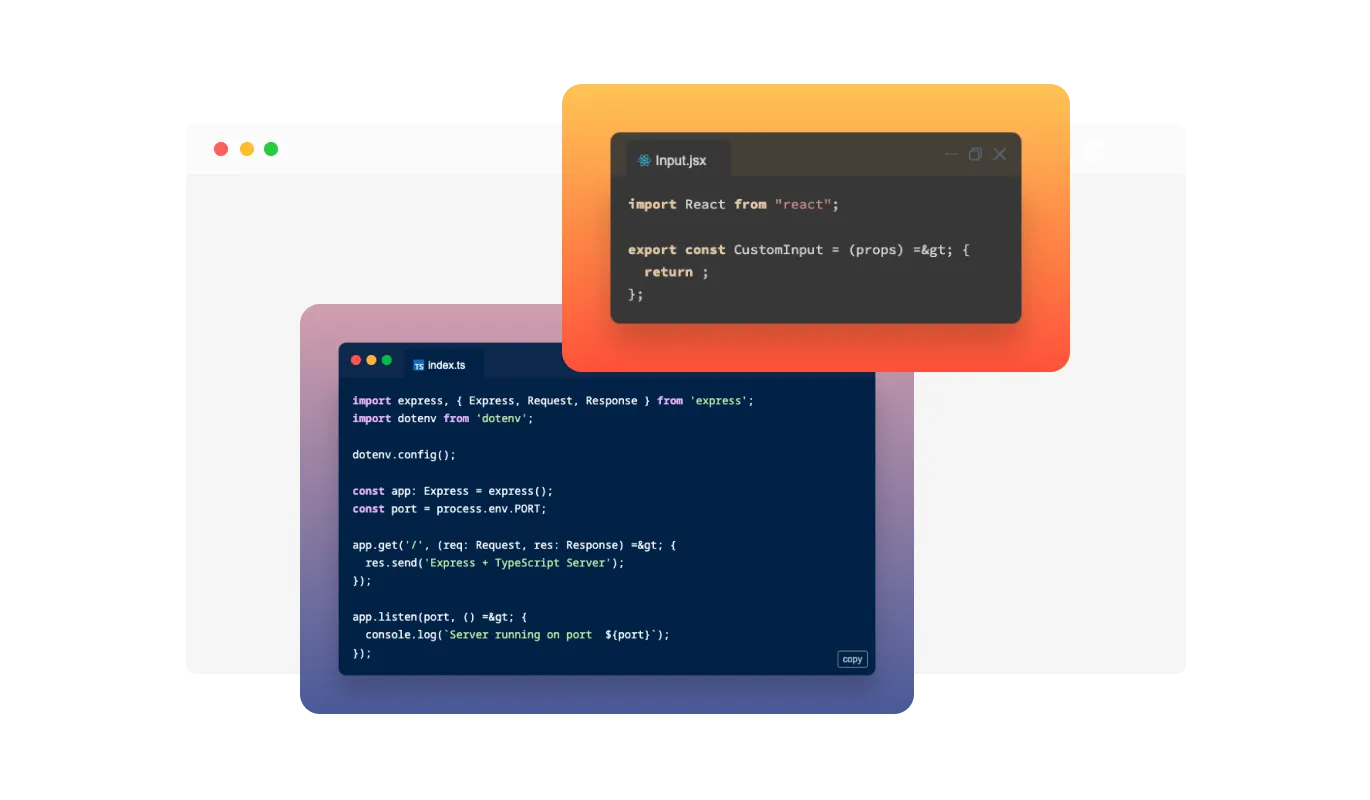
Our Code Snippets Widget offers a diverse selection of visually appealing themes to match your preferred coding environment. Choose from a range of stylish themes, including dark and light modes, or even create your custom theme. Tailor your code presentation to your liking and create an immersive coding experience that reflects your unique style and preferences.
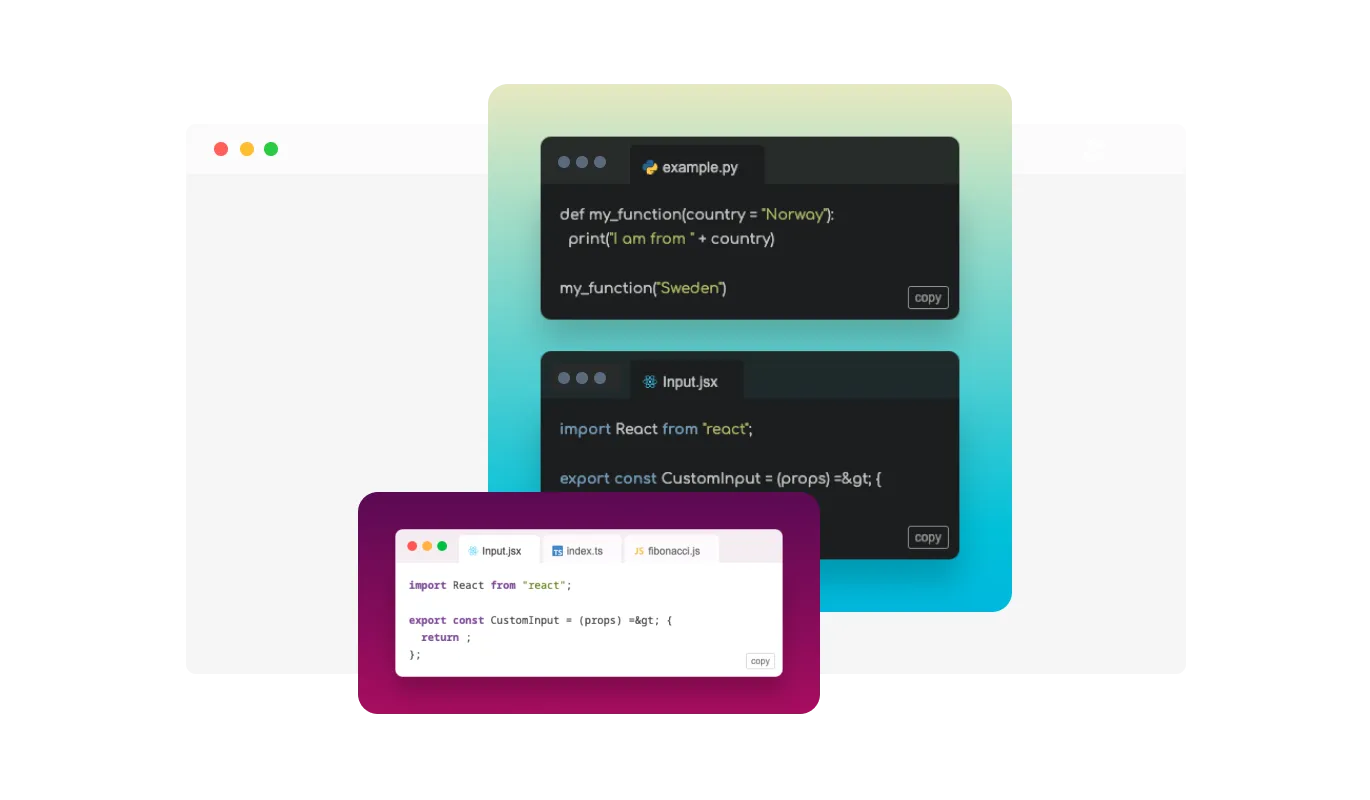
With our Code Snippets Widget, you can showcase multiple code snippets in a clean and organized manner. Effortlessly toggle between snippets using intuitive tabs or present them in a list layout for easy comparison.
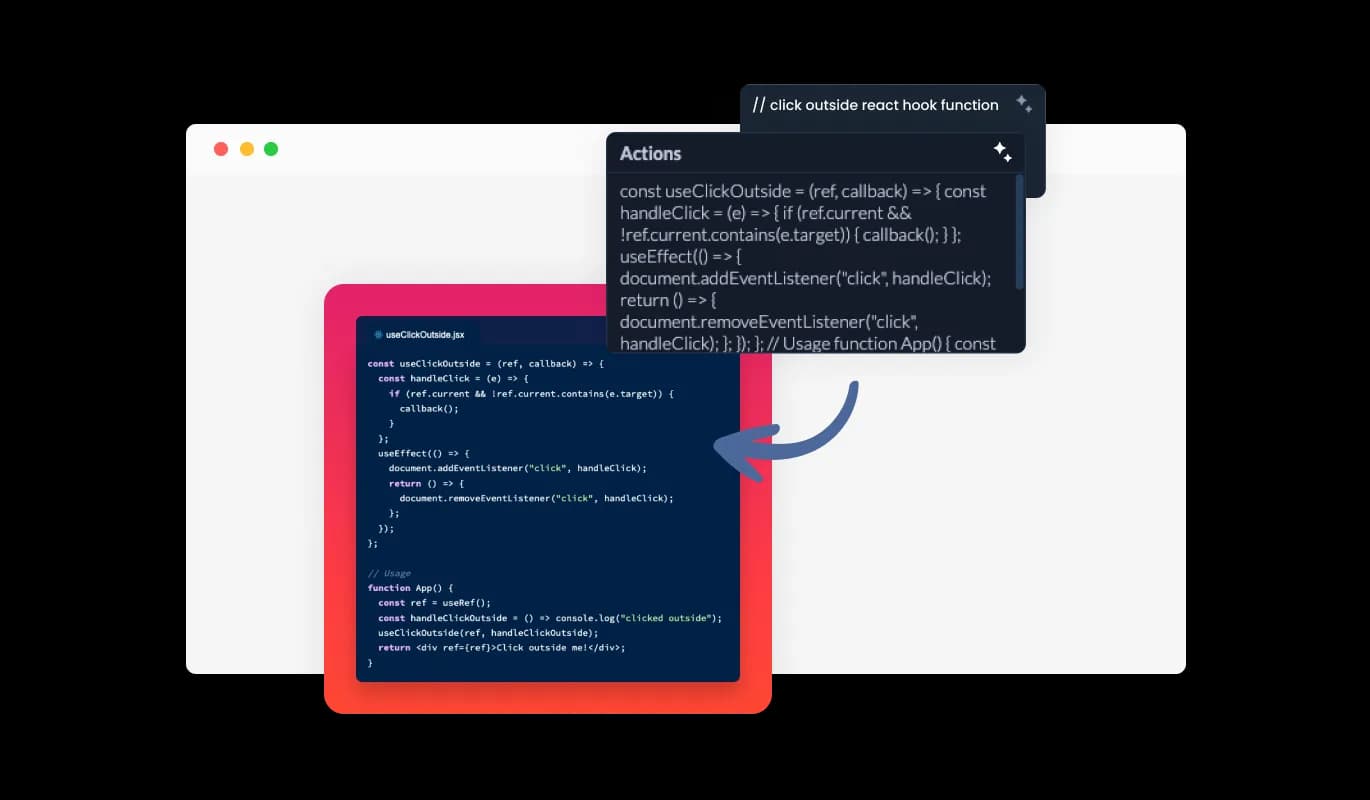
Our Code Snippets Widget comes equipped with a powerful AI code assistant to supercharge your development process. Get intelligent code suggestions and context-aware recommendations, enhancing your productivity.
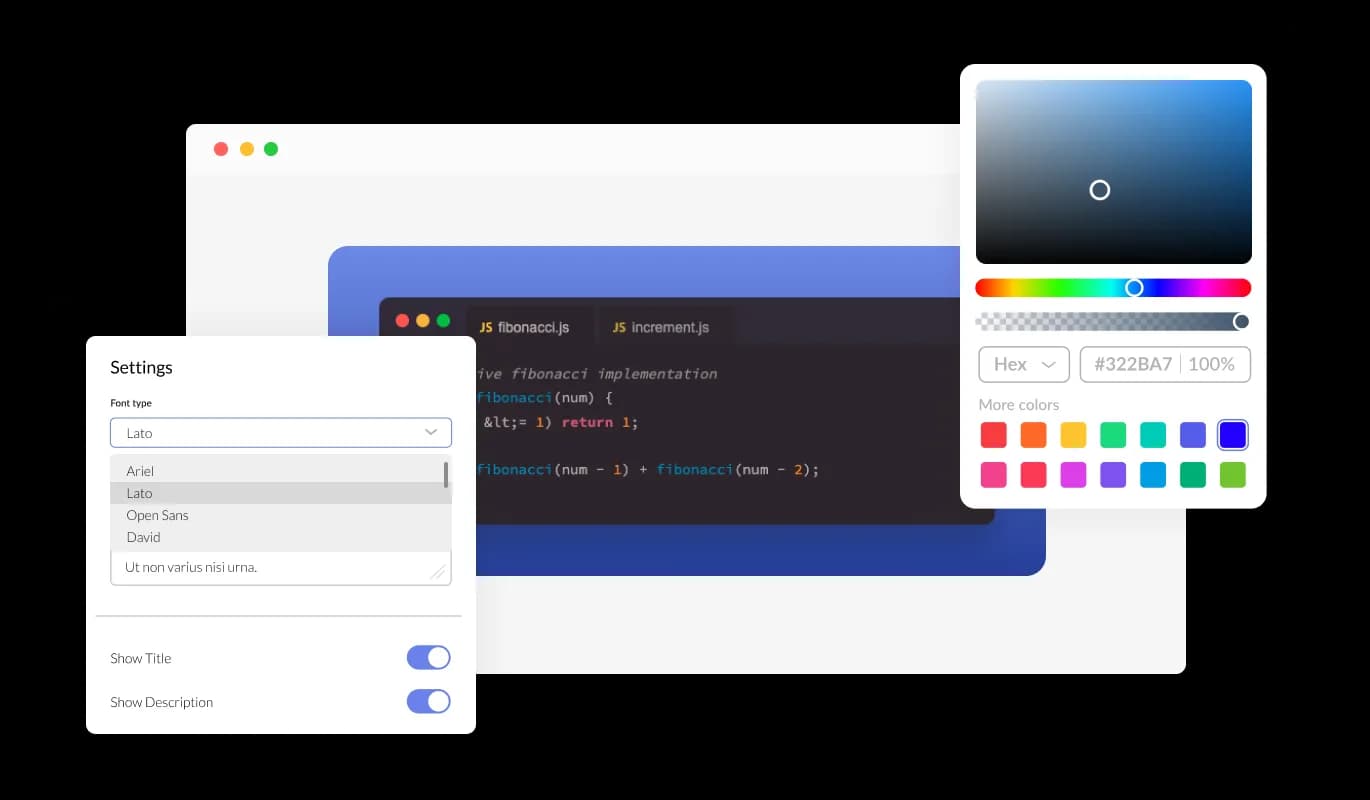
With the Code Snippets widget, you have complete control over the look and feel of your design. You can easily customize various elements such as the colors, fonts, and spacing to match your brand or personal style. Whether you want to create a sleek, modern design or a more traditional look, the Code Snippets widget has you covered. With its wide range of customization options, you can easily tweak and adjust every aspect of your design to get the perfect look for your project.
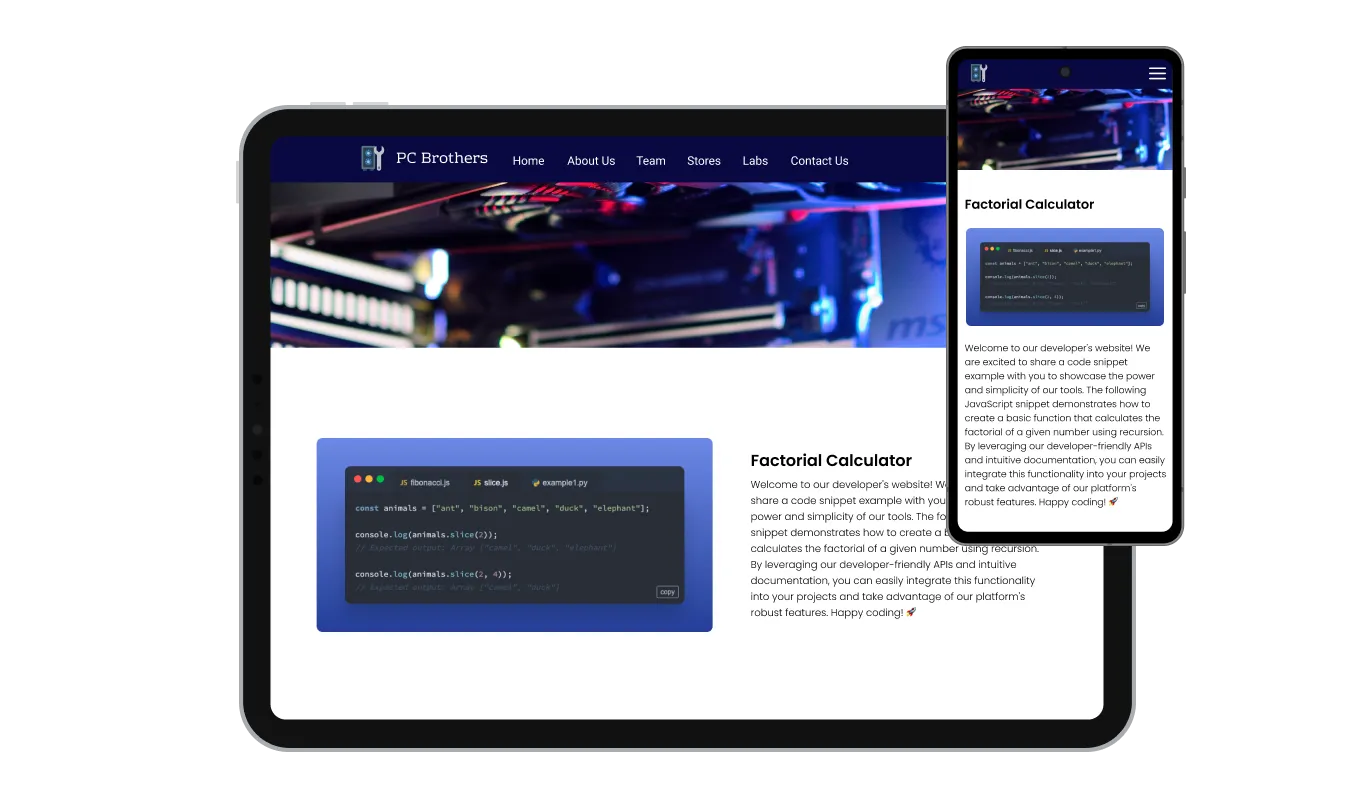
The Code Snippets widget is a valuable tool for any website. Not only is it fully responsive, meaning it will adjust seamlessly to fit the screen size of any device, but it also has a sleek and modern design that will enhance the overall look of your site. In a world where more and more people are accessing the internet through their phones and tablets, it is crucial to have a website that is optimized for mobile viewing. The Code Snippets widget will allow you to do just that, giving you an edge over competitors.

Our advanced editor is a powerful tool that gives you complete control over the appearance of the Code Snippets widget. With this feature, you can easily customize every aspect of the widget's look and feel, from the colors and fonts to the layout and positioning. But if you're feeling particularly creative, you can take your customization to the next level by editing the CSS directly. This gives you the ability to make even more advanced changes to the widget, allowing you to make it your own. Whether you want to make a few simple tweaks or go all out with advanced customizations, our advanced editor has you covered.

To embed the Code Snippets widget on your website, simply copy and paste the provided code snippet into the HTML of your webpage. Additionally, the widget is designed to be self-updating, meaning that any changes you make to the Code Snippets Editor will be reflected automatically on your website without the need for any additional manual updates.
Our Code Snippets Widget comes equipped with built-in formatting options to ensure clean and consistent code presentation.
The Code Snippets Widget incorporates advanced syntax highlighting, making your code visually distinct and easier to read.
Our Code Snippets Widget supports various file extension types and displays the corresponding file icon for each extension.
The Code Snippets widget is easy to use and requires no coding knowledge. Our intuitive dashboard with the drag-and-drop feature will enable you to customize the widget any way you’d like to with just a few simple clicks.
Common Ninja has amazing no-code widgets that would beautify a website built on any builder. It is very easy to use and customise. It has as many widgets for almost everyone willing to make their website impressive.
Outstanding service. I use their widgets to help me with my web design business and whenever I need help they are very quick to help.
Excellent company with excellent service!!! We used it to build a survey, it was very user friendly. The service was perfect. Amit helped us with every problem and question we had, thank you very much!!!
Common Ninja saved the day when building our website and the customer service Daniel, the co-founder and CEO, provided was amazing.
Any popular programming or markup language, including JavaScript, TypeScript, Python, PHP, Ruby, Go, Java, C#, C++, Swift, Kotlin, HTML, CSS, SQL, Bash, JSON, YAML, and many more. The widget renders the code as formatted, syntax-highlighted text for readers to scan. It does not execute the code on your page at runtime, so it is safe to display untrusted samples in tutorials and documentation.
It is for displaying code on a page. The Code Snippets widget renders a formatted, syntax-highlighted block that visitors read; it does not run the code. If you want to add functional HTML, JavaScript, or third-party scripts to a published site, use your platform's built-in Custom HTML or Embed Code block (Canva Embed element, WordPress Custom HTML block, Wix Embed Code, Squarespace Code Block).
Build the snippet in the Common Ninja editor (theme, language, content), copy the one-line embed code, and paste it into your blog post: Notion accepts the embed via the /embed block, Showit takes it in a Custom HTML container, Neocities accepts it in any HTML page. The same snippet also works on Hostinger, Blogger, WordPress, and any other host that allows custom HTML.
No. A snippet manager stores reusable code privately for your own future use. The Common Ninja Code Snippets widget is the opposite: it publishes a code example on a public web page for your readers to see. If you want to save personal snippets, a code editor extension or GitHub Gist is the right tool; if you want to publish formatted code on a blog post, tutorial, or docs page, this widget is.
Yes. The embed code points at the widget you built in the Common Ninja editor. When you edit the content, theme, or layout in the editor and save, every embed of that widget refreshes on the next page load. You never need to re-paste the embed code, on any platform.
A library of code themes covering light, dark, and IDE-inspired palettes. Every visual element is editable (background, line spacing, typography), and a Custom CSS field handles brand-specific overrides. The AI Code Assistant can suggest cleanups to snippet content during authoring.
Yes. The free plan covers one Code Snippets widget with no time limit and no credit card. Upgrade only when you need additional widgets, premium themes, or higher monthly view limits.
200+ platforms including Notion, Showit, Canva, Google Sites, Hostinger, Shopify, WordPress, Squarespace, Wix, Webflow, Framer, Blogger, Neocities, Carrd, BigCommerce, Bubble, Joomla, Avada, Divi, Elementor, Kajabi, Thinkific, Tilda, and any custom HTML page that accepts an embed snippet.
Pick your platform. Each takes under 4 minutes.
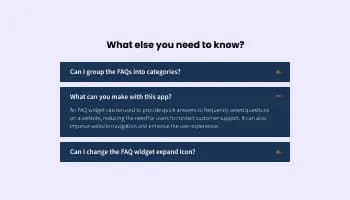
Displays common questions and answers for quick reference
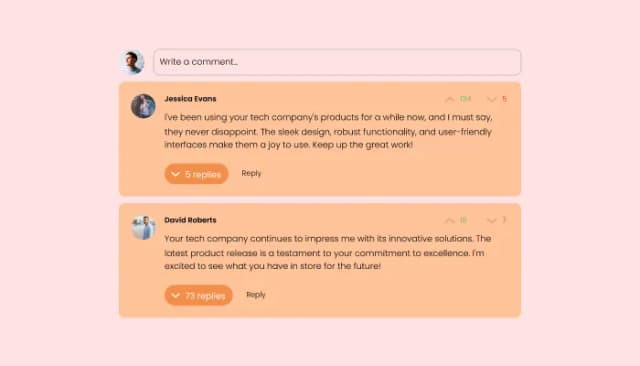
Comments system with upvote/downvote, email notifications, reply threads, and moderation tools.

A simple slider that lets visitors compare before and after images to see visual changes clearly.

Showcases images in a rotating or sliding manner

Showcase customer testimonials using a rotating slider
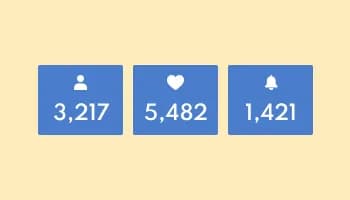
Showcase statistics, metrics, or countdowns in an animated visually appealing display
The Code Snippets Widget serves as a powerful tool to showcase dynamic and interactive code examples on your website or application. It enables developers to present code snippets with syntax highlighting and line numbering, making them visually appealing and easily comprehensible.
Absolutely! The Code Snippets Widget provides several customization options to align with your website's aesthetics. You can choose from various themes, including light and dark modes, or even create a custom theme to suit your unique style. Additionally, you can adjust colors, fonts, and widget spacing, ensuring seamless integration with your website's design.
The Code Snippets Widget comes equipped with an AI code assistant, which boosts code productivity by providing intelligent code suggestions, auto-completions, and context-aware recommendations. This AI-powered feature saves developers time and effort, reducing errors and simplifying the coding process.
Yes, you can easily customize the Code Snippets Widget to align with your website's aesthetics. The widget offers various themes and styles, allowing you to select colors, fonts, and other visual elements that complement your brand.
Absolutely! The Code Snippets Widget supports a wide range of programming languages, making it versatile for showcasing code from diverse sources. You can display snippets written in JavaScript, Python, HTML, CSS, and more.
Definitely! The Code Snippets Widget allows you to add interactive elements to your code examples. Users can click on designated code sections to access additional information, explanations, or related resources, enhancing engagement and understanding.
Integrating the Code Snippets Widget is straightforward. Once you've customized your code snippet, simply copy the provided code and paste it into your website's HTML. The widget comes with clear instructions and an intuitive drag-and-drop interface for easy implementation.
Absolutely! The Code Snippets Widget facilitates code sharing within the developer community. You can showcase your code snippets publicly, allowing other developers, students, and enthusiasts to access and learn from your examples.
Yes, the Code Snippets Widget is designed to be responsive and adaptable to various screen sizes. Your code snippets will look great and remain easily accessible, whether users access your website from desktops, laptops, tablets, or mobile devices.
Absolutely! Syntax highlighting is a core feature of the Code Snippets Widget. It uses color-coded formatting to distinguish different code elements, making your code snippets easier to read and understand.
Definitely! The Code Snippets Widget is an excellent tool for educators and trainers to teach programming concepts. You can create interactive code demonstrations and share them with students to enhance their learning experience.
Yes, the Code Snippets Widget complies with GDPR regulations. We prioritize data privacy and security, ensuring that your users' data is handled responsibly and transparently.
We value your input and are eager to hear your suggestions. Please visit our Feedback and Feature Request page to share your ideas and help us improve the Code Snippets Widget further.
Display syntax-highlighted snippets in any popular language with theme-matched styling, an AI Code Assistant, and one-line embed for 200+ platforms including Notion, Showit, Canva, WordPress, and Google Sites.
Create your Code SnippetNo credit card · Setup in under 5 minutes