


Verified review
Common Ninja has amazing no-code widgets that would beautify a website built on any builder. It is very easy to use and customise. It has as many widgets for almost everyone willing to make their website impressive.
Pick a template, change the colours, the offer and the code, and watch your coupon popup update as you go. No sign-up until you save.
The Common Ninja Coupon Popup widget is a free, no-code embed that delivers discount codes to visitors via popup. Pre-tuned for e-commerce's most-used pattern: "drop your email, get the code".
Set your coupon code and discount messaging, pick a layout (centered modal, slide-in card, top-bar reveal), configure trigger rules (on page load with delay, on exit-intent, on scroll depth, on time on page), enable email capture so the code unlocks after a signup, pick from coupon-styled skins or layer Custom CSS, and paste a one-line embed snippet on WordPress, Shopify, Wix, Base44, GoDaddy Website Builder, Editor X, Webflow, and 200+ other platforms.
Use it for flash-sale code drops, exit-intent rescue offers, welcome-discount captures for first-time visitors, holiday promo unlocks, and any moment where a discount can convert a hesitating visitor into a purchase.
Exit-intent popups fire the moment a visitor's cursor heads for the browser close, the highest-abandonment moment of the session and the moment a small discount can flip the decision. "Wait, here's 15% off if you stay." Visitors who'd otherwise have left without trace become first-time buyers because the offer hit at the right second.
Gate the coupon code behind an email signup. Visitors enter their email to reveal the code. Every claimed coupon is also a new email on your list, growing the audience you can re-engage with future promos, content, or product updates. Two outcomes (sale + email capture) from one popup interaction.
Flash sales, holiday promos, weekend specials, restock discounts, schedule the popup, set the code, drop it into the editor, and visitors see it within minutes across every page where the snippet loads. Take it down when the promo ends without touching your theme code. Operationally cheap, lift the right campaigns when the moment is right.
The Popup Builder is general-purpose: any modal, any content, any trigger combo. The Notification Popup is for short compact alerts in the corner. The Coupon Popup is pre-tuned for the discount-drop pattern, "here's a code, drop your email to claim". With the right defaults (email field, code reveal, coupon-styled skins, expiration framing). Use this Coupon Popup when discount delivery is the goal; use the Popup Builder for custom multi-purpose popups.
Enter the discount code (e.g. WELCOME15), the discount messaging ("15% off your first order", "Free shipping when you spend $50"), the headline that draws the visitor's eye ("First-time here? Take 15% off."), and an optional image or icon. Configure expiration messaging if the offer has a deadline so the popup carries time-sensitivity.
Choose when the popup fires. On page load (with optional 5-30 second delay so visitors get to see the page first), on exit-intent (cursor heads for browser close, the highest-converting trigger), on scroll depth (after visitor reads enough to be interested), or on time on page. Enable email capture so visitors enter their email before the code reveals. Turns the offer into a list-building tool. Pick a layout (centered modal, slide-in card, top-bar reveal) and a skin.
Copy the one-line embed snippet and paste it on WordPress, Shopify, Wix, Base44, GoDaddy, Editor X, or any of the 200+ supported platforms. The popup loads with the page and fires based on your trigger rules. Captured emails save to your Common Ninja dashboard for CSV export or webhook delivery to your email tool. Edits in the editor push to every embed without re-paste.
Centered modal (the classic discount overlay), slide-in card (less interruptive nudge from the corner), top-bar reveal (announcement-style strip that drops down). Switch layouts in the editor without re-entering content; pick what fits the section's tone.
Show the discount headline and image, but hide the actual code until the visitor enters their email. Captures a new email for every claimed coupon. Turns the popup into a list-builder alongside the conversion lift.
Fire on page load (with configurable delay), on exit-intent, on scroll depth, or on time on page. Cap frequency per visitor (once per session, once per visitor, every N days) so visitors don't see the same code popup repeatedly.
Pick from a library of coupon-styled skins (ticket-stub, gift-card, neon-flash, holiday, minimal-clean) for a fast visual fit that signals "this is a discount". Layer Custom CSS for pixel-level control over backdrop blur, code-reveal animation, button styling, and per-breakpoint sizing.
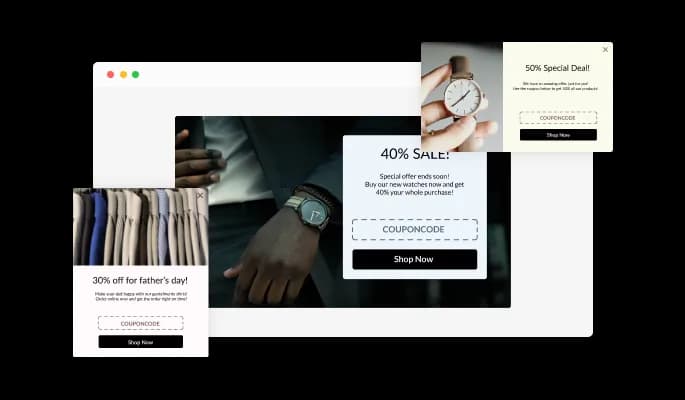
The Discount Popup widget comes with multiple layouts that you can choose from to make sure it fits your overall website design and style.
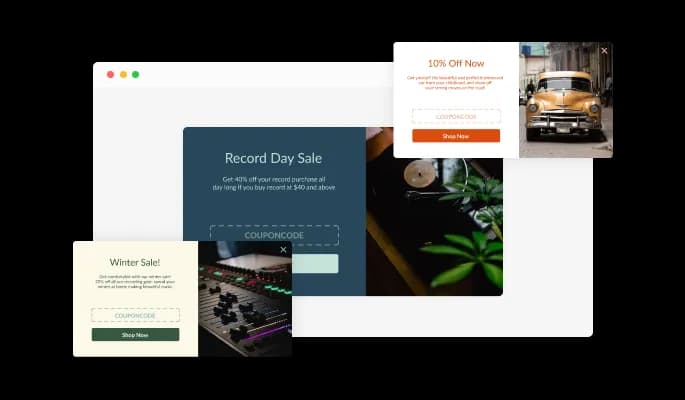
The Promo Coupon Pop-Up widget comes with a variety of beautiful skins that you can choose from so you don’t have to spend much time on extensive customization.
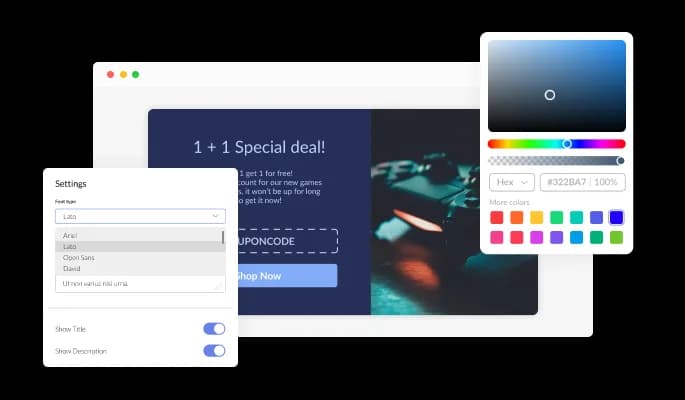
The Coupon Code Popup widget features full customization options so you can edit the design to fit your needs. Change the colors, the fonts, the spacing, and anything else!
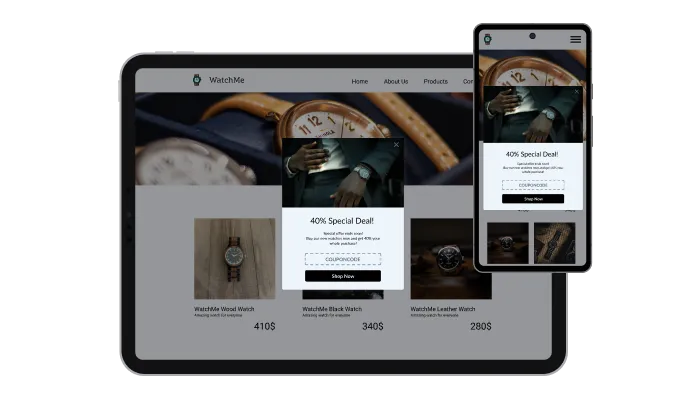
The Discount Popup widget is fully responsive and will look great on any device. This feature will put you ahead of your competitors in a mobile-first world.

As with all of Common Ninja’s widgets, you can add custom CSS to customize the Coupon Popup widget and be even more creative.

You can easily embed the widget on your website by copying a single line of code. The Coupon Popup widget will also be updated automatically with every change you make.
The Promo Code Popup widget comes with a powerful lead-building feature: email collection, that will require users to enter their email addresses to receive the coupon, which you will later use for your promotional campaigns.
To add further flexibility in customizing your Coupon Code Popup widget and making it more unique, there are various styles of coupons available that you can choose from and use.
The Coupon Pop-UP widget features advanced display rules, like when or where to display the widget, that you can set and customize. The rules include action triggers like “on exit”, “time delay”, “page scroll” and more.
The Coupon Popup widget is easy to use and requires no coding knowledge. Our intuitive dashboard with the drag-and-drop feature will enable you to customize the widget any way you’d like to with just a few simple clicks.
Common Ninja has amazing no-code widgets that would beautify a website built on any builder. It is very easy to use and customise. It has as many widgets for almost everyone willing to make their website impressive.
Outstanding service. I use their widgets to help me with my web design business and whenever I need help they are very quick to help.
Excellent company with excellent service!!! We used it to build a survey, it was very user friendly. The service was perfect. Amit helped us with every problem and question we had, thank you very much!!!
Common Ninja saved the day when building our website and the customer service Daniel, the co-founder and CEO, provided was amazing.
Yes. The free plan covers one Coupon Popup with no time limit and no credit card. Upgrade only when you need additional popups, advanced trigger rules, premium coupon-styled skins, email-tool integrations (Mailchimp, Klaviyo, ConvertKit), or features like A/B variants and per-coupon analytics.
The Popup Builder is general-purpose: any modal with any content (lead-capture forms, exit-intent offers, content-rich announcements with embedded widgets). The Notification Popup is for compact corner alerts and short messages. The Coupon Popup is pre-tuned for the discount-drop pattern, "here's a code, drop your email to claim", with the right defaults (email gate, coupon-styled skins, expiration framing). Use this Coupon Popup when discount delivery is the goal; use the other widgets when you need custom multi-purpose popups or compact alerts.
Yes. Enable email capture in the editor. The popup shows the discount headline and image, but hides the actual code until the visitor enters their email and submits. Every claimed coupon becomes a new email on your list. Captured emails save to your Common Ninja dashboard with CSV export or (on paid plans) auto-sync to your email tool via webhook.
Fire on page load (with optional 0-60 second delay), on scroll depth (e.g. after 30% read), on exit-intent (cursor heads for browser close on desktop, time-based fallback on mobile), on time on page (fire after N seconds). Combine triggers with frequency caps so visitors don't see the same coupon twice per session.
On paid plans, yes. Set start and end times in the editor. The popup activates at the start time and stops firing at the end time, hiding automatically when the promo expires. Useful for flash sales, holiday promos, and time-bound discount drops where you don't want the offer lingering past the deadline.
Use the frequency cap setting. Choose once per session (won't show again until the tab closes), once per visitor (won't show again on this device, period), or every N days (cooldown before re-firing). Frequency tracking uses cookies, so it survives page reloads within a session and respects visitors who clear cookies regularly.
Build the widget in the Common Ninja editor (set coupon code, pick layout, configure triggers, enable email capture), copy the embed snippet, and paste it into your site: WordPress via a Custom HTML block (Gutenberg) or Shortcode/Text widget (Classic), for sitewide installation, paste into your theme's header template; Shopify via the Custom HTML section in your theme editor or via a Custom Code app for sitewide injection; Wix via the HTML embed widget (Add → Embed → HTML iFrame/Embed a Widget). Edits in the editor push to every embed without re-paste.
Yes. Each layout (centered modal, slide-in card, top-bar reveal) adapts across mobile, tablet, and desktop breakpoints. Modal sizing scales to viewport width, the slide-in card switches to bottom-anchored strips on small screens, code-reveal interactions stay tappable, and close-button hit targets stay finger-sized. Exit-intent on mobile uses a time-based fallback (mobile browsers don't fire mouse-leave events) so the popup still fires at high-abandonment moments.
Pick your platform. Each takes under 4 minutes.
Easily craft engaging, personalized popups to boost conversions.
Display important notifications with a popup
Displays a countdown clock, with multiple effects and styles
Allow users to send messages or inquiries, save submissions, enable notifications, and more
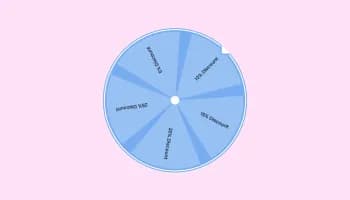
Interactive wheel offering rewards to boost user engagement, gather leads and increase conversions.
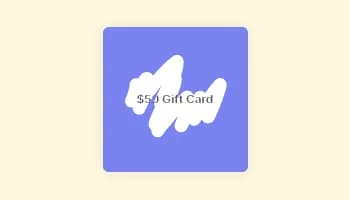
Interactive Scratch Card for users to unveil prizes, aiding lead generation.
Yes, you can easily do so from the “Templates” tab.
Yes, there are several styles available for you to choose from.
Yes, there are lots of beautiful skins that you can choose from to save time and start using the widget as quickly as possible.
Yes, the widget comes with an email collection option which you can enable easily from the settings menu.
Yes, the widget comes with display rules (triggers). You can choose the ones that fit your needs with a simple toggle.
Using the Coupon Popup widget is very easy. Simply sign up and start using the free version. There's no need to worry about complicated setup or installation processes, as the Coupon Popup widget is designed to be user-friendly and straightforward. Once you've signed up, you'll have access to all of the basic features and functions of the widget, which you can use to enhance your website and improve your online presence. From there, you can choose to upgrade to the paid version if you want to access more advanced features and capabilities. Regardless of which version you choose, you'll find that the widget is a powerful and easy-to-use tool that can help you take your online presence to the next level.
The Common Ninja Coupon Popup widget is a free tool rich with features and options. While this widget is free to use, it does have a limit on the number of views it can handle. This means that after a certain number of views, the widget may no longer be visible or functional on your website. It is important to note that this view limit may vary depending on your plan. Despite this limitation, Common Ninja's Coupon Popup is still a valuable tool for businesses looking to increase customer engagement and improve the overall user experience of their website.
The Common Ninja's Coupon Popup widget is a versatile tool for any website builder. This means that you can easily add this widget to your website or store no matter what platform you use to build your website. The Coupon Popup widget will work seamlessly with your platform whether you are using a popular website builder or something more specialized. This means you can enjoy all the benefits of this powerful tool without having to worry about compatibility issues.
Yes. The Coupon Popup widget can be used in a GDPR-compliant way. Collecting visitor information is always opt-in: it stays off until you turn it on in the widget’s settings, and you decide what is collected. As the website owner, you remain responsible for how you use your visitors’ data.
No need for coding skills. Our Coupon Popup widget is designed to be easy to use, even for those with limited technical experience. The widget features a user-friendly interface that allows you to easily customize the widget without coding knowledge. You can fully customize the Coupon Popup to match your branding. When you're done, simply copy the provided code and paste it into your website. It's that simple!
Yes. We are eager to hear your request. Please visit our Feature Request page.
There are several benefits to displaying a coupon popup widget on your website:
A coupon popup widget is a tool that displays a pop-up window on a website offering a discount or special offer to the user. This widget is typically triggered by a specific action, such as visiting a certain page or spending a certain amount of time on the website. The coupon or offer is typically redeemed through a code or link provided in the popup window. Coupon popup widgets can be used to encourage sales, build customer loyalty, and collect email addresses for future marketing efforts.
Yes, a coupon popup widget can potentially boost sales on your website by offering customers a discount or special offer. By providing an incentive for customers to make a purchase, you can encourage them to complete the sale and increase your overall revenue. However, it is essential to carefully consider the terms of the coupon or offer and the frequency and timing of the popup to ensure that it is effective in driving sales.
Embedding the Coupon Popup widget on your website is a straightforward process. Simply copy the provided code and paste it into the desired location on your website. The widget will seamlessly integrate into your site, allowing you to take advantage of its features and functions. No technical expertise or programming knowledge is required - just copy and paste the code to get started. This simple process allows you to easily add the widget to your website and enhance its functionality without any hassle.
Drop discount codes with email-capture gating, trigger rules (load, scroll, exit-intent, time), centered modal / slide-in / top-bar layouts, coupon-styled skins, and Custom CSS. Embed on 200+ platforms including WordPress, Shopify, Wix, Base44, GoDaddy Website Builder, and Editor X.
Create your Coupon PopupNo credit card · Setup in under 5 minutes