Gallery Popup

Show multiple products, deals, and image collections in one popup, with a button for every picture.

Create a Gallery Popup

loved by 500K+ businesses

plugineditoreditor

Why Should You Use the Gallery Popup Widget+?

Promote Multiple Products and Deals in One Popup

Most popups carry a single offer. A Gallery Popup holds a whole collection, so you can show seasonal deals, new arrivals, or recommended products side by side and let visitors choose what interests them.

Give Every Picture Its Own Call to Action

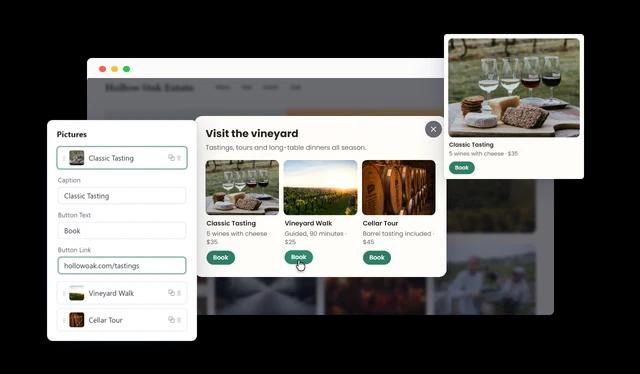
Each picture can have its own button and link, so visitors go straight from the image to the product page, booking form, or offer it shows. Add one main button under the gallery for the collection as a whole.

Show More Without Cluttering Your Pages

Keep collections, portfolios, and promotions out of your page layout and bring them up only when they matter: after a delay, on exit intent, or when a visitor clicks a launcher or a link.

Reach Visitors at the Right Moment

Decide when the gallery appears and who sees it, with triggers like time on page, scroll depth, exit intent, and page visits, plus device, page, schedule, and view limit rules.

Five Gallery Styles

Present your pictures as a tidy Grid, a Masonry wall that keeps each picture's original shape, a Slider with thumbnails, a stack of Swipe Cards, or a Running Strip that scrolls on its own. Set the number of columns, the spacing, and the picture shape: square, portrait, landscape, or original.
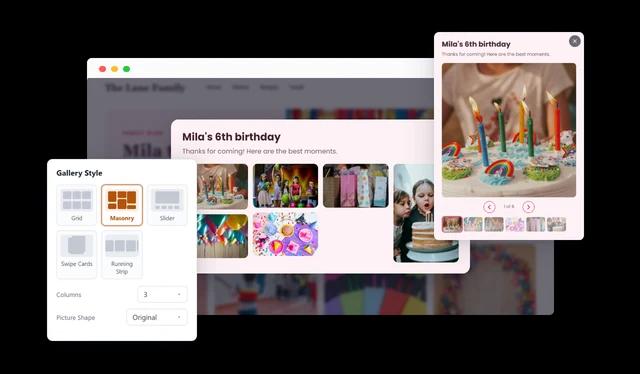
Gallery Popup - Five Gallery Styles

Five Popup Types

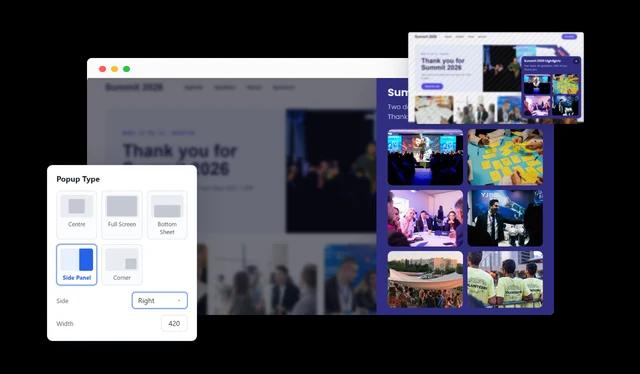
Open the gallery as a classic Centre popup, an immersive Full Screen view, a Bottom Sheet along the bottom of the screen, a Side Panel on the left or right, or a compact Corner popup in any corner of the page.

Gallery Popup - Five Popup Types

Individual Call-to-Action Buttons

Add a button with its own text and link to any picture, and send visitors to a product page, a special offer, a booking page, or an article. Pictures without button text simply show no button, and one main button under the gallery can point to the full collection.

Gallery Popup - Individual Call-to-Action Buttons

Captions and Descriptions

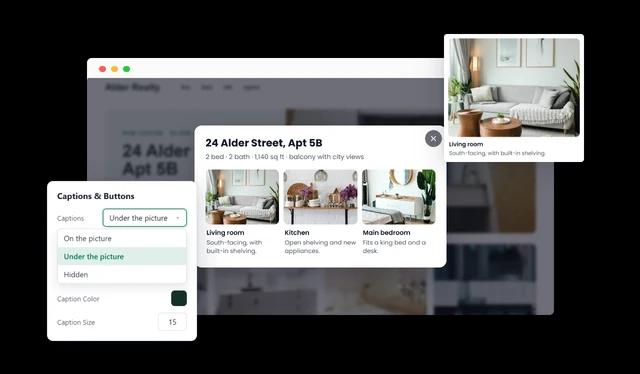
Give every picture a caption and a description to name a product, mention a price, or tell the story behind a photo. Show captions below the pictures, on top of them, or hide them altogether.

Gallery Popup - Captions and Descriptions

Flexible Display Rules

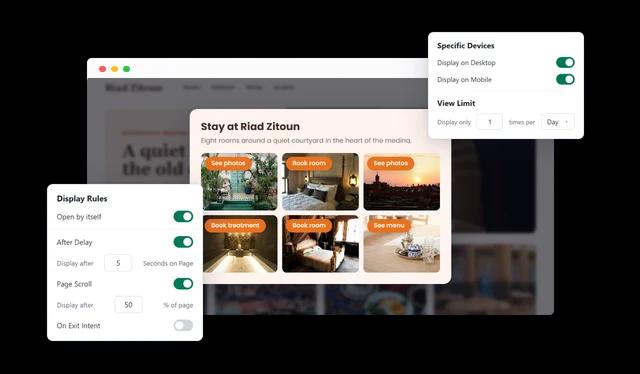
Open the gallery automatically after a delay, at a set scroll depth, on exit intent, or after a number of visits or page views. Limit how often it appears, schedule it for specific dates, and show it only on chosen devices and pages.

Gallery Popup - Flexible Display Rules

Launchers, Links, and Click Triggers

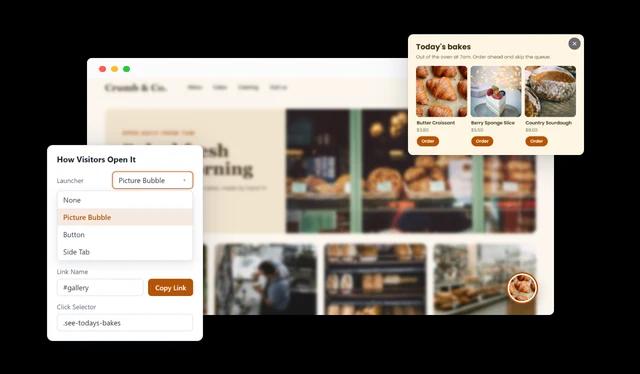
Let visitors open the gallery whenever they like from a floating bubble, tab, or button launcher. Any link on your site that points to #gallery opens it, #gallery-3 opens it on the third picture, and developers can attach it to any element with a CSS selector.

Gallery Popup - Launchers, Links, and Click Triggers

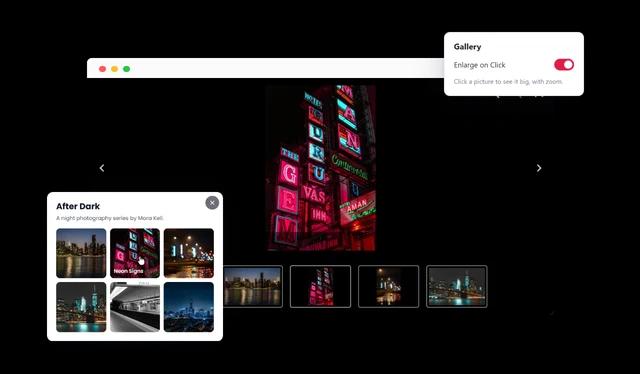
Enlarge on Click With Zoom

Visitors can click any picture to see it big and zoom in on the details, which makes product close-ups, photography, and design work easy to appreciate without leaving the page.

Gallery Popup - Enlarge on Click With Zoom

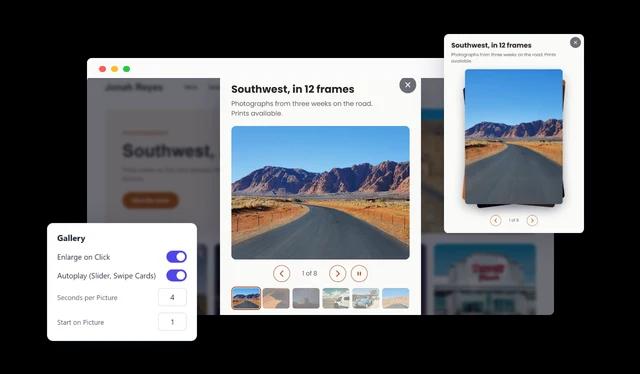
Autoplay and Easy Navigation

Slider and Swipe Cards can move on by themselves at the speed you choose, while arrows and a picture counter make browsing simple. You can also choose which picture the gallery opens on.

Gallery Popup - Autoplay and Easy Navigation

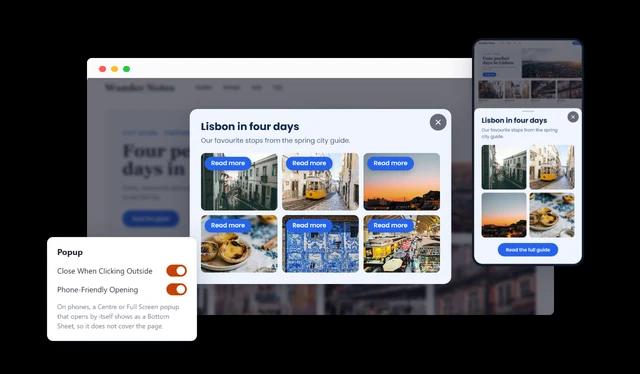
Mobile-Friendly Opening

On phones, a Centre or Full Screen popup that opens by itself shows as a Bottom Sheet instead, so it does not cover the page for visitors arriving from search. Galleries opened from a button or link keep the type you chose.

Gallery Popup - Mobile-Friendly Opening

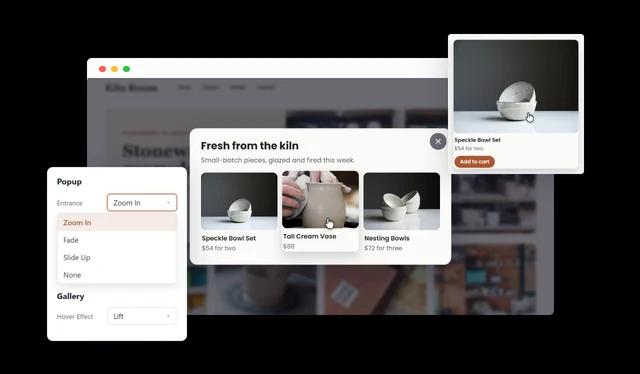
Entrance Animations and Hover Effects

Bring the popup in with a fade, slide, or zoom, and add a zoom or lift effect when visitors hover over a picture. The Running Strip lets you set its speed and direction as well.

Gallery Popup - Entrance Animations and Hover Effects

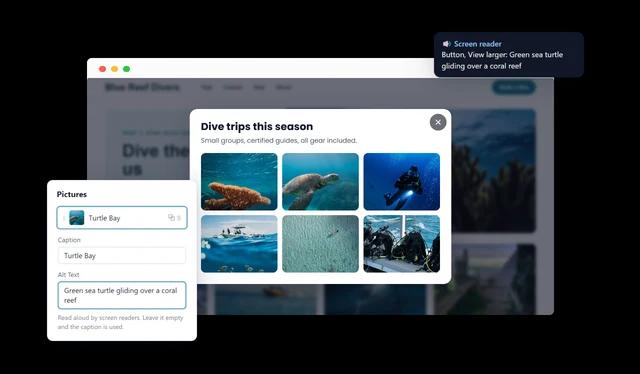
Accessible Pictures

Add alt text to every picture so screen readers can describe it. When the alt text is empty, the caption is read instead, and keyboard focus is clearly marked.

Gallery Popup - Accessible Pictures

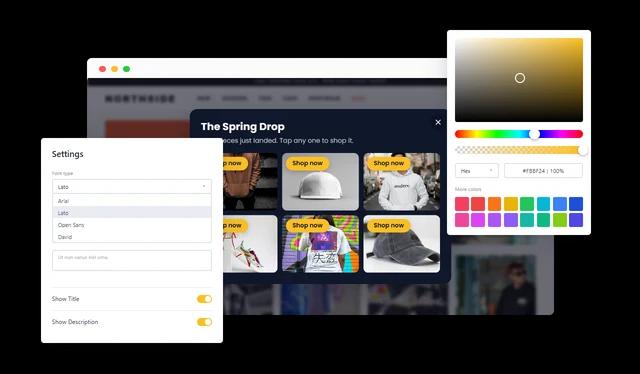
Fully Customizable Design

Start from one of 27 color skins, then adjust the popup width, height, and corners, the dimmed background, the close button, fonts, captions, and button colors to match your brand.

Gallery Popup - Fully Customizable Design

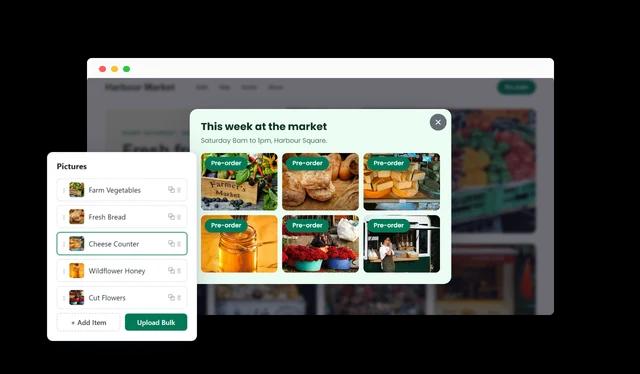
Simple Picture Management

Add pictures one at a time or upload them in bulk, then drag to reorder, duplicate, or delete them in a visual editor. No coding is needed at any step.

Gallery Popup - Simple Picture Management

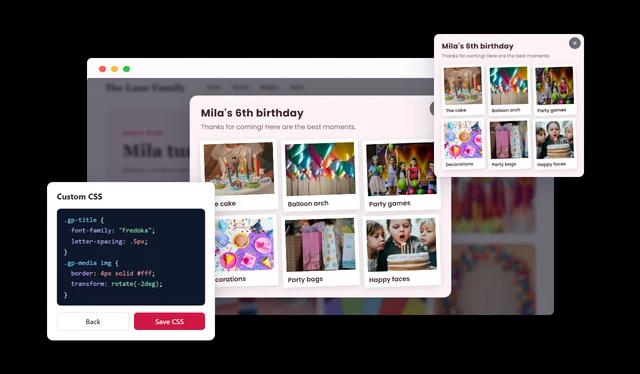
Custom CSS

Fine-tune any part of the Gallery Popup with your own CSS for complete control over its look.

Gallery Popup - Custom CSS

Easy to Embed

Add the Gallery Popup to your website with a short embed code. It works on any website builder or platform, with no development work required.

Gallery Popup - Easy to Embed

Compatible With All Site Builders, E-Commerce Platforms and Websites

View all supported platforms

FAQ

A Gallery Popup is a website widget that shows a collection of pictures, products, or offers inside a popup. Visitors can browse the whole collection and click through to the pages that interest them without leaving the page they are on.

An image gallery sits inside your page layout, and a regular popup usually carries one message or offer. A Gallery Popup combines the two: a full gallery with its own buttons and links that appears as a popup, either on its own through display rules or when a visitor asks for it.

Yes. Add as many pictures as your plan allows, each with its own caption, description, button text, and link. It is a simple way to show several offers, a new collection, or recommended products in one place.

The Gallery Popup does not include a shopping cart or checkout. Instead, each picture can have a button that links to the product page, store, or landing page where the purchase happens.

There are five gallery styles: Grid, Masonry, Slider, Swipe Cards, and Running Strip.

You can open the gallery as a Centre popup, a Full Screen view, a Bottom Sheet, a Side Panel on the left or right, or a Corner popup.

Yes. Display rules let it open by itself after a delay, at a scroll depth, on exit intent, or after a number of visits, with options to limit how often it shows, schedule it, and target specific devices and pages. You can also turn automatic opening off completely.

Yes. Add a floating launcher in the style of a bubble, tab, or button, link any element on your page to #gallery, or open it on a specific picture with a link such as #gallery-3. Developers can also use a CSS selector to choose which elements open it.

Yes. Give each gallery its own link name, such as #summer or #new-arrivals, so every link opens the right popup.

Yes. It adapts to phones, tablets, and desktops, and on phones a Centre or Full Screen popup that opens by itself can show as a Bottom Sheet so it does not cover the page.

Absolutely. It works well for photography portfolios, real estate listings, hotel rooms, restaurant specials, event albums, design projects, services, and any other visual collection.

No. You can create, customize, and embed your Gallery Popup with Common Ninja's visual editor, without writing any code.