How to add Gallery Popup to your website
Learn how to embed Common Ninja’s Gallery Popup on your website without coding.

In This Guide
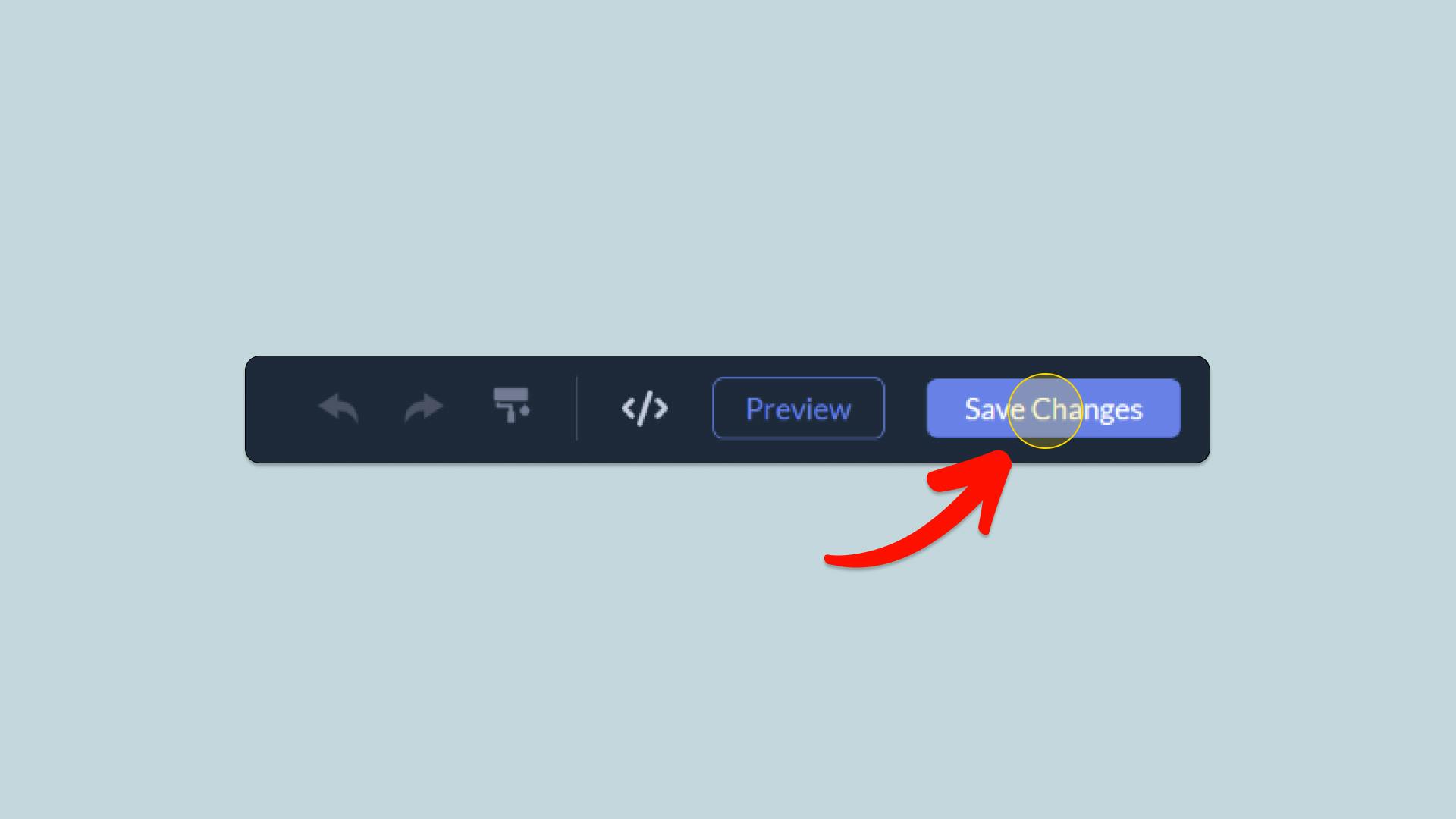
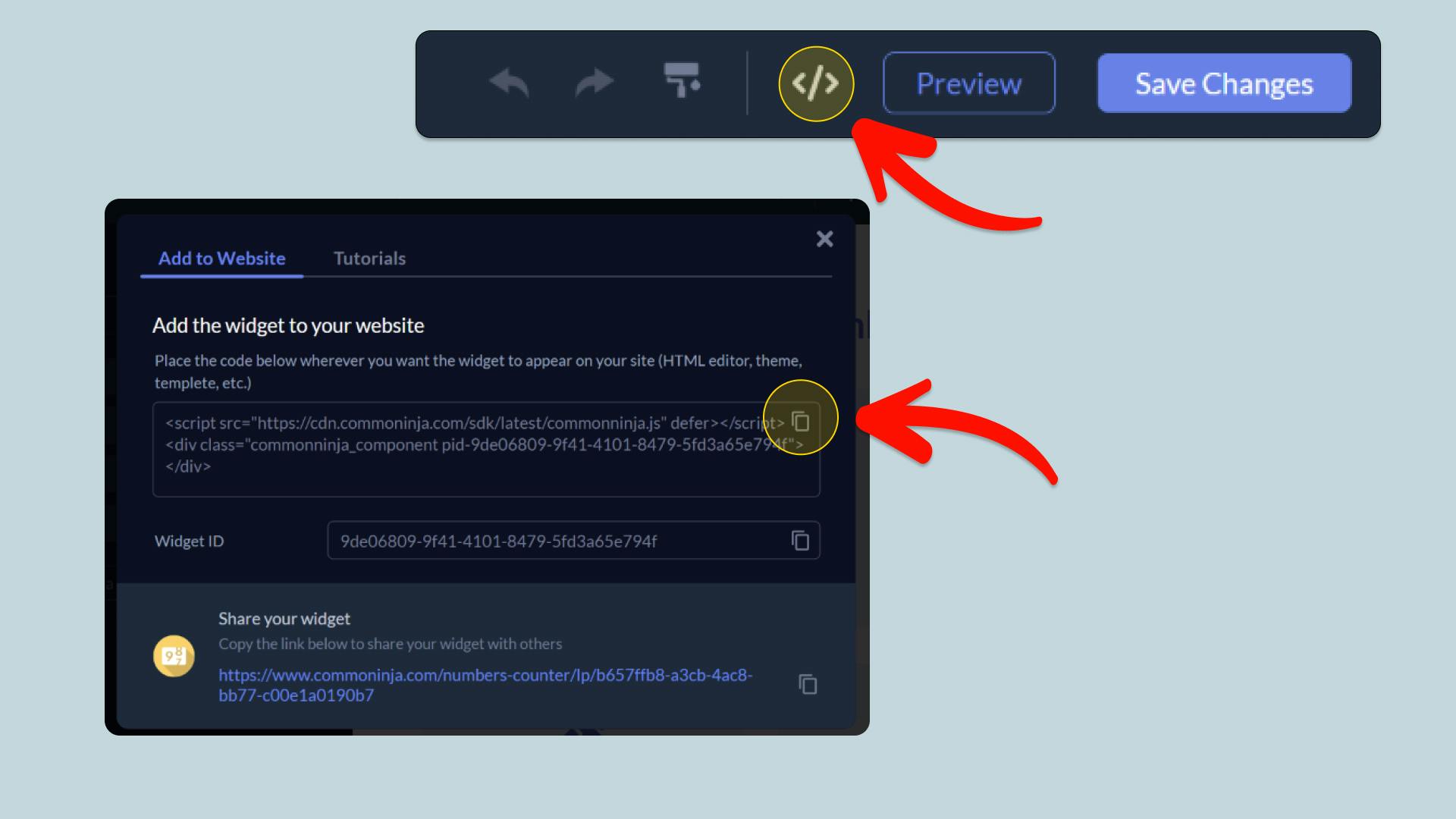
In this quick guide, you'll learn how to embed the Gallery Popup into your website by generating your embed code and adding it seamlessly to your website.
How to Embed Gallery Popup on Your Platform
Choose your platform to see detailed, step-by-step instructions for embedding Gallery Popup seamlessly.


Embed Gallery Popup on Your Website
Why Use This Widget
The Gallery Popup widget puts a whole collection of pictures inside one popup. Most promotional popups carry a single message, but a Gallery Popup can show a full product collection, several seasonal deals, a set of services, or a portfolio, and every picture gets its own caption, description, and call-to-action button with a link. Choose from five gallery styles (Grid, Masonry, Slider, Swipe Cards, and Running Strip) and five popup types (Centre, Full Screen, Bottom Sheet, Side Panel, and Corner). The popup can open by itself based on display rules such as time on page, scroll depth, exit intent, or visit count, or only when visitors ask for it, from a floating launcher, any link that points to #gallery, or an element you choose. Visitors can click a picture to see it enlarged with zoom, and on phones a popup that opens by itself can show as a bottom sheet so it does not cover the page. Style the colors, fonts, spacing, picture shapes, captions, and buttons to match your site, then embed it on any website without writing code.
This tutorial was written by the Common Ninja product team, creators of interactive, no-code widgets for websites. Common Ninja helps over 500,000 users build engaging online experiences without coding.