Image Map

Turn any image into an interactive map with clickable areas, tooltips, and links.

Create an Image Map

loved by 500K+ businesses

plugineditoreditor

Why Should You Use the Image Map Widget+?

Turn Static Images Into Interactive Experiences

Give visitors a reason to explore. Highlight the parts of an image that matter and let people hover, tap, or click to discover what each one is about.

Make Complex Visuals Easier to Understand

Floor plans, venue layouts, diagrams, and product illustrations become self-explanatory when each section carries its own label, description, and link.

Show More Without Cluttering the Page

Details stay tucked inside tooltips until a visitor asks for them, so the image stays clean while still answering every question about it.

Build Branded Interactive Maps Without Coding

Draw areas, write tooltips, and style colors, fonts, and borders in a visual editor, then embed the finished map on your website in minutes.

Custom-Shaped Interactive Areas

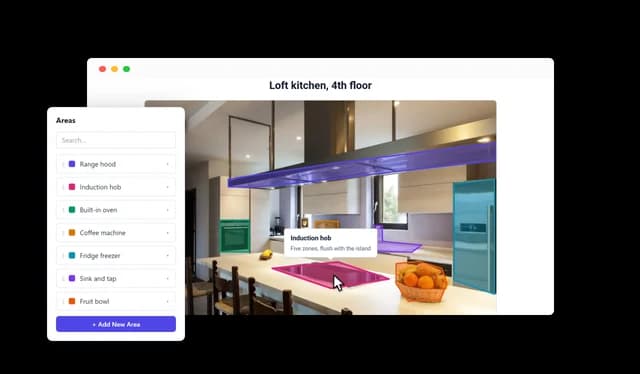
Draw each area directly on the image so it follows the real outline of a room, a seating section, a building, or an object. Areas are polygons, not pins, so whole regions respond to the visitor instead of a single point. Re-draw any shape at any time.
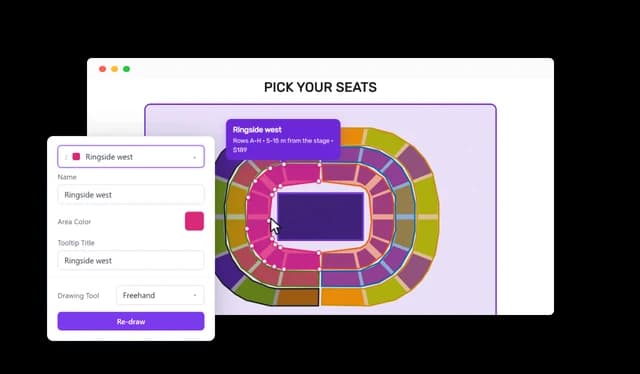
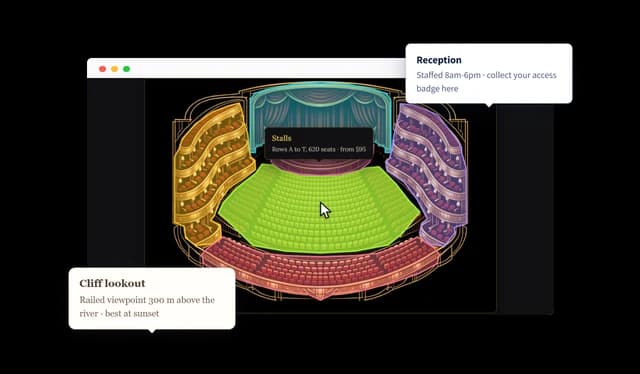
Image Map - Custom-Shaped Interactive Areas

Interactive Tooltips

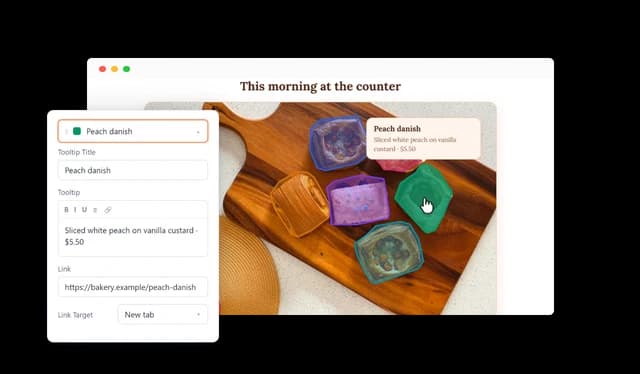
Give every area a tooltip with its own title and description. Tooltip text supports bold, italics, lists, and links, so you can add prices, opening hours, specs, or directions right where visitors are looking.

Image Map - Interactive Tooltips

Flexible Tooltip Triggers

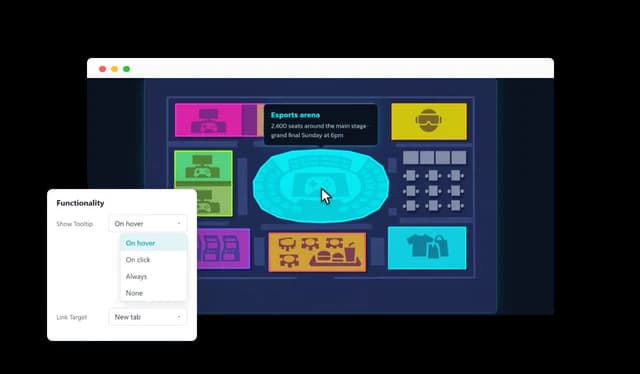
Choose how tooltips appear: on hover, on click, always visible, or not at all. Hover suits quick exploration on desktop, click works well for touch screens, and always-visible labels turn the map into an annotated guide.

Image Map - Flexible Tooltip Triggers

Clickable Areas With Custom Links

Assign a URL to any area and turn it into a link to a product page, a booking form, an article, or any other destination. Choose whether links open in the same tab or a new one.

Image Map - Clickable Areas With Custom Links

Custom Area Colors and Transparency

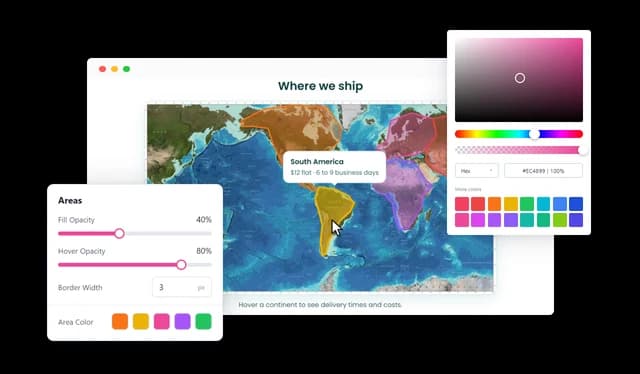
Give each area its own color, then set the fill opacity, the hover opacity, and the border width for the whole map. Areas can stay subtle until a visitor points at them, or stand out from the start.

Image Map - Custom Area Colors and Transparency

Responsive Image Coordinates

Area coordinates are saved as percentages of the image rather than fixed pixels, so every shape stays exactly where it belongs as the image resizes on desktops, tablets, and phones.

Image Map - Responsive Image Coordinates

Multiple Interactive Areas

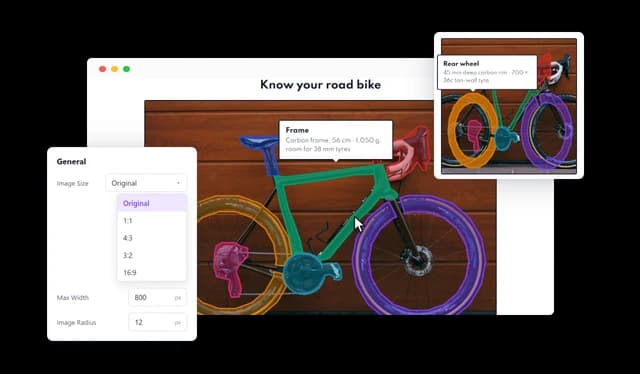
Add as many areas as the image needs. Each one has its own name, color, tooltip, and link, and the areas list lets you search, reorder, edit, or delete them in one place.

Image Map - Multiple Interactive Areas

Flexible Image Display

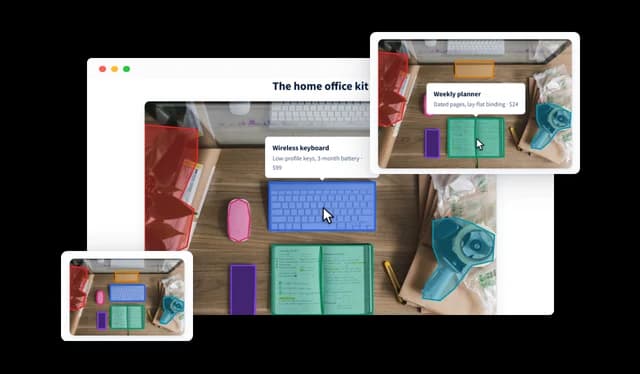
Show the image in its original proportions or crop it to a square, 4:3, 3:2, or 16:9 frame. Set a maximum width and a corner radius to fit the map neatly into any layout.

Image Map - Flexible Image Display

Fully Customizable Design

Pick a font, choose from ready-made skins, or set your own colors for the title, caption, and tooltips. Tooltip background, text size, and border radius are all adjustable, so the map matches your brand.

Image Map - Fully Customizable Design

Custom CSS Support

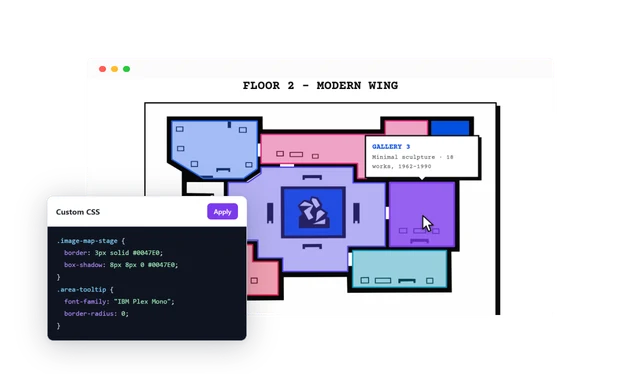
Go beyond the built-in settings with custom CSS. Restyle the image frame, the area shapes, or the tooltips to achieve exactly the look your site needs.

Image Map - Custom CSS Support

Image Titles and Captions

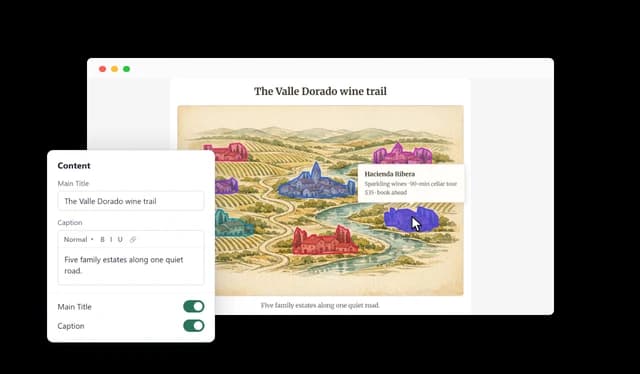
Add a title above the image and a formatted caption below it to explain what visitors are looking at and how to explore it. Either one can be hidden with a single toggle.

Image Map - Image Titles and Captions

Easy Website Embedding

Copy one embed code and paste it into any website, including WordPress, Wix, Shopify, Webflow, and Squarespace. Changes you make in the editor update on your site automatically.

Image Map - Easy Website Embedding

Compatible With All Site Builders, E-Commerce Platforms and Websites

View all supported platforms

FAQ

An interactive image map is an image with clickable or hoverable regions. Each region can show extra information in a tooltip or link to another page, so visitors can explore specific parts of the image on their own.

Upload your image to the Image Map widget, draw an area over each part you want to highlight, and give it a name, color, tooltip, and optional link. Then style the map, copy the embed code, and paste it into your website. No coding is needed.

Yes. Areas are drawn as polygons directly on the image, so they can follow the outline of a room, a building, a seating section, or any other shape. You can re-draw an area at any time.

Yes. You can add as many areas as you need. Each one has its own name, color, tooltip title, tooltip text, and link.

Yes. Tooltips can open on hover or on click. You can also keep every tooltip visible at all times or turn tooltips off completely.

Yes. Every area can have its own URL, and you can choose whether links open in the same tab or in a new one.

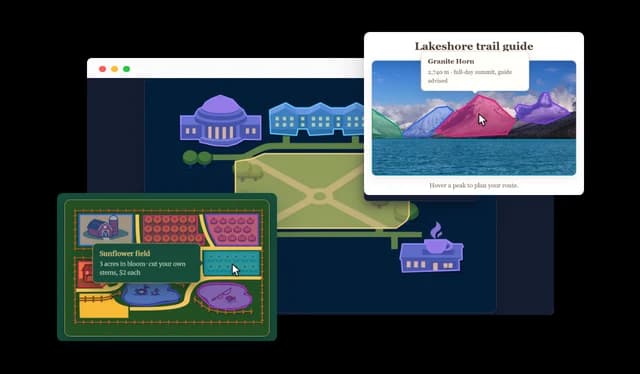
Floor plans, venue and seating charts, campus, park, and resort maps, trade show layouts, product photos, technical diagrams, illustrations, infographics, and geographic maps all work well.

Yes. Each area has its own color, and you can set the fill opacity, hover opacity, and border width for the whole map. Fonts, title and caption colors, and tooltip styling are adjustable too, and custom CSS is available for anything else.

Yes. Area coordinates are stored as percentages of the image, so the shapes stay aligned with the picture at any screen size.

An Image Hotspot marks individual points on an image with pins or markers. An Image Map lets you outline entire regions with custom polygon shapes, which makes it a better fit for floor plans, seating charts, diagrams, and any image made up of distinct sections.

No. Everything is done in a visual editor. Developers who want extra control can add custom CSS.

Yes. Copy the embed code and paste it into any website, including WordPress, Wix, Shopify, Webflow, Squarespace, and other website builders and content management systems.