


Verified review
Common Ninja has amazing no-code widgets that would beautify a website built on any builder. It is very easy to use and customise. It has as many widgets for almost everyone willing to make their website impressive.
The Common Ninja Image Poll widget is a free, no-code embed that lets your visitors vote between images. Pick the design they prefer, the photo they like best, the product they want.
Write the question, upload images for each answer option, configure single-select or multi-select voting, set one-vote-per-user restrictions, schedule open and close times, customize the design with skins or Custom CSS, and paste a one-line embed snippet on Shopify, Wix, WordPress, Webflow, Canva, and 200+ other platforms.
Use it for design A/B votes ("which logo concept wins?"), product-preference polls ("which color should we ship?"), photo contests, community design voting, sports prediction polls, and any moment where visual answers beat text descriptions.
Design choices, color preferences, photo selection, logo concepts. Visual decisions are easier to vote on with images than with text descriptions. Visitors see the options, pick the one that resonates, and your team gets directional input from your actual audience instead of internal opinions.
A page where visitors vote on something is a page they invest in. Visual polls feel less like a survey and more like a game. Visitors are more willing to participate, share results, and come back to see how the vote ended. Better engagement signals + lower bounce + higher session time.
Live result bars or percentages render immediately after voting (or before, depending on your config) so visitors see what other people picked. The poll becomes a conversation between visitors instead of a one-way question. Social proof in the simplest form.
A standard Poll uses text-only answer options ("Yes / No / Maybe", "Feature A / Feature B / Feature C"). An Image Poll uses an image per answer. Use this Image Poll when the answers are visual (logos, colors, photos, designs); use the Common Ninja Poll widget when text options carry the full meaning.
Type the question ("Which design should we ship?" "Which color do you prefer?" "Pick your favorite shot"), upload an image for each answer option, and optionally add a short label per image. Configure single-select (one vote per visitor) or multi-select (visitors pick multiple). Add as many image options as your plan supports.
Set one-vote-per-user restrictions (cookie-based by default, optional IP-based reinforcement on paid plans). Schedule the poll to open and close at specific times (useful for time-bound design votes). Configure whether visitors see live results before voting, after voting, or never. Pick a layout (grid, slider), a skin from the design library, or layer Custom CSS for pixel-level brand match.
Copy the one-line embed snippet and paste it on Shopify, Wix, WordPress, Webflow, Canva, or any of the 200+ supported platforms. Live results update for every visitor as new votes come in. Edits in the Common Ninja editor push to every embed without re-paste.
Single-select for clean "pick one" questions where one answer wins. Multi-select when visitors can pick multiple favorites ("Which of these colors would you wear?"). Switch between modes in the editor without rebuilding the question.
Optionally collect a participant name and email alongside the vote. Turns the poll into a list-builder for design contests, community-voted award programs, and brand-engagement campaigns. Configurable per poll.
Cookie-based one-vote-per-user restriction by default (optional IP-based reinforcement on paid plans). Schedule the poll to open and close at specific times. Useful for time-bound design votes and seasonal photo contests.
Pick from a library of pre-designed skins (minimal-clean, contest-vibrant, design-magazine, dark-mode, brand-neutral) for a fast visual fit. Layer Custom CSS for pixel-level control over image-card framing, vote-button styling, result-bar design, and winner-celebration overlay.
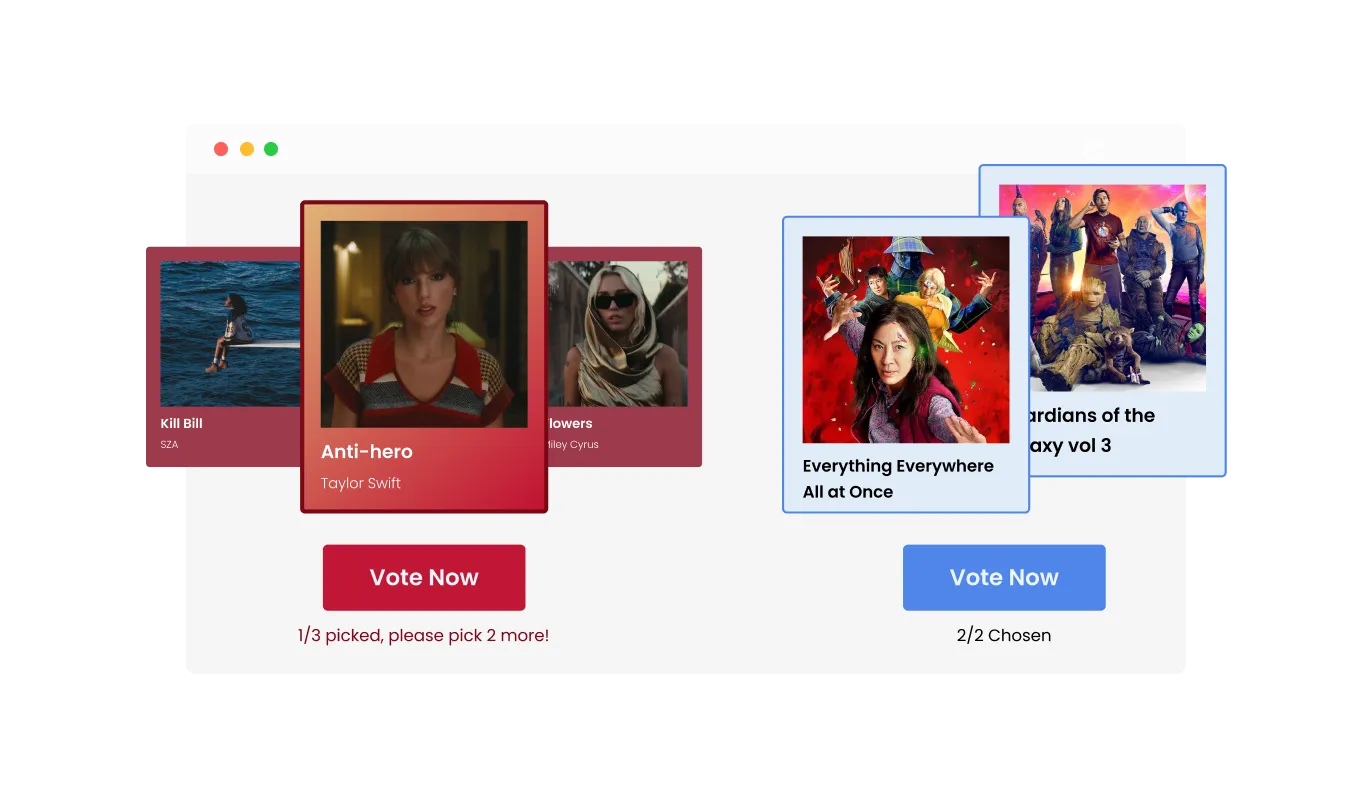
With our Image Poll widget, you can customize the voting process to suit your needs. This feature allows you to define how many options each participant can select, thereby enabling greater flexibility and engagement in your polls.
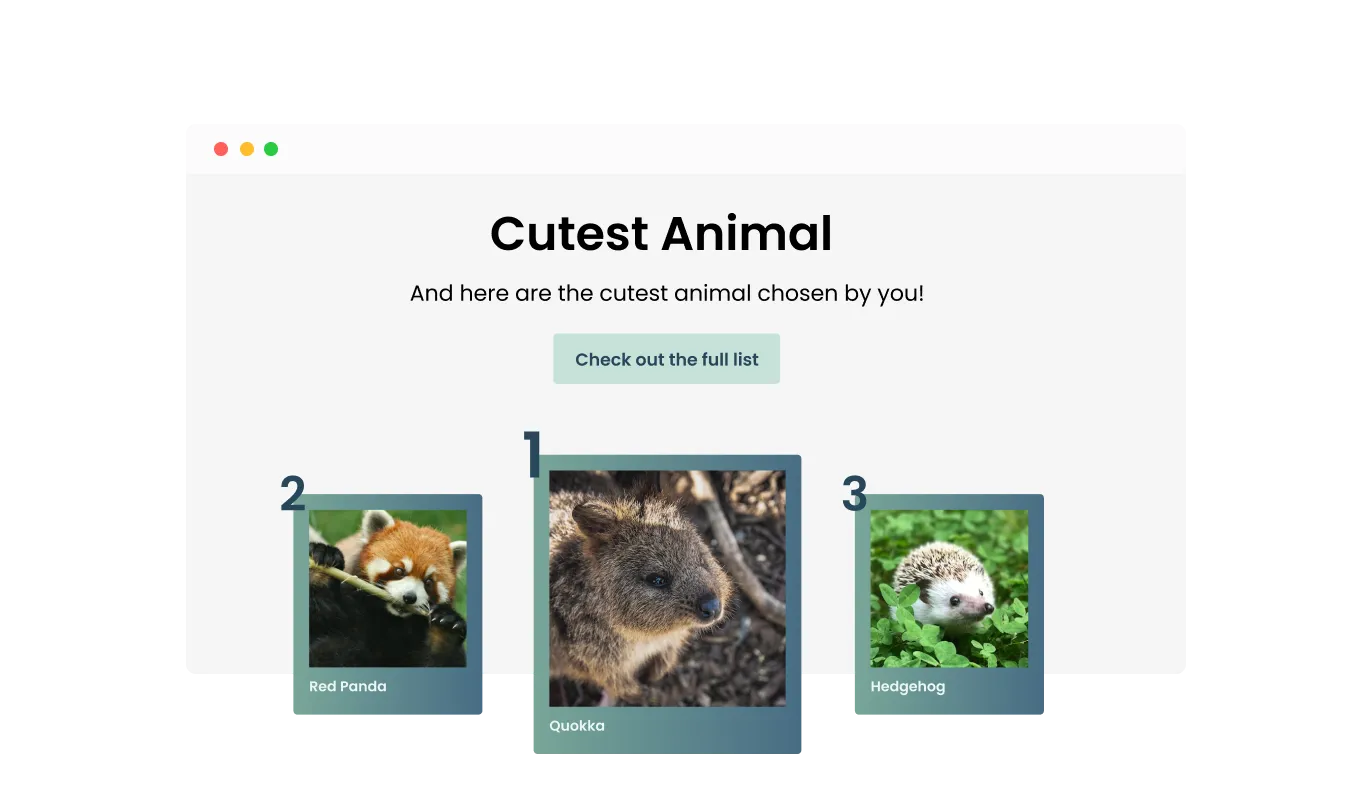
Take your results display to the next level with our Enhanced Winner Celebration Screen feature. This not only announces the winners but also provides a comprehensive breakdown of the votes each participant received, both as a numerical count and as a percentage. This transparency fosters trust, fosters engagement, and allows everyone to see just how the final results unfolded.
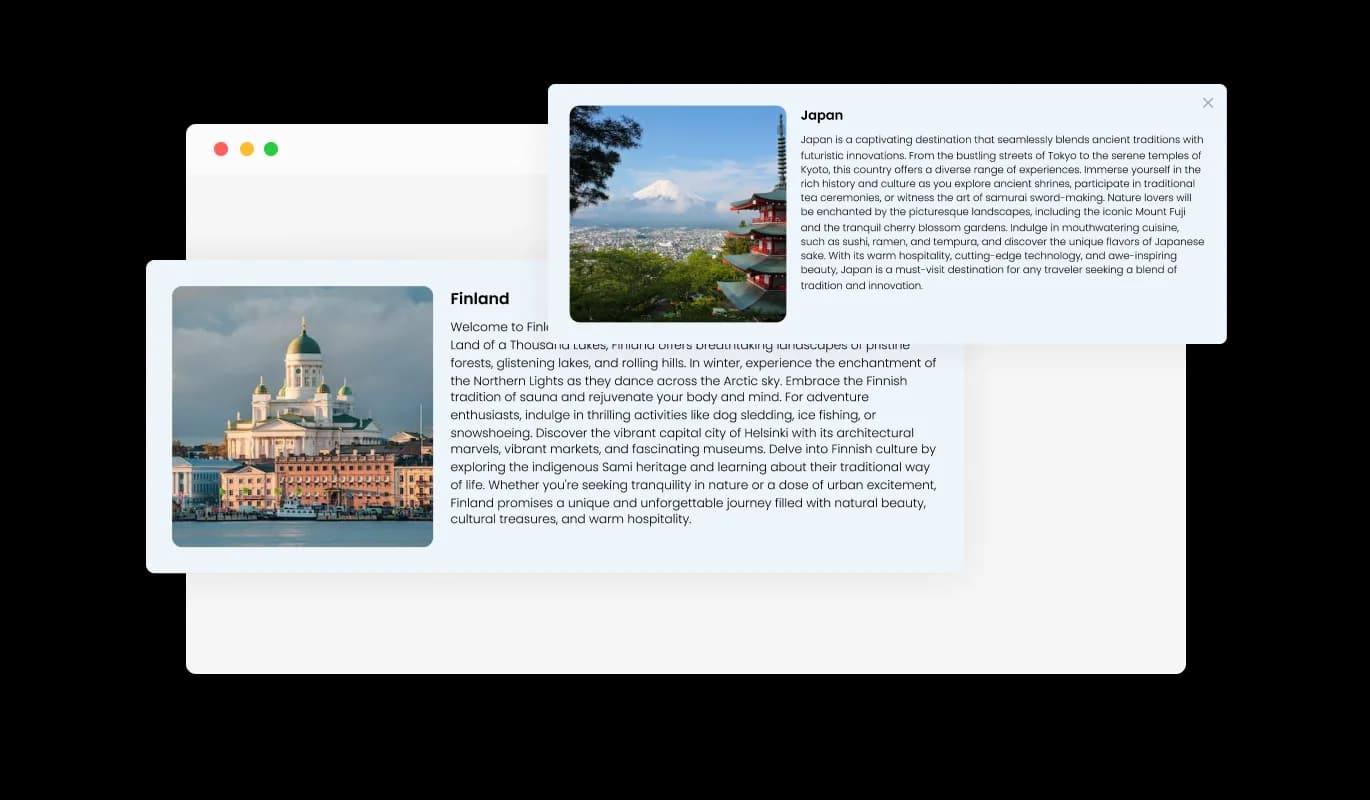
Boost comprehension of your poll options with our Detailed Participant Card feature. This allows you to enrich each option with supplementary information, offering participants a broader perspective. This feature encourages thoughtful decision-making and enhances the polling experience by providing clarity and insight.
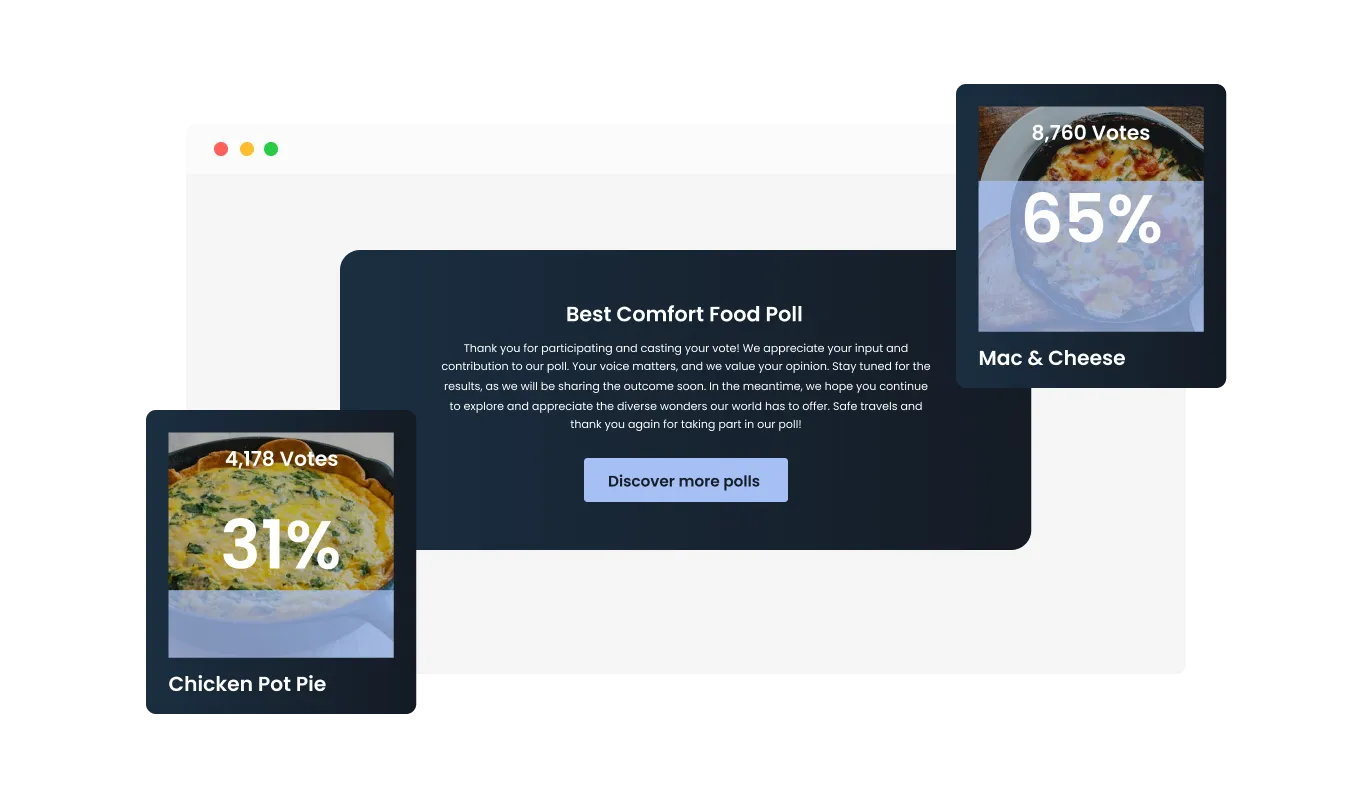
Take control of the post-voting experience with our Post-Submission Customization feature. After a vote is submitted, you can choose to reveal the current results, displaying the vote counts and percentages for each participant, or guide the voter to a different page with a custom message. This feature offers flexibility in engagement and allows you to enhance the user journey as per your strategic needs.
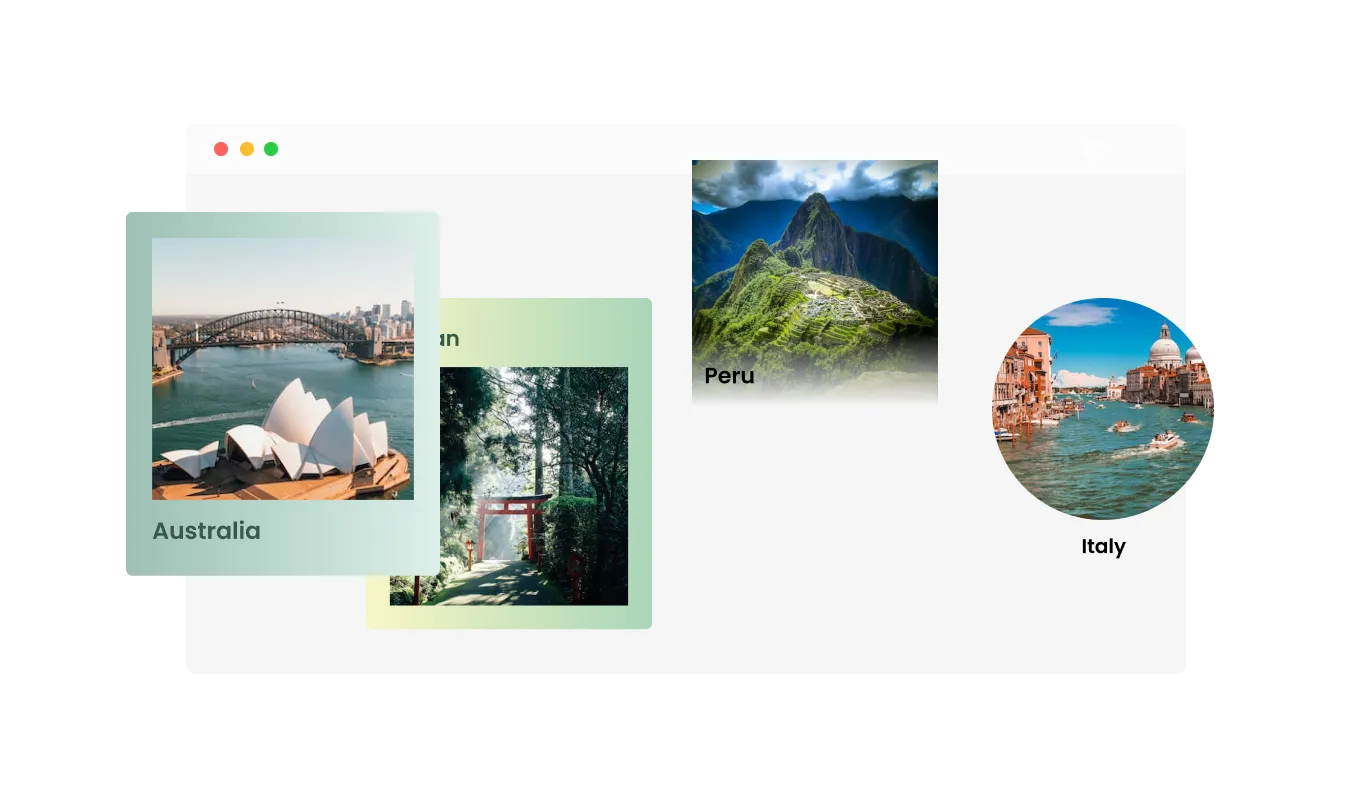
The Image Poll widget lets you choose how you want to show your poll options. You can pick different layouts to make your options look their best and fit what your audience likes. This helps make voting in your poll easy and fun for everyone.
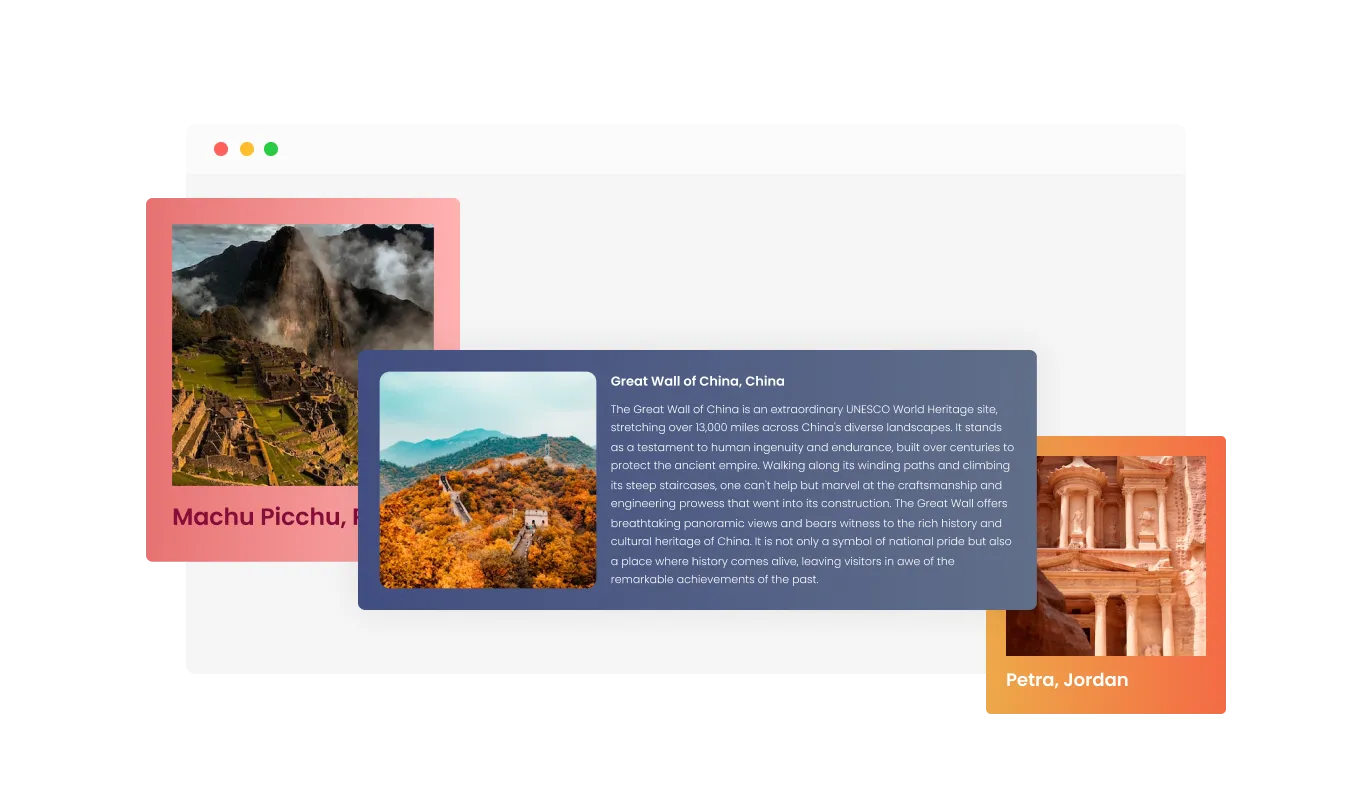
The Image Poll widget offers a selection of various skins, allowing you to pick the perfect look to match your website's aesthetic or the theme of your poll. These skins range from minimalistic and modern designs to more vibrant and creative options. This ability to select from a variety of skins adds a touch of personalization and creativity to your polls, making them a unique reflection of your style or brand.
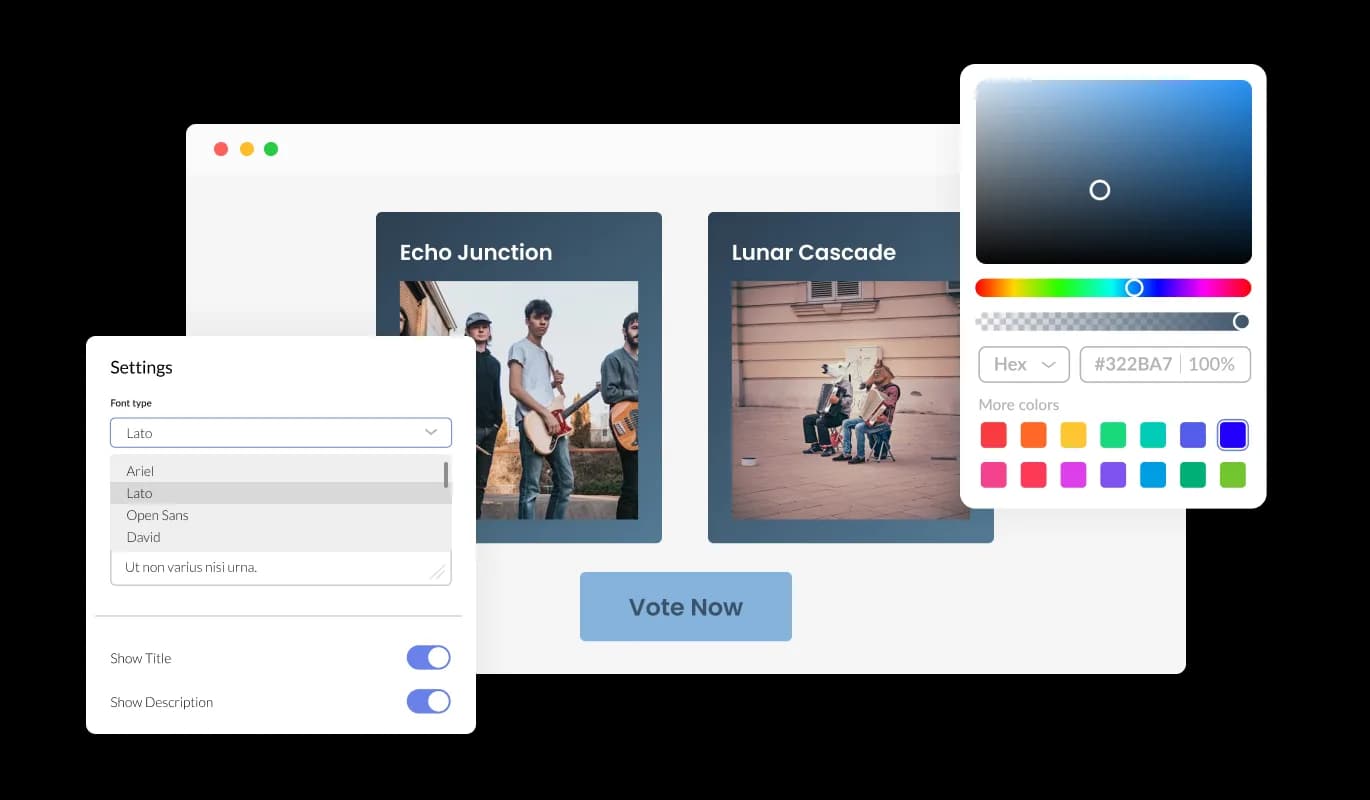
The Image Poll widget offers a world of customization at your fingertips. It allows you to tailor every aspect of your polls to match your needs and style. Whether it's choosing from multiple layouts and skins, setting up the order of options, or adding detailed descriptions for each choice, you can shape your polls the way you want
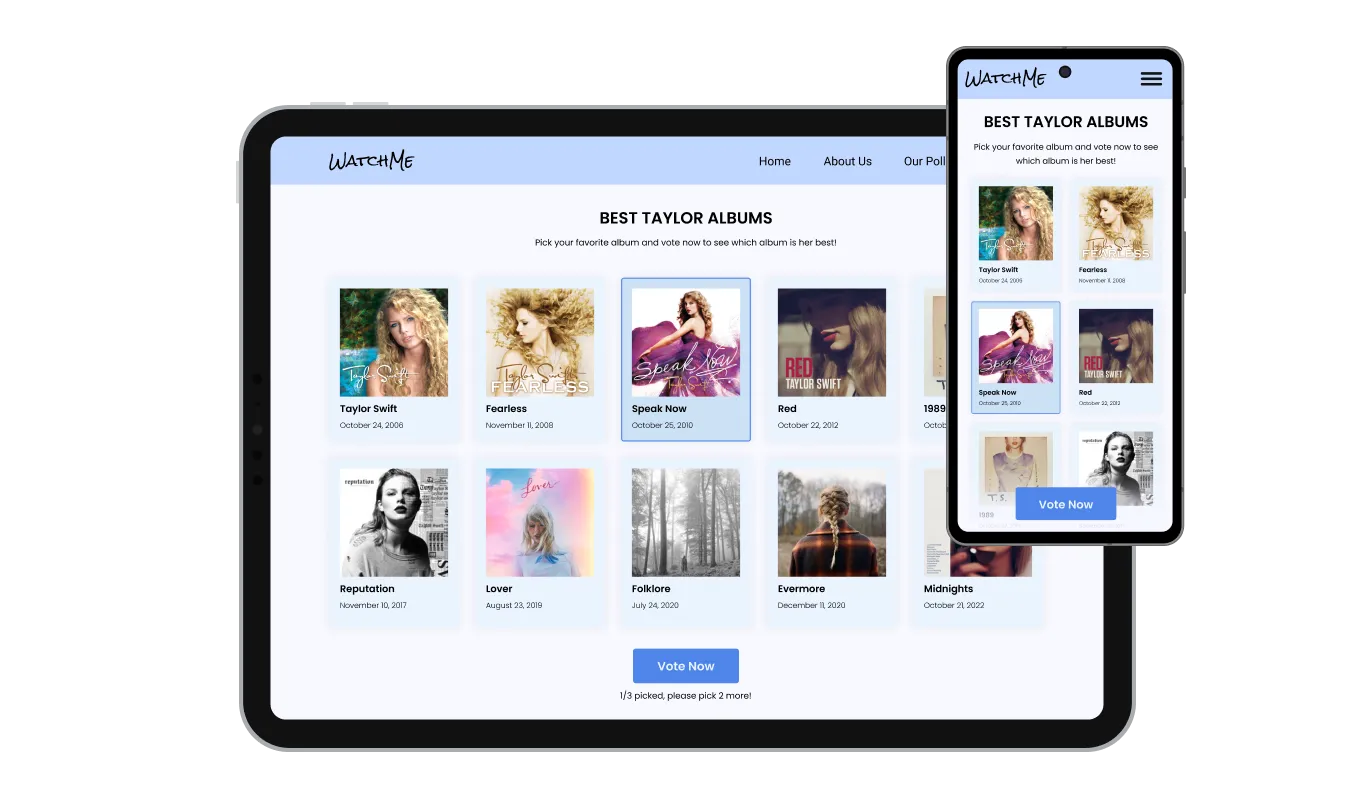
The Image Poll widget is designed to work well on any device. It adjusts itself to fit perfectly on screens of all sizes, be it desktops, tablets, or smartphones. This ensures a smooth and consistent experience for all users, no matter what device they are using.

As with all our widgets, the Image Poll widget provides the opportunity to integrate custom CSS for a truly bespoke look and feel. Users with coding knowledge can enhance the widget's visual appeal, reaching their desired design aesthetic through the addition of their unique custom CSS.

The Image Poll widget is crafted for effortless incorporation into your existing website code, necessitating only basic technical skills for installation. This convenience empowers site owners to promptly embed the widget without the need for significant development resources or specialized knowledge.
Timing is everything in engagement and the poll widget recognizes that. The Scheduled Polling feature allows you to set a start and end date for your poll, ensuring it aligns perfectly with your event timeline or campaign schedule.
Keep your polls fair and credible with our One-Vot-Per-User restriction feature. You have the option to identify the user by their browser or by IP address, ensuring that each vote counts and duplication is prevented.
Control or randomize the order of options in your poll with our Customizable Items Order feature. This allows for a more controlled presentation or a fair, randomized display, ensuring unbiased results and a true reflection of popular opinion.
The Image Poll widget is designed to emphasize user convenience, ensuring the ease of access and comprehension of the offered weather data. This user-centric design promotes engagement and assures that visitors can swiftly acquire necessary information without any hindrances, improving the overall website experience.
Common Ninja has amazing no-code widgets that would beautify a website built on any builder. It is very easy to use and customise. It has as many widgets for almost everyone willing to make their website impressive.
Outstanding service. I use their widgets to help me with my web design business and whenever I need help they are very quick to help.
Excellent company with excellent service!!! We used it to build a survey, it was very user friendly. The service was perfect. Amit helped us with every problem and question we had, thank you very much!!!
Common Ninja saved the day when building our website and the customer service Daniel, the co-founder and CEO, provided was amazing.
Yes. The free plan covers one Image Poll with no time limit and no credit card. Upgrade only when you need additional polls, more image options per poll, advanced restrictions, premium skins, scheduled-poll automations, or features like participant-data export and per-poll analytics dashboards.
A standard Poll uses text-only answer options ("Yes / No / Maybe"). An Image Poll uses an image per answer option. Visitors compare visuals to make their pick. Use Image Poll when the answer is something visitors should SEE before voting (logos, colors, designs, photos); use the Common Ninja Poll widget when text options carry the full meaning.
Add as many image options as your plan supports (the free plan covers a reasonable number; paid plans lift the cap). Each option has its own image, optional label, and vote-count. Reorder via drag-and-drop in the editor; the live widget updates without re-paste.
Configurable. Show live results to every visitor (full transparency), only to visitors who have voted (light gating that lifts participation), or never until the poll closes (blind-survey research). Each setting suits a different use case.
Yes. On plans that include participant-card collection. Optional fields for name and email turn the poll into a list-builder alongside the conversion signal. Useful for design-contest polls where you want to follow up with participants, or for community-voting events where attendance matters.
Build the widget in the Common Ninja editor (write question, upload images, configure voting), copy the embed snippet, and paste it into your site: Shopify via the Custom HTML section in your theme editor or via a Custom Code app; Wix via the HTML embed widget (Add → Embed → HTML iFrame/Embed a Widget); WordPress via a Custom HTML block (Gutenberg) or Shortcode/Text widget (Classic). Edits in the editor push to every embed without re-paste.
Yes. Set a start time and end time in the editor. The poll opens for voting at the start time and closes (showing final results) at the end time. Useful for time-bound design votes that need to wrap before a launch deadline, or for seasonal photo contests with submission windows.
Yes. Image cards adapt across mobile, tablet, and desktop breakpoints. Images reflow to single or two-column grids on narrow screens, tap targets stay finger-sized, result bars render correctly at every viewport, and the winner-celebration screen scales to the visitor's display.
Pick your platform. Each takes under 4 minutes.
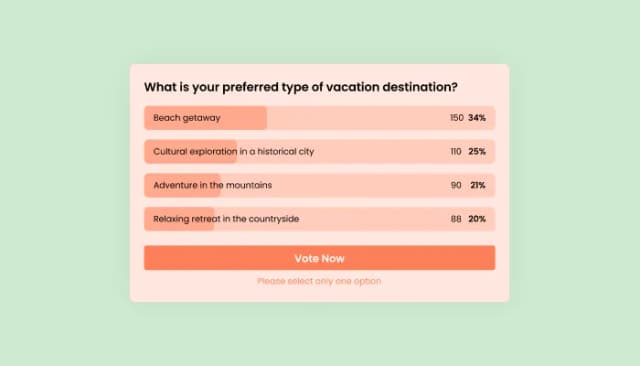
Interactive Polls Widget for Real-Time User Feedback and Engagement.
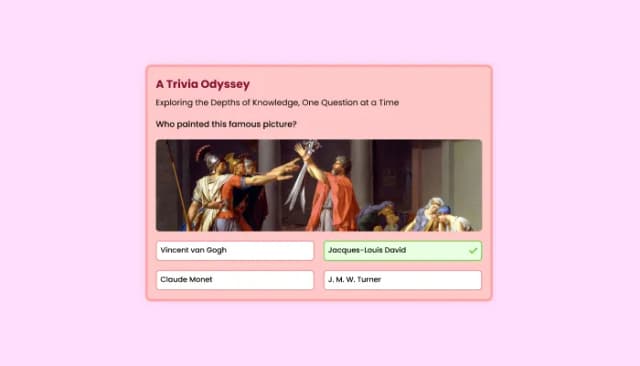
Quiz Maker for easy custom quiz creation and integration.
Interactive Scratch Card for users to unveil prizes, aiding lead generation.
Interactive wheel offering rewards to boost user engagement, gather leads and increase conversions.
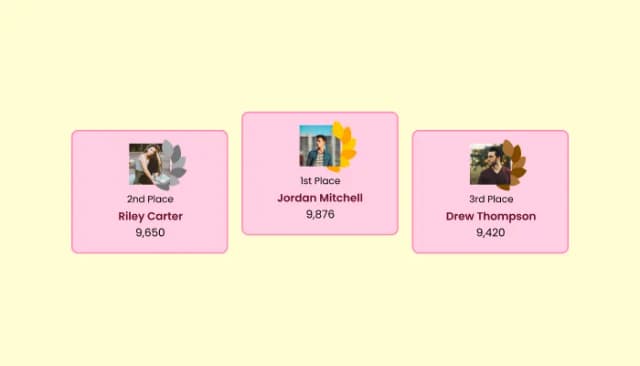
Create customizable leaderboards to display rankings and track participant scores.
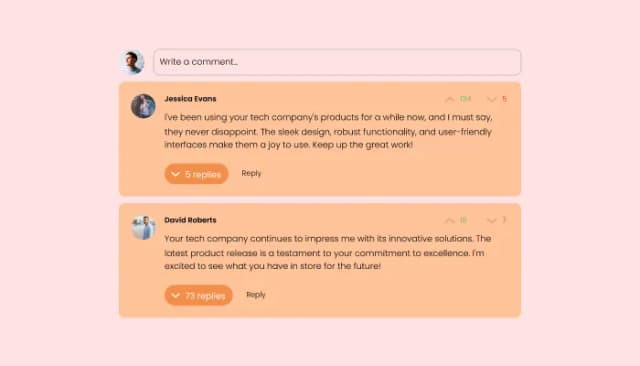
Comments system with upvote/downvote, email notifications, reply threads, and moderation tools.
An Image Poll is an interactive tool that allows users to express their preferences by voting among various visual options. Each option is represented by an image, making the poll more engaging and visually appealing.
Image Polls can be a fantastic way to run online contests. Participants can vote for their favorite entries represented by images, such as photography contests, design competitions, or even pet beauty contests. The options are virtually limitless, and the visual nature of the poll can drive higher engagement rates.
Image Polls are incredibly versatile. They can be used for a wide range of topics such as "Best Movie of the Year," "Favorite Soccer Player," "Best Dressed Celebrity," "Most Scenic Holiday Destination," and much more. The visual element helps participants to make informed choices and adds an extra layer of engagement to the polling process.
Image Polls can significantly boost user engagement on your website or platform. They offer a fun, interactive way for users to express their opinions and preferences. Seeing the images associated with each option can make the poll more interesting and engaging, leading to higher participation rates. Additionally, features like the Enhanced Winner Celebration Screen and Post-Submission Customization can further enhance user engagement by creating anticipation and offering follow-up engagement opportunities.
The Image Poll widget offers multiple layouts and skins, making it fully customizable to match your brand aesthetics or specific needs. You can choose the appearance that best suits your website design for seamless integration.
Yes, the Image Poll widget features a Multiple Selections option that allows you to define the number of options each visitor can select. This feature brings greater flexibility and can enhance engagement in your polls.
We have a One-Vote-Per-User restriction feature that prevents voters from voting more than once. This feature uses browser or IP address identification to ensure the integrity of your poll results.
Yes, our Scheduled Polling feature allows you to set a specific start and end date for your poll. This ensures your poll aligns perfectly with your event timeline or campaign schedule.
Our Enhanced Winner Celebration Screen displays the winners of the poll along with a detailed breakdown of votes each participant received, both as a count and as a percentage. This fosters a sense of achievement and participation among users.
Absolutely. With our Detailed Participant Card feature, you can provide more context for each option. This promotes informed decision-making by providing clarity to your audience.
With our Post-Submission Customization feature, you can choose to show the current poll results or redirect the voter to a different page with a custom message. This feature offers you the flexibility to guide the user journey as you see fit.
Yes, the Image Poll widget is designed with a responsive layout, ensuring it works seamlessly across various devices including mobile phones and tablets.
The Image Poll widget can be easily embedded on any website with just a single line of code. It's designed to integrate smoothly into your website, offering a user-friendly experience for both you and your visitors.
Absolutely. Our Customizable Items Order feature allows you to either set a specific order for your poll options or randomize them. This ensures fairness and prevents order bias in your poll results.
Yes, it does. Our Enhanced Winner Celebration Screen not only declares the winners but also provides a detailed tally of votes each participant received. This tally can be presented both as a raw count and as a percentage of total votes.
With our Post-Submission Customization feature, you have the option to show the voters the poll results so far, in terms of the number of votes and percentages for each participant. Alternatively, you can choose to show a custom message that can redirect them to another page.
With the Detailed Participant Card feature, you can enrich each option with additional information, providing more context and clarity to your audience, thus promoting informed decision-making.
Yes, the Image Poll widget is fully customizable. You can choose from multiple layouts and skins to match your brand aesthetics or specific needs. The widget is designed to integrate seamlessly with your website.
Yes, the Image Poll widget is mobile-friendly. It has a responsive design that ensures it works seamlessly across various devices, including smartphones and tablets, offering a great user experience.
The Image Poll widget can be embedded on your website with just a single line of code. It's designed to be user-friendly, ensuring a smooth integration process.
Let visitors vote between images. Single or multi-select, image-per-answer cards, one-vote-per-user restrictions, scheduled open and close times, optional participant data, stylish skins, and Custom CSS. Embed on 200+ platforms including Shopify, Wix, WordPress, Webflow, and Canva.
Create your Image PollNo credit card · Setup in under 5 minutes