


Verified review
Common Ninja has amazing no-code widgets that would beautify a website built on any builder. It is very easy to use and customise. It has as many widgets for almost everyone willing to make their website impressive.
The Common Ninja Google Maps widget is a free, no-code embed that adds a custom interactive map to any website.
Drop multiple location pins, attach photos and addresses to each, pick from custom map skins, and let visitors get one-click directions in their preferred navigation app. One line of embed code drops on 200+ platforms including Notion, Squarespace, Canva, Webflow, Elementor, Avada, WordPress, and Framer.
Use it as a store locator, multi-location office map, restaurant address display, venue finder, or any case where visitors need to see where you are on a real map.
Retailers with multiple stores, restaurant chains, dental practices with branch offices, school districts, gyms with multiple gyms, real-estate agencies with regional offices, event venues. Multi-pin display with searchable location lists, category filters, and per-pin info windows beats a bulleted address list or a flat screenshot of a map.
Each pin gets a Directions button that opens the visitor's preferred navigation app: Google Maps, Apple Maps, or Waze on mobile, Google Maps in a new tab on desktop. No copy-pasting the address, no leaving your page to look it up, no friction between visitor and walk-in.
Notion's native map view is a database-only feature with limited styling. Embed the Common Ninja Google Maps widget via /embed and any Notion page gets a real custom-styled map with pins, info windows, and directions buttons. Same applies to Webflow, Framer, Carrd, Squarespace, and other site builders where the native map block is missing or too limited.
A copy-pasted Google Maps share-iframe gets you one pin, Google's default styling, no per-pin photos or descriptions, and a Google logo in the corner that breaks your design. The widget delivers multi-pin, custom skins, branded info windows, searchable location list, and category filters. Features Google's bare iframe doesn't offer.
Add locations by address, by name (auto-resolved through Google Places), or by exact latitude/longitude. Each pin takes a title, a longer description, a photo, and a category tag. Reorder them, group them, or pull them in from a CSV if you have a long list.
Pick a map skin from the design library (light, dark, retro, minimal, satellite-style overlay, or branded color). Choose a pin style per category, set the default zoom and center, enable the searchable location list, and add a one-click Directions button on each pin. Style the info windows with Custom CSS for full brand alignment.
Copy the one-line embed snippet and paste it on your contact page, locations page, or footer on Notion, Squarespace, Canva, Webflow, Elementor, Avada, WordPress, or any of the 200+ supported platforms. Edits in the editor push to every embed without re-pasting.
Add as many pins as your business needs: every store, every office, every branch, every venue. Each pin carries its own title, description, photo, address, and category. A searchable location list lets visitors find the nearest one by name or by city.
Pick from a library of map styles covering light, dark, retro, minimal, terrain-emphasis, road-emphasis, and branded-color skins. Each skin restyles the base map (roads, water, parks, labels) without changing the underlying Google Maps data layer.
Click any pin to open an info window with the location's photo, name, full address, opening hours, phone, website link, and Directions button. The info windows are styled by the same skin as the map and can be branded further with Custom CSS.
The map adjusts container width, pin sizing, and info-window layout across mobile, tablet, and desktop breakpoints. Touch gestures (pinch-zoom, two-finger pan) work natively. On mobile, the Directions button opens the visitor's preferred navigation app instead of trying to render directions inline.
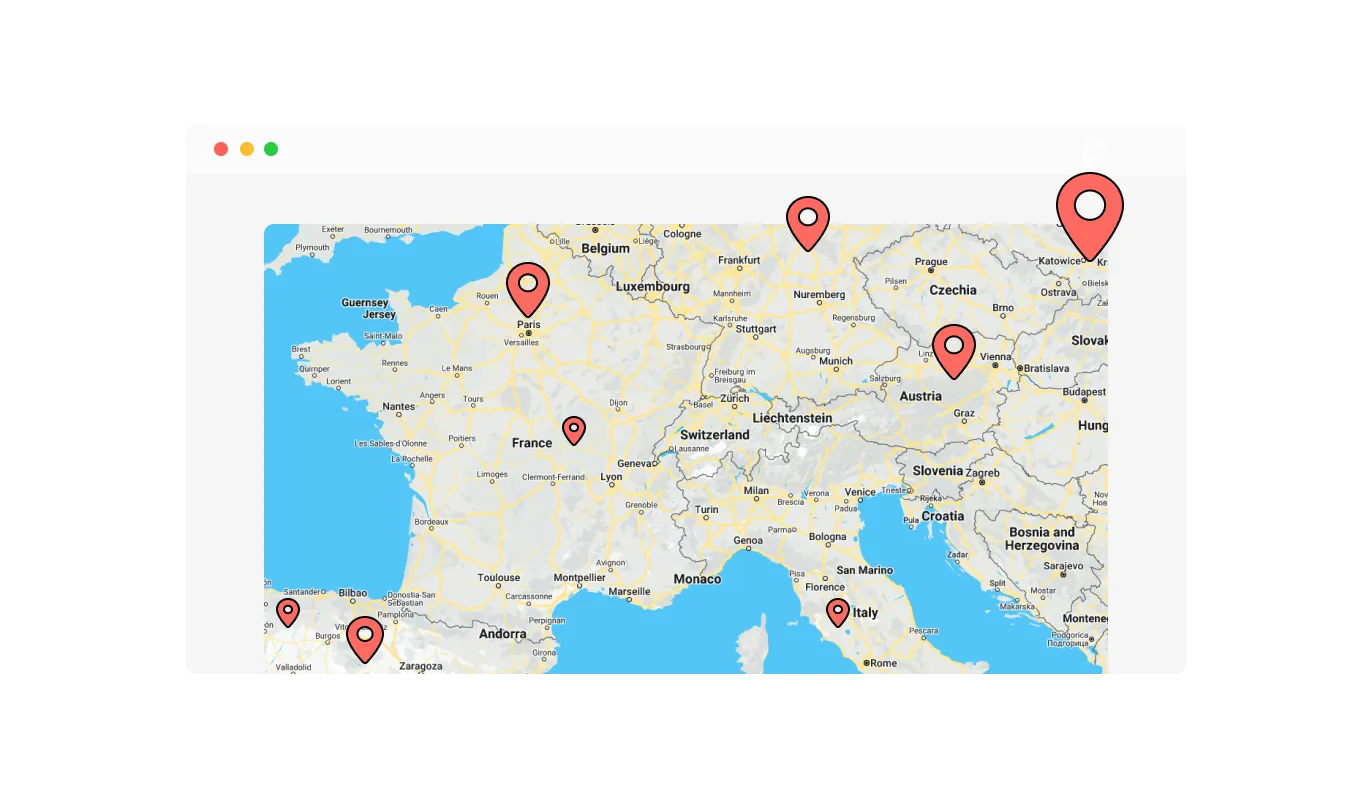
With the Google Maps widget, you can plot several places all at once. Whether you have multiple branches, partner locations, or other points of interest, you can display them all together, making it easier for your visitors to see the full extent of your reach.
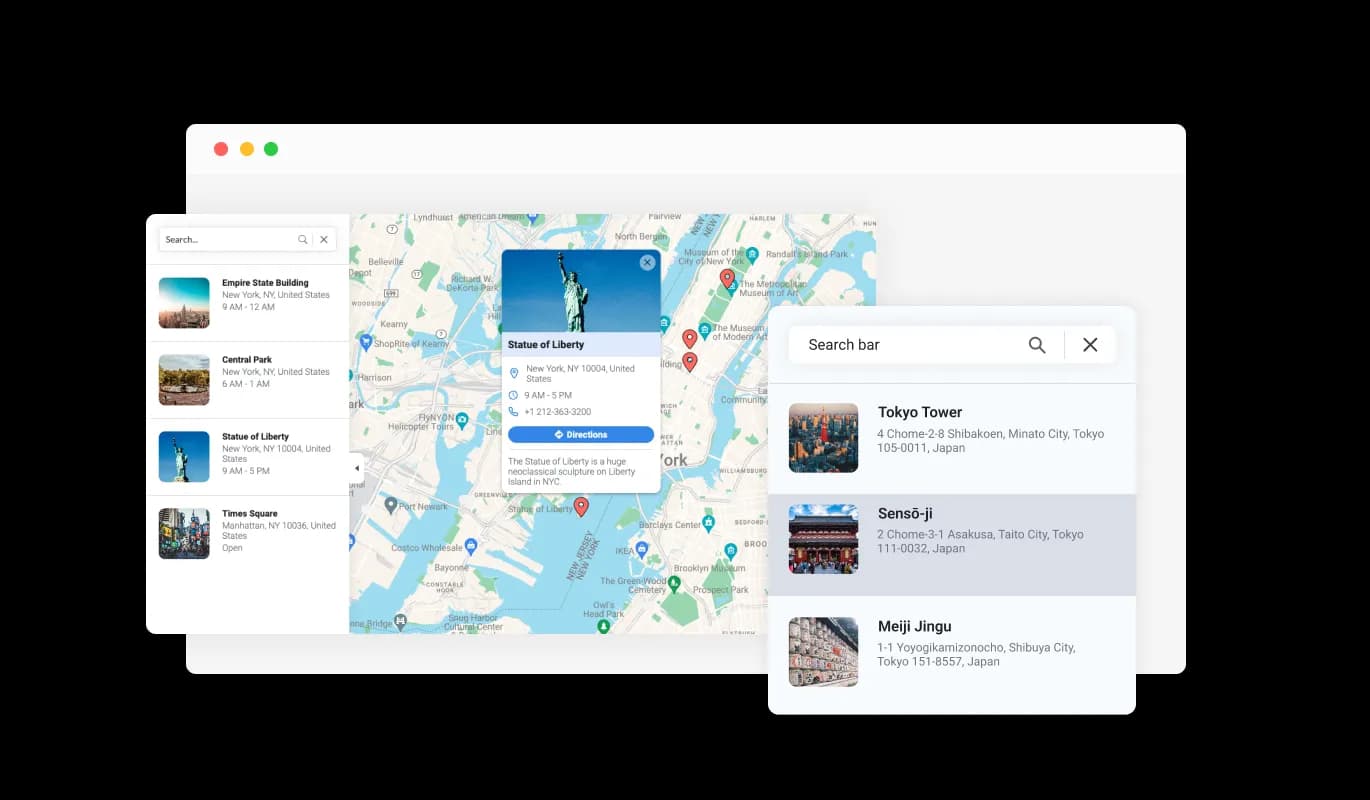
The Google Maps widget can provide a handy list of all your locations. This means your visitors can quickly see all the places you operate from, and select the one they're interested in, offering an easy and fast way to access information about each location.
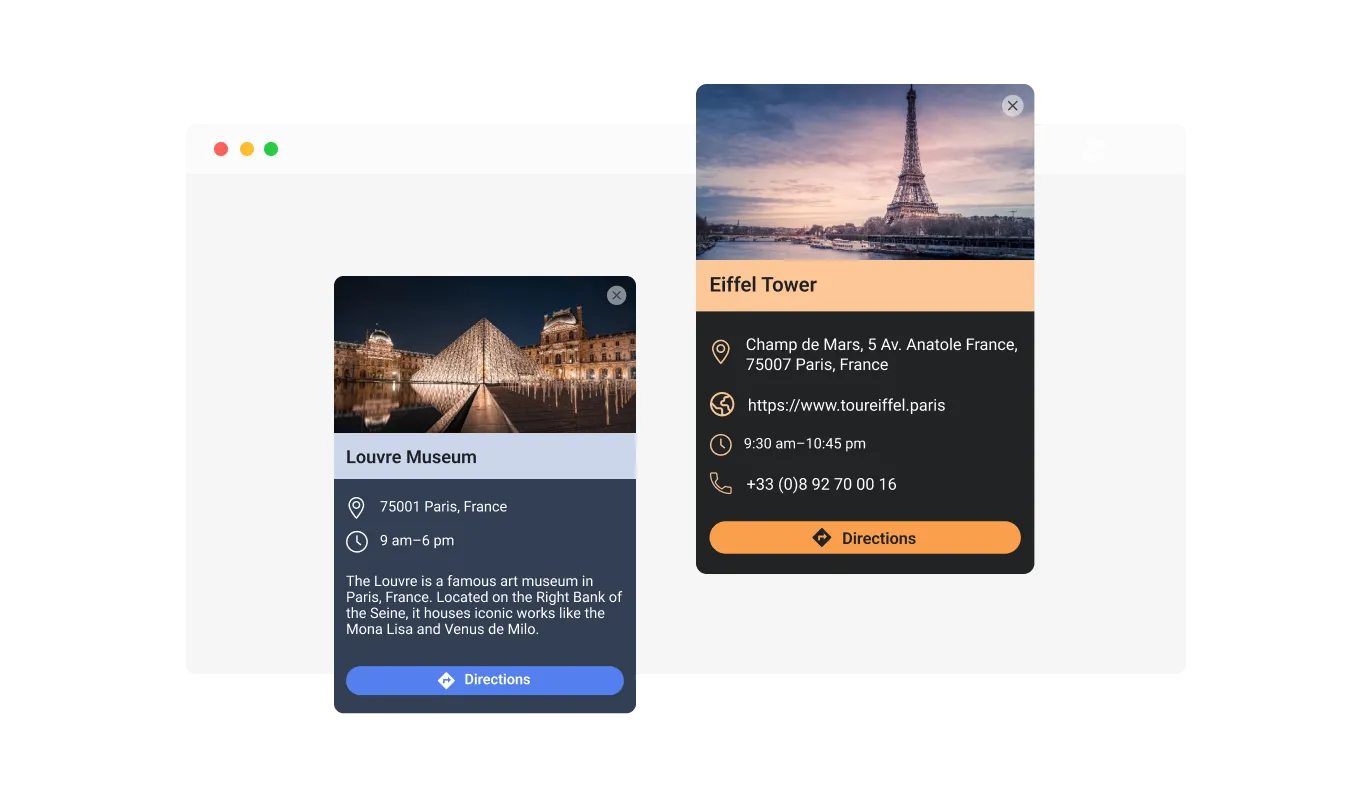
With the Google Maps widget, each location can be so much more than just a pin on a map. You can enhance each spot with a descriptive card that includes an image and some text, allowing your visitors to get a better sense of what each location offers before they even set foot in the door.
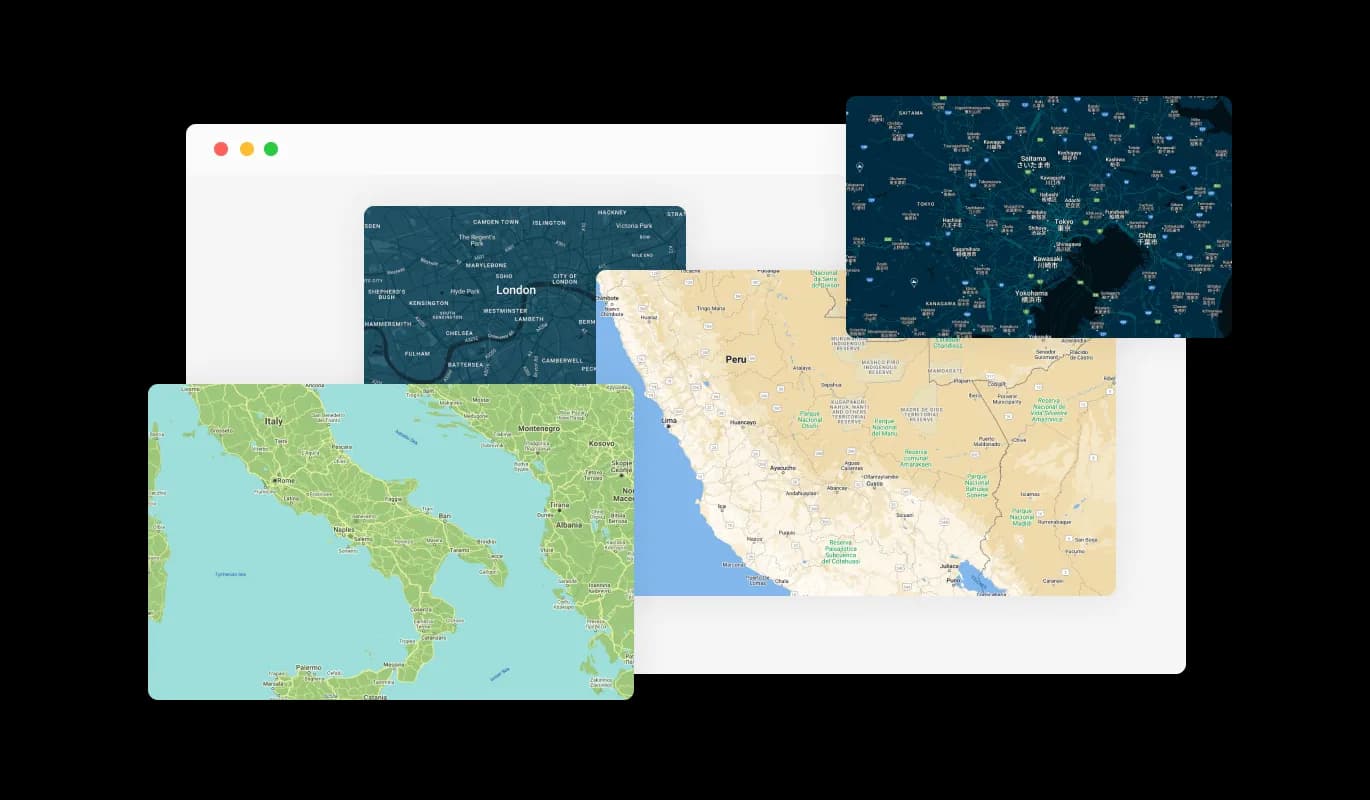
The Google Maps widget lets you add a touch of personalization to your website. You can choose from a variety of beautiful map skins, ensuring the map not only provides essential information but also aligns perfectly with your site's aesthetic and branding.
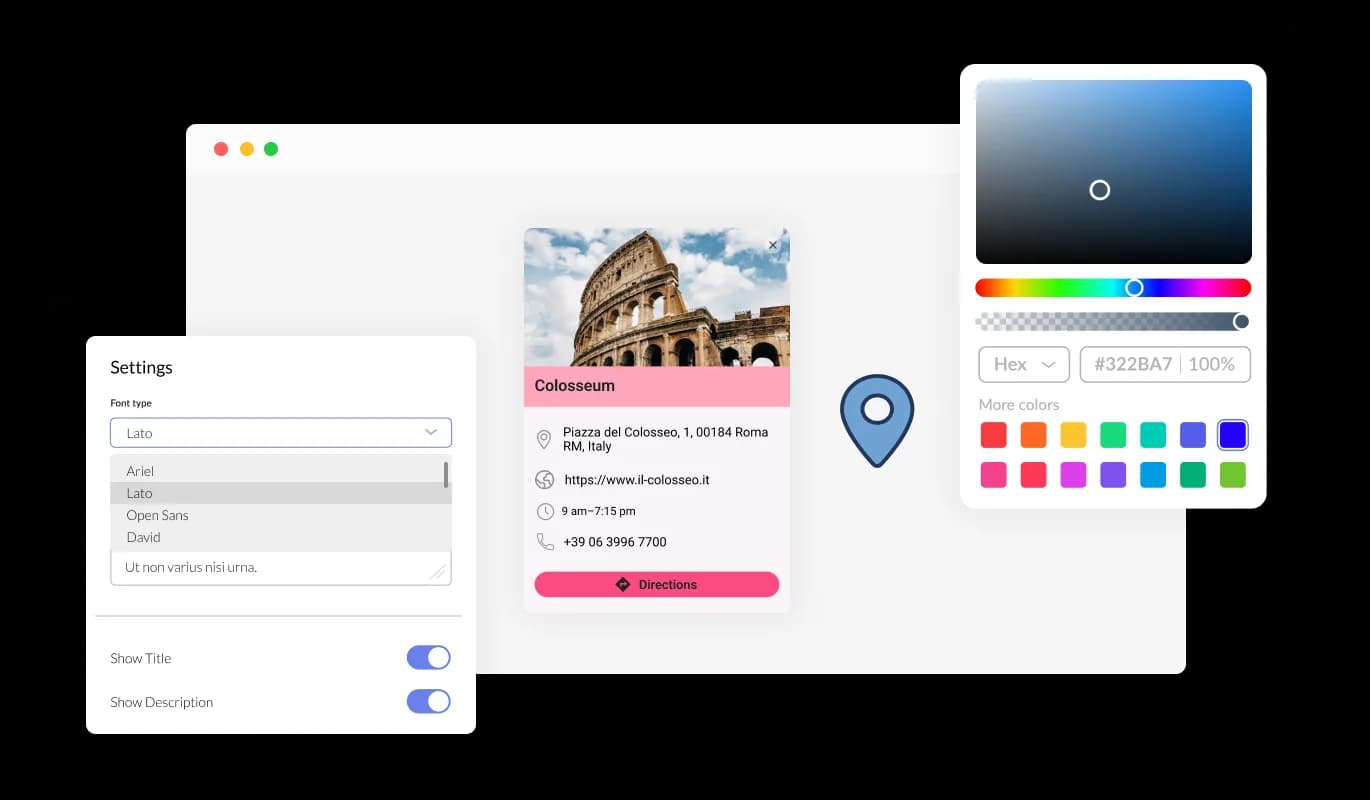
The Google Maps widget is fully customizable, allowing you to tweak its design to match your website's style. You can easily adjust elements like colors, fonts, and spacing to create a widget that fits seamlessly with your site. The real-time preview feature lets you experiment and refine until you land on the perfect design that enhances your users' experience.
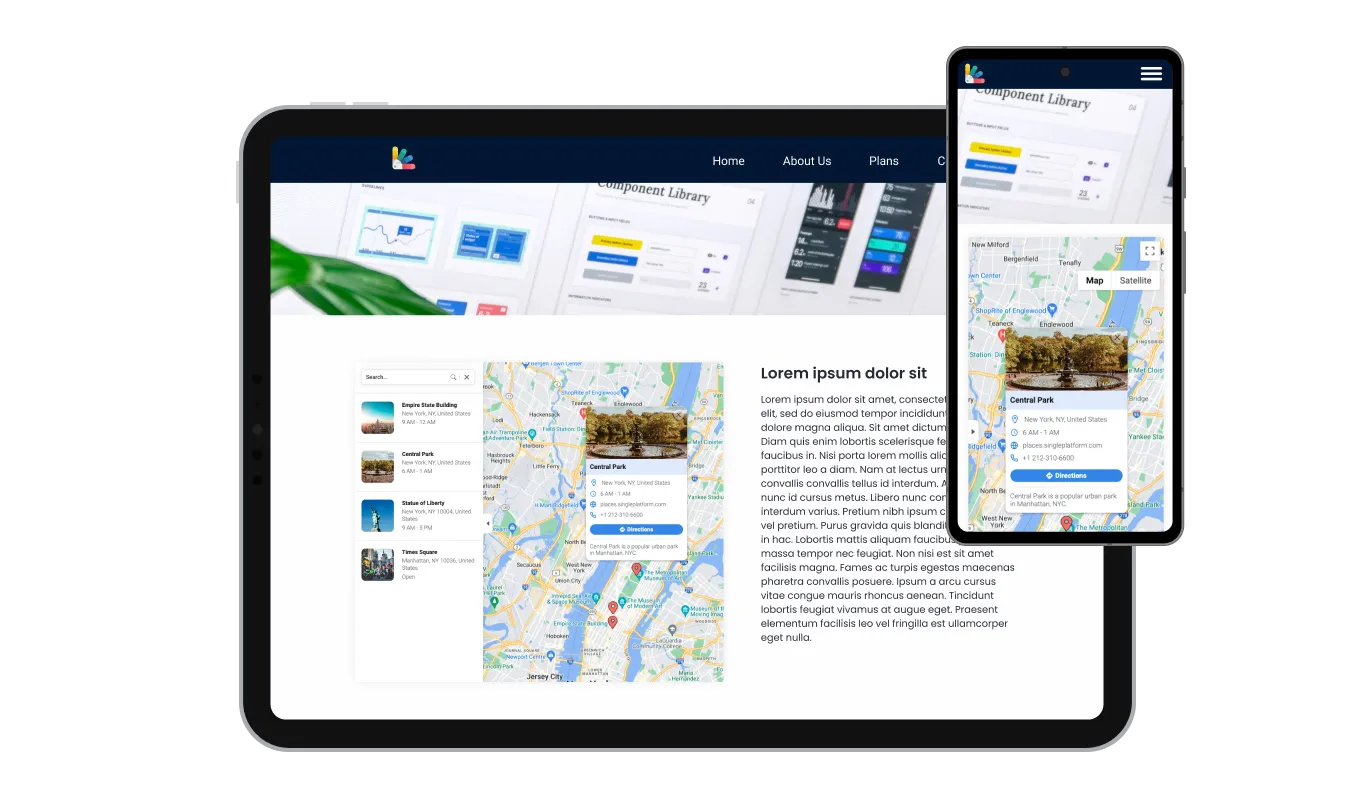
The Google Maps widget is designed for optimal performance across all devices. Its responsive design ensures it works flawlessly on desktops, laptops, tablets, and smartphones. This adaptability provides a consistent and intuitive user experience, crucial in the mobile-centric world, giving your website a competitive edge.

With the Google Maps widget, you can dive deeper into customization using your own CSS. Whether you're a seasoned developer or a creative enthusiast, this feature allows you to modify aspects like size, shape, and position, or even invent new styles. This flexibility ensures the widget seamlessly aligns with your website's aesthetic, elevating your visitors' experience.

Effortlessly incorporate the Google Maps widget into your website with just a single line of code. Each change you make to the widget will automatically reflect on your website. Simply copy the provided code for the Google Maps widget and insert it into your website's HTML code. You can position this code in the most suitable area of your website, whether that's the footer, header, or any other section.
With Google Maps widget, you're not just sharing a location, but offering valuable information. For each location, you can display working hours, provide a link to a dedicated website, and even share a contact phone number. This ensures your visitors have all they need to reach out or plan a visit.
The Google Maps widget allows you to break away from the standard pin style. You can choose from a variety of pin styles to mark your locations, adding an extra layer of customization and visual appeal to your map. This can help your site stand out and make the
The Google Maps widget includes a handy direction button feature. With just a click, your visitors can open up directions from their current location to any of the spots on your map. This makes planning a visit or journey to your locations as easy as a simple click.
The Google Maps widget is designed for simplicity, requiring no coding skills. Its user-friendly dashboard, coupled with easy drag-and-drop features, lets you tailor the widget to your preference in a matter of clicks.
Help visitors find every one of your locations
Open the editorNo credit card · Setup in under 5 minutes
Common Ninja has amazing no-code widgets that would beautify a website built on any builder. It is very easy to use and customise. It has as many widgets for almost everyone willing to make their website impressive.
Outstanding service. I use their widgets to help me with my web design business and whenever I need help they are very quick to help.
Excellent company with excellent service!!! We used it to build a survey, it was very user friendly. The service was perfect. Amit helped us with every problem and question we had, thank you very much!!!
Common Ninja saved the day when building our website and the customer service Daniel, the co-founder and CEO, provided was amazing.
Yes. The free plan covers one map widget with no time limit and no credit card. Upgrade only when you need additional maps, more pins per map, premium map skins, or advanced features like category filtering and CSV pin import.
The widget uses Google Maps under the hood for the map tiles, geocoding (turning addresses into coordinates), and directions, so you get the same map data your visitors already trust. The wrapping styling, multi-pin management, info windows, location list, and custom skins are all the widget's value-add on top of the Google Maps base layer.
Yes. The widget is built around multi-pin display. Add pins one by one or import a list, group them by category (stores, offices, warehouses), and turn on the searchable location list so visitors can find the nearest one by name or city. The list and the map stay in sync. Clicking a list item highlights the pin and opens its info window.
Build the map in the Common Ninja editor (drop pins, pick a skin, add info windows), copy the embed URL, and in Notion type /embed on the page where the map should appear. Paste the embed URL into the embed block and resize it. Notion renders a true interactive map with your custom pins and skin, not Notion's native database-bound map view.
Build the map in the Common Ninja editor, copy the one-line embed snippet, and paste it into your site: Squarespace via a Code block on the locations page; Canva via the Embed element on a website page; Webflow via an Embed element; Elementor via an HTML widget; Avada via the Code block. Edits in the editor push to every embed without re-pasting.
Yes. Pick from the library of pre-built map skins (light, dark, retro, minimal, terrain, road, branded-color) or layer Custom CSS for pixel-level control over info-window styling, location-list typography, and pin spacing. The base map data (roads, water, parks, labels) is restyled by the skin without changing the underlying Google Maps content.
Yes. Each pin gets a Directions button that opens the visitor's preferred navigation app: Google Maps, Apple Maps, or Waze on mobile, Google Maps in a new browser tab on desktop. The visitor's starting point is auto-filled from their device location (with their permission) and the destination is the pin's address.
Yes. The map container, pin sizing, info-window layout, and Directions-button behavior all adjust across mobile, tablet, and desktop breakpoints. Touch gestures (pinch-zoom, two-finger pan) work natively on mobile. Visitors get the same multi-pin experience on their phone as they would on a laptop.
Pick your platform. Each takes under 4 minutes.
Allow users to send messages or inquiries, save submissions, enable notifications, and more
Manage appointments, sync calendars, and send reminders efficiently.

Easily craft engaging, personalized popups to boost conversions.

Showcase customer testimonials using a rotating slider
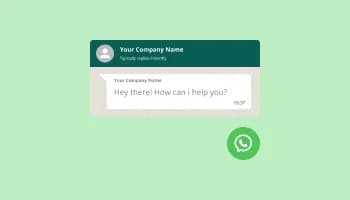
Add a WhatsApp chat button to your website, allowing users to start a chat using WhatsApp.
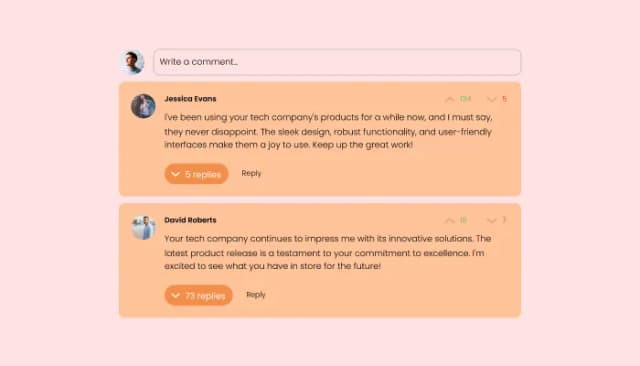
Comments system with upvote/downvote, email notifications, reply threads, and moderation tools.
A map widget is a small application that you can embed on your website to display geographical locations. It often includes features like interactive navigation, location details, and customizable aesthetics.
Adding a map to your website helps your visitors easily locate your business, view multiple locations, and access location-specific information like working hours and contact details. It also enhances user engagement, accessibility, and can contribute to local SEO.
The Google Maps widget allows you to pin multiple locations on the same map. This feature is useful if you have several branches or points of interest to showcase.
Yes, the Google Maps widget offers several map skins and pin styles, allowing you to align the map with your website's design and branding.
With each location, you can display working hours, a link to a specific website, a contact phone number, and even a descriptive card with an image.
The direction button is a user-friendly feature that opens up directions from the visitor's current location to any location on your map. This makes planning a visit or journey to your locations as easy as a simple click.
Yes, the Google Maps widget allows for CSS customization. This means you can tweak its design to align with your website's look and feel, ensuring a consistent user experience.
Absolutely, the Google Maps widget is designed with a user-friendly interface, making it easy to set up and manage, even for those without extensive technical knowledge.
Embedding the Google Maps widget is a breeze. It can be added to your website with a single line of code, making it a quick and simple addition to any webpage.
Absolutely, the Google Maps widget includes a feature that allows you to display a comprehensive list of all your locations. This makes it easier for visitors to quickly view and select the location they're interested in.
Yes, the visual and interactive nature of the Google Maps widget can enhance the accessibility of your website for users with visual needs or cognitive difficulties. It provides a clear, visual context of your location.
The Google Maps widget is designed to be lightweight and efficient, so it should not significantly impact your website's loading speed. However, like any widget, its impact can vary based on your overall website design and other factors.
Yes, in the enriched location display feature, you can include your own images in the descriptive card for each location. This allows you to give visitors a more personalized view of each of your locations.
Yes, the Google Maps widget is completely customizable. From the choice of map skins and pin styles to the information displayed for each location, you can tailor the widget to meet your specific needs and preferences.
No, the Google Maps widget is designed to be as user-friendly as possible. You don't need any special skills or knowledge to use it. Its interface is straightforward and intuitive, and if you ever need help, there are plenty of resources available.
Multi-pin maps with custom skins, photo-rich info windows, searchable location list, and one-click directions. Embed on 200+ platforms including Notion, Squarespace, Canva, Webflow, Elementor, and Avada.
Create your Google Maps widgetNo credit card · Setup in under 5 minutes