


Verified review
Common Ninja has amazing no-code widgets that would beautify a website built on any builder. It is very easy to use and customise. It has as many widgets for almost everyone willing to make their website impressive.
Try the editor, no signup
Pick a template, customize it, and watch it update live, no signup.
No credit card · Free forever plan
No credit card · Free forever plan
The Common Ninja Pricing Tables widget is a free, no-code tool for adding side-by-side pricing tables to any website.
Build SaaS plan grids, service packages, membership tiers, and course pricing layouts.
Add a monthly/yearly billing-cycle toggle, highlight your recommended plan with a customizable ribbon, pick from a large library of pre-built skins, and paste one line of embed code on 200+ platforms including Squarespace, Wix, Carrd, Shopify, and Framer.
Three or four plans, a monthly/yearly toggle, a ribbon on your recommended tier, a CTA per plan. Every element a SaaS pricing page needs sits in one widget. No designer round-trips and no custom CSS, even on a low-code site builder.
Agencies, freelancers, and consultants use this widget to publish service packages with deliverables, timelines, and pricing side by side. Each tier links to its own contact form or booking flow so visitors can take the next step from the page.
Community sites, paid newsletters, and online programs use this widget to lay out membership levels. Bronze, silver, gold; free, plus, pro; whatever the naming, each tier gets a price, a feature list, and a join button. Visitors compare without leaving the page.
A pricing paragraph reads slow; a pricing table reads at a glance. Visitors who can compare plans visually decide faster than visitors who have to parse prose. Higher conversion at the bottom of a marketing page, a course landing page, or a product detail page.
Start with a pre-built skin from the editor library. Each skin is a complete layout (typography, button styling, ribbon placement, hover behavior) that you can use as-is or customize. Pick the one that fits your brand, then tweak from there.
Add as many plans as you need with title, price, features, and a CTA button per plan. Configure as many billing cycles as you want (monthly, yearly, quarterly, custom) so visitors can switch and see the price update instantly. Attach a ribbon to the plan you want to spotlight.
Tune colors, fonts, mobile behavior (Flexible or Scroll mode), and entry animations. Copy the embed snippet and paste it where you want the pricing table to render. The table refreshes automatically as you edit it in the Common Ninja dashboard.
Add as many billing cycles as you want (monthly, yearly, quarterly, or a custom label like "team") and the visitor switches between them with one tap. The prices update instantly, the highlighted plan stays highlighted, and the layout never reflows.
Stick a customizable ribbon on the plan you want visitors to choose. Pick the text ("Most Popular," "Best Value," "Limited Time"), the color, and the font to match your brand. Ribbons draw the eye in the exact spot you want the eye to go.
Start from a polished skin and skip the design step. The editor library covers clean SaaS layouts, agency-style cards, course-style stacks, and high-contrast styles. Pick the one closest to your brand, then customize from there without writing CSS.
Two mobile layouts ship with the widget. Flexible stacks plans vertically so each one gets the full screen width. Scroll keeps them side-by-side and lets visitors swipe between them. Pick whichever fits the plan-count and the reading pattern of your audience.
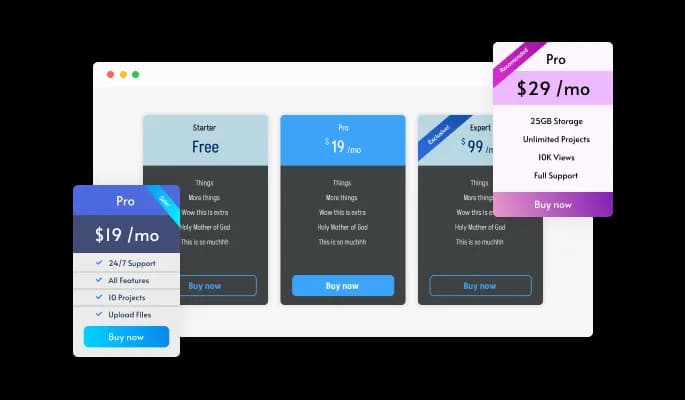
One of the standout features of this widget is the customizable ribbon, which allows you to draw attention to the plan you want to emphasize. Whether it's your most popular option, the best value, or a limited-time offer, you can easily add a ribbon to your table and make it stand out from the rest. The ribbon can be customized with your own text, font, and color choices, so you can make it match your brand or add a special touch to the desired plan.
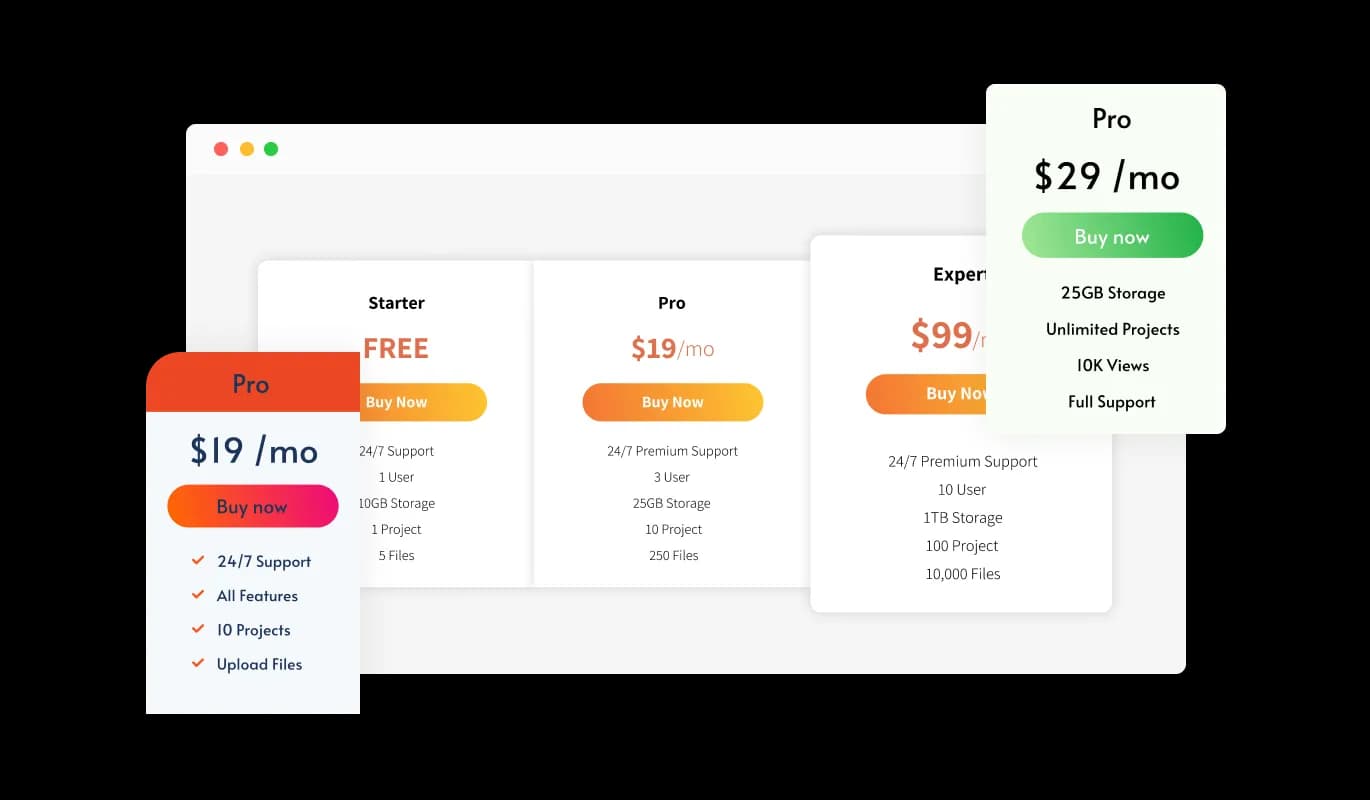
The Pricing Tables widget features a large selection of beautiful skins for you to choose from. With a wide range of beautiful skins to choose from, you can find the perfect look and feel to match your brand and style. No need to spend hours customizing and fine-tuning the design. Simply select the skin you like and start using the widget immediately. Whether you're a small business owner, a freelancer, or a digital marketer, the Pricing Tables widget has something for everyone. You can choose from various styles, including sleek and modern, bold and colorful, or clean and minimalistic design.
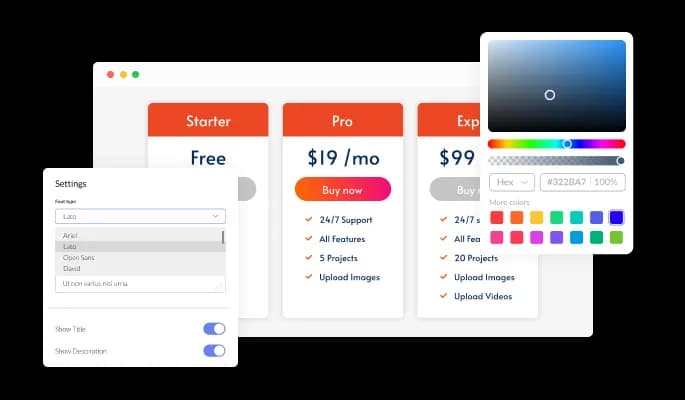
The Pricing Tables widget comes with full customization options, giving you the ability to easily edit the design to match the aesthetic of your website. You can change the colors of the pricing Tables, buttons, and labels to match your branding. You can also choose from different font options and adjust the font size, style, and color to create a cohesive and professional look. In addition to these design options, you can customize the widget's spacing to ensure it fits seamlessly into your website layout.
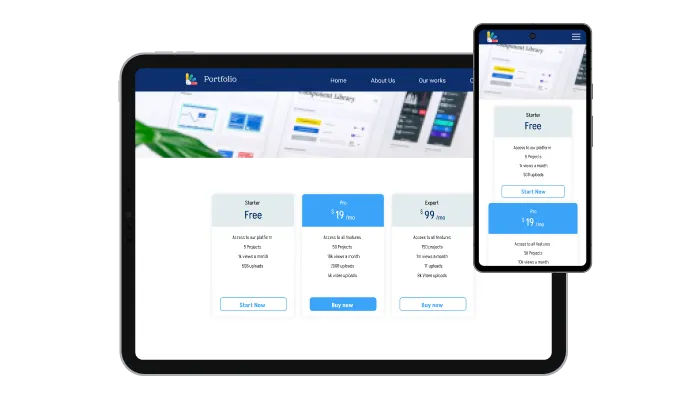
The Comparison Tables widget is a valuable tool for any website. Not only is it fully responsive, meaning it will adjust seamlessly to fit the screen size of any device, but it also has a sleek and modern design that will enhance the overall look of your site. In a world where more and more people are accessing the internet through their phones and tablets, it is crucial to have a website that is optimized for mobile viewing. The Comparison Tables widget will allow you to do just that, giving you an edge over competitors.

The editor covers colors, fonts, layout, and positioning without touching code. When you need more than that, edit the CSS directly to override any rule the editor does not expose. Useful when a pricing page has to match a brand guide exactly rather than approximately.

To embed the Comparison Tables widget on your website, simply copy and paste the provided code snippet into the HTML of your webpage. Additionally, the widget is designed to be self-updating, meaning that any changes you make to the Comparison Tables Editor will be reflected automatically on your website without the need for any additional manual updates.
The Pricing Tables widget features two mobile behavior modes: Flexible and Scroll. Choose the one that’s most appropriate for you and your pricing table.
The Pricing Tables widget features an animated mode that allows you to add some animation to your static page and make it more appealing.
Pricing Tables enables you to add as many billing cycles as you want and edit them to your liking. Improve your users’ experience with intuitive navigation!
The Pricing Tables widget is easy to use and requires no coding knowledge. Our intuitive dashboard with the drag-and-drop feature will enable you to customize the widget any way you’d like to with just a few simple clicks.
Common Ninja has amazing no-code widgets that would beautify a website built on any builder. It is very easy to use and customise. It has as many widgets for almost everyone willing to make their website impressive.
Outstanding service. I use their widgets to help me with my web design business and whenever I need help they are very quick to help.
Excellent company with excellent service!!! We used it to build a survey, it was very user friendly. The service was perfect.
Common Ninja saved the day when building our website and the customer service Daniel, the co-founder and CEO, provided was amazing.
Yes. The free plan covers one Pricing Tables widget with no time limit, no credit card, and no trial countdown. Configure plans, billing cycles, and ribbons on the free plan. Upgrade only when you need additional widgets, premium skins, or higher monthly view limits.
If you are researching what Common Ninja costs (not building a pricing widget for your own site), the answer lives on commoninja.com/pricing rather than this widget hub. Plans, free-plan limits, and upgrade tiers are all there. This page is the widget you can embed on your site.
It is a side-by-side pricing-table widget with a billing-cycle toggle (monthly to yearly, for example). It is not a continuous slider that calculates a per-seat or per-usage price as visitors drag a handle. If you need a slider-based pricing calculator (price changes as the visitor adjusts a quantity slider), this widget is not the right pick. For a discrete tier comparison with monthly/yearly switching, it is the right pick.
Yes. Add as many billing cycles as you want (monthly, yearly, quarterly, or a custom label) and the visitor switches between them with one tap. The prices update instantly, the recommended-plan ribbon stays in place, and the layout does not reflow. Most pricing pages ship with monthly and yearly; the widget supports both out of the box.
Attach a customizable ribbon to the plan you want to spotlight. Pick the text ("Most Popular," "Best Value," "Recommended," "Limited Time"), the ribbon color, and the font to match your brand. Combined with a stronger button color on that plan, the ribbon draws the eye and lifts the click-through on the tier you want to push.
In Squarespace, click + on the page where you want the pricing table and add an Embed (or Code) block. Paste the Common Ninja embed snippet into the block and save. Publish the page. The pricing table renders inline, and any edit you make to plans or skins in the Common Ninja dashboard appears the next time the page loads.
In the Wix editor, click + Add and pick Embed Code, then Embed HTML. Paste the Common Ninja embed snippet into the HTML iframe field and click Update. Publish the site. The pricing table renders on the live page and refreshes whenever you edit it in the dashboard.
In Framer, click + Insert and pick Embed, then HTML embed. Paste the Common Ninja embed snippet into the field and resize the embed to fit the pricing table. Publish the site. The pricing table runs on the published Framer URL with the billing-cycle toggle and ribbons intact.
Yes. Course platforms and membership sites use this widget to lay out tier comparisons (Bronze/Silver/Gold, Basic/Plus/Pro, or whatever naming fits). Each tier accepts a title, price, feature list, ribbon, and CTA button. Point the CTA at your checkout, signup, or contact flow on the platform you already use.
200+ platforms including Squarespace, Wix, Carrd, Shopify, Framer, Webflow, WordPress, Elementor, Divi, Avada, Joomla, WooCommerce, Bubble, Canva, Google Sites, Blogger, Ghost, and any custom HTML page that accepts an embed snippet.
Pick your platform. Each takes under 4 minutes.
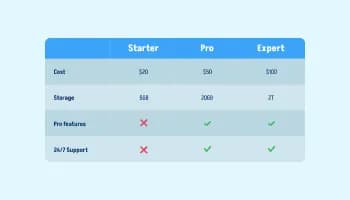
Displays data or features side-by-side, allowing users to compare and contrast the information easily
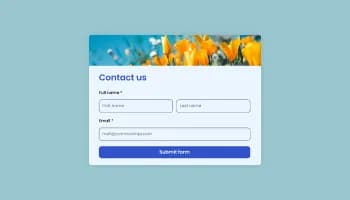
Allow users to send messages or inquiries, save submissions, enable notifications, and more
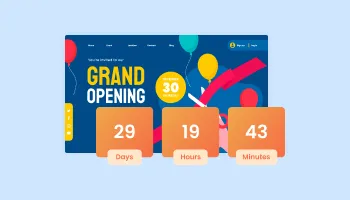
Displays a timer counting down to a specific date or event
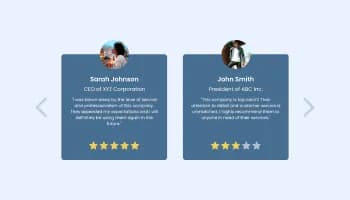
Showcase customer testimonials using a rotating slider
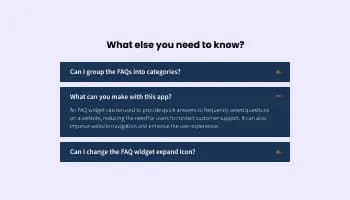
Displays common questions and answers for quick reference
Showcase statistics, metrics, or countdowns in an animated visually appealing display
Yes, you can easily export the pricing table via the “Export” button at the top left corner of the widget’s editor.
Yes, you can easily change the widget’s mobile behavior via the “Settings” tab.
Yes, you can easily animate the pricing table via the “Settings” tab on the widgdt’s dashboard.
Yes, you can easily add different billing cycles to your pricing table.
Using the Pricing Tables widget is very easy. Simply sign up and start using the free version. There's no need to worry about complicated setup or installation processes, as the Pricing Tables widget is designed to be user-friendly and straightforward. Once you've signed up, you'll have access to all of the basic features and functions of the widget, which you can use to enhance your website and improve your online presence. From there, you can choose to upgrade to the paid version if you want to access more advanced features and capabilities. Regardless of which version you choose, you'll find that the widget is a powerful and easy-to-use tool that can help you take your online presence to the next level.
The Common Ninja Pricing Tables widget is a free tool reach with features and options. While this widget is free to use, it does have a limit on the number of views it can handle. This means that after a certain number of views, the chat button may no longer be visible or functional on your website. It is important to note that this view limit may vary depending on the plan you are using. Despite this limitation, Common Ninja's Pricing Tables is still a valuable tool for businesses looking to increase customer engagement and improve the overall user experience of their website.
The Common Ninja's Pricing Tables widget is a versatile tool for any website builder. This means that you can easily add this widget to your website or store no matter what platform you use to build your website. The Pricing Tables widget will work seamlessly with your platform whether you are using a popular website builder or something more specialized. This means you can enjoy all the benefits of this powerful tool without having to worry about compatibility issues.
It’s very easy to embed Common Ninja’s Pricing Tables widget on your website and the process consists of two steps:
The Pricing Tables widget is designed to comply with the General Data Protection Regulation (GDPR), a set of EU regulations protecting personal data and privacy. When using the Pricing Tables widget, you can be confident that it will not collect or store personal data that could violate GDPR regulations. This ensures that your business is in compliance with these regulations and can protect your customers' data privacy. Overall, the Pricing Tables widget is a secure and reliable tool that can be used to enhance your website without any concerns about GDPR compliance.
No need for coding skills. Our Pricing Tables widget is designed to be easy to use, even for those with limited technical experience. The widget features a user-friendly interface that allows you to easily customize the widget without coding knowledge. You can fully customize the Pricing Tables to match your branding. When you're done, simply copy the provided code and paste it into your website. It's that simple!
Embedding the Pricing Tables widget on your website is a straightforward process. Simply copy the provided code and paste it into the desired location on your website. The widget will seamlessly integrate into your site, allowing you to take advantage of its features and functions. No technical expertise or programming knowledge is required - just copy and paste the code to get started. This simple process allows you to easily add the widget to your website and enhance its functionality without any hassle.
Yes. We are eager to hear your request. Please refer to this page.
A pricing tables widget is a pre-designed, interactive element that can be added to a website to display pricing information for different products or services in a clear and organized way. A pricing table typically includes a list of features or benefits and the corresponding prices for each option. It can also include information such as the duration of the service or product, any discounts or promotions that are available, and any other relevant details.
Pricing Tables widgets are often used to help users compare the available options and pricing plans and to make it easier for them to choose the one that best meets their needs. They can also help establish credibility and trust by clearly displaying the prices and terms of the products or services being offered.
A pricing tables widget can help improve the user experience on a website by making it easy for users to understand the different pricing options and make informed decisions about which products or services to purchase. It can also help increase conversions by providing users with the information they need to make a purchase decision.
Displaying pricing tables on your website can have several benefits, including:
Displaying pricing tables on your website can help increase transparency, credibility, and clarity for your users, which can ultimately lead to increased conversions and a better user experience.
Displaying pricing tables on your website can potentially improve the user experience by providing users with a clear and concise way to compare different pricing options. This can help users make informed decisions about which product or service best fits their needs and budget.
Here are some ways that pricing tables can improve the user experience:
Side-by-side pricing tables with a monthly/yearly billing toggle, ribbons for your recommended plan, and a large library of pre-built skins. Works on 200+ platforms including Squarespace, Wix, Carrd, Shopify, and Framer.
Create your pricing tableNo credit card · Setup in under 5 minutes