How to add Tier List to your website
Learn how to embed Common Ninja’s Tier List on your website without coding.



In This Guide
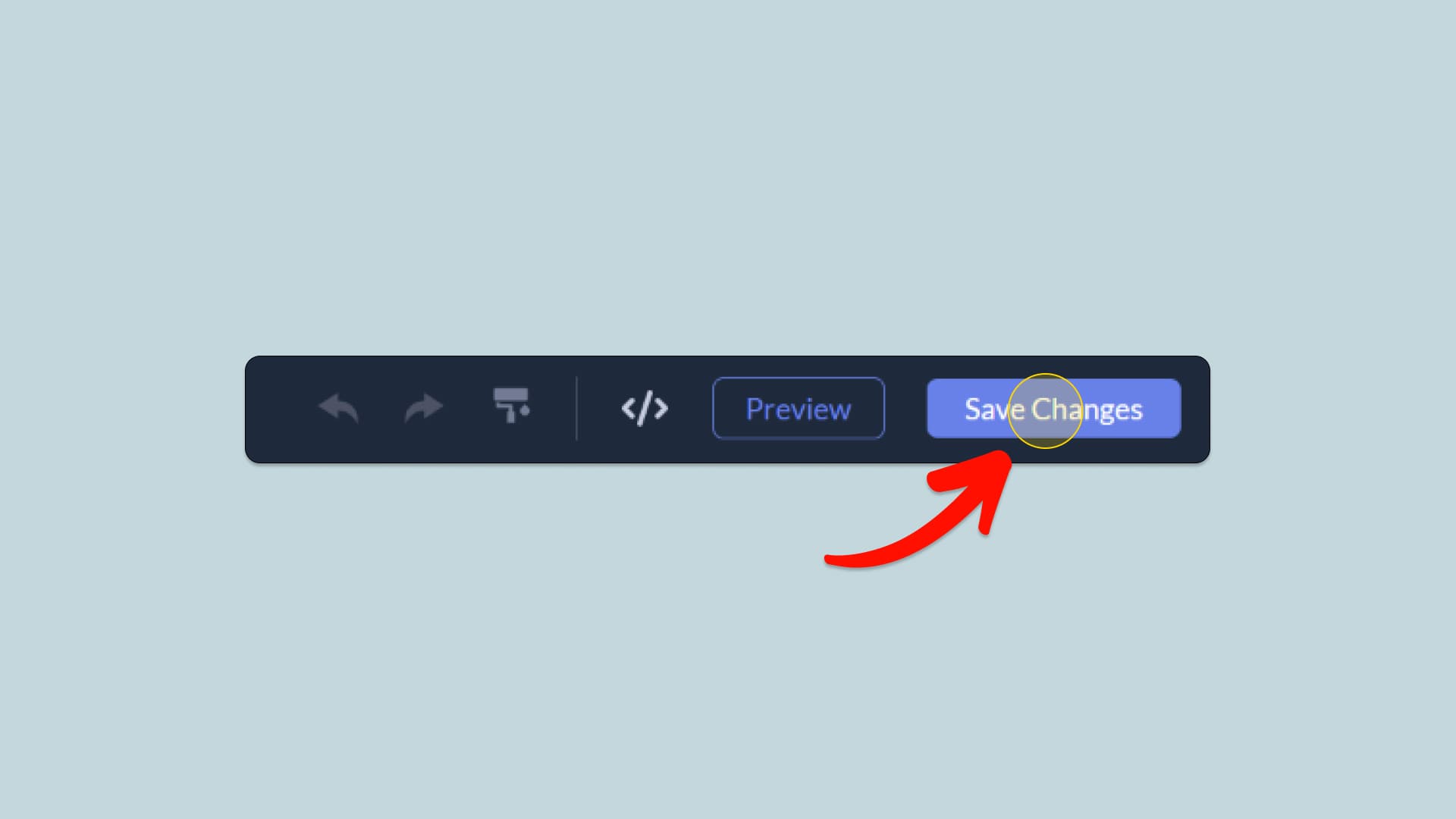
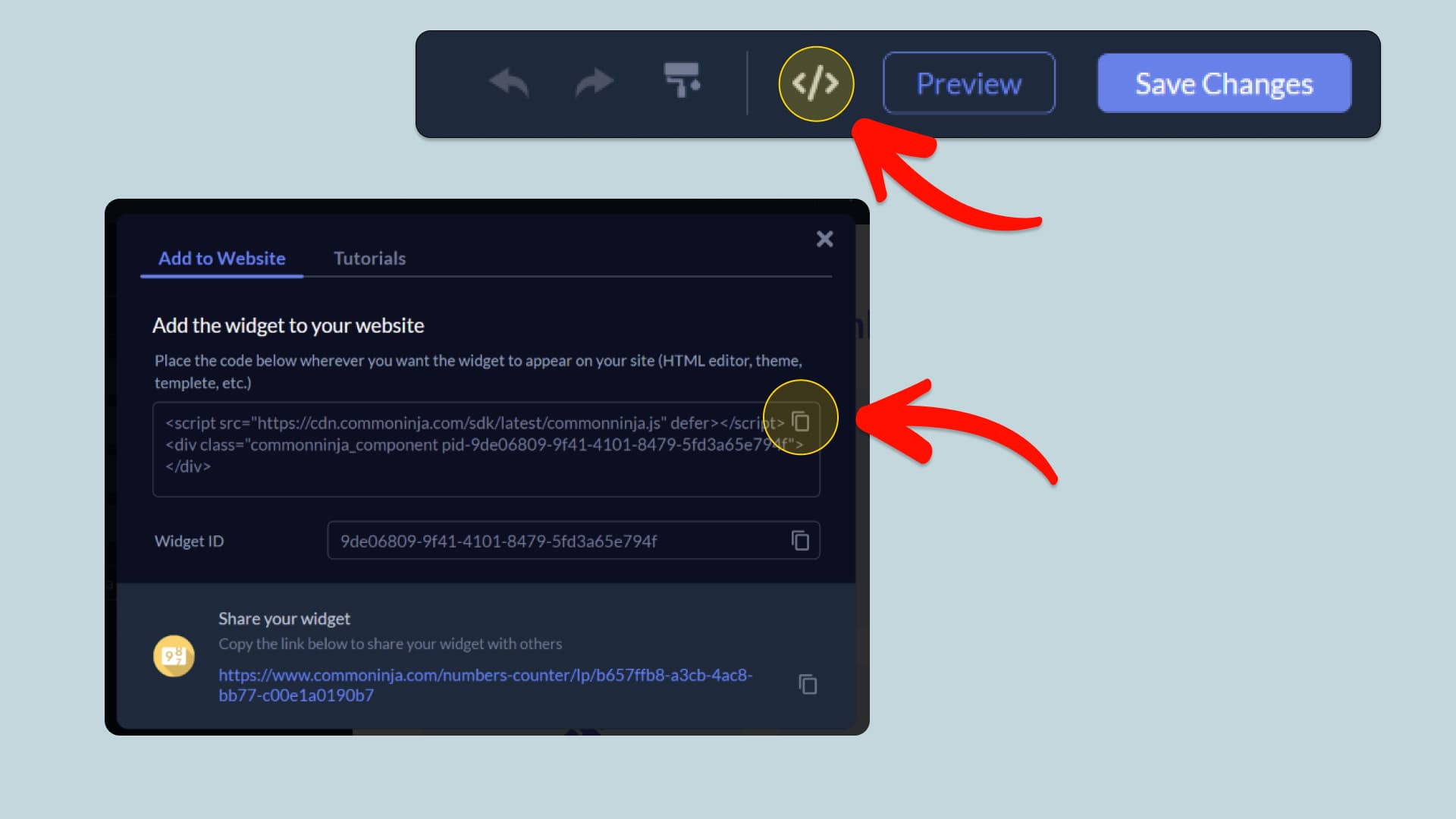
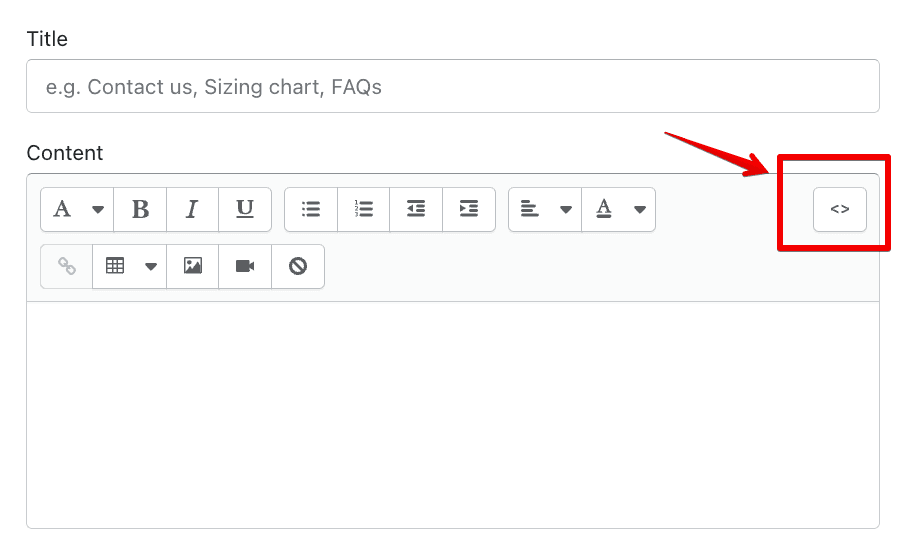
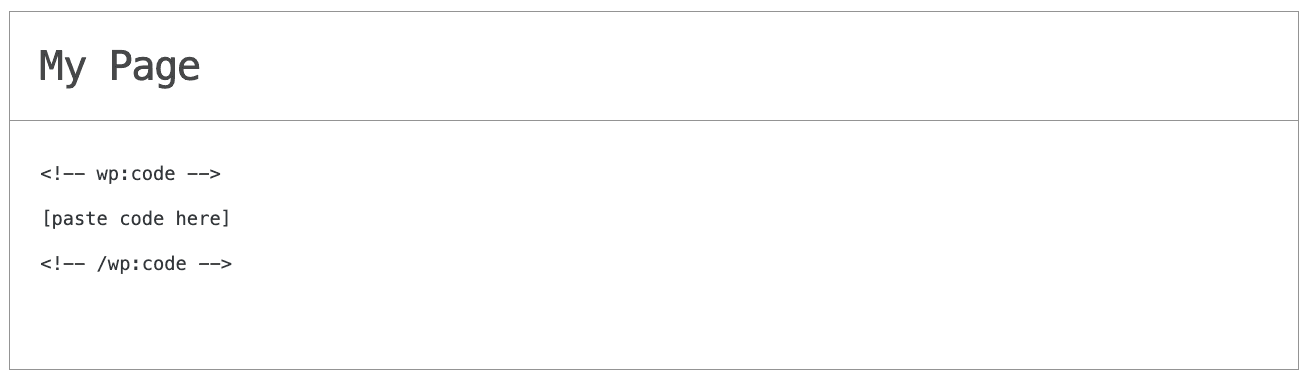
In this quick guide, you'll learn how to embed the Tier List into your website by generating your embed code and adding it seamlessly to your website.
How to Embed Tier List on Your Platform
Choose your platform to see detailed, step-by-step instructions for embedding Tier List seamlessly.


Embed Tier List on Your Website
Why Use This Widget
The Tier List widget is an interactive ranking tool that lets you organize items into customizable tiers and allow visitors to build their own rankings directly on your website. You can define tier labels and colors, add items with text and images, include an optional Unranked section, and let users drag items between tiers or reorder them within each row. The widget can be used for ranking products, games, characters, movies, sports teams, foods, brands, features, and many other types of content. It also includes flexible design controls for item shapes, borders, backgrounds, typography, spacing, alignment, animations, and overall styling, along with responsive settings for desktop, tablet, and mobile. Multi-language support, accessibility features, and custom CSS provide additional flexibility, while easy website integration makes it suitable for a wide range of platforms and site types. Its purpose is to turn simple rankings and comparisons into a clear, visual, and interactive experience that encourages visitors to engage with your content.
This tutorial was written by the Common Ninja product team, creators of interactive, no-code widgets for websites. Common Ninja helps over 500,000 users build engaging online experiences without coding.