


Verified review
Common Ninja has amazing no-code widgets that would beautify a website built on any builder. It is very easy to use and customise. It has as many widgets for almost everyone willing to make their website impressive.
Try the editor, no signup
Pick a template, customize it, and watch it update live, no signup.
No credit card · Free forever plan
No credit card · Free forever plan
The Common Ninja Vimeo Feed is a free, no-code widget that displays a live feed of Vimeo videos on any website. Point it at the account, pick a layout, and add one line of embed code.
It keeps what people go to Vimeo for: clean playback with no advertising and no grid of unrelated recommendations pulling viewers away at the end of a video.
The feed refreshes on its own, with layouts, ready-made skins, ticker animation, character length control, RTL support, and custom CSS included. Works on 200+ platforms including WordPress, Webflow, Elementor, Joomla, and Wix.
Filmmakers, agencies, and photographers keep their real work on Vimeo and a hand-built gallery on their site, and the two drift apart within a month. A feed makes the site page the same thing as the Vimeo account, permanently.
The reason to be on Vimeo rather than YouTube is that a video ends and nothing tries to pull the viewer elsewhere. Putting the feed on your own page keeps that intact, which matters most on a page meant to win a commission.
Point a feed at a collection and a page becomes the work you did for one client or one sector. Add to the collection in Vimeo and the case-study page grows by itself, with no CMS entry to fill in.
Publish to Vimeo and the site follows. No re-embedding, no second gallery to maintain, and no showreel page quietly showing last year's edit.
Give the widget the Vimeo account or collection you want to display. It pulls the videos with their thumbnails and titles, so nothing has to be embedded one at a time.
Pick a layout and one of the ready-made skins, then set the date and time format and cap how many characters of each title or description appear so cards stay level. Custom CSS handles exact design matching.
Copy the snippet from the Add to Website tab and paste it where the feed belongs. Uploading to Vimeo updates the page on its own, so a reel or a portfolio never falls behind the work.
Choose what the widget follows and how it lays out, then change either later from the editor without touching the page the embed already sits on.
Ready-made skins so the feed looks finished before you style anything, plus an optional ticker that keeps a showreel to one strip instead of a full section.
Cap the visible characters so a long project title does not push one card taller than the rest, and set the date and time format yourself instead of inheriting one.
Full right-to-left rendering for Arabic, Hebrew, Persian, and Urdu layouts, and a custom CSS field so a feed can sit inside a minimal portfolio design without fighting it.
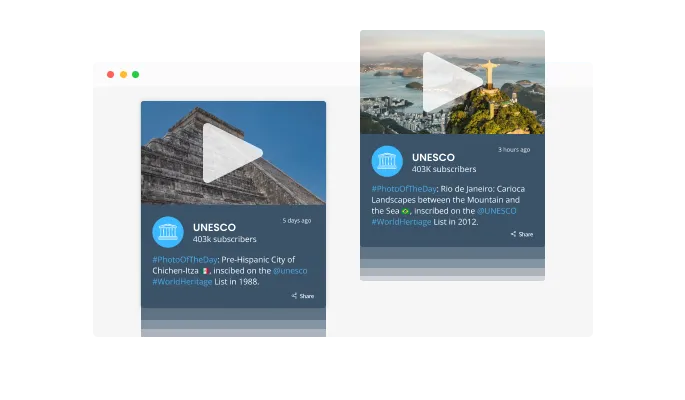
The Vimeo Feed widget comes with a “ticker” animation that imitates an old news ticker and adds a sense of action to your page. Use it to immediately grab the user’s attention.

The Vimeo Feed widget has the “auto-refresh” option which, when toggled, keeps refreshing and updating the feed with new posts.
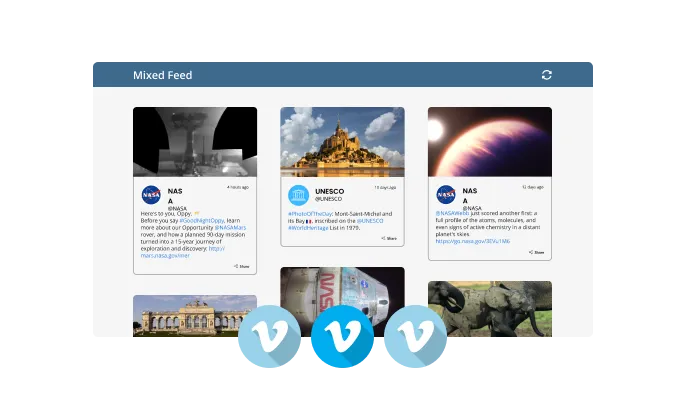
Two different feed types are available in the Vimeo Feed widget: Tabs and Mixed. The Tabs type keeps all your tabs organized by order of feed, while the Mixed type, mixes the various Vimeo feeds to create a diverse feed.
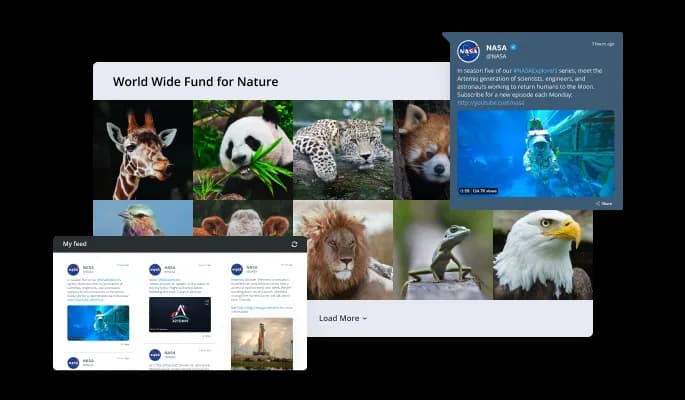
The Vimeo Feed widget comes available with multiple layouts that you can choose from to make sure it fits your overall website design and style.
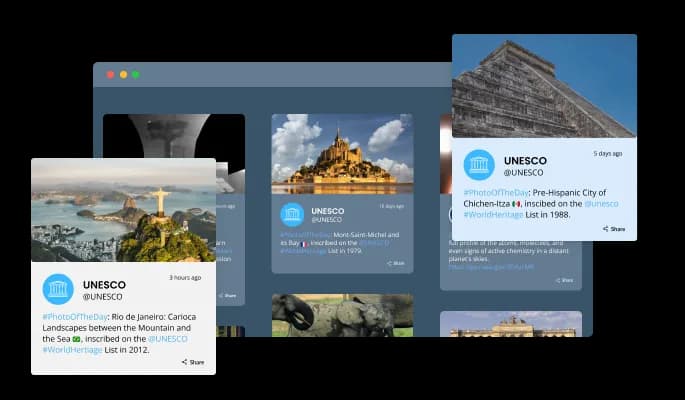
The Vimeo Feed widget comes with a variety of beautiful skins that you can choose from so you don’t have to spend much time on extensive customization.
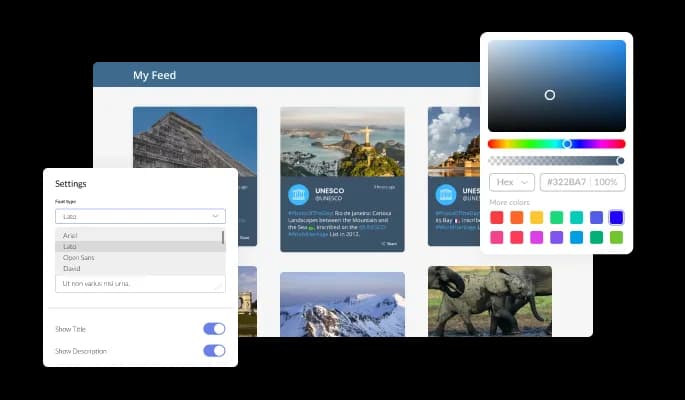
The Vimeo Feed widget features full customization options so you can edit the design to fit your needs. Change the colors, the fonts, the spacing and anything else!
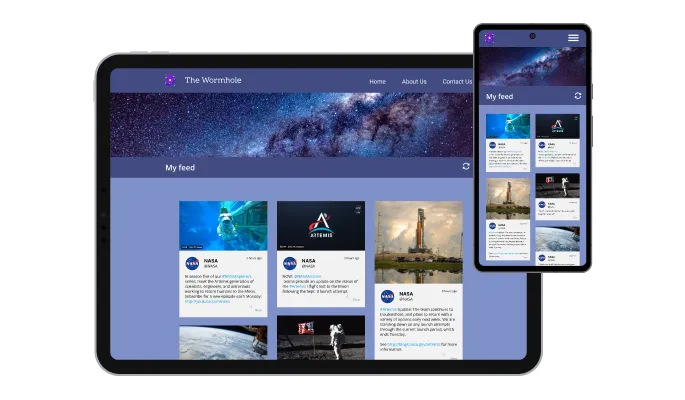
The Vimeo Feed widget is fully responsive and will look great on any device. In a mobile-first world, this feature will put you ahead of your competitors.

As with all of Common Ninja’s widgets, you can add custom CSS to customize the Vimeo Feed widget and be even more creative.

You can embed the widget on your website quickly by copying a single line of code. The Vimeo Feed widget will also be updated automatically with every change you make.
There are various options for displaying the date and time of the Vimeo feeds, an option that will enable you to further customize the Vimeo Feed widget according to your needs, and the preferences of your visitors.
You can easily customize the characters' length to save space and make the Vimeo Feed widget more compact.
The Vimeo Feed widget provides full RTL support for those who write from right to left. Make your news accessible to more users from all over the world.
The Vimeo Feed widget is easy to use and requires no coding knowledge. Our intuitive dashboard with the drag-and-drop feature will enable you to customize the widget any way you’d like to with just a few simple clicks.
Build your Vimeo feed in the editor
Open the editorFree to use · No credit card · No signup to try it
Common Ninja has amazing no-code widgets that would beautify a website built on any builder. It is very easy to use and customise. It has as many widgets for almost everyone willing to make their website impressive.
Outstanding service. I use their widgets to help me with my web design business and whenever I need help they are very quick to help.
Excellent company with excellent service!!! We used it to build a survey, it was very user friendly. The service was perfect. Amit helped us with every problem and question we had, thank you very much!!!
Common Ninja saved the day when building our website and the customer service Daniel, the co-founder and CEO, provided was amazing.
Open the editor, give it the Vimeo account or collection you want, choose a layout and skin, then copy the snippet from the Add to Website tab into your page. It works anywhere you can add an HTML block, and nothing is installed on your site.
Vimeo's own embed handles a single video, so a portfolio page means pasting a new embed for every upload and editing the page each time. This widget shows the account as a feed and refreshes it, so uploading is the only step. If you want one hero video in a specific spot, Vimeo's embed is still the right tool for that.
No token or developer setup is needed: you paste the account into the editor and Common Ninja handles fetching the videos. What the feed can show still depends on Vimeo's own privacy settings on those videos, which is a Vimeo account matter rather than a widget one.
No. The widget reads what Vimeo serves publicly, so anything set to private, password-protected, or restricted to specific domains stays hidden. That is usually what you want, but it does mean a portfolio of client work under NDA will not populate a public feed.
Yes, and this is the most useful way to run it. Point one feed at a collection for a sector or a client and another at your general reel, so each page shows the work relevant to whoever is reading it rather than everything you have ever uploaded.
Playback happens in Vimeo's own player, so the viewing experience is the one you chose Vimeo for. The widget controls the surrounding gallery: the layout, the cards, the styling, and what text appears beside each thumbnail.
Yes, the layouts are responsive and cards reflow to the screen width. Video thumbnails are wide, so preview at phone width and consider fewer columns or the ticker layout if a stacked grid runs long.
Yes. Each feed is its own widget with its own source and settings, so a homepage reel and a per-client case study page can each have their own. On the free plan each widget counts separately against your plan's widget allowance.
Pick your platform. Each takes under 4 minutes.

Display the latest posts from your Instagram page

Display a feed of the latest posts from a Facebook user or page

Display the latest tweets from your X

Display the latest posts from your Linkedin page

Display the latest posts from any RSS feed

Display the latest posts from any platform and website's RSS feed
It is possible to limit the number of posts displayed per page.
You can decide where the tabs should be positioned in the settings menu.
Yes, you can switch on or off auto-refreshing.
Yes, you can add a background image, and to further customize its behavior.
Yes, you can customize the feed’s height.
Yes, you can easily do so from the “Templates” tab.
Yes, currently there’s a “ticker” animation that you can trigger.
Yes, there are lots of beautiful skins that you can choose from to save time and start using the widget as quickly as possible.
Yes, you can either upload an image or select an icon from a large selection of available icons to add to your Notification Bar, or, alternatively, you can leave it all blank.
Using the Vimeo Feed widget is very easy. Simply sign up and start using the free version. There's no need to worry about complicated setup or installation processes, as the Vimeo Feed widget is designed to be user-friendly and straightforward. Once you've signed up, you'll have access to all of the basic features and functions of the widget, which you can use to enhance your website and improve your online presence. From there, you can choose to upgrade to the paid version if you want to access more advanced features and capabilities. Regardless of which version you choose, you'll find that the widget is a powerful and easy-to-use tool that can help you take your online presence to the next level.
The Common Ninja Vimeo Feed widget is a free tool rich with features and options. While this widget is free to use, it does have a limit on the number of views it can handle. This means that after a certain number of views, the widget may no longer be visible or functional on your website. It is important to note that this view limit may vary depending on your plan. Despite this limitation, Common Ninja's Vimeo Feed is still a valuable tool for businesses looking to increase customer engagement and improve the overall user experience of their website.
The Common Ninja's Vimeo Feed widget is a versatile tool for any website builder. This means that you can easily add this widget to your website or store no matter what platform you use to build your website. The Vimeo Feed widget will work seamlessly with your platform whether you are using a popular website builder or something more specialized. This means you can enjoy all the benefits of this powerful tool without having to worry about compatibility issues.
No need for coding skills. Our Vimeo Feed widget is designed to be easy to use, even for those with limited technical experience. The widget features a user-friendly interface that allows you to easily customize the widget without coding knowledge. You can fully customize the Vimeo Feed to match your branding. When you're done, simply copy the provided code and paste it into your website. It's that simple!
Yes. The Vimeo Feed widget can be used in a GDPR-compliant way. Collecting visitor information is always opt-in: it stays off until you turn it on in the widget’s settings, and you decide what is collected. As the website owner, you remain responsible for how you use your visitors’ data.
Yes. We are eager to hear your request. Please visit our Feature Request page.
Embedding the Vimeo Feed widget on your website is a straightforward process. Simply copy the provided code and paste it into the desired location on your website. The widget will seamlessly integrate into your site, allowing you to take advantage of its features and functions. No technical expertise or programming knowledge is required - just copy and paste the code to get started. This simple process allows you to easily add the widget to your website and enhance its functionality without any hassle.
A live Vimeo feed that refreshes when you upload, playing in Vimeo's own clean player with no ads and no recommended-video sidebar. Multiple layouts, ready-made skins, ticker animation, title length control, RTL support, and custom CSS. Embed on 200+ platforms including WordPress, Webflow, Elementor, Joomla, and Wix.
Create your Vimeo feedFree to use · No credit card · No coding