


Verified review
Common Ninja has amazing no-code widgets that would beautify a website built on any builder. It is very easy to use and customise. It has as many widgets for almost everyone willing to make their website impressive.
Try the editor, no signup
Pick a template, customize it, and watch it update live, no signup.
No credit card · Free forever plan
No credit card · Free forever plan
The Common Ninja Virtual Tour is a free, no-code widget that turns 360 degree panoramic photos into an explorable tour on any website. Upload the panoramas, place your hotspots, and paste one line of embed code.
Visitors drag to look around a space, and hotspots let them move between rooms, read extra information, or follow a link out to a booking or product page.
Animation controls, web-linked hotspots, full styling control, and custom CSS are all included. Works on 200+ platforms including Canva, Framer, Shopify, Squarespace, and Elementor.
Photographs show a room from one angle and hide whatever is behind the camera, which is exactly what a buyer suspects. A tour removes that doubt, and it filters out the viewings that were never going to happen.
People booking a space want to know how big it really is and what it feels like. A tour answers that in a way a gallery cannot, and hotspots can send them from the room they liked straight to the booking form.
Car showrooms, museums, gyms, and schools all get asked what the place is actually like. A tour is a permanent answer that works at midnight, from another country, for someone not ready to visit yet.
Dragging to look around is genuinely engaging in a way scrolling is not. Visitors spend far longer inside a tour than on a gallery, and time spent is what a page selling a place actually needs.
Add the panoramic photos of each space. These come from a 360 camera, or from a phone panorama stitched into a full spherical image, and resolution matters: a tour is only as convincing as the photograph behind it.
Drop hotspots onto the panorama to move between spaces, reveal information, or link out. This is what turns a single panorama into a tour, so plan the route a visitor should take rather than scattering markers.
Copy the snippet from the Add to Website tab and paste it where the tour belongs. Adding a space later updates every page carrying the embed.
Place markers to move between spaces or to reveal detail about what a visitor is looking at, so one panorama becomes a route through a whole building.
A hotspot can lead out to another page entirely, so the room someone liked links to the booking form, the price list, or the product it contains.
Set how the view moves and how visitors get around, including a gentle drift so the tour signals it is interactive rather than sitting still and looking like a wide photograph.
Works on a phone, where dragging becomes swiping, and a custom CSS field handles exact sizing and framing. One embed snippet, 200+ platforms, nothing to install.
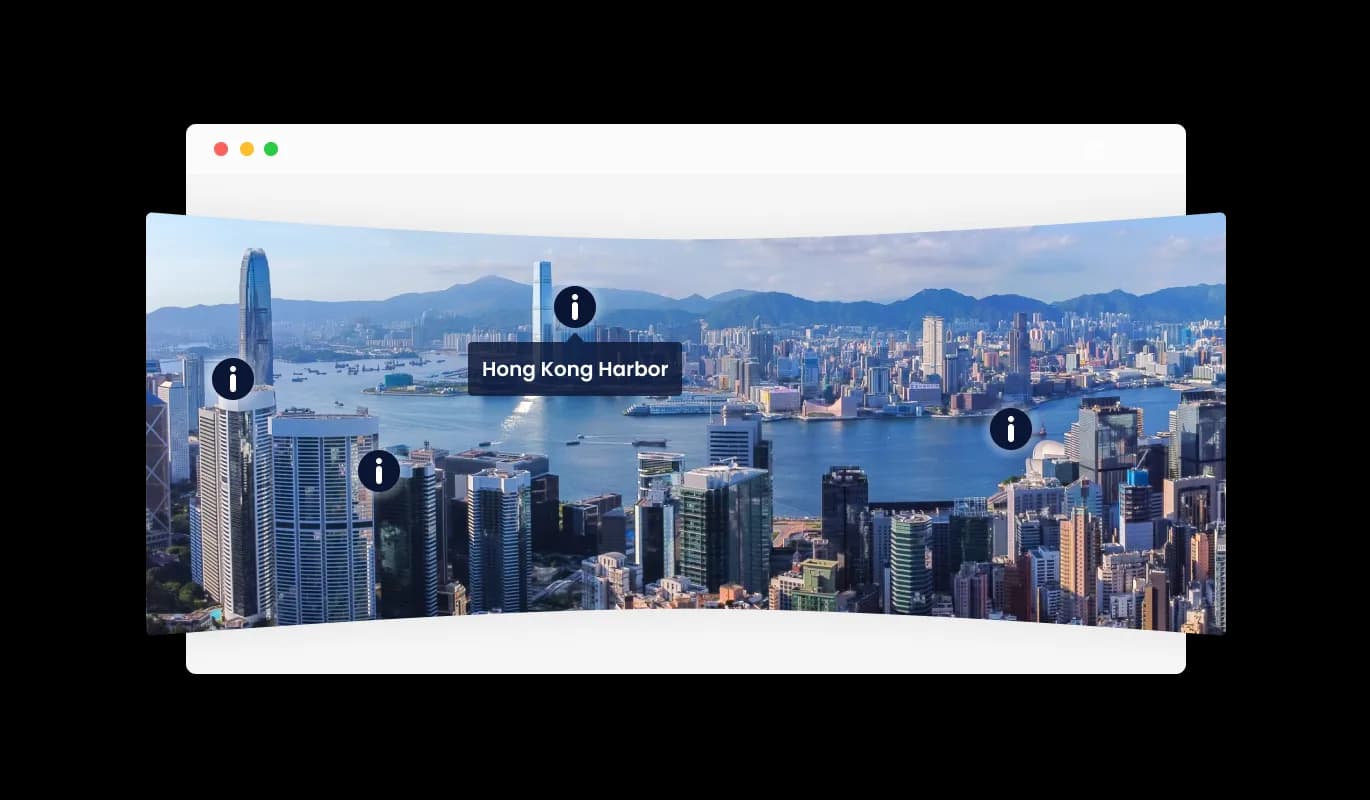
The Virtual Tour widget enables the seamless addition of hotspots over your 360 panoramic images. Hotspots are interactive icons that, when clicked, can reveal more information about a particular area or feature captured in the image. This feature not only enhances the informative value of the 360 panorama but also enriches the interactive experience for your website visitors.
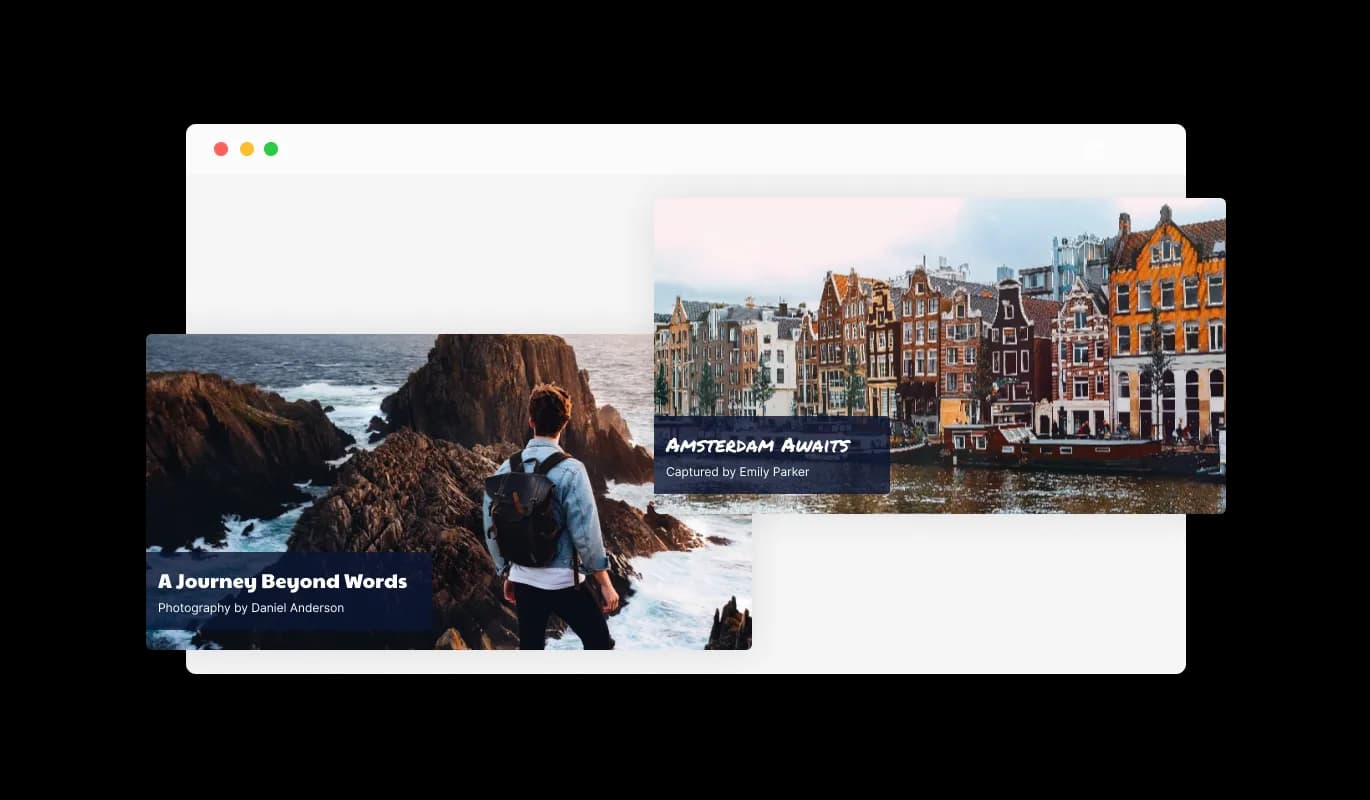
Providing detailed information is made easy with the Virtual Tour widget. You have the ability to add a title, description, and the image author’s name to each 360 panoramic image displayed. This feature allows for a structured display of information, making it straightforward for visitors to learn more about each panorama, thus adding a layer of professionalism and context to your visual content.
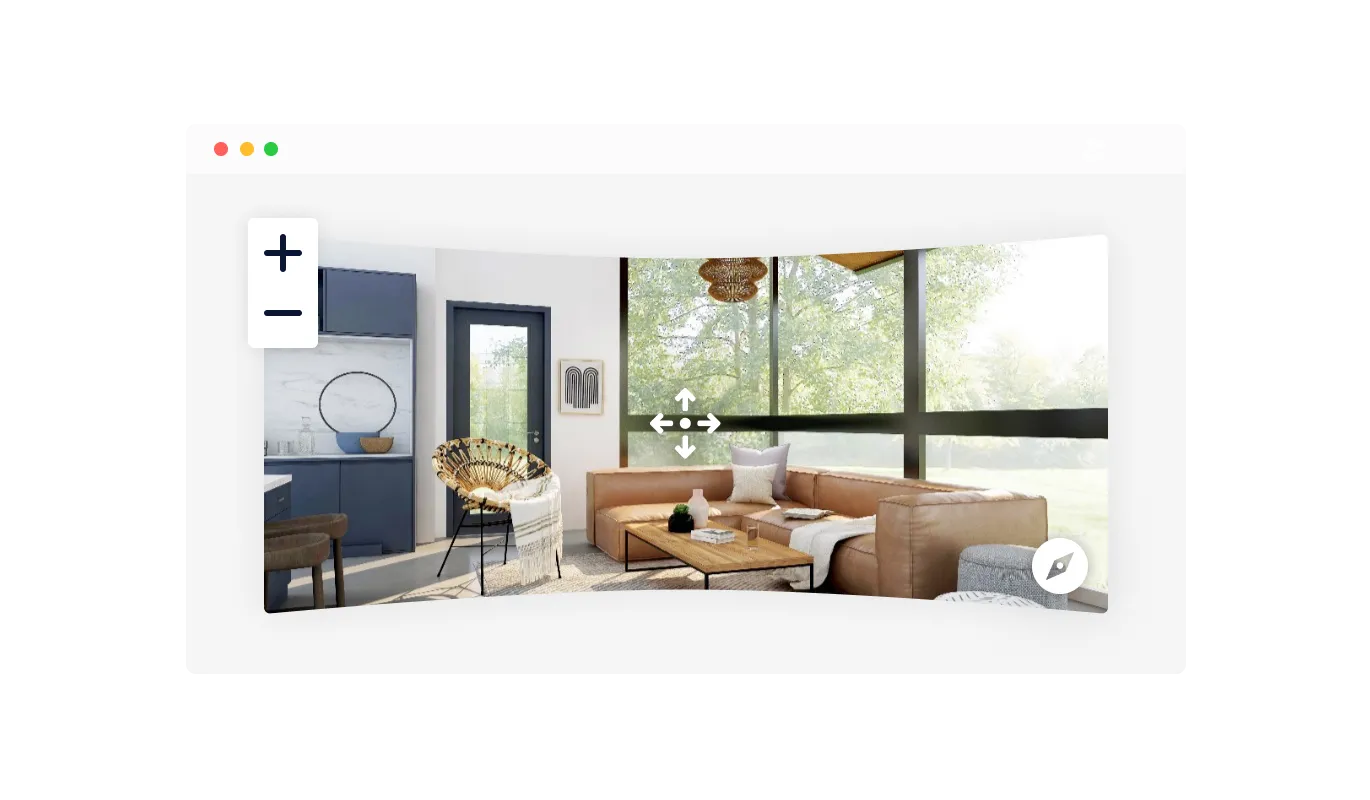
Dive deeper into the visual experience with the Virtual Tour widget’s drag and zoom functionality. Visitors can effortlessly drag the image in any direction, left, right, up, or down, to explore the panorama at their own pace. Additionally, the zoom feature allows for a closer examination of details, creating a more interactive and engaging viewing experience on your website.
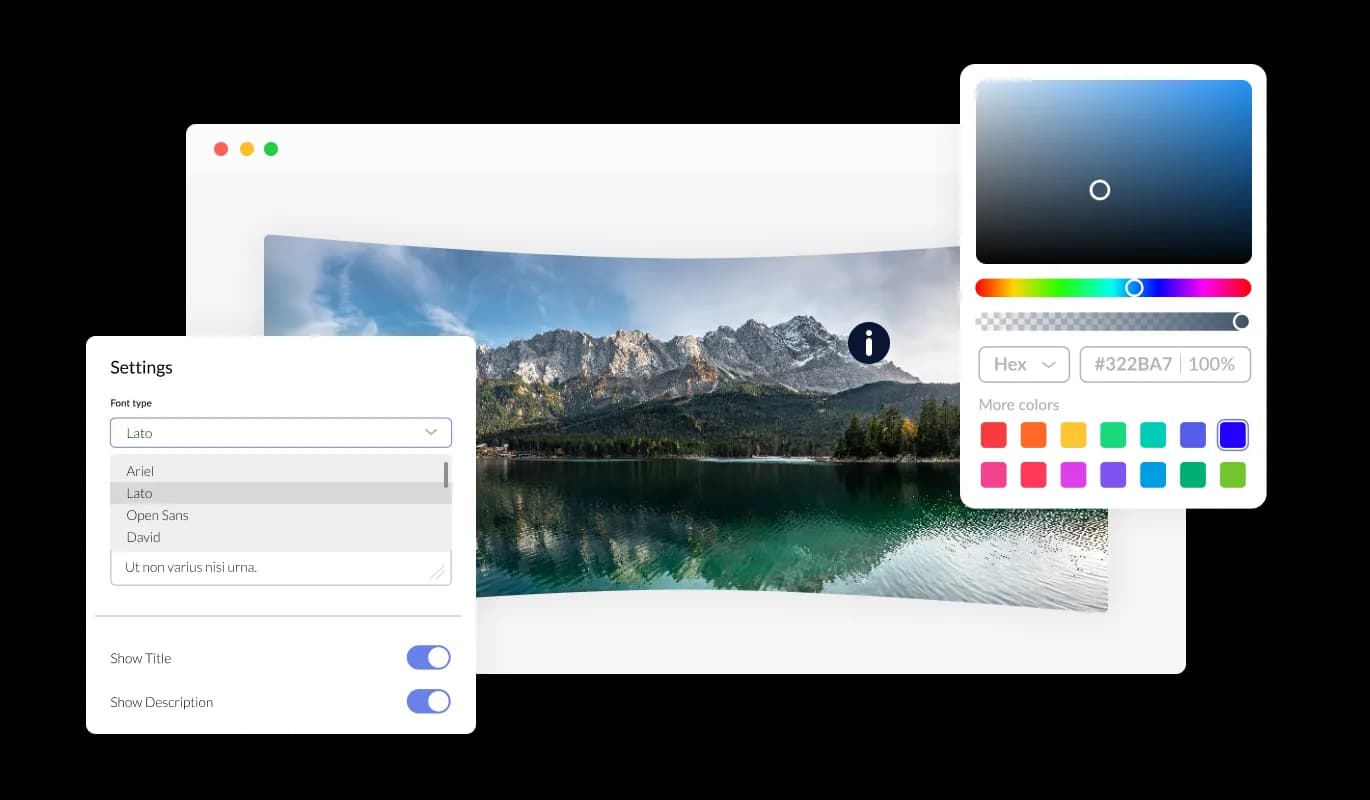
The Virtual Tour widget is your gateway to endless customization. It provides you with the flexibility to adjust colors, fonts, and spacing, enabling a total personalization of your virtual tour. Each detail can be meticulously adjusted to resonate with your site’s distinctive design and branding.
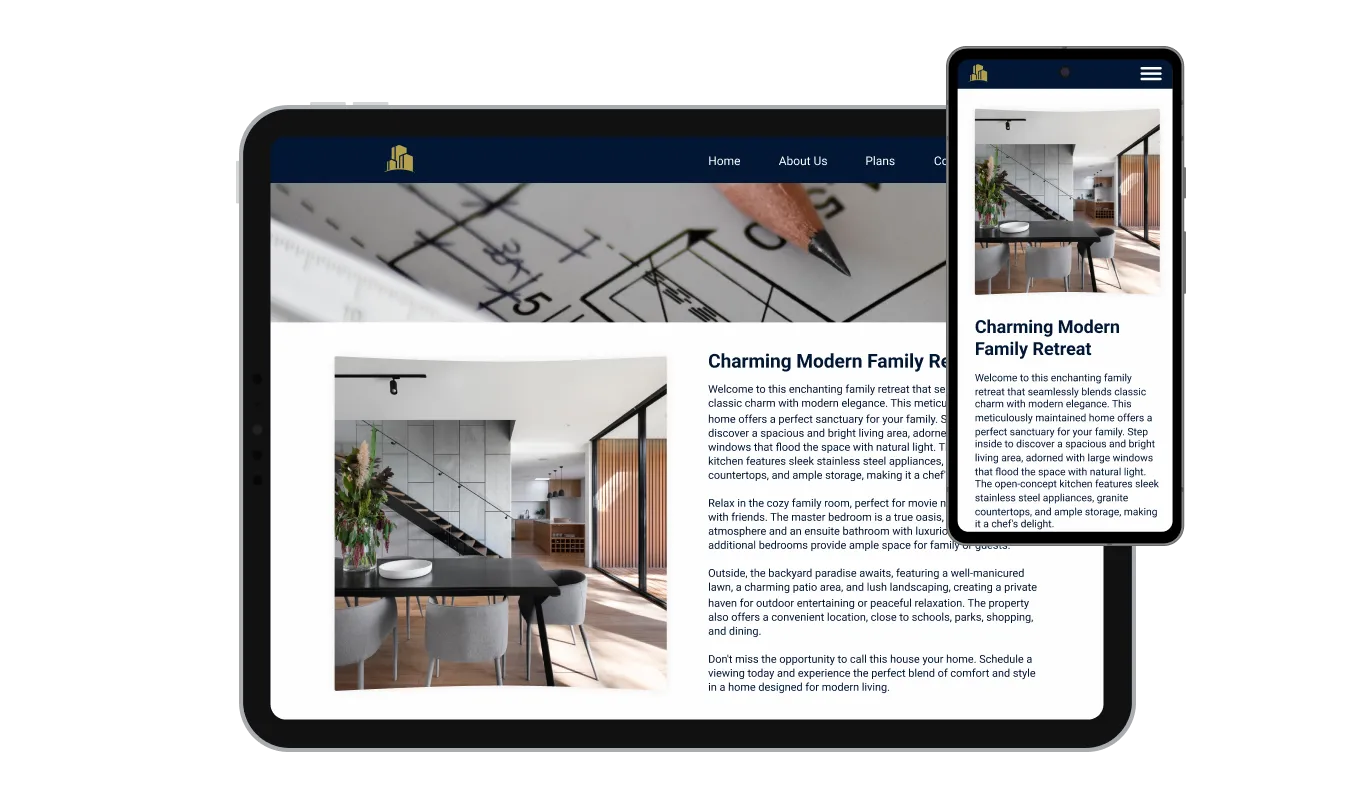
Engineered for optimal responsiveness, the Virtual Tour widget ensures your virtual tours maintain their visual appeal on any device. In a time where mobile optimization is crucial, this feature is key to delivering a consistent user experience regardless of the device being used.
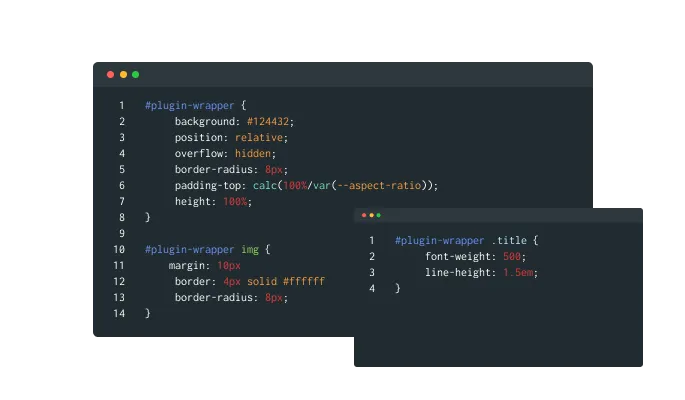
Consistent with the spirit of customization, the Virtual Tour widget offers custom CSS capabilities. This feature unlocks the freedom to add a personal touch, paving the way for more creative virtual tour designs that stand out.
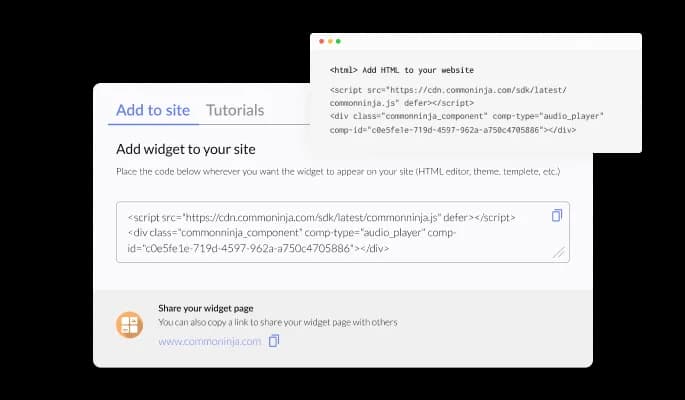
Embedding the virtual tour you've designed into your website is straightforward. It's as simple as copying and pasting a single line of code. Additionally, any adjustments made within the widget are instantly reflected on your site, keeping your virtual tours up-to-date without any extra hassle.
Virtual Tour offers the ability to control the direction of rotation for your 360 panoramas, providing a more tailored viewing experience. The animation settings are easily adjustable, allowing for a smooth and aesthetically pleasing exploration of your virtual space. This feature ensures that the display of your 360 panoramic images aligns with your desired presentation and user interaction objectives.
The Virtual Tour widget enriches your 360 panoramic images by allowing the addition of web-linked hotspots. Each hotspot can be configured to redirect visitors to a specified webpage, offering a straightforward pathway to more information or related content. This functionality enhances the user's navigational experience, creating a more interconnected and informative virtual tour.
Designing your perfect virtual tour becomes a simple task with the Virtual Tour widget. You won't need any coding knowledge; thanks to its user-friendly drag-and-drop interface, customization is smooth and quick, allowing you to bring your envisioned tour to life effortlessly.
Build your virtual tour in the editor
Open the editorFree to use · No credit card · No signup to try it
Common Ninja has amazing no-code widgets that would beautify a website built on any builder. It is very easy to use and customise. It has as many widgets for almost everyone willing to make their website impressive.
Outstanding service. I use their widgets to help me with my web design business and whenever I need help they are very quick to help.
Excellent company with excellent service!!! We used it to build a survey, it was very user friendly. The service was perfect. Amit helped us with every problem and question we had, thank you very much!!!
Common Ninja saved the day when building our website and the customer service Daniel, the co-founder and CEO, provided was amazing.
360 degree panoramic images, the equirectangular kind a 360 camera produces. A phone panorama can work if the result is a full spherical image, but a dedicated 360 camera gives a noticeably better tour. Resolution matters more than anything else: a soft panorama looks worse stretched across a screen than a normal photo would.
A consumer 360 camera is enough for most listings and venues. Hiring a photographer buys better lighting and cleaner stitching, which is worth it for high-value property, but it is not a requirement for getting a usable tour onto a page.
Through hotspots you place on each panorama. A hotspot can jump to another space, open extra information, or link out to another page, so you design the route rather than leaving people stuck in one room.
Yes, and that is where a tour stops being a novelty. A hotspot on a function room can go to the enquiry form, and one on a piece of furniture can go to its product page, so the tour becomes a route to the thing you want the visitor to do.
Not unless something tells them, which is why the animation controls matter. A tour sitting perfectly still looks like a wide photograph, and a slow drift on load is usually enough to make it obvious the view can be moved.
Enough for a real building, and the limits are your photography and your visitor's patience rather than the widget. A focused tour of the five spaces that matter usually converts better than every room including the utility cupboard.
Yes, dragging becomes swiping. Test it on a real phone, because panoramas are heavy images and a tour that feels smooth on a desktop connection can be sluggish on mobile data, which is where a lot of property browsing happens.
It is one embed snippet rather than a plugin, so nothing enters your site's own code. Panoramas are large images by nature, so this is a case where keeping file sizes sensible genuinely changes how the page feels.
Pick your platform. Each takes under 4 minutes.
Add interactive areas on images that reveal extra information when clicked or hovered over.
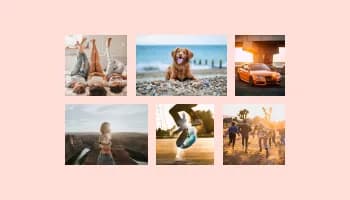
Displays images and captions in diverse layouts and grids, presenting visually appealing arrangements for showcasing multiple images
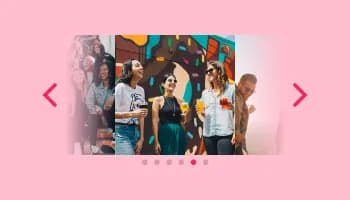
Showcases images in a rotating or sliding manner

A simple slider that lets visitors compare before and after images to see visual changes clearly.

Present images and text with a variety of animated effects and transitions for an engaging visual display

Displays a series of images in a slideshow format
The Virtual Tour widget is a tool that enables the display of 360 panoramic images on a website, allowing users to interactively explore these images through dragging, zooming, and clicking on hotspots for more information.
Uploading a 360 panoramic image is easy. Within the Virtual Tour widget interface, you'll find an option to upload your image. Simply click on it, and select the image file from your device.
Hotspots are interactive points you can place on your 360 panoramic images to provide more information or link to other pages. In the widget, you'll find an option to add hotspots. Click on it, then click on the point in the image where you want to place the hotspot, and fill in the information or link you want to provide.
Yes, the Virtual Tour widget offers customization options for the appearance of hotspots, allowing you to align them with your brand's aesthetics.
When adding or editing a hotspot, you'll find an option to insert a URL. Simply paste the link of the webpage you want to redirect users to when they click on the hotspot.
Within the Virtual Tour widget, you'll find settings for animation. Here, you can set the direction of rotation for your 360 panorama to ensure it aligns with your desired viewing experience.
Yes, the Virtual Tour widget is designed to be responsive across various devices including mobile phones, tablets, and desktop computers.
Yes, you can embed the Virtual Tour widget on multiple pages of your website. Each embed will require its own line of code generated by the widget.
Updating your virtual tour is straightforward. Simply access the Virtual Tour widget, make the necessary changes, and they will be automatically reflected on your website.
The Virtual Tour widget typically supports common image file types like JPEG and PNG. Ensure your 360 panoramic images are in a supported format before uploading.
The Virtual Tour widget is designed to handle a robust number of hotspots, however, excessive hotspots might affect the user experience due to clutter.
No, the Virtual Tour widget is designed to be user-friendly with a drag-and-drop interface, eliminating the need for coding knowledge.
Users can interact with the Virtual Tour widget by dragging, zooming, and clicking on hotspots to explore the 360 panoramic images and access more information or linked pages.
360 degree panoramas visitors can explore, with navigation hotspots, hotspots that link out to a booking form or product page, animation controls, full responsiveness, and custom CSS. Built for property listings, venues, showrooms, and campuses. Embed on 200+ platforms including Canva, Framer, Shopify, Squarespace, and Elementor.
Create your virtual tourFree to use · No credit card · No coding