


Verified review
Common Ninja has amazing no-code widgets that would beautify a website built on any builder. It is very easy to use and customise. It has as many widgets for almost everyone willing to make their website impressive.
Try the editor, no signup
Pick a template, customize it, and watch it update live, no signup.
No credit card · Free forever plan
No credit card · Free forever plan
The Common Ninja Accessibility widget is a free, no-code menu that lets visitors adjust how your website is presented to them. Add it with one line of embed code.
Visitors can change font size, line height, letter spacing, and alignment, highlight links and titles, turn on a reading guide or a larger cursor, adjust contrast and saturation, invert colours, hide images, and pause animations.
Ready-made profiles group those adjustments for visual, motor, attention, dyslexia, and seizure-related needs, and a visitor's choices can persist as they browse.
Most people who struggle with a page are not using assistive technology. They want larger text, more line spacing, or less contrast glare, and a menu that offers those directly is the difference between reading your page and leaving it.
Animation is a real problem for people with vestibular conditions and for anyone with attention difficulties. Pausing animations and hiding images are two switches that make a busy page usable rather than merely quieter.
The button itself tells a visitor the question was considered, and the menu can carry a direct link to your accessibility statement, which is the page that explains what you have actually done.
A visitor who sets their preferences once should not have to set them again on the next page. Saved preferences carry across the site and back on a later visit, which is what makes the menu worth opening at all.
Every option can be switched on or off, and the five profiles can be shown or hidden. A shorter menu of controls that genuinely help your layout is easier to use than every toggle at once.
Position the button, set the horizontal and vertical spacing, pick a layout and a skin, and match the colours, fonts, and labels to your site. Put it where it stays reachable without covering your own navigation.
Copy the snippet from the Add to Website tab and paste it into your site. It loads on every page carrying the embed, and later changes reach them all without re-embedding.
Profiles for visual, motor, attention, dyslexia, and seizure-related needs apply a suitable set of adjustments in one step, so a visitor does not have to assemble the combination themselves.
Font size, line height, letter spacing, alignment, and font style, plus highlighted links and titles, a reading guide, and a larger cursor. Each one can be enabled or hidden by you.
Contrast and saturation controls, colour inversion, hidden images, and paused animations, so a visitor can strip a page back to something they can actually work through.
A keyboard shortcut opens the menu without reaching for the on-screen button, choices persist as the visitor browses, and a reset returns everything to default in one action.
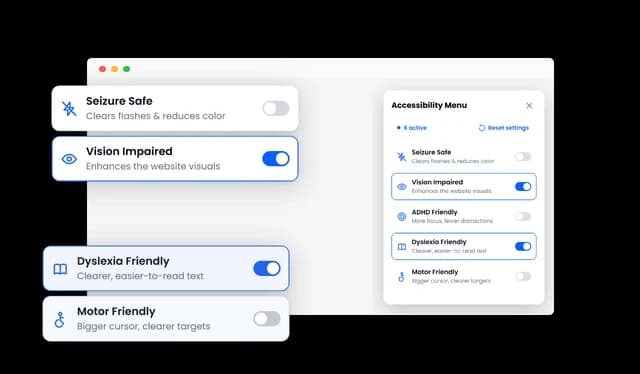
The Website Accessibility Tool includes profiles for visitors with visual, motor, attention, dyslexia, and seizure-related needs. Each profile applies a suitable combination of accessibility adjustments in a single step. Website owners can choose whether these profiles appear in the accessibility menu.
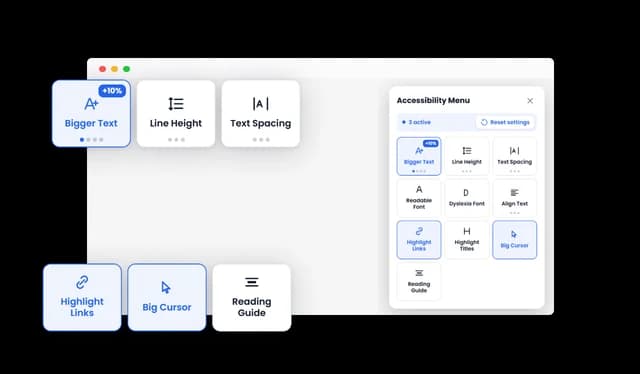
Visitors can adjust font size, line height, letter spacing, text alignment, and font style to suit their reading needs. They can also highlight links and titles, activate a reading guide, or use a larger cursor for easier navigation. Each option can be enabled separately, giving visitors control over how they interact with the page.
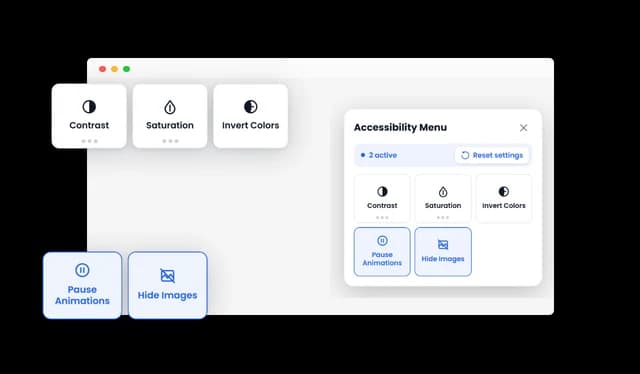
The Accessibility Widget allows visitors to adjust contrast and saturation, invert colors, hide images, and pause animations. These controls can reduce visual barriers, movement, and distractions across the website. Visitors can combine the settings that best support their individual browsing needs.
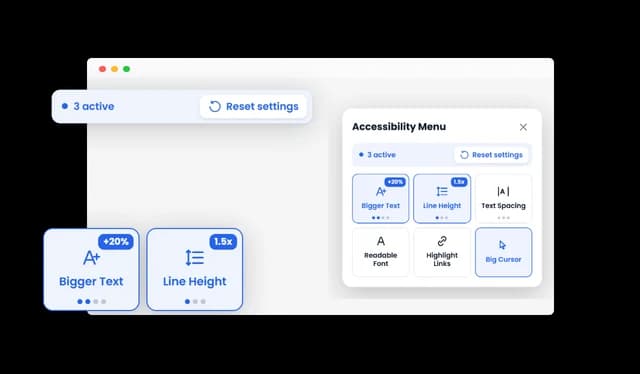
The widget can remember a visitor’s selected accessibility settings as they browse the website or return later. A keyboard shortcut provides another way to open the accessibility menu without relying on the on-screen button. Visitors can also reset all adjustments whenever they want to restore the website’s original appearance.
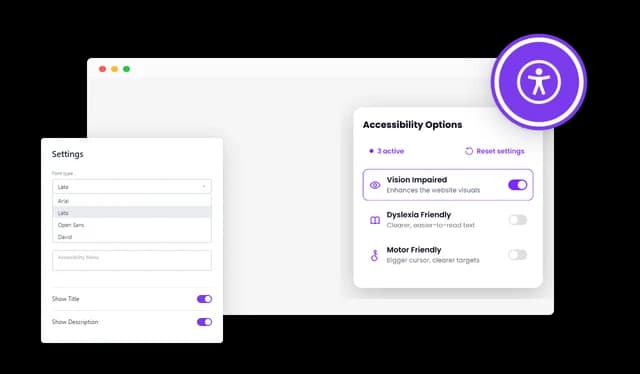
Website owners can customize the button, panel, colors, fonts, layout, and labels to match their website. Custom CSS provides additional control for developers and designers who need more detailed styling. The menu can also include a direct link to the website’s accessibility statement.
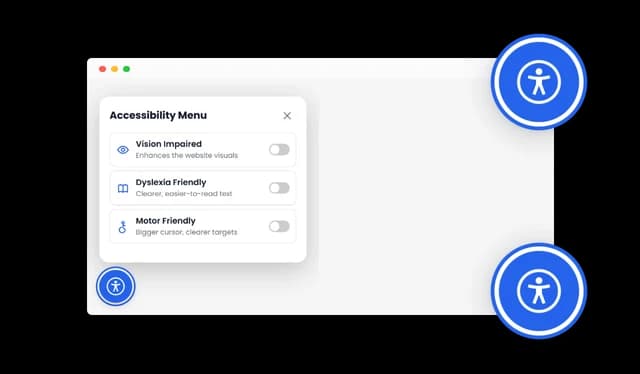
The accessibility button can be positioned on the page and adjusted using horizontal and vertical spacing controls. This helps website owners place it where it remains visible without covering other important elements. The widget can also be displayed on mobile devices, making its accessibility controls available across different screen sizes.
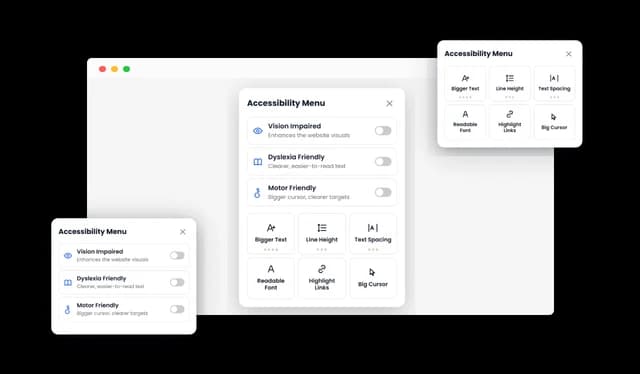
The Website Accessibility Tool offers multiple layouts to help it fit naturally into your website. You can choose a layout that works well with your page structure and available space. This makes it easier to provide accessibility controls without disrupting your existing design.
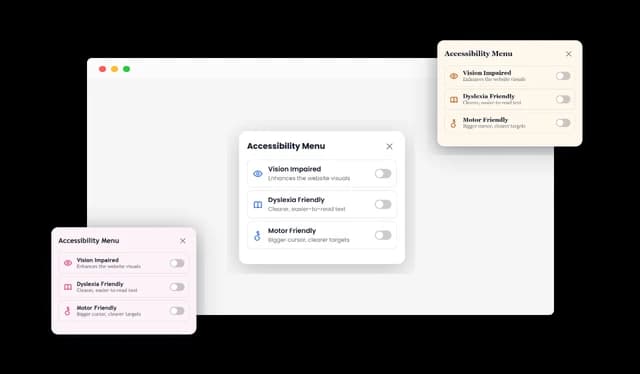
Select from a range of ready-made skins to match the look and style of your website. These designs reduce the time needed to style the accessibility menu from scratch. Whether your website is modern, minimal, or traditional, you can choose a skin that creates a consistent appearance.
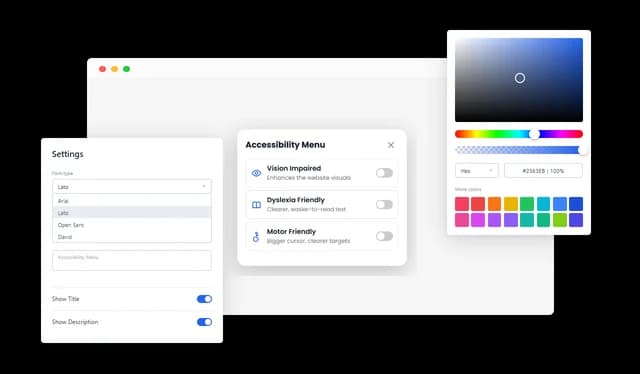
The Accessibility Widget gives you extensive control over its colors, fonts, spacing, labels, and other visual elements. You can adjust its appearance to align with your brand and website design. This flexibility helps you create an accessibility menu that is both functional and visually consistent.
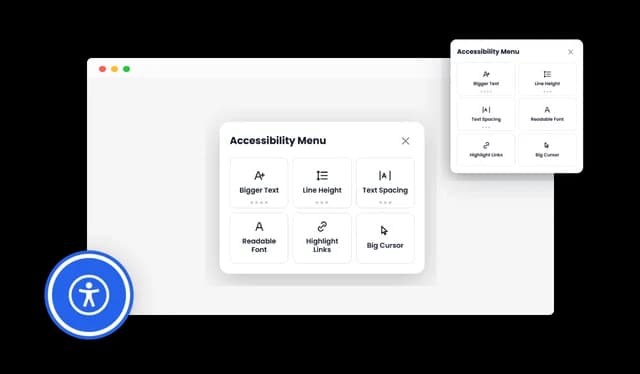
The widget is designed to display properly across desktops, tablets, and mobile devices. Its layout adapts to different screen sizes while keeping the accessibility controls clear and usable. This allows visitors to access the available adjustments regardless of how they browse your website.
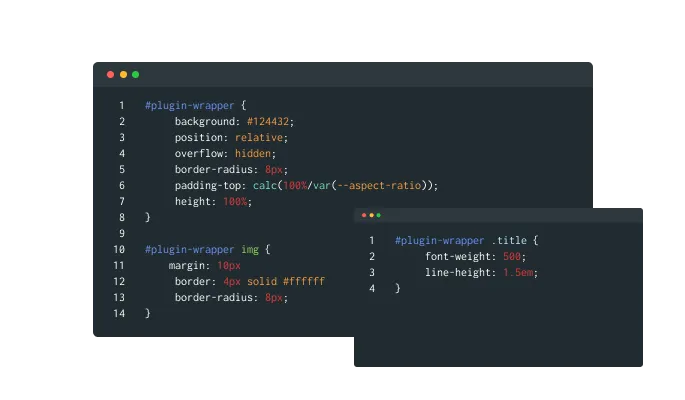
Custom CSS gives developers and designers more freedom to refine the widget’s appearance. You can apply advanced styling that goes beyond the standard customization settings. This allows the widget to match specific brand guidelines and unique website designs more closely.
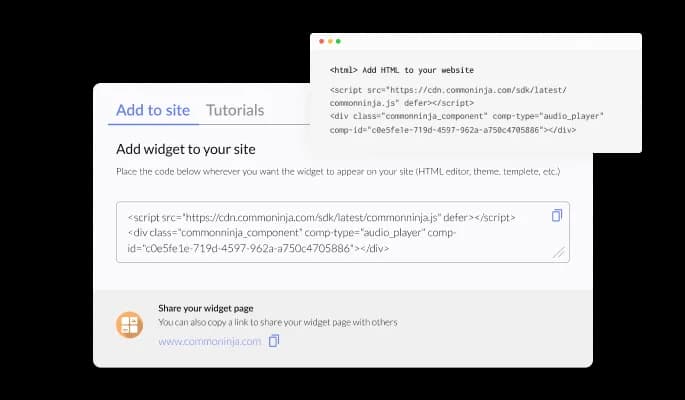
The Accessibility Widget can be added to any website using a single line of code. Once embedded, changes made in the editor are automatically reflected on your website. This keeps the widget current without requiring you to replace the embed code after every update.
The Website Accessibility Tool can be configured without coding or technical experience. Its intuitive editor allows you to manage the design, placement, content, and available options in just a few clicks. This makes it simple for any website owner to add and maintain accessibility controls.
Set up your accessibility menu in the editor
Open the editorNo credit card · Setup in under 5 minutes
Common Ninja has amazing no-code widgets that would beautify a website built on any builder. It is very easy to use and customise. It has as many widgets for almost everyone willing to make their website impressive.
Outstanding service. I use their widgets to help me with my web design business and whenever I need help they are very quick to help.
Excellent company with excellent service!!! We used it to build a survey, it was very user friendly. The service was perfect. Amit helped us with every problem and question we had, thank you very much!!!
Common Ninja saved the day when building our website and the customer service Daniel, the co-founder and CEO, provided was amazing.
No, and you should be wary of any widget that says it does. An accessibility menu gives visitors controls over presentation. It does not fix missing alt text, unlabelled form fields, poor heading structure, or a keyboard trap in your own markup, and those are the things an audit looks at. Treat the menu as a genuine help to visitors and a visible signal, then fix the underlying page separately.
Font size, line height, letter spacing, text alignment, and font style, highlighted links and titles, a reading guide, a larger cursor, contrast and saturation, inverted colours, hidden images, and paused animations. You decide which of those appear in the menu.
They bundle a sensible combination of adjustments for visual, motor, attention, dyslexia, and seizure-related needs, so someone can get a usable page in one click instead of working through a list of individual toggles. They can be hidden if you would rather offer only the individual controls.
Yes. Preferences are remembered as they browse and when they return, which matters because a setting that resets on every page is worse than not offering it.
Yes. A keyboard shortcut opens the menu, which is the point for anyone who cannot reliably hit a floating button in a corner.
You control its position and its horizontal and vertical spacing, and you can choose whether it appears on mobile. The usual mistake is putting it where it covers a sticky cart or a chat launcher, so check the corners on a phone before publishing.
Yes. The menu can carry a direct link to it, which is the honest place to describe what your site does and does not currently support.
It is one embed snippet rather than a plugin, so nothing enters your site's own code. As with any third-party script, put it where it does not block your main content from rendering.
Pick your platform. Each takes under 4 minutes.
Translate your website into multiple languages with a customizable, user-friendly translation widget.
Displays common questions and answers for quick reference
Use tabs to organize content into different parts
Prevent content copying by disabling right click on your website
A flexible widget that visually tracks user scroll progress on any webpage
Allow users to sign a consent form, save submissions, enable notifications, and more
The Website Accessibility Tool adds a customizable accessibility menu to your website. It allows visitors to adjust text, colors, motion, images, and navigation based on their individual needs. These changes apply to the visitor’s browsing experience without altering the website for everyone else.
Visitors can change font size, line height, letter spacing, text alignment, contrast, saturation, and other display settings. They can also highlight links and titles, use a reading guide, enlarge the cursor, pause animations, or hide images. Each adjustment can be activated separately from the accessibility menu.
The Accessibility Widget includes seizure-safe, vision-impaired, ADHD-friendly, dyslexia-friendly, and motor-impaired profiles. Each profile activates a combination of relevant settings in one step. You can choose whether to display these profiles in the menu.
Yes, you can control which accessibility tools and profiles are available to your visitors. This allows you to create a menu that suits your website and audience. Options that are not needed can be left out of the widget.
Yes, the Website Accessibility Tool can be displayed on desktops, tablets, and mobile devices. Its responsive design adapts the menu to different screen sizes. You can also choose whether to show or hide the widget on mobile devices.
The widget can remember the adjustments selected by each visitor. Their preferences can remain active as they browse different pages or return to the website. A reset option allows them to restore the original display at any time.
Yes, you can customize the Accessibility Widget’s colors, fonts, layout, labels, placement, and spacing. You can also use custom CSS for more detailed design changes. This helps the widget fit naturally with your website and brand.
Yes, the menu can include a custom label linked to your website’s accessibility statement. This gives visitors a direct way to read about your accessibility efforts or find relevant contact information. You can set both the statement label and its destination URL.
Yes, visitors can use a keyboard shortcut to open the accessibility menu. This provides an alternative to selecting the on-screen button with a mouse or touchscreen. The larger cursor and reading guide can provide additional navigation support.
No single widget can guarantee that an entire website meets every accessibility standard or legal requirement. The widget gives visitors useful ways to personalize their experience, but it should be part of a broader accessibility approach. Accessible design, content, navigation, development, and regular testing remain important.
You can embed the widget on your website using a small code snippet. No advanced coding knowledge is required for the standard setup. Changes made in the editor are automatically reflected in the embedded widget.
Give visitors control over text size, line height, letter spacing, alignment, contrast, saturation, inverted colours, hidden images, and paused animations, with five ready-made profiles, a reading guide, a larger cursor, a keyboard shortcut, and saved preferences. Fully customisable and embeddable on 200+ platforms including WordPress, Shopify, Wix, Webflow, and Squarespace.
Set up your menuNo credit card · No coding