


Verified review
Common Ninja has amazing no-code widgets that would beautify a website built on any builder. It is very easy to use and customise. It has as many widgets for almost everyone willing to make their website impressive.
Try the editor, no signup
Pick a template, customize it, and watch it update live, no signup.
No credit card · Free forever plan
No credit card · Free forever plan
The Common Ninja Appointment Booking widget is a free, no-code embed that adds a self-serve scheduling page to any website.
Set your availability, define services and prices, sync to Google Calendar or Outlook, and let visitors book consultations, classes, demos, salon appointments, or reservations without back-and-forth email.
One line of embed code drops on Squarespace, Wix, Webflow, Framer, Joomla, WordPress, Canva, and 200+ other platforms. Built-in email reminders, multiple staff resources, payment collection, and a customizable booking page brand.
Visitors see your live availability, pick a slot, and book themselves in two clicks. Consultants, coaches, agencies, salons, clinics, tutors, and service businesses turn a meeting-scheduling chore into a one-line embed that runs 24/7 without an inbox in the loop.
Run a salon with five stylists, a clinic with three exam rooms, a studio with two instructors, or a co-working space with eight meeting rooms. Assign services to specific staff or resources, set per-resource availability, and let visitors pick who or what they want.
Confirmation emails go out the moment a slot is booked. Reminder emails fire 24 hours and 1 hour before the appointment with the visitor's selected time, your address or video-call link, and a cancel-or-reschedule option. Fewer empty slots, fewer last-minute scrambles.
Plug the booking page directly into your existing site instead of routing visitors to a Calendly or Acuity subdomain. Same dashboard, no monthly per-seat fee structure, no separate booking domain to brand. The booking flow stays inside your funnel where conversions happen.
Add the services you book (consultation, demo, class, treatment, table), set their duration and price, mark which days and hours you take appointments, and add buffer time between bookings. Connect your Google Calendar or Outlook so existing events automatically block out unavailable slots.
Pick a skin from the design library, upload your logo, set your brand colors, and write the booking-page intro. Add intake fields (phone, notes, party size, file upload) so each booking arrives with the context you need. Turn on email reminders, deposit collection, or multi-staff routing if your business needs them.
Copy the one-line embed snippet and paste it on your booking page on Squarespace, Wix, Webflow, Framer, Joomla, or any other site. Visitors see live availability and book themselves; you get a confirmation email plus a calendar event. Edits in the editor push to every embed without re-pasting.
Set a unique URL slug, upload a cover image, write a custom booking-page intro, and pick a skin from the design library. The booking page reads as part of your site, not as a generic third-party scheduler.
Set your working hours per day, mark time slots as available or unavailable, add buffer time between bookings to prevent back-to-back stress, and set advance-notice windows so visitors can't book in the next 15 minutes. Existing calendar events block automatically.
Pick from a library of pre-designed skins covering minimal, polished, dark, light, salon, clinic, and consultation-page styles. Switch skins anytime without losing your services, availability, or booked appointments.
Adjust typography, spacing, button styling, and accent colors in the editor. Layer Custom CSS for pixel-level brand match. The widget is mobile-responsive by default and inherits the width of whatever container you embed it in.
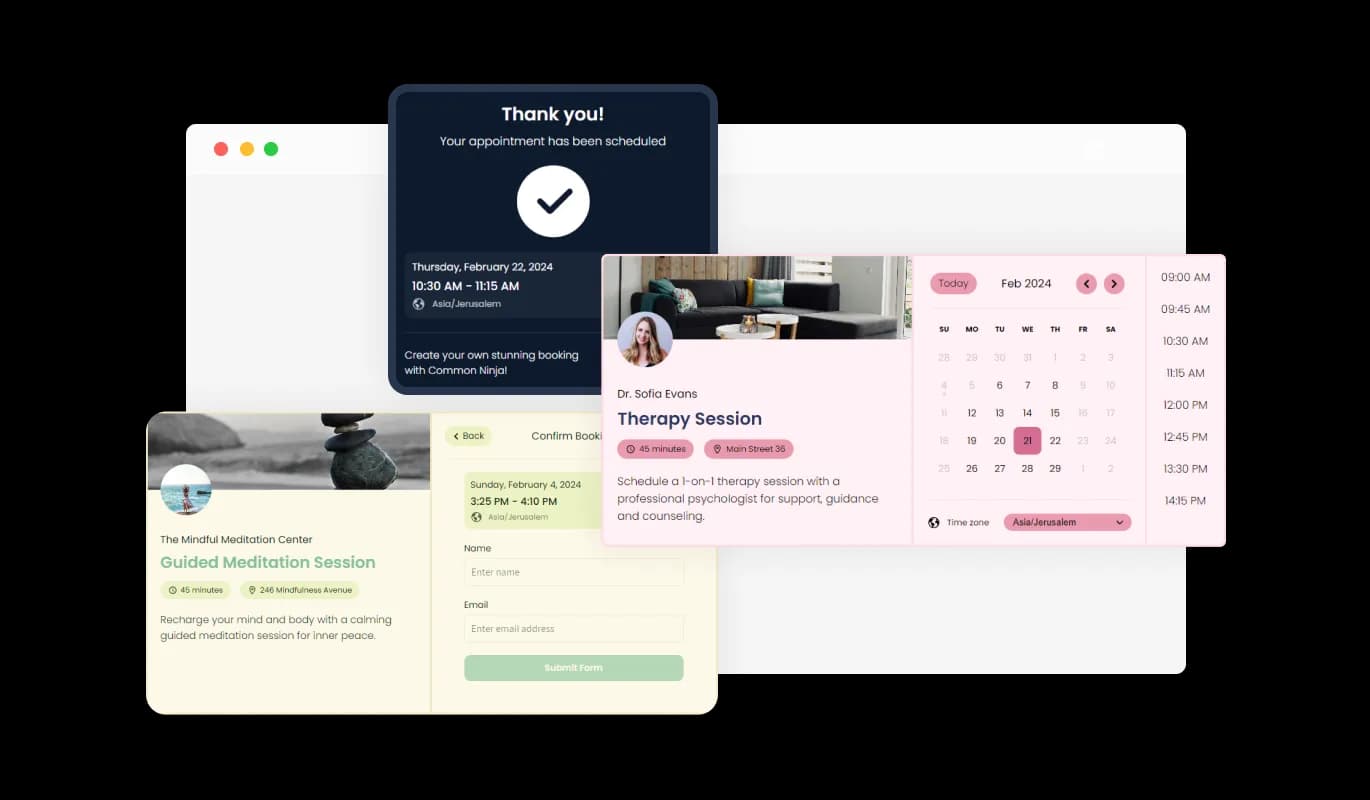
The Booking Widget enhances user experience with customizable booking pages, where users can set a unique URL, and personalize with a cover image, profile photo, and service descriptions. This feature boosts brand presence and streamlines the booking process, making it straightforward for clients to connect and understand the services offered.
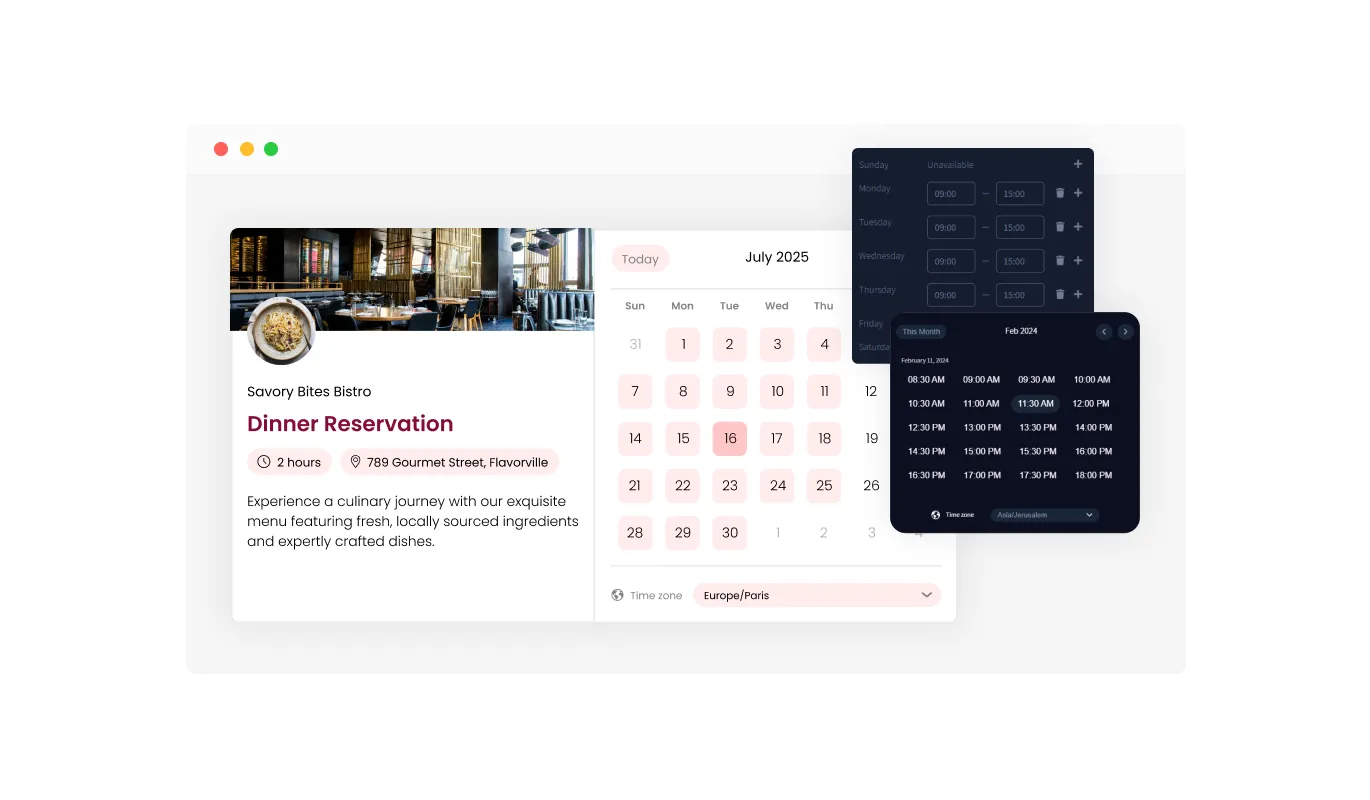
The Booking Widget features smart scheduling, dynamically displaying available times for booking based on the user's defined availability, preferred lead times before meetings, and desired intervals between appointments. This intelligent system ensures a smooth scheduling process, optimizing the calendar to fit both the user's and their clients' needs efficiently.
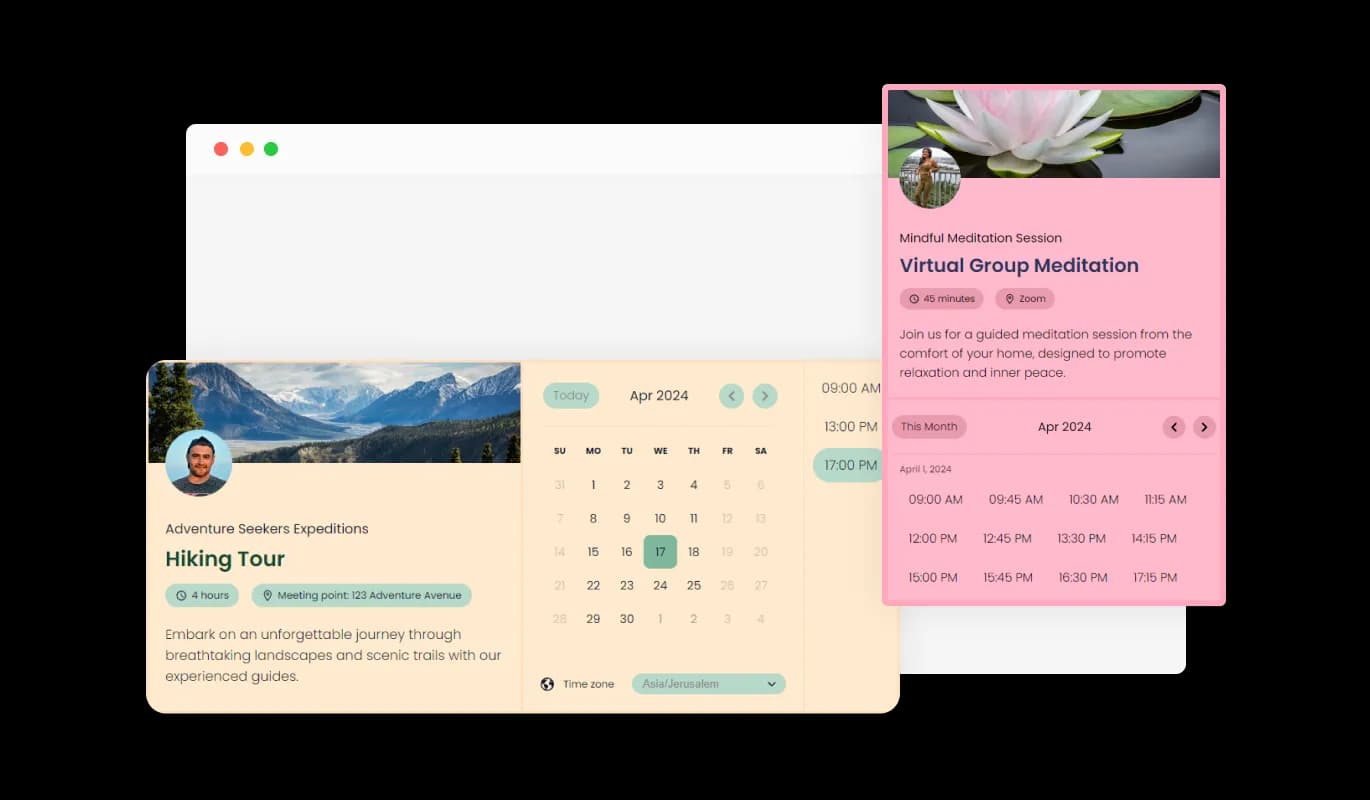
Featuring a range of beautiful design skins, the Booking Widget enables you to select a look that aligns perfectly with your brand identity. This capability not only boosts your site's visual appeal but also simplifies customization, catering to diverse design preferences from modern to traditional.
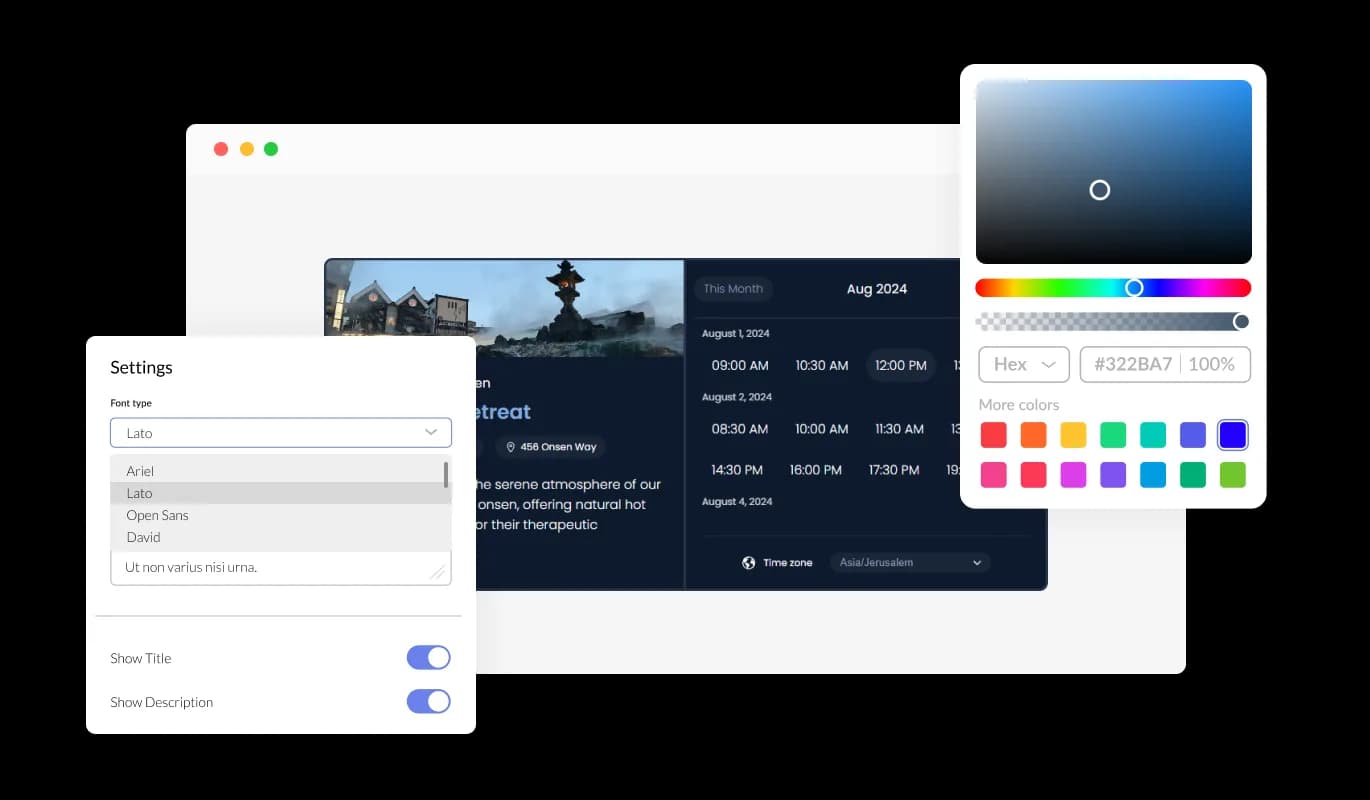
With extensive customization options, the Booking Widget allows you to adjust colors, fonts, spacing, and more, providing the freedom to tailor its appearance to your exact needs. This level of flexibility ensures your booking page not only functions optimally but also visually aligns with your website.
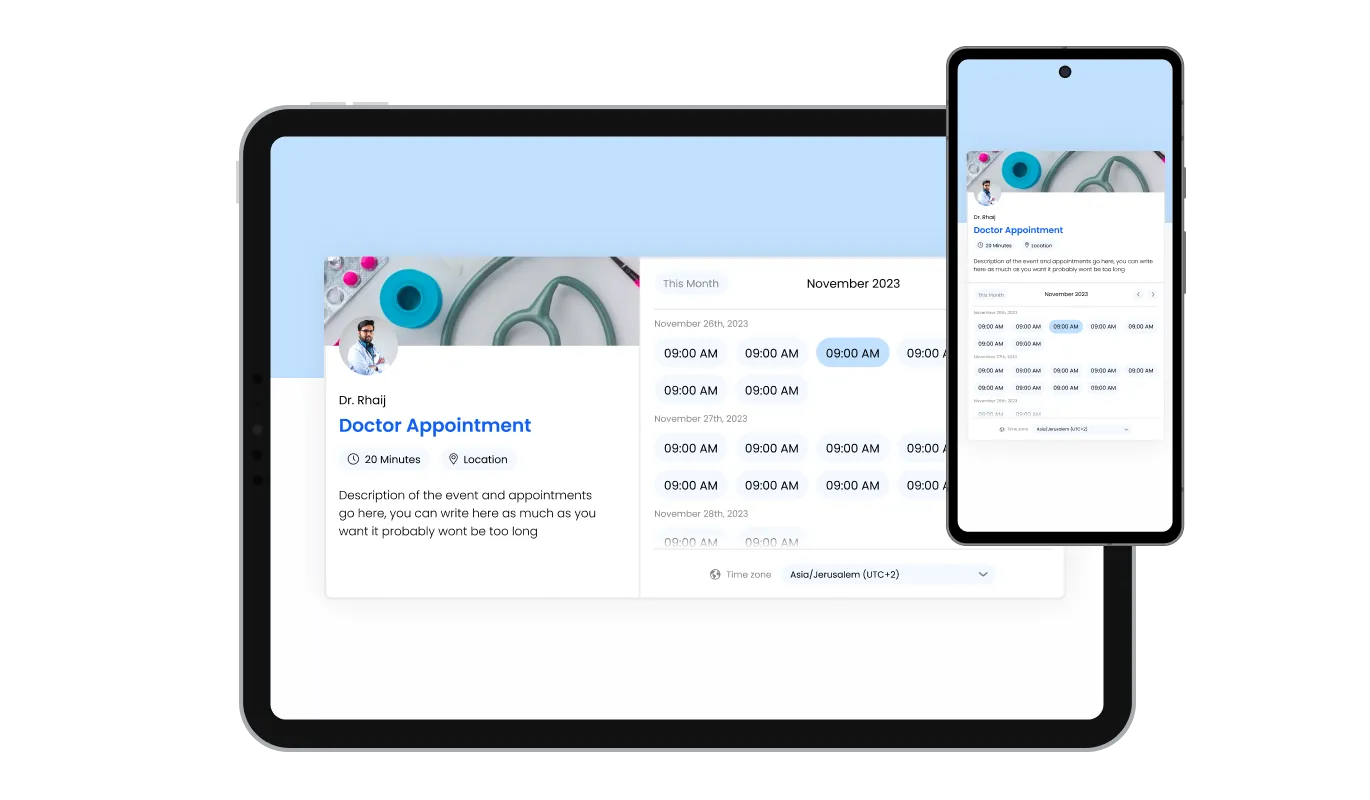
Designed to be fully responsive, the Booking Widget guarantees a flawless display on any device. This responsiveness is crucial for maintaining a consistent and accessible booking experience across desktop and mobile platforms.

Supporting custom CSS, the Booking Widget offers an avenue for creative customization, allowing developers and designers to apply their unique styling and functionality. This feature encourages a higher degree of personalization, ensuring the booking experience is distinct and branded.

Embedding the Booking Widget is simple, involving just a single line of code. With automatic updates reflecting any changes made, this feature ensures your website always showcases the latest version of the widget, minimizing maintenance efforts.
The Booking Widget seamlessly integrates with major calendar services, including Google Calendar, Outlook, and even Zoom, ensuring all your appointments and meetings are automatically synced. This feature simplifies scheduling by avoiding double bookings and keeping your schedule organized across different platforms, making it an essential tool for efficient time management.
The Booking Widget offers email reminders, allowing users to set and email notifications for themselves and their clients. Whether it's for booking confirmations, rescheduling notices, or cancellations, this feature ensures everyone is informed and up-to-date.
This widget is engineered for ease of use, requiring no coding skills for customization. Its intuitive interface makes adjusting the Booking Widget straightforward, enabling anyone to adapt it to their site effortlessly, regardless of technical expertise.
Common Ninja has amazing no-code widgets that would beautify a website built on any builder. It is very easy to use and customise. It has as many widgets for almost everyone willing to make their website impressive.
Outstanding service. I use their widgets to help me with my web design business and whenever I need help they are very quick to help.
Excellent company with excellent service!!! We used it to build a survey, it was very user friendly. The service was perfect. Amit helped us with every problem and question we had, thank you very much!!!
Common Ninja saved the day when building our website and the customer service Daniel, the co-founder and CEO, provided was amazing.
Yes. The free plan covers one booking page with no time limit and no credit card. Upgrade only when you need additional booking pages, premium skins, more bookings per month, multi-staff routing, or payment collection.
Yes. Connect Google Calendar or Outlook in the dashboard and existing events automatically block their time slots so visitors only see truly open availability. Confirmed bookings push into the connected calendar as events, with the visitor's name, contact info, and selected service in the description. Apple Calendar works through Outlook or Google sync.
Build the booking page in the Common Ninja editor (services, hours, branding, reminders), copy the one-line embed snippet, and paste it into your site: Squarespace via a Code block or Custom Code Injection; Wix via Embed Code element; Webflow via Embed element on the booking page; Joomla via a Custom HTML module or article HTML editor; Framer via a Code Embed element. Edits in the dashboard push to every embed without re-pasting.
Yes. Add each staff member or resource (room, table, vehicle, instructor) as its own bookable resource with its own availability and assigned services. Visitors either pick the specific person or resource they want, or the widget assigns the first available slot across your team. The dashboard shows a unified calendar plus per-resource views.
Yes. The widget sends a confirmation email the moment a slot is booked and reminder emails 24 hours and 1 hour before the appointment. Reminders include the visitor's selected time, your business address or video-call link, and a one-click cancel-or-reschedule button so no-shows turn into reclaimable slots instead of empty time.
Yes. Connect a payment processor in the dashboard and set a fixed amount per service (full price, deposit, or no-show fee). The visitor pays during the booking flow and the payment is linked to the appointment in the dashboard. Common use cases include consultation deposits, salon-treatment pre-payment, and reservation hold fees.
Calendly, Acuity, and Setmore are standalone booking SaaS products with monthly per-seat pricing and their own subdomain. The Common Ninja Appointment Booking widget embeds directly into your existing website on Squarespace, Wix, Webflow, Joomla, or anywhere else, so the booking flow stays inside your funnel instead of redirecting visitors to a third-party domain. You get calendar sync, multi-resource routing, payments, and reminders without paying per seat or branding a separate booking subdomain.
Yes. The widget handles any time-slot booking: restaurant table reservations with party-size intake, salon and barber appointments with stylist routing, clinic and therapy sessions with intake notes, group classes with capacity limits, equipment rentals with daily or hourly pricing, and consultation calls with video-link delivery. The booking page is brand-customizable so the same widget reads as native on a restaurant page or a clinic page.
Pick your platform. Each takes under 4 minutes.
Allow users to send messages or inquiries, save submissions, enable notifications, and more
Manage Events, Engage Visitors, and Elevate Your Brand’s Image
Create your form for any purpose with a friendly form builder
Easily craft engaging, personalized popups to boost conversions.
Showcase customer testimonials using a rotating slider
Add a WhatsApp chat button to your website, allowing users to start a chat using WhatsApp.
To integrate the Booking Widget into your website, simply embed the provided line of code where you want the widget to appear. The process is straightforward and does not require any coding knowledge. Our user-friendly dashboard will guide you through customizing your booking page to fit your website’s design
Yes, the Booking Widget seamlessly integrates with Google Calendar, Outlook, and Zoom. This integration ensures that your appointments are automatically synced across your calendars, preventing double bookings and keeping your schedule organized.
The Booking Widget offers extensive customization options. You can set a custom URL, choose a cover image, upload a profile photo, and provide detailed descriptions of your services. Additionally, you can personalize the design to match your brand, including colors, fonts, and layout.
You can customize and send various email reminders through the Booking Widget, including booking confirmations, rescheduling notices, and cancellation alerts. These emails can be personalized to align with your brand and communication style, ensuring your clients receive timely and relevant information
Smart scheduling in the Booking Widget allows you to define your available times, how much notice you require before a meeting, and how much time you prefer between meetings. The system then automatically displays only the times that meet your criteria, making it easy for clients to book appointments that fit within your schedule.
Absolutely, the Booking Widget is designed to be fully responsive, ensuring it looks and works perfectly on any device, including smartphones and tablets. This guarantees a seamless booking experience for your clients, regardless of how they access your booking page.
Yes, for those who want to dive deeper into customization, the Booking Widget supports the application of custom CSS. This feature is perfect for users who wish to achieve a specific look or functionality beyond the standard customization options.
All bookings made through the Booking Widget can be managed directly from the Editor. Here, you can view, confirm, reschedule, or cancel appointments as needed, providing you with full control over your schedule.
Yes, we offer comprehensive support for the Booking Widget. If you encounter any issues or have questions, you can reach out to our support team for assistance.
Yes, the Booking Widget allows you to set a maximum number of appointments that can be booked in a single day, helping you manage your workload and prevent overbooking. This feature ensures you have full control over your daily schedule.
You can configure the Booking Widget to require bookings to be made a certain number of hours or days in advance, effectively preventing last-minute appointments. This setting helps manage your schedule more efficiently and gives you ample preparation time.
Yes, the Booking Widget allows you to set a maximum number of appointments per day, ensuring you're not overbooked and can manage your schedule according to your capacity. This feature helps maintain a balanced workload and ensures quality time is allocated to each meeting.
Absolutely, the Booking Widget includes a feature that allows you to block off times when you're unavailable or need breaks. This ensures that these times are not available for booking, helping you manage your schedule more effectively and prevent burnout.
Self-serve scheduling, calendar sync, automatic reminders, multi-staff routing, and payment collection on Squarespace, Wix, Webflow, Framer, Joomla, and 200+ other platforms.
Create your Booking pageNo credit card · Setup in under 5 minutes