


Verified review
Common Ninja has amazing no-code widgets that would beautify a website built on any builder. It is very easy to use and customise. It has as many widgets for almost everyone willing to make their website impressive.
Try the editor, no signup
Pick a template, customize it, and watch it update live, no signup.
No credit card · Free forever plan
No credit card · Free forever plan
The Common Ninja Google Reviews widget is a free, no-code embed that displays the authentic reviews your business has earned on its Google Business Profile, on any website.
Pick which reviews to show, set a minimum star rating, filter by keyword, choose a layout and skin, and paste one line of embed code. The widget pulls your real Google reviews and keeps them in sync.
It does not generate, write, or purchase reviews of any kind.
Most buyers check Google reviews before they trust a business, but they check them on Google, not on your site. Surfacing your real Google reviews on a product, service, or landing page closes the credibility gap between a stranger arriving and a confident purchase decision.
The widget displays the reviews your Google Business Profile actually received from customers. It does not write, generate, or purchase reviews. If your goal is to inflate star ratings with fake reviews, this is not the tool; if your goal is to put your authentic customer voice in front of website visitors, it is.
Manual review approval means a five-star review with a misspelled product name or off-topic comment never has to go live. Keyword filters surface reviews that mention specific products, features, or locations. Star-rating filters let you set a floor below which a review is hidden.
Pick from multiple layouts (slider, grid, list, badge) and a library of pre-built skins. Override typography, spacing, and colors with custom CSS. The widget inherits its container width and stays mobile-responsive from a 320px phone screen up to a full-width desktop hero.
Point the widget at your public Google Business Profile. The widget only reads your reviews and star ratings; it never posts on your behalf, never touches private data, and never modifies your profile.
Pick which reviews appear (manual approval per review), filter by keyword or star rating, set the sort order, choose a layout (slider, grid, list, badge) and a pre-built skin. Fine-tune typography and spacing with custom CSS for a pixel-level brand match.
Copy the embed snippet and paste it on any page. The widget renders inline; any new review you approve in the dashboard pushes to every embed without re-pasting the code.
Every Google review is queued for approval in the dashboard. You decide which ones publish to the embed. Misspellings, off-topic mentions, or reviews that reference an unrelated product or location can be left out without affecting the original review on Google.
Set a minimum star rating (typically 4 or 5 stars) and require or exclude specific keywords. Useful for landing pages where reviews should mention the actual product, service, or location visitors are browsing.
Pick a slider, grid, list, or compact badge depending on the page. Adjust the review style (compact vs full quote, photo on or off, star icon set). Different pages on the same site can run different layouts from the same review pool.
Start from a skin in the library, then override typography, spacing, and colors with custom CSS for a pixel-level brand match. Mobile-responsive by default; the embed inherits its container width without horizontal scroll.
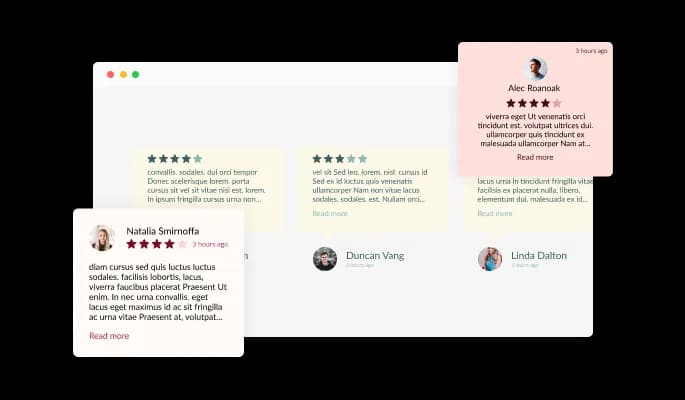
The Google Reviews widget is a powerful tool that allows you to showcase customer reviews on your website. With three review types to choose from - Carousel, Grid, and List - you have the flexibility to tailor the appearance of your reviews to fit your website's design and aesthetic. Whether you want to display a series of rotating testimonials in a carousel format, present a grid of reviews in a visually appealing way, or simply list out customer feedback in a straightforward manner, the Google Reviews widget has you covered. Plus, with the ability to customize the appearance of your reviews to match your branding, you can ensure that your customer feedback is seamlessly integrated into your website.
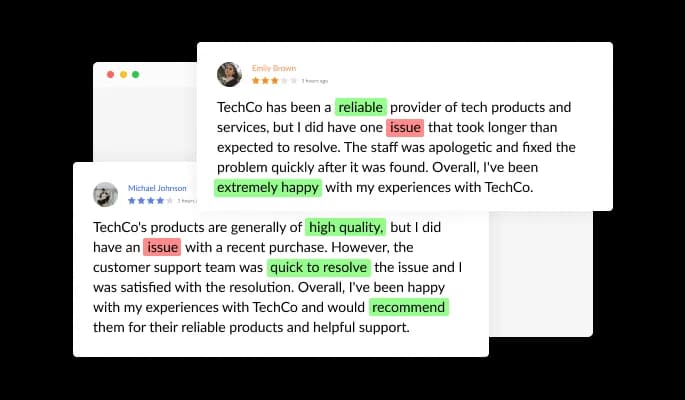
The Google Reviews widget features additional filtering options in the form of keyword inclusion or exclusion — ideal for specific products or services.
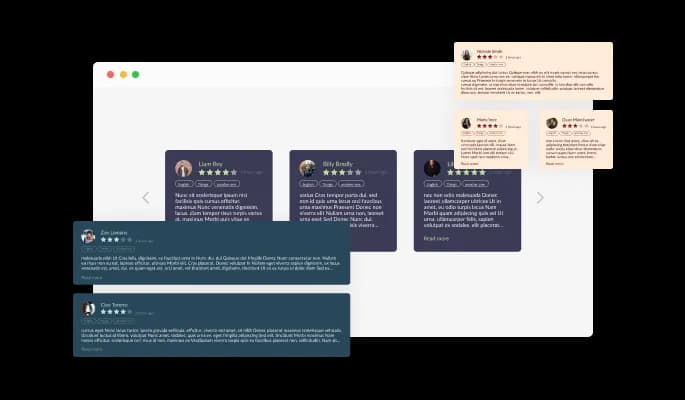
The Google Reviews widget comes available with multiple layouts that you can choose from to make sure it fits your overall website design and style.
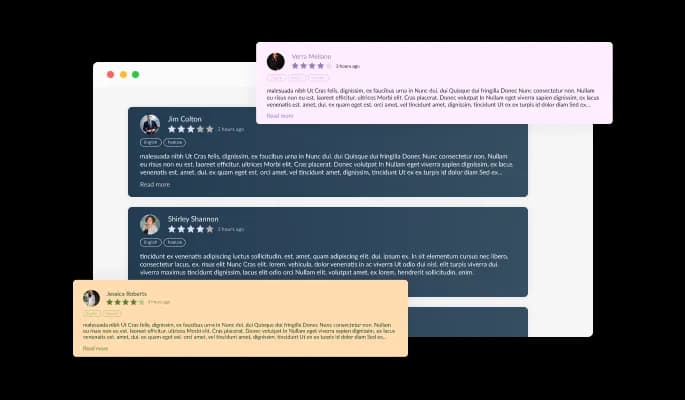
With full customization options, you can easily edit the design of the widget to match the look and feel of your website. You can change the colors, fonts, spacing, and any other visual elements to create a cohesive and professional appearance. Not only does this help to improve the user experience on your site, but it also helps to build trust and credibility with your audience.
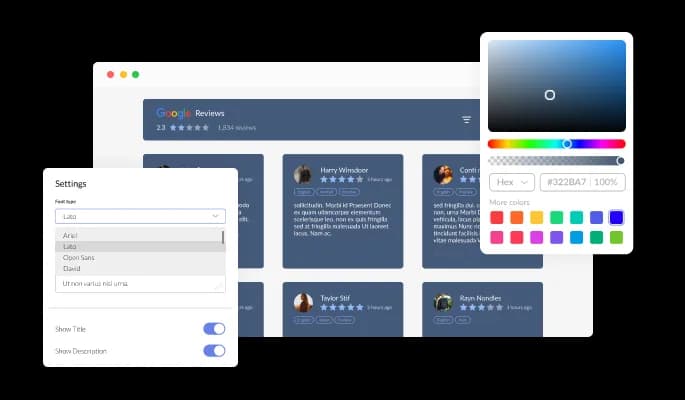
With full customization options, you can easily edit the design of the widget to match the look and feel of your website. You can change the colors, fonts, spacing, and any other visual elements to create a cohesive and professional appearance. Not only does this help to improve the user experience on your site, but it also helps to build trust and credibility with your audience.
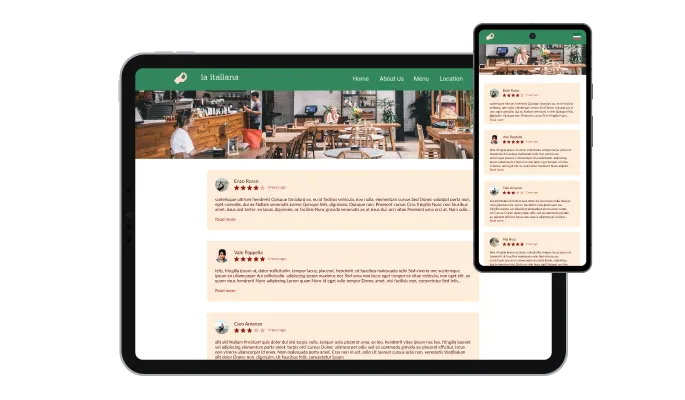
The Google Reviews widget is a valuable tool for any website. Not only is it fully responsive, meaning it will adjust seamlessly to fit the screen size of any device, but it also has a sleek and modern design that will enhance the overall look of your site. In a world where more and more people are accessing the internet through their phones and tablets, it is crucial to have a website that is optimized for mobile viewing. The Google Reviews widget will allow you to do just that, giving you an edge over competitors.

Our advanced editor is a powerful tool that gives you complete control over the appearance of the Google Reviews widget. With this feature, you can easily customize every aspect of the widget's look and feel, from the colors and fonts to the layout and positioning. But if you're feeling particularly creative, you can take your customization to the next level by editing the CSS directly. This gives you the ability to make even more advanced changes to the widget, allowing you to make it your own. Whether you want to make a few simple tweaks or go all out with advanced customizations, our advanced editor has you covered.

To embed the Google Reviews widget on your website, simply copy and paste the provided code snippet into the HTML of your webpage. Additionally, the widget is designed to be self-updating, meaning that any changes you make to the Google Reviews Editor will be reflected automatically on your website without the need for any additional manual updates.
The Google Reviews widget comes with advanced filtering options, like choosing to display reviews with a minimum of a certain number of stars.
With a simple toggle of a button, you can make sure that you manually approve all the reviews that will be displayed on the Google Reviews widget.
The Google Reviews widget comes with sorting options that will help you customize your display to show reviews by the oldest or the newest reviews.
The Google Reviews widget is easy to use and requires no coding knowledge. Our intuitive dashboard with the drag-and-drop feature will enable you to customize the widget any way you’d like to with just a few simple clicks.
Common Ninja has amazing no-code widgets that would beautify a website built on any builder. It is very easy to use and customise. It has as many widgets for almost everyone willing to make their website impressive.
Outstanding service. I use their widgets to help me with my web design business and whenever I need help they are very quick to help.
Excellent company with excellent service!!! We used it to build a survey, it was very user friendly. The service was perfect. Amit helped us with every problem and question we had, thank you very much!!!
Common Ninja saved the day when building our website and the customer service Daniel, the co-founder and CEO, provided was amazing.
Yes. The free plan covers one Google Reviews widget with no time limit and no credit card. Upgrade only when you need additional widgets, premium skins, or higher monthly view limits.
Connect your Google Business Profile in the Common Ninja editor, approve the reviews you want to show, then copy the one-line embed snippet and paste it where you want the reviews to appear. Most site builders accept the snippet through a Custom HTML, Embed, or Code block (WordPress, Shopify, Squarespace, Wix, Webflow, Hostinger, and others). On a custom HTML page, paste the snippet directly into the markup.
No. The widget displays the real reviews that customers have left on your Google Business Profile. It does not write reviews, purchase reviews, or generate AI-written reviews. If you do not yet have Google reviews, the widget cannot create them for you; collect real reviews from real customers first, then use the widget to display them. Buying or generating fake reviews violates Google's policies and consumer-protection laws in most countries.
From your own public Google Business Profile. When you connect the widget, it reads your existing reviews and star ratings and displays the ones you approve in the dashboard. The widget does not pull reviews from any other source and does not invent reviews; if your profile has zero reviews, the widget has nothing to show.
Yes. Every review pulled from your Google Business Profile is queued for manual approval. Approve the ones you want public and leave out the rest. On top of approval, set a minimum star rating (typically 4 or 5 stars) and require or exclude specific keywords so only reviews that match the page context surface.
Yes. Sort the published wall by newest first, oldest first, highest rating, or lowest rating. The sort applies to the rendered widget; the source data on your Google Business Profile is untouched.
Both. Pick a compact badge layout to show your overall star rating and review count in a small footprint, or a full slider, grid, or list to show the review text. Either way the output is a one-line HTML embed snippet that runs on any page that accepts custom HTML, so it works as a free Google reviews HTML widget.
Yes. Pick a layout (slider, grid, list, badge), choose a pre-built skin, and fine-tune typography, spacing, and colors with custom CSS. The widget is mobile-responsive by default and inherits its container width.
New reviews queue for manual approval in the dashboard. Approve them and they push to every embed; if you do not approve them, they stay hidden. The widget refreshes the connected profile's review list periodically, and you can also trigger a manual refresh.
Same pattern, different data source. The Common Ninja Google Reviews widget reads from a Google Business Profile; the Facebook Reviews widget reads from a Facebook Business Page. Both support manual approval, keyword and star-rating filters, multiple layouts, and one-line embed code. Many sites run both side by side to cover the platforms their audience uses.
200+ platforms including WordPress, Shopify, Squarespace, Wix, Webflow, Hostinger, Framer, Joomla, Weebly, BigCommerce, WooCommerce, Elementor, Divi, Carrd, Notion, Google Sites, and any custom HTML page that accepts an embed snippet.
Pick your platform. Each takes under 4 minutes.
Present Facebook reviews for your business on your website

Showcase customer testimonials using a rotating slider

Comments system with upvote/downvote, email notifications, reply threads, and moderation tools.

Displays multiple logos in a scrolling or rotating manner

Allow users to send messages or inquiries, save submissions, enable notifications, and more

Easily craft engaging, personalized popups to boost conversions.
Yes, you can easily do so from the “Templates” tab on the Google Reviews widget editor.
Yes, there are lots of beautiful skins that you can choose from to save time and start using the Google Reviews widget as quickly as possible.
Yes, you can either upload an image, or select an icon from a large selection of available icons to add to your Notification Bar, or, alternatively, you can leave it all blank.
Using the Google Reviews widget is very easy. Simply sign up and start using the free version. There's no need to worry about complicated setup or installation processes, as the Google Reviews widget is designed to be user-friendly and straightforward. Once you've signed up, you'll have access to all of the basic features and functions of the widget, which you can use to enhance your website and improve your online presence. From there, you can choose to upgrade to the paid version if you want to access more advanced features and capabilities. Regardless of which version you choose, you'll find that the widget is a powerful and easy-to-use tool that can help you take your online presence to the next level.
The Common Ninja Google Reviews widget is a free tool reach with features and options. While this widget is free to use, it does have a limit on the number of views it can handle. This means that after a certain number of views, the chat button may no longer be visible or functional on your website. It is important to note that this view limit may vary depending on your plan. Despite this limitation, Common Ninja's Google Reviews is still a valuable tool for businesses looking to increase customer engagement and improve the overall user experience of their website.
The Common Ninja's Google Reviews widget is a versatile tool for any website builder. This means that you can easily add this widget to your website or store no matter what platform you use to build your website. The Google Reviews widget will work seamlessly with your platform whether you are using a popular website builder or something more specialized. This means you can enjoy all the benefits of this powerful tool without having to worry about compatibility issues.
The Google Reviews widget is designed to comply with the General Data Protection Regulation (GDPR), a set of EU regulations protecting personal data and privacy. When using the Google Reviews widget, you can be confident that it will not collect or store personal data that could violate GDPR regulations. This ensures that your business is in compliance with these regulations and can protect your customers' data privacy. Overall, the Google Reviews widget is a secure and reliable tool that can be used to enhance your website without any concerns about GDPR compliance.
No need for coding skills. Our Google Reviews widget is designed to be easy to use, even for those with limited technical experience. The widget features a user-friendly interface that allows you to easily customize the widget without coding knowledge. You can fully customize the Google Reviews to match your branding. When you're done, simply copy the provided code and paste it into your website. It's that simple!
Yes. We are eager to hear your request. Please visit our Feature Request page.
Yes, you can add the Google Reviews widget to any website. To do this, you will need to get the code for your Google Reviews widget and then embed it into your website using the appropriate method for the platform you are using. For example, if you are using WordPress, you can add the code to your website using a plugin or by editing your theme's code directly. If you are using a different platform, you may need to consult the platform's documentation to learn how to add the code to your website.
To get reviews for your business on Google Business Reviews, make sure your business is listed on Google My Business. This will allow customers to leave reviews for your business on Google, which can then be displayed on your website using the Google Reviews widget.
Google Reviews are ratings and reviews that customers leave for businesses on Google. These reviews are made using Google's platform, such as Google Maps or Google My Business, and are intended to provide feedback about a business's products or services. Customers can leave a rating from one to five stars and write a review explaining their experience with the business. Google Reviews are visible to anyone who searches for the business on Google and can help potential customers make informed decisions about whether to visit or patronize the business.
Google My Business is a free tool provided by Google that allows businesses to manage their online presence across Google's various platforms, including Google Maps and Google Search. With Google My Business, businesses can create and manage their listing on Google, which can include their business name, address, phone number, hours of operation, and other relevant information. This information can then be used by Google to provide accurate and up-to-date information about the business to potential customers who search for it on Google.
In addition to managing their listing on Google, businesses can also use Google My Business to track and respond to customer reviews, manage their photos and videos, and see insights and analytics about how their listing is performing on Google. This can help businesses understand how customers find and interact with their business online, and make informed decisions about improving their online presence. Overall, Google My Business is an essential tool for businesses looking to improve their visibility and reach on Google.
Showing Google Reviews on your website is important for several reasons. First, it can help build trust and credibility with potential customers who visit your website. When customers see that other people have had positive experiences with your business, it can make them more likely to trust your business and consider using your products or services.
In addition, displaying Google Reviews on your website can also help improve your search engine optimization (SEO). When Google sees that your website has positive reviews from customers, it can help improve your ranking in search results, making it more likely that potential customers will find your business when they search for keywords related to your products or services.
Finally, showing Google Reviews on your website can also help you collect more reviews from customers. When customers see that your business has positive reviews, they may be more likely to leave a review of their own, which can help improve your overall rating and reputation on Google. Overall, displaying Google Reviews on your website can provide a number of benefits for your business.
Yes, displaying Google Reviews on your website can help improve your search engine optimization (SEO). When Google sees that your website has positive reviews from customers, it can help improve your ranking in search results, making it more likely that potential customers will find your business when they search for keywords related to your products or services.
In addition to the direct effect on your search ranking, Google Reviews can also improve your SEO indirectly by increasing the amount of content on your website. When customers leave reviews, they are providing additional content for your website, which can help improve its overall relevance and authority in the eyes of search engines. This can help your website rank higher in search results and attract more traffic.
Overall, displaying Google Reviews on your website can effectively improve your SEO and make it more likely that potential customers will find your business online.
In general, Google Reviews are considered to be trustworthy. Google has implemented measures to help ensure that the reviews on its platform are authentic and reflect customers' real-world experiences. For example, Google uses algorithms and manual review processes to detect and remove fake or malicious reviews.
However, it is important to keep in mind that no system is perfect, and it is possible that some fake or misleading reviews may slip through the cracks. As a result, it is always a good idea to take Google Reviews with a grain of salt and consider them along with other factors when making a decision about a business. It can also be helpful to read a range of reviews, rather than just looking at the overall rating, to get a more well-rounded picture of a business's strengths and weaknesses.
Embedding the Google Reviews widget on your website is a straightforward process. Simply copy the provided code and paste it into the desired location on your website. The widget will seamlessly integrate into your site, allowing you to take advantage of its features and functions. No technical expertise or programming knowledge is required - just copy and paste the code to get started. This simple process allows you to easily add the widget to your website and enhance its functionality without any hassle.
Display the authentic reviews your customers have left on your Google Business Profile. Manual approval per review, keyword and star-rating filters, multiple layouts including a badge, and a one-line embed snippet for any site builder.
Add your Google reviewsNo credit card · Setup in under 5 minutes